Posts in reviews

“Bartending” by Stephen Hackett Shows The Human Side of Apple Retail

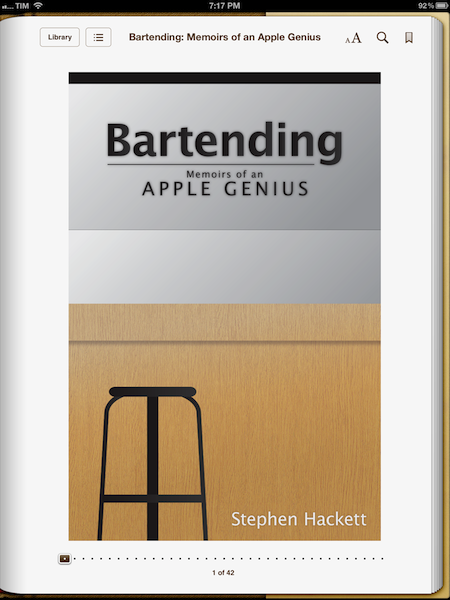
In the past months, I’ve read a lot of books about Apple, and in particular about Steve Jobs. Bartending by Stephen Hackett, however, is the only one that struck me as being completely honest and real in the subject it covers: Apple’s retail stores as a genuine, living collection of stories and people. Not just a business.

Bartending: Memoirs of an Apple Genius, is short, direct, and entertaining. You can probably finish it in 40 minutes if you’re in the mood of reading about Apple’s retail employees and the stories of customers who happen to swing by the Genius Bar every day. And if you like a style that’s fun, cuts to the point, and isn’t ashamed of recollecting the real thoughts of an Apple Genius who sees all kinds of customers on a daily basis, I bet you will devour Bartending from cover to cover in less than an hour. It is a pleasure to read Stephen narrate how he helped a woman recover the precious photos of her children after her hard drive failed, or how the iPhone represented a major shift both in terms of audience, and at the Bar.

I like to think of Bartending as more than “a book about the Genius Bar”. Whether or not you are aware of how Apple’s retail behemoth works behind the scenes, Bartending provides a fun and enlightening look at the interactions that occur every day on both sides of the business. In front of and behind the Genius Bar. I think Stephen’s greatest accomplishment with this book is that he explains with a human, friendly tone that, in spite of the gadgets and dollars involved with the business, the people ultimately define the stories we remember. And if the rules can be bent a little for the good of the customer – to “surprise and delight” – even better. That’s what makes this book a story of its own that fits in the Apple Community so well.

Bartending is a must-read. Get it today at $8.99 on Amazon (iBooks-friendly ePub version also available here).


Drafts Review

In the past months, there’s been a surge of “launcher apps” – lightweight utilities that allow iOS users to perform common tasks such as calling someone or starting a FaceTime call without having to use Apple’s apps, and thus their entire interfaces. However, while the concept of launchers and shortcuts has been around for years in the App Store – especially on the quick dial side, apps like Favorites first explored the idea of turning contacts into shortcuts – several of the utilities we have recently reviewed have leveraged the simplicity of such concept to build more powerful solutions to help users save time. With a combination of clever interface designs, new APIs and URL handlers, apps like Launch Center, Buzz, and World Contacts+ are redefining the way users think of interoperability and customization on the iOS platform. App Cubby’s Launch Center has especially gained a well deserved spot in many’s iOS dock thanks to its extensive support for third-party apps and a polished UI.

For the past week, I have been able to use Agile Tortoise’s Drafts, a new iPhone app that’s like “Launch Center for text” – a utility that allows you to save short snippets of text – the drafts – and act on them by sharing them through a number of services or system actions.

Drafts is very simple. Surprisingly so, if you expected to find options to enter custom URL handlers for apps that are capable of accepting text inputs. In fact, my mention of Launch Center is only theoretical, as both utilities share the same underlying ideology – to aggregate a set of actions and supported apps for a specific input into a single interface – but the first version of Drafts doesn’t come with the same amount of customization and tweaks you can find in Launch Center. Still, when it comes to text, Drafts has proved to be an invaluable addition to my workflow that, like Launch Center, got its spot in my iPhone dock.

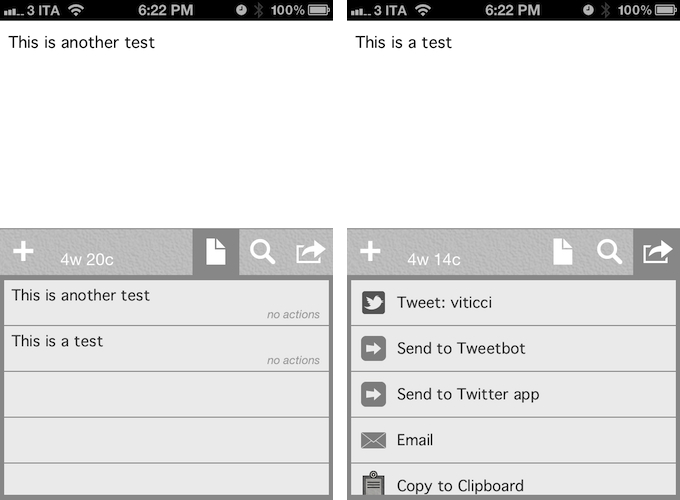
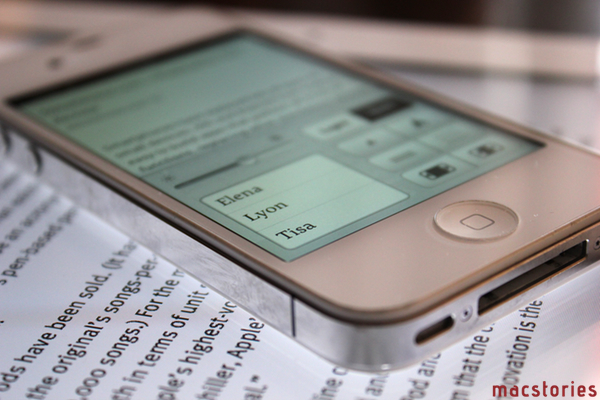
Drafts saves snippets of text. The app displays a word & character count for these snippets, which can be saved locally and accessed at any time by hitting the drafts icon in the app’s toolbar. Because Drafts 1.0 is iPhone-only, iCloud support hasn’t been added yet – your snippets won’t be synced across devices. You can search for any word across your drafts, and add new ones by simply pressing a + button. In the Settings, you can set the app’s Appearance, choosing between 13 fonts (American Typewriter, Baskerville, Cochin, Courier, Georgia, Gill Sans, Helvetica Neue, Hoefler Text, Marker Felt, Palatino, Times New Roman, Thonbury, and Verdana), three font sizes, and four themes. I chose Grayscale.

You can use Drafts as a notepad, a scratchpad of sorts, or a draft manager for your tweets, much like the defunct Birdhouse used to. Drafts sports a nice integration with Twitter, enabling you tweet natively using iOS’ support for Twitter, and letting you directly forward text to Tweetbot or the official Twitter app. If you choose to send text to these apps, the compose screen will open with the text already pasted, and you will just have to hit Send to publish a new tweet. I suspect support for more Twitter apps is coming in a future update.

Drafts isn’t just about Twitter, though. You can pick a draft, and email it to someone using the native iOS mail framework. You can copy a draft to the system clipboard, or, if you like to write in Markdown, preview the formatting, copy the Markdown to your clipboard, or email it. Being a huge fan of Markdown (which I use on a daily basis for my writing on MacStories), this is a nice addition.

Drafts is neither a text editor nor a minimal Twitter client. Drafts is a frictionless way to capture and save ideas that also happens to be integrated with system functions and applications you may be already using to elaborate on those ideas. Drafts can be used as an inspirational notepad to store the genius idea you have while you’re brewing coffee, or when you’re busy writing something else (just fire up Drafts, and quickly dictate your text if you have an iPhone 4S). I would like to see an even faster way to email text (like Captio or Note 2 Self do) as well as support for Evernote and more text-based iOS apps in a future update, so here’s to hoping the feedback on this initial version will be strong enough to encourage Greg Pierce, the developer of Drafts and Terminology (which the app also supports for definitions), to consider more functionalities and an iPad counterpart. In this first version, Drafts supports TextExpander touch, but there is no option to forward text to Apple’s Messages app.

Drafts 1.0 is a very good start, especially if you’ve been looking for a standalone draft manager for Twitter. You can get the app at $0.99 on the App Store.


Gum Max Review

With a 2.1A output and 10,400mAh capacity, the Gum Max is an external backup battery by Just Mobile that works with iOS devices. Anyone who has used iOS devices extensively – perhaps some of you even use the iPad as their primary computer – knows that, for as much as Apple has focused on making iOS devices extremely user-friendly from a battery life standpoint, the battery is going to run out eventually. And if you use a lot of high-speed 3G data, watch some videos, and play a game or two, that battery indicator up in the iOS status bar is going to run out faster.

Just a few days prior to receiving my Gum Max review unit, I waited in line at the Apple Store in Rome to buy the new iPad. There, I had the chance to experience how important it is to be able to rely on iOS devices without a source of power constantly available – sure, Apple employees allowed us to use the store’s MacBooks to charge our iPhones, but it just seemed rude to me to go there every few hours just to grab a USB port without doing anything else. Waiting in line for more than 20 hours, using a lot of 3G and taking several photos of videos with my iPhone 4S, I had to recharge my device multiple times – and when I didn’t want to use the USB ports kindly provided by Apple’s employees, I had to use my friends’ portable battery packs. There, I realized I really needed to get a backup battery for iOS devices for the future. Indeed, power and battery life seem to be two common concerns these days.

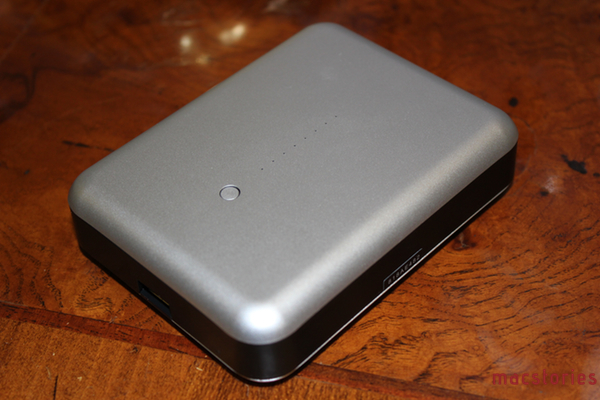
The Gum Max is not one of those battery packs that you can use as a case for the iPhone. The Gum Max actually looks (and weighs) like an external drive, only it can charge iOS devices through USB. The device has a green LED indicator to show how much juice it’s got left to power your iPhone or iPad, and input and output (to recharge the Gum Max, and recharge your iOS devices) are separate, but they both use USB (regular and micro) through cables that are provided in the box. As with many Just Mobile products, the Gum Max looks like something Apple would produce, with a clean and elegant design highlighted by a sturdy aluminum shell. I like the design of the Gum Max, but how it works is what matters in critical situations.

I ran a series of tests to see how the Gum Max would recharge my iPhone 4S, iPad 2, and new iPad. Overall, the Gum Max can easily recharge an iPhone 4S from 0% to 100% in two hours, get an iPad 2 from 0% to 90% with a single charge, and recharge half of the new iPad’s bigger battery with a single charge.

Gum Max Tests

iPhone 4S, started at 3:47 AM. From 0% to 37% in 30 minutes; up to 79% after 67 minutes.

iPhone 4S, started at 11:15 PM. From 0% to 68% in 60 minutes; up to 98% in 115 minutes.

iPad 3, started at 1:10 AM. Up to 28% in 100 minutes.

iPad 3, started at 2:09 PM. Device turned on at 2:17 PM. Up to 35% in 122 minutes; 42% in 145 minutes; 51% in 176 minutes; Gum Max turned off at 5:05 PM with device at 52%.

iPad 2, started at 10:14 PM. Device turned on at 10:23 PM, reached 44% at 11:44 PM, Gum Max turned off with iPad at 90%.

At $109, you have to consider whether getting 5 hours of a new iPad back will be worth the expense, assuming you’re getting the 10 hours of battery life promised by Apple, which I have indeed noticed with my iPad (it is a 4G model, and I don’t keep brightness at 100%). Is a full iPhone charge or an iPad going back to 50% going to a considerable improvement for your work, or the way you rely on iOS devices on the go? And is that improvement going to be worth $109 over time? Especially for iPhone users, I think having a full charge back in two hours can be critical in some scenarios (last year, I spent a night at the hospital to help a friend, my phone died at 3 AM, and I couldn’t reach my parents). For third-generation iPad users, the utility of a battery pack like this is more debatable, as the new iPad is slower at charging, and it’ll completely drain the Gum Max while remaining at only 50%. For previous iPad owners, 90% of charge from zero sounds like a good investment in my opinion.

With these differences in mind, the Gum Max is a fine accessory, it’s very portable, and it comes with an elegant black carrying pouch. You can get it here.


Slicy Reinvents Slicing Photoshop PSDs

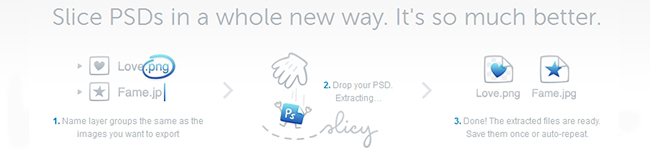
“Save for Web” – not everyone’s favorite thing to do as a designer, but it’s part of the job. It’s monotonous but not a difficult task to do, it simply takes time. MacRabbit, who created Espresso, has released a new Mac app called Slicy. Its sole purpose is to turn PSD files into images for the web and applications. Slicy examines your .psd files for Layer Groups that are named like a file (.png, .jpg, .tif, .icns) and auto-exports them, no “Save for Web” dialog boxes necessary. “Name layer groups like the files you want to create, and Slicy will extract them individually. Enjoy complete freedom to move, obscure and even hide these named layer groups without affecting the extracted images.”

I can admit that my layers and layer groups are not always properly named; I think all designers can attest to this, so Slicy will also help you do a better job with naming objects within your PSD files. Once your naming is done and file is saved, drag the .psd into the apps’s window and Slicy will do the work for you. If you make changes to the .psd after you run Slicy, the app has an option to auto-export the images when they are re-saved. Delicious! If you want to repeat a job you already did, Slicy saves your previous exports under the “clockwise” icon in the upper right. Slicy, however, cannot guarantee a perfect replica for every .psd – the CMYK color space and some advanced filters are not supported.

Read more


World Contacts+ Is A Quick Dial App with a World Clock

Developed by Caleb Thorson, World Contacts+ is the classic example that, sometimes, good ideas can be remixed and combined to produce something new that’s still fresh and has a place on the market. In the past months, the App Store has seen the rise of “launcher apps” that, through URLs schemes, leverage many iOS apps’ capability of exchanging data and information to facilitate the process of forwarding files, short bits of text, or data. Shortcuts, if you will, collected in a single app that acts as a bridge between the user and all the other apps installed on a device. At MacStories, we’re big fans of Launch Center and Buzz, two apps that take the concept of “quick launcher” and apply it to third-party apps and Address Book contacts, respectively.

World Contacts+ is a bit of both, but stands out on its own because of the very specific approach it takes in regards to quick dials. World Contacts+ keeps a short list of the people you contact the most during the day, and allows you to initiate a call, FaceTime call, send a message or a new email with just one tap. Like Launch Center, it displays a vertical list for your shortcuts. Like Buzz, it allows you to pick contacts from the Address Book, and it uses native iOS frameworks to activate actions like email and iMessages. The app, however, adds a world clock to the mix, allowing you to see the local time for each entry in your list, so you can decide if it’s an appropriate time to call them or text them. The app even cleverly dims contacts that are located in time zones where it’s currently night. To assign a time zone, you simply search for a contact’s location every time you add a new entry to the list.

World Contacts+ isn’t as customizable as Launch Center, or as powerful as Buzz. If you’re looking for more advanced options when it comes to app shortcuts and contacts, go with those apps. But because World Contacts+ cuts the feature set down to a minimum and only adds one very specific feature, I believe the app could have a chance on the App Store for those people, like me, who communicate with people from different timezones on a daily basis. Currently, the MacStories team is made from people living in Italy, the US, Japan, and Australia, and it’s incredibly convenient to know the local time of each person without doing the math every time.

World Contacts+ is available at $0.99 on the App Store.

March 2012 In Review

March was the month of the new iPad, an updated Apple TV and the announcement of a dividend and share repurchase program. It was most certainly a ‘big’ month. If a new iPad wasn’t enough, we also got a lot of new apps (alongside all those being updated for the Retina Display) and big app updates - everything from Angry Birds Space (world productivity took a dive that week) to both iA Writer and Byword iPhone apps launching to Camera+ 3.0 and our eyes were in heaven after Instapaper was updated to support the Retina Display with some truly beautiful new fonts. On the story front, Federico tackled the issue of what was the best aspects of our favourite iOS text editors, talked about the ‘Apple Community’, Cody reviewed the new iPad and I expressed sadness and frustration with lies of Mike Daisey.

Jump the break to get a full recap of March 2012. You can also jump back to see what happened in January and February of this year.

The New iPad

On March 7th, Apple held its iPad keynote - announcing the third generation iPad, simply calling it the ‘new iPad’. It featured a Retina Display, improved rear camera, quad-core GPU with the new A5X processor and support for 4G networks. We posted a review roundup, featuring the highlights from various reviews on the internet, as well as our own review by Cody. Apple announced that in its opening weekend it sold 3 million of the new iPads.

The (updated) Apple TV, iOS 5.1,  iPhoto for iOS and more from Apple’s iPad event

Alongside the new iPad, Apple also released an updated Apple TV with support for 1080p content as well as new UI that was also released for the existing Apple TV. Co-inciding with the release of the new iPad was the release of iOS 5.1 which included some bugfixes and new features such as an improved activation method to use the lockscreen camera. Apple also announced the iOS version of iPhoto which was made available for $4.99 a short time later.

More minor announcements included the availability for AppleCare+ for the new iPad, iTunes 10.6 and the release of the “Apple Configurator” app after the event. Apple also bumped the over-the-air download limit from 20 MB to 50 MB to reflect larger app sizes due to Universal apps that included graphics for the Retina iPad and iPhone - as well as larger download caps that exist today. Finally, you saw Apple update a whole bunch of their own apps for the new iPad and Retina Display.

We also posted a complete round-up of the event and a bunch of minor details about the event that you may have missed. You can also watch the recording of the event here.

25 billion apps downloaded

On March 3rd, Apple announced that 25 billion apps had been downloaded from the App Store. To mark the milestone it revealed a new “All-Time Top Apps” section on the App Store. A few days later, Apple revealed that the 25 billionth app downloaded was ‘Where’s My Water? Free’ by Chunli Fu who is from  Qingdao, China - she won a $10,000 iTunes gift card.

Apple announces dividend and share repurchase program

Somewhat out of the blue, Apple announced on a Sunday afternoon that it would be holding a conference call early the next day (Monday) to announce the result of discussions by Apple’s board on what it would do with Apple’s cash balance. As was widely expected, Apple announced it would begin issuing quarterly dividends of $2.65 per share. It also announced a $10 billion share repurchase program to begin in FY2013.

Fair Labor Association releases preliminary report on Foxconn conditions

The Fair Labor Association released a preliminary report on its findings from inspections at Foxconn that were conducted earlier this year. In what now seems like planned positive PR ahead of the report’s release, Tim Cook visited Foxconn a few days before the report was published and photographs were distributed to media of the visit.

Angry Birds Space

Rovio this month released Angry Birds Space, the fourth in the series (after the original, Rio and Seasons). Unsurprisingly, the game did incredibly well and managed to receive over 10 million downloads in less than 3 days. Particularly awesome was this analysis of the physics used by the game, a great follow-up to the original investigation into Angry Birds physics.

Everything Else


The Really Big Reviews

Everything Else

March Quick Reviews

Retina & Universal

iPhoto for iOS Review

The Essence of a Name

On Reviewing Apps

Getting Your iPad App Ready for the new iPad

Comparing My Favorite iOS Text Editors

Daisey’s Lies Take Us Two Steps Backwards

iPad (3) Review: You Won’t Believe It Until You See It

The Apple Community, Part II

Regarding Apple’s Edge and the new Apple TV Interface

A Series of Clicks

The (Semi)Skeuomorphism

MacStories Reading Lists

MacStories Reading List: February 26 – March 4

MacStories Reading List: New iPad Special Edition


iPad (3) Review: You Won’t Believe It Until You See It

You Won't Believe It Until You See It

You Won’t Believe It Until You See It

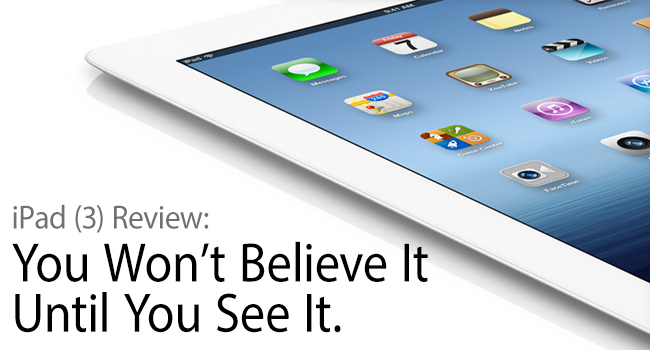
Apple’s iPad is iconic in design. Competitors try to emulate Apple’s success, but nobody can mistake the aluminum frame and its companion piano black or pearl white bezel for any other product. While it’s a product known for its distinct shape and size, the iPad’s character is only truly revealed when you power on its display and begin to explore the contained interface. With the Retina display, the new iPad is unlike anything you’ve seen before.

Read more


Basil Review

In there’s one thing (among others) that I have noticed while using the iPad extensively over the past five months, is that it makes for an excellent “kitchen screen” while cooking. Whether it’s for browsing recipes or keeping an eye on what the final results should look like, the iPad’s form factor and wide array of apps, coupled with the excellent Safari and Facebook apps, allow for a fantastic experience when browsing recipes, checking out friends’ recommendations, and saving instructions and photos for future usage.

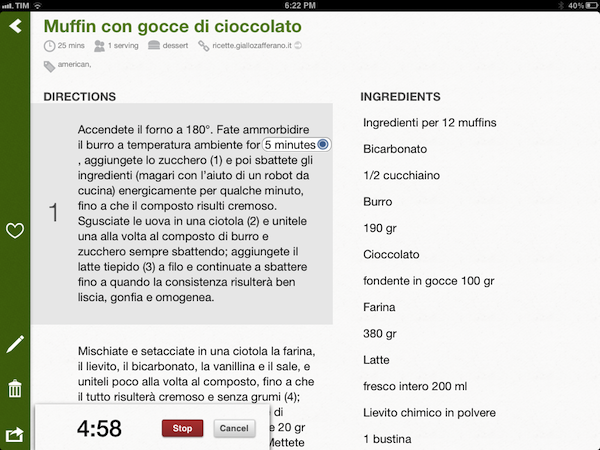
It was with particular interest that I tested Kyle Baxter’s new iPad app, Basil. Available today on the App Store, Basil is a fresh take on “smart recipe books” that lets you to keep your recipes neatly organized in a clean interface that gets out of the way, but it’s also smart enough to facilitate the process of cooking better.

A recipe app should have a clean interface with text on a white background, large buttons you can easily tap, search features, and timers. Basil does this by leveraging the inner strengths of iOS, and it adds its own implementation of bookmarklet/parser to make the process of saving recipes from the web effortless and intuitive. Read more


Instapaper 4.1

In my review of Readability for iOS, I wrote:

I think there are various important points to stress: the Instapaper app has been around for years now, and with the recent 4.0 update it solidified the strong feature set offered by Arment which, quite honestly, is still unsurpassed. Put simply: you can’t do all the things you’re able to do in Instapaper with the new Readability app. So, if you’re really used to Instapaper’s pagination settings, Friends discovery, sharing options and app integrations, you might want to consider staying with Instapaper.

I am one of those users that, for a number of reasons, are glad to stay with Instapaper. When it comes to my reading list, I invested too much time in building a personal archive of articles I enjoyed that I feel uncomfortable switching, after years of usage, to another service. That was the most difficult part of writing my Readability review: to be able to take an objective and balanced look at the app – which, again, I believe is a very good one – while knowing that I would stick with Instapaper. But it’s okay: unlike some people, I don’t see competitors as “enemies”, and healthy competition ultimately leads to more innovation. Omitting the inelegant words of other people that only show a lack of grace when it comes to respecting your competitors, I think Readability and Instapaper can coexist. And as I wrote, I do hope that Readability can figure out a better way to manage its payment platform for publishers. I like and use Instapaper, and in my perfect vision of the software scene everyone would just work hard silently and strive to one-up a competitor, with class.

Last night, Marco Arment released a 4.1 update to Instapaper. You can find it on the App Store, and the app also comes with Retina assets for the new iPad, if you got one yesterday. Perhaps more importantly, at least for me, Instapaper 4.1 adds a series of improvements and design refinements that only make an already fantastic 4.0 version even better. Read more