

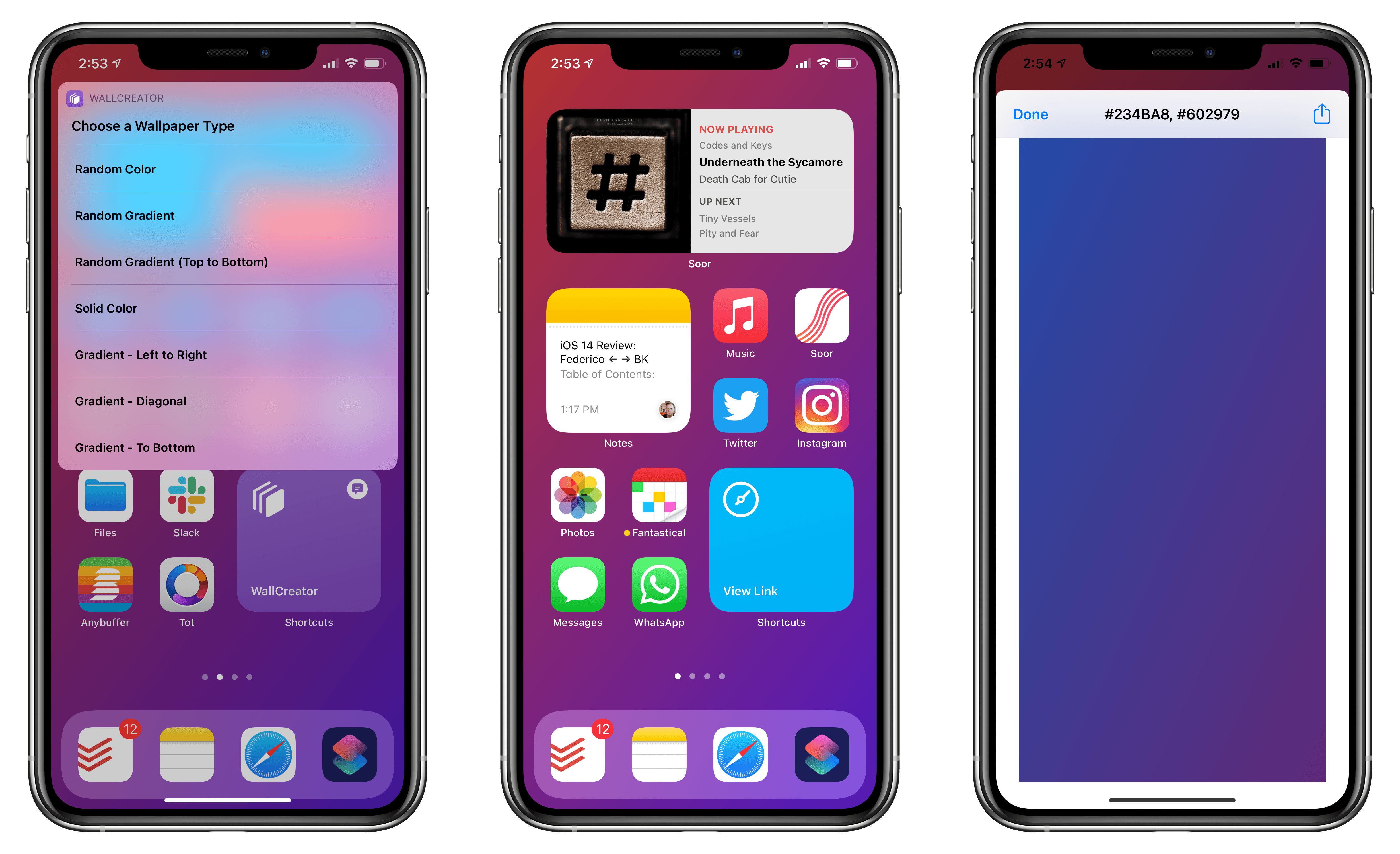
Two years ago in our MacStories Weekly newsletter for Club MacStories members, I shared a shortcut that enabled creating wallpapers for iPhone and iPad featuring solid colors or gradients of your choice. Given the newfound popularity of the Shortcuts app and the amazing custom Home screens people are putting together with widgets in iOS 14, I thought I’d play my part and revisit the shortcut by simplifying it and adding new features. The shortcut is now called WallCreator and you can download it for free (alongside 220 other shortcuts) from the MacStories Shortcuts Archive.
Introducing WallCreator: A Shortcut to Create iPhone and iPad Wallpapers with Solid Colors and Gradients
One Week After Launch, Users Already Have Several Options for Alternative Browsers and Email Clients on iOS and iPadOS 14
iOS and iPadOS’s 14’s customization options don’t end at widgets. The OS updates also let users change their default email and browser apps for the first time. The feature is a little buggy in iOS and iPadOS 14.0, but I wanted to share how to set it up and explain what your current options are for anyone looking to switch away from the default Safari and Mail apps from Apple.
Switching is simple. The first step is to download a browser or email client that has been approved to serve as an alternative to Apple’s defaults. Developers must request permission to offer their apps as an alternative browser or email app, meeting certain requirements for each type of app. It’s an extra step in the app submission process, so not all browsers and email apps can be swapped in for Safari and Mail from the get-go. Still, less than a week after the public release of iOS and iPadOS 14, users have several options.
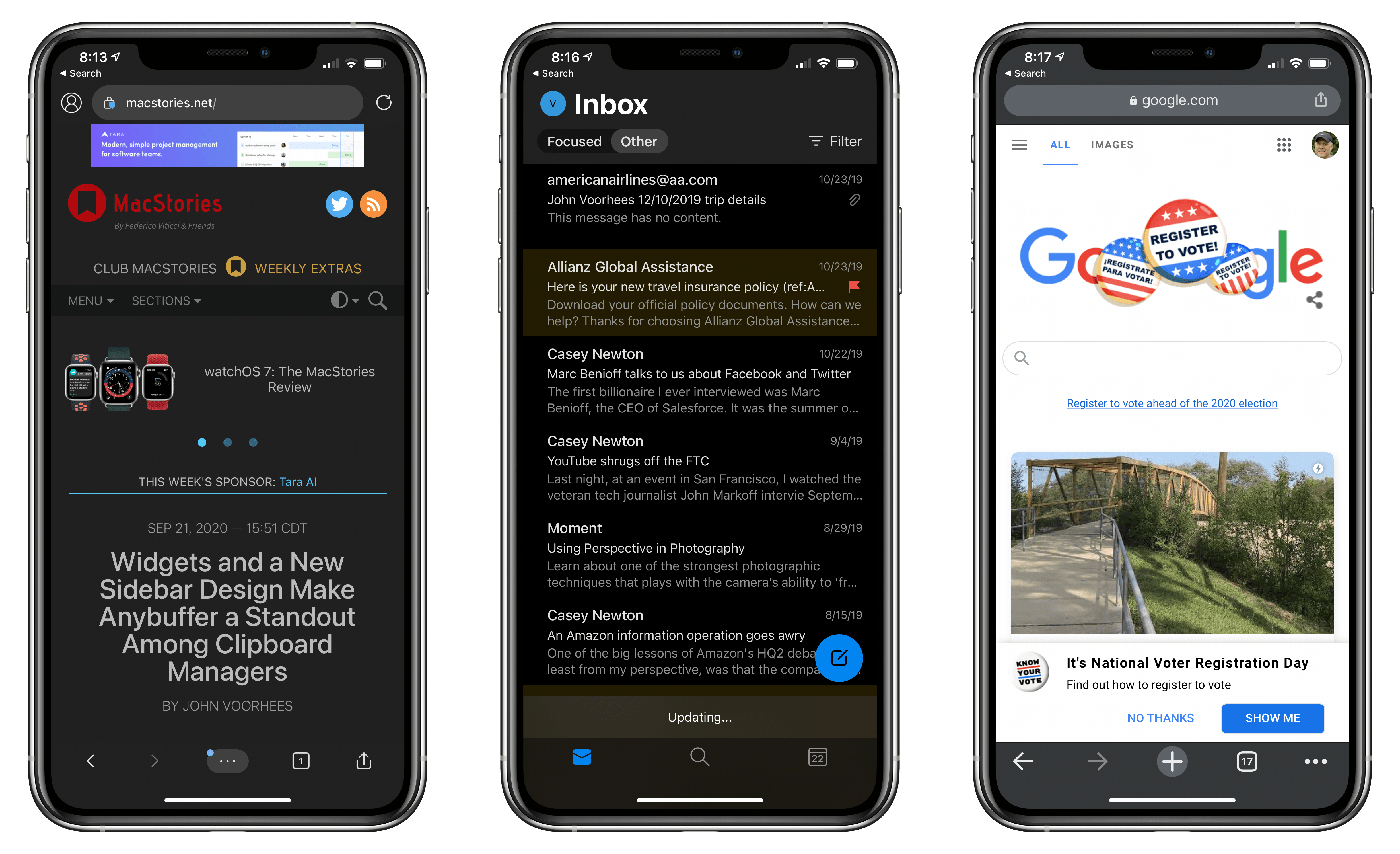
New alternatives are being released all the time, but so far, it’s possible to swap out Safari for:
Probably the most popular browser that hasn’t been approved as a Safari alternative yet is Brave, the privacy-focused browser, although The Verge reports that the feature is coming.
Email apps available include:
Between the two quartets of alternatives, a significant portion of the browser and email markets have been covered already.
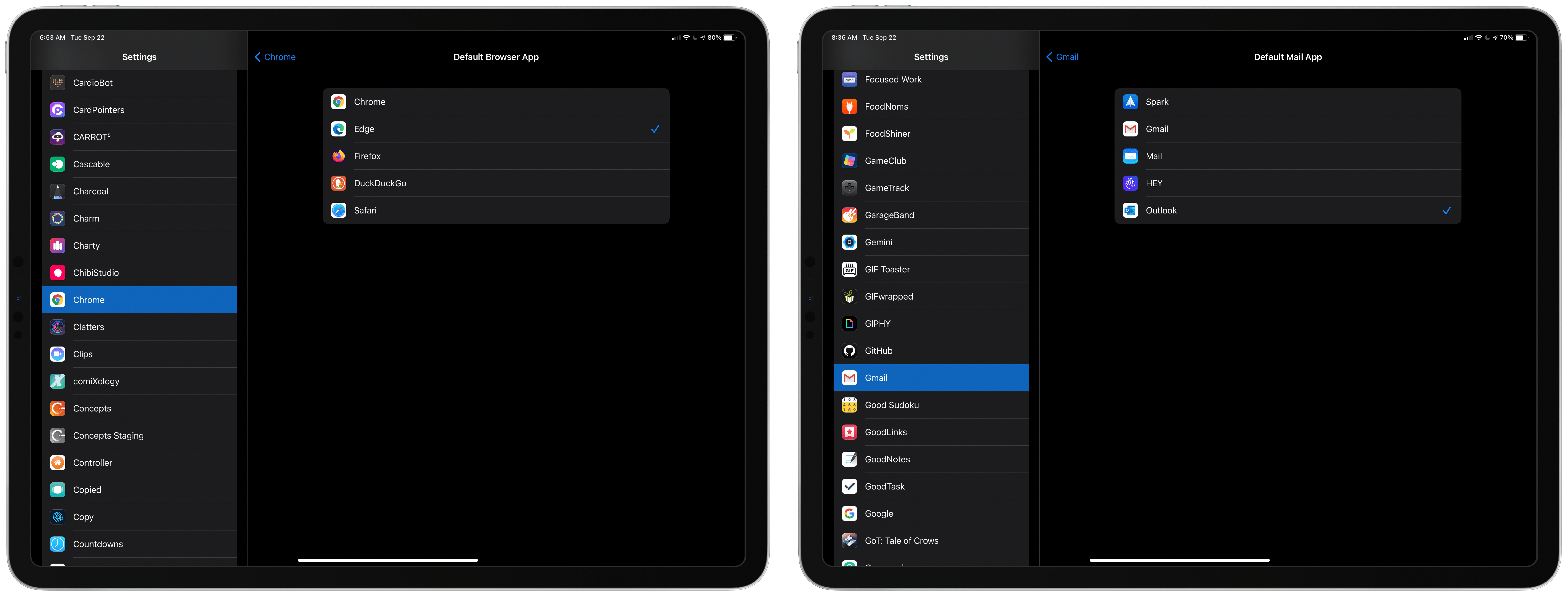
Getting back to the process of switching apps, once you’ve installed one of the approved alternatives, go to the Settings app on your iPhone or iPad. Scroll down to the entry for the app you’ve just downloaded, and tap it. There you’ll find a new entry for ‘Default Mail App’ or ‘Default Browser App,’ depending on which you’re changing. Tap it and pick the alternative you want to use, and that’s it.
As easy as the process of switching is, though, the feature is not bug-free. I have been unable to get iOS or iPadOS to recognize my new default email client after I switch it. I’ve tried several apps and email links in multiple apps and on the web, but every time I tap one, the system Apple Mail-based compose sheet opens. Federico has had the same issue. I read somewhere that switching email apps only works if you change your browser first, but that didn’t work for me either. Perhaps MacStories readers will have better luck than I’ve had, but at the moment, I cannot change email clients.
9to5Mac also reported last week that if you restart your iPhone or iPad, any default browser or email changes you’ve made are lost. It’s not hard to reset your defaults, but it’s an annoying bug that I expect will be fixed in a later update to iOS and iPadOS 14.
Personally, I use both Safari and Mail and am happy with them, though I wish Mail would adopt some of the modern features of apps like Spark. Still, I’m glad users have been given greater choice when it comes to the default app experience.
Widgets and a New Sidebar Design Make Anybuffer a Standout Among Clipboard Managers
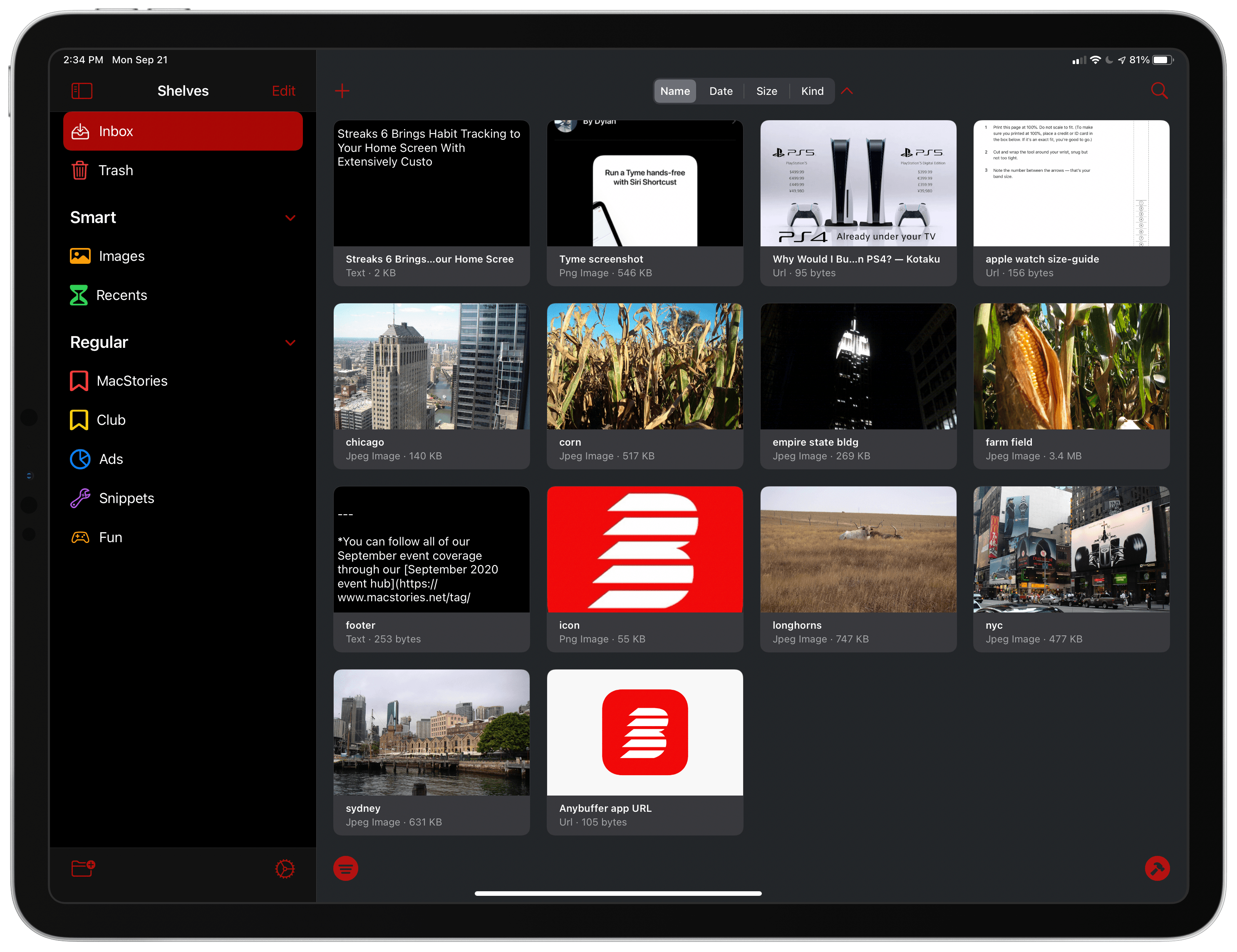
I use clipboard manager apps in a couple of different ways on my iPhone and iPad. The first way is as long-term storage. I stash documents, snippets of text, and URLs that I need to send to people over and over, which is easier than digging around in the Files app or Dropbox.
Second, I use clipboard managers as a short-term holding pen for all sorts of information. Sometimes I’m combining an image, some text, and a URL from different apps. Other times, I find something I want to send to someone later, and I don’t want to lose track of it. Lately, I’ve been using Anybuffer for both situations. The app has been great, but with the latest version that supports widgets and the new iPad sidebar design, Anybuffer has taken a significant leap forward.
Creating Your Own Widgets: A New Category of Apps Emerges
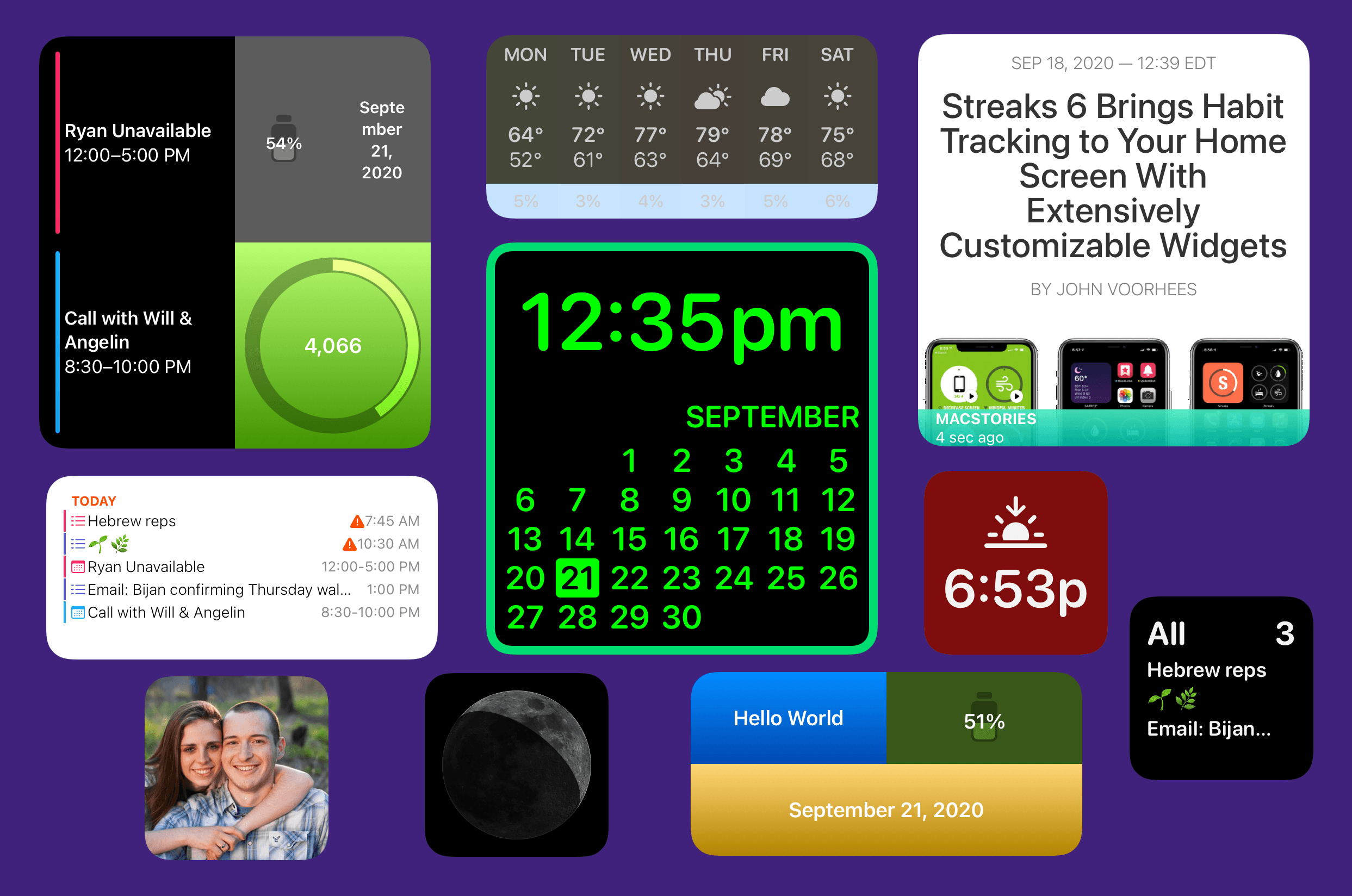
This summer, when Apple detailed iOS 14 and the Home screen changes it would bring, the company highlighted personalization as one of the key features of the new widget-populated Home screen. Rather than just containing an assortment of apps, iOS 14 Home screens can feature the information that matters most to you. Whether that’s your Activity rings so you can stay on top of your health, the current weather forecast, your task list, a memory from the Photos app – there are an abundance of options for personalizing your Home screens now.
I’ve tried a ton of Home screen widgets from third parties over the summer, and developers are doing lots of creative things with their apps’ widgets. One of the most exciting trends I’ve seen is the emergence of a new category of apps entirely centered around widgets. While most widgets will come built in to the apps you already know and love, some developers have built brand new apps for the sole purpose of enabling users to create and customize widgets in a hyper-personalized way. The best widgets I’ve tried offer configuration settings so you can tailor them to your exact needs, and these new apps take that idea even further, offering widget creation tools relating to a variety of traditional app categories – like weather, photos, health and fitness, productivity, and more – but in a single centralized app.
Leading the pack in this regard is Widgetsmith from David Smith, which not only covers one of the widest array of different widget types, but also features a power user-friendly scheduling option that sets it apart. The App Store hosts a growing number of other widget creation tools too, such as Widgeridoo, Widget Wizard, Glimpse, and Health Auto Export.
Because each app specializes in providing its own custom set of options, there’s no limit to the number of apps worth trying. Widget needs can be highly personalized, so it’s no surprise that the apps designed for creating widgets all offer their own takes too.
Get ready to upgrade your Home screens.
Tara AI: A Smart and Free Jira Alternative [Sponsor]

Project management software should work for you, not against you. Tara AI eliminates the configuration nightmares and lack of support for cross-functional teams that can make getting up and running with project management apps a headache. It’s the solution for teams that value their time and are looking for a tool that works with their existing Git workflow.
With Tara AI, engineering teams can reclaim valuable time and effort that would otherwise be wasted sifting through a bottomless pit of tickets. Tara accomplishes that through a simple, modern design that gets out of the way, allowing teams to move quickly and efficiently, delivering releases on schedule. The app combines sprint planning with a unified task view to provide a clear, bird’s eye view of your project and priorities, all synced to Git, so everyone from engineering to sales knows what’s happening and when.
From the time you sign up and create a workspace through every phase of your project, it’s the design of the entire process that sets Tara apart from the pack. Tara is loaded with thoughtfully-considered features like quick stats that show the progress you’re making during sprints with daily and weekly progress insights alongside commits and pull requests. Modern teams move fast and expect their tools to just work. Tara AI 1.0 delivers with no user or task limits, completely free of charge.
To learn more and signup to try Tara AI for free today, visit tara.ai now.
Our thanks to Tara AI for sponsoring MacStories this week.
MacStories Unwind: Apple’s Watch and iPad Event, App Reviews, and Club MacStories 5th Anniversary







Sponsored by: Muse – Tool for Thought on iPad
This week on MacStories Unwind:
MacStories
- Pre-event Stories
- Apple Event Coverage
- Pixelmator Photo Adds ML Super Resolution Powered by Apple’s Neural Engine and Split-Screen Preview Slider
- Apple Announces iOS 14, watchOS 7, and More Available September 16
- Apple’s September 15, 2020 Keynote: By the Numbers
- Replay Apple’s September 15, 2020 Keynote and iPad Air Video
- Apple Watch Series 6 and Apple Watch SE: The MacStories Overview
- Apple One: The Long-Awaited Services Bundle Is Coming Soon in Three Tiers
- The New iPad Air and 8th Generation iPad: The MacStories Overview
- Apple Fitness+, the Newest Apple Service, Will Arrive in Late 2020 Exclusively for Apple Watch Users
- App Clips in iOS 14: The Right App at the Right Time
- Apple’s September 2020 Event: All The Little Things
- Apple Releases iOS and iPadOS 14, watchOS 7, and tvOS 14
- App Reviews
- CARROT Weather Gains Flexibility with iOS 14 Widgets, Watch Complications, and Watch Face Sharing
- Book Track 2 Review: Widgets, Sidebar for iPad, Shortcuts, and More
- LookUp 7 Debuts Widgets on iPhone and iPad Alongside Powerful New watchOS 7 App
- Todoist’s iOS 14 Widgets Make Managing and Creating Tasks Easier than Ever
- MusicHarbor Unveils a New Mac-Ready iPad Design and Widgets
- Things Introduces New Widgets and Scribble for Task Creation on iPad
- Wikipedia’s Widgets Bring Daily Updates to Your iOS 14 Home Screen
- Streaks 6 Brings Habit Tracking to Your Home Screen With Extensively Customizable Widgets
- Soor Offers Beautiful, Customizable Widgets for Apple Music
- watchOS 7 Review
Club MacStories
- MacStories Weekly
* Giveaways
* A sneak peek at tips from Federico’s upcoming iOS and iPadOS 14 review
* A collection of apps with widgets
* Thoughts on the new iPad Air
* An interview with Aaron Pearce, the developer of HomeCam, HomeRun, and other HomeKit apps
* Lots of app updates - Join Club MacStories
AppStories
Unwind
- Federico’s Pick:
- This week’s app reviews on MacStories
- John’s Pick:
- Super Mario All-Stars available as part of Nintendo Switch Online
- Featuring:
- Super Mario Bros.
- Super Mario Bros., The Lost Levels
- Lost Levels
- Super Mario Bros. 2
- Super Mario Bros. 3
- Featuring:
- Super Mario All-Stars available as part of Nintendo Switch Online
Soor Offers Beautiful, Customizable Widgets for Apple Music
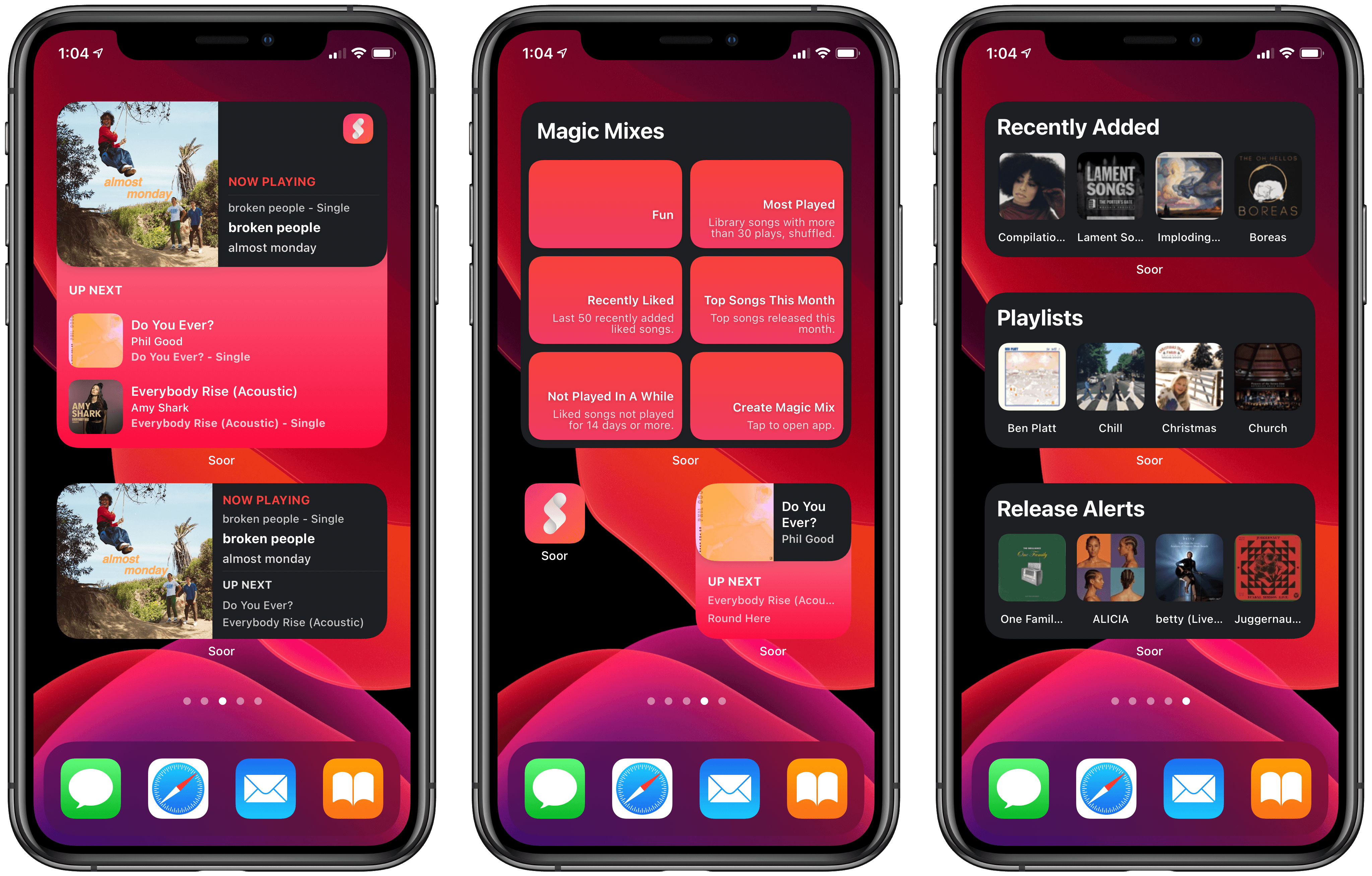
The formula is tried and true: Apple makes quality software that nonetheless leaves a lot of room for third-party developers to build something more powerful and better tailored for specific needs. In iOS 14, the built-in Music widget is a great example of this. I really like Music’s widget, which shows your recently played albums and playlists so you can quickly get some music going; it offers valuable utility. But if I’m frank, there’s a whole lot more that could have been done with widgets for Music.
That’s where Soor comes in. The third-party client for Apple Music that I recently covered offers not one, not two, but three different widgets to satisfy your music needs. And within those three widgets there’s a lot of customization to help account for a wide assortment of user preferences and desires. Every widget is powerful and also just as beautiful as what Apple’s team built, matching the full Soor app’s identity as a whole.
Streaks 6 Brings Habit Tracking to Your Home Screen With Extensively Customizable Widgets
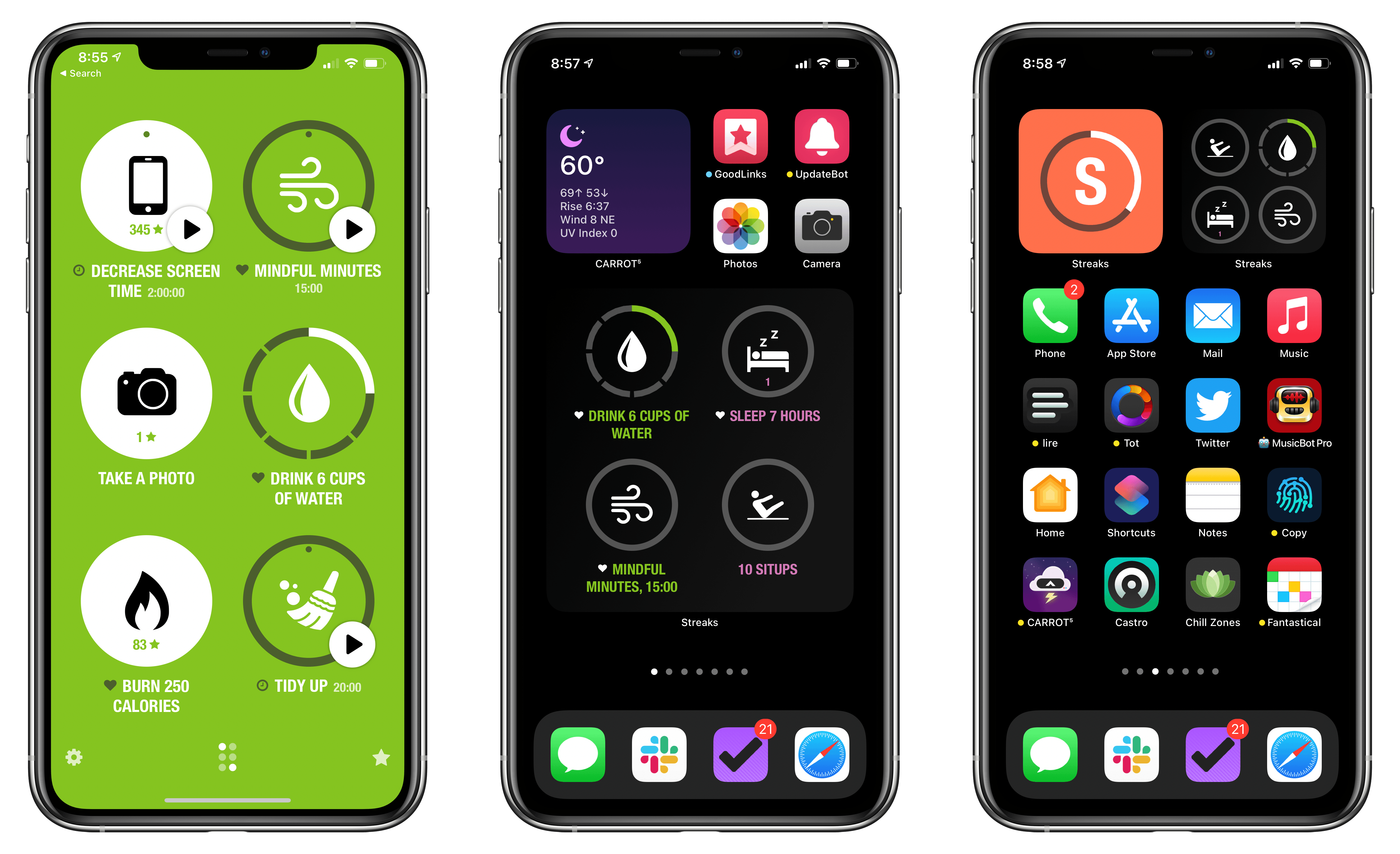
Habit tracking apps have proliferated across the App Store in recent years, but Streaks by Crunchy Bagel, which is the first one I ever tried and reviewed, is still one of my favorites. This week it’s been updated with a trio of highly-customizable widgets, a library of watch faces, plus some design changes, new iPad features, and other updates.
watchOS 7: The MacStories Review
Memoji App
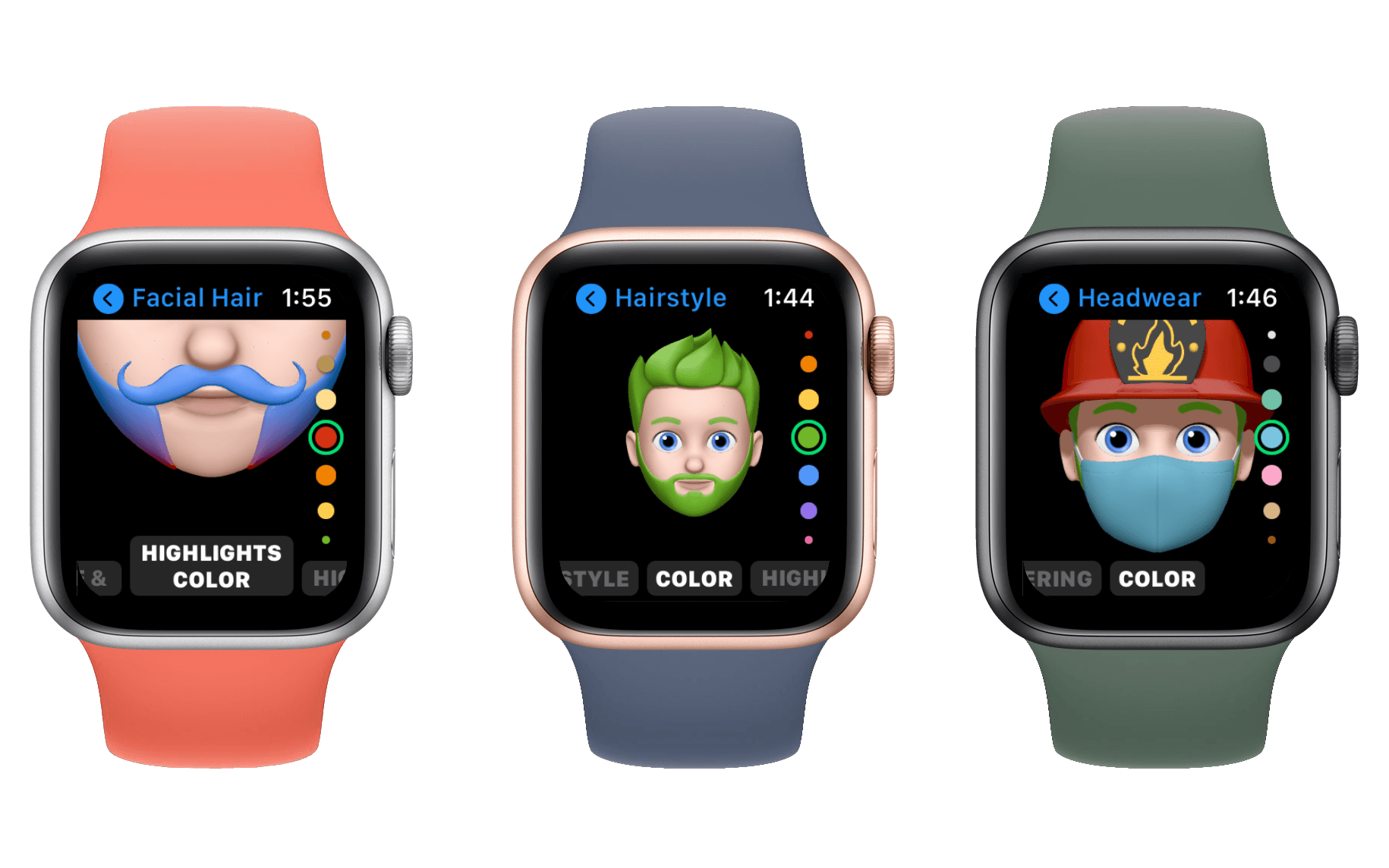
Alongside the Memoji watch face, Apple has also dropped a brand new Memoji app for the Apple Watch. The app opens to a scrolling list of your custom Memojis, and you can tap one to edit it. If you scroll to the top you can also hit the plus button to create a new Memoji from scratch.
The editing section is simple and straightforward. From the top level you can select editing the skin, hair, eyes, mouth, and other features of the Memoji. Once selected you’ll get a scrolling list of the available options, and as you scroll by each option it will display on your new Memoji. At the bottom of the main editing view you can also choose to create a watch face from the Memoji or duplicate or delete it.
I think it’s great that Apple Watch users can now create Memoji without needing to use a phone. This app was clearly added to work well with the new Family Setup feature, which allows family members to use an Apple Watch without having an iPhone of their own to pair it with (it still needs to be paired with an iPhone, just not necessarily one that uses the same Apple ID). Assuming you do have an iPhone though, it’s definitely easier to configure Memoji on the larger screen real estate than it is on the Watch.
Cycling Directions in Maps, Eventually
watchOS 7’s Maps app has been updated to include detailed directions for cyclists. At least, it has if you live in New York City, the San Francisco Bay Area, Shanghai, or Beijing. Other cities will be added over time, but I haven’t been able to test this feature since my home city of Minneapolis is not yet supported. If you search for a destination in the watchOS 7 Maps app you’ll see an option for cycling instructions, but tapping that will just tell you that they aren’t supported (unless you live in one of the areas mentioned above). Cycling directions join the previously supported transportation methods of driving, public transit, and walking.
All methods of transportation have been updated to support multiple routes in Maps for watchOS 7. After choosing a destination you’ll be given a suggested route, but can scroll down to see alternate routes too. Unfortunately this list does not actually show the maps themselves, so the only difference in routes that you can easily see is the time they take and their mileage. You’ll need to tap in and out of them one by one to actually view the route. Fitting route maps onto the Apple Watch screen is certainly a challenge, but I wish Apple would provide some better way to determine between them since most routes to the same place have similar times and mileage.
Last month MacStories’ John Voorhees covered this year’s Apple Maps changes in another of our summer OS preview articles. Make sure to check that out if you missed it, as it goes into much greater detail on the new Maps features across all of Apple’s platforms.
Miscellany
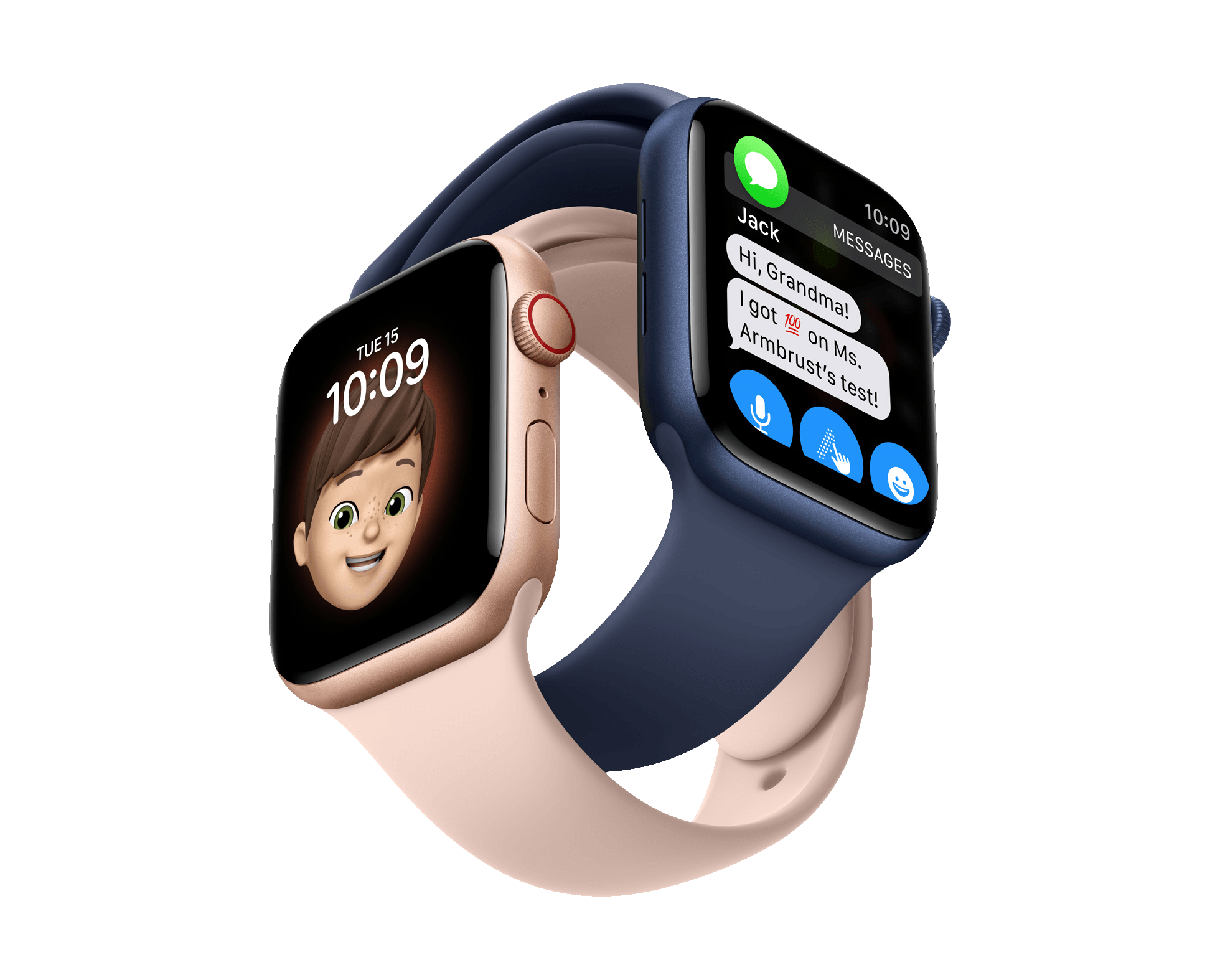
watchOS 7 has removed support for Force Touch, even on existing watches which include the hardware to support the feature. Force Touch has always had a significant discoverability issue, but it was also quick and easy to activate in places where you knew you needed it. All such places have been replaced in watchOS 7 by tap-and-hold gestures, and I find this to be a significant regression in experience. Force Touch’s discoverability problems are not relieved at all by replacing it with a long press. Instead, Apple has simply added latency to many simple interactions throughout the system. I understand that this clears the way for future Apple Watches to drop the Force Touch sensors and utilize that space in other ways, but I still can’t condone such a clear downgrade in usability. Editing watch faces in particular feels like such a sluggish action to initiate now.
Siri has been updated on the Apple Watch to support translating speech into different languages. It supports ten different languages to start, but more will be coming in the future. Siri dictation can also now happen locally on the Watch, so most Siri interactions should now be sped up.
One of the features announced at the Apple Watch Series 6 event is Family Setup. This allows Apple Watches to be shared among family members even without them all owning iPhones. We haven’t been able to test this feature yet, but our Apple Watch Series 6 overview has some more details on the announcement if you’re interested.
Conclusion
watchOS 7 might not be a revolutionary update, but I think it’s just what we needed this year: a clear, solid, and stable iteration. Health and fitness are the Apple Watch’s main selling points, and Apple is continuing to push forward in these important areas. I love seeing Apple pay attention to watch faces as well, and this year has brought some excellent new features there.
Sleep tracking isn’t for me right now, but I think it will work for most people who live on normal sleep schedules. I expect it will loosen up over time too, so I’m looking forward to future iterations. Handwashing detection is well-timed, and hopefully will help more people adjust to that vital habit.
Multiple complications from individual apps combined with face sharing make for very exciting new potential in watch faces. I’m excited to see the work that developers have been putting in this summer, as we’ll need third-party help to realize the full potential of these additions.
Shortcuts on the Apple Watch were sorely missed, and it’s good to see that hole filled back in. This is another area that will get even more powerful as developers update their apps to support shortcut execution on the Apple Watch itself.
To top everything off, this year’s batch of watch faces have several options which are actually great. So find yourself a new watch face, set yourself a healthy sleep schedule, and enjoy the calm waters of watchOS 7.