Posts in news


MacStories Unwind: iOS 14 App Reviews, a Home Screen Customization Shortcut, and Changing Your Default Browser and Email Apps

0:00
27:54


Sponsored by: Tara AI – Tool for Thought on iPad

This week on MacStories Unwind:

MacStories

Unwind


Apple Publishes New Webpages Explaining the Benefits of the App Store and the Company’s Developer Program

Apple has published new online resources about the App Store and its developer program. The new webpages cover a wide range of topics related to the App Store and developing for it, and include several new facts and insights about the Store.

About the App Store’ is a page meant for consumers that explains the advantages of Apple’s Store, starting with the lead tagline: ‘The apps you love. From a place you can trust.’ The page covers the Store’s editorial curation, search functionality, global reach, privacy and security features, and the benefits of App Review. The page reveals several new facts and updates to other information we’ve heard from Apple before, including:

  • The App Store has published almost 20,000 editorial stories to date
  • The App Store has over 150 people on its global editorial team
  • Over 10,000 apps use Apple’s health-related frameworks
  • Over 150,000 apps were rejected for privacy violations last year
  • App Review includes over 500 reviewers who consider over 100,000 apps per week
  • Over 1 million apps have been rejected for objectionable, harmful, unsafe, or illegal content
  • In 2020, Apple removed over 60 million user reviews considered spam
  • Over 2 million outdated apps have been removed from the store

The developer-centric pages take a similar approach with a focus tailored to the audience. ‘Developing for the App Store’ explains the tools and opportunities Apple has created for developers and its commitment to helping developers succeed:

Apple is committed to helping developers turn their brightest ideas into apps that change the world. That’s why the App Store helps you from start to finish — to build, test, market, and distribute your products and grow your business. Our marketplace is secure, trusted, and accessible — connecting you to over 1.5 billion devices in 175 regions. The App Store and you. Together every step of the way.

Here too, there are new facts and updates on number previously reported about the developer program:

  • There are 28 million members in the development program from 227 regions
  • Apple provides over 160,000 technical documents and code samples for developers
  • 90% of apps are reviewed within 24 hours
  • 500 million people visit the App Store every week
  • Apple has paid $155 billion to developers since 2008
  • 85% of apps are free
  • Over 50% of apps are downloaded from outside a developer’s local region
  • In 2020 over 250 million user reviews were removed for not meeting integrity standards
  • Apps accounted for 50 billion impressions in 2020 across email, social media, and advertising
  • Over 130,000 apps have been featured on the App Store and other Apple channels
  • An Apple-commissioned study found in 2019 that apps facilitated $519 billion in global commerce
  • The App Store ecosystem supports over 2.1 million jobs in the US

A second developer page titled ‘Built for growth and scale’ provides additional details about developer services and tools like app distribution and payment processing, app marketing, analytics, Apple’s many frameworks, volume distribution outside the App Store to enterprise and education customers, and developer support. Finally, Apple has also published a page that explains the Apple Video Partner Program. Apple explains how the program for video streaming services works, lists the companies that participate in it, and who is eligible to participate.

Apple has faced growing criticism in recent months over App Review guidelines, the share of revenue paid to offer apps on the App Store, and other aspects of the App Store and developer program, so it’s not surprising to see the company respond with materials that put its programs into the best light possible. It’s good to see Apple communicating its position more clearly, though it does strike me as a little defensive given the current climate in the developer community. It’s also one of the downsides of being so secretive as a company. Had this information been shared over time when Apple was not in a defensive posture, I expect it would have been more effective. Instead, I expect it will be met with cynicism from many developers.

Perhaps the experiences of the past few months will lead Apple to be more open about the App Store and developer program in the future. Despite recent issues and criticism, there’s no denying the success of the App Store for Apple, many of its developers, and its customers. I’d like to think that the global numbers that tell a story of immense success don’t prevent the company from focusing on and improving the more granular issues faced by individual developers every day and communicating more openly with them.


Pages, Numbers, and Keynote Add Scribble Support, and Other Features

Apple has updated Pages, Numbers, and Keynote with Scribble support, new editable shapes, along with a variety of app-specific updates.

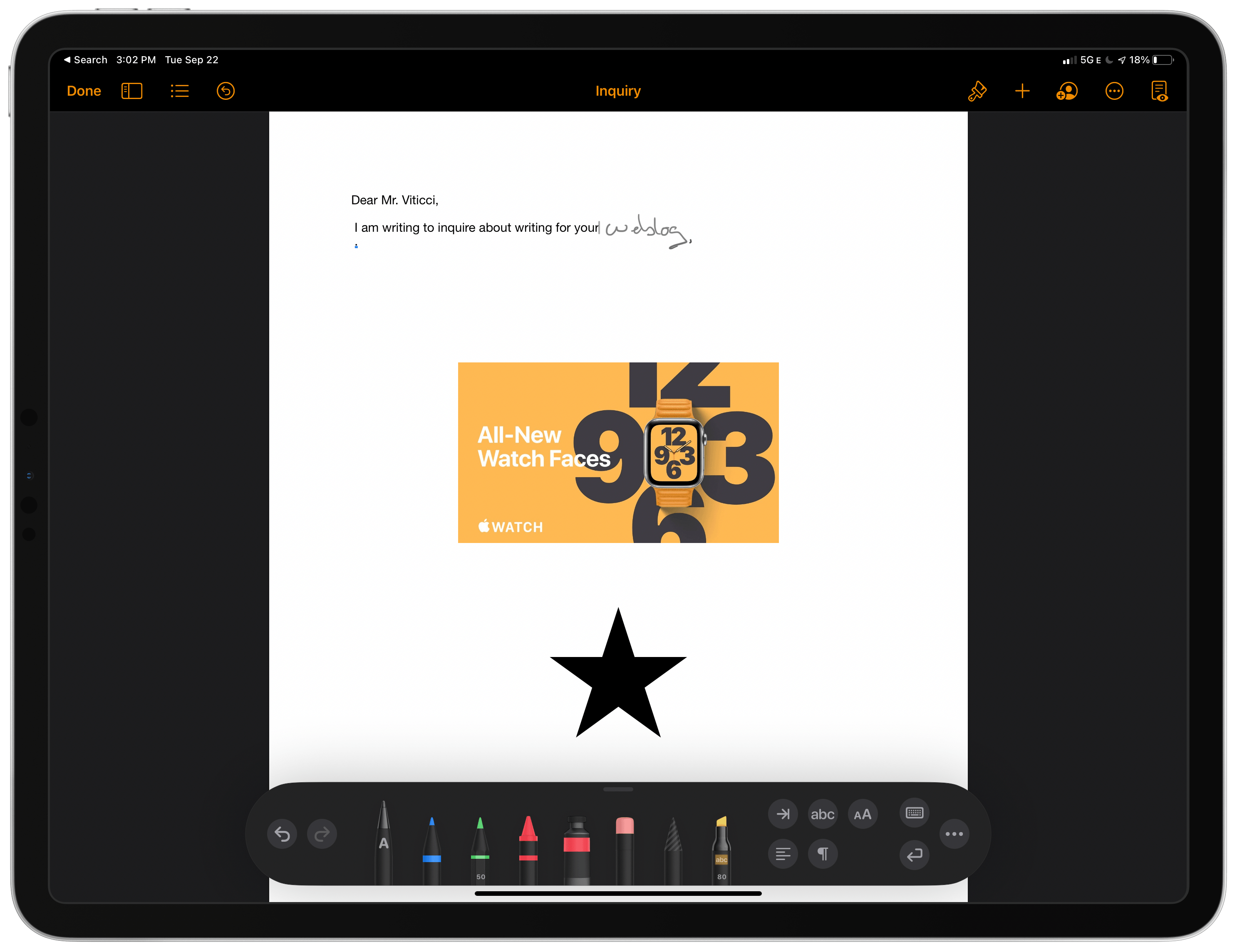
Scribble is the new iPadOS 14 feature that allows you to use the Apple Pencil to handwrite text into a text field that the app then converts into text. The feature also allows you to do things like scratch out text with the Pencil to erase it.

On the iPad, Pages, Numbers, and Keynote now all support the feature using a custom version of the PencilKit markup tools found in other apps like Notes and some third-party apps. The first tool in the palette, which is marked with a capital ‘A,’ is the Scribble tool. Selecting it allows you to handwrite in any of the three iWork apps, which then convert your handwriting into text. The other tools include pens for drawing, one for creating color-filled shapes, and selecting images. Pages’ toolset includes an annotation tool too.

A particularly nice touch included in Pages that Numbers or Keynote doesn’t have is a message that appears in the body of your document explaining what the selected tool does. Also, one Scribble feature that doesn’t work in the iWork suite is the ability to create perfect shapes by pausing before lifting the Pencil after hand drawing one.

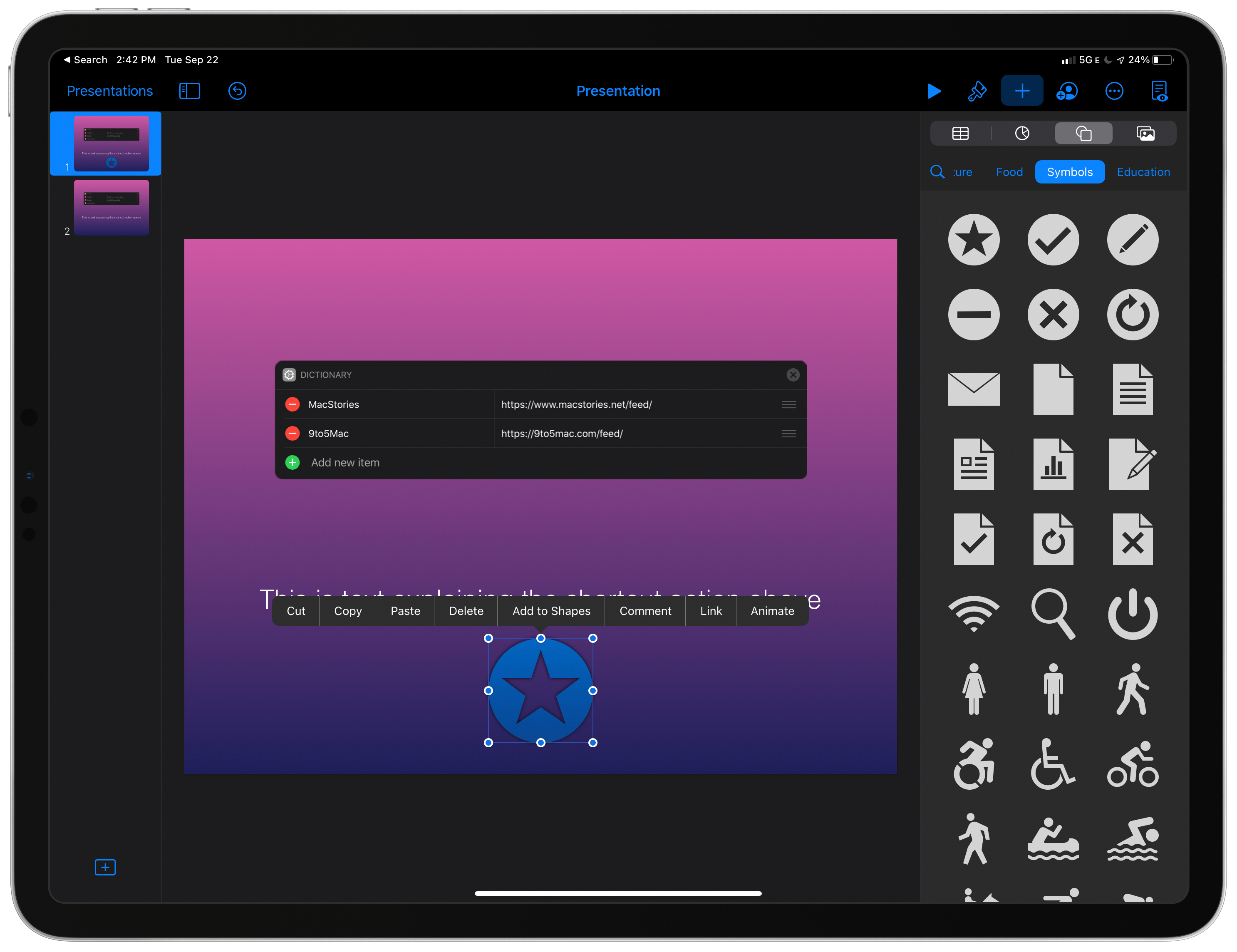
Keynote and the other iWork apps support new editable shapes.

Keynote and the other iWork apps support new editable shapes.

All three apps also come with new editable shapes and the updated iOS and iPadOS image and video picker that incorporate search functionality and album support. I’m delighted that the photo and video picker has been updated and gained new ways to find the images for which you’re looking. The picker hasn’t changed in a long time, and the latest version is light years better than before.

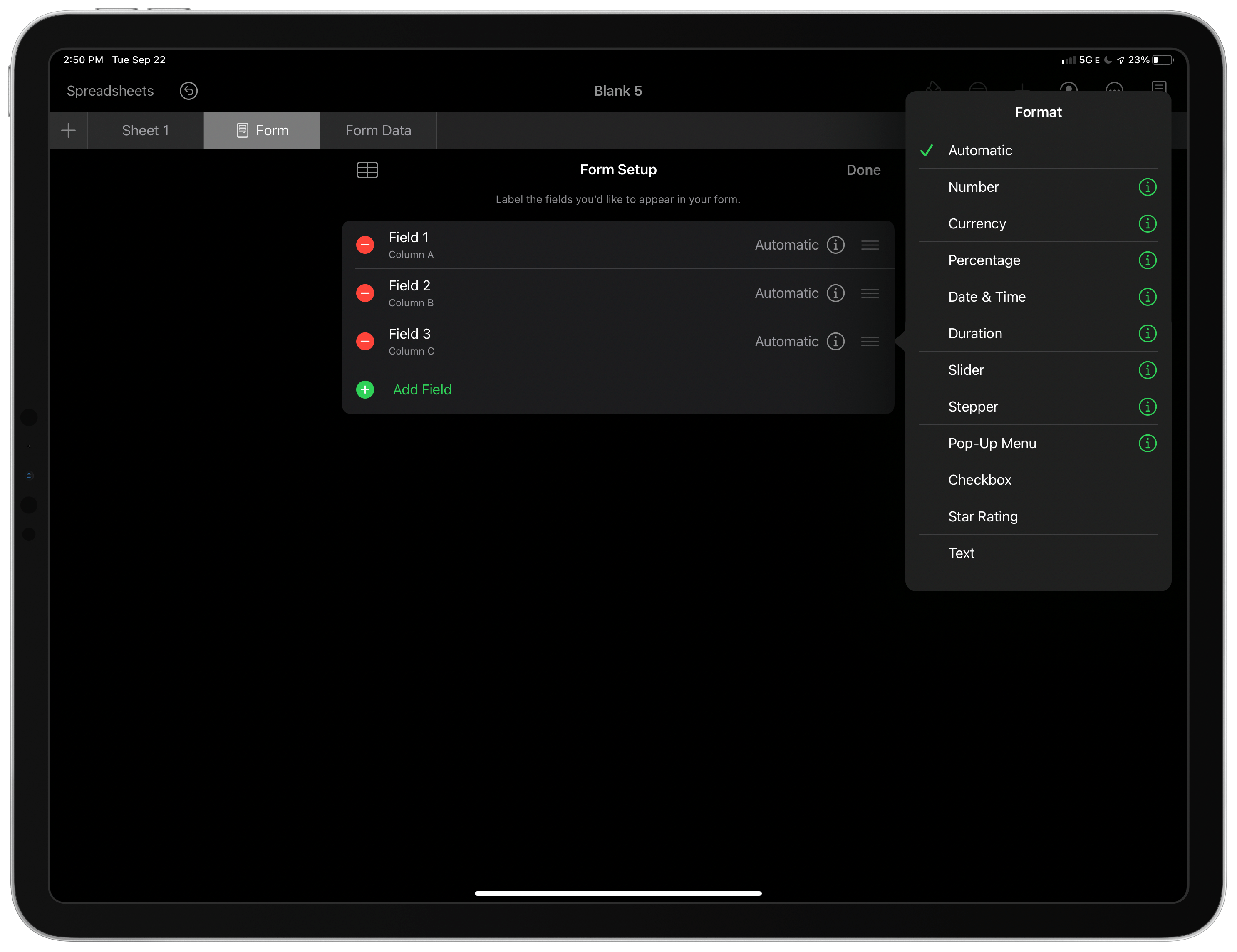
I'm going to use the new customizable forms in Numbers a lot.

I’m going to use the new customizable forms in Numbers a lot.

Each app also gained some features unique to it. Pages adds new report templates. Numbers has made it easier to create and customize forms, which are fast ways to enter data into a table. Keynote added the most features, gaining an outline view for quickly editing the content of slides without distraction, the ability to embed YouTube and Vimeo videos, new movie export options with more formats and frame rates, and the ability to Option-drag objects to duplicate them.

I haven’t used Scribble a lot yet, but it’s nice to see it implemented in the iWork apps. All three apps combine text with other media, so it’s only natural to use the Pencil for text input alongside drawing and other uses. If you haven’t tried Pages, Numbers, or Keynote in a while, especially on the iPad, they’re worth another look. All three apps support deep, sophisticated functionality that rivals their desktop competition.


One Week After Launch, Users Already Have Several Options for Alternative Browsers and Email Clients on iOS and iPadOS 14

iOS and iPadOS’s 14’s customization options don’t end at widgets. The OS updates also let users change their default email and browser apps for the first time. The feature is a little buggy in iOS and iPadOS 14.0, but I wanted to share how to set it up and explain what your current options are for anyone looking to switch away from the default Safari and Mail apps from Apple.

Switching is simple. The first step is to download a browser or email client that has been approved to serve as an alternative to Apple’s defaults. Developers must request permission to offer their apps as an alternative browser or email app, meeting certain requirements for each type of app. It’s an extra step in the app submission process, so not all browsers and email apps can be swapped in for Safari and Mail from the get-go. Still, less than a week after the public release of iOS and iPadOS 14, users have several options.

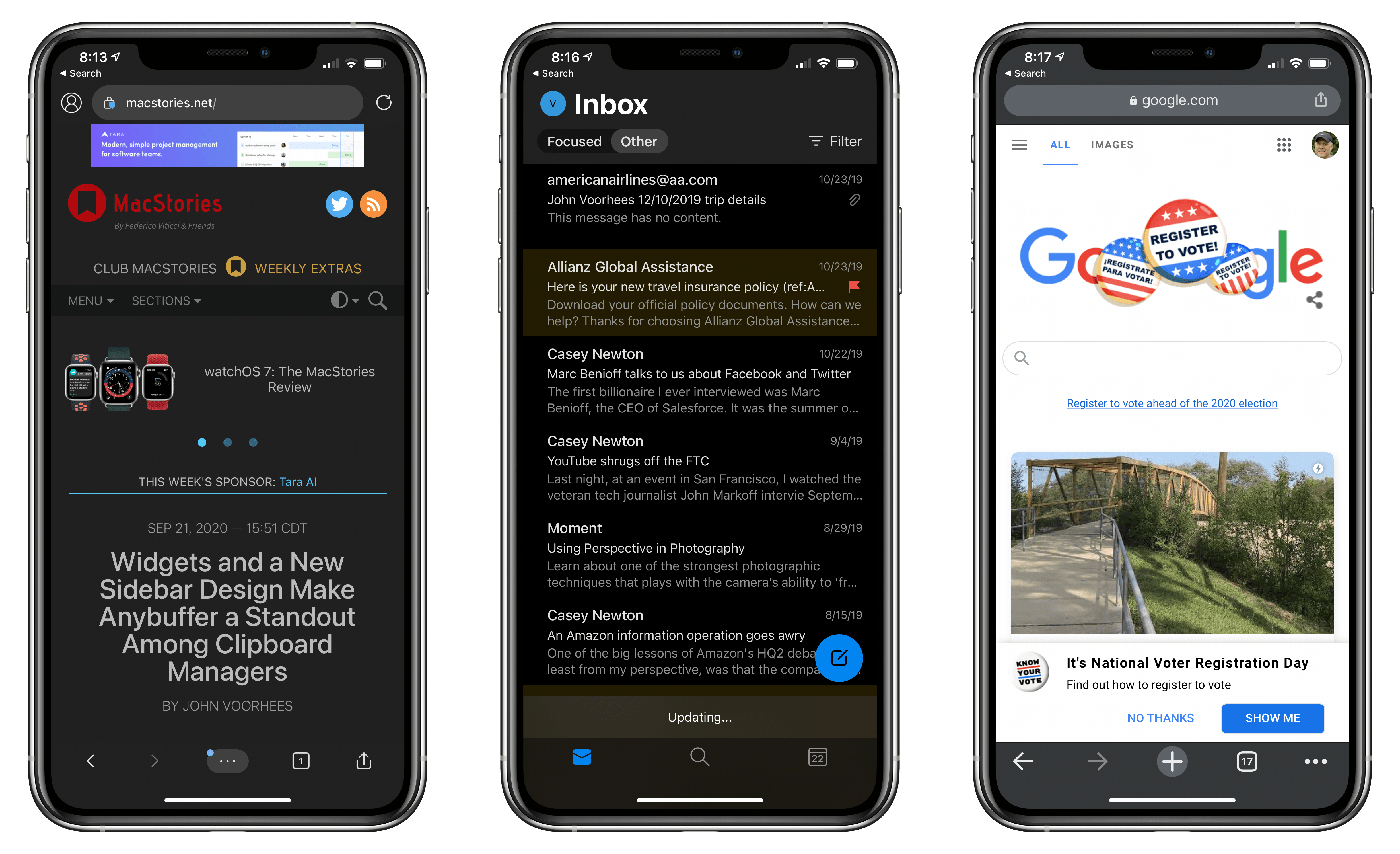
Microsoft Edge, Outlook, and Google Chrome are all default browser and email client options now.

Microsoft Edge, Outlook, and Google Chrome are all default browser and email client options now.

New alternatives are being released all the time, but so far, it’s possible to swap out Safari for:

Probably the most popular browser that hasn’t been approved as a Safari alternative yet is Brave, the privacy-focused browser, although The Verge reports that the feature is coming.

Email apps available include:

Between the two quartets of alternatives, a significant portion of the browser and email markets have been covered already.

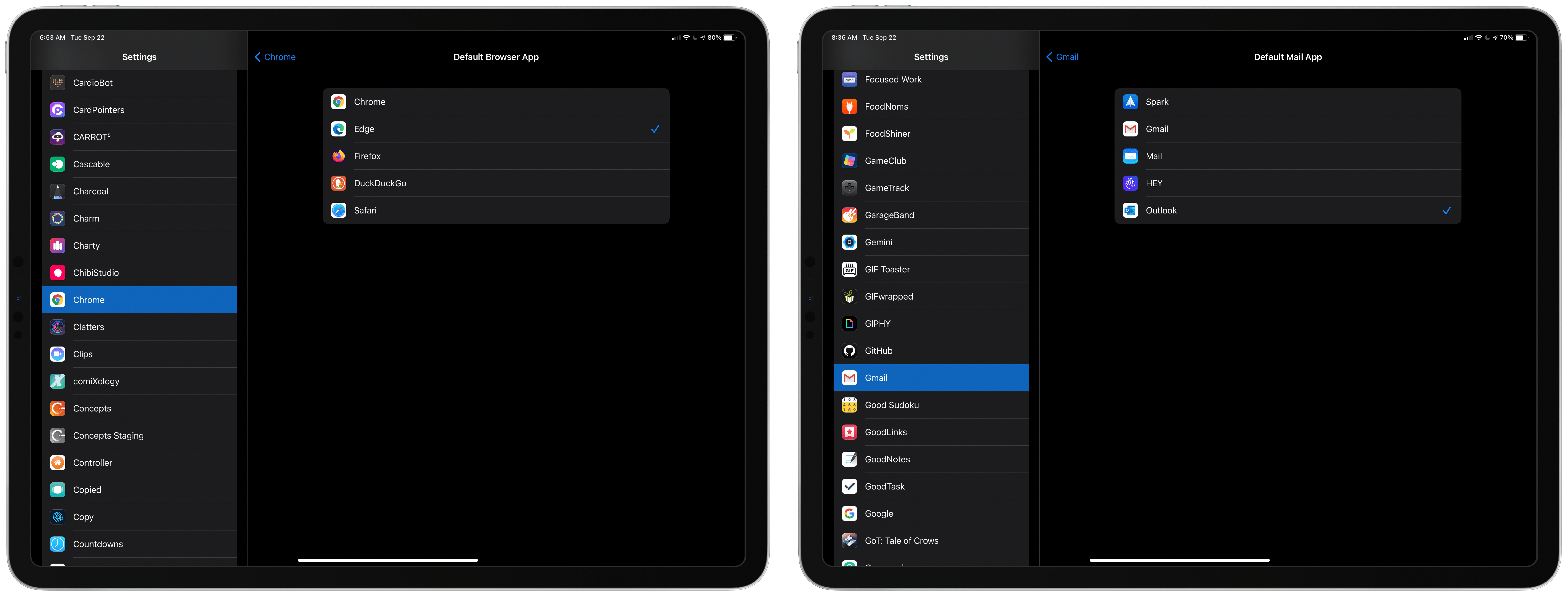
Picking a new default browser or email client from the Settings app.

Picking a new default browser or email client from the Settings app.

Getting back to the process of switching apps, once you’ve installed one of the approved alternatives, go to the Settings app on your iPhone or iPad. Scroll down to the entry for the app you’ve just downloaded, and tap it. There you’ll find a new entry for ‘Default Mail App’ or ‘Default Browser App,’ depending on which you’re changing. Tap it and pick the alternative you want to use, and that’s it.

As easy as the process of switching is, though, the feature is not bug-free. I have been unable to get iOS or iPadOS to recognize my new default email client after I switch it. I’ve tried several apps and email links in multiple apps and on the web, but every time I tap one, the system Apple Mail-based compose sheet opens. Federico has had the same issue. I read somewhere that switching email apps only works if you change your browser first, but that didn’t work for me either. Perhaps MacStories readers will have better luck than I’ve had, but at the moment, I cannot change email clients.

9to5Mac also reported last week that if you restart your iPhone or iPad, any default browser or email changes you’ve made are lost. It’s not hard to reset your defaults, but it’s an annoying bug that I expect will be fixed in a later update to iOS and iPadOS 14.

Personally, I use both Safari and Mail and am happy with them, though I wish Mail would adopt some of the modern features of apps like Spark. Still, I’m glad users have been given greater choice when it comes to the default app experience.



MacStories Unwind: Apple’s Watch and iPad Event, App Reviews, and Club MacStories 5th Anniversary

0:00
36:55


Sponsored by: Muse – Tool for Thought on iPad

This week on MacStories Unwind:

MacStories

Club MacStories

  • MacStories Weekly
    * Giveaways
    * A sneak peek at tips from Federico’s upcoming iOS and iPadOS 14 review
    * A collection of apps with widgets
    * Thoughts on the new iPad Air
    * An interview with Aaron Pearce, the developer of HomeCam, HomeRun, and other HomeKit apps
    * Lots of app updates
  • Join Club MacStories

AppStories

Unwind

  • Federico’s Pick:
    • This week’s app reviews on MacStories
  • John’s Pick:
    • Super Mario All-Stars available as part of Nintendo Switch Online
      • Featuring:
        • Super Mario Bros.
        • Super Mario Bros., The Lost Levels
      • Lost Levels
      • Super Mario Bros. 2
      • Super Mario Bros. 3

Apple Releases iOS and iPadOS 14, watchOS 7, and tvOS 14

Today Apple has released the latest major versions of many of its most popular operating systems: iOS 14, iPadOS 14, watchOS 7, and tvOS 14. There’s no macOS update just yet, as Big Sur will be coming later this year.

iOS and iPadOS 14 bring a new assortment of widgets, which can now be added to the iPhone’s Home screen for the first time. iPhones now support Picture in Picture when watching videos or making FaceTime calls. Built-in apps are receiving a host of other upgrades too, including new sidebar designs on iPad. For more details on the releases, check out our overview from earlier this summer, and be on the lookout for Federico’s big review of the updates arriving in the coming weeks.

watchOS 7 introduces sleep tracking, a ton of new watch face options, the ability to share watch faces with others and download them directly from third-party apps, a Shortcuts app, and more. Our overview of the update is available here, and we’ll have a full review coming soon.

tvOS 14 enables audio sharing for playback through multiple pairs of AirPods, HomeKit integration, 4K YouTube playback, and other quality of life improvements. For everything that’s new, check out our overview.

These OS releases weren’t expected to release so soon, since a delayed WWDC in June meant the first betas arrived three weeks later than usual, but Apple is nonetheless following its annual pattern of a mid-September release. Stay tuned as we’ll have lots of coverage on MacStories of the various third-party apps updating to support the latest features of these releases, especially those supporting widgets and iPad sidebars.


Apple’s September 2020 Event: All The Little Things

Apple events are always full of little details that don’t make it into the main presentation. Some tidbits are buried in footnotes and others in release notes. Yesterday was no exception, so after having a chance to dig in a little deeper, here is an assortment of details about what Apple announced yesterday.

Read more


Apple Fitness+, the Newest Apple Service, Will Arrive in Late 2020 Exclusively for Apple Watch Users

Apple Fitness+ will work across a variety of Apple devices.

Apple Fitness+ will work across a variety of Apple devices.

Today alongside the introduction of the Apple One services bundle and new Apple Watch models, Apple also debuted a brand new paid service coming in late 2020: Apple Fitness+.

Fitness+ is designed to work exclusively with the Apple Watch, requiring an Apple Watch Series 3 or later. When it launches, it will cost $9.99/month or $79.99/year, or it’s included as part of an Apple One Premier plan – and no matter how you get it, Fitness+ will offer Family Sharing support. There will also be a 1-month free trial for all users, or three months free for anyone purchasing an Apple Watch from September 15 on.

Apple Fitness+ brings studio-style workout experiences to your Apple devices in a way that uniquely integrates with the Apple Watch. As a workout video plays, live metrics from your Watch will display in the corner of the screen so you can easily keep track of things like the duration of your workout, heart rate, and calories burned. You’ll also see your Activity rings on-screen, providing convenient updates on your progress as you exercise.

Read more