BangTidy2: A Beautifully Animated Growl Notification Theme


Growl has no plans of going away as we covered back in February, and it’s nice to see people still creating excellent notification styles.

Last Sunday, Daryl Ginn (@darylbro) published an update to his Growl notification theme called BangTidy. The new version 2.0 features a stunning 3D splash effect, while remaining simple, clear, and minimalist.  Your notifications are going to pop out as smooth as ever. I haven’t used Growl (the universal notification service for the OS X) for a while now, but with this new notification style, I will definitely consider using it again.

BangTidy2 is available for free on Daryl’s Dribbble stream, where he also attached a short demo video.


Adobe Announces Creative Cloud Subscription Service for CS6 Desktop Apps

Adobe has officially announced an exciting upcoming service they are calling Creative Cloud, which is designed to tie together their droves of design oriented applications. Creative Cloud is a self-proclaimed “digital hub” that not only allows users to sync multiple computers, but it will also keep mobile devices in sync with the help of Adobe’s already available suite of Touch Apps and the upcoming web service powered by Creative Cloud.

Creative Cloud is a large endeavor for Adobe and they are not satisfied with only providing a cloud based file management solution. In addition to the aforementioned sync feature, subscribers will also have access to an “App Store” of sorts that will host the entire set of CS6 desktop apps available for download at no additional charge. This “App Store” will also provide Adobe with a fast and convenient way to push out new features in between major software releases. Furthermore, there will be several new apps available for download related to HTML5 design, e.g., Adobe Muse for webpage creation and Adobe Edge for web animation design. These tools harness the power of web standards to create beautiful and compliant HTML5, CSS3, and JavaScript-based content. Along with the web creation tools are the new digital publishing options as well as online web hosting and even access to Adobe’s Typekit collection.

Creative Cloud is currently only available for pre-order, with an estimated availability of May 7th, 2012. The price point is perhaps the best part of this announcement as an entire year of this subscription service is only $49.99 a month. It is also available as a month-to-month option for $74.99. The compatible platforms include both Windows and Mac and will come in multiple languages. Be sure to check Adobe’s tech specs page to ensure the tools you intend to use are available in your language. Moreover, Adobe is providing a special introductory price for current Creative Suite users – allowing them an entire year of service for only $29 a month.

This is a great option for both personal users and businesses, as the price savings alone is a considerable value. The lower up-front cost to gain access to the CS6 desktop apps might even entice new customers to give professional tools a chance. Regardless, this will likely be a great success for design teams already using Adobe products but are looking for an easier way to handle shared files and online content publishing.

Check out the Adobe promotional video for more details below.
Read more


StockTouch: Monitoring Stock Values With Style

As a lover of great interfaces, I’m constantly searching for developers who are passionate about displaying common content in new, attractive ways. This is sometimes easier (when it comes to photography or written content for example) but in some cases it can be very difficult and exhausting. Over the years I recognized that this is especially true for stock information and data. There is not much less sexy than linear diagrams and percentage data. You need a very good taste and, even more importantly, a perfect sense for balancing information and design in data visualization to create a functional and exiting product in this area. The developers at Visible Market Inc. definitely meet these requirements when you look at their app StockTouch for iPad.

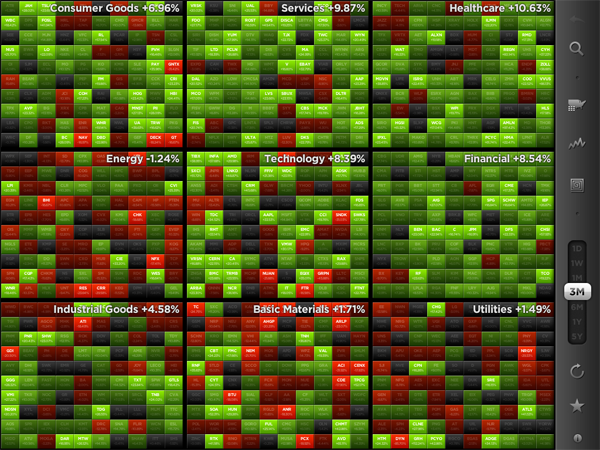
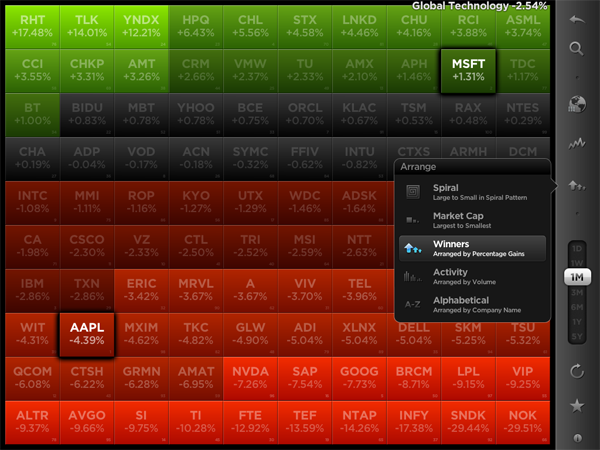
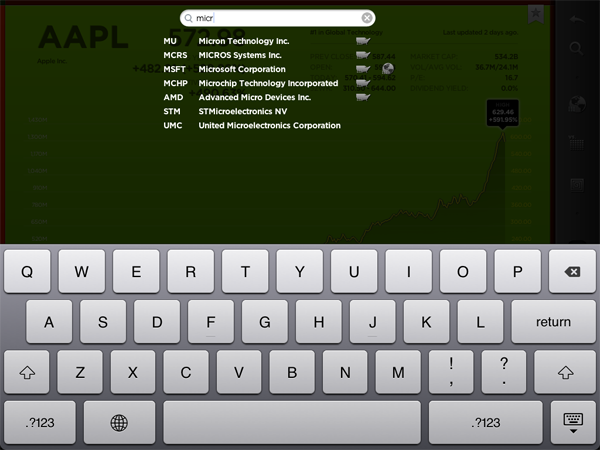
The app displays the stock value information of the Top 100 companies from 9 industrial sectors (e.g.: technology, energy or health care). You can display their percentaged price change, volume and price change relative to the S&P 500 or the average change of the sector they belong to. Additionally, you can search for specific stocks and set them as favorites, which are then subtly highlighted. To filter this information even more you are able to choose between their global or U.S. value and arrange them in 5 different ways (in a top/low spiral, largest to smallest market cap etc.) — which brings us straight to the app’s concept of data visualization.

All these features and filter possibilities are integrated into a sidebar and get visible via pop up windows if you touch the respective pictogram. The actual stock data occupies the rest of the screen. The app’s main window presents you all 9 sectors in commensurate rectangles, which are headlined with the sector description and its overall percentaged change. StockTouch works with visual layers. By pinching or tapping one of the sectors, it zooms in and you can take a look at the sector’s “member companies” and their overall change within the set timeframe — again presented in a field of rectangles containing the different companies and their current stock value or change.

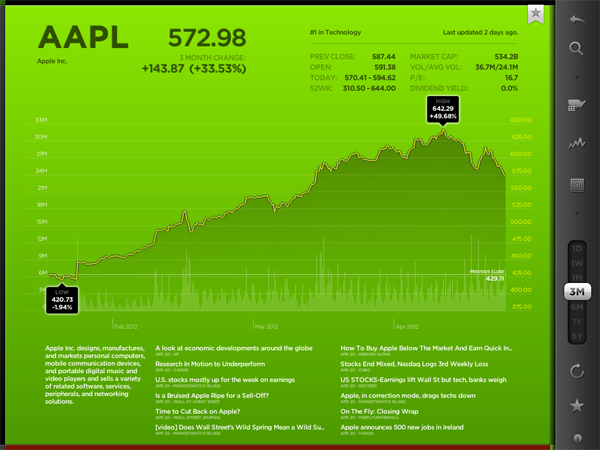
To visually underline the current value and its position in the respective sector, positive change is signalized with different shades of green; more or less stagnating stock prices are black and those falling can be identified by their red background colors. This intelligent and subtle use of colors makes it very easy to quickly analyze the overall changes of a sector, the stock market in general and, to a certain extent, also encourages the user to dive deeper into the information StockTouch has to offer, embodied by the third layer: the line chart of a single company’s stock value, available by tapping on a single stock within a sector.

The style of displaying the course of a single stock shows the second immense quality of StockTouch: its perfect use of visual and especially typographic hierarchy. Again, the background color indicates the general direction of the stock value’s course; but the real innovative solution in this part of StockTouch is the way the related numbers and information are organized and presented. At the top, using white space and different font opacity, the relevant data like the current stock value or the company’s position within its sector are easy to identify and read. Below the chart you get a short description of the company’s profile and the possibility to check several current newspaper articles about it which can be opened in an integrated (not very beautiful) web browser. But overall, the whole interface is modern, unique and intuitive at the same time.

Concerning the overall UX of StockTouch I think there are some small lacks in intuitive use though. For example, it is not possible to swipe left or right to move to another sector or company: you always need to zoom out completely, and then select the information you want to check. Furthermore, although the search feature is performing very fast, the results are listed way too small and you often unintentionally tap the wrong stock (which definitely can be avoided on a screen that large). StockTouch also features unobtrusive sound design while browsing through the stock data, but although I personally like the sound effects very much, the developers should at least have provided the option to turn them off — which is not the case here. In fact, the app does not offer any preferences at all, a move which surprised me bit, to be honest.

But nevertheless I became a fan of StockTouch immediately after firing it up for the first time. It is the product of a deep love for good design and unique and interesting data visualization. I absolutely recommend it to anyone who seeks for an easy way to monitor the stock market and has a taste for good interface development. StockTouch is available on the App Store as an universal app for $4.99.



Clear 1.1: Refining the User Experience

Defined by its clever and unmistakable user interface, Clear 1.1 refines second nature concepts and acknowledges community feedback by introducing a friendly new gesture, UI refinements, some added inspiration, and a big list making improvement.

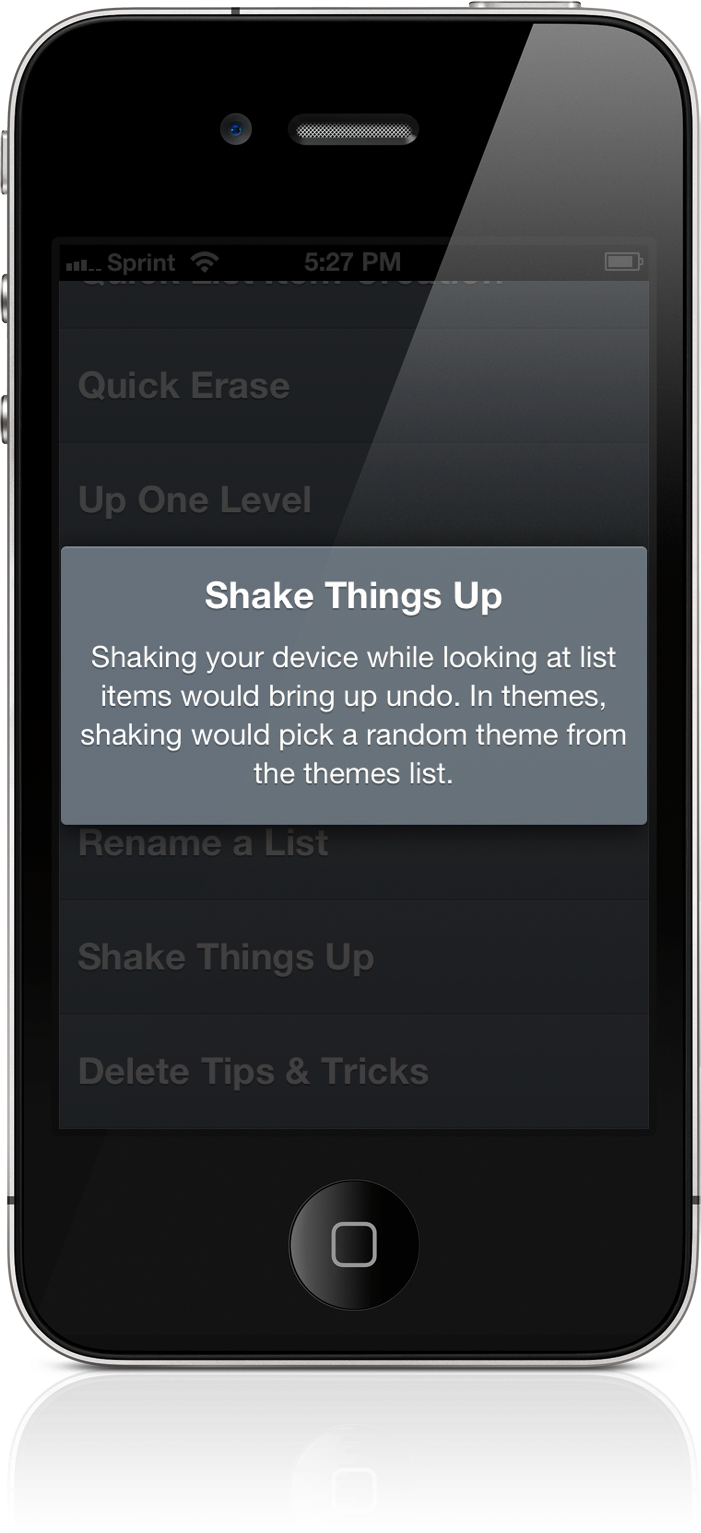
First up: shake to undo. Shake to undo works with lists in Clear, allowing one to backpedal on new todo items or undelete list items previously cleared. A couple flicks of the wrist will display an alert signaling the opportunity to undo, redo, or cancel the option of retrieving a list or completing an item. Additionally, you can shake up your themes to select a random theme (as noted in the screenshot below).

As seen with undo, Clear keeps the context of its user interface in mind with custom alerts that can be best examined in the tips & tricks section of the app. By tapping on a quick todo (in this case “Shaking Things Up”), Clear provides context on the action. There is no OK or cancel button, nor is there an X to tap. Only a necessary tap anywhere on the display dismisses the on screen prompt without any call for user action — tapping to dismiss shouldn’t require the cruft of a one way out prompt. It’s a minor functional change, yet still significant in idea.

Ideas in Clear are quite literally rewarding when one begins by creating a new list or clearing a list’s items from the display. Several new quotes have been added in the 1.1 update — users can look forward to additional phrases to mull over after pouring coffee or after completing a day’s worth of items.

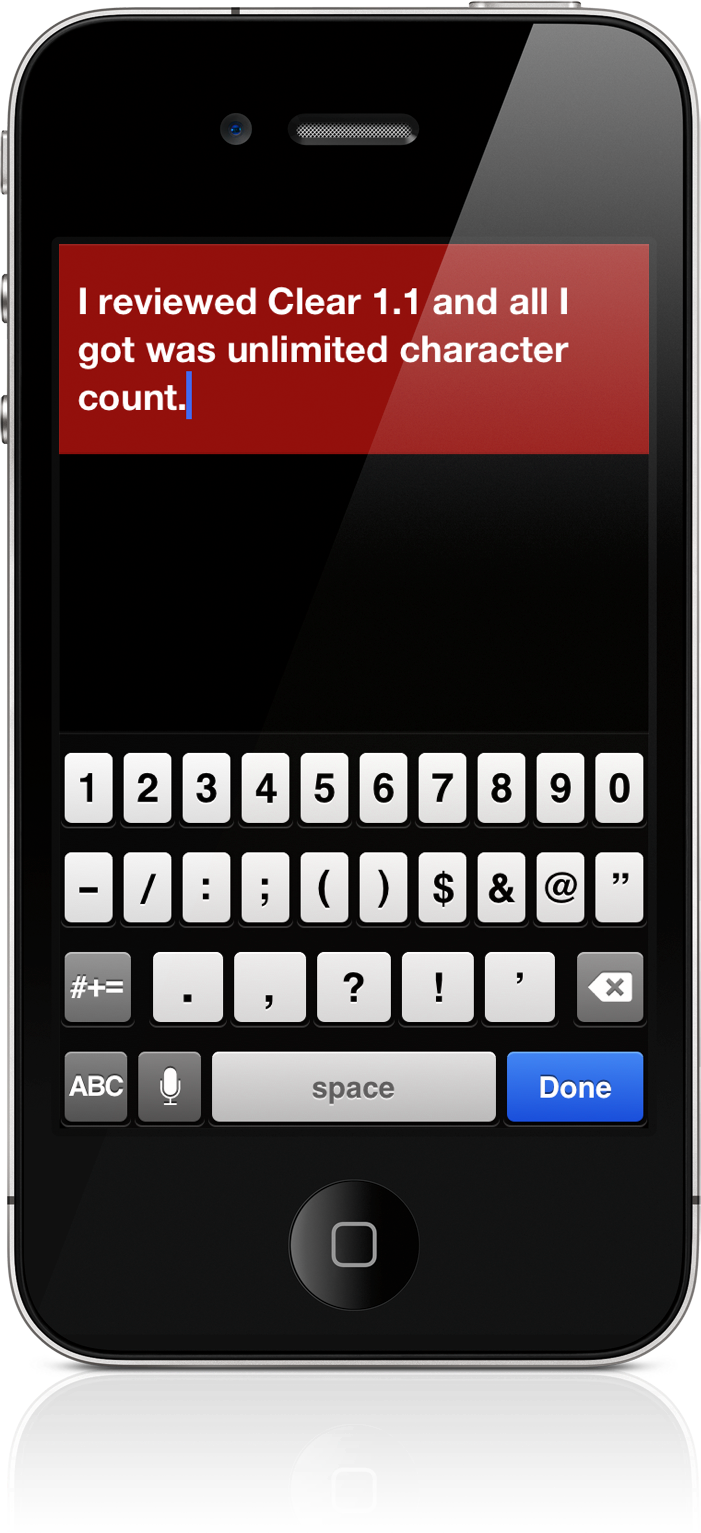
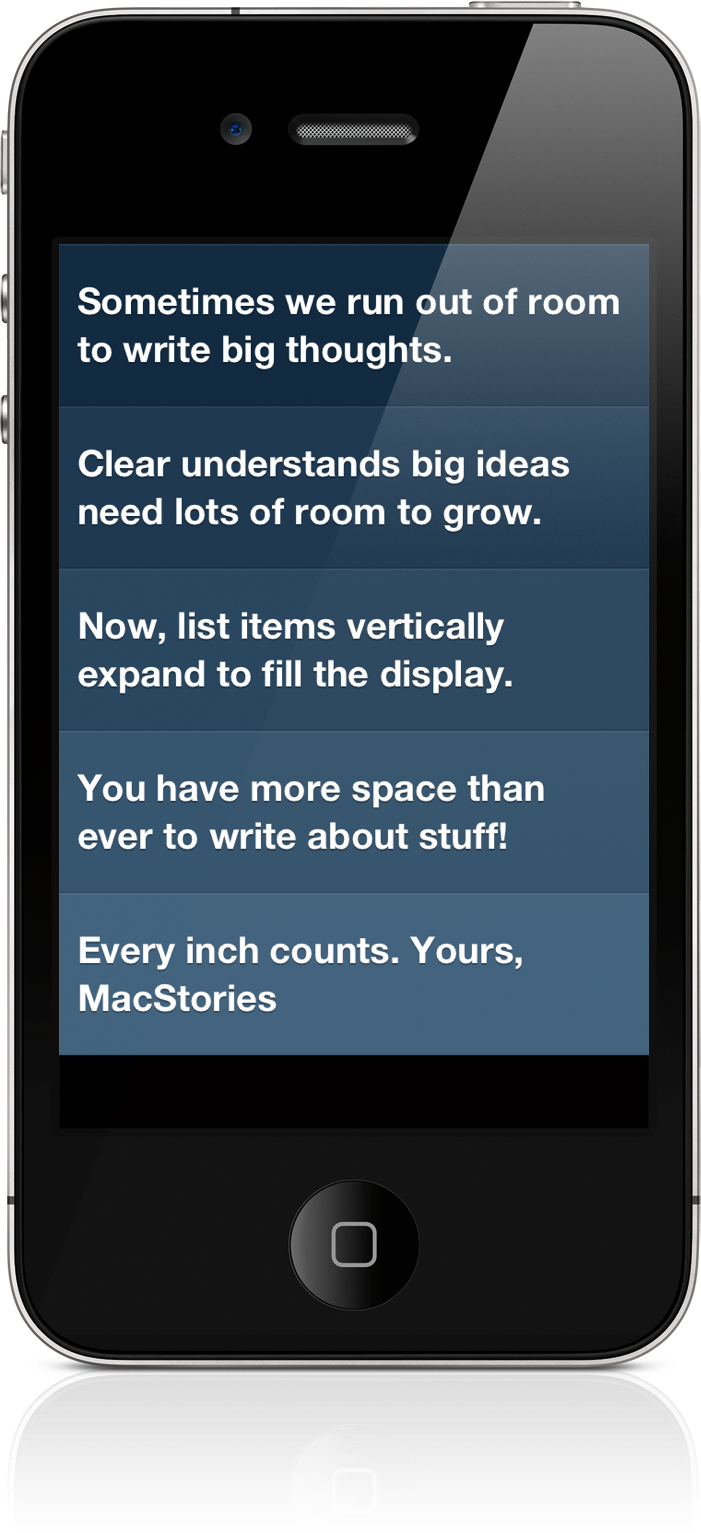
Lastly, improving upon lists, list items in Clear no longer have a limited character count. If ideas are flowing that are bigger than the width of your iPhone’s display, feel free to continue typing so that no word will be forgotten and no item will be left undone. Don’t worry — the shades of color splashed across the screen still look terrific.

While there are other secrets to be uncovered in Clear, I’ll try not spoil the fun and let you discover how to unlock some of the newly added themes. I maintain that Clear’s intuitive and ultimately addictive take on the traditional todo list is a much needed breath of fresh air in realm of task management. The new features are welcome improvements, and I’m looking forward to seeing what will happen to Clear in future updates. Clear is available for $0.99 in the App Store.


National Parks By National Geographic: A Beautiful Guide To American Nature

Great content deserves great design. In my opinion, this is one of the main principles UI designers have to sought after. If your product features great content, it needs to be highlighted with great design and usability elements around it, or it loses a lot of its advantages and flair. The second principle I truly admire when executed well is the attitude that content always comes first. If the standard tools (in the case of UI design, the standard interface elements) do not fit your app’s purpose, create new ones instead of reducing your feature set.

You do not often stumble upon apps with such interface features (one of the more prominent examples could be the current Twitter app with its “pull to refresh” feature) but if you do, most of the time your jaw just automatically drops. This is also the case with the new National Geographic National Parks app.

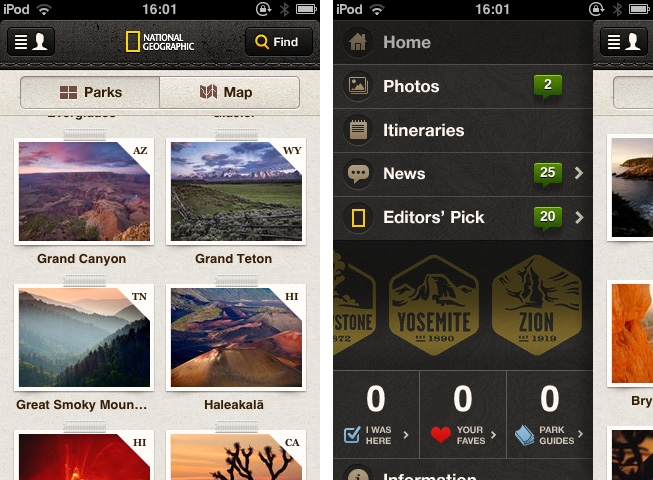
The app lets you discover American national parks in a way you’ve never seen before. You can rush through images, park information, secret tips and much more in a trip of pure joy and wonder. Before I focus completely on its tremendous UI, allow me to list the main park guide features the app has to offer as they are summarized in its App Store description:

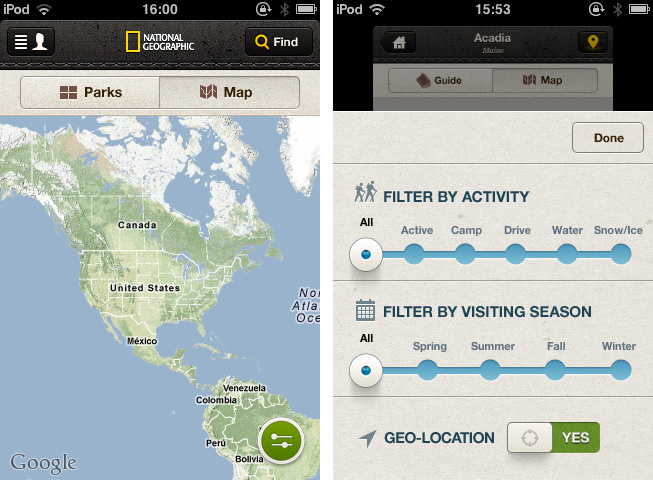
  • Global and interactive map views with filtering by activity and seasonality
  • Personalized user space to track your favorite parks, activities, itineraries, photos, and more
  • Thousands of points of interest, all tagged with GPS coordinates for easy planning and locating
  • The top must-sees and must-dos for each park, curated by National Geographic editors [includes downloadable park guides]
  • Stunning photo galleries for each park, plus rare vintage images from the National Geographic Archive Photo tips from National Geographic photographers
  • Sharing through Facebook, email, and Twitter
  • Collectible park stamps.

Just to get the idea. But mentioning all these features explicitly would have distracted me from writing about what I’m really into: the app’s design and the way this content and feature possibilities are presented. So let’s get into that now.

When I fired up the National Parks app I immediately recognized that it’s something very special. The main window contains a beautifully styled photo wall of all parks to choose from or alternatively a map (with fluent Google Maps integration) featuring their hot spots and attractions. This window already shows the designer’s approach with taking common iOS buttons and selectors and re-editing them in order to give them a personal touch. This is most of the time achieved by changing their structure to something that looks wilder, grungy and very often like tanned leather. The app’s look makes you almost feel the park guide in your hands: everything is rounded up with well placed shadows, visual borders and, more importantly, realistic consistency.

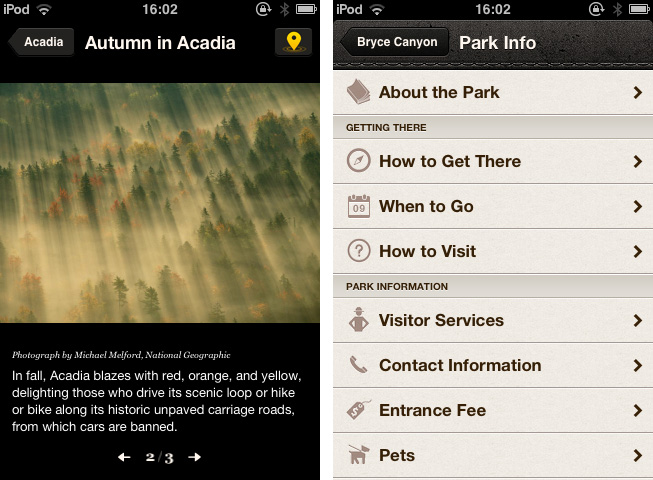
After selecting a park and browsing through its given information, you’ll also recognize a (at least to me) completely new interface effect: if you take a look at its visitor stats or current weather situation, the main window gently slides in the background and up comes a halved screen presenting the selected information.

But National Parks is not just an excellent example for UI innovation: it also makes great use of visual guiding. The app features an immense and advantageous use of well-placed pictograms and especially photography — even on the rather small screen of an iPhone. Professional and beautiful images are flawlessly integrated while discovering the parks, and they give every single park presentation an individual and inspiring touch.

All in all I just can say that this is one of the most inspiring, useful and consistent iPhone apps I’d seen in a while now. There’s a lot more to it than I just highlighted. Although it crashed two times while using it and the enhanced park guides are only available for extra money (the first one is free, the rest is $1.99 each, which is a very fair price) I definitely recommend you downloading it for free. Whether you’re an enthusiastic lover of American National parks and a frequent visitor, hobbyist, professional photographer or just a interested design lover — it’s going to be worth it!


TeleTweet: Tweeting with Morse Code

It’s the week of morse code I guess. After showcasing iToneMaker on Thursday, Federico pointed me to TeleTweet by Shacked Software, a lovely designed iPhone app with a rather bootless set of functions, but a very passionate creation background which was the reason why it drew my attention.

TeleTweet is a Twitter client. It connects to your account, and lets you enter tweets using morse code, publishing them to your account. This is a rather strange approach, but I had a lot of fun with it.

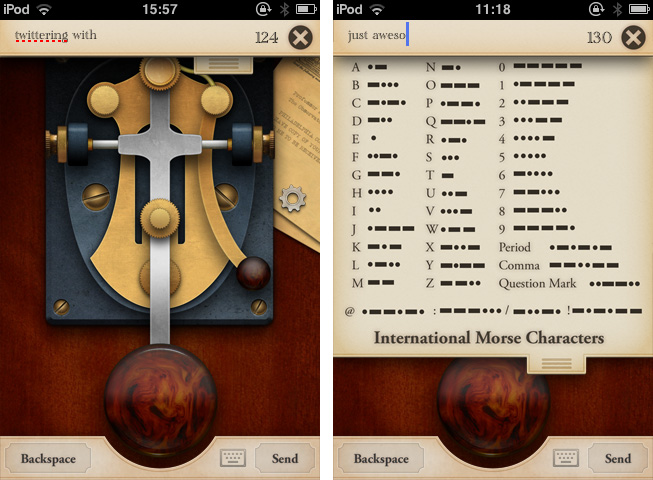
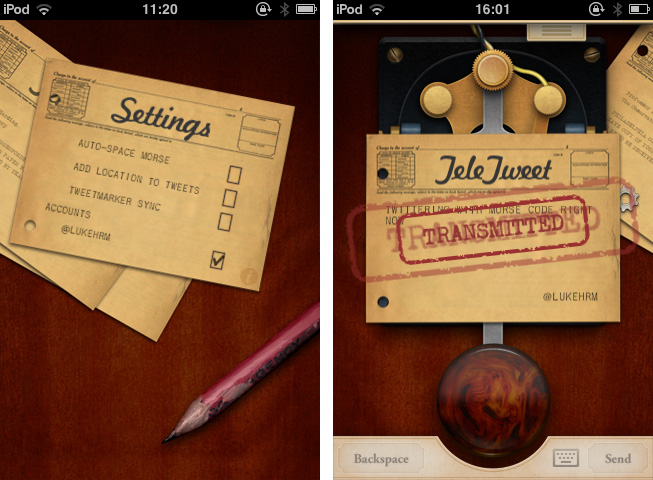
To understand how the app works, let’s take a look at the truly unique design, as it’s the app’s main feature and also the visual door to what it does. TeleTweet is an on-screen morsing station with a big paddle triggering the long and short morse signals and the corresponding sounds. The combinations of the triggered lengths are then converted into characters and appear in the post panel at the top of the screen. For users like me, who never used morse code before, there’s also a dropdown listing of all alphabetic letters and some useful special characters like “@” and their appropriate code. You can also bring up a “normal” QWERTY keyboard if you like — a feature which seems a bit useless to me, since you lose all the special features of the app, not just in usability terms, but also design-wise.

Entering tweets in TeleTweet takes its time, but it’s a lot of fun and, to a certain extent, it serves the goal of teaching the user morse code. This isn’t simply accomplished through the functionality itself but also with the app’s antique, warm look and its lovely animations (like the stamped envelopes when you send a tweet). It really shows a clear love for steampunk design from the IconFactory designers responsible for it, and it made me stick to the app for a long time.

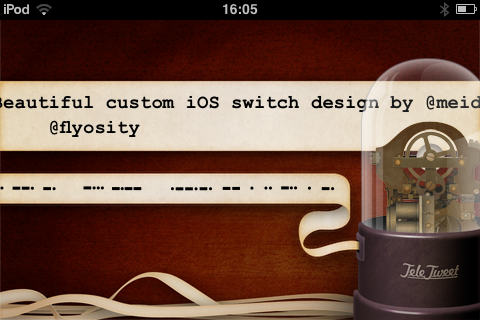
Sometimes completely forgotten, TeleTweet shows a deep attention to sound design: it clatters and squeaks and rumbles everywhere you touch. It’s very authentic. And I didn’t recognize the coolest thing about TeleTweet until I read through the developers’ website for the second time: if you connect to your Twitter account you can turn your iPhone sideways to show your Twitter stream — in real time morse code and its translation in monospace characters. I was just stunned at first, and then literally laughed. It’s hilarious and beautiful at the same time.

You shouldn’t buy TeleTweet if you want a decent Twitter client or a really useful tool to learn morse code. TeleTweet is a nice mix of both but does not completely serve the needs to meet the high feature standards of dedicated apps. What really makes the app attractive is its design.

If you’re a lover of high UI standards or steampunk design, go get TeleTweet for $0.99, and even if you’re not using it at all afterwards, it will surely stimulate your eye’s desire for detailed pixel work. Isn’t that what we’re all after from time to time?

By the way, in less than a week it’s Samuel Morse’s birthday — he’s the inventor of the morse code system.


Happy 3rd Birthday, MacStories!

Three years ago, I started MacStories because I didn’t have a job. Along the way, the “hobby” became a new job in itself, and it now allows me to run a site read by millions of people every month. More importantly, the site has allowed me to get to know some amazing people: my co-workers, developers and designers, and you, our readers.

Three years is not an incredible milestone. Yet, because April 20, 2009, feels so distant to us, I thought it would be appropriate to quickly look back at things we’ve done, and lay out a foundation for the plans we’re excited to execute in the future.

We’re not perfect. We have been guilty of focusing too much on “quick” news reporting and speculation about Apple in the past years, and, in retrospect, I think we could have handled some things differently. But I also like to look at this differently: along the way, we’ve found our style. It’s not perfect, but at least it’s what we love to do. It’s the very notion of “getting better” that implies starting from somewhere. And if not everyone will agree that the articles we publish today are better than the ones from 2009, we are surely happier with the words we post in 2012.

On a personal note, I want to thank the MacStories team for allowing me to turn a passion into my dream job. Cody, Chris, Graham, Don, and the most recent additions to the crew, Gabe and Lukas, are amazing colleagues and, more importantly, friends that, like me, share a common goal: to write about the devices and software we love, and the ecosystem of stories and people around them.

As a team, we’d like to thank you, our readers, for showing up every day and allowing us, with your opinions and support, to run MacStories exactly the way we want to: with passion and a shared sentiment that, ultimately, people are always interested in a good story.

We want to keep bringing you the news, reviews, stories and everything in between that you’re now used to seeing on MacStories. In three years, we hope to be able to look back at this article, and say that we’ve gotten “better”.

We hope to have as much fun along the way as we have had in the past three years. That’s why we created a small list of the stuff we’re proud of (you can find it below): to remember we had fun, but that we can also do better.

It’s our goal to make MacStories a better site in every aspect: more readable, with more quality content, more stories, and new options for our readers to enjoy our articles on any device. We’ll be making some changes to the site soon, and we hope you’ll enjoy them.

Thanks for reading MacStories. Here’s to the next three years, starting today.

- Federico


Our first post, and original logo from 2009:

And our version 2.0 design for 2009-2010:


Reviews

Hardware Reviews

Editorials & Analysis

Miscellaneous

Sections


Apple Set To Open Second Perth Store Later This Year

Apple is set to open their second retail store in Perth, Australia later this year according to a report by PerthNow. Apple has reportedly begun recruitment for the second store, named in their job advertisement as “South Perth”. PerthNow believes that the store will be located in the suburb of Booragoon, inside the large Garden City shopping centre.

Apple has apparently taken over two of the shops in the centre (Esprit and Sportsgirl) and possibly others that are near Kmart, whilst the centre is also relocating a lift and remodelling stairs nearby. When asked for a comment, the owner of Garden City said that they were currently “remixing the area” but did not specify who the new tenant was.  PerthNow believes the store will open sometime in the second half of this year, possibly even July.

[via PerthNow]