iPad Diaries is a regular series about using the iPad as a primary computer. You can find more installments here and subscribe to the dedicated RSS feed.
In my review of iOS 11, I noted that the impact of drag and drop – arguably, the most powerful addition to the iPad – would be best measured in the following weeks, after developers had the time to update their apps with richer implementations of the framework. I dedicated a large portion of my review to drag and drop as I felt the feature would fundamentally reshape our interactions with iPad apps and the entire OS altogether. However, I knew that wouldn’t happen right away. With iOS 11 having been available for nearly two months now, I think it’s time to reassess the effect of drag and drop on the iPad’s app ecosystem.
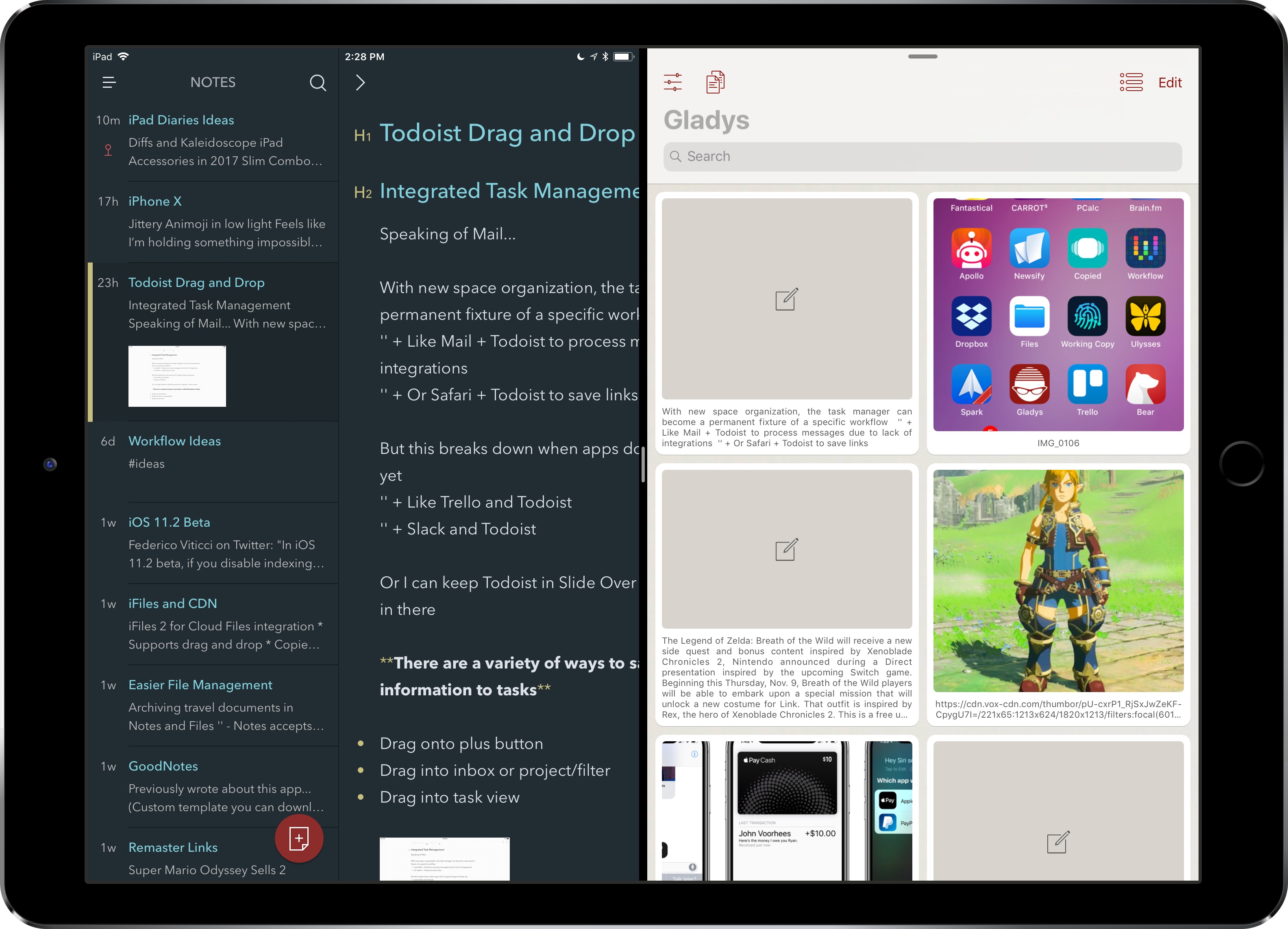
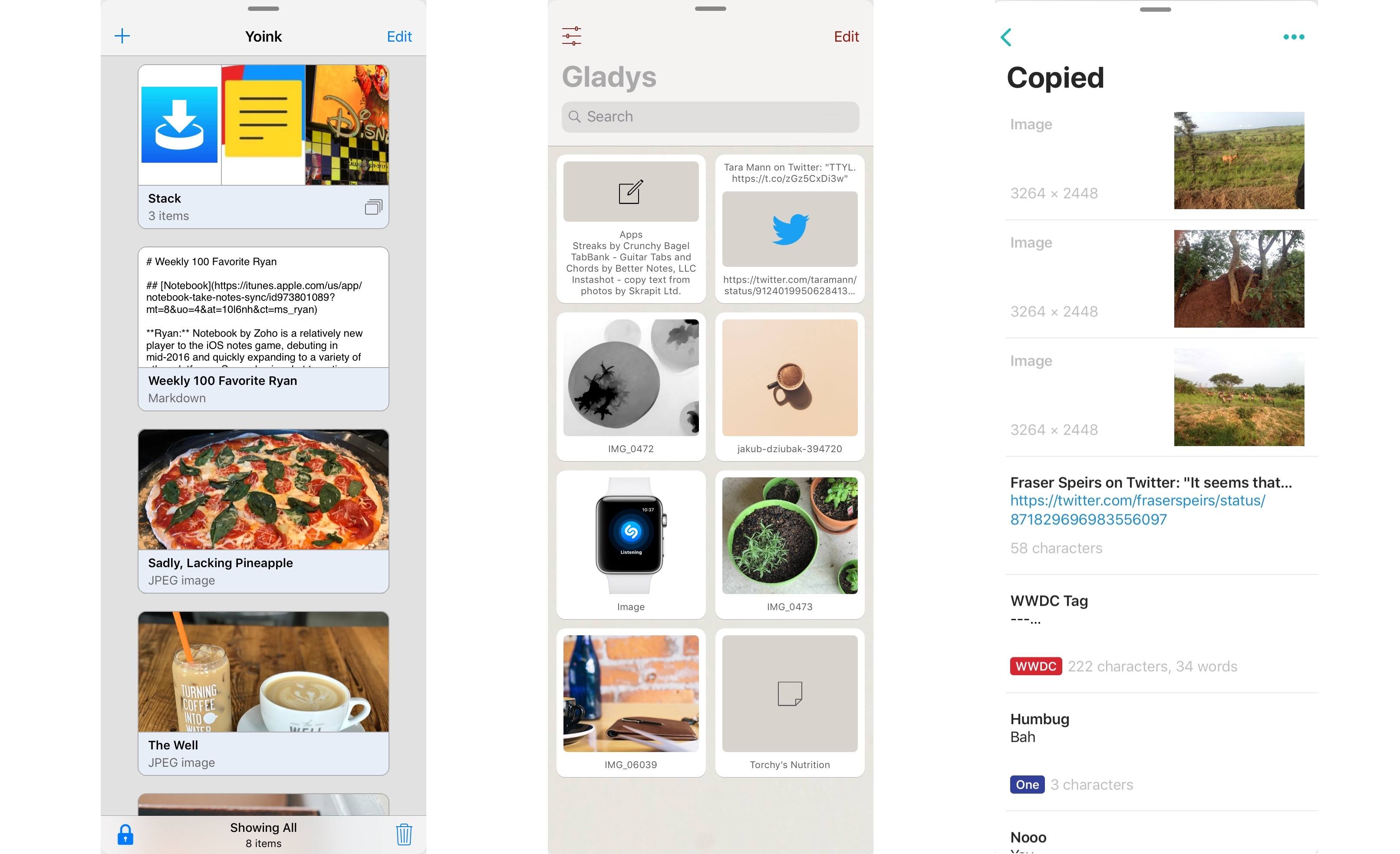
Starting this week, I’m going to take a look at some of the most important tasks I perform on my iPad and how drag and drop is helping me rethink them for my typical workflow. For the comeback of this column, I chose to focus on Bear and Gladys – a note-taking app and a shelf app, respectively – as I’ve been impressed with their developers’ understanding of iOS 11 and intricacies of drag and drop.
When I started researching this mini-series, I assumed that drag and drop hadn’t dramatically affected my favorite third-party apps yet. I was wrong. Drag and drop has started to trickle down into several areas of my daily iPad usage, often with surprising and powerful results.
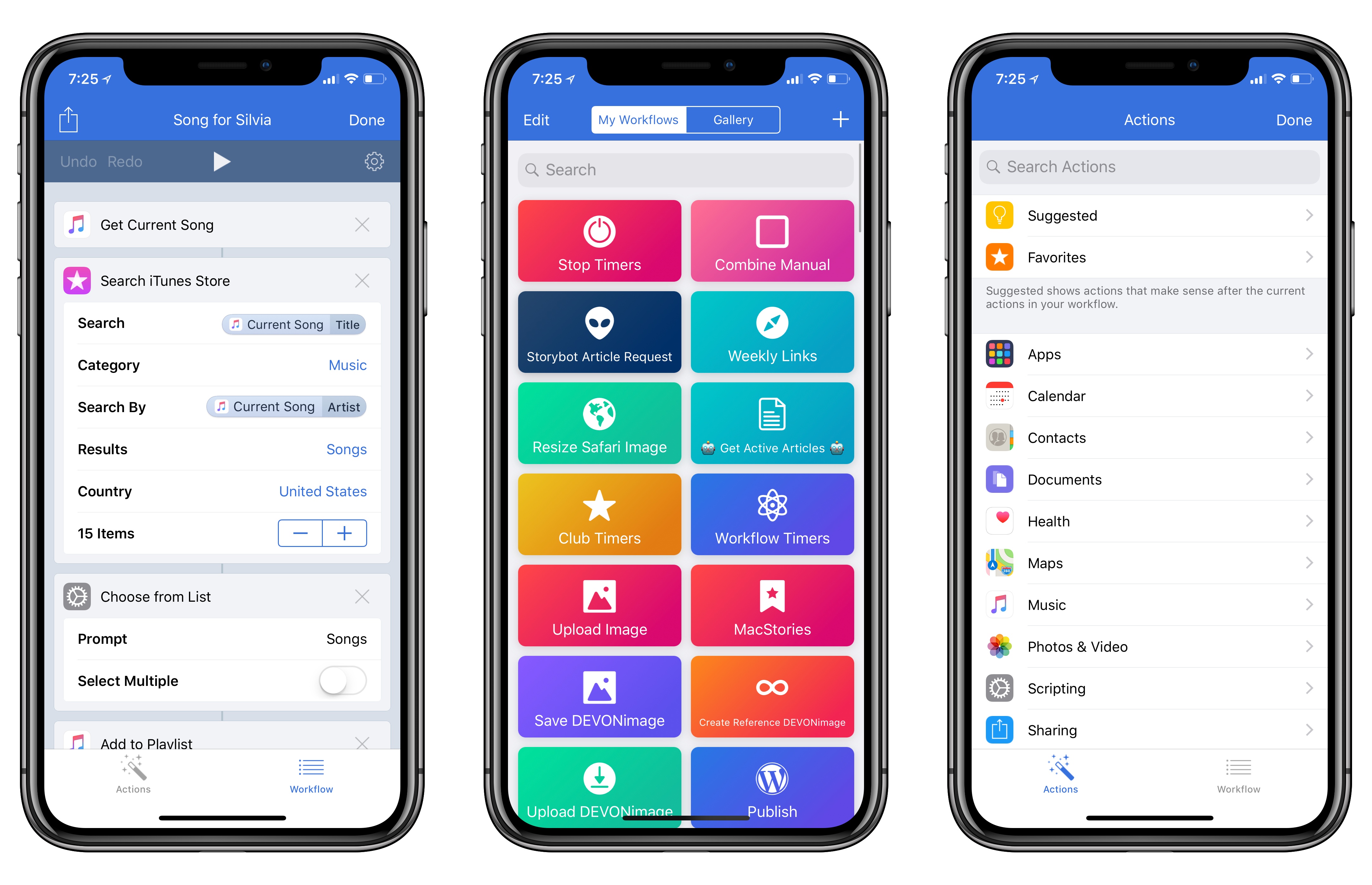
Workflow, the iOS automation app acquired by Apple earlier this year, received a major update today, adding support for the iPhone X and a variety of iOS 11-only features.
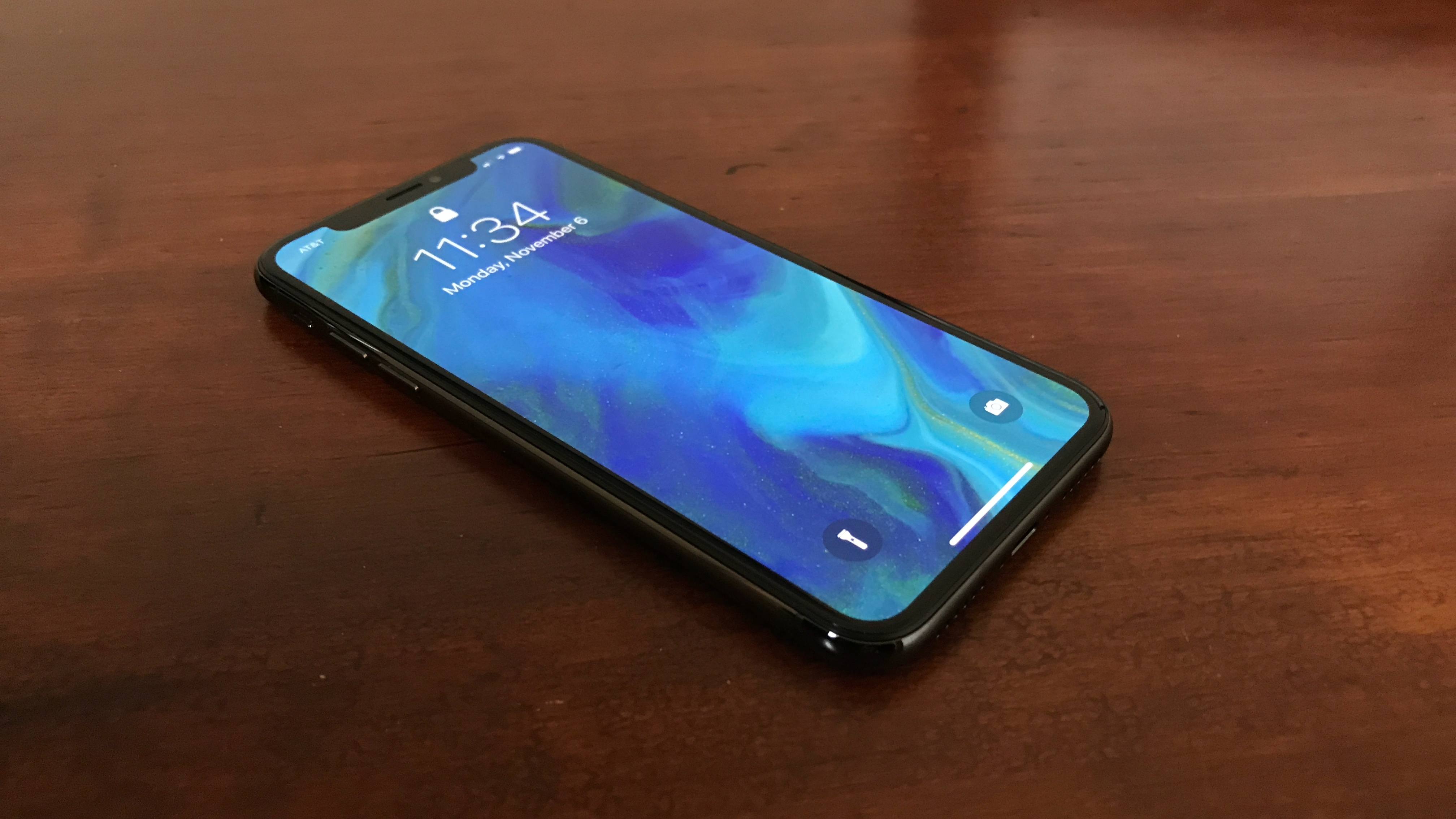
Spend enough time with an iPhone X, and every prior iPhone will feel surprisingly foreign. The radically new display and Face ID are not mere features of this new device – they are foundational pieces of a new iPhone experience that, once lived with, you’ll never want to go back from.
While Federico is hard at work on his full review of the iPhone X, I wanted to share my early impressions of the device after a few days of use.
Very often in life, we see things like products, athletic careers and even relationships end way later than they should. When this happens, sometimes the end goes unnoticed and with little fanfare.
Occasionally, things end on a high note, like when an athlete announces their retirement after winning a championship or a band calls it quits after a massive album and tour.
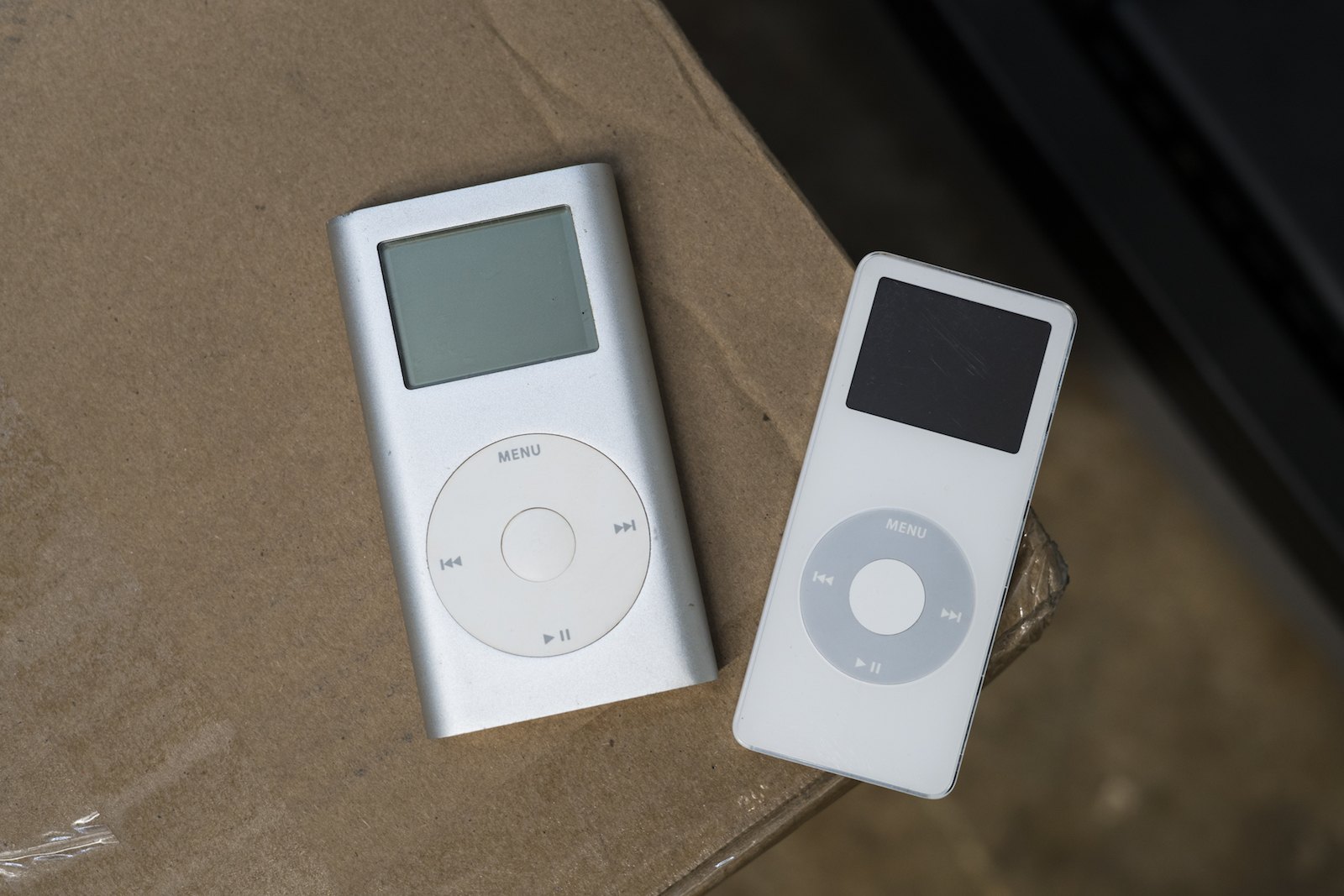
In the world of Apple products, the iPod mini is an example of the latter. It’s perhaps the best example of Apple killing one of its darlings.
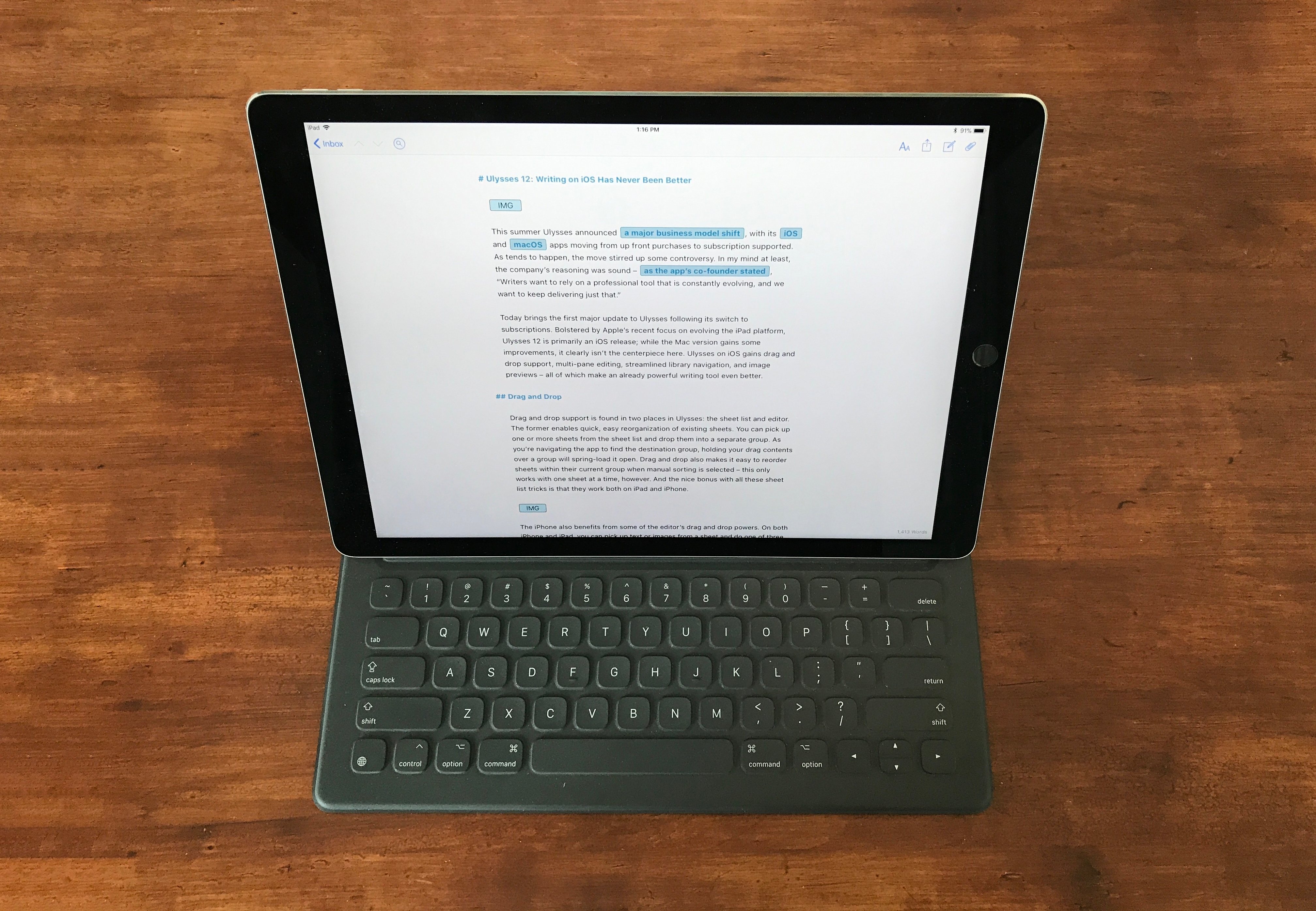
This summer Ulysses announced a major business model shift, with its iOS and macOS apps moving from up front purchases to subscription supported. As tends to happen, the move stirred up some controversy. In my mind at least, the company’s reasoning was sound – as the app’s co-founder stated, “Writers want to rely on a professional tool that is constantly evolving, and we want to keep delivering just that.”
Today brings the first major update to Ulysses following its switch to subscriptions. Bolstered by Apple’s recent focus on evolving the iPad platform, Ulysses 12 is primarily an iOS release; while the Mac version gains some improvements, it clearly isn’t the centerpiece here. Ulysses on iOS gains drag and drop support, multi-pane editing, streamlined library navigation, and image previews – all of which make an already powerful writing tool even better.
Last month after iOS 11’s launch I pulled together a roundup of iPad apps belonging to a whole new category of apps. Dropped, Workshelf, The Shelf, and Scrawl Pouch all launched as manifestations of Federico’s dream for a drag and drop-powered temporary holding place for content on the iPad. If you’re unfamiliar with this concept, here’s how I described it in my last shelf roundup:
The need for a shelf springs from the addition of drag and drop to iOS 11. It’s not always practical to drag content directly from one app to another; sometimes you know you’ll need that content soon, but you’re not ready to drop it elsewhere yet. Additionally, in some situations you may wish to drop the same data into multiple places over a short period of time, and it can be cumbersome to re-open the data’s source app to pull it out multiple times. A shelf can solve these problems: it serves as a temporary resting place for anything you know you’ll need quick access to soon. In this way it can serve a role similar to the macOS desktop, which is commonly used as a temporary holding zone.
While all the apps I originally highlighted continue to fill this role well, several additional quality apps have launched that bring new things to the table in this young category of apps.
It is difficult to reconcile a critical appraisal of the Apple Watch with the product’s commercial success. To examine the most popular watch in the world1 and find it wanting seems dubious; yet as Apple’s smartwatch kicks off its third year, its history implores ignominy.
The integration of hardware and software is a keystone in Apple’s foundation. Every game-changing product they’ve released over the years has used this as a core advantage over the competition. Yet despite the Cupertino company’s proven track record, the last three years of Apple Watch have demonstrated a consistent struggle to get this right.
Apple has certainly iterated on unsuccessful hardware and software ideas in the past, but never quite so publicly. The Apple Watch feels like a device that was rushed a little too early to market. Apple knew that it had something good, but it didn’t yet know which areas the device would really excel in.
One of the most interesting pieces of this product’s story is that all signs point to Apple having gotten the hardware of the Apple Watch exactly right, at least in terms of its direction. The original Apple Watch was underpowered and lacking some technology that Apple simply couldn’t fit into it at the time, but the idea was there. In subsequent hardware iterations Apple has significantly increased the processing power, added vital new sensors, improved battery life, and shipped LTE. In this time the case design has remained unchanged (other than growing slightly thicker), and the input methods have persisted exactly. It may have taken until the latest Series 3 release for Apple to fulfill its initial vision for the Apple Watch hardware, but that vision has remained unshaken since the beginning.
The same cannot be said for the Apple Watch software.
Apple’s smartwatch operating system has had a rocky first few years. watchOS 1 was fundamentally broken in several ways, and probably should never have shipped. watchOS 2 was an attempt to shore up and replace the poor foundations under the hood, but it left the substandard user interface to fester in production for over a year. With last year’s release of watchOS 3, Apple took its best shot at rethinking cardinal pieces of that interface.
watchOS 3 was a huge improvement over the blunders that came before it. As I wrote in my watchOS 3 review last year, Apple did great work with the update to cut away the excess and hone the OS to something simpler and more straightforward. It was a significant course correction which set a far better trajectory, but it didn’t get us all the way there.
In a lot of ways it feels like watchOS 3 was the true watchOS 1. Where Apple left off with the smartwatch operating system last year was really the point where it should have started. Nothing was complete, but almost every piece felt primed for improvement rather than necessitating reinvention. In the wake of that update, Apple has been at a crossroads. With the foundations of watchOS finally feeling solid, Apple could either continue to drive the platform forward, or leave it on a slow-moving autopilot.
Yesterday marked the release of watchOS 4 — our first opportunity to see the hope kindled by watchOS 3 borne out — and I’m pleased to report that Apple has succeeded in maintaining the platform’s momentum. Every area that this year’s update focuses on has seen fantastic improvements, and I’ve found myself interacting with my Apple Watch more than ever before. My only disappointment is that the scope of watchOS 4 isn’t quite as far-reaching as last year’s update.
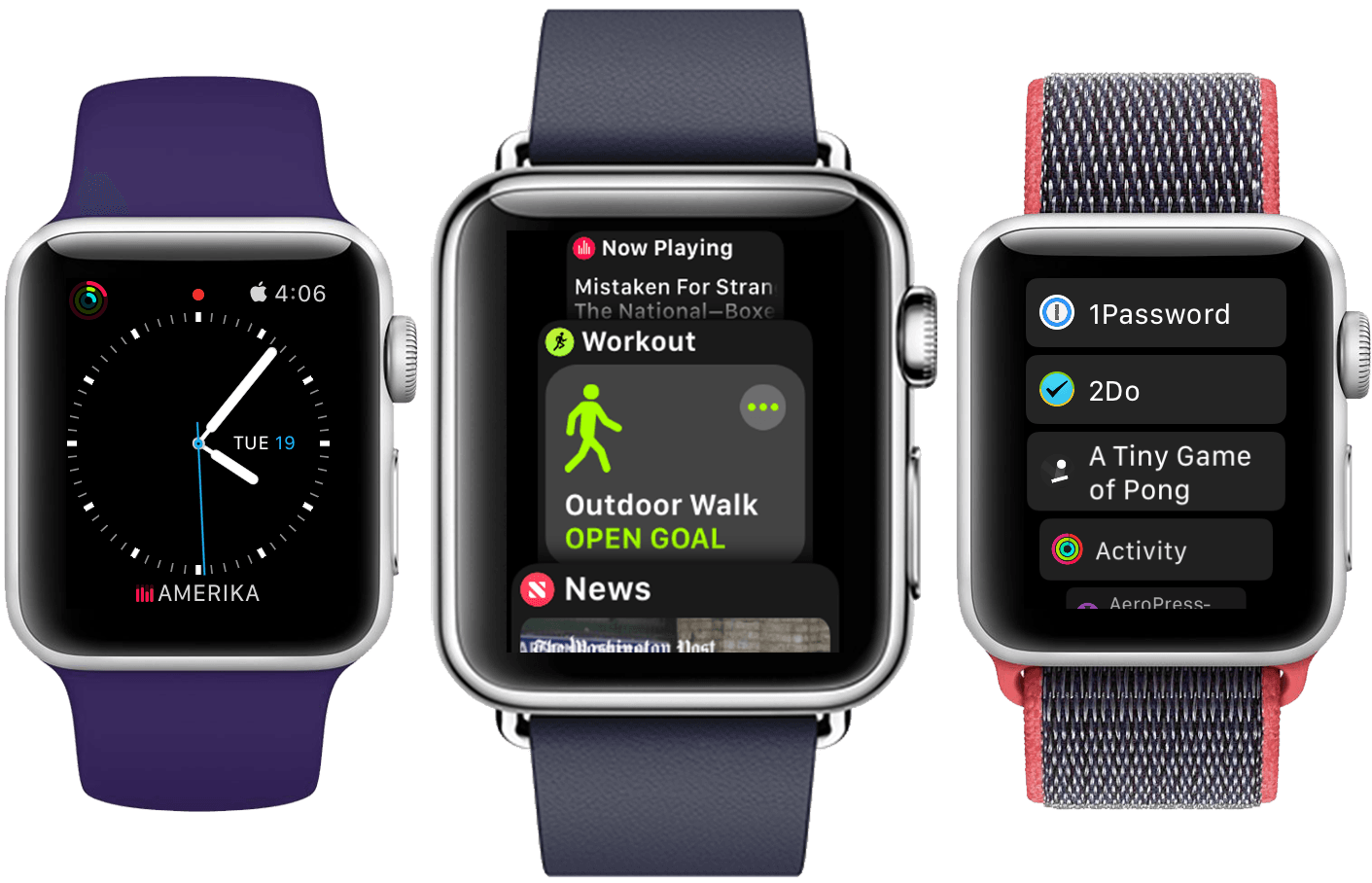
The big themes of watchOS 4 are fitness and music, and Apple has done some excellent work in these departments. New activity goals, completely overhauled Workout and Music apps, auto-launch of audio apps, a Now Playing Complication, and more are all excellent upgrades. As always there is still room for improvement, but many of these features are making the leap for the first time from options on my Apple Watch which I mostly ignore to real features which I find consistently useful in my daily life.
There’s a lot to dig into here with the choices made and the new features added. Let’s dive in and find out what Apple has in store for the next year of Apple Watch.
For the second time in three years, the iPad isn’t following in the iPhone’s footsteps. With iOS 11, the iPad is going in its own direction – this time, with no cliffhanger.
iOS 9 marked a significant milestone for the iPad platform. In contrast with previous iPhone interface adaptations, iOS 9 did away with longstanding preconceptions and allowed the iPad to reach beyond the comfort of familiarity with the iPhone’s experience.
Shedding the vestiges of intrinsic iPhone OS notions – namely, single-tasking through one app at a time – the combination of more capable hardware with features such as Split View and Picture in Picture inaugurated a new beginning for the iPad’s post-PC endeavors. iOS 9 reset the iPad’s expectations and potential, providing millions of disenchanted users with the modern, powerful PC replacement they’d been envisioning since 2010.
But in many ways, iOS 9 wasn’t enough. The productivity enhancements that set the iPad on a new course felt, in hindsight, like first attempts at reviving its software and app ecosystem. Key aspects of iOS 9 were evidently unfinished, possibly hinting at future optimizations and fixes.
That future didn’t arrive with last year’s iOS 10, which only added to the sense of wondering when the iPad’s next shoe would drop. Amidst consistently declining unit sales and following another bland (at least iPad-wise) mid-cycle update to iOS, the legacy of iOS 9 gradually shifted from a first step packed with promise to a bittersweet one-off effort to infuse new life into the iPad.
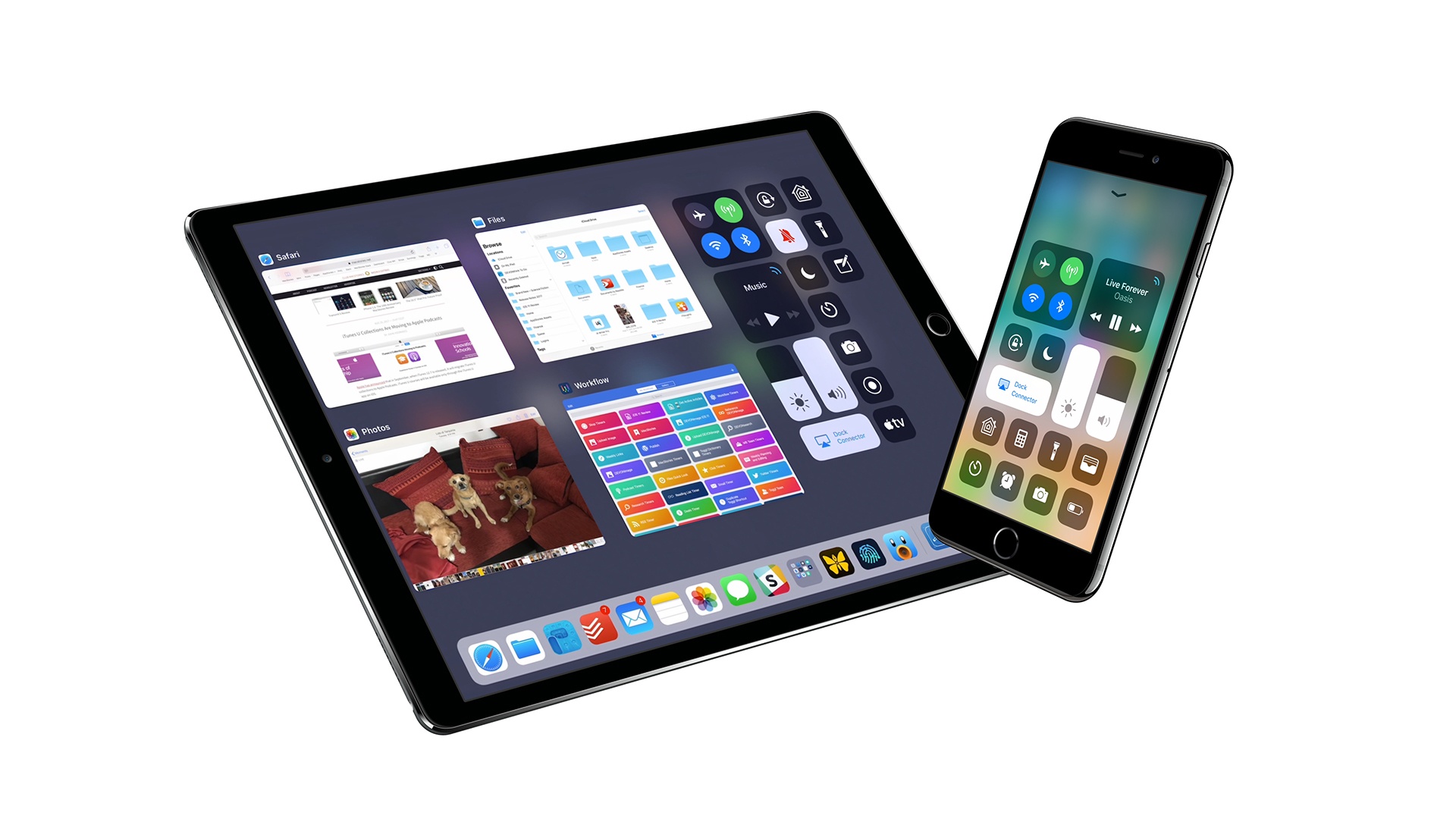
With iOS 11, Apple’s iPad vision feels resolute again. Multitasking is blending with multitouch, giving drag and drop a new purpose; the Mac’s best features – from file management to the dock – have been rethought, simplified, and extended specifically for iOS. The iPad’s mission is to reimagine the very concept of a portable computer by empowering a new generation of users to do their best work wherever they are, whenever they want.
If anything, iOS 9 was merely the iPad’s overture.
The iPad, however, is only one part of the broader iOS story, which has been – and most likely always will be – characterized by the iPhone’s evolution and impact on our society.
From that standpoint, not only did iOS 10 deliver with upgrades to core iPhone apps such as Photos, Messages, Music, and Maps – it showed how Apple was judiciously planting the seeds for technologies and human interface guidelines that are blossoming in iOS 11. The two-pronged approach of iOS 10 – updates to consumer apps along with the first signs of native iOS machine learning – resulted in an iPhone update that felt impactful without the need for a ground-up redesign.
For the most part, iOS 11 follows the playbook of last year. The transition to a new design language is still in flux, with a progressive remodeling of iOS 7’s divisive aesthetic and the adoption of friendly UI elements that can guide users across the system. iOS 11’s most notable redesigns, including the App Store and Control Center, lay new foundations and fix what didn’t work before. Refinements – in some cases, reversals of ideas that didn’t pan out – are one of iOS 11’s overarching themes.
iOS 11 also reaps the rewards of investments Apple made in iOS 10 and 2016’s iPhone line. From the upcoming wave of augmented reality apps to deeper computational photography and new responsibilities for iCloud, iOS 11 epitomizes – with remarkable accomplishments and a few missteps along the way – the focus and priorities of the modern Apple.
But perhaps more importantly, unlike iOS 10, iOS 11 presents a cohesive narrative for both the iPad and iPhone. A story where, for the first time in years, the iPad is informing some of the design principles and features of the iPhone’s software. Even from different angles, and each with its own past struggles, both acts in iOS 11 end up asking the same question:
This morning Tim Cook took the stage for the first time at the brand new Steve Jobs Theater within Apple Park. Following a touching tribute to Steve Jobs himself and a slew of other announcements, Cook introduced the products that everyone was waiting for: this year’s new iPhones.
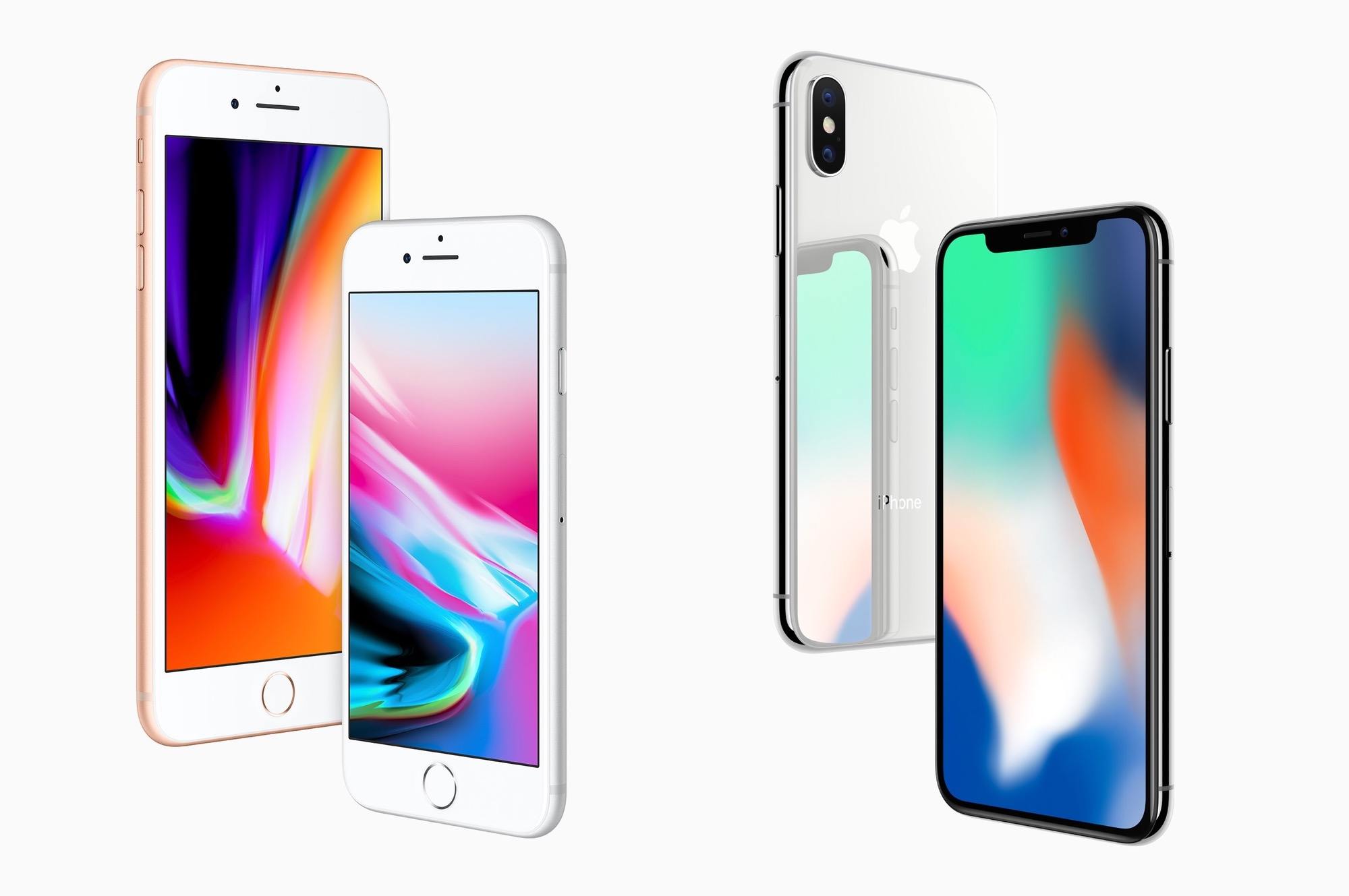
Apple’s 2017 iPhone lineup has a big twist over past offerings. Rather than just releasing two models of differing size and very similar specifications, the Cupertino company has announced three new models. The iPhone 8 and iPhone 8 Plus are a fairly standard yearly update, including processor, camera, design, and display improvements, as well as a few unique and interesting new perks. Unveiled alongside these, however, is the big new thing: the iPhone X.
Apple is calling the iPhone X1 the future of smartphones, and it certainly does look futuristic. There are some huge changes in this new device for both hardware and software, but before we get there let’s review the updates to the also-brand-new iPhone 8 models. I know the iPhone X is getting most of the attention, but we shouldn’t overlook that Apple has some excellent updates to its other models as well. If the iPhone X weren’t shipping this year, Apple would still have a strong lineup of smartphones for 2017.