Posts in iOS

iPad Diaries: Optimizing Apple Notes

iPad Diaries is a regular series about using the iPad as a primary computer. You can find more installments here and subscribe to the dedicated RSS feed.


I’ve been using Apple Notes every day since its relaunch with iOS 9 in 2015.

Apple’s refreshed note-taking app landed with impeccable timing: it supported the then-new iPad Split View in the first beta of the OS released in June, and Apple deftly positioned Notes as a nimble, multi-purpose tool that many saw as a much-needed escape from Evernote’s bloated confusion. I almost couldn’t believe that I was switching to Apple Notes – for years, it had been derided as the epitome of démodé skeuomorphism – but the app felt refreshing and capable.

Notes in 2017 isn’t too different from its iOS 9 debut. Apple added integration with the Pencil in late 2015, private notes with iOS 9.3, and they brought sharing and collaboration features in iOS 10, but the app’s core experience is still based on the foundation laid two years ago. Unlike, say, Apple Music or Apple News, Notes has remained familiar and unassuming, which gives it an aura of trustworthiness and efficiency I don’t perceive in other built-in Apple apps (except for Safari).

I keep some of my most important documents in Notes – from bank statements to health records – and anything I want to save for later tends to be captured with Notes’ extension. Apple Notes is my brain’s temporary storage unit – the place where I archive little bits of everything before I even have time to think about them, process them, and act on them. Some of the content I save in Notes is eventually transformed into DEVONthink archives or Trello cards; other notes live in the app and they’re continuously edited to reflect what’s on my mind. I rely on Apple Notes and it’s one of my most used Apple apps (again, along with Safari).1

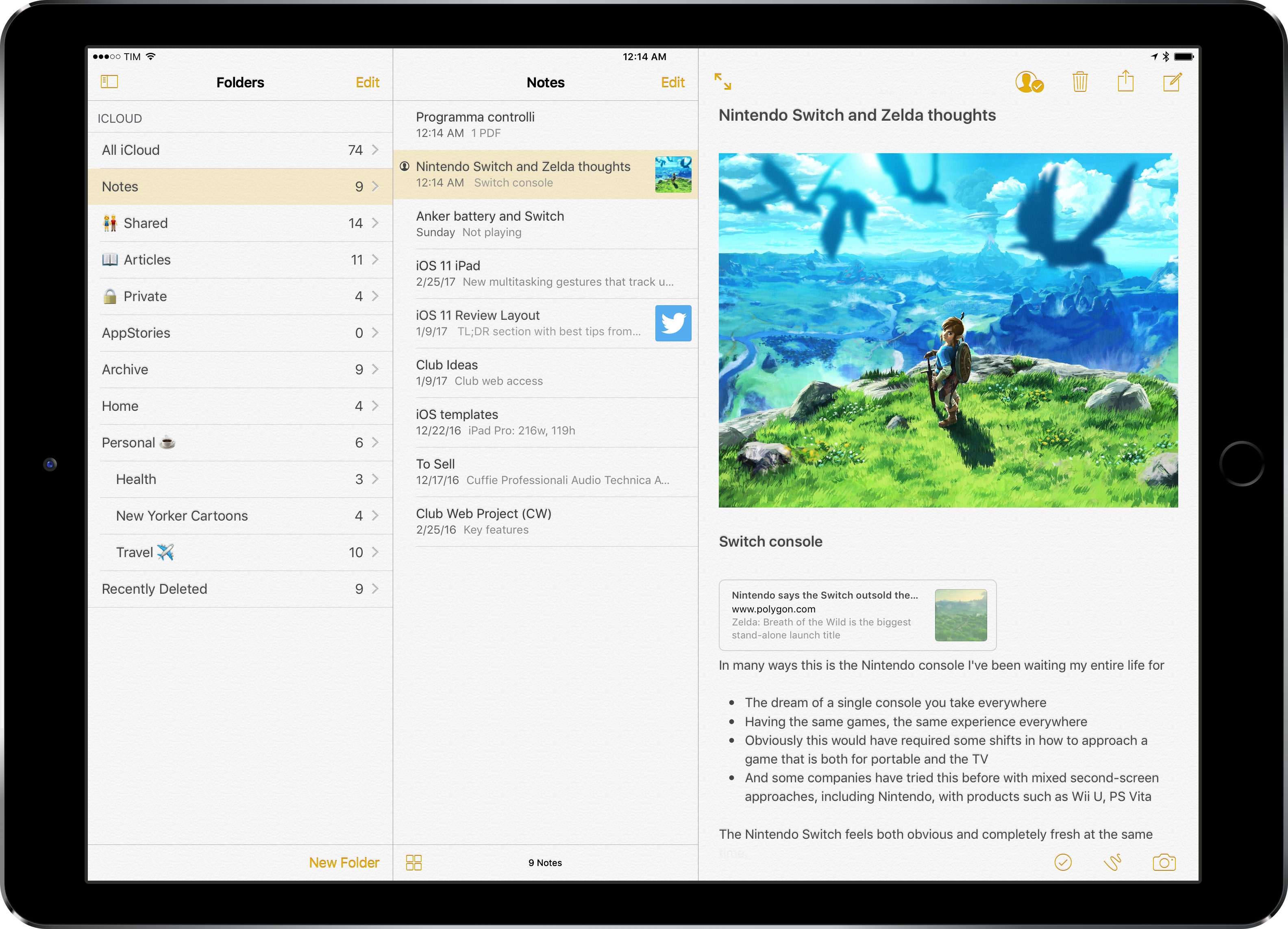
Apple Notes, however, is not a great pro iPad app. Notes falters where other Apple software falls short: it’s entrenched in iPhone paradigms at the expense of more advanced controls and customization options for iPad users. While Apple showed some promising steps towards “power-user features” with the three-pane layout added in iOS 10, I’ve long wished for a deeper degree of personalization in Notes for iOS. And given Apple’s reluctance to tweak Notes’ structure and functionality, I’ve come up with my own workarounds.
Read more


iPad Diaries: Apple Pencil, Notability, and the Joy of Note-Taking

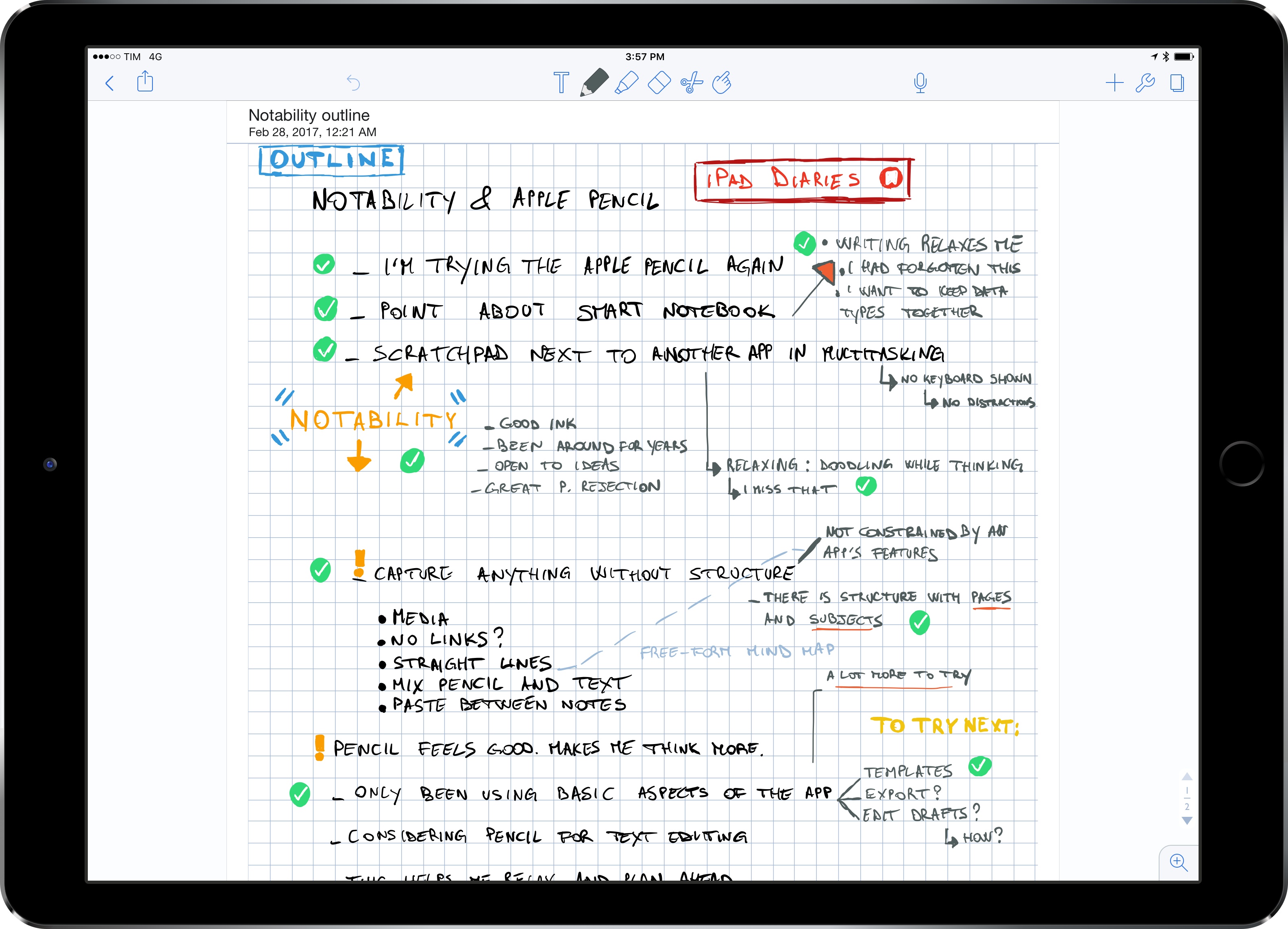
Please don't judge me by my terrible handwriting. I have other qualities.

Please don’t judge me by my terrible handwriting. I have other qualities.

iPad Diaries is a regular series about using the iPad as a primary computer. You can find more installments here and subscribe to the dedicated RSS feed.


Ever since I first got the 12.9-inch iPad Pro, I’ve wanted to use the Apple Pencil more. However, every time I tried to fit the Pencil into my workflow, I stumbled upon the realization that, no matter the excellence of the tool at hand, I’m no artist.

I spend most of my time typing with a keyboard (either a Bluetooth one or the iPad’s software one) and, while it’s fun to pretend I know what I’m doing in Linea or Paper, the sad reality is that I’m downright terrible at sketching or drawing. Moreover, unlike others, my background doesn’t involve a passionate appreciation of pen and paper. Therefore, I’m attracted by the Pencil’s concept and technology, but I don’t need it for my main line of work; plus, handwriting stopped being a daily habit after I graduated high school in 2007.

I was inspired by a story Ryan wrote, though, to reconsider if my work routine could still benefit from a different note-taking perspective. Testing fresh approaches and new ideas has always been the underlying theme of my switch to the iPad, after all. So when Ryan shared his thoughts on using the Pencil for non-artistic purposes, I took it as an opportunity to try out the Pencil as a complement to my writing needs rather than a futile diversion.

Read more


Record Bird Is Apple Music’s Missing Discovery Tool for New Releases

When it comes to keeping track of new music releases from my favorite artists, streaming services have always been a disappointment. After nearly eight years of streaming music every day, I’ve realized that the problem lies on the two ends of the New Releases spectrum: these days, services either prioritize front page curation skewed towards new pop, R&B/hip-hop, or EDM tracks (the most popular and lucrative genres), or they algorithmically suggest new releases for artists I may like, but which I’m not necessarily familiar with.

I’ve tried all of the major streaming services since 2009, and only two of them have gotten close to my ideal implementation of “Here’s everything artists you already know have released or are about to release”.

Rdio (forever in our hearts) had a solid New Releases section featuring a mix of variegate editorial picks culled from a variety of genres, labels, and trends. Unlike the modern equivalents in Spotify and Apple Music, I remember Rdio’s New Releases page1 offered a more balanced, heterogeneous mix of new songs.

Spotify, on the other hand, has invested heavily on algorithmic and serendipitous discovery of songs, but it still hasn’t quite figured out how to display every new release from every artist you care about. Spotify can send emails for new release highlights, but those are only a subset of new releases from your favorite artists – usually, only the most popular ones. Other Spotify features are similarly focused on highlights.

In comparing the treatment of new music releases among different services, I realized that this is largely what Apple had set out to solve with Connect in Apple Music: a way to follow all your favorite artists and view updates for their announcements – whether they were new songs, video clips, tour dates, or photos.

Apple Music Connect, however, has faltered due to Apple’s inability to scale a music-centric network (twice) and because it was predicated on a commitment from artists – both superstars and smaller acts – to post regular updates on their Connect feeds. After an initial spur of song previews and photos published on Connect, Apple Music’s network has mostly turned into a ghost town of sporadic updates, often automatically cross-posted to other networks (without any exclusivity), with hashtags that can’t be tapped and shortened links that open Safari webpages after multiple redirects. It’s not a good user experience. Apple Music Connect is an afterthought; it’s also been regarded as such by Apple itself with the removal of the dedicated page in iOS 10.

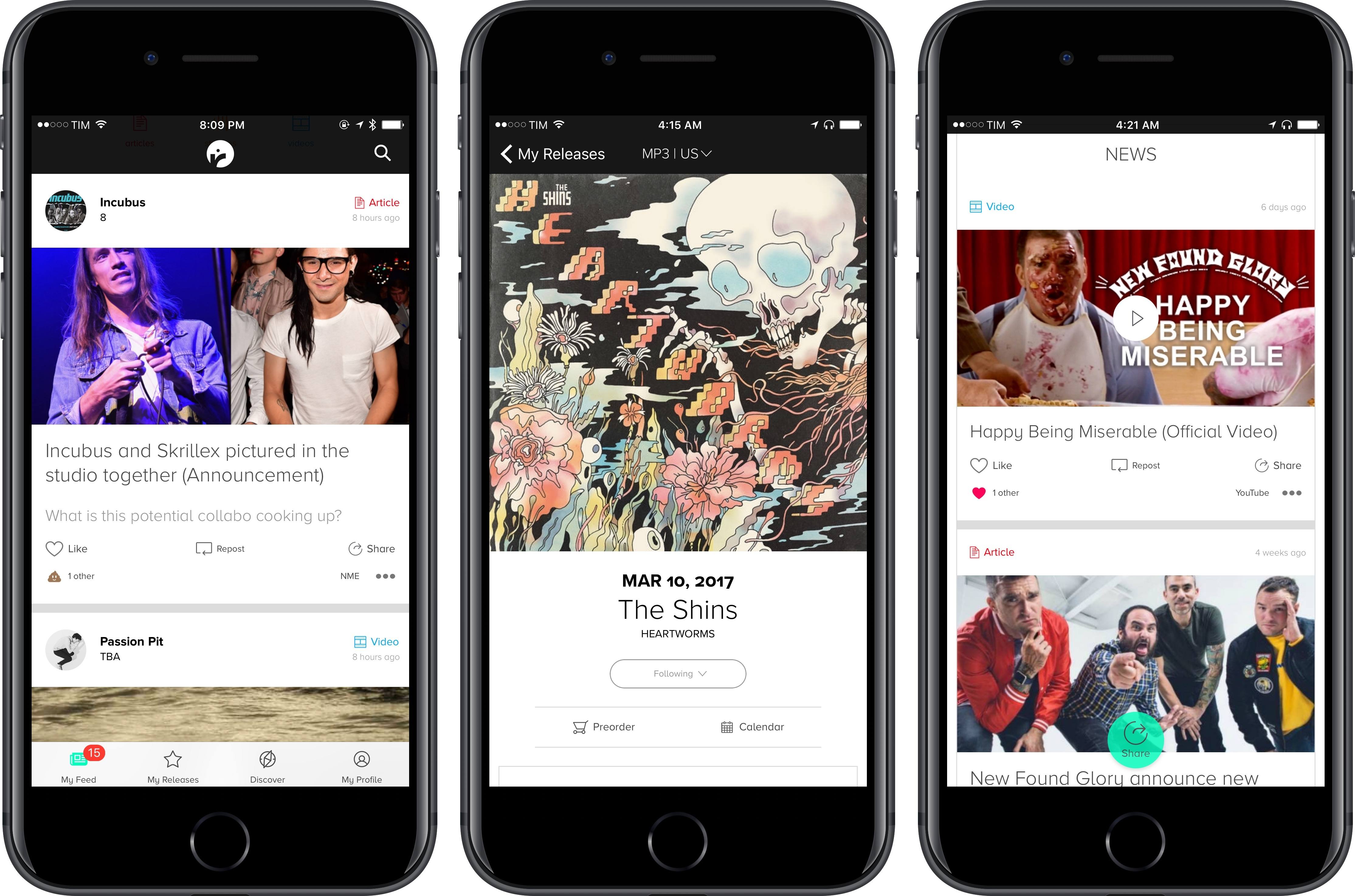
Fortunately, there are still people who understand what a music lover with a broad range of preferences wants from a tool designed to discover new music. For the past couple of months, I’ve been using Record Bird, a free iPhone app hailing from Austria, to check on updates from my favorite artists every day, stream songs, watch videos, and even read related stories.

Read more


iPad Diaries: Clipboard Management with Copied and Workflow

One of the common challenges involving a switch from macOS to an iPad is the lack of desktop-like clipboard managers on iOS.

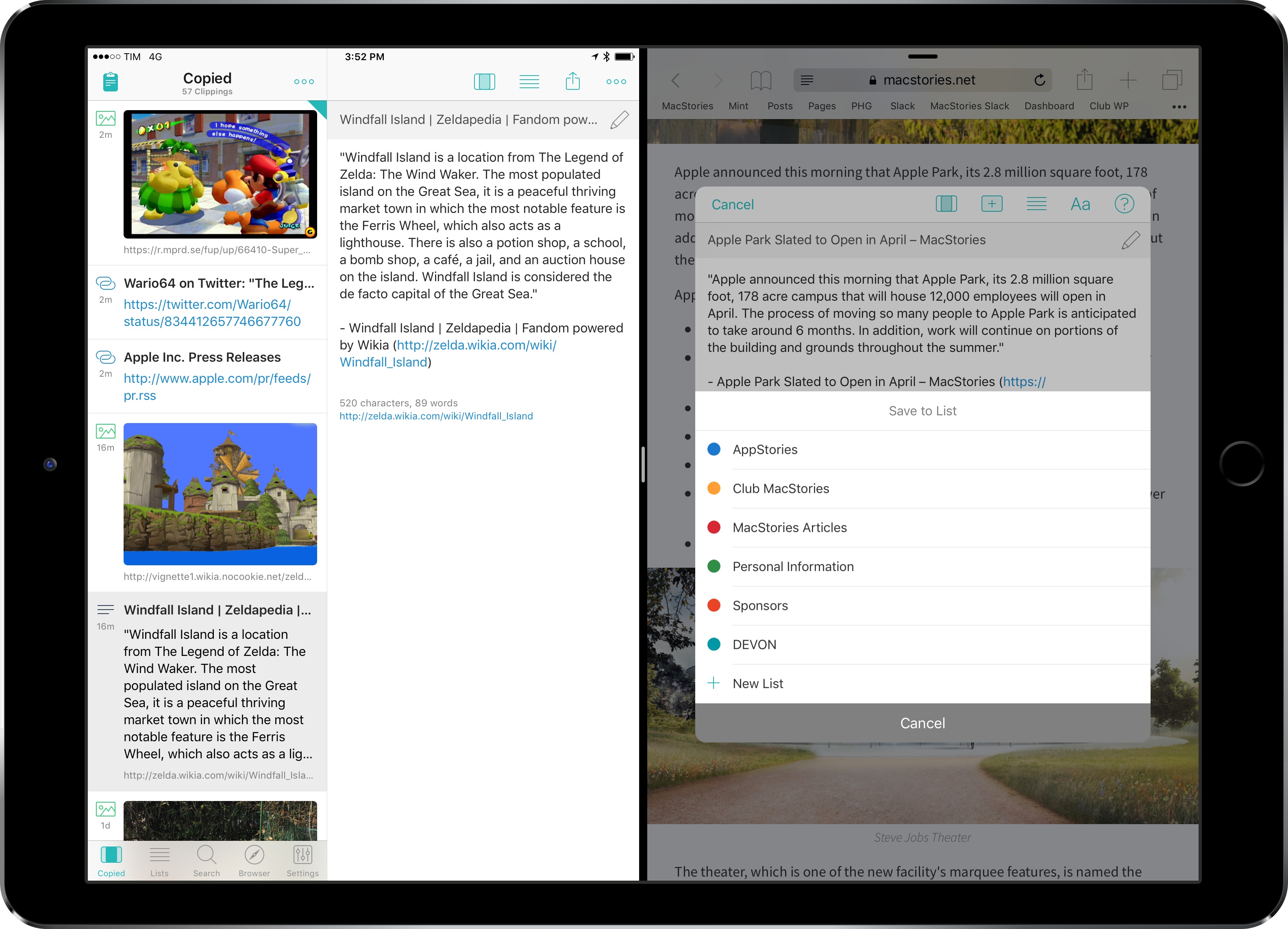
By nature of the platform1 and technical restrictions imposed by Apple, apps like Pastebot or Alfred wouldn’t be able to adapt their Mac capabilities to the iPad. Third-party iOS apps can’t constantly monitor changes to the system clipboard in the background; similarly, it isn’t possible for an iPad app to register as the handler of a keyboard shortcut at a system-wide level. An app would have to at least be currently in use via Split View to listen for clipboard changes, but, even in that case, it would have to be active to receive external keyboard commands.

With these limitations, it’s no surprise that clipboard managers aren’t a flourishing category on the iPad App Store. However, once we accept the intrinsic differences between the Mac and iPad and if we look at the problem from a different perspective, there’s plenty we can do – either with apps or automation – to go beyond Apple’s modest clipboard offerings on iOS.

After years of testing iPad clipboard managers and automation/scripting strategies, this is what I’ve come up with.

Read more


iPad Diaries: Advanced File Management and Research with DEVONthink

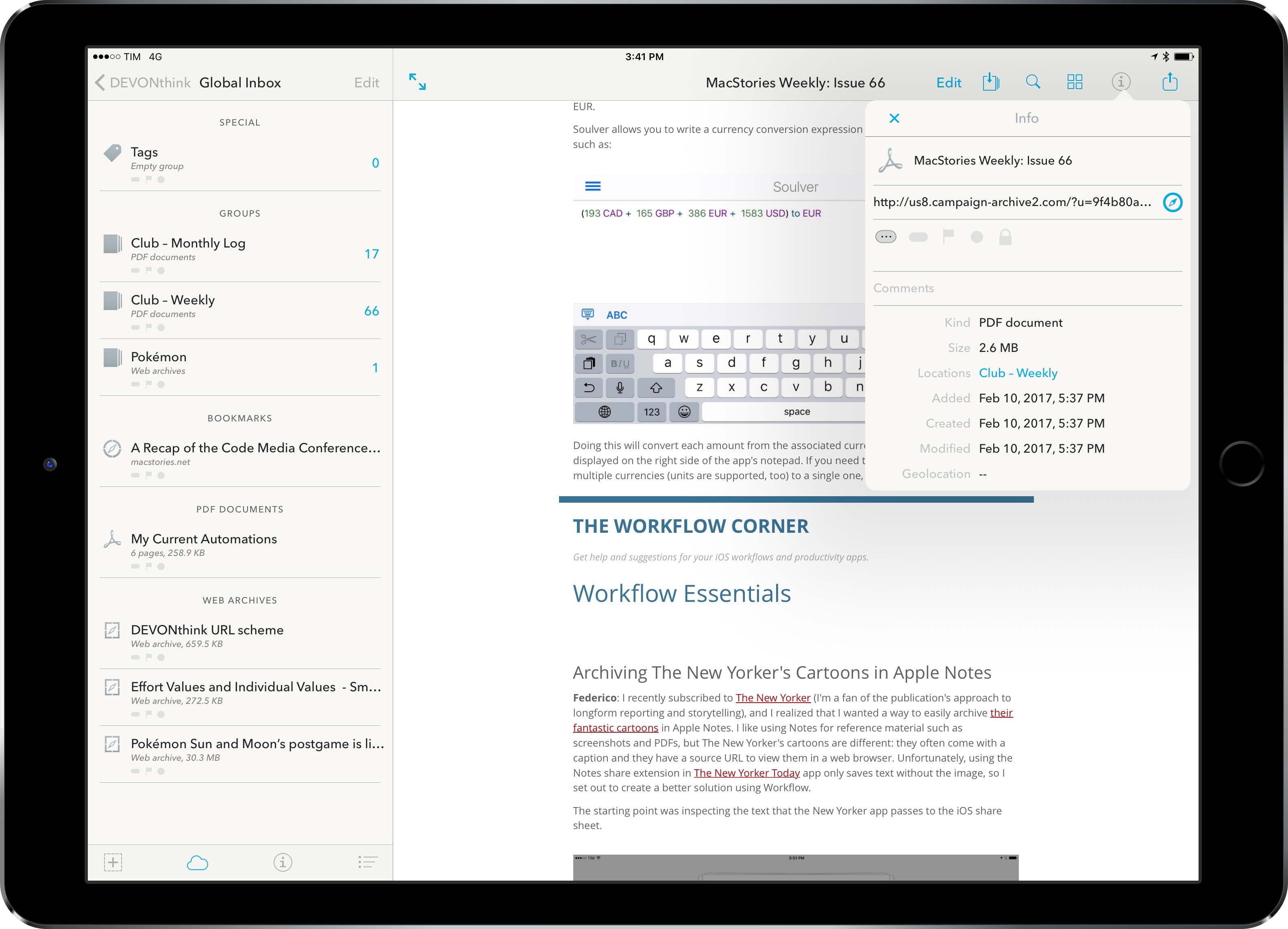
As I wrote in my story on one year of iPad Pro, I consider cloud services a necessity for managing files on iOS. Dropbox and iCloud Drive make it possible to keep the same sets of documents and app libraries synced across devices, but, more importantly, they help overcome iOS’ file management woes through centralized storage spaces. In the article, I espoused the flexibility of Documents and its tight integration with Dropbox, noting how Readdle had built the missing iPad file manager with features Apple omitted from their iCloud Drive app.

Since early January, I’ve been thinking about my larger writing projects scheduled for 2017 and whether Documents can scale as a reference and research tool. Looking back at 2016 and the time I poured into organizing and referencing files for my iOS 10 review draft in Scrivener (which I covered here), I realized that neither Scrivener’s built-in file manager nor Documents could meet the basic requirements I have set for this year’s review. These include the ability to search different file types with advanced operators as well as a system to reference individual files and folders throughout iOS with local URLs. It was during this meta-research phase1 that I decided to try DEVONthink To Go again.

Read more


Workflow 1.7 Introduces Magic Variables for Easier, More Powerful Visual Automation

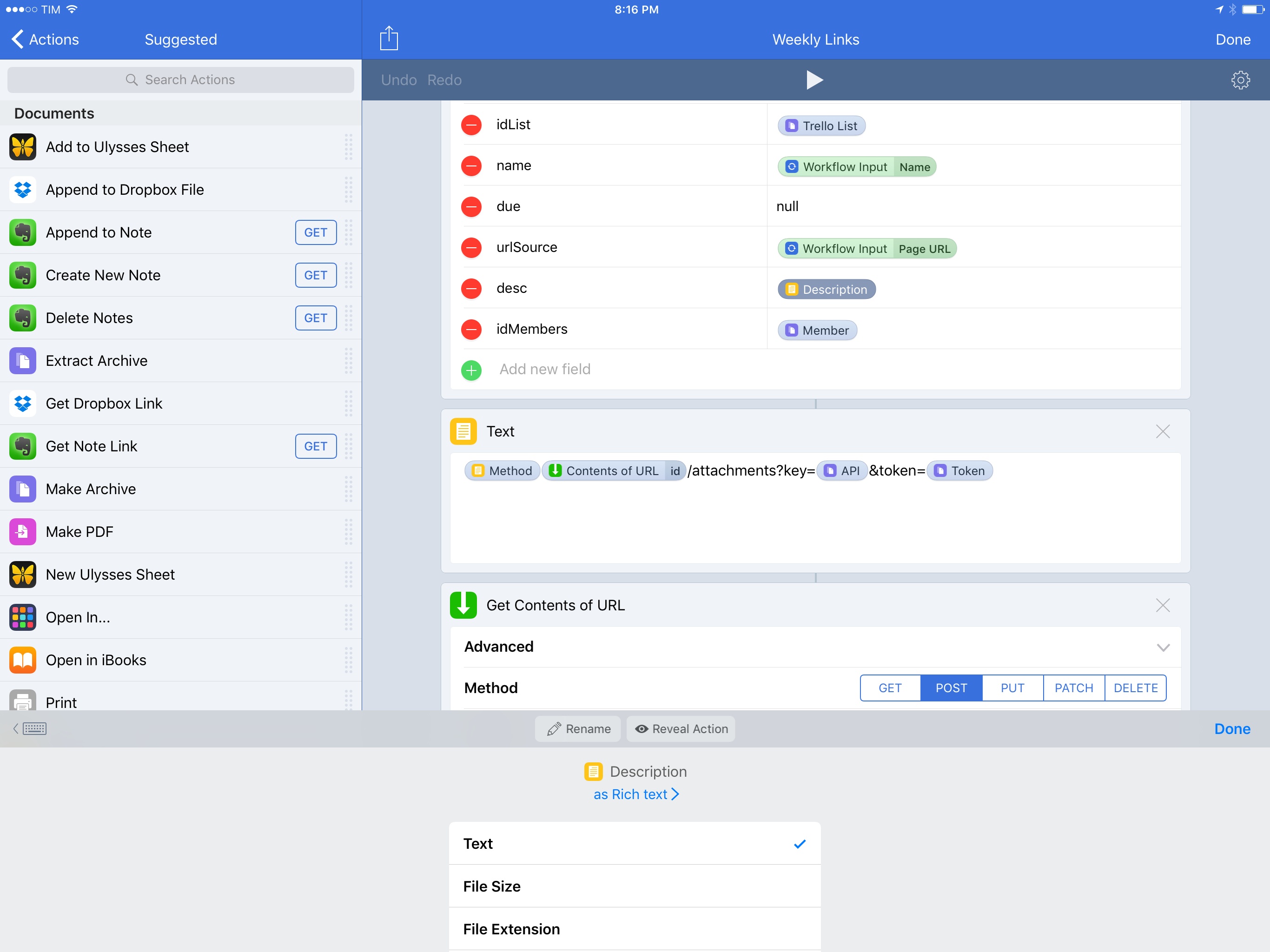
Magic Variables in Workflow 1.7.

Magic Variables in Workflow 1.7.

At its core, Workflow is a visual programming app that deals with variables. Data flows through actions and is altered by the user until it has to be stored in a variable – a local reference that can be recalled in subsequent steps.

Since the app’s original release, the Workflow team has done a commendable job at abstracting the complexity behind variable creation and management, but the feature itself is a vestige of traditional programming languages. The manually-saved variable is fundamentally ill-suited for Workflow’s visual approach predicated on direct manipulation of actions. Workflow revolutionized several automation concepts, yet it was always anchored in the common practice of declaring variables between actions.

For the past year, I’ve been lamenting the sluggishness involved with setting variables and extracting additional details from them. Anyone who’s ever created complex workflows has likely come across the same problem:

  • There’s a “master variable” that contains rich metadata (such as an iTunes song or an App Store app);
  • You want to extract details from the master variable – e.g. an app’s name, icon, or price;
  • Each of the variable’s sub-items has to be extracted by repeating a combination of ‘Get Variable-Get Details of Variable-Set Variable’ over and over.

Not only did this limitation make workflows slower to create – it also made variables difficult to explain and workflows harder to read for people who aren’t proficient in iOS automation.

As someone who writes about iOS workflows on a weekly basis, I’ve been thinking about this issue for a while. Every time I had to explain the inner workings and shortcomings of variables, I kept going back to the same idea: Workflow needed to get rid of its clunky variable management altogether.

Here’s what I proposed when Workflow 1.5 launched in May 2016:

“Instant Variables” to get details of a macro variable without doing the Get Variable-Get Details-Set Variable dance every time. You could save a lot of time if instead of fetching details of a variable multiple times you could use a single master variable and only specify where necessary which sub-details to use;

With today’s 1.7 update, the Workflow team isn’t introducing Instant Variables. Instead, they’ve rebuilt the engine behind variables on a new system called Magic Variables, which completely reimagines how you can create workflows and connect actions for even more powerful automations.

More than a mere tweak for power users, Magic Variables are the next step in Workflow’s goal to enable everyone to automate their iOS devices. By making workflows easier to create and read, Magic Variables are the app’s most important transformation to date, and the result far exceeds my expectations.

Read more


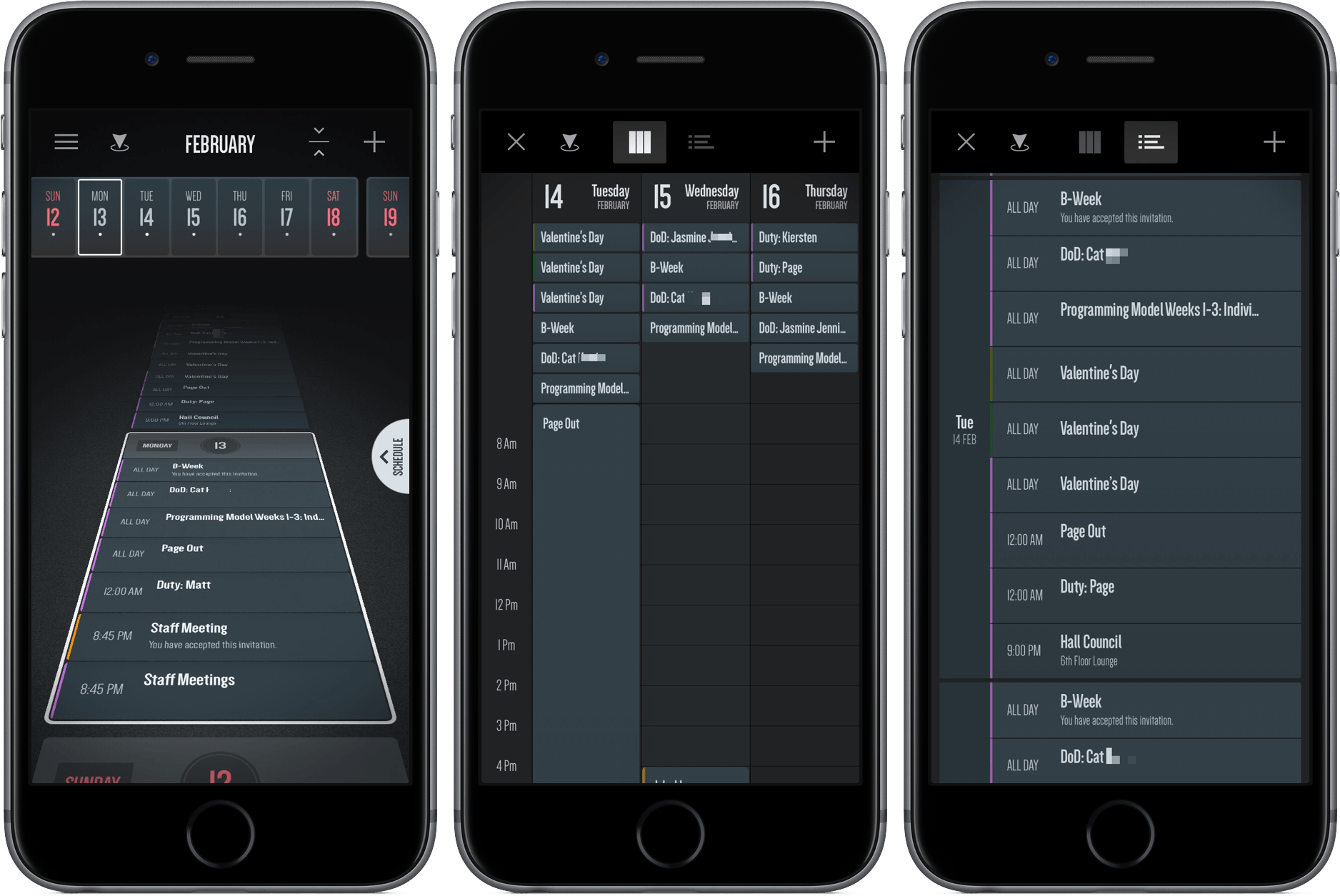
Vantage Review: A New Take on Calendars

In middle school, a friend and I would hang out on the weekend and live out our rock-n-roll dreams with Guitar Hero. As the notes would come down the line, we’d press sequences of red, green, yellow, and orange, jamming to songs in the iconic and aesthetically innovative game.

I haven’t thought much about Guitar Hero recently, but an app I downloaded a couple of weeks ago reminded me of it. However, it’s not a rhythm-based guitar game, or even tied to music at all.

It’s a calendar app called Vantage.

Read more


Fantastical 2.8 Brings Rich Notifications, iMessage Stickers

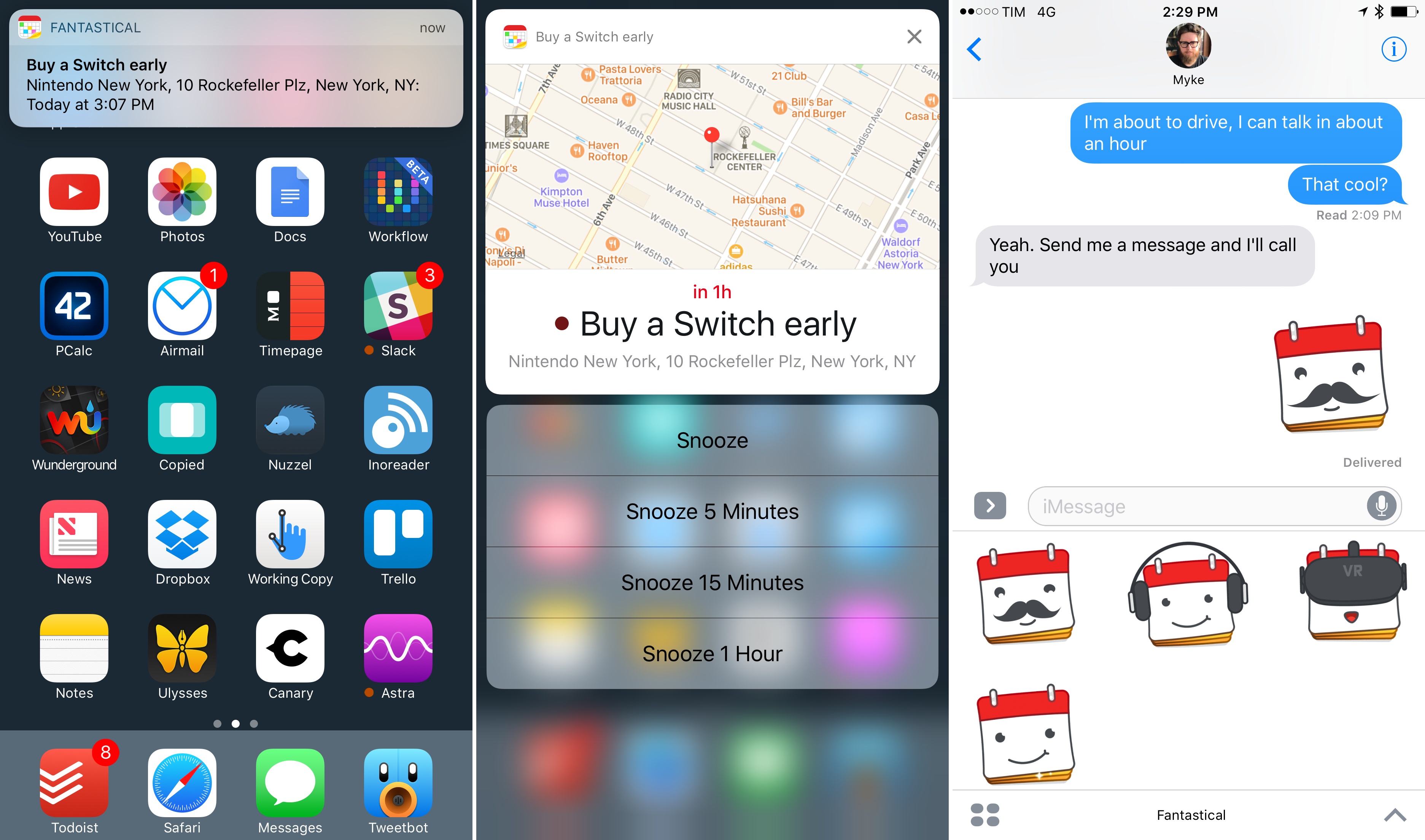
Rich notifications and stickers in Fantastical 2.8.

Rich notifications and stickers in Fantastical 2.8.

With a new version released today on the App Store, Flexibits updated Fantastical – the popular calendar client with natural language input – to include deeper support for iOS 10 and the iPhone 7. Version 2.8, available on the iPhone and iPad, adds new iMessage stickers using the app’s icon as the main character in different expressions, haptic feedback on the iPhone 7, and, more importantly, rich notifications for calendar events and reminders.

Read more