This Week's Sponsor:

BetterTouchTool

Now with a Powerful Launcher for Your Mac


Posts in iOS

Things 3.5 Brings UI Refinements, Tagging and Automation Improvements, Clipboard Integration

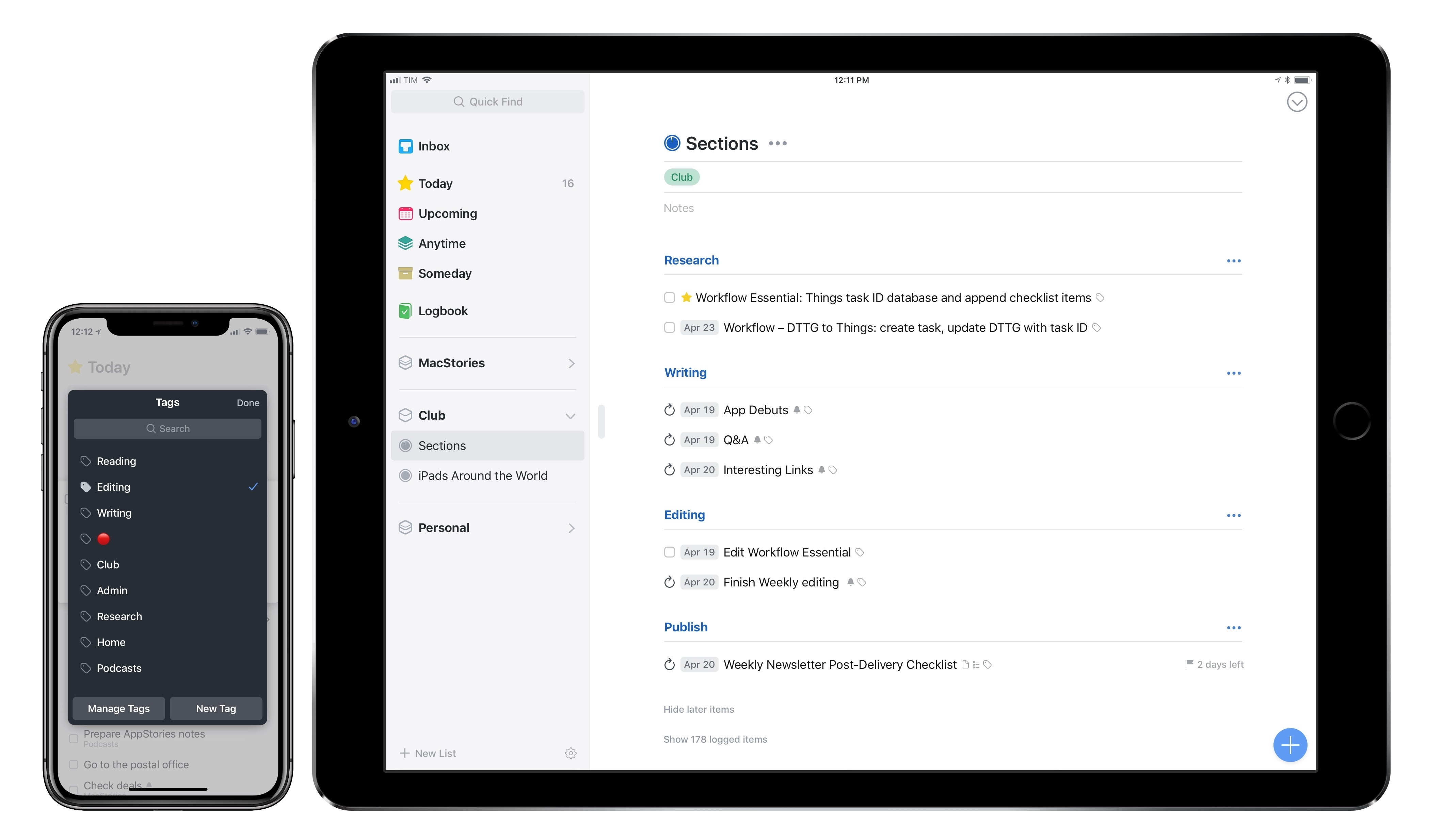
It’s been a busy 2018 so far for Cultured Code, makers of Things for Mac and iOS. Earlier this year, the company shipped Things 3.4, which, thanks to app integrations and a toolkit for third-party developers, propelled the task manager into the elite of automation-capable apps on iOS. It doesn’t happen very often that a task manager becomes so flexible it lets you build your own natural language interpreter; Things 3.4 made it possible without having to be a programmer by trade.

Today, Cultured Code is launching Things 3.5, a mid-cycle update that refines several aspects of the app and prepares its foundation for other major upgrades down the road. There isn’t a single all-encompassing change in Things 3.5 – nor is this version going to convince users to switch to Things like, say, version 3.4 or 3.0 might have. However, Things 3.5 is a collection of smaller yet welcome improvements that are worth outlining because they all contribute to making Things more powerful, intuitive, and consistent with its macOS counterpart.

Read more


Eventail 2.2: A Compact and Customizable Calendar Widget

Eventail, developed by Jozef Legeny, is a handy utility for visualizing upcoming calendar events in a widget. Instead of building an alternative client to compete with Apple’s Calendar app, Fantastical, or Week Calendar, Legeny created just a widget that you can use as a companion app alongside the calendar client of your choice.

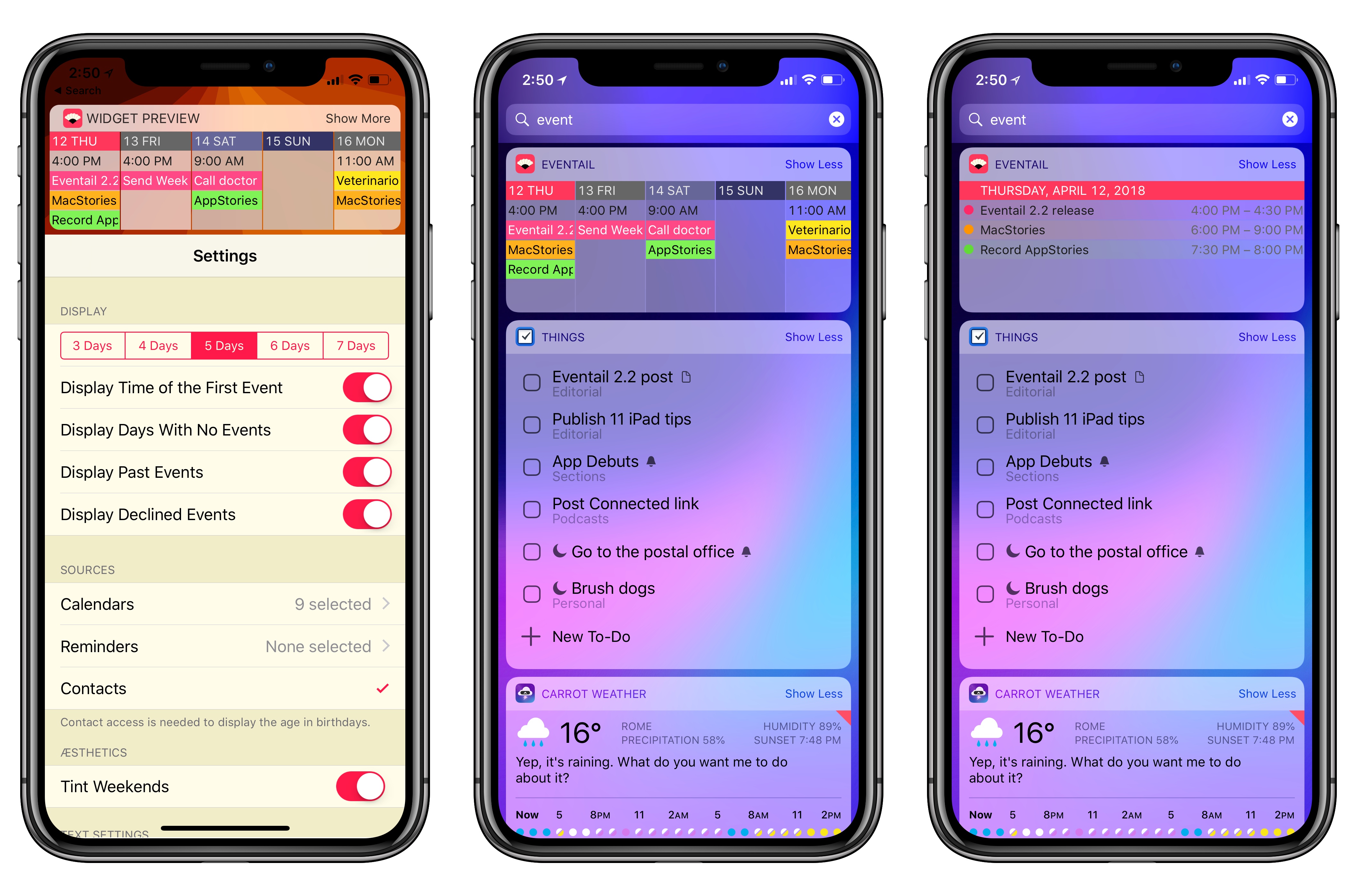
Eventail has been updated to version 2.2 today, which brings a new vivid color scheme for events, a true black theme for the iPhone X, and other visual tweaks. I’ve been testing the updated app for a couple of weeks and I liked it so much, it’s now got a spot at the top of my widget list on both the iPhone and iPad. In a compact and customizable widget, Eventail tells me everything I need to know from my calendar at a glance: which days are going to be busy and the time of my first appointment. There’s a fair amount of personalization that you can apply in the app’s settings (the app itself – pictured above – is a list of preferences): you can choose the number of days to display, whether you want to highlight weekends or not, and even if you want to display reminders alongside calendar events. Then, once you’re looking at the widget, you can tap individual days to expand them and tap again to go back to the main column view. It couldn’t be simpler.

Eventail’s widget will not scale for busy individuals who have dozens of events going on each day. However, as someone with only a couple of appointments on a daily basis, I find Eventail’s approach to be good enough for my needs and pretty to look at. I’m still using Week Calendar as my primary iPhone calendar client, but I now frequently open the Eventail widget when I need to know what my week looks like in a couple of seconds.

Eventail 2.2 is available on the App Store.


11 Tips for Working on the iPad

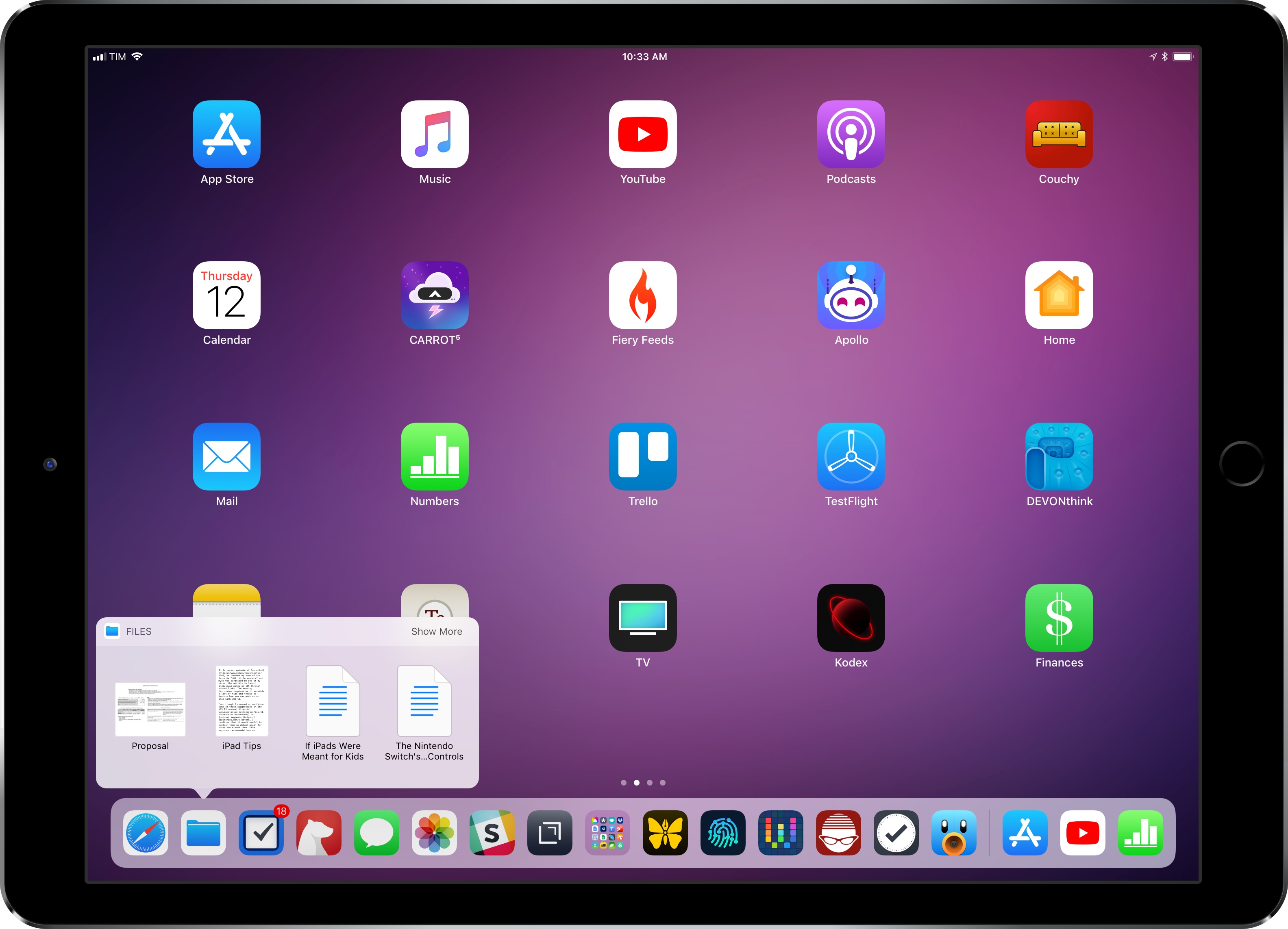
In a recent episode of Connected, we rounded up some of our favorite “iOS little wonders” and Myke was surprised by one of my picks: the ability to launch individual notes on iOS through shared links. The ensuing discussion inspired me to assemble a list of tips and tricks to improve how you can work on an iPad with iOS 11.

Even though I covered or mentioned some of these suggestions in my iOS 11 review or podcast segments before, I realized that it would useful to explain them in detail again for those who missed them. From keyboard recommendations and shortcuts to gestures and Siri, I’ve tried to remember all the little tricks I use to get work done on my iPad Pro on a daily basis.

After several years of being iPad-only for the majority of my work, I often take some of these features for granted. And admittedly, Apple doesn’t always do a great job at teaching users about these lesser known details, which have become especially important after the productivity-focused iPad update in iOS 11. I hope this collection can be useful for those who haven’t yet explored the fascinating world of iPad productivity.

Let’s dig in.

Read more


How to Adjust iOS’ Volume via Workflow When Streaming Audio to HomePod

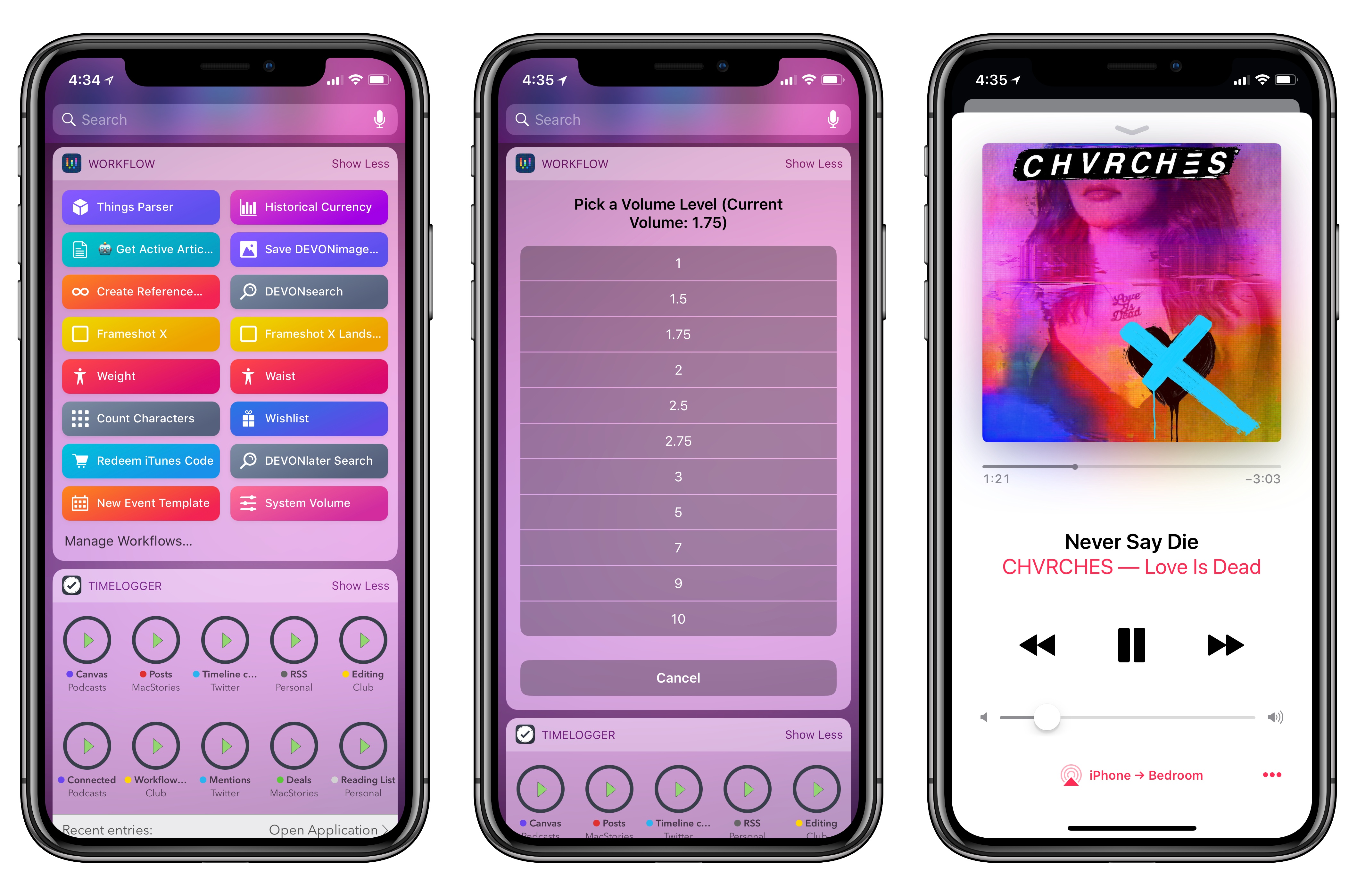
One of Workflow’s least known functionalities is its ability to get details about the hardware it’s running on and control some system features. Among these, Workflow can both retrieve an iOS device’s current volume level and set the volume. A few days ago, I realized I could make a workflow to quickly adjust my iPhone’s volume when streaming music to one of our HomePods. Unlike other automations I’ve crafted over the years, this workflow was quite a success in our household and I felt like it was worth sharing with the wider MacStories audience.

Read more


The Initial iPhone SDK

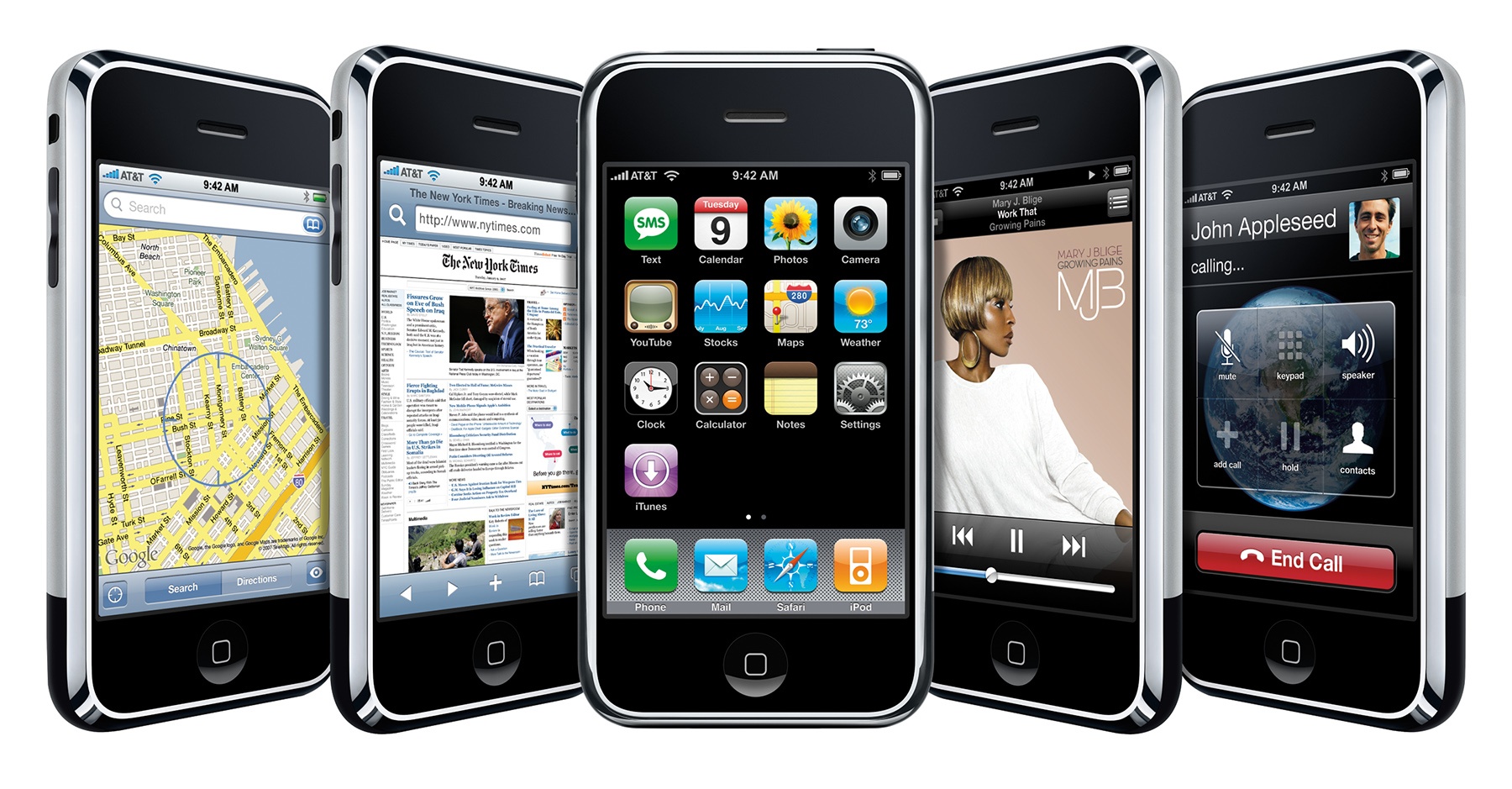
None of these apps were built by third party developers.

None of these apps were built by third party developers.

As noted by Craig Hockenberry, it has been a full decade since Apple shipped the first version of the iPhone SDK to developers.

It’s hard to remember today that, in the beginning, the iPhone didn’t have third-party apps. It came with a handful of built-in apps written by Apple for things like checking stocks and the weather, jotting down quick notes, making calendar events and reviewing contact information.

These apps were, for the most part, self-contained. The rich environment we enjoy on iOS today where apps can share lots of data with each other just wasn’t present in 2007.

The outlier in this paradigm was Safari, which put the Internet — or at least the parts that didn’t require Flash — in the palm of our hands.

Read more


HomePass Can Store All Your HomeKit Setup Codes

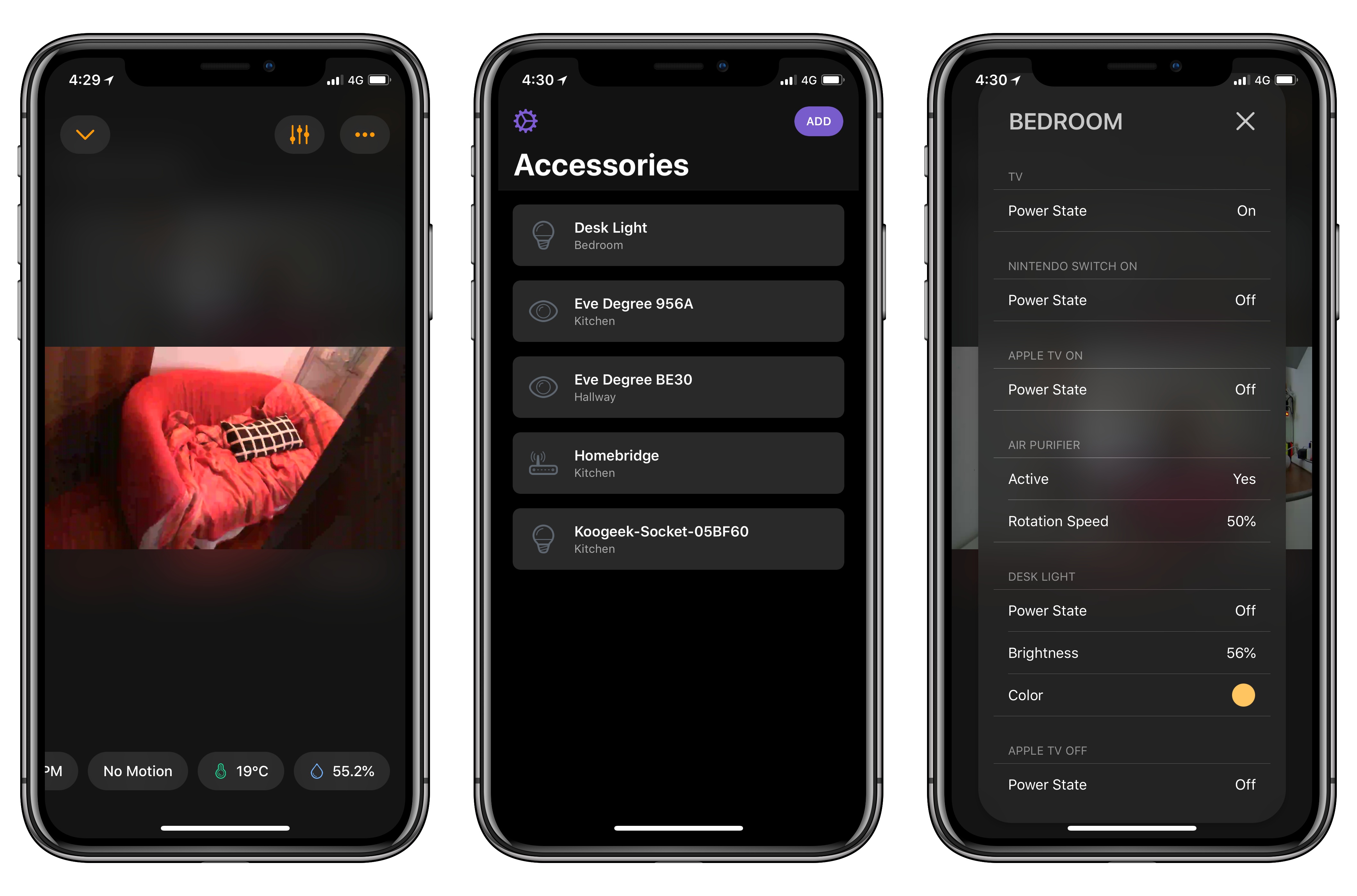
Developed by Aaron Pearce (the creator of Homecam, one of my favorite iOS apps this year), HomePass is a handy utility for iPhone and iPad to store HomeKit setup codes.

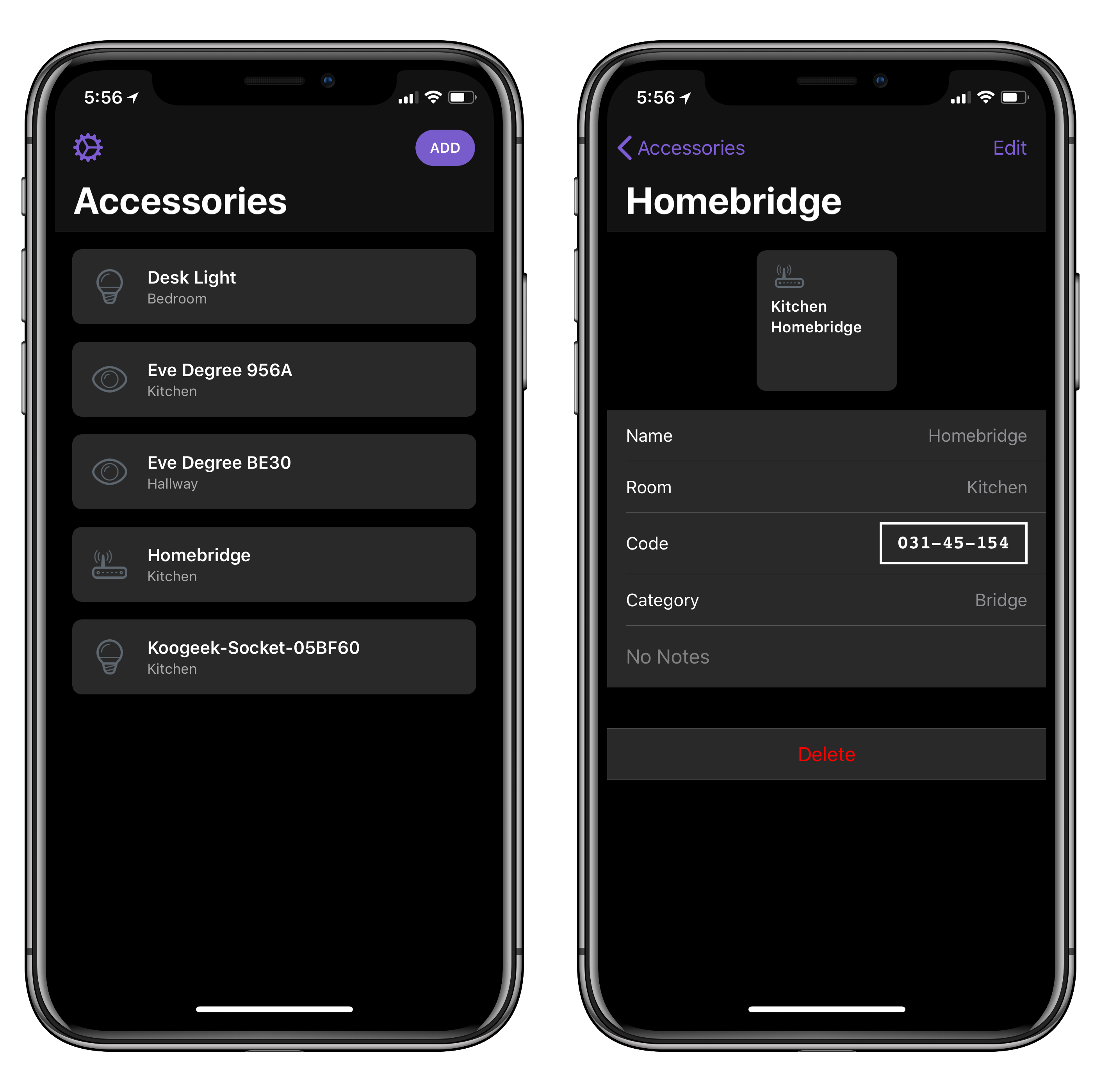
If you’ve been playing around with home automation on iOS, you know that managing accessory pairing codes isn’t exactly fun or convenient. While iOS 11 added support for QR codes and special NFC pairing tags, most accessory makers still stick basic alphanumeric codes on the back or at the bottom of accessories and essentially require you not to lose them. That’s not ideal. HomePass aims to be a single repository where you can easily keep track of all your setup codes, sync them across devices with iCloud, and even protect them with Face ID. Instead of taking pictures of your codes and storing them in Apple Notes (which is what I’ve been doing), you can collect every HomeKit code in HomePass, where they’ll be presented alongside device names, HomeKit rooms they belong to, and custom icons.

I’ve been testing HomePass for the past couple of weeks, and there are some nice touches I want to point out. First, if you grant the app access to your HomeKit data, it’ll be able to see existing accessories and allow you to simply enter the code without choosing a device name or icon (you can also create new accessories from scratch). In addition, the code displayed in the Code field of a device’s detail view is formatted with the same shape and font used on physical setup codes; this means you can open HomePass on your iPad and scan a code directly with the Home app on your iPhone. Lastly, you can add notes to your accessories and export everything as CSV if you prefer to have an additional backup of your accessory database.

One of the many shortcomings of Apple’s native Home app is the lack of deeper organizational tools for users who own dozens of HomeKit accessories and need a better way to store their codes. Ideally, such a feature shouldn’t be needed, but in my experience things sometimes go wrong and you may need to reset an accessory and add it to HomeKit again. When that happens, you don’t want to go hunting for the setup code on the back of a thermostat. I highly recommend using HomePass instead, which is available at $2.99 on the App Store.


Workflow 1.7.8 Adds ‘Mask Image’ Action, Things Automation Support, PDF Text Extraction, and More

In the first update since November 2017, Apple today released version 1.7.8 of Workflow, the powerful iOS automation app they acquired last year. The latest version, which is now available on the App Store, introduces a brand new Mask Image action, adds support for Things’ automation features, and improves the ability to extract text from PDFs using the company’s PDFKit framework, launched in iOS 11. While the unassuming version number may suggest a relatively minor update, Workflow 1.7.8 actually comes with a variety of noteworthy changes for heavy users of the app.

Read more


Halide 1.7 Brings New Depth Photography and ARKit Features, Darkroom Integration

We first reviewed Halide, the powerful third-party camera app by Ben Sandofsky and Sebastiaan de With, when it debuted in the summer of 2017, providing a powerful and elegant alternative to Apple’s Camera app that fully embraced RAW photography and advanced controls in an intuitive interface. We later showcased Halide’s iPhone X update as one of the most thoughtful approaches to adapting for the device’s Super Retina Display; to this day, Halide is a shining example of how the iPhone X’s novel form factor can aid, instead of hindering, complex app UIs.

While Halide was already regarded as an appealing alternative to Apple’s stock app for professional photographers and RAW-curious iPhone users (something that designer de With covered in depth in his excellent guide), it was lacking a handful of key features of the modern iPhone photography experience. Sandofsky and de With want to eliminate some of these important gaps with today’s 1.7 update, which focuses on bringing the power of Portrait mode to Halide, supporting the iPhone X’s TrueDepth camera system, and extending the app’s integrations via a special ARKit mode, new export options, and native integration with the popular Darkroom photo editing tool.

Read more