
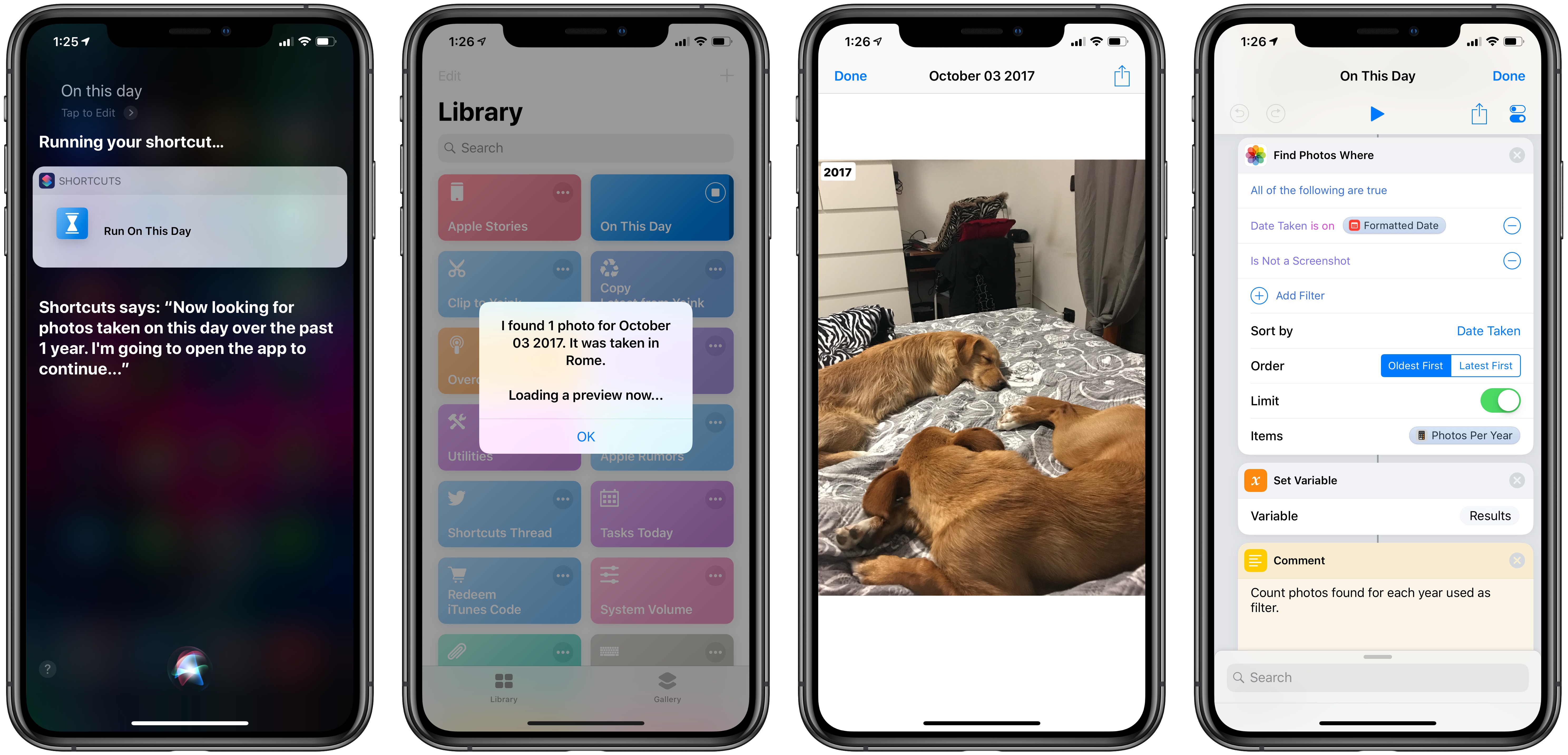
I’m in the process of creating a complete archive of every workflow I ever created for the Workflow app and updating each one for Shortcuts. As I was browsing through my old Workflow articles, I came across an interesting workflow I created in early 2015 called Photo Flashbacks. The main idea was simple enough: given Workflow’s ability to read the contents of the photo library, the workflow would filter a photo taken on the same day in previous years and preview it with Quick Look. That seemed like a fun project that I could pick up again and improve for the Shortcuts app.
Posts in iOS
Visualizing Photos Taken ‘On This Day’ in Previous Years with Shortcuts
Overcast 5.0.2 Adds New Series 4 Complications, More Siri Shortcuts
Following a major update that introduced a redesigned Now Playing screen, extensive shortcut support, and standalone Watch playback, Marco Arment has brought a variety of enhancements and fixes to version 5.0.2 of Overcast, released earlier today.
Overcast 5.0.2 has added new round complications for the Infograph faces on the new Apple Watch; these act as launchers that simply open the Overcast app on the Watch, which I find convenient enough. Furthermore, you can reduce the amount of haptics used by the app to communicate certain actions (I love haptic feedback in Overcast, so this option isn’t for me), and there are new options for configuring how the ‘Send to Watch’ feature works.
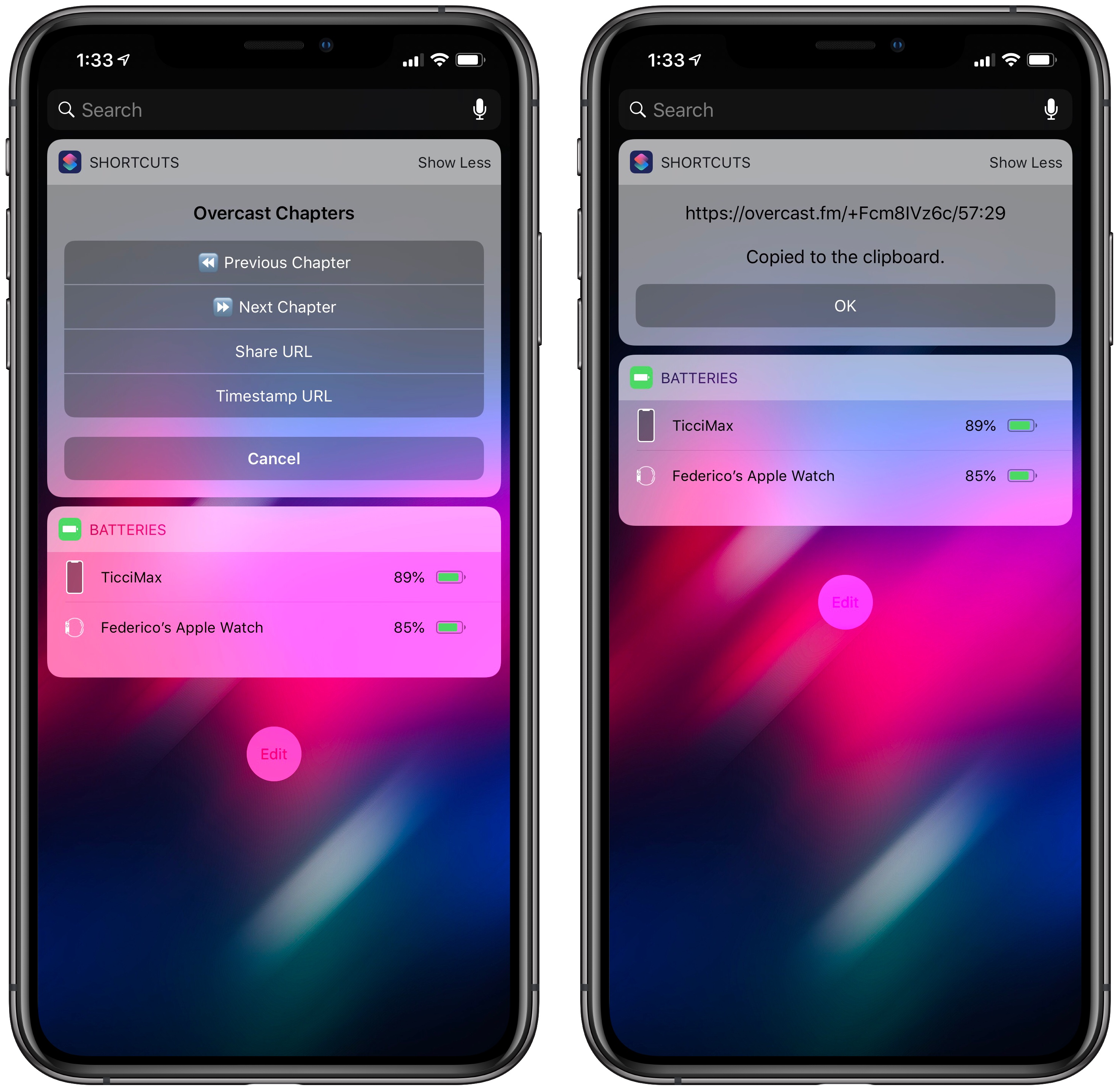
Most of all though, I’m interested in the new Siri shortcuts supported by Overcast. The app now offers shortcuts to activate or cancel the sleep timer, as well as two shortcuts to copy the current episode’s standard or timestamped link to the clipboard. The ability to quickly generate an Overcast link for the episode you’re listening to is a perfect use case for shortcuts: it removes repetitive interactions with the app and, with the tap of a button or Siri phrase, it gives you a link you can instantly share with others.
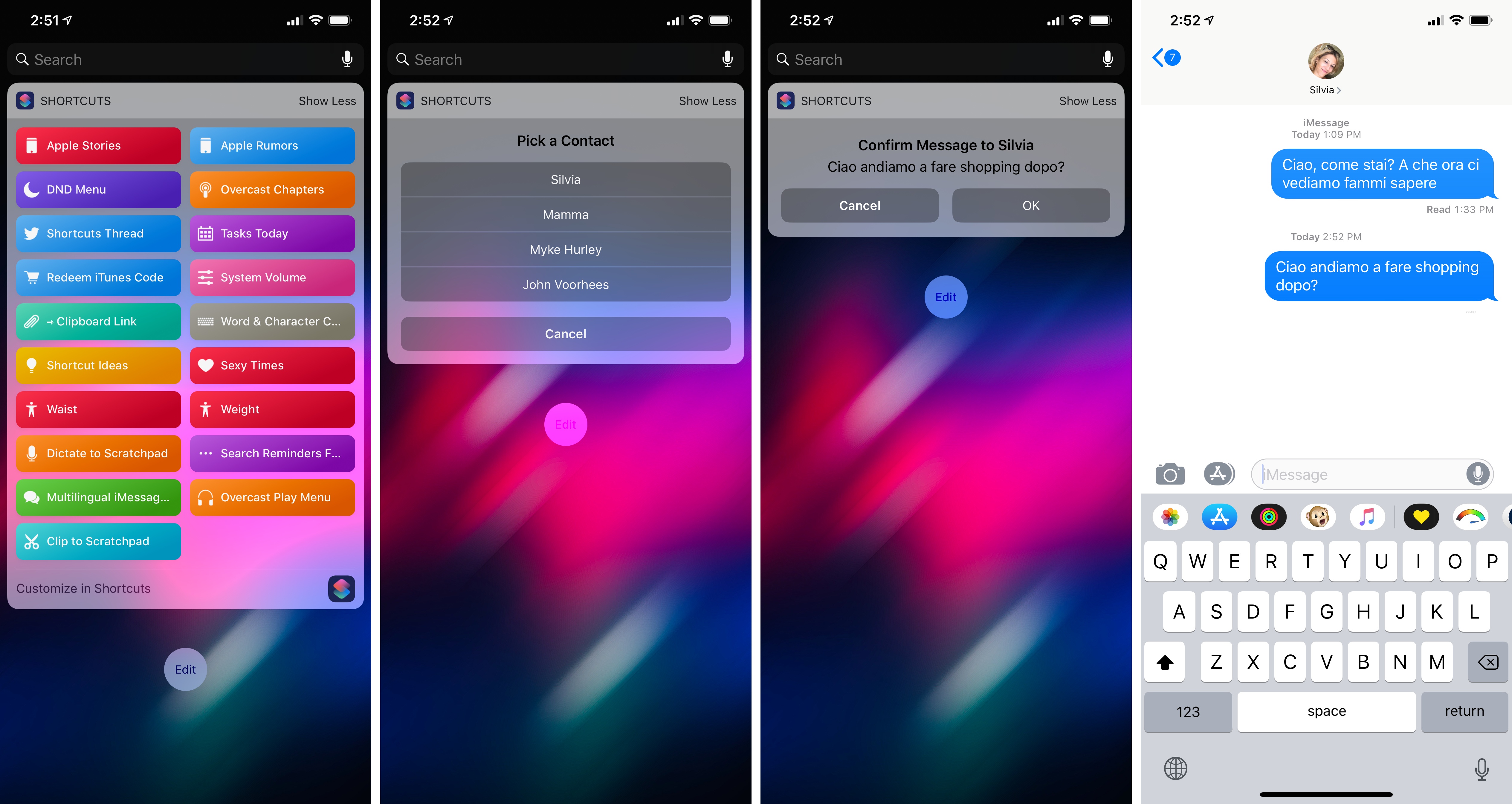
For the occasion, I’ve turned my original Overcast Chapters widget shortcut into Overcast Controls, an enhanced widget that, besides chapter navigation, now uses the app’s new shortcuts to let you copy episode links too. You can download it below.
Overcast Controls
Navigate chapters or copy links for the Overcast episode you’re currently listening to. Best used as a widget.
Adding Device Frames to iPhone XS and XS Max Screenshots with Shortcuts
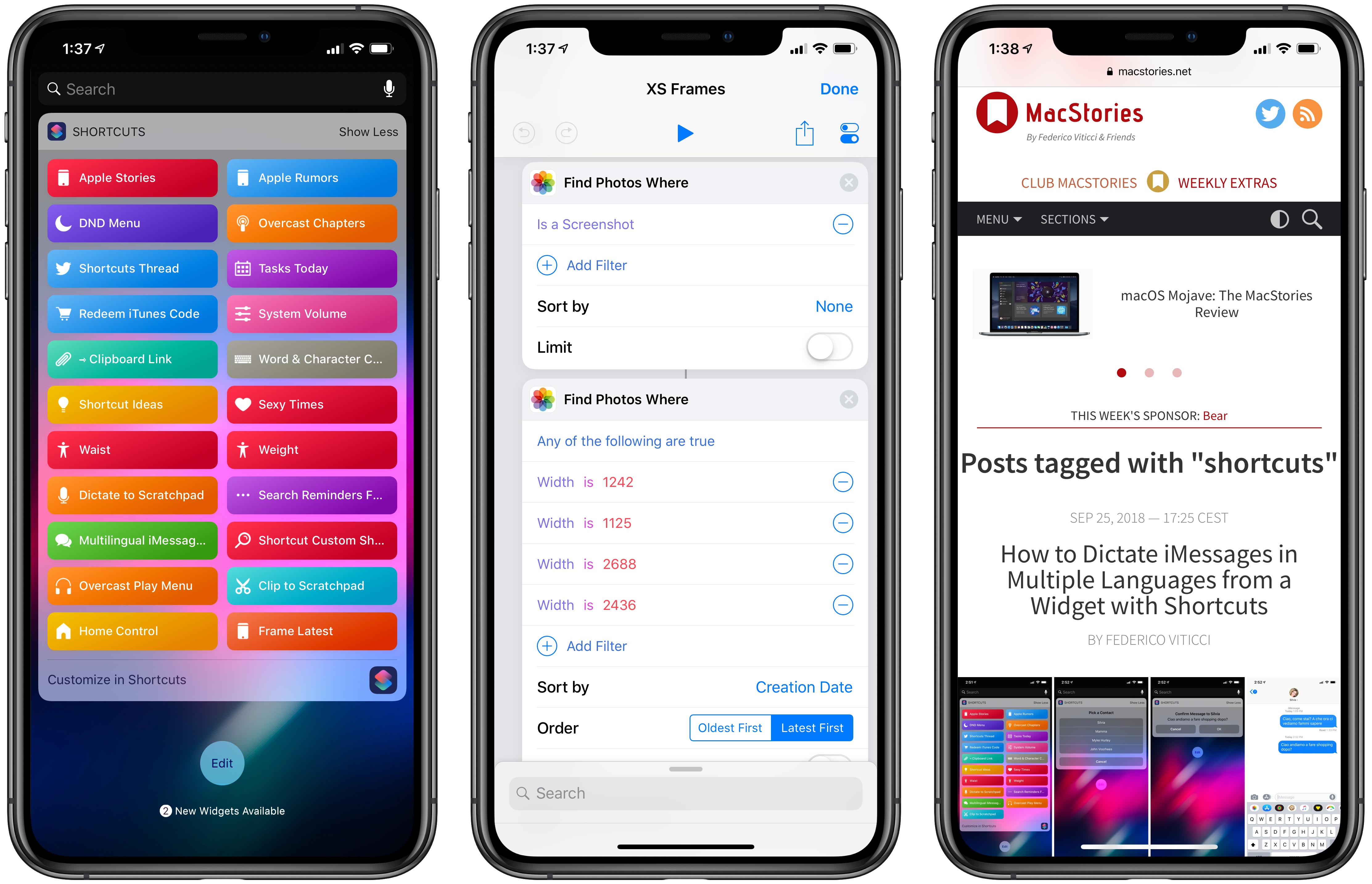
Update 10/10: A newer version of this shortcut, which can apply frames to screenshots taken on multiple Apple devices, is available here.
MacStories readers may be familiar with the way I like to present iPhone screenshots in app reviews and other stories – particularly for “hero” images, such as the one above, I want my screenshots to be contained in device frames that resemble official marketing images from Apple. They’re prettier, and they do a better job at communicating what an app looks like on an actual device. I could create these images manually using apps like Affinity Photo and Pixelmator on iOS, but the process would be slow, boring, and time-consuming. Instead, for years now I’ve been using Workflow and its ‘Overlay Image’ action to get this done in an automated fashion.
With Shortcuts and the new iPhone XS and XS Max, it was time for an update to my old workflow. While I could have kept using the same iPhone X assets for the XS given their physical resemblance, I upgraded to a XS Max this year, which meant that my screenshots wouldn’t have fit the old device frames natively anyway. Fortunately, Apple uploaded official marketing assets for the XS and XS Max a couple of days ago, so with the help of my girlfriend (who’s better at Photoshop than I am) I was able to update my workflow for the new devices and add a few extra options in the process as well.
How to Trigger IFTTT Applets with iOS 12’s New Shortcuts App and Siri
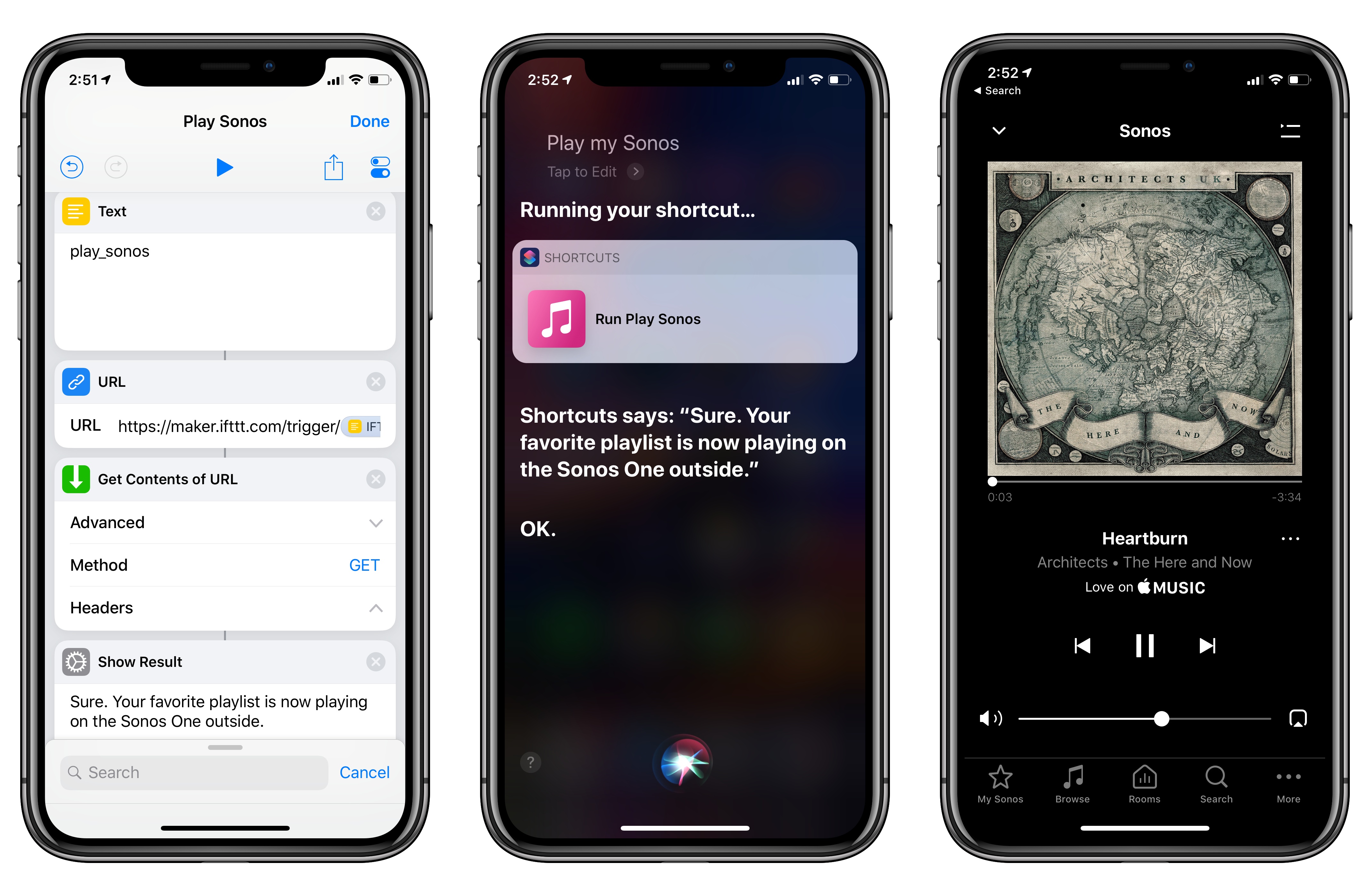
Among the actions that didn’t make the transition from Workflow to the new Shortcuts app for iOS 12, built-in support for triggering IFTTT applets (formerly known as “recipes”) is perhaps the most annoying one. With just a few taps, Workflow’s old ‘Trigger IFTTT Applet’ action allowed you to assemble workflows that combined the power of iOS integrations with IFTTT’s hundreds of supported services. The IFTTT action acted as a bridge between Workflow and services that didn’t offer native support for the app, such as Google Sheets, Spotify, and several smart home devices.
Fortunately, there’s still a way to integrate the just-released Shortcuts app with IFTTT. The method I’m going to describe below involves a bit more manual setup because it’s not as nicely integrated with Shortcuts as the old action might have been. In return however, you’ll unlock the ability to enable IFTTT triggers using Siri on your iOS devices, Apple Watch, and HomePod – something that was never possible with Workflow’s original IFTTT support. Let’s take a look.
Compiling and Exporting Chapters for My iOS 12 Review with Drafts 5
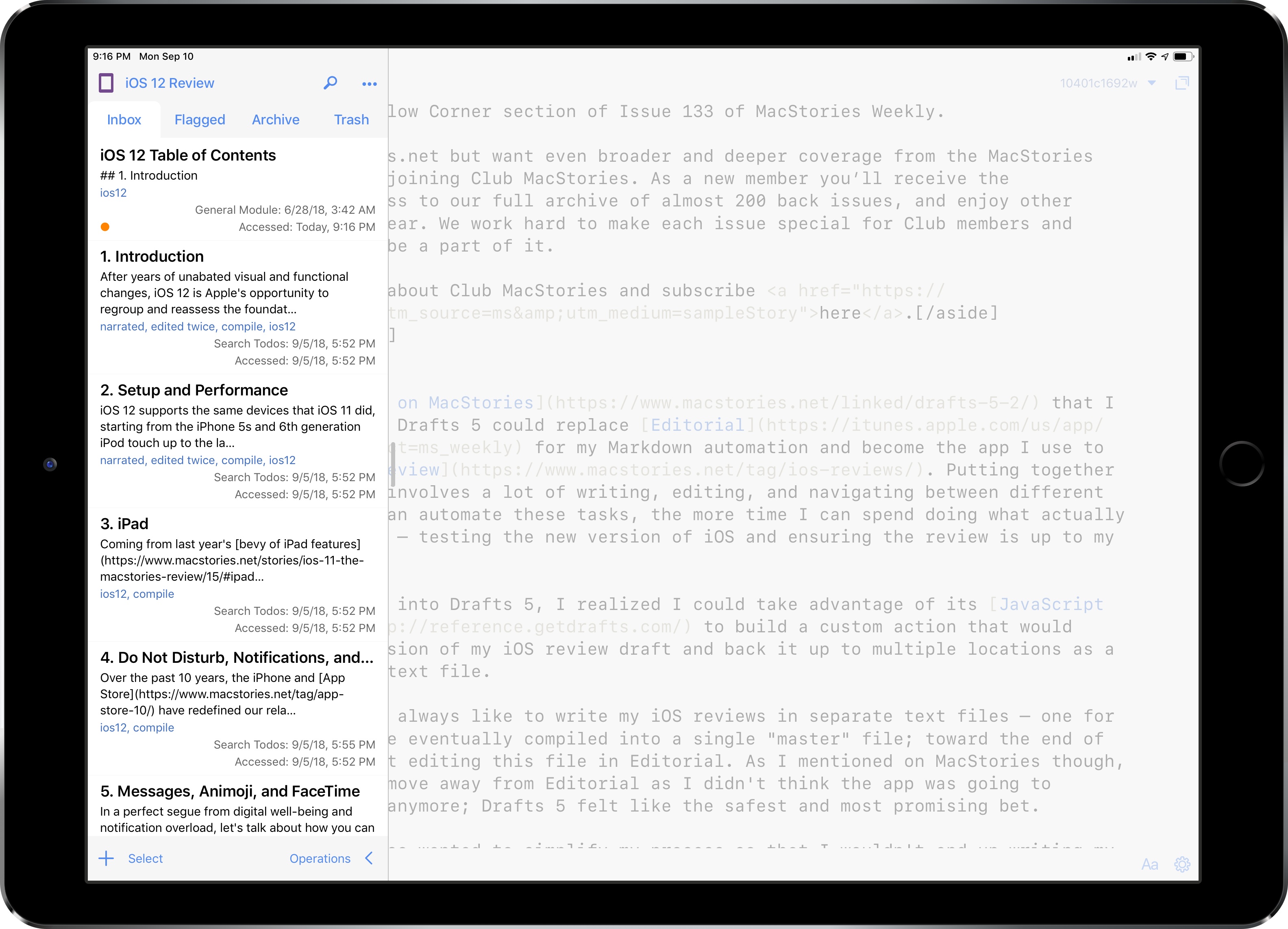
Back in June, I wrote on MacStories that I was evaluating whether Drafts 5 could replace Editorial for my Markdown automation and become the app I use to write my annual iOS review. Putting together these longform pieces involves a lot of writing, editing, and navigating between different sections; the more I can automate these tasks, the more time I can spend doing what actually matters for the review – testing the new version of iOS and ensuring the review is up to my standards.
Once I started looking into Drafts 5, I realized I could take advantage of its JavaScript automation engine to build a custom action that would compile the latest version of my iOS review draft and back it up to multiple locations as a single Markdown (.md) text file.
WhatsApp Adds Media Previews in Notifications
WhatsApp for iOS was updated earlier this week with the long-awaited ability to preview media (pictures and animated GIFs) using rich notifications on iOS. As you can see in the screenshots below, this new feature allows you to expand a notification and preview its embedded image attachment without having to open the app and before composing a reply from the notification itself.
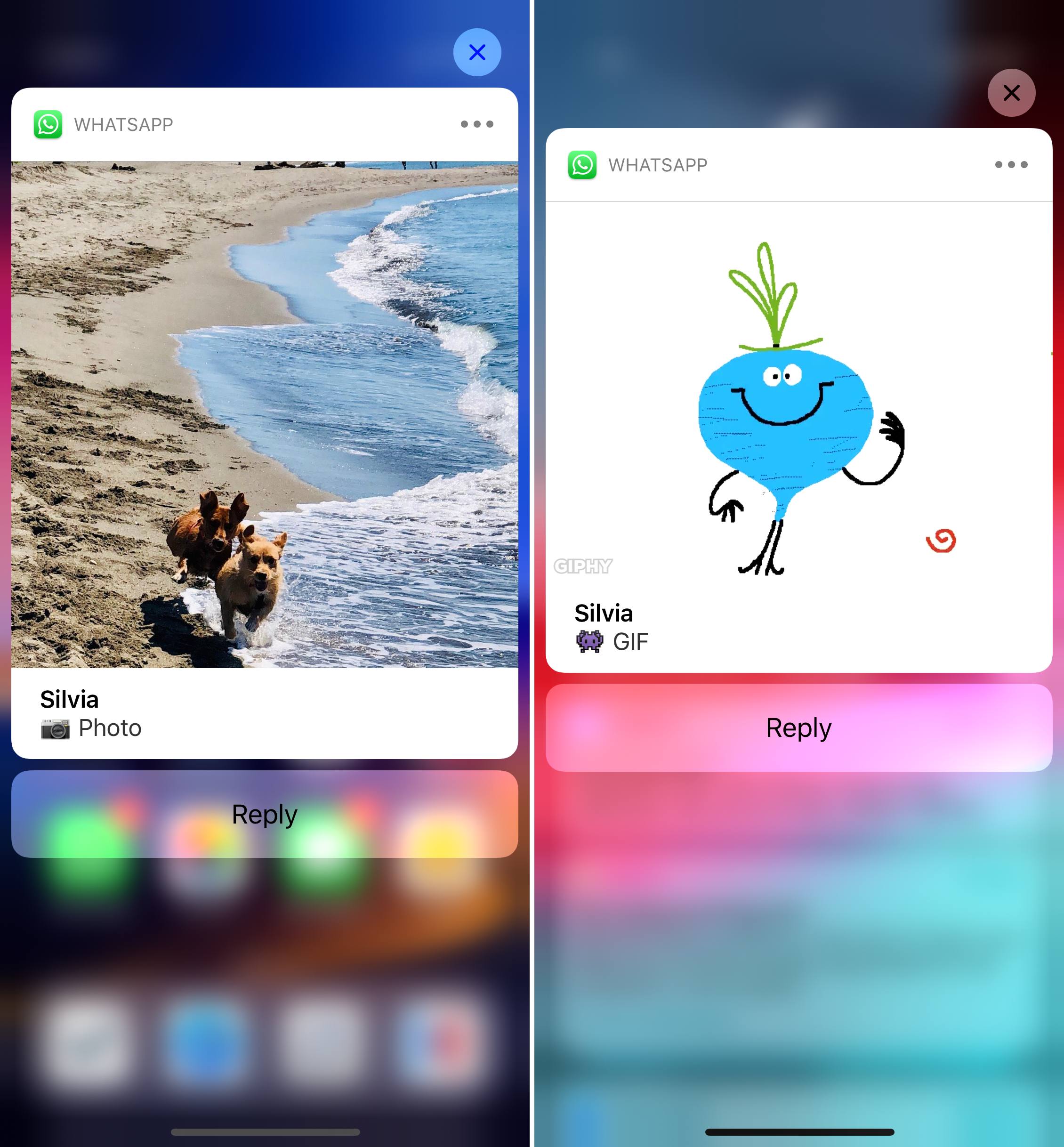
As a heavy user of WhatsApp (it’s my second most used social/communication app, second only to iMessage), this feature was perhaps the single most important option I was hoping the app would eventually adopt. The entire flow of previewing and responding to messages that contain pictures is so much better now. Of course, I’m also waiting for an iPad version of WhatsApp.
For context, the rich notification API for media previews was introduced with iOS 10 in 2016. Here’s to hoping it won’t take the WhatsApp team until 2020 to implement Siri shortcuts.
GoodTask’s Smart Lists for Reminders
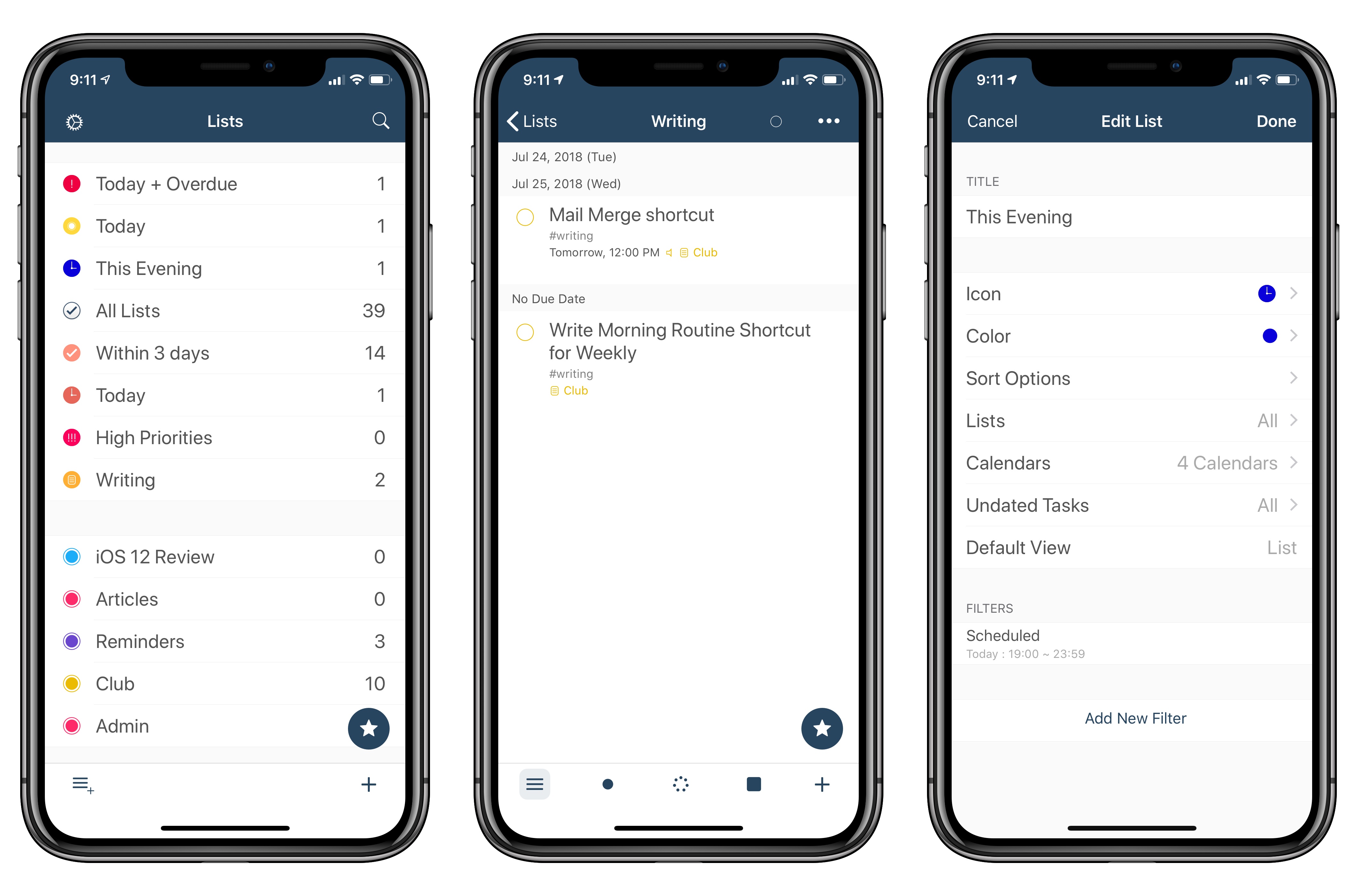
I’ve been playing around with GoodTask, a Reminders client for iOS, as part of my experiments with Shortcuts and Reminders for this year’s iOS review. GoodTask is a powerful utility that extends Reminders in ways that I’d love for Apple to consider whenever they decide to update their own Reminders app. GoodTask has grown a lot since its debut four years ago; I recommend reading Tim’s review of version 3.0 to get an idea of its capabilities. The app has got a bit of a learning curve, but it’s much more powerful than Reminders while retaining its key advantages (such as Siri integration and immediate background sync between every Apple device).
Today’s update to GoodTask brings a couple of features that I suggested to its developer a while back. The first one is a quick action to reopen a web link (or URL scheme) contained in a reminder, if any. This makes it easier to use GoodTask as a repository for links saved from Safari (perhaps through the Shortcuts extension). I like the way GoodTask automatically extracts URLs from the Notes field of a reminder, and this quick action speeds up the process of reopening links a lot.
The second feature is a change to the ‘Scheduled’ filter for smart lists, one of the best ideas in GoodTask. Smart Lists are liked saved searches for reminders: they let you create custom lists (which you can only view in GoodTask) to manage a subset of reminders based on specific filtering criteria. For example, you can create smart lists for reminders with a specific tag (another GoodTask-only option), items that are overdue, or reminders that are due within 3 days and have a high priority. In the latest version of the app, you can create smart lists for reminders that are due between specific start and end times of the day. Essentially, I wanted to replicate Things’ fantastic Today/This Evening feature in GoodTask. With smart lists in version 3.9.1 of the app, I can now use the ‘Scheduled’ filter to show me reminders due today (between 6 AM and 7 PM) and in the evening (between 7 PM and 11:59 PM). It’s not quite as elegant as Things’ native feature, but it lets me have a similar scheduling setup in GoodTask as well.
I’ll have more to share about GoodTask over the summer as I continue to experiment with Reminders and Shortcuts in iOS 12. In the meantime, if you’re looking for a great alternative to the Reminders app on iOS, you should take GoodTask for a spin.
iOS 12 Beta: Our Favorite Tidbits and Hidden Features (So Far)
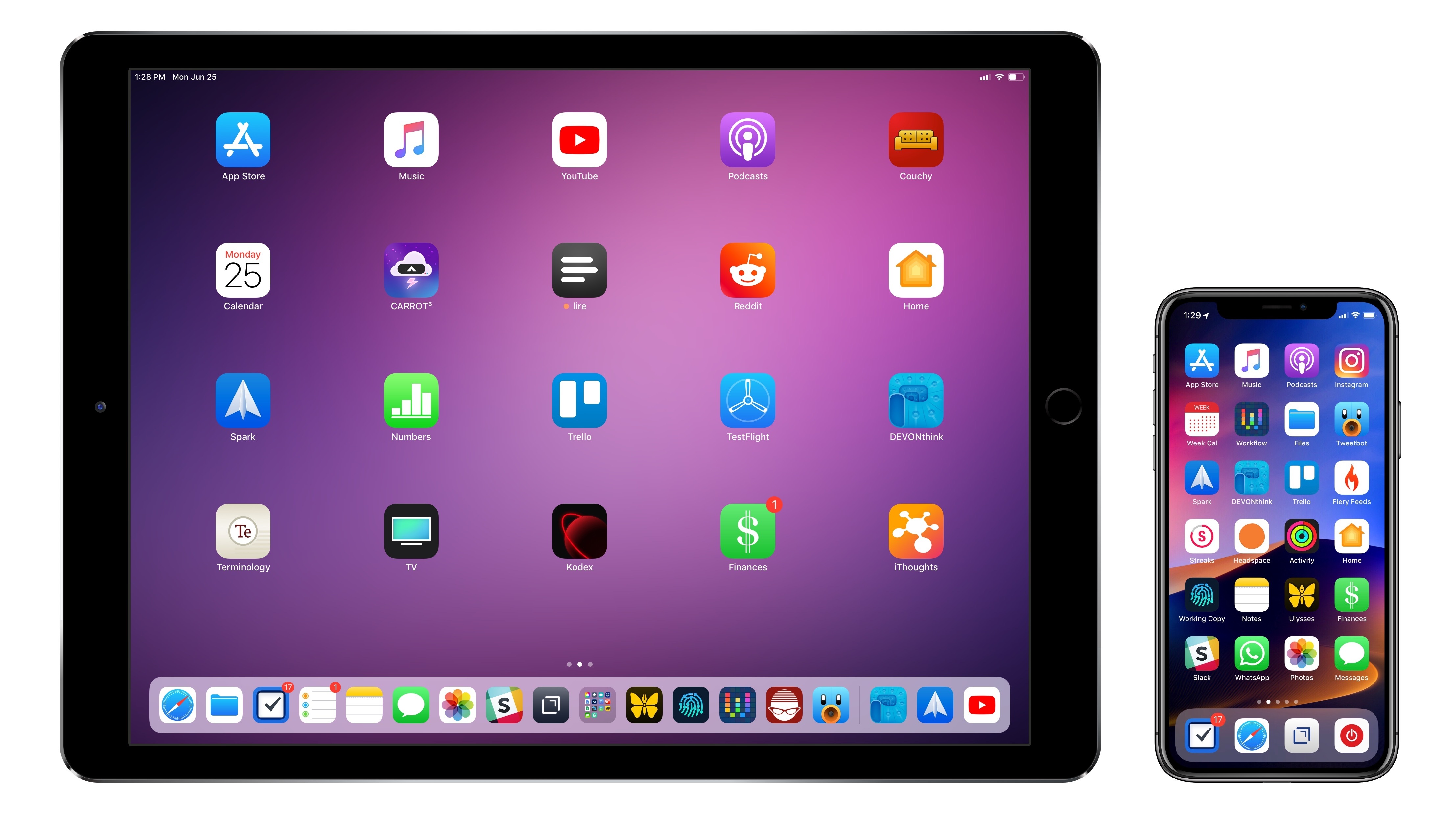
Apple released the first public beta of iOS 12 today, allowing non-developer testers to check out the new features and improvements in the next major version of iOS, set to be released sometime in the fall. While it’s always good practice to avoid installing a beta OS on your primary devices, the public beta seed typically ensures a minimum level of stability and functionality that isn’t always guaranteed with the first developer builds seeded at WWDC. If you’re interested in installing the public beta of iOS 12, you can find more details here.
We covered the big themes of iOS 12 and its most important functionalities in our original overview earlier this month. In this article, I want to focus on something different: showcasing my favorite small features and tidbits that I’ve come across in iOS 12 since installing the beta on both my iPhone X and iPad Pro a few weeks ago. While these features may change (or be removed altogether) between today and iOS 12’s final public release, they should give you an idea of the nice and hidden details you can expect from the latest iOS 12 beta. Let’s take a look.