This Week's Sponsor:

BetterTouchTool

Now with a Powerful Launcher for Your Mac


Posts in iOS

My Markdown Writing and Collaboration Workflow, Powered by Working Copy 3.6, iCloud Drive, and GitHub

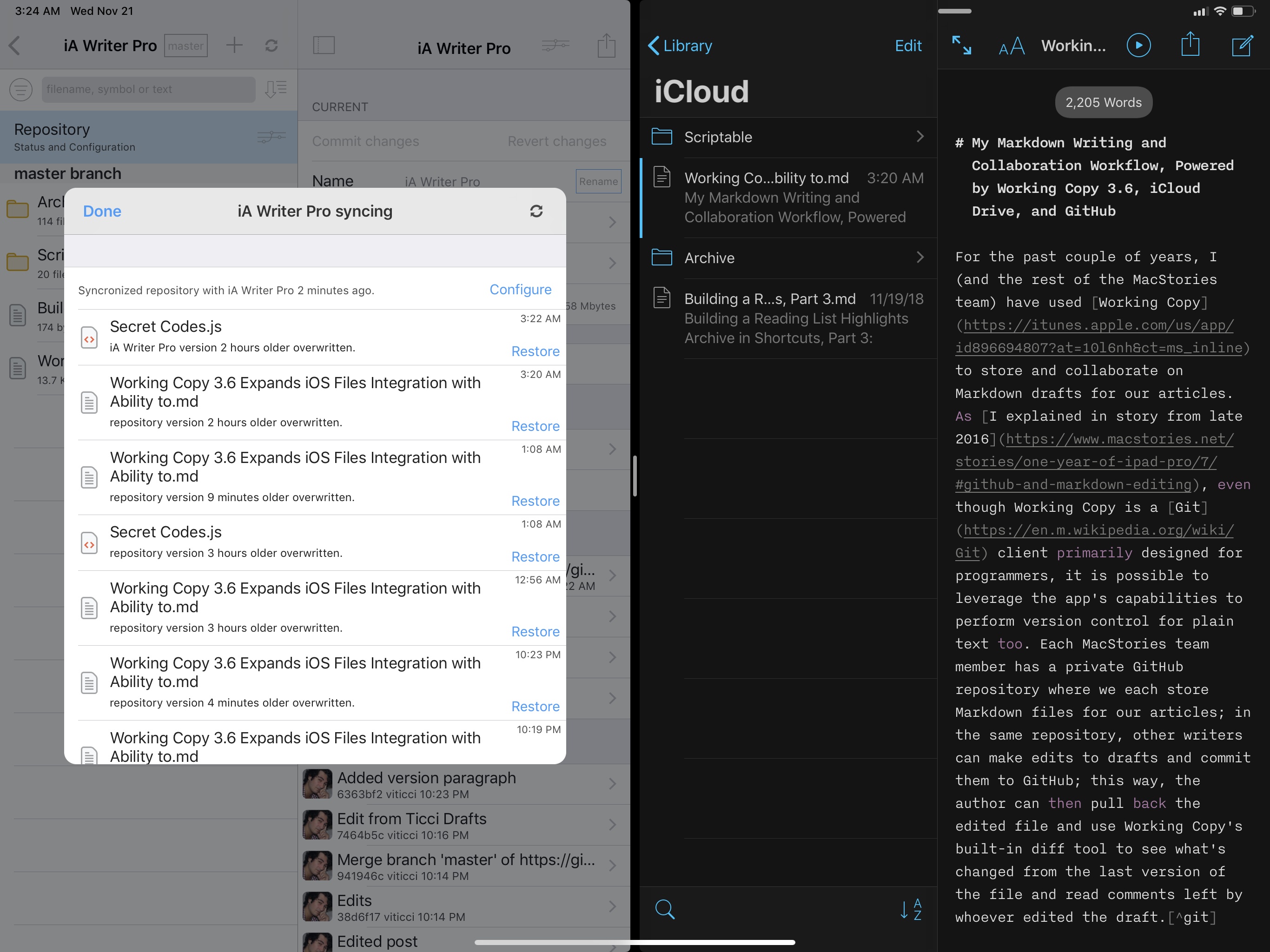
For the past couple of years, I (and the rest of the MacStories team) have used Working Copy to store and collaborate on Markdown drafts for our articles. As I explained in a story from late 2016, even though Working Copy is a Git client primarily designed for programmers, it is possible to leverage the app’s capabilities to perform version control for plain text too. Each MacStories team member has a private GitHub repository where we store Markdown files of our articles; in the same repository, other writers can make edits to drafts and commit them to GitHub; this way, the author can then pull back the edited file and use Working Copy’s built-in diff tool to see what’s changed from the last version of the file and read comments left by whoever edited the draft.1

As I mentioned two years ago, this system takes a while to get used to: GitHub has a bit of overhead in terms of understanding the correct terminology for different aspects of its file management workflow, but Working Copy makes it easier by abstracting much of the complexity involved with committing files, pushing them, and comparing them. This system has never failed us in over two years, and it has saved us dozens of hours we would have otherwise spent exchanging revised versions of our drafts and finding changes in them. With Working Copy, we can use the text editors we each prefer and, as long as we overwrite the original copies of our drafts and keep track of commits, the app will take care of merging everything and displaying differences between versions. From a collaboration standpoint, using Working Copy and GitHub for file storage and version control has been one of the best decisions I made in recent years.

Read more


Home Screen Icon Creator: A Shortcut to Create Custom Icons for Apps, Contacts, Solid Colors, and More

Update: Thanks to MacStories reader Thomas, I was able to remove the need to upload image assets to Dropbox. The shortcut is now much faster to run (takes about 5 seconds instead of 20) and doesn’t need to save any file in your Dropbox account. You can get the updated shortcut at the end of this post.


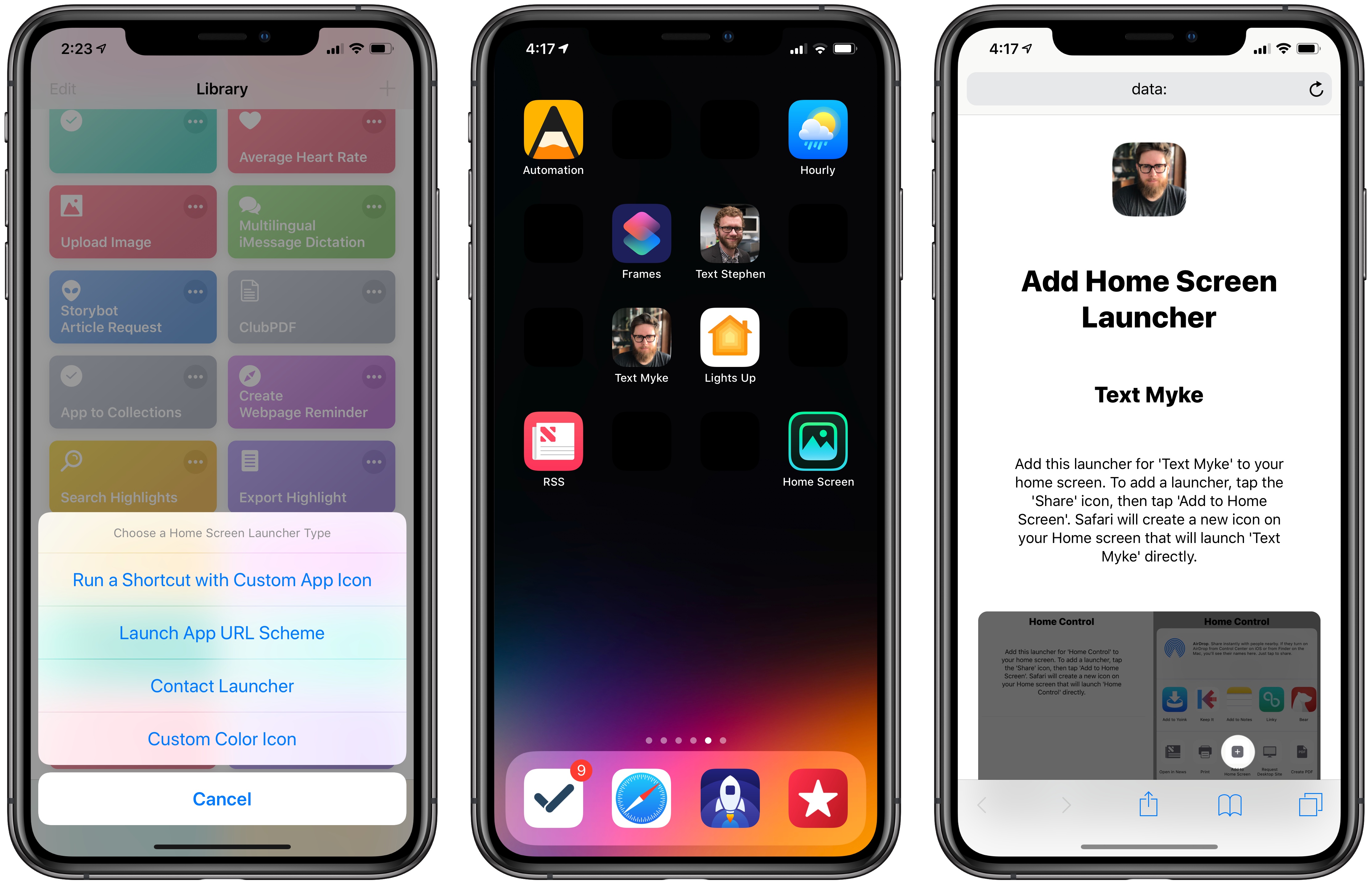
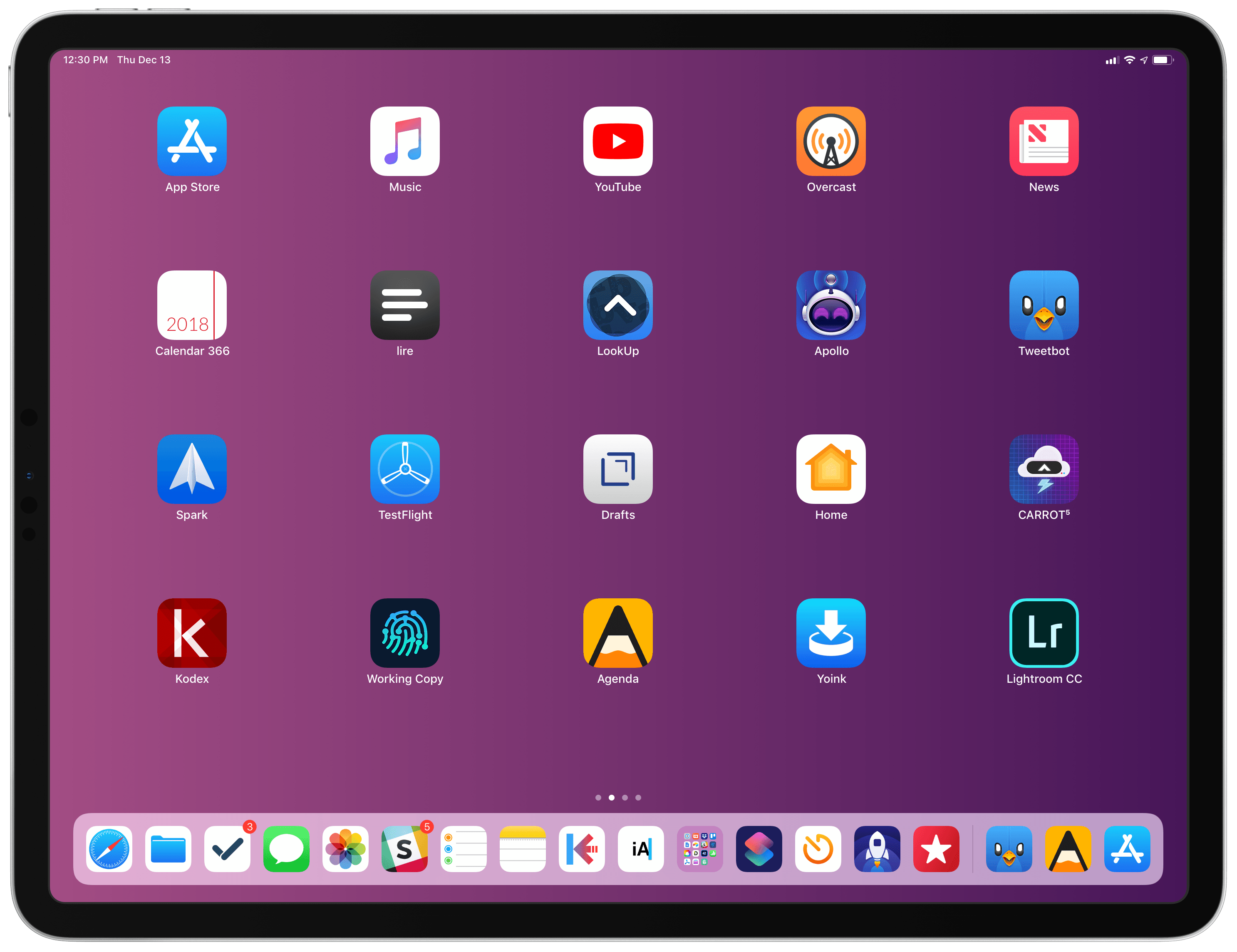
I’ve always been intrigued by Workflow’s implementation of ‘Add to Home Screen’ – a feature that Apple kept in the transition to the Shortcuts app, and which allows users to create home screen icons to launch their favorite shortcuts. So earlier this month, I decided I wanted to learn how Shortcuts was handling the creation of home screen icons.

After a few weeks of experiments and refinements, I ended up reverse-engineering Shortcuts’ ‘Add to Home Screen’ implementation, which turns out to be an evolution of Workflow’s existing hack based on Safari and web clips. The result is Home Screen Icon Creator, an advanced shortcut that lets you create custom home screen icons to launch apps, custom shortcuts from the Shortcuts app, or specific actions for any of your contacts; the shortcut can also generate icons with solid colors, which you can combine with matching wallpapers to create custom home screen layouts.

This shortcut is, by far, the most complex piece of iOS automation I’ve ever put together for MacStories, and I’m happy with the final product. It fully replicates a native Shortcuts feature while giving you the freedom to create icons and launchers for anything you want. There is no configuration necessary on the user’s end: it’ll take you 20 seconds to create your first custom icon, complete with onscreen instructions. Allow me, however, to offer more context on how this shortcut came to be, how it works behind the scenes, and what you can build with it.

Read more


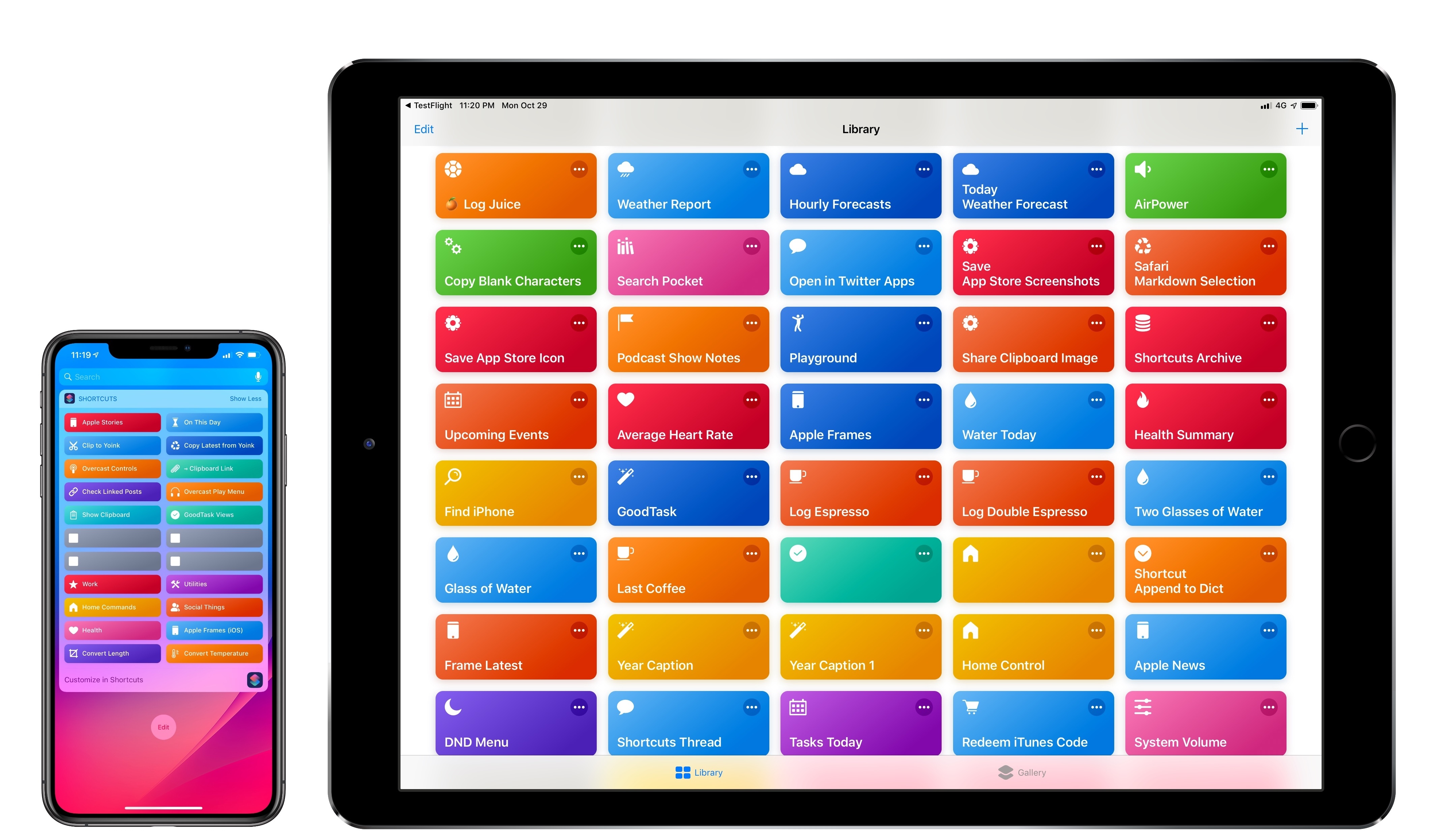
Shortcuts 2.1 Brings New Weather and Clock Actions, iCloud Sharing Improvements, and More

In a release that largely focuses on performance improvements and digital well-being tools to curb notification overload and smartphone addiction, Apple’s Siri shortcuts initiative in iOS 12 stands out as one of the most exciting developments in modern iOS history. Perhaps even more impressive than developers’ adoption of Siri shortcuts though has been the response to Apple’s Shortcuts app, which enables the creation of custom shortcuts that can integrate with apps, system features, and even Siri.

In addition to a thriving community that continues to prove how combining users’ imagination with automation can elevate iOS productivity, Apple itself has so far shown a remarkable commitment to the Shortcuts app by listening to the community and ensuring a smooth transition from Workflow. Traditionally, Apple’s App Store apps receive major updates then linger for months before the next big set of changes; with Shortcuts, Apple has kept the TestFlight beta channel active, pushing for the same development pace that characterized Workflow before its acquisition.

The result is Shortcuts 2.1, released today on the App Store with a variety of bug fixes, iCloud improvements, and, more importantly, new actions that integrate the app even more deeply with iOS 12. If you’re not familiar with the Shortcuts app, I recommending reading the dedicated section from my iOS 12 review first; if you’re an existing Shortcuts user and rely on the app for key aspects of your iOS workflow, let’s dig in and take a look at what’s new.

Read more


Some of Apple’s Forgotten iOS Apps

Apple has just about always offered iOS apps on the App Store, separate from what apps come bundled on its devices from the factory.

Sometimes, these apps get promoted to being part of the iOS image, like Podcasts and iBooks have. Once stuck hanging out on the App Store, they now ship on the iPhone and iPad by default.

A lot of other apps weren’t luck enough to get that lifeline, and have since been removed from the App Store. Let’s take a look at a few examples.

Read more


Creating Shortcuts with Invisible Names for the iOS Home Screen and Widget

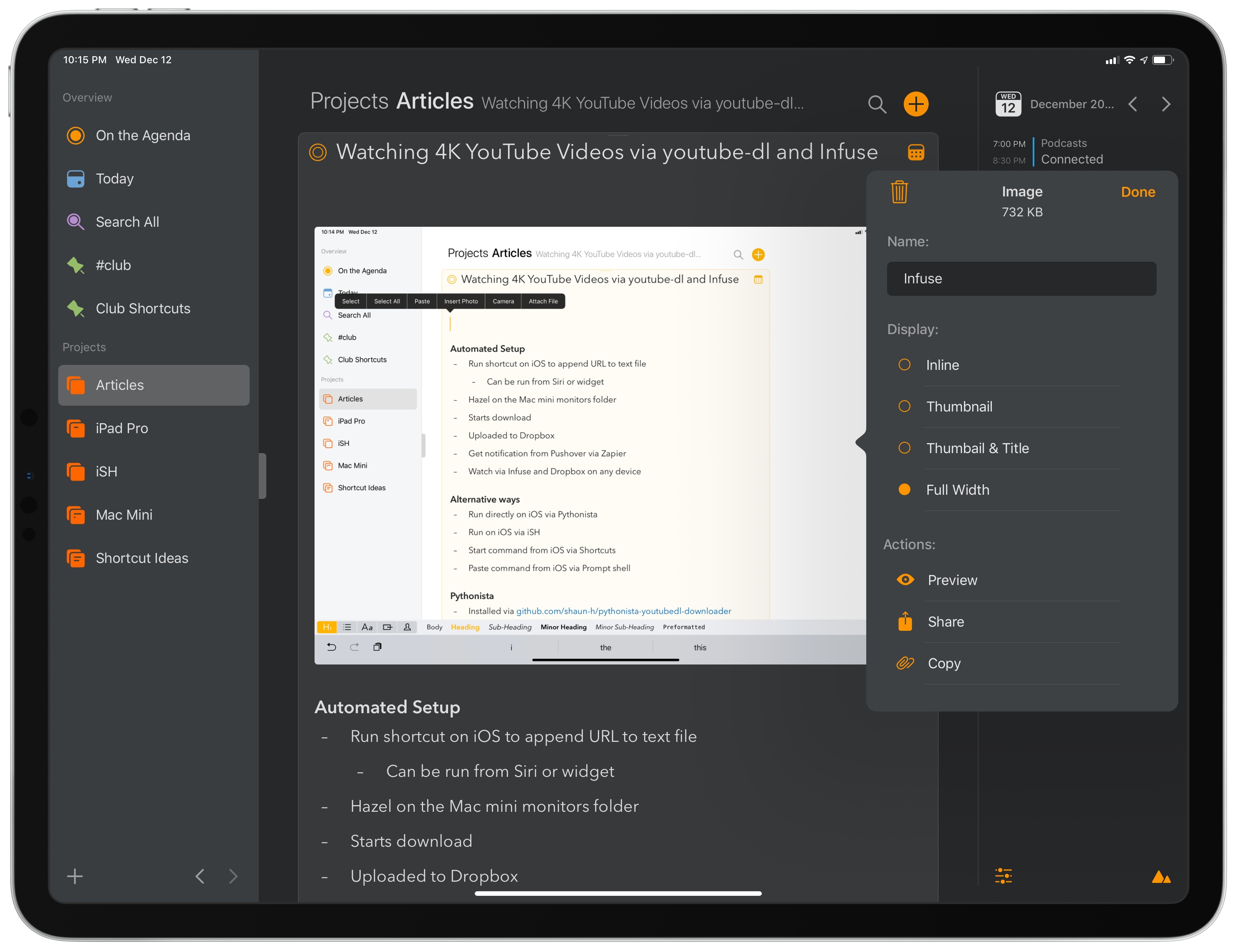
I’ve spent the past two weeks updating my iPhone’s home screen setup for the XS Max and, as I shared in the latest episode of AppStories, part of the process involved gaining easier access to some of the shortcuts I use on a regular basis. While I’m not a fan of the shortcuts-only home screen approach described by CGP Grey in episode 75 of the Cortex podcast (at some point, I believe you just end up swapping app folders for shortcuts), I do like the idea of adding a couple of frequently used custom shortcuts to the home screen. And as I detailed on AppStories, I also like to use “shortcut launchers” – effectively, shortcuts to launch other shortcuts.

Read more


Apple Frames: A Shortcut for Framing Screenshots from Every Apple Device

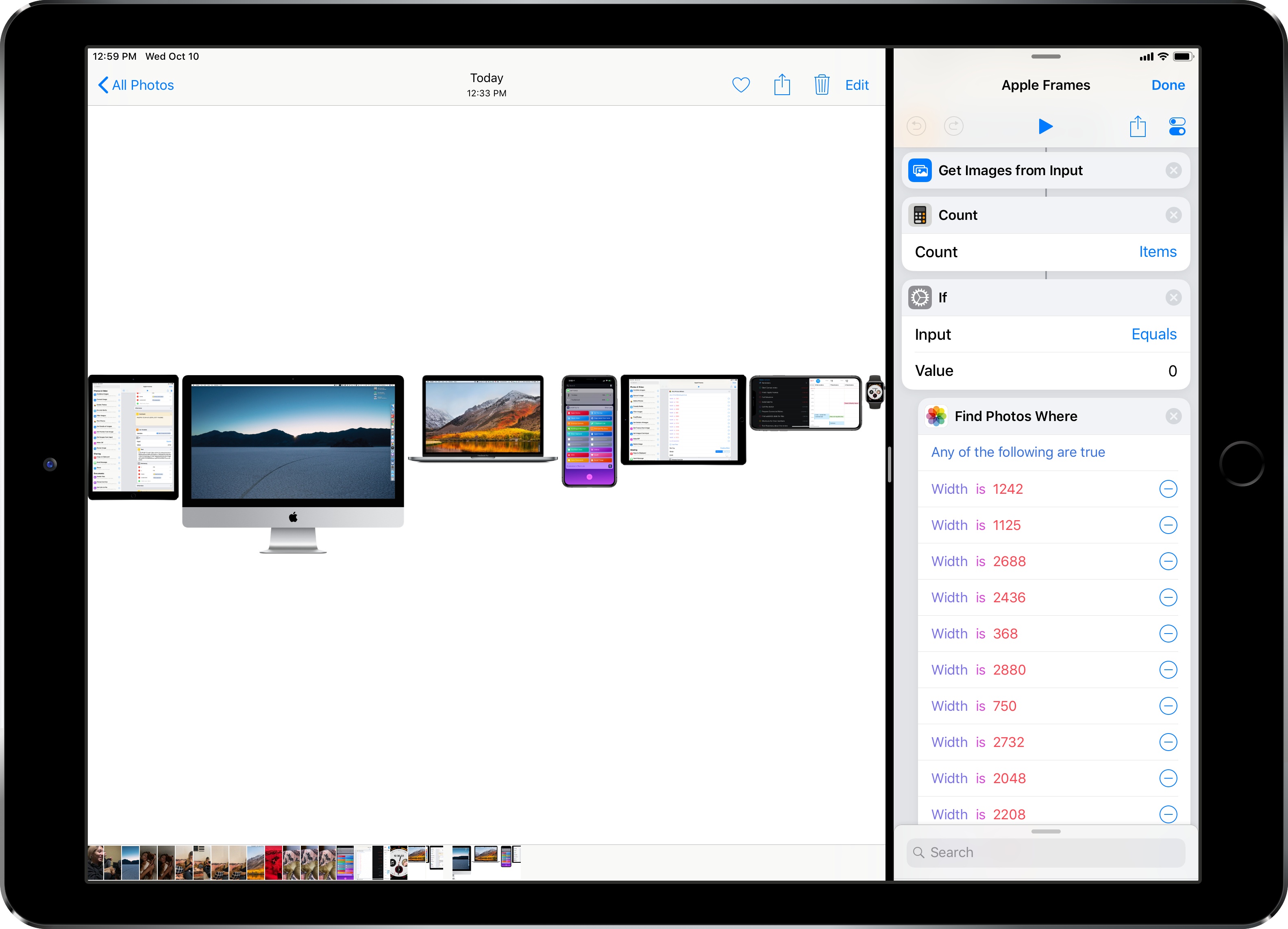
When I published my iPhone XS Frames shortcut two weeks ago, I noted that my goal was to eventually support screenshots and device templates from other Apple devices, starting with the Apple Watch and MacBook Pro. After two weeks spent rebuilding the shortcut and asking Silvia to prepare several more templates, I’m happy to re-introduce my shortcut as the new and improved Apple Frames – a comprehensive custom shortcut to frame screenshots taken on every Apple device. Well, at least most of the current ones that the company is still selling.

Read more


Visualizing Photos Taken ‘On This Day’ in Previous Years with Shortcuts

I’m in the process of creating a complete archive of every workflow I ever created for the Workflow app and updating each one for Shortcuts. As I was browsing through my old Workflow articles, I came across an interesting workflow I created in early 2015 called Photo Flashbacks. The main idea was simple enough: given Workflow’s ability to read the contents of the photo library, the workflow would filter a photo taken on the same day in previous years and preview it with Quick Look. That seemed like a fun project that I could pick up again and improve for the Shortcuts app.

Read more


Overcast 5.0.2 Adds New Series 4 Complications, More Siri Shortcuts

Following a major update that introduced a redesigned Now Playing screen, extensive shortcut support, and standalone Watch playback, Marco Arment has brought a variety of enhancements and fixes to version 5.0.2 of Overcast, released earlier today.

Overcast 5.0.2 has added new round complications for the Infograph faces on the new Apple Watch; these act as launchers that simply open the Overcast app on the Watch, which I find convenient enough. Furthermore, you can reduce the amount of haptics used by the app to communicate certain actions (I love haptic feedback in Overcast, so this option isn’t for me), and there are new options for configuring how the ‘Send to Watch’ feature works.

New shortcuts in Overcast 5.0.2.

New shortcuts in Overcast 5.0.2.

Most of all though, I’m interested in the new Siri shortcuts supported by Overcast. The app now offers shortcuts to activate or cancel the sleep timer, as well as two shortcuts to copy the current episode’s standard or timestamped link to the clipboard. The ability to quickly generate an Overcast link for the episode you’re listening to is a perfect use case for shortcuts: it removes repetitive interactions with the app and, with the tap of a button or Siri phrase, it gives you a link you can instantly share with others.

For the occasion, I’ve turned my original Overcast Chapters widget shortcut into Overcast Controls, an enhanced widget that, besides chapter navigation, now uses the app’s new shortcuts to let you copy episode links too. You can download it below.

Overcast Controls

Navigate chapters or copy links for the Overcast episode you’re currently listening to. Best used as a widget.

Get the shortcut here.