
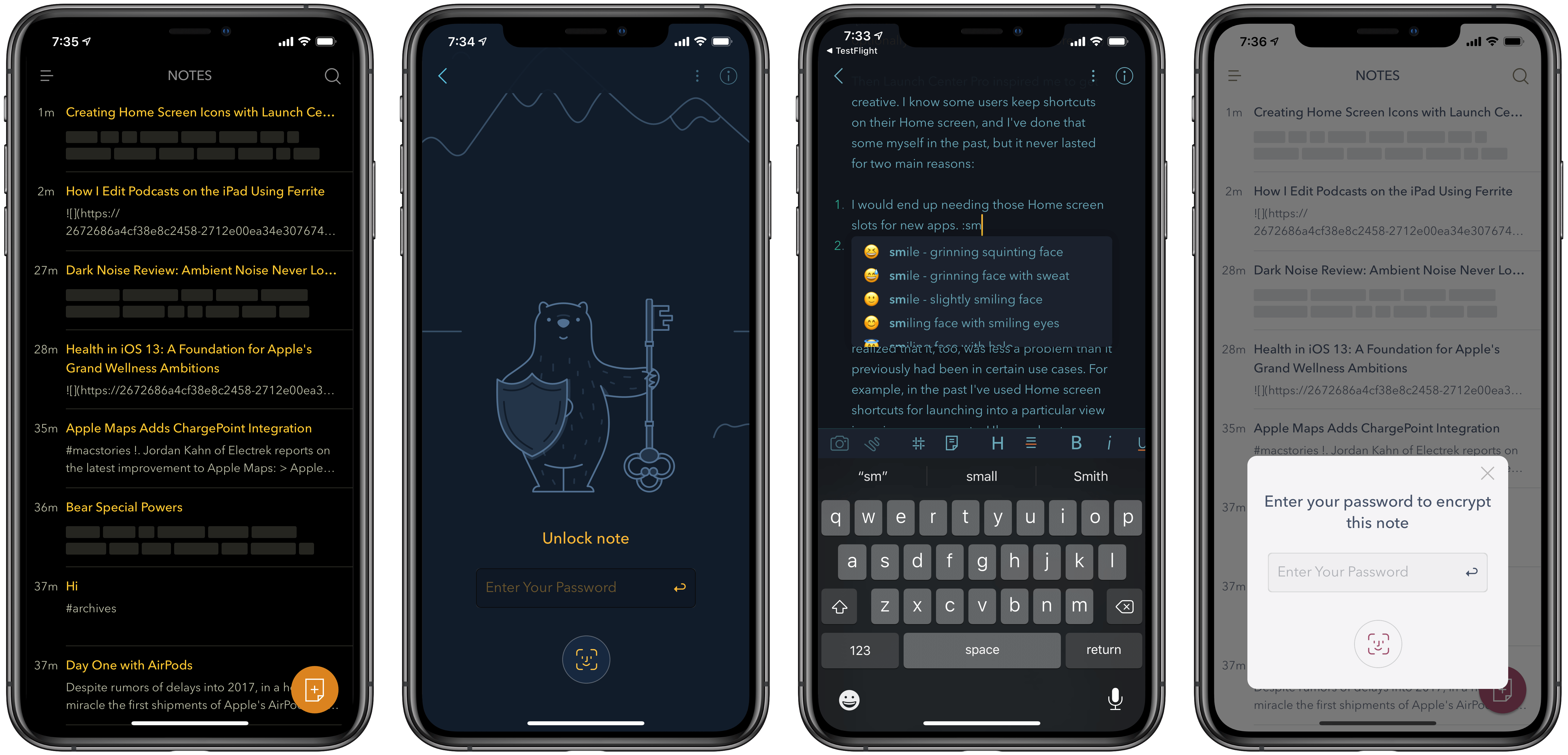
Days away from Apple’s big September event, and likely just a week or two from iOS 13’s public release, this is often a quiet time for app releases. Generally that’s true for the summer as a whole, with developers heads-down working on big fall updates, but it’s especially the case the closer we get to Apple’s iPhone event. Today, however Bear has released the type of wide-ranging update that’s rare to see pre-OS launches. Bear 1.7 introduces a variety of big and small changes that improve many facets of the note-taking app. The update enables locking individual notes, or locking access to the app altogether, it brings two new themes and 33 new tagcons, there’s now emoji auto-complete, live note links, Apple Watch improvements, and more.
Posts in iOS
Bear 1.7 Brings Note Locking, New Themes, Emoji Auto-Complete, and More
Create Better Text Shots for Twitter Using Linky
Linky is a tiny utility for iOS that I love. The app serves as an easy way to share to Twitter or Mastodon from the iOS share extension, and I use it every day to tweet MacStories articles or new episodes of Adapt. Used from Safari, the Linky share extension can automatically populate a tweet compose field with information from the site you’re viewing, such as its title, URL, and featured images. Linky’s ease of use makes it my favorite way to share content via tweets.
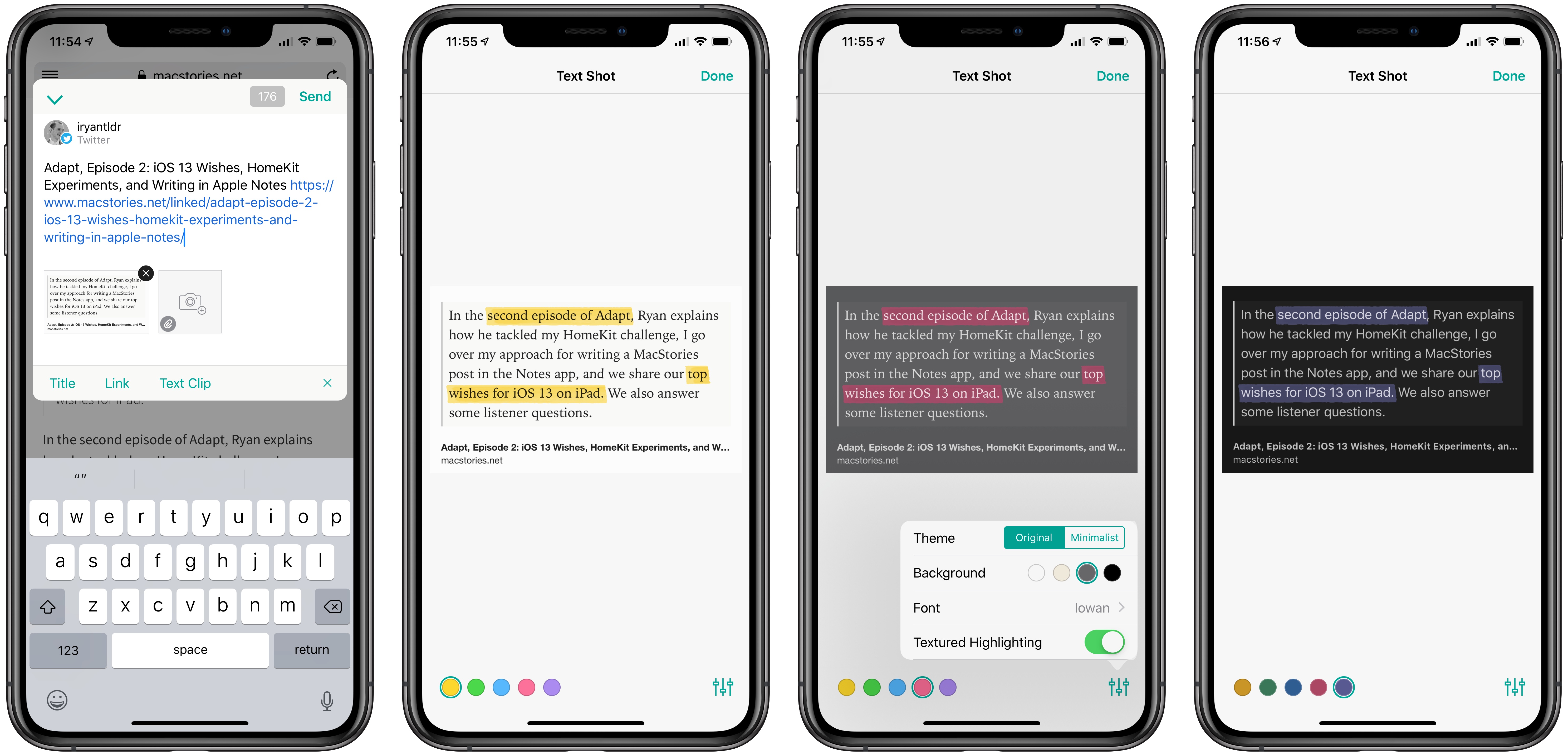
Earlier this week, Linky was updated with two new enhancements to its text shot feature. For years now the app has enabled easy creation of text shots for sharing portions of an article, or personal thoughts that exceed Twitter’s character limit. That text shot feature is now better than ever though thanks to the addition of highlighting and visual customization options.
After Linky has created a text shot – which happens upon activating the share extension when a portion of text is selected in Safari – you can tap that new image to enter editing mode. Inside editing mode, swiping over any portion of text in your text shot will cause it to highlight. This highlight can be one of five colors, and from the settings menu in the bottom-right corner you can choose whether the highlight is textured or solid. The feature is incredibly easy to use, and offers a great way to further call out certain words or phrases in a text shot.
Linky also offers an array of customization options for a text shot’s appearance. You can choose from one of six font options for the text, all of which look great; the background of the text shot can be white, sepia, gray, or black; you can also choose a minimalist theme or the default original. The added flexibility offered makes me far more likely to use text shots on a regular basis.
If you ever share clips of text you find online, Linky is hands-down the best way to do that. The app also includes support for multiple accounts, so you can tweet from several accounts at once, and offers annotation features for standard images. All told, I can’t recommend Linky highly enough.
Shortcuts 2.2 Brings New Apple Notes Actions, Travel Time Enhancements
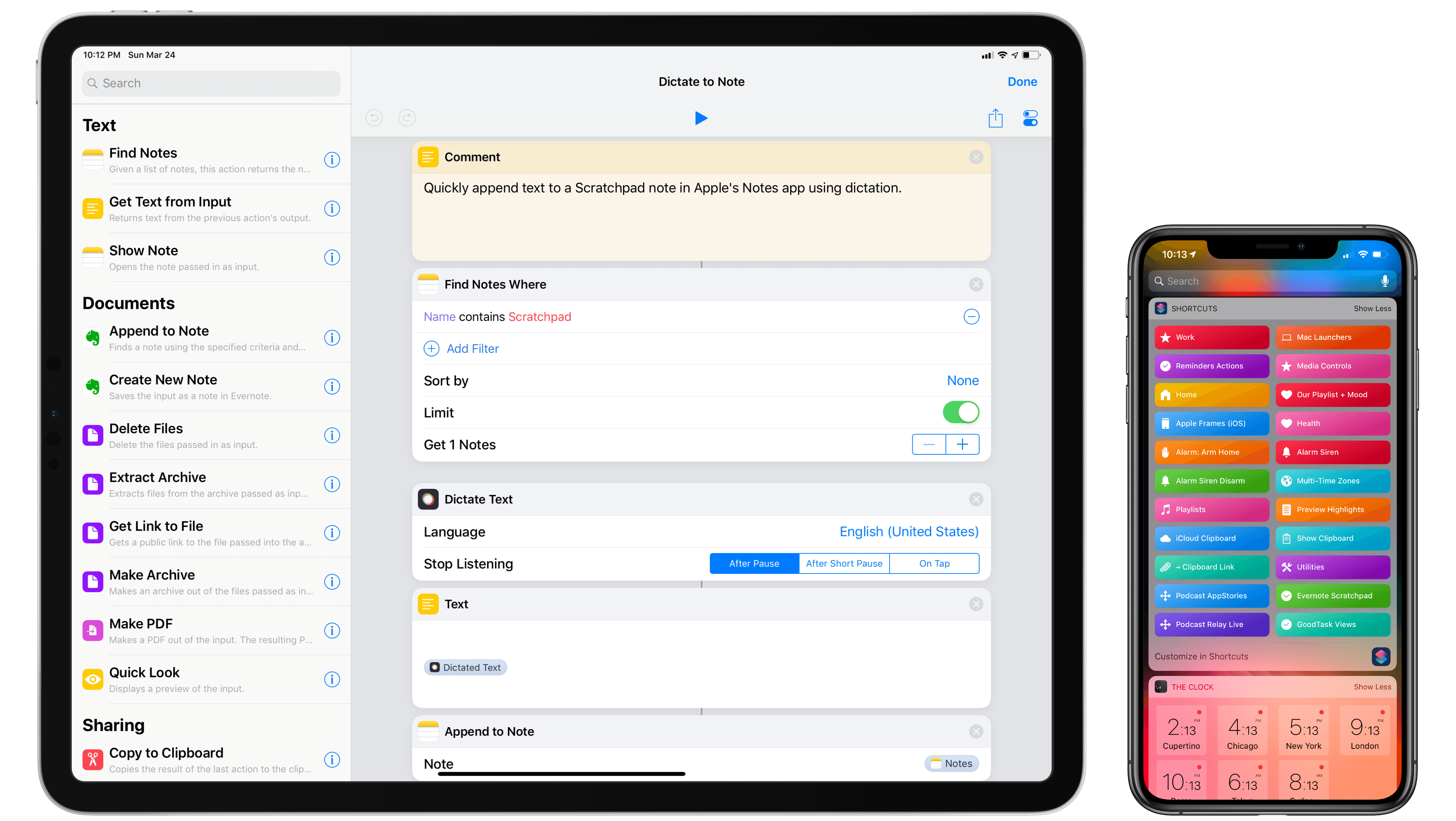
Shortcuts 2.2, the second major update to Apple’s automation app following October’s 2.1 release, has been released on the App Store today. The new version of Shortcuts, which has been available to developers for testing via TestFlight for several weeks now, brings a variety of smaller refinements and bug fixes; more importantly, it extends Shortcuts’ integration with one of Apple’s most popular built-in apps: Notes. Additionally, Shortcuts 2.2 builds upon the existing ‘Get Travel Time’ action (based on the Apple Maps framework) with new Magic Variables well suited for shortcuts that integrate with Siri.
For the past few weeks, I’ve been building advanced shortcuts that take advantage of the new actions for Notes and Maps, which I’m going to explain and share in this article. The new shortcuts are also available through the MacStories Shortcuts Archive, which now features a dedicated Apple Notes section as well. Let’s dive in.
Using a Twitter Saved Search to Read Replies, Mentions, and Quoted Tweets in a Single View
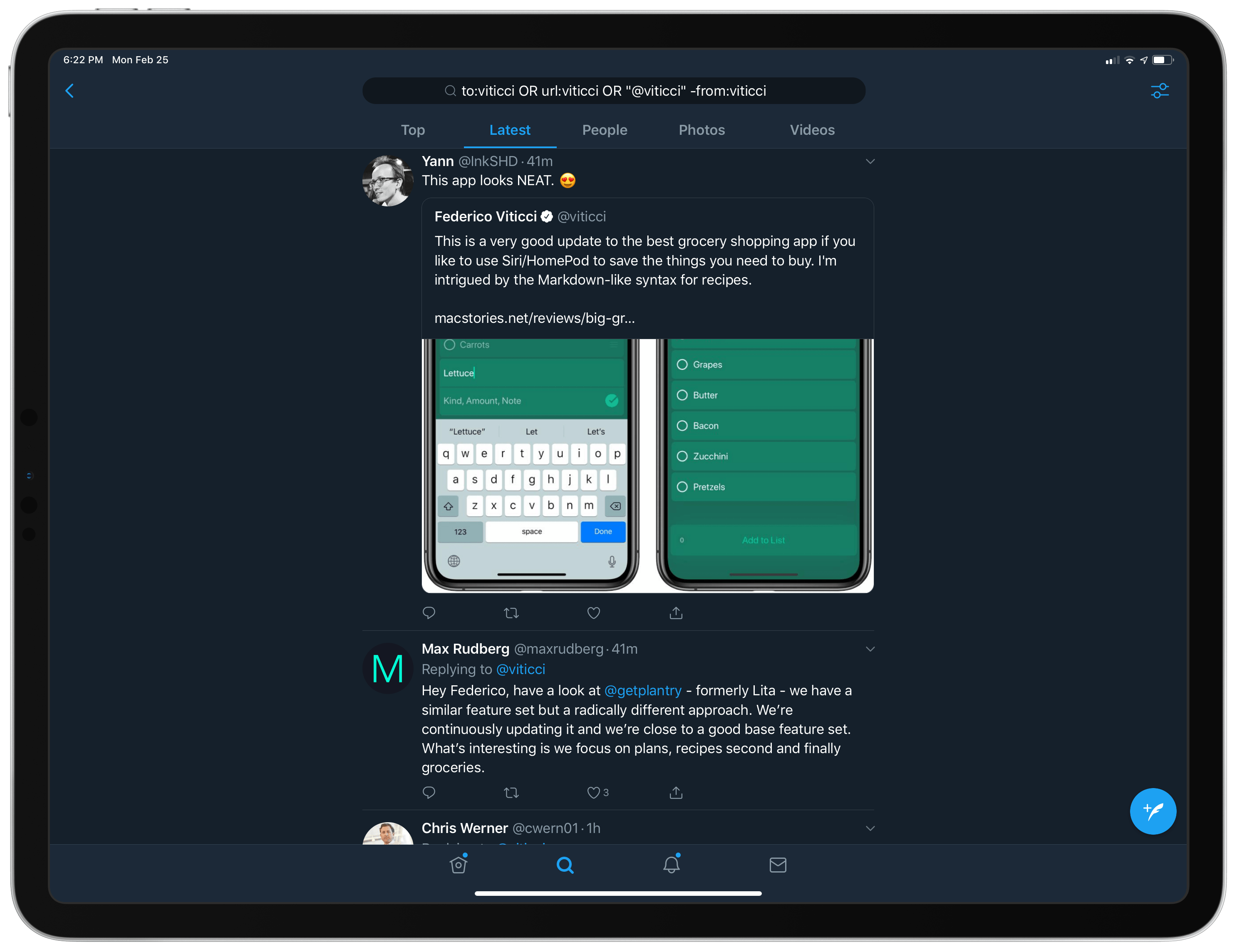
Every few months, I like to use Twitter’s official app for iPhone and iPad for a while and reassess its advantages over third-party clients, as well as its shortcomings. This is something I’ve been doing for several years now. While I’ve often come away unimpressed with Twitter’s native offerings, switching back to Tweetbot or Twitterrific after a couple of days, it’s been a week since I started using the official Twitter app on my iPhone and iPad again and I don’t find myself craving Tweetbot’s UI design or timeline as much as I thought I would.
Eventail Widget Adds GoodTask Integration, New URL Buttons
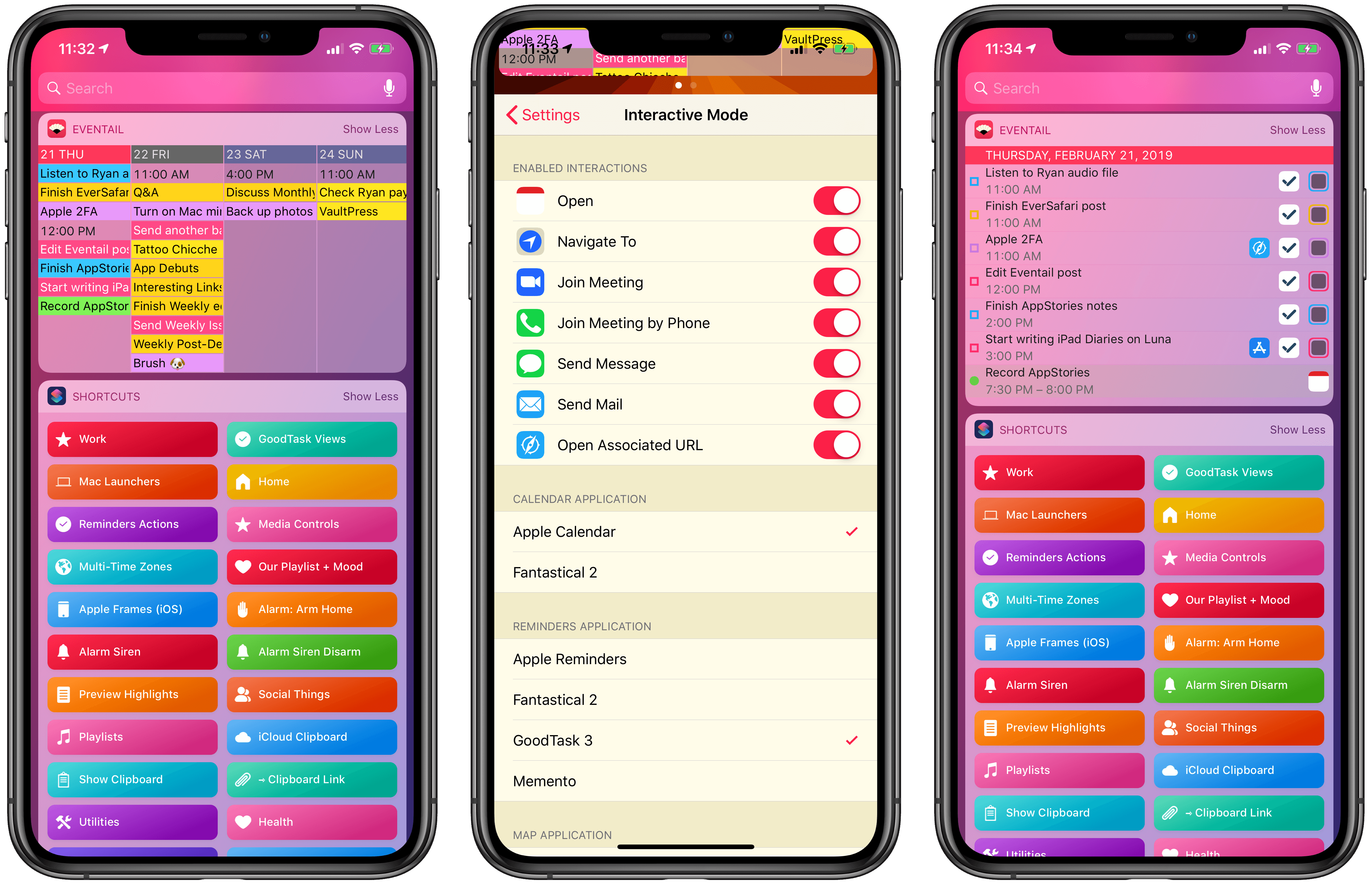
I last covered Eventail in April 2018, when its developer Jozef Legeny brought support for the iPhone X and new color schemes to his compact calendar widget for iPhone and iPad. With version 3.1 released today, Eventail (which over the past year also gained support for overdue reminders and interactive mode) is adding integrations for popular third-party apps and a convenient shortcut to reopen links contained in events and reminders.
Hands On with iOS 12.2’s HomeKit Support for Smart TVs
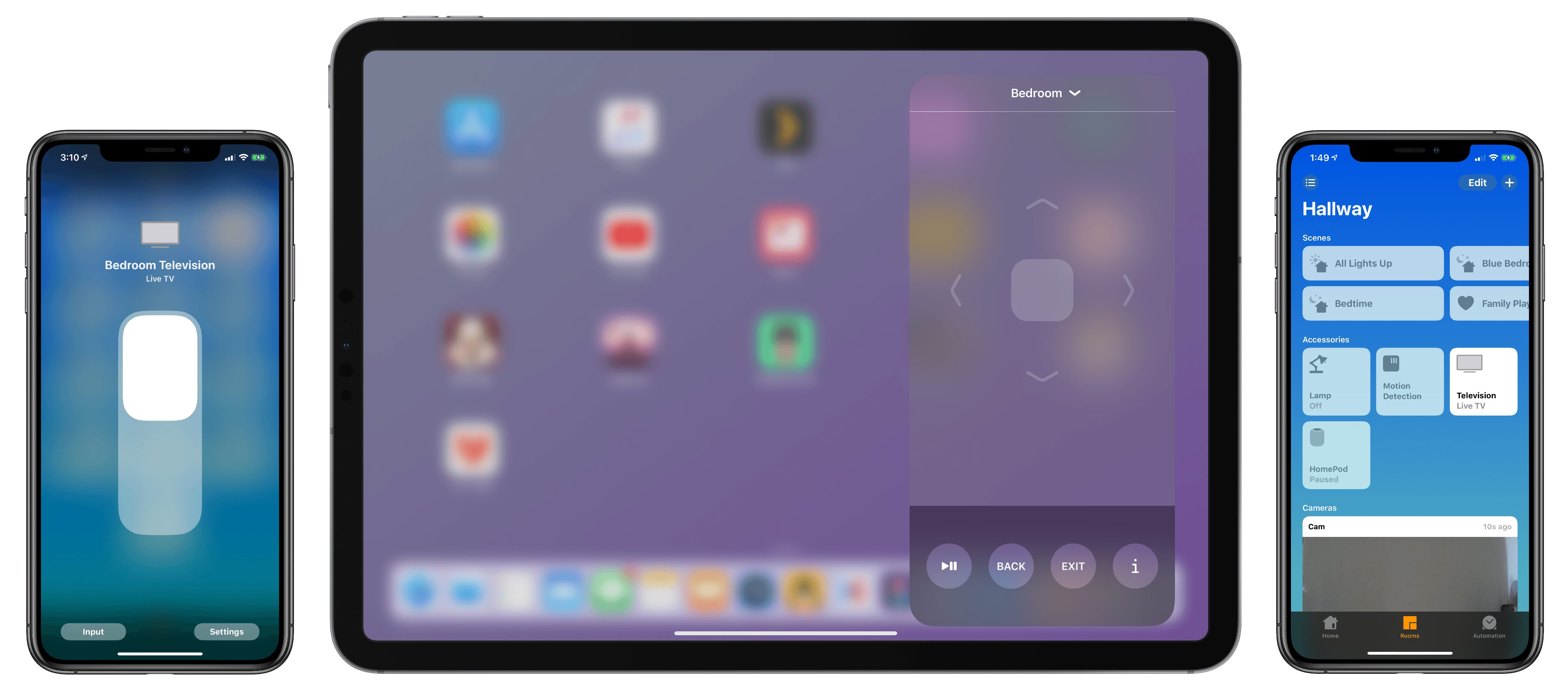
As I noted yesterday, the launch of the developer beta of iOS 12.2 has brought the necessary underlying APIs for manufacturers of smart TVs seeking to integrate their television sets with HomeKit. Originally announced at CES 2019, the initiative encompasses both the HomeKit and AirPlay 2 technologies, which the likes of Samsung, LG, Vizio, and Sony will roll out (albeit to varying degrees) in their upcoming smart TVs over the course of 2019. Thanks to the HomeKit Accessory Protocol and the work of enterprising third-party developers, however, it is already possible to get an idea of what the HomeKit part of these integrations will be like by installing unofficial plugins that add HomeKit compatibility to existing TV sets via software.
Thanks to developer (and homebridge contributor) Khaos Tian, I’ve been able to test native HomeKit integration with my 2017 LG TV running webOS, which does not currently support HomeKit out of the box and which, according to LG, will not receive an official software update for HomeKit support in iOS and tvOS 12.2. In this post, I’m going to share my first impressions of HomeKit’s new TV features in the iOS 12.2 beta, describe how it all works in practice, and share some suggestions for changes I’d like Apple to implement by the final release of iOS 12.2.
Apple Frames Shortcut, Now with Support for the 11” iPad Pro and Apple Watch Series 4 40mm
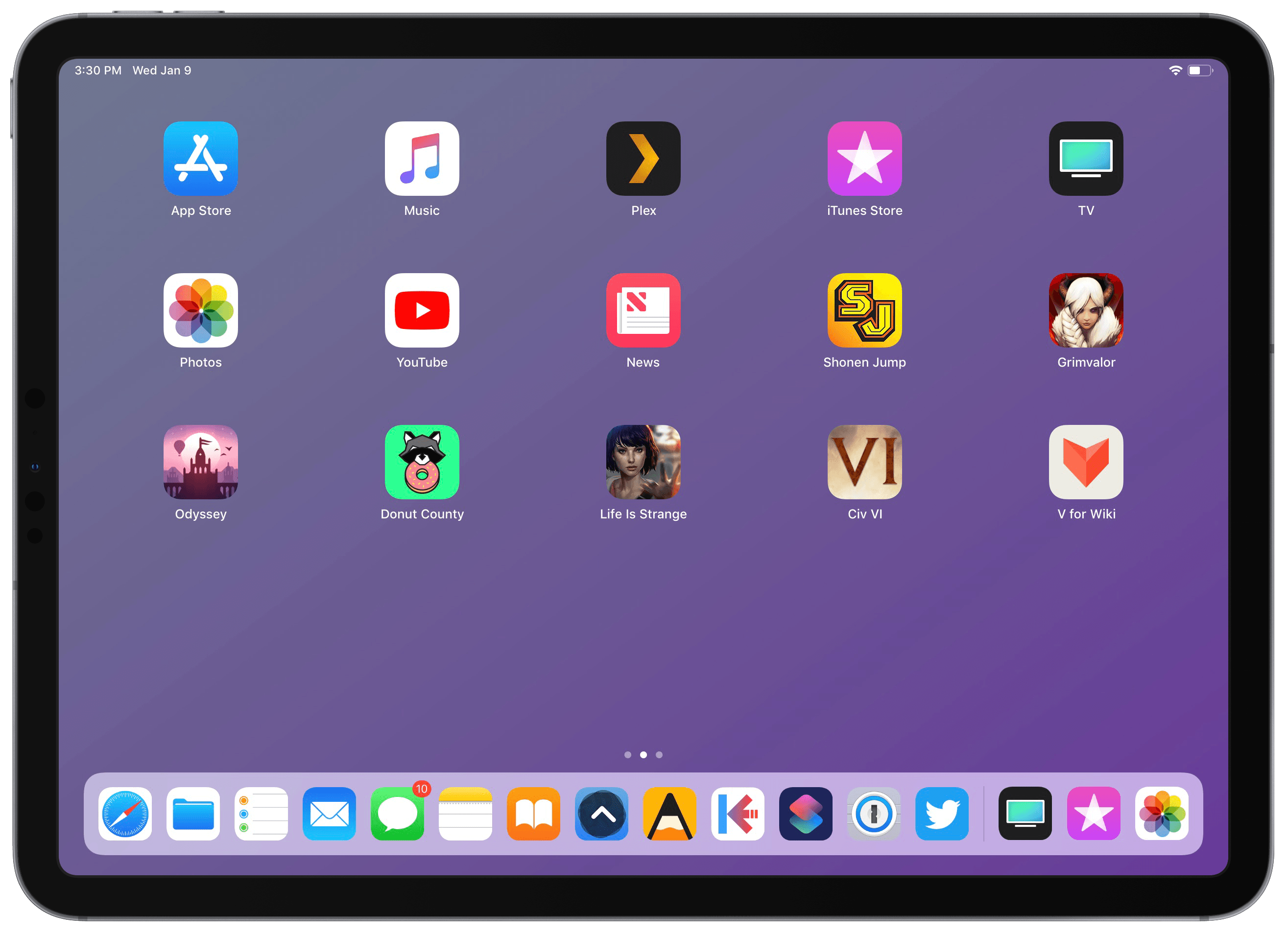
Apple Frames, my shortcut to add device frames to screenshots taken on modern Apple devices, has been updated with support for the 11” iPad Pro and 40mm Apple Watch Series 4. This marks the second major update to Apple Frames, which now supports the following Apple devices:
- iPhone 6, 7, 8, and X
- iPhone XS and XS Max
- iPad Pro 11” and 12.9” (2018 models)
- Apple Watch Series 4 (44mm and 40mm)
- MacBook Pro (Retina 13”)
- iMac 5K
Apple Music Wrapped: A Shortcut to Visualize Your Most Listened Songs, Artists, and Genres of the Year
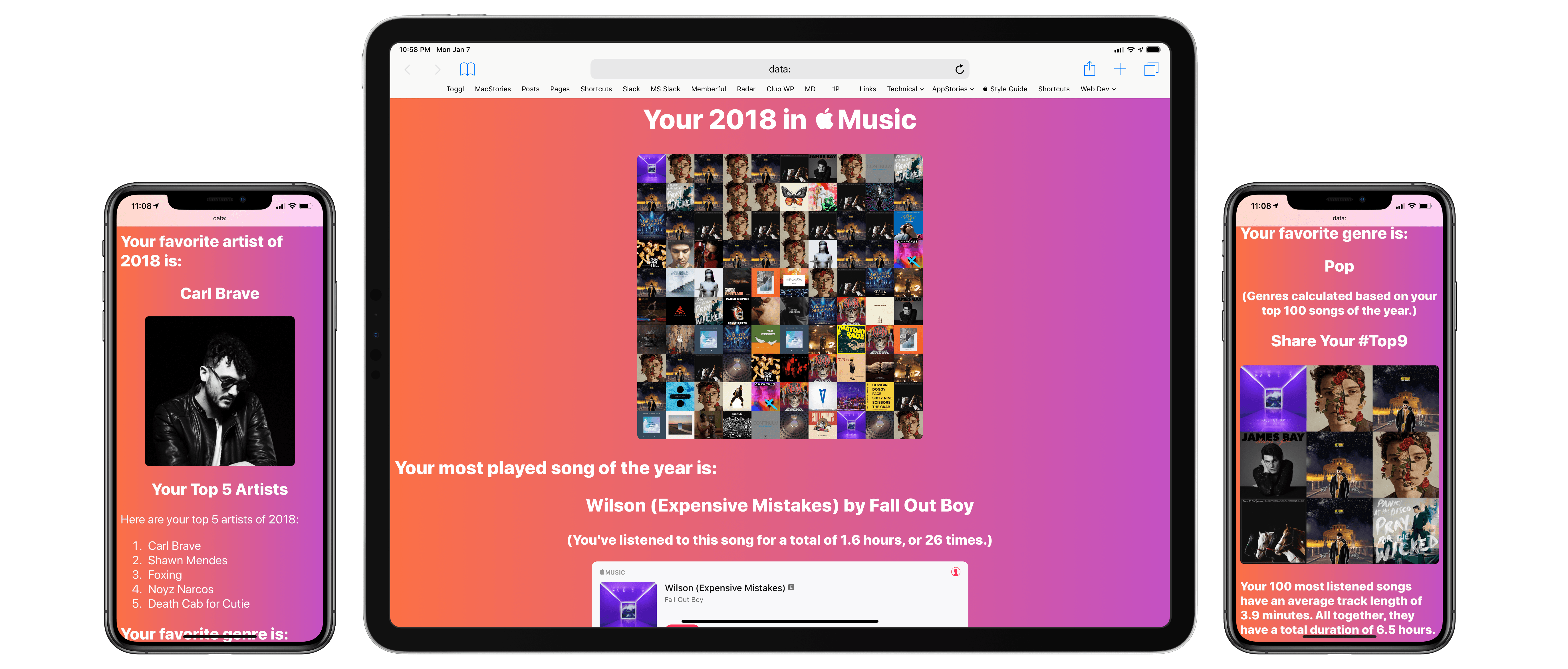
When Spotify was my music streaming service of choice, one of the features I really liked was its personalized Wrapped report generated at the end of the year. I’ve always been a fan of geeky annual reports and stats about the usage of any given web service – be it Spotify, Pocket, or Toggl. I appreciate a detailed look at 12 months of collected data to gain some insight into my habits and patterns.
I’ve always been annoyed by the lack of a similar feature in Apple Music; I’m surprised that Apple still hasn’t added a native “Year in Review” option – a baffling omission given how the company is already collecting all of the necessary data points in the cloud. Official “Apple Music Wrapped” functionality would bolster the service’s catalog of personalized features, providing users with a “reward” at the end of the year in the form of reports and playlists to help them rediscover what they listened to over the past year.
But Apple doesn’t seem interested in adding this feature to Apple Music, so I decided to build my own using Shortcuts. The result is the most complex shortcut I’ve ever created comprising over 540 actions. It’s not perfect due to the limitations of iOS and Shortcuts, but it’s the closest I was able to come to replicating Spotify’s excellent Wrapped feature.
iA Writer 5.2: Better Typography and External Library Locations
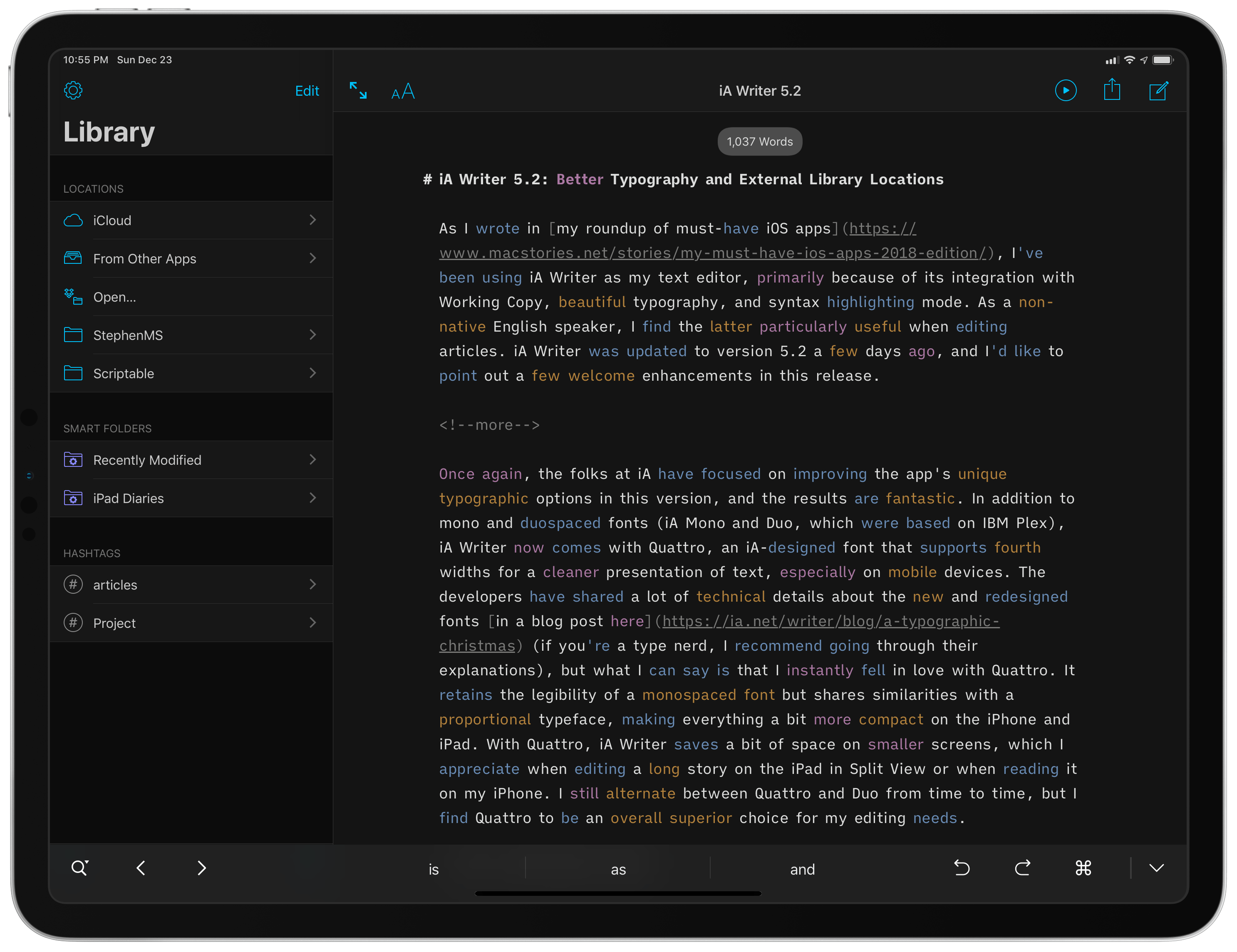
As I wrote in my roundup of must-have iOS apps, I’ve been using iA Writer as my text editor, primarily because of its integration with Working Copy, beautiful typography, and syntax highlighting mode. As a non-native English speaker, I find the latter particularly useful when editing articles. iA Writer was updated to version 5.2 last week, and I’d like to point out a few welcome enhancements in this release.