Siri AI and the Apple Watch as Helper
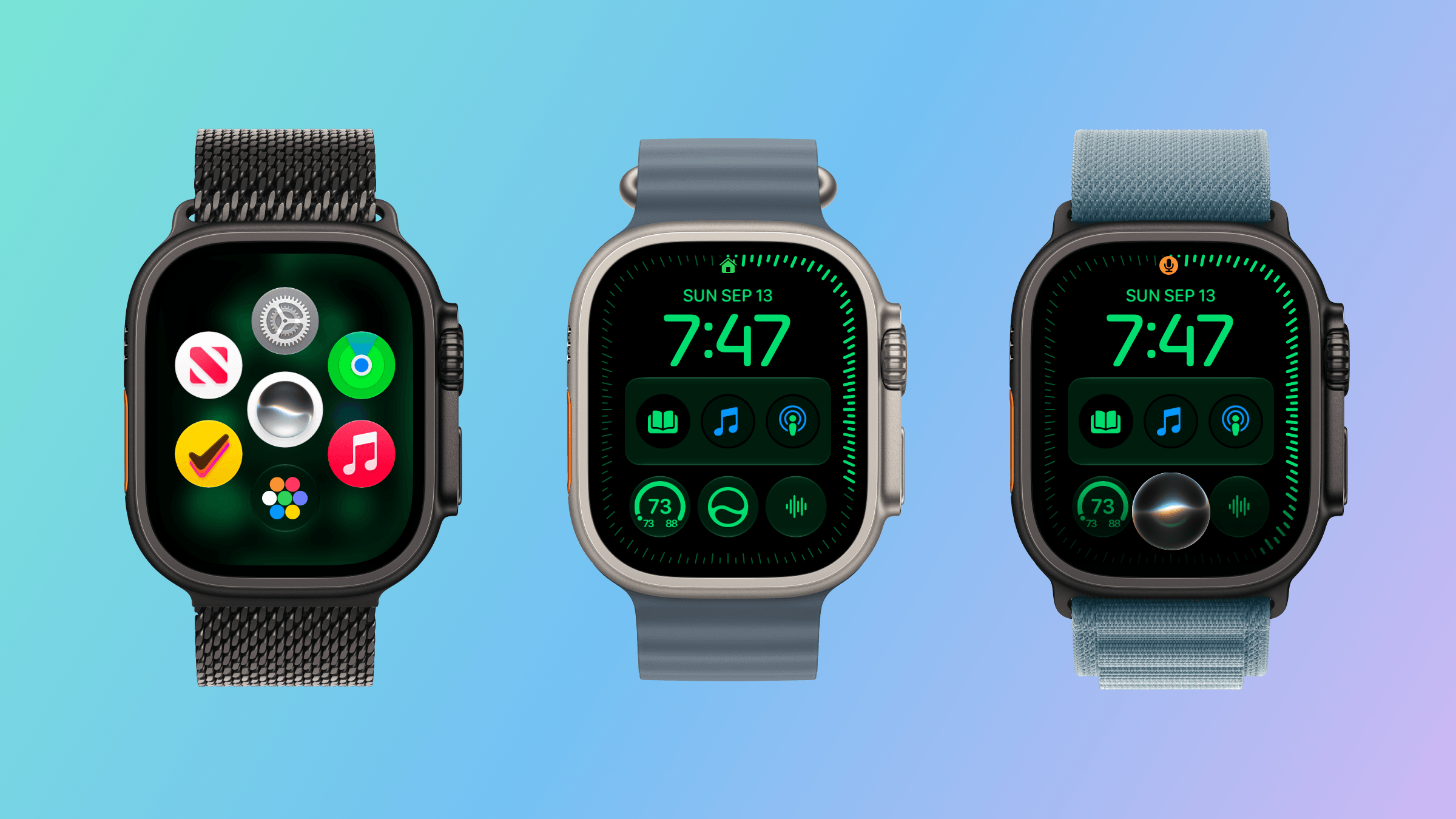
You can get to Siri from the Dynamic App Grid, a complication, or by long-pressing the Digital Crown.
Siri AI is a big part of watchOS 27 just like it is on every Apple platform (except tvOS) this year. As on those other platforms, Siri has a dedicated app on the Watch. The main difference is in how you interact with Siri. On macOS, iOS, and iPadOS, you can speak or type queries in the Siri app. On watchOS 27, the app accepts spoken queries only. That struck me as a little strange at first given that Apple offers multiple ways to input text on watchOS, but the reality is chatbot queries are typically longer than a dashed-off text message, so in practice, the lack of text input is fine.
Siri AI requires an Apple Watch Series 9 or later, Ultra 2 or later, or SE 3, along with a nearby iPhone that supports Apple Intelligence: an iPhone 15 Pro, 15 Pro Max, or any iPhone 16 or later model. It’s being released as a beta, initially in English only, and won’t be available in the EU for the time being. Apple also says it will introduce usage limits for Siri AI in the future. Those limits will vary depending on factors such as request complexity and system demand. Increased access will be available for a fee. To make a Siri request, you can tap an installed complication, long-press the Digital Crown, or say “Siri” or “Hey Siri.” Once you start a chat with Siri, it retains the context, allowing you to ask follow-up questions without restating everything.
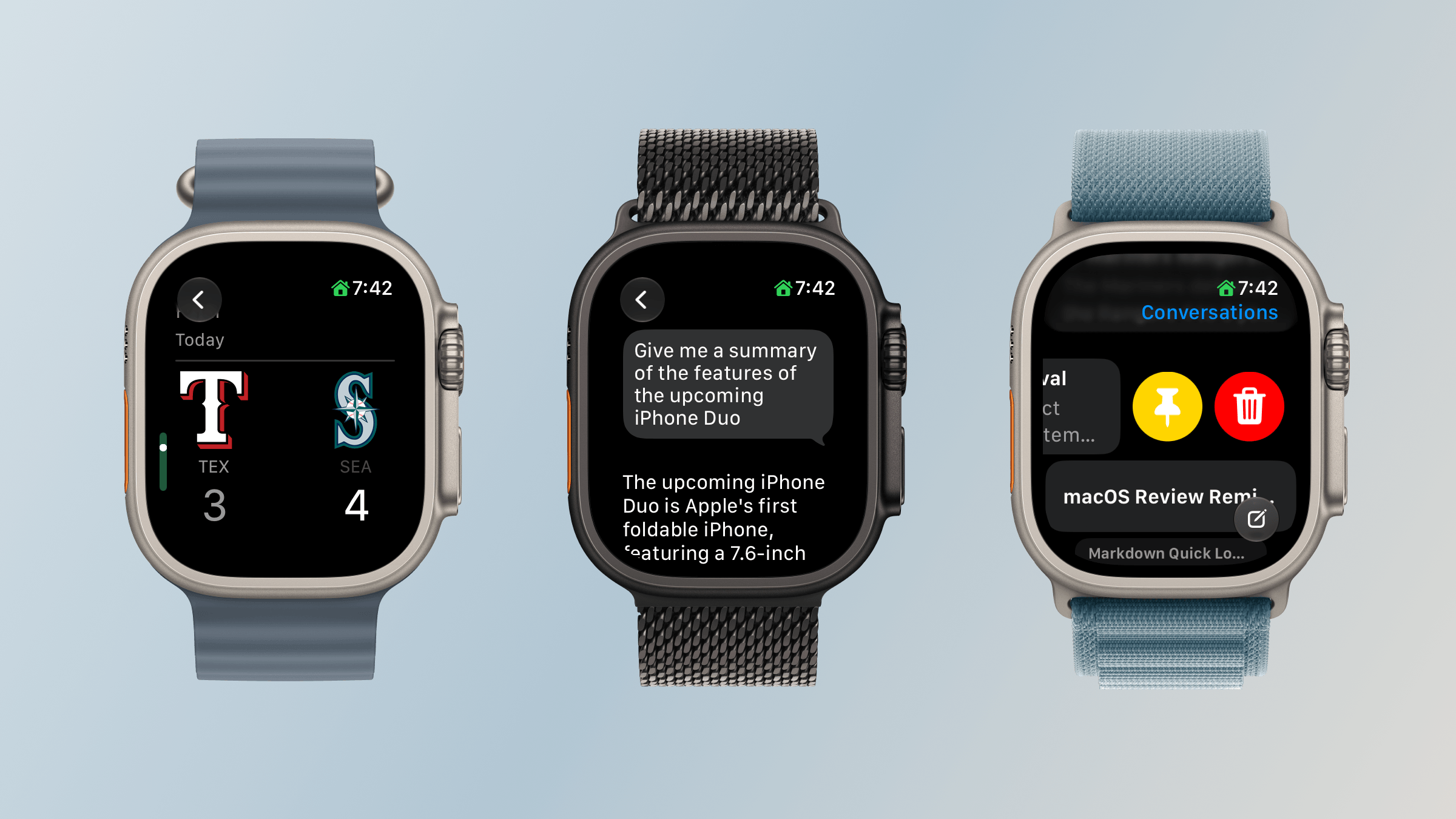
Alternatively, you can open the app where you can see your past chats. The app’s button to start a conversation accepts spoken input only. Type to Siri remains available through Accessibility settings, but it’s a separate way to invoke Siri rather than a text-entry option within the app.
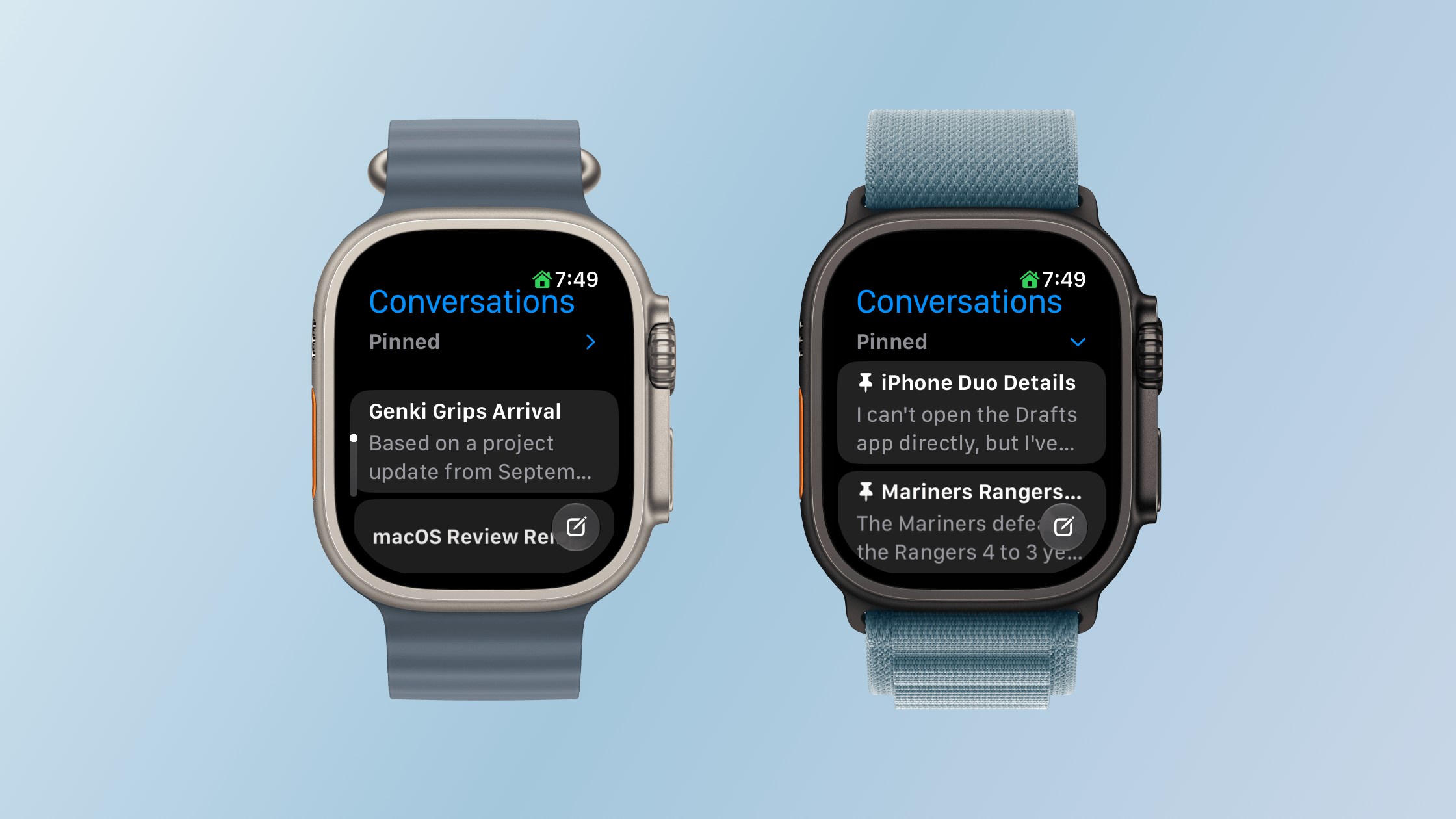
Your query list includes any requests you’ve made on your Apple Watch or any other Apple device, all synced via iCloud. In my experience, sync is fast over a good network connection with chats appearing on my Mac seconds after a response is delivered to my Watch. From the Siri Apple Watch app, you can also swipe left on an entry to delete or pin it, or tap the entry to read it.
Siri AI on the Apple Watch also offers the same personal-context capabilities that let it find information in your email, photos, tasks, and notes and use it to take action in apps. I explored those capabilities and their shortcomings in my macOS Golden Gate review. My experience on the Watch hasn’t been meaningfully different, apart from occasional minor latency, so that review is the best place to dig into my testing.
What changes here is the convenience of having those capabilities on your wrist within easy reach. The nearby iPhone supplies the connection to Apple Intelligence, but the Watch is both the immediate interface and, for many requests, the place where the resulting action occurs.
It’s also worth stepping back to think about what Siri could do before. I rarely used Siri for more than setting timers and alarms, checking the weather, and controlling my lights. However, now, I can tell Siri to remind me to take out the trash tomorrow morning and add a calendar event for a dinner reservation in one breath. That’s not wildly complex stuff, but it’s very convenient, especially when your iPhone is in your pocket or across the room and you think of something you need to do. Siri also has the same broad world knowledge that it does on other Apple devices, allowing you to check recent sports scores, check the news, and answer questions about the world around you.
Not every technology advance needs to be a monumental leap forward. Sometimes the simplest, most convenient small thing has the greatest impact. Siri on the Apple Watch has that potential, although with time, I’d like to see it become independent of the iPhone.