This Week's Sponsor:

BetterTouchTool

Now with a Powerful Launcher for Your Mac


August 2012 In Review

August has been the lull between July’s Mountain Lion release and September’s inevitable iPhone announcement. But that’s not to say it was a quiet month - it certainly wasn’t. On the news front, we saw Apple and Amazon reacting to Mat Honan’s ‘epic hacking’, the first Mountain Lion update, internal promotions at Apple and of course - the verdict in the Apple v. Samsung trial. August also saw big Pixelmator, Things, Instagram, Drafts and Buzz Contacts app updates amongst a bunch of other updates and new release apps. Finally, in the stories department, we wrote up a bunch of how-to’s and I talked about the rise of third party services and fall of Google in iOS. Be sure to stay tuned this September, it’s going to be a big month.

You can review past ‘Month In Review’ posts here.

The Highlights


Everything Else


Send Favorite Tweets To OmniFocus’ Inbox

In my daily “social networking workflow”, I use the “favorite” feature of Twitter as a todo list of sorts. I couldn’t find a way to add favorites to OmniFocus without leveraging email as a bridge, so I built a solution myself.

Using IFTTT, a single line of bash, Hazel, and AppleScript, I created a simple way to turn a favorite tweet into an OmniFocus task in the application’s inbox, ready for future processing. As an extra, I have also created a more “advanced” version that adds Automator to the mix to only extract URLs from favorite tweets. Read more


Use Dribbble and Instagram as an Apple TV Screen Saver


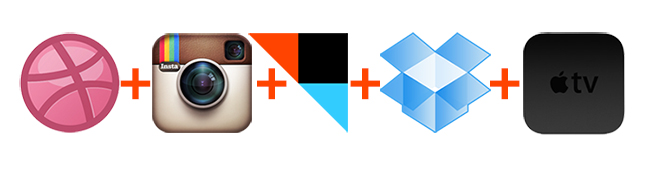
Tired of stock images of plants and animals when your Apple TV screen saver comes on? Why not make it a little more personal with some ingredients from Dribbble and Instagram? With a little IFTTT magic you can have your Apple TV showing your Dribbble and Instagram feeds with just a little fun hacking.

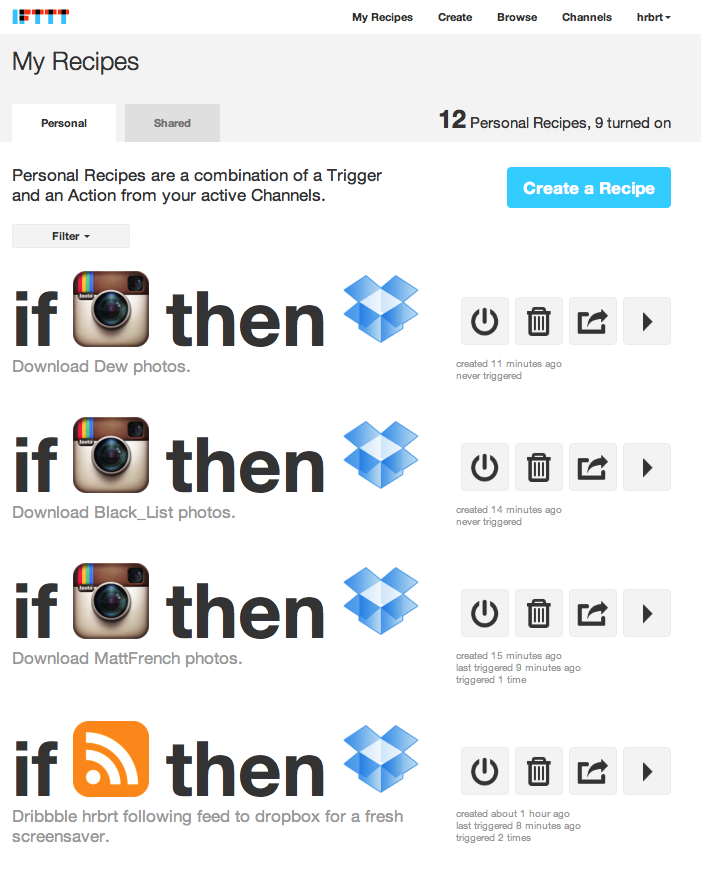
The interactive team over at BlingBlog.tv created a way to make this happen by using Dropbox and IFTTT then sprinkled some recipe magic to make this happen. I tried it last night and it worked perfectly; it only took me about 15 minutes to set up from start to finish. Here are the ingredients and the recipe:

Step 1: Dropbox
You’ll need a Dropbox account if you don’t already have one, but who doesn’t these days? If you don’t, you can sign up for free here.

Step 2: IFTTT
Okay, not everyone has an IFTTT account but you will need one to continue with this tutorial. IFTTT is a great service that lets you build recipes from many different web services. It’s free, so do yourself a favor and sign up if you already haven’t. When you do have an IFTTT account, you can continue.

Step 3: Get your ingredients together
To make the recipes that BlingBlog.tv created, some IFTTT channels will need to be activated. Go here to activate the RSS Feed Channel, the Dropbox Channel, and if you want Instagram, activate its channel as well.

Step 4: Recipes
Anytime a new item is added to Dribbble’s popular feed, or your own follow feed if you have an account, it is downloaded to Dropbox. If you have the Instagram channel activated, you can pick a few different users as well to really mix up your screen saver. IFTTT will save an Instagram picture every time that user account posts a new picture. Here are the links here and here that BlingBlog.tv posted if you want to modify or use their recipes. Note that you will need to make sure every recipe points to the same Dropbox folder. Every one of my recipes for this tutorial point to my Dropbox/IFTTT/Instagram folder, even my Dribbble feed.

Step 5: Screen Saver Info
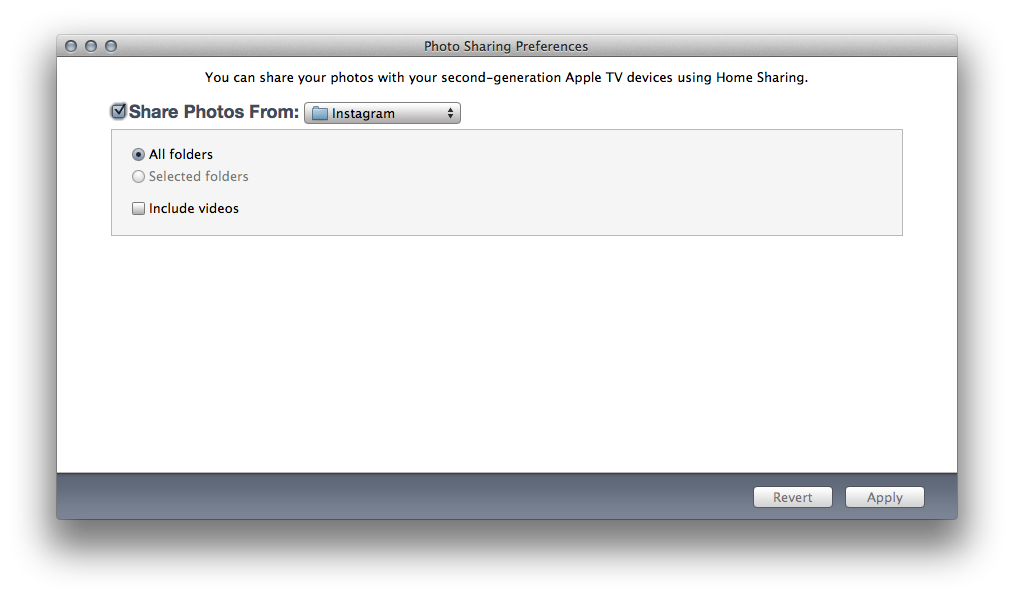
Did I mention this also works on your Mac? Just point to your Dropbox folder via the screen saver system prefs and you’re done with this tutorial. For your Apple TV, you will need to turn on iTunes’ Home Sharing on the Mac that has the Dropbox folder. After that is done, navigate to File > Home Sharing > ‘Choose Photos to Share with Apple TV…’ in iTunes and navigate to the same Dropbox folder (see image below).

Then, go to your Apple TV > Computers menu and add your Apple ID to link to your Mac’s photo library if you haven’t already done so. Now, go to Screen saver and choose your user Photo library as the source. Here is a resulting picture from my own Apple TV using this recipe. As you can see, it’s showing images saved from the IFTTT recipe – I like the origami effect the best. So, if you get tired of looking at your photos or the boring stock ones that Apple ships, try this recipe for some inspiration!

Here are some FAQs that BlingBlog posted:

  • At the beginning of the week, delete all of the stuff from last week. Sometimes, it’s hard to let go, but this screensaver isn’t for nostalgia; it’s for inspiration. Bring on some new stuff!
  • IFTTT/Instagram recipes only let you choose one user per recipe. We have 3 or 4 different ones going.
  • You aren’t limited to just dribbble or Instagram, IFTTT can also hook up to Flickr or any other photo streaming service that has an rss feed.
  • Apple TV doesn’t automatically update as new images come in, so you have to stop the screensaver and repeat Step 5 from above. And make sure your iTunes is open when it is refreshing the feed.

Tweetbot Mute Filters For U.S. Elections

Tweetbot Mute Filters For U.S. Elections

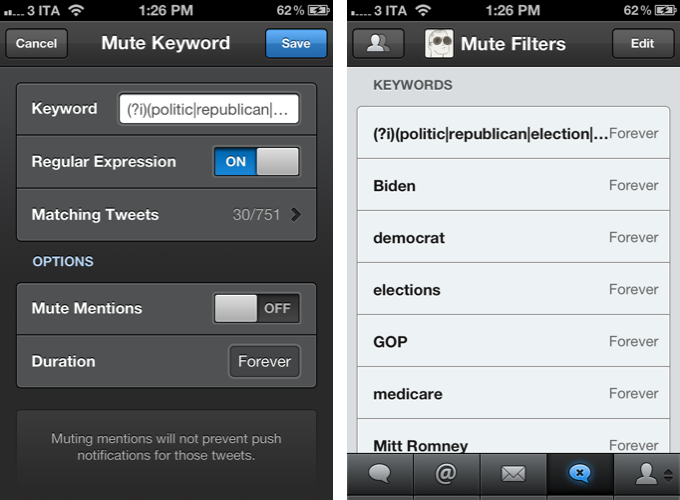
I’ve recently become annoyed with the amount of tweets in my timeline about the upcoming United States elections, so I set out to find a way to mute those tweets without necessarily unfollowing people. In case you missed it, Tweetbot 2.4 introduced support for keyword mute filtering, allowing you to mute (read: make invisible in the timeline) any keyword, with support for regular expression. I manually added hashtags and keywords to the list of filters on my iPhone, iPad, and Mac, but it turns out someone already made a set of filters you can easily install on your devices.

Thanks to Jono Hunt, you can head over this GitHub page and check out the 2012 U.S. elections regular expression he built for Tweetbot. You can add keywords in the middle if you feel like you should be blocking more from your timeline. To install the filter, open the Mute Filters view in Tweetbot, hit the Edit button, then the + button in the upper left corner and select Mute Keyword. Paste the filter, and turn on  Regular Expression. You can set a duration (I chose “forever”) and mute mentions for the filter as well. To make sure you’re entering the expression correctly, Tweetbot will also display matching tweets already in your timeline.

Jono has built other mute filters for recurring tweets besides the elections, so check them out here.

Permalink

Kindle for iOS Updated To 3.2 with Adjustable Margins

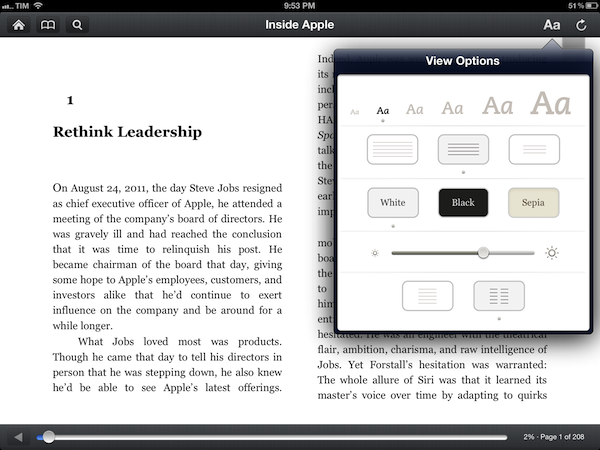
The official Kindle app for iOS has been updated to version 3.2. Following the redesign introduced with version 3.0 last March, the app was heavily criticized for its implementation of wide margins, which was eventually fixed with an update earlier this summer. Now, the app has been updated with a new setting to control “adjustable margins”. You can choose between three different layout options, as pictured above. The option is available on the iPad from the View Options menu, which also includes settings for font size, brightness, and background color.

Speaking of brightness, Amazon says the control slider has been updated to be more responsive and optimized for “better viewing”. The app’s changelog also focuses on “rapid highlights”, a way to mark important passages of a book for future reference that had been implemented by almost any other eBook reader or PDF viewer on the App Store. This option is available under “My Notes & Marks” in the Go To menu.

Among other changes for Print Replica Textbooks, Kindle 3.2 looks like a solid update that addresses a common annoyance of the app. You can find the update on the App Store.


Turn URLs and Webpages Into PDFs In Your Dropbox

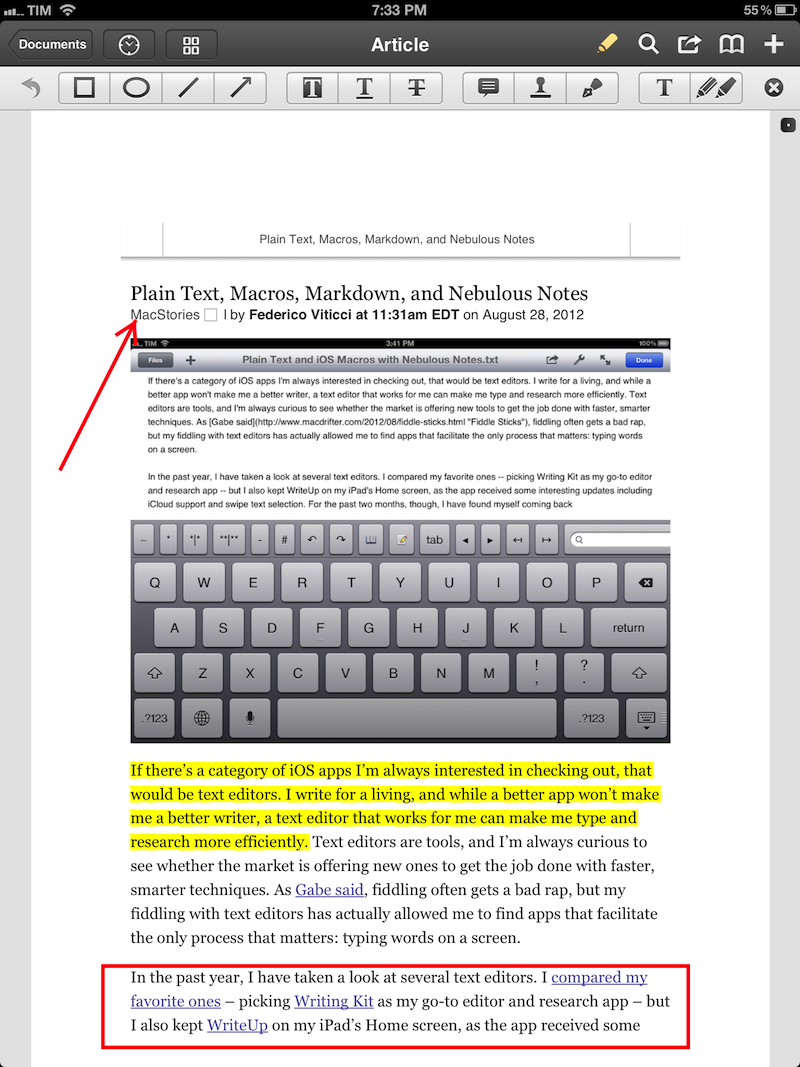
I stumble across a lot of interesting webpages on a daily basis. Sometimes it’s a video I want to watch later; sometimes it’s an article I don’t have time to read right away. Other times, I find a webpage that I want to keep around for future reference. For me, there’s a difference between articles to read later and reference material: whereas a new item added to Instapaper has a short life span in terms of attention (read, share, archive), a webpage I want to keep around forever needs to be turned into a document I can read anywhere, highlight, annotate, and carry around between platforms and devices. For that, I like PDFs.

I keep a “PDFs” folder in my Dropbox that contains all the documents I check upon regularly for work and personal purposes. They can be eBooks, tutorials, or guidelines from Apple that are essential to my writing online. Thanks to the increasing support for cloud services in apps like PDF Expert, GoodReader, and iAnnotate, I can keep a single copy of a PDF in my Dropbox, use the app I want to annotate the document with, and forget about duplicates thanks to sync. Furthermore, I’m fairly sure that, due to their popularity, PDFs will still be readable and supported 20 years from now, so I don’t have to worry about data preservation and file formats.

Lately, I have become obsessed with turning longer articles I find on the Internet also into PDFs for long-term archival. For as much as I like Instapaper, I can’t be sure that the service will be around in the next decades, and I don’t want my archive of longform and quality content to be lost in the cloud. So I have come up with a way to combine Instapaper with the benefit of PDFs, Dropbox, and automation to generate documents off any link or webpage, from any device, within seconds.

(Disclaimer: what follows is an explanation of a hack I created for personal use. It uses publicly available tools and apps to fill a personal need. You shouldn’t create PDFs off websites and redistribute them – you should support the sites you read instead).

In short, I use the Instapaper Text bookmarklet to fetch a webpage’s text and images (while preserving hyperlinks and great typography) and I convert the resulting page to PDF using wkpdf. Created by Christian Plessl, wkpdf is a command line tool that uses WebKit and RubyCocoa for rendering HTML content to PDF. Since wkpdf uses WebKit’s HTML rendering, it can generate good-looking PDFs that maintain most CSS2 and CSS3 stylings and properties. I have tried another command line tool for file conversion, Pandoc, but I like wkpdf better for straight HTML to PDF conversion. Read more


Buzz Contacts 2.0 Refines Interface, Improves Navigation

Buzz

Buzz

Savvy Apps’ Buzz Contacts is one of the finest iPhone apps to quickly access contacts from the Address Book and organize them into groups. Back in February I wrote a review of the first version of the app, and I liked what Ken Yarmosh and his team built:

Buzz is focused on groups. From a Facebook-like panel on the left, you can create as many groups as you want (such as “Friends”, “Family”, or “Work”) and assign contacts to them. Switching between groups is easy, as you just have to open the panel again and tap. Each group can have multiple pages of contacts, and each shortcut in the group’s grid view can be assigned a default action — be it call, message, or email. From the group’s management window, accessible by hitting the Groups icon in the upper right corner, you can reorder contacts, and organize pages if a group has more than four shortcuts.

The group actions of Buzz are something I found myself using on a daily basis. By tapping on the lower section of a group’s page, in fact, you get shortcuts for group messaging and emailing that will automatically use all the email addresses / phone numbers stored in your Address Book to send emails or texts to multiple recipients at once. This is particularly handy for teams, groups of friends, or family members. It’s been a huge time saver for me, as I would have to manually re-insert each contact every time I want to start a new group message or email.

Buzz Contacts 2.0, released today as a free update for existing customers, is a fantastic step forward in terms of design polish, navigation, integration with other services and apps, and overall speed of the app – an essential aspect of a utility that aims at making it easier and quicker to access your contacts.

In version 2.0, Buzz Contacts received a new icon and support for themes. Like Agenda, Savvy Apps’ other popular calendar app for iOS, users can now choose between different takes on the app’s color scheme and, interestingly, they can do so by either opening the Settings or swiping left/right on the top bar to change colors instantly. I prefer the app’s standard black theme, but I found the swipe implementation to change themes particularly well done.

Where Buzz Contacts 2.0 really excels, though, is the in functionality it adds to group management and navigation. Retaining the same Facebook-inspired panel interface of version 1.0, Buzz 2.0 adds Frequent and Outgoing sections at the top of the sidebar; in my usage, I found the Frequent “smart group” to be a great way to have the app monitor my most-contacted people for me, offering a series of shortcuts for emails, calls, or messages that I access on a daily basis. It’s reminiscent of the functionality Dialvetica offered, and it’s perfectly integrated with the other features offered by Buzz.

Buzz

Buzz

Such features include a double-tap action to bring up options for single contacts, which in version 2.0 got support for scheduling through Agenda or Due (so you won’t forget to contact your coworkers or friends anymore), possibility to send contact details via email or message, and integration with Box, Camera+, and Dropbox to easily add attachments to emails. This is a welcome addition to my workflow, as I rely on a Dropbox shared folder to store files for our team, and now I can easily forward them via email to a single contact (or everyone within a Buzz group) so I can add comments in the message. Or, more simply, I can attach photos from the Camera Roll or Camera+ and send them to my closest friends without leaving the app or composing a message manually.

Buzz Contacts 2.0 adds a reworked dialer that’s now easier to access and that works with phone numbers, names, and initials. Whether you prefer to dial a contact by name or number, Buzz will display results from your Address Book in real time, highlighting in green the numeric or alphabetic matches as you type. You can then double-tap on a contact to bring up the action menu, add it to a group from the dialer (a new option in 2.0), or initiate a new phone call (there’s a setting to avoid confirmation for phone calls).

To improve navigation, Buzz 2.0 deepens its reliance on swipes to create an actionable environment that’s equally powerful and intuitive. You can swipe horizontally between multiple pages of a group, and swipe to the right to open the group in a simpler list view. An additional swipe to the right will go back to the slide-out panel, which is now more responsive and better highlights the active view. In this new version, you can also swipe vertically between groups and the dialer – an option that single-handedly reinvented my usage of Buzz as it’s dramatically faster than going back to the sidebar for every kind of section switching.

Buzz Contacts 2.0 is full-featured and easy to use. Whereas an app like Launch Center Pro can work as a quick contact launcher, Buzz Contacts is a powerful contact manager and hub that in this version has been greatly improved with faster navigation and integration with other apps and services. Buzz Contacts remains the best solution for group-based contact management in my opinion, and thanks to a better dialer and support for swipes, it can now aspire to replace Apple’s Phone app for other users as well.

Buzz Contacts 2.0 is available at $0.99 for a limited time.


Buying a New iPad or iPhone? Have an Apple Specialist Walk You Through the Latest Features over the Internet.

Apple’s 375 Apple Retail Stores have drawn 3 million customers so far during this past fiscal year, serving upwards of 50,000 people at Genius Bars everyday around the world according to The Loop. Apple’s Retail Stores, which accounted for 14 billion in sales the last fiscal quarter, are Apple’s nexus to the consumer. Every store gives customers the opportunity to interact with Apple’s products, talk with (in my experience pleasant) Specialists who can answer questions, and get support for their products at the Genius Bar at the back of the store. While Apple Support already extends beyond the store by phone and through company’s website via online experts, FAQs, documents, tutorials, and e-mail (just to name a few), getting hands-on with a product before it’s purchased is more challenging. While Apple’s product pages — well designed and often showcasing the product’s features through slides, animated images, and galleries — give customers a sense of what they’re buying, there’s nothing like actually seeing how a real person is using the product (and you wonder why there are so many homemade reviews on YouTube).

Apple’s Specialists are now online and ready to answer a customer’s pending questions about their next iPhone or iPad, at least in a few countries as of this morning. According to The Next Web and Pocket-lint, online shoppers who browse Apple’s Online Store in Brazil, Germany, Spain, and the United Kingdom now have access to a personalized shopping experience for the iPad and iPhone. The new online service is expected to roll out to more countries soon.

Visit the iPad or iPhone pages on the Apple Online Store, then click the Ask Now button to see your options for contacting a trained Apple Specialist.

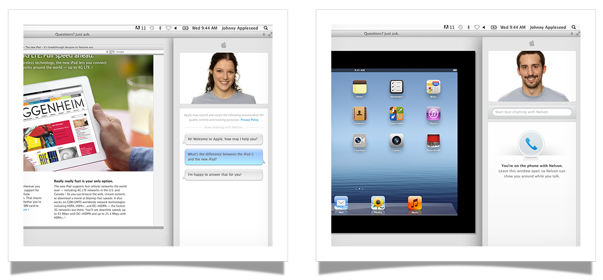
For customers shopping for an iPad or an iPhone who might not have an Apple Retail Store nearby or who don’t have the time to stop by a store, an online Apple Specialist can show you how the product works in real time via screen sharing. You’ll be able to ask Specialists questions in a chat panel, then get a demonstration of how a feature works via video. Apple’s goal is to help you make the right purchasing decision, then if desired, schedule an appointment to help you set up the device as you follow along with a Specialist in real time.

Always on the bleeding edge of retail, Apple continues to innovate and improve upon their shopping experience by going the extra mile and putting customers above the product. For Apple, it’s not just about making the sale, but about making connections with people and providing customers with a convenient shopping experience. If you thought Apple turned the idea of personal shopping on its head with EasyPay, delivering online screen sharing demonstrations by real people (at scale!) is equally, if not more, impressive. For an early look at the new service, visit Apple’s UK page for more information.

[Pocket-lint via The Next Web]