Our thanks to Creaceed for sponsoring MacStories this week with Prizmo.
Prizmo makes scanning easy, requiring nothing more than an iPhone, iPad, or your favorite digital camera. Prizmo works like magic — it takes a snapshot of your document and transforms it into a digital format which can be used and worked on just like any ordinary file. Text recognized in more than 40 languages is pulled right from the pages and transferred to Prizmo thanks to an amazing Optical Character Recognition engine that can read every word. And that text is immediately editable, so you can lay out your scanned documents, add, and delete as you see fit. Plus, you’re not even tethered to your phone. Prizmo has apps on all of your apple devices, so you can keep your documents in sync with iCloud, or via other storage apps like Dropbox, Evernote, and Google Drive. Who needs a big, bulky scanner when you have Prizmo?
On Monday, Opera released a preview of their upcoming desktop browser that uses WebKit instead of Presto to render web pages. Opera Next 15 is built atop Chromium, and thus shares a lot of similarities with Google Chrome. The preview brings Opera on the desktop in parity with the recent update to Opera for Android, bringing over features such as Discover for browsing through local news headlines. Stash, a new feature added to Opera, is a sort of visual Reading List for saving webpages you want to look at later. Opera Mail, once built into the dated Presto-based browser, has been split into a separate application which is also now available for preview.
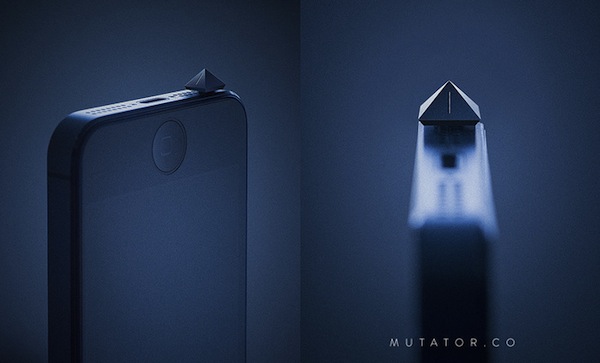
Our iPhones are always in our pockets, making sure that we won’t miss an important conversation or opportunity by vibrating, chirping, or ringing in our pockets at a moment’s notice. Sometimes we forget, however, that music and video still plays when our phones are muted, or that holding onto the home button a bit too long still activates Siri’s beep to start speaking. Ron Adair wanted to solve the problem of knowing whether or not his phone was really muted, so he created a plug for the iPhone called the Mutator.
Mutator is a simple little pyramid that plugs into your iPhone’s headphone jack, silencing all but the most important notifications like alarms. While the iPhone’s mute switch takes care of incoming notifications and the ringer, Mutator takes care of everything else like YouTube videos and games. Cleverly, Mutator can be twisted to unmute sounds when you’re ready to listen in.
This Kickstarter has a modest goal of $24,000 to cover tooling, manufacturing, and delivery costs. Pledges start at $5, but a $16 pledge promises you your very own Mutator if the project is successful.
Following the “Photos Every Day” commercial first aired last month, Apple today posted a new iPhone 5 ad called “Music Every Day”. As the name suggests, it is a follow-up to the previous commercial, this time with a focus on music.
Music Every Day doesn’t show music apps – instead it puts the spotlight on people enjoying music with their iPhones and Apple’s distinctive white earbuds. The commercial includes a variety of everyday situations – from exercising and waiting in line to a DJ set and a group of friends listening to music in their car. It’s not about the playback feature itself, it’s about music as a life companion.
Apple only briefly shows the iOS Music app in the commercial. The spotlight, unlike the Photos commercial, isn’t strictly on the iPhone’s display itself – rather, it emphasizes how music can seamlessly fit in our lives thanks to a device that’s often carried in a pocket, put on a table or outside of the shower, or shared with friends. The protagonist of the ad isn’t the iPhone per se: it’s people relying on it to enjoy their music.
The iPhone qualities that Apple subtly implies (intuitiveness of the interface, sound quality, portability) are important, but secondary. The voiceover sums it up at the end: “Every day, more people enjoy their music on the iPhone than any other phone”. With an elegant juxtaposition, the ad fades to black.
Apple hasn’t uploaded the new commercial to its website yet, but you can watch the official YouTube version below.
As first reported by John Paczkowski at AllThingsD, Apple has confirmed its WWDC ‘13 keynote for June 10 in San Francisco. Speakers haven’t been revealed yet, but it wouldn’t be a surprise to see CEO Tim Cook kicking off the keynote, with other executives following up on news and announcements during the event.
WWDC ‘13 was announced on April 24. Running through June 14, the conference will allow Apple to show developers “the latest advances in software technologies and developer tools to help them create innovative new apps”; Apple has also confirmed new versions of iOS and OS X will be seeded to developers. WWDC will feature more than 100 technical sessions presented by over 1,000 Apple employees. As usual, there will be hands-on labs where developers will be able to seek advice from Apple engineers for “code-level assistance, insight into optimal development techniques and guidance”.
Tickets for WWDC ‘13 went on sale on April 25 and sold out in two minutes in a new record for the company. Full-time or part-time students over the age of 13 had the chance of winning one of 150 scholarships to attend this year’s WWDC. As in previous years, Apple will reward outstanding achievement and excellence for well designed and innovative apps with the Apple Design Awards.
We’ll update this post with more information about WWDC schedule and keynote as the story develops.
Shazam is one of those things that has always felt entirely magical. With a tap of a button, usually any song playing from a static filled speaker is correctly tagged, and sorted into a tab where you can revisit it on your accord at a later time. It’ll pluck songs out of the air in a noisy bar, identify what’s playing on TV, and even tell you whether MSTRKRFT’s remix of Monster Hospital is playing before the keynote starts. And Shazam is always in my pocket, ready to settle disputes on what band is actually playing and what the name of the song actually is.
There’s a social element to Shazam which I personally don’t find appealing. I don’t want to see what people are tagging locally, nor do I care about Facebook integration or top tracks. They’re discovery tools, but I don’t care about what you’re tagging from your radio station. Rdio’s Heavy Rotation provides the most intimate kind of feedback between friends as does Spotify with their social features. Shazam wants me to share, to gather demographic data and to get people really using their sharing tools, but what I’m hearing right now is really the only thing that’s relevant.
So the exploration features, the maps and the social sharing, I’m entirely disinterested in. I mean, locally, we’re all listening to the same radio stations or watching the same television shows in company anyway. I use Shazam as my own personal list of things I’ve heard and want to know more about. What I do care about is tagging — the blue spinning circle and thumping waveform, as well as the immediacy of the feedback it provides. Auto tagging is entirely about this.
Auto tagging is a core component of the new iPad app, reminiscent of something like Yahoo’s IntoNow. The iPad, with its big battery, can sit on your coffee table or beside your media center, sipping battery while listening to songs playing in the background from your favorite television shows. I’ve had Radium running in the background this morning, and Shazam quietly but quickly identified the music that was playing from a local radio station. It automates what previously required a button press, even if does raise an eyebrow concerning privacy at home. As you launch the app and turn on the feature, Shazam pops up an alert that says (and definitely not verbatim), “We aren’t listening to what you say! Just identifying the music :-D.” Yeah, but… And until you close the app, Shazam will continue listening in the background even when the iPad’s display is off.
Possibly trading personal privacy for this kind of convenience obviously depends on your own comfort level. The same people who find Chrome’s “Ok, Google” or the Xbox One’s voice features will probably find this feature unsettling. Keep in mind that Shazam does listen every few seconds in the background even when auto tagging is off to help it more quickly identify music that’s playing, and I imagine the company feels that the only time you’d turn on Shazam is when you’re actively wanting to figure out what’s playing. I’m personally ok with it — I can’t wait to try it during a YouTube concert live stream to see how it fares there. I’ll probably just end up using it when watching press events and keynotes.
Shazam is free to use, the company making money from advertisements and purchases made from tagged music. You can, however, pay a $6.99 IAP (or purchase a “pre-paid” version) to remove advertisements.
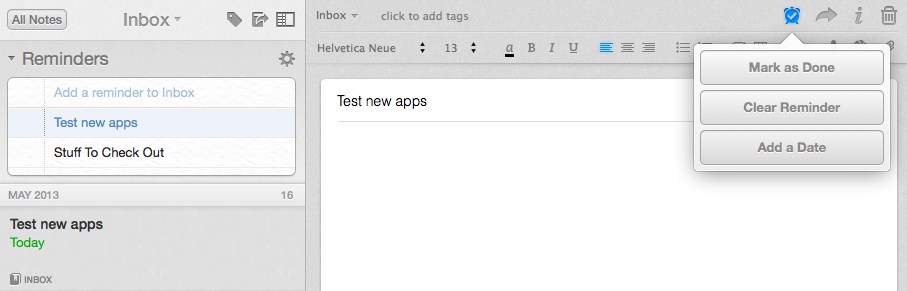
In the years I’ve spent using and recommending Evernote, I’ve always noticed a chasm between people who rely on the service to store reference material and notes, and those who want to also use Evernote as a “getting things done” system to keep track of their todos. The topic has been widely discussed on the Internet, with smart folks such as Sven Fechner and Fraser Speirs delving deeper into the subject of Evernote as a GTD system. Tutorials and eBooks have been published with tips on how to use tags and saved searches to turn Evernote into an app capable of equally handling documents, notes, and todos under a single, searchable archive. Clearly, there was a demand for a task management feature built right into Evernote.
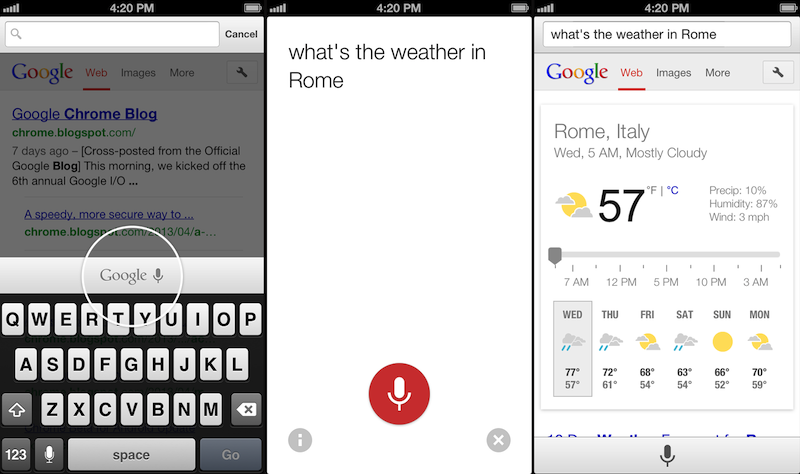
Voice Search, already available through the standalone Google Search app, will be activated in Google Chrome by tapping on a microphone button above the iOS keyboard:
Over the coming days, we’re rolling out an update for iPhone and iPad as well. You can now speak your searches into the omnibox. Touch the microphone, say your search query aloud and see your results (in some cases spoken back to you), all without typing a single letter.
Interestingly, the screenshot shown by Google displays the microphone button in the same additional keyboard row that’s currently occupied by buttons aimed at enabling users to more easily type URLs. Because Chrome for iOS, unlike Safari, uses a unified address bar for URLs and web searches, the extra keyboard buttons were necessary to let users quickly insert URL-related characters. It’s possible that Google will figure out a way to show both keyboard rows – the buttons and the new microphone – by letting users swipe horizontally above the keyboard.
Alongside performance improvements, Google also notes that “iOS apps can now give you the option to open links in Chrome and then return to the app with just one tap”. Assuming that Google is referring to the Chrome URL scheme with support for x-callback-url, that wouldn’t be new as it is already used by a variety of iOS apps (and as I showed today, users can play with it as well). However, Google has been quite vocal about its existing support for URL schemes lately, and it wouldn’t be surprising to see the company advertising the feature as new again.
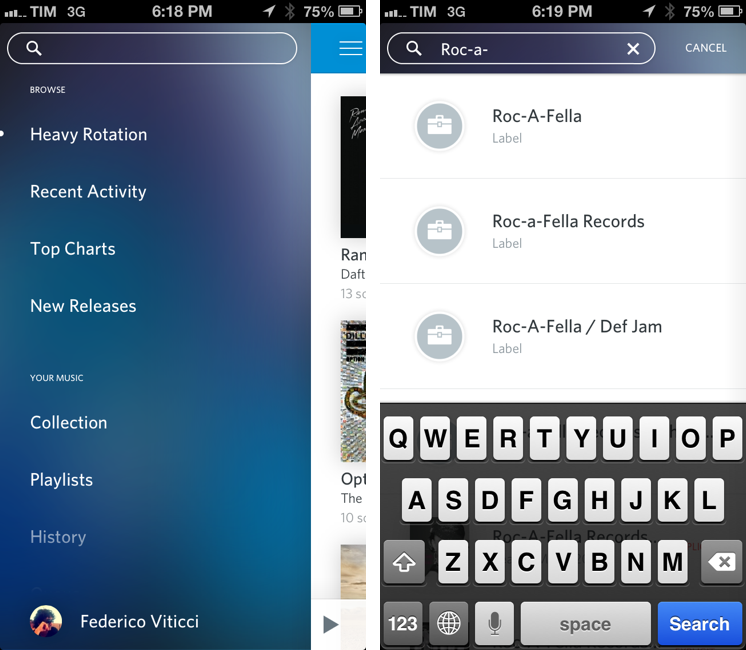
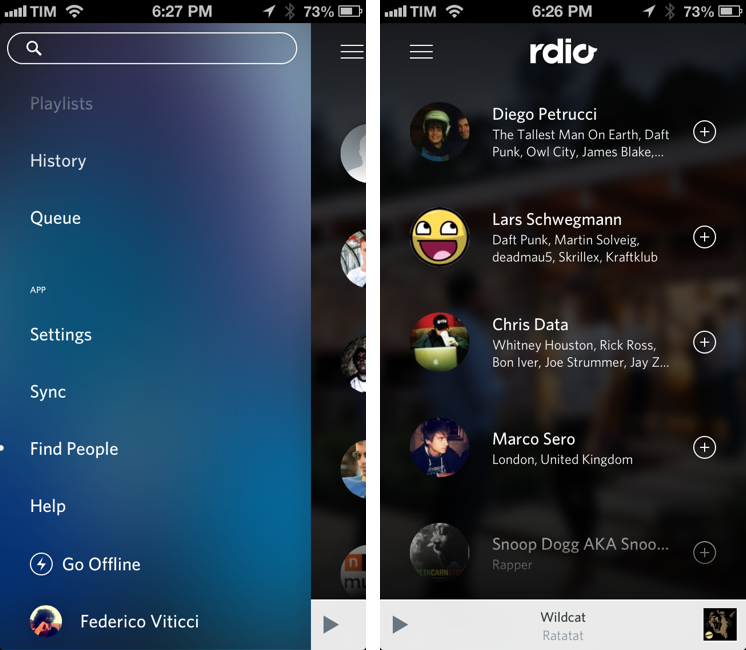
Rdio 2.2, released today for the iPhone and iPad, brings a series of important new features such as label search and improved user search, plus a revamped look for the slide-out navigation.
A feature highly requested by Rdio’s userbase, label search allows you to view top albums and artists of a specific label; if you want to see more artists or records, there are links to view a complete list – which, surprisingly, doesn’t support the tap & hold menu for quick actions that was introduced a few updates ago.
In the refreshed sidebar (also available on the iPad) a new Find People functionality allows you to find friends and artists you can follow by simply tapping on their profile pictures. It’s unclear how Rdio is determining user suggestions, but it’s likely that the service is looking into data provided by Twitter and Facebook accounts configured with it.