Posts in Featured

Apple Launches “Apple Support Communities” - Redesigned Discussions Website

Originally announced back in August 2010, Apple took down for maintenance discussions.apple.com – the official discussion board of the company where users could discuss in threads about various Apple products and applications – and replaced it with a brand new, redesigned version called Apple Support Communities. You can check it out now here.

ASC is basically a completely revamped version of Apple Discussions which is tailored towards making it easier to ask questions, receive feedback and answers from fellow iOS and Mac users, and browse threads by category, topic or relevance. As detailed in the tutorial and Etiquette sections, Apple Support Communities features a new design that should simplify the process of asking questions and replying with detailed information about a product. The compose window has been redesigned to have a cleaner look and more formatting options; your personal page can be customized with “widgets to bring you the content you’re interested in, from within or even outside the community”; you can receive email notifications for a specific community as well as subscribe to feeds. Top “participants” of a community (example: iPad community, or the “Using iPad” place – a term that indicates sub-sections) are featured in a new sidebar widget, and the overall design has been improved with a cleaner look, and more navigation options to see most helpful responses without reading an entire thread. You can play around with preferences for thread views and email notifications, upload an avatar and submit the products you own directly from your account’s page. Surprisingly enough, many UI elements of the new website are borrowed from the iPad with popover menus and overlays. You can also increase your “level” and collect “points” by being an active (and helpful) participant in the communities. From the “Your Stuff” tab, you can manage your bookmarks, check on discussions you’re involved with and see announcement posts. There’s indeed lots of stuff to do and tweak in this new website design. For instance, you can attach tags to your posts and “browse by tag” from the new Search page.

In an effort to better connect iOS and Mac users through discussions and answers, Apple Support Communities looks like a good first step towards a full-featured social backend that we hope will gain a native iOS app to quickly browse topics and submit posts in the future. In the meantime, you can visit ASC and create an account here. Read more

Access Extra Content and Perks

Founded in 2015, Club MacStories has delivered exclusive content every week for nearly a decade.

What started with weekly and monthly email newsletters has blossomed into a family of memberships designed for every MacStories fan.

Learn more here and from our Club FAQs.

Club MacStories: Weekly and monthly newsletters via email and the web that are brimming with apps, tips, automation workflows, longform writing, early access to the MacStories Unwind podcast, periodic giveaways, and more;

Club MacStories+: Everything that Club MacStories offers, plus an active Discord community, advanced search and custom RSS features for exploring the Club’s entire back catalog, bonus columns, and dozens of app discounts;

Club Premier: All of the above and AppStories+, an extended version of our flagship podcast that’s delivered early, ad-free, and in high-bitrate audio.

Learn more here and from our Club FAQs.


Official Moleskine App for iOS Now Available

Moleskine, a popular brand of notebooks, diaries and sketchbooks, released its first official app for iPhone and iPad yesterday in the App Store, bringing the look and note-taking capabilities of Moleskine products to iOS devices – also adding features only possible on smartphones and tablets like geo-location and image inserting functionalities.

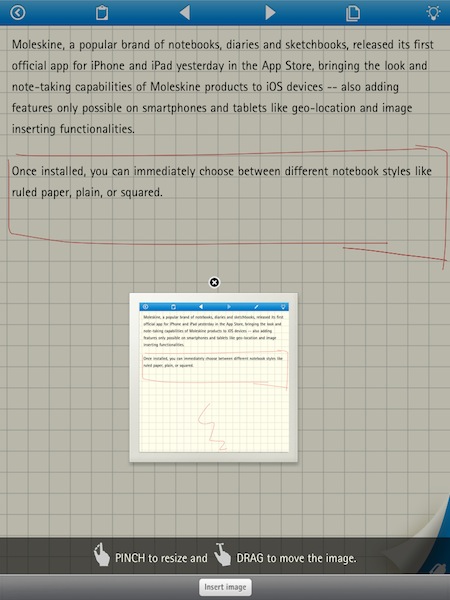
Once installed, you can choose between different notebook styles like ruled paper, plain, or squared. From the settings, you can set a text size, text color, or edit the cover picture that will appear upon launching the app. Moleskine uses a mix of custom UI elements and standard iOS graphics for displaying popovers and menus; the result is, in my opinion, very elegant and minimalism. Unfortunately, playing around with this first version I noticed there’s no way to sync the iPad app with the iPhone counterpart – your notes are going to stay local on each device.

Notes – or, as Moleskine calls them, “thoughts” – can be organized by category and location. The main screen, called myThoughts, displays two buttons in a bottom toolbar to visualize categories and location points. Once you create a new note, you’ll notice a clipboard icon in the top toolbar that allows you to bring up a custom, animated pop-up menu to rename the note, assign categories / colors / labels, choose paper styles and share via Twitter, Facebook or email. The animation of this menu is really nice, although it caused the app to crash a couple of times. As far as true note-taking capabilities go, you can type text, sketch and insert images. Both text and sketches can have different sizes and colors, whilst images can be zoomed and cropped before being inserted into a document. Text automatically wraps around an image as you move it around, but images (and sketches) will be removed when you share a note via email.

Overall, this app is a good first attempt to bring the Moleskine experience to iPhones and iPads. The lack of syncing might be a deal-breaker for many nowadays, and I believe Dropbox integration could come in handy and should be considered by the developers. The app is free in the App Store, and you can check out a gallery of screenshots below. Read more

Access Extra Content and Perks

Founded in 2015, Club MacStories has delivered exclusive content every week for nearly a decade.

What started with weekly and monthly email newsletters has blossomed into a family of memberships designed for every MacStories fan.

Learn more here and from our Club FAQs.

Club MacStories: Weekly and monthly newsletters via email and the web that are brimming with apps, tips, automation workflows, longform writing, early access to the MacStories Unwind podcast, periodic giveaways, and more;

Club MacStories+: Everything that Club MacStories offers, plus an active Discord community, advanced search and custom RSS features for exploring the Club’s entire back catalog, bonus columns, and dozens of app discounts;

Club Premier: All of the above and AppStories+, an extended version of our flagship podcast that’s delivered early, ad-free, and in high-bitrate audio.

Learn more here and from our Club FAQs.


Tea: An App for Tea Drinkers

Released two weeks ago in the App Store, Tea for iPhone is a beautiful app that aims at becoming a one-step solution for seasoned drinkers and tea newbies alike that have always been looking for a centralized place to manage their brewing notes, favorite teas, suggestions and timer settings. Tea clearly isn’t an app for everyone: unless you’re really passionate about tea, your collection of leaves and, overall, the knowledge you’ve accumulated over the years, I wouldn’t suggest installing Tea from the App Store. But if you love drinking tea, this is the app to have, and quite possibly one of the most beautiful pieces of software that (together with Tweetbot) have landed on the iPhone recently.

The main screen of the app gives you access to various types of tea you can brew. In the bottom toolbar, you can access the settings to change the order of teas, group by brand and enable social sharing on Twitter and Facebook. A History button in the middle of the tab bar lets you see all the teas you’ve brewed at once, whilst the Scratchpad allows you to write down all your tea-related notes in a single location. When you add a new tea, you can choose Name, Brand, Type and Amount. Types vary from  White and Green to Black and Oolong – you shouldn’t be disappointed by the options offered in Tea. The Amount tab lets you choose between different units like grams, kilograms and ounces. Once you’ve picked a tea, the Set Brew screen displays a rotating indicator that enables you to select quantity, number of cups, brewing time, and temperature. Everything is selectable with a standard iOS menu, and the interface design is really polished. Once set, tap “Brew” in the upper right corner to bring up a beautiful timer you can pause or cancel at any time. When the time is up, you can leave a note and a rating – which will be remember by the app for future brews and infusions.

With an impeccable attention to detail and a great feature set, Tea for iPhone is the best app to prepare your teas, collect notes, share your results and manage your inventory. You can find it in the App Store at $1.99 for a limited time.
Read more

Access Extra Content and Perks

Founded in 2015, Club MacStories has delivered exclusive content every week for nearly a decade.

What started with weekly and monthly email newsletters has blossomed into a family of memberships designed for every MacStories fan.

Learn more here and from our Club FAQs.

Club MacStories: Weekly and monthly newsletters via email and the web that are brimming with apps, tips, automation workflows, longform writing, early access to the MacStories Unwind podcast, periodic giveaways, and more;

Club MacStories+: Everything that Club MacStories offers, plus an active Discord community, advanced search and custom RSS features for exploring the Club’s entire back catalog, bonus columns, and dozens of app discounts;

Club Premier: All of the above and AppStories+, an extended version of our flagship podcast that’s delivered early, ad-free, and in high-bitrate audio.

Learn more here and from our Club FAQs.


Printopia 2.0: AirPrint From iOS To Your Mac Apps

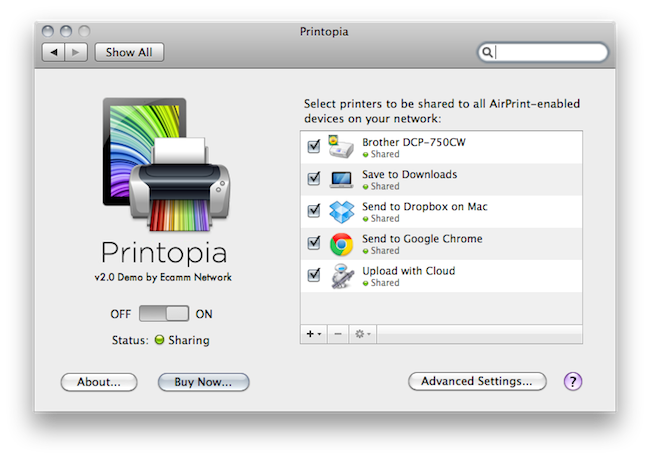
When I first reviewed Printopia by Ecamm back in November, I was impressed by how easily the app allowed me to send documents from an iOS device to a shared printer on OS X via AirPrint. The problem with AirPrint we discussed in November – which Apple hasn’t fixed yet – is that unlike the first betas of OS X 10.6.5 and iOS 4.2, the final versions of these OSes didn’t ship with AirPrint support for shared printers. AirPrint works out of the box with a bunch of HP printers, but Apple promised last year that it would also work with any printer previously configured and shared on a Mac. No need to install additional drivers on iOS: as long as a printer was shared on OS X, it would show up in AirPrint. With 10.6.5 final, that wasn’t the case. AirPrint support for shared printers was pulled at the last minute, and a series of unofficial hacks surfaced to re-enable it without reverting back to a beta of 10.6.5 (Mac OS X has reached version 10.6.7 since then). Among those hacks and apps, Printopia was without the doubt the most elegant one because it provided a GUI in System Preferences to manage shared printers, and allowed you to print a document to a virtual location on your Mac or Dropbox.

Version 2.0 of Printopia, released yesterday, builds on the great virtual printing functionality by adding support for unlimited printers in any location (could be your Downloads folder, the Desktop – you name it) and PDF workflows and applications as well. The feature is more exciting than it sounds on the changelog: with Printopia 2.0, you can send a document from your iOS device (through AirPrint) to any app on your Mac that can preview, say, PDFs. Example: I’m on my iPhone, and I find a PDF I want to read on my computer. Both devices are on the same local network (but it should work with this kind of VPN setup as well), and Printopia is running on my Mac. I take the PDF, and “print it” to Evernote. The document will automatically open in the Evernote app on my desktop. I tested this with Google Chrome, Preview, DEVONthink, Yojimbo, Numbers, Pages – it works really well. But there’s more. Not only you can print to applications, you can also print a document to an Automator workflow that supports the file type. Here’s another example: last night, I sent a PDF document to CloudApp’s own “Upload with Cloud” workflow, and AirPrint sent the document to CloudApp, automatically returning the file’s URL on my desktop.

Printopia 2.0 opens the door to a lot of possibilities for virtually printing documents anywhere on your computer, and of course support for physical shared printers is still there. Printopia 2.0 also introduces support for passwords you can assign to any virtual or real printer and settings for paper size / tray and colors.

If you want to get the most out of AirPrint and you have a Mac, Printopia is the utility to install. With support for real and virtual printers and system-wide integration with apps and Automator, Printopia is a full-featured solution to get any document from iOS on to the desktop. A demo version is available, and a full license can be purchased at $19.95. More screenshots below. Read more

Access Extra Content and Perks

Founded in 2015, Club MacStories has delivered exclusive content every week for nearly a decade.

What started with weekly and monthly email newsletters has blossomed into a family of memberships designed for every MacStories fan.

Learn more here and from our Club FAQs.

Club MacStories: Weekly and monthly newsletters via email and the web that are brimming with apps, tips, automation workflows, longform writing, early access to the MacStories Unwind podcast, periodic giveaways, and more;

Club MacStories+: Everything that Club MacStories offers, plus an active Discord community, advanced search and custom RSS features for exploring the Club’s entire back catalog, bonus columns, and dozens of app discounts;

Club Premier: All of the above and AppStories+, an extended version of our flagship podcast that’s delivered early, ad-free, and in high-bitrate audio.

Learn more here and from our Club FAQs.


Apple Releases iOS 4.3.2 [Direct Links]

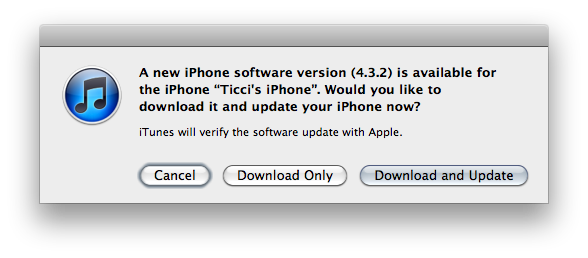
Apple just released iOS 4.3.2. It’s available now in iTunes if you check for updates, and direct links to the downloads will be available shortly.

As previously reported, iOS 4.3.2 fixes issues with FaceTime calls (freezing or displaying random photos from the camera roll), and problems with iPad WiFi + 3G connectivity. Build number is 8H7 for most devices; the CDMA iPad 2 got build number 8H8.

Here are the direct links for iOS 4.3.2:

iPhone 3GS

iPhone 4 (GSM)

iPad

iPad 2 (also iPad 2,2 and iPad 2,3)

iPod touch 3rd gen

iPod touch 4th gen

Update: Apple also released iOS 4.2.7 for the Verizon iPhone. It’s available here, and we’re looking for a changelog.

Update #2: iOS 4.2.7 for the CDMA iPhone 4 contains bug fixes and the latest security updates.

Screenshot of the changelog after the break. Read more

Access Extra Content and Perks

Founded in 2015, Club MacStories has delivered exclusive content every week for nearly a decade.

What started with weekly and monthly email newsletters has blossomed into a family of memberships designed for every MacStories fan.

Learn more here and from our Club FAQs.

Club MacStories: Weekly and monthly newsletters via email and the web that are brimming with apps, tips, automation workflows, longform writing, early access to the MacStories Unwind podcast, periodic giveaways, and more;

Club MacStories+: Everything that Club MacStories offers, plus an active Discord community, advanced search and custom RSS features for exploring the Club’s entire back catalog, bonus columns, and dozens of app discounts;

Club Premier: All of the above and AppStories+, an extended version of our flagship podcast that’s delivered early, ad-free, and in high-bitrate audio.

Learn more here and from our Club FAQs.


Tweetbot for iPhone Review


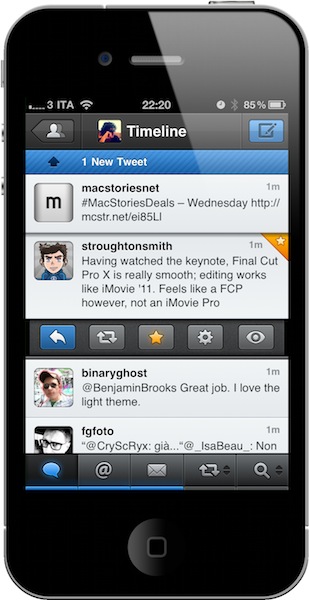
I remember when I bought my first iPhone, Twittelator was the first Twitter client I downloaded from the App Store. Back then I wasn’t writing for MacStories, and I didn’t know about Loren Brichter’s Tweetie. I used Twittelator for months: it was a great app that had everything I needed. I saw no point in switching to another application, let alone start browsing the App Store looking for alternatives. Twitter was a young platform in the middle of expansion with lots of downtime issues, there were no lists or location features and the concept of “retweets” was just taking off thanks to the initiative of some users not affiliated with Twitter at all. For what I had to do, Twittelator was fine. Then I started MacStories, and the hunt for more compelling, alternative, different Twitter apps began.

Twitterrific came after Twittelator for me. I used it for a couple of months and then finally purchased Tweetie – which had seen a terrific rise in popularity thanks to an elegant UI design, a fast engine and a simple, yet powerful set of features. I fell in love with Tweetie: it was stable, fast, intuitive, continually updated. It received the support of the entire Apple community, and it quickly became a standard among iPhone geeks to have Tweetie on a device’s homescreen. The rest is history: Tweetie 2 shipped and revolutionized the ecosystem with pull to refresh, gestures, a refreshed interface and, overall, the richest feature set available on the market. In the meantime, Twitter as a platform was growing to accommodate more users, more servers and – as a side effect to media starting to use the service to deliver news – more responsibilities. Without going back through all the changes that happened at Twitter HQ between 2009 and 2010, you might remember when the company announced they were buying Loren Brichter’s Tweetie and putting him in the position of lead mobile developer. Twitter rebranded the app as “Twitter for iPhone”, Tweetie 2 for Mac disappeared from our radars to eventually come back as Twitter for Mac. Twitter as a company has changed (so much that they don’t even want too many unofficial clients anymore), but the core concept of the service stays the same: it’s all about sharing content in real time. That hasn’t changed at all. If anything, it got better. Read more

Access Extra Content and Perks

Founded in 2015, Club MacStories has delivered exclusive content every week for nearly a decade.

What started with weekly and monthly email newsletters has blossomed into a family of memberships designed for every MacStories fan.

Learn more here and from our Club FAQs.

Club MacStories: Weekly and monthly newsletters via email and the web that are brimming with apps, tips, automation workflows, longform writing, early access to the MacStories Unwind podcast, periodic giveaways, and more;

Club MacStories+: Everything that Club MacStories offers, plus an active Discord community, advanced search and custom RSS features for exploring the Club’s entire back catalog, bonus columns, and dozens of app discounts;

Club Premier: All of the above and AppStories+, an extended version of our flagship podcast that’s delivered early, ad-free, and in high-bitrate audio.

Learn more here and from our Club FAQs.


World of Goo Now Available for iPhone, Now Universal

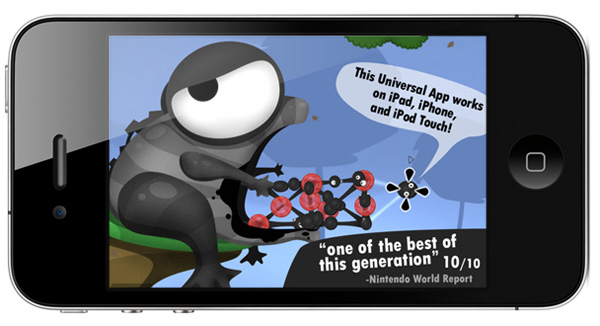
2D Boy’s mega hit World of Goo set records for iPad sales and just last week we told you that a universal update was awaiting approval. The universal update is now available with support for iPad, iPhone and iPod Touch. So instead of walking around in circles waiting for Tweetbot (and our review), why not grab the universal update to World of Goo HD? It’s only $4.99 and you can get your gooey hands on it right here.

An iPhone/iPod Touch only version is also available for only $.99, you can get it here.

Access Extra Content and Perks

Founded in 2015, Club MacStories has delivered exclusive content every week for nearly a decade.

What started with weekly and monthly email newsletters has blossomed into a family of memberships designed for every MacStories fan.

Learn more here and from our Club FAQs.

Club MacStories: Weekly and monthly newsletters via email and the web that are brimming with apps, tips, automation workflows, longform writing, early access to the MacStories Unwind podcast, periodic giveaways, and more;

Club MacStories+: Everything that Club MacStories offers, plus an active Discord community, advanced search and custom RSS features for exploring the Club’s entire back catalog, bonus columns, and dozens of app discounts;

Club Premier: All of the above and AppStories+, an extended version of our flagship podcast that’s delivered early, ad-free, and in high-bitrate audio.

Learn more here and from our Club FAQs.


White iPhone 4 Coming In Two Weeks?

Bloomberg Businessweek reports Apple is readying the sale of the long-awaited white iPhone 4, which should become available by the end of April. The publication mentions “three people familiar with the plans”, and claims the device will be available both on AT&T and Verizon in the United States.

Apple Inc. will begin selling a white model of the iPhone 4 in the next few weeks after a 10- month delay, according to three people familiar with the plans.

The new version will be available from AT&T Inc. and Verizon Wireless by the end of April, said one of the people, who asked not to be identified because the plans aren’t public.

Last month, Apple’s Phil Schiller confirmed with a tweet to a customer that the white iPhone 4 would be available in Spring and that it’s a “beauty.” The release of the device was delayed multiple times in the past due to alleged production issues with the white panel. The exact reason why Apple delayed the initial June 2010 release date hasn’t been revealed by the company, but previous speculation suggested problems with the white paint caused the device to take bad photos due to light leaks. A rumor also pointed to Apple relying on a new Japanese paint for its white iPhone 4; it’s not clear at this point whether the unit will launch by the end of April only in United States, or internationally as well. Apple was also rumored to be considering a white version of the iPhone 5 for a summer 2011 launch – although recent rumors about a “delayed” iPhone 5 in September with a WWDC focused on software doesn’t leave much credence to the original report. The white iPhone 4 recently showed up on various international carrier websites and Best Buy internal inventory systems.

Access Extra Content and Perks

Founded in 2015, Club MacStories has delivered exclusive content every week for nearly a decade.

What started with weekly and monthly email newsletters has blossomed into a family of memberships designed for every MacStories fan.

Learn more here and from our Club FAQs.

Club MacStories: Weekly and monthly newsletters via email and the web that are brimming with apps, tips, automation workflows, longform writing, early access to the MacStories Unwind podcast, periodic giveaways, and more;

Club MacStories+: Everything that Club MacStories offers, plus an active Discord community, advanced search and custom RSS features for exploring the Club’s entire back catalog, bonus columns, and dozens of app discounts;

Club Premier: All of the above and AppStories+, an extended version of our flagship podcast that’s delivered early, ad-free, and in high-bitrate audio.

Learn more here and from our Club FAQs.


Apple Announces Final Cut Pro X, Coming In June

Update #1: Final Cut Pro X will be released in June and it’ll be available through the Mac App Store. No mention of Final Cut Studio or Final Cut Express today. [via]

As widely expected, Apple just introduced a new version of Final Cut at the Final Cut Pro Supermeet during NAB 2011 in Las Vegas, Nevada. Touted as “revolutionary as the first version” from 1999, Apple introduced the new Final Cut Pro X saying that every major broadcaster and film maker nowadays relies on FCP for their video editing needs.

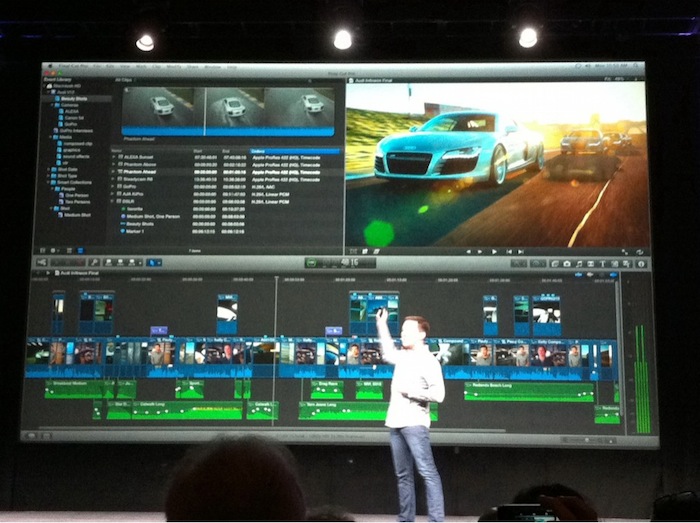
Basing on live updates coming from attendees at NAB 2011, Final Cut Pro X has been built from scratch, and it’s entirely 64-bit. It’s based on technologies like Cocoa, Core Animation, Open CL, Grand Central Dispatch and it focuses on image quality. It features a resolution independent timeline up to 4K for scalable rendering – in fact, it appears the old render dialog is gone entirely as the app uses the available CPU to keep files always rendered. FCP X allows you to edit while you’re importing thanks to its new engine, and it’s also got automatic media and people detection on import, as well as image stabilization.

Apple is promoting the new FCP X as a complete and total rebuild. Smart collections look very similar to iMovie, and overall there is a feeling Apple has borrowed some UI elements from the iLife application to make the general design more accessible, even for professionals. For instance, Apple has brought “single keystroke nesting” to Final Cut Pro – a new functionality that allows you to group chunks of media into a single clip in the timeline. The “inline precision editor” allows you to make edits by revealing media with an iOS-like menu.

More details from liveblogs:

  • “You can view the media in the browser in a film strip type view. You can completely customize how you view media prior to the timeline.” - robimbs
  • “4 window setup is now kind of truncated in 3 windows. The browser has the viewer built into it.” - robimbs

  • “Auditioning: collect options during edit, choose later (simplifies versioning). This is loosely similar to Logic’s feature for grouping” - fcpsupermeet

Some notes of interested from Photography Bay:

10:33: Randy Ubillos, Chief Architect, Video Applications on stage. Demo FCP X live now. Beta version. “We hope it behaves.”

10:35: Audi R8 commercial spot cut on FCP X…

10:36: Demo’ing it live now. Showing off the keywording ability of the sections of the clip instead of the whole clip.

10:37: Offers filmstrip view for content. Looks just like iMovie’s functionality.

10:38: You can highlight sections of content in the filmstrip view and add keywords that way. The keywords show up as items in event library. Selecting those keyword items brings up just those sections of content. Looks like subclips, but it’s not.

If the new FCP X is still in beta, there’s shouldn’t be a product launch (or press release) coming today. Several attendees are reporting on Twitter the new timeline is very, very fast and are also mentioning an iPad app being demoed on screen. With background processing and the possibility to use all cores on powerful machines like a Mac Pro, Apple has focused on improving the reliability of Final Cut’s timeline by making sure to clips can be accidentally “destroyed”. The redesigned UI with a touch of iOS here and there and “magnetic timeline” should – basing on what we’re hearing from people at NAB – dramatically improved navigation and organization of large chunks of media.

FCP X features instant render in the background that doesn’t affect editing, also with 1-click instant color matching. Color correction, for example, has been built right into the timeline, enabling users to, say, distribute a “Ken Burns Effect” with a single swipe. Apparently there’s a lot of animation going on with windows, and attendees are reporting that – judging from the demo – Final Cut Pro X is incredibly fast in every task and processing that’s been done on stage.
Read more

Access Extra Content and Perks

Founded in 2015, Club MacStories has delivered exclusive content every week for nearly a decade.

What started with weekly and monthly email newsletters has blossomed into a family of memberships designed for every MacStories fan.

Learn more here and from our Club FAQs.

Club MacStories: Weekly and monthly newsletters via email and the web that are brimming with apps, tips, automation workflows, longform writing, early access to the MacStories Unwind podcast, periodic giveaways, and more;

Club MacStories+: Everything that Club MacStories offers, plus an active Discord community, advanced search and custom RSS features for exploring the Club’s entire back catalog, bonus columns, and dozens of app discounts;

Club Premier: All of the above and AppStories+, an extended version of our flagship podcast that’s delivered early, ad-free, and in high-bitrate audio.

Learn more here and from our Club FAQs.