Posts in reviews

Path 2.1

Released earlier today on the App Store following a media event where CEO Dave Morin gave out some interesting tidbits about the company, Path 2.1 is a substantial update to the social networking app that aims at build a beautiful journal of our daily lives. Sarah Lacy at PandoDaily has liveblogged the most interesting details: over 100 million moments have been shared on Path, with over 1 billion pieces of “feedback” on them (I assume these include comments and reactions); Path is announcing an API for third-party developers to integrate their services and apps with, and Nike is an initial partner (the API is private for now). The Verge is also reporting that Path has listened to the suggestion of hashing users’ data, and will do so in an upcoming 2.1.1 release.

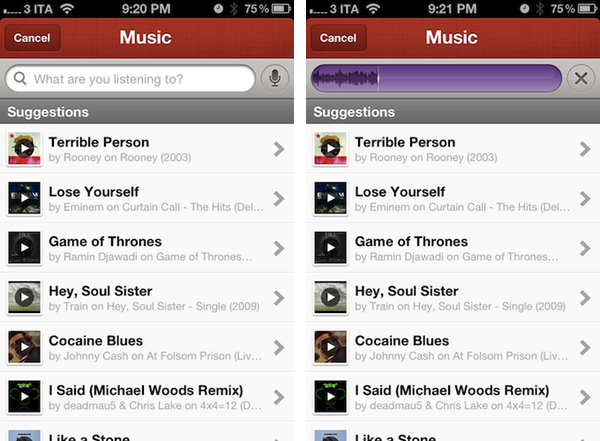
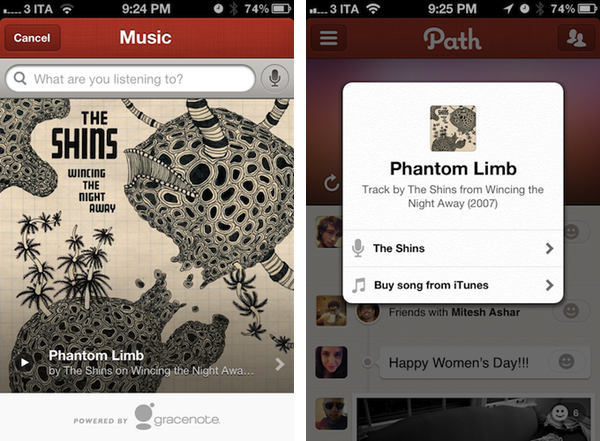
What we have today is Path 2.1 – I have tried the new version, and it’s pretty good. I haven’t been able to test Nike integration as I’m not a user, but I’ve taken the new music recognition functionality for a spin. Similarly to how Shazam works, Path 2.1 lets you hold up your iPhone’s mic to a music source, and wait a few seconds for the app to contact an online service (in Path’s case, Gracenote) and return the title of the song alongside other information (album, artist, etc). Path’s implementation of this is unsurprisingly great-looking, but Gracenote’s database isn’t nearly as powerful as Shazam’s. For instance, the app recognized The Shins and Coldplay, but failed fetch The Uprising and Tell Me What It’s Worth. Overall, I like the interface of this new music feature; I hope more databases will be added in the future.

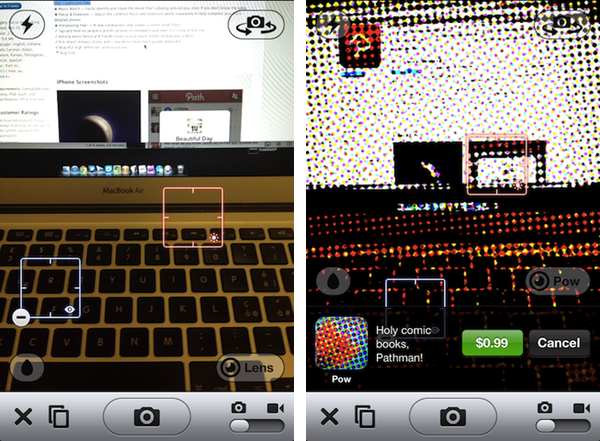
Path 2.1 also comes with improvements to existing lenses and a new one, called Pow. I have never liked Path’s approach to filters and custom lenses, but I’ll admit the ones in this new version look better. What I do like is the new control for exposure and focus, which, unlike many apps, makes it extremely clear what you are moving on screen.

Path 2.1 is a good update – here’s to hoping Path will stick around long enough to get more friends of mine to use it. You can get version 2.1 here.


iPhoto for iOS Review

iPhoto for iOS was released on the App Store earlier today, and after an enthusiastic introduction at Apple’s media event in San Francisco, the latest photo editing app from Cupertino received a controversial “welcome” on various blogs and Twitter streams as users got their hands on the all-new interface and photo management system. So what’s all the fuss about iPhoto for iOS?

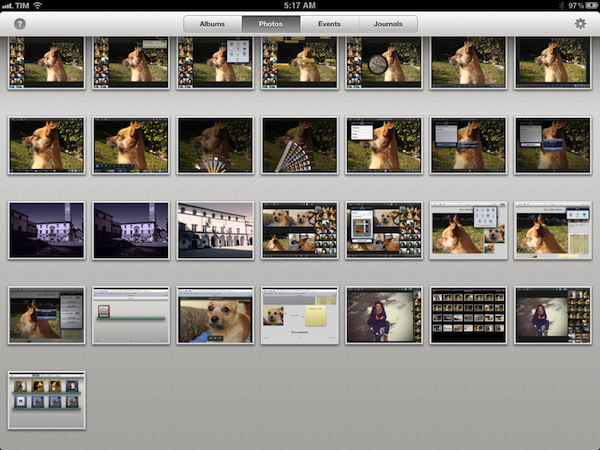
I have been trying the app on my iPad 2 and iPhone 4S (running iOS 5.1, of course, as it’s a requirement) for the past few hours, and I think that it is very powerful. As I’ll illustrate in a bit, Apple did manage to squeeze some advanced photo editing and refinement technologies in the mobile version of iPhoto, putting it on the same level if not above iPhoto for Mac when it comes to editing, making quick adjustments, and interacting with your photos. Once mastered, the new gestures and tap commands can be quite powerful, although the app can have a steep learning curve. I also believe, however, that iPhoto for iOS suffers from a serious file management problem, in that it’s the best example of iOS’ lack of a centralized file system where apps are able to easily “talk” to each other and share files or modifications to them.

I want to get this out of my system before I get to the (very) good stuff. If you were hoping to see Apple coming up with an effortless way of importing photos avoiding duplicates and manual management, well, I’m sorry, you’ll be disappointed with iPhoto for iOS. This version of iPhoto is yet another data silo that is self-contained, and won’t simply “sync” the changes it makes to photos out of its closed environment.

I say “simply”, because there are exceptions in iPhoto for iOS, as it doesn’t use the exact same system of iPhoto for Mac when it comes to finding photos on your device. Because iOS devices come with a systemwide “Camera Roll” that’s accessible by other apps, Apple engineers had to make sure iPhoto could access such location – and here’s where I started to run into issues. Read more


ListBook Goes Universal, Adds iCloud Sync

When I reviewed the first, iPhone-only version of ListBook from noidentity last year, I called it ”a good alternative to Apple’s Notes app for most iPhone users”. In the past 12 months, however, Apple shipped iOS 5, a major revision of its mobile operating system that, among other things, includes a native list-making app called Reminders. The writing was on the wall for developers of third-party list apps: Apple likes to “borrow” ideas from successful applications every once in a while, and simple todo lists are just something too common to ignore for a possible system integration. As usual after Apple comes out with its own take on a previously third party-only idea, many rush to declare Product X has been “sherlocked” by Apple. It happens every time. The opposite is quite true: Apple’s take on such ideas and workflows often creates an even bigger market for developers, raising the public’s awareness on a particular kind of software, leading more people to seek out alternatives and different takes from other developers.
The new ListBook, released today, falls exactly under this category. With a simple interface, lists, and iCloud sync, one could easily think it’s a Reminders clone with a price tag on top of it (the app is sold at $1.99 on the App Store). As I mentioned above, those looking for a different take on Reminders – which will also gain a desktop counterpart on Mountain Lion – will be pleased to find in ListBook some clever features implemented in a way that makes switching between the iPhone and iPad version as effortless as iCloud allows.

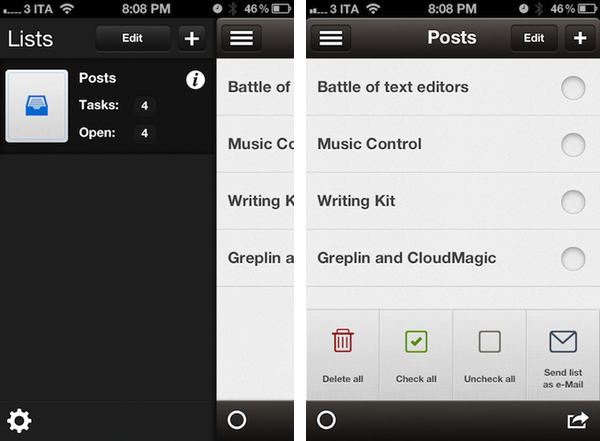
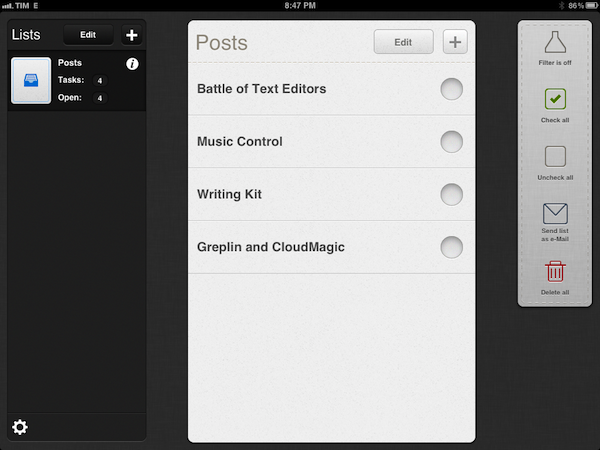
ListBook makes lists. On the iPhone, these lists are accessible from a button in the top left corner that you might have seen elsewhere recently;  on the iPad, the app uses a split interface that’s quite attractive and works fine.

Lists can be assigned an icon (the selection is nice), and you can disable Home screen badges on a list basis. Each list shows how many items you entered in total (tasks) and how many of them haven’t been completed (open). Because ListBook isn’t strictly GTD, but wants to combine text-based lists with a simple todo management system, completed items will stay in a list until you delete them permanently – a Filter button lets you view only “open tasks” if you prefer such view. This view setting, alongside lists and todos, will sync across devices using iCloud, and in my tests sync has been fairly responsive – it takes only a few seconds to see new items appear on another device, even if the app is already in the foreground.

Overall, I think ListBook 3.0 is a great update and the right path to follow for the developers, especially with iCloud, which would open the door to a possible Mac app in the future. If you like well-crafted user interfaces (the icon is also very polished and not blue or red), a simpler approach to list creation and supporting indie developers, you should give ListBook a try – it’s $1.99 on the App Store. For people who are just looking for a basic todo list app that syncs across devices, however, hitting the Buy button on this one might be a little hard. Apple’s Reminders does more, is integrated with Macs and PCs, and it’s free. Those users will be more than fine using Reminders, and I don’t blame them – Apple’s utility covers various aspects of list management very well, it’s got Siri support, and will gain a desktop version this summer. If, for some reason, you don’t like Reminders, or are simply intrigued by third-party apps in general, you should still try the new ListBook – it’s very nice and gets the job done.


Studio Neat, Makers of The Glif, Release Their First iOS App, Frames

When Thomas Gerhardt and Dan Provost set out to reinvent the market for tripod mounts and stands for iPhone in 2010 with The Glif, little did they know their idea would spur a new generation of creators and designers that seek out resources and funds for innovative iPhone-related projects through crowd-sourcing funding platform Kickstarter. Back when Kickstarter was still relatively “small” – the quotes are necessary here, as the site was already well known among creatives, but clearly not as popular as the service that’s now backing projects exceeding $2 million in funding – Studio Neat became an example in the tech and Apple communities of a great idea (tripod mounts for iPhone) combined with a fantastic everyday product (the iPhone’s camera) for a successful funding campaign. And Studio Neat, unlike others, even gave the whole fund-through-Kickstarter thing a second shot, coming back with an equally popular campaign – this time for an iPad stylus, The Cosmonaut. Both The Glif and The Cosmonaut turned from ideas and funding campaigns into commercially available products and feasible businesses, allowing Tom and Dan of Studio Neat to revamp their website and offer their iOS accessories directly to customers, tweaking The Glif’s package along the way with a Plus version that builds on the original vision, adding more iPhone camera-related goodness to the mix. Today, Studio Neat decides to try something new – not another Kickstarter campaign for a new iOS accessory, but a brand new iOS app available on the App Store called Frames.

Clearly meant to work best in conjunction with The Glif, Frames is an iPhone app to create stop motion and time-lapse movies with an intuitive interface. With a beautiful icon and an elegant dark design with thumbnail-based navigation, Frames makes it extremely easy to capture various “frames” – a sequence of still images – to play them back at a certain speed to achieve the effect seen in stop motion movies.

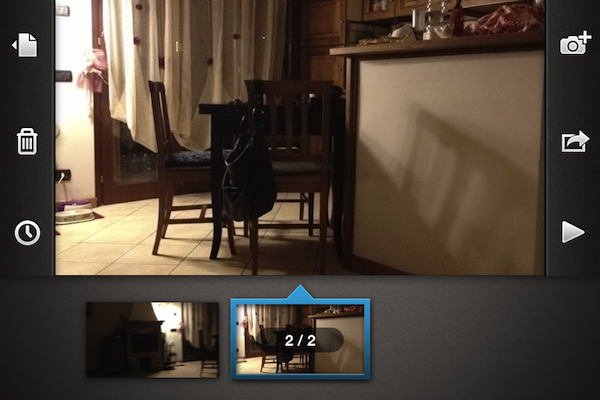
The app itself is fairly simple, and anyone will be able to pick it up immediately without necessarily being an expert in stop motion animations and editing. A main Projects view lets you create new videos and export them to the Camera Roll at 720p in a native format that can later be recognized by apps like iMovie (something you might want to consider as Frames can’t add music or text to your videos). Once in a project, you can scroll through frames at the bottom, and adjust the number of frames per second with a slider – you can go from 1 FPS up to 120 FPS. A Play button lets you roll the video so you can get an instant preview of what you’ve accomplished, whilst tapping on a + button opens the camera interface to add new stills to a project, choosing between stop motion mode (manual shutter) and time-lapse (automatic shutter: you set a time to lapse between stills, and the camera takes care of the rest).

The camera of Frames comes with a grid view, onion skinning, possibility of switching between rear and front-facing camera, AE/AF lock, and overall clear design that explains how many frames you’ve taken in a given amount of time very well.

I’ve been using Frames on my iPhone 4S, and I’m thoroughly impressed by how Studio Neat managed to turn stop motion into a streamlined process that takes advantage of the iPhone’s hardware to produce great results. Whilst you’d be able to achieve similar results with a video editing application if you know where to look and what to tweak, the focused approach of Frames (something that apps generally share) and its $2.99 price tag more than justify the purchase – personally, I can say I’ve been having fun making time lapse movies using Frames’ easy-to-understand menus and options, whereas a full-featured video editing app or manual process would have probably turned me away in frustration.

Frames is a “neat” utility to create stop motion movies without the complexity of regular video editing. You can get the app at $2.99 on the App Store.
Read more


Hazel 3.0 Adds Nested Rules, UI Improvements, and New Actions

I spend a lot of time refining my workflows with the naive intention of heightening my productivity, but it always has an adverse effect. I know this is not a new problem, and a lot of my Mac nerd friends also fall victim to the “tweak now and it will help me later” facade. What I have come to realize is – productivity is about having tools that you can trust and rely on to provide stability in times of hectic disarray. For my own personal workflow I have relied on Hazel for quite some time now (our own Federico Viticci previously wrote about it here). Hazel has become the backbone that provides stability to my trusted system: I have so many automated processes ranging from managing my monthly utility bills to just doing general cleanup that I could not easily accomplish without it.

Today Noodlesoft has released Hazel 3.0, and with it come some much needed interface improvements, a heap of new features, and under-the-hood changes for a completely redesigned engine for detecting file changes. Let’s take a closer look at some of the highlights added to this release.

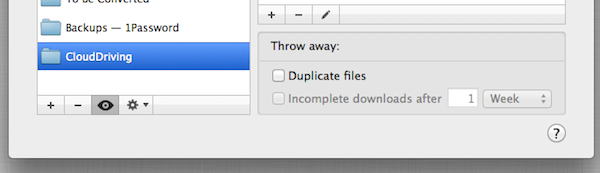
The first thing I noticed when I launched Hazel 3.0 is that it looks a lot like the previous version. That is not a bad thing, but the changes were not completely obvious at first. Then I noticed the new little eyeball icon in the section to add folders. When clicked, this icon displays a quick dropdown preview of what files match the rules for the folder you have selected. So, at this point I am about three seconds into using the new version of Hazel, and I’m already in love with just one of the many new features. Those using the previous version of Hazel would probably agree that the old method of previewing rules felt buried in sub-menus, and it is great to see that moved to the forefront of the UI.

There have been some other general interface improvements you just do not notice until you start using the program. For example, when editing an embedded script you can now adjust the size of the editor window. This alone is a huge help for long scripts that previously would have been easier to write in an external text editor. Speaking of script editing, perhaps my favorite visual improvement is the new popover design for script editors and option windows when creating new rules. This solves one of my biggest peeves with the previous version: when too many options had been expanded, the old slide-down windows would extend right past the bottom of the screen. It was probably only an issue on smaller laptop-size screens, but it was frustrating nonetheless. The new popovers are a great solution, and they really make Hazel feel at home on Mac OS X Lion.

The list really does goes on and on with tweaks to improve usability. In fact, so much of what makes Hazel 3.0 great is how it gracefully solves quirks I experienced in previous versions of the app. For instance, another frustration (now solved) was the inability to reorder conditions for matching rules. It is hard to explain why you would need to do this until your start creating and editing rules, but just know that version 3.0 does this superbly. In fact, I worry that new users will not be able to fully appreciate the effort that went in to improving the new release – they will simply have to live in blissful ignorance I suppose.

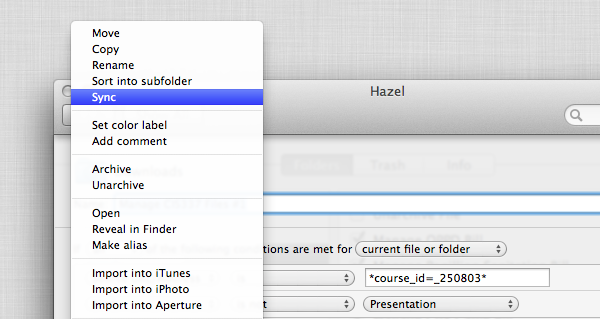
More interesting than the visual upgrades are the new features added to Hazel’s rules section. New features are always the cornerstone of any great software upgrade and Noodlesoft did not disappoint. Newly added actions include Import into Aperture and Sync. I don’t personally use Aperture but I am definitely excited to see the sync option. Unfortunately it is only a one-way sync action so it really only saves me the time of writing a script to run rsync. In fact, rsync is packaged into Hazel and that is how it accomplishes its own sync feature. Regardless, this is definitely a win for the average user.

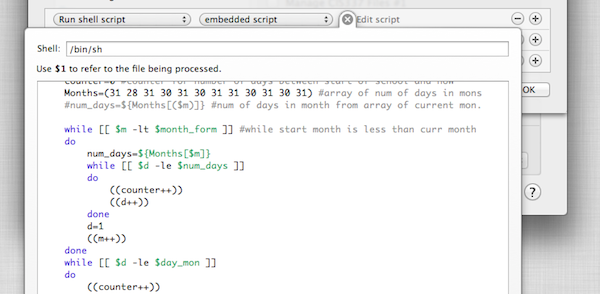
Another feature I was pleasantly surprised to see was the option to specify custom conditions via scripts. This basically allows you to write a shell script or AppleScript and test the file in anyway you want, then just return the value 0 to indicate the file is a match. This is so neat because it really brings an entirely new level of flexibility to how people can use Hazel. The structured rules Hazel ships with are great for most situations but now I have the ability to write my own. A simple example: I can write a shell script to grep the contents of a file and look for some specific information with regular expressions or in a way more powerful than Hazel’s stock “contents contains” action. I can not wait to really sink my teeth into that feature.

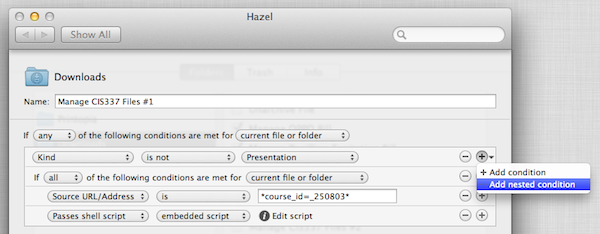
Hazel 3.0 doesn’t stop there, as rules can now be nested and/or grouped in any combination you see fit. This was probably the most requested feature and Noodlesoft did a fantastic job with the implementation. To add a nested rule you simply hold the Alt/Option key while clicking the (+) to add a rule condition; you can also simply click and hold down on the (+) to find the new add a nested rule option. Obviously, the potential uses for more complex conditions are limitless and I am sure many people will upgrade just for this addition.

One more thing worth highlighting is the new engine for detecting changes. Users should notice a decrease in time it takes Hazel to pick up on file changes, because, according to the developer, Hazel no longer needs to poll the disk as it relies on its new prediction engine to only wake when needed. This should result in less resources used and possibly even longer battery life for laptop users.

There are probably a hundred more changes I have not mentioned (i.e. scheduling rules) but you will have to download Hazel yourself to experience all it has to offer. Hazel 3.0 is an excellent upgrade and it is available as a single license for $25 or a family license for $45 directly from Noodlesoft’s website, and it is also available as a $10 upgrade fee for previously licensed users.


Quick Review: Reflection

I was reminded by this TUAW article last night that a simple solution to enable AirPlay Mirroring from iOS to OS X didn’t exist – this is something I’ve been fantasizing about since the original iOS 5 came out and the iPhone 4S further cemented my belief that AirPlay Mirroring is an amazing solution to project apps and games on a bigger screen. Fortunately, in the same article TUAW’s Erica Sadun pointed to Reflection, a new app by developer David Stanfill (the same guy behind AirParrot), which enables just that: it turns your Mac into an AirPlay receiver for Mirroring, not just audio and video playback as other tools (like AirServer) do.

I bought Reflection right away because, like I said, this is something I’ve been looking forward to, and whilst I don’t think this method can replace higher quality HDMI connections just yet, it sure provides a handy way of getting an iOS device’s screen onto your Mac. Sort of the opposite of apps like Skala Preview, only working natively with iOS 5 and a desktop app that handles the incoming video stream.

Speaking of which, quality of WiFi and video can obviously become a major deal-breaker for many – especially developers or bloggers who are looking at Reflection as a way to record iOS screencasts and demoes with the comfort of a Mac and the tools it makes available for video recording and editing. Now, I’m no video expert, but I’m fairly certain some sort of lossy compression is applied when mirroring an iOS device to the Mac through Reflection – but I’ve only spotted this loss in quality (example) a few times. Once installed, Reflection allows you to set some default settings for all incoming connections: you can set a receiver’s name, force full-screen mode (Lion’s native one) on all new Mirroring sessions, and optimize the app for different device types. These include standard iPhone resolution (320x480), Retina iPhone (640x960), iPad (1024x768), Hi-Res (1920x1080) and Any Device (1280x720). Similarly, devices can be mirrored inside a “frame”, and you’re also given the option to force orientations with keyboard shortcuts – unfortunately, the frames provided in Reflection don’t look nearly as great as ScreenTaker’s, so here’s to hoping for better graphics in a future update.

As I mentioned above, performances haven’t really been an issue with Reflection and my iPhone 4S/iPad 2 on the two local networks I tested the app with (powered by an AirPort Extreme and AirPort Express), but I have some points to make in regards to usage and why you should try or avoid Reflection.

  • If you’re looking for pixel-perfect reproductions of your iOS display on your Mac, consider something else. Reflection may experience the occasional drop in quality (or simply crash – it happened to me only twice though), and you don’t want to record your screencasts and promo videos over and over.
  • If you just need a quick way to demo iOS apps on your Mac, buy Reflection.
  • If you create your presentations on an iPad and have always looked for a way to easily mirror them on the Mac with no cables, get Reflection.
  • I have been using Reflection to play Temple Run and Whale Trail (iPhone versions, because I like the controls better) on the Mac’s screen, and performances have been pretty great. Games are playable, there are some minor slowdowns here and there but nothing that truly impacts the experience. Reflection crashed once while mirroring Temple Run.
  • Generally speaking, iPhone games at Retina size to a Mac in full-screen mode can be a good alternative to buying Mac versions of the same games again. I’d recommend playing puzzle/adventure or more relaxed games this way, avoiding more frenetic games (action, sports) due to the possibility of slowdowns and crashes. But: I can confirm GTA III for iOS mirrored to the Mac seems like the future.
  • I have also tested the Plex app (for iPad) mirrored to the Mac with content from a Mac mini in the US with basically zero lag. Keep in mind Reflection supports the full AirPlay Mirroring experience, which includes audio.
  • Reflection is a great way to keep often-used or dashboard-like apps for iOS on the Mac’s screen – but you’ll want to click on them, so remember this is AirPlay Mirroring, not VNC.

As you can tell, I’m impressed by Reflection. It is already a very stable and responsive “hack” to get AirPlay Mirroring on the Mac, and I’m sure the few bugs I’ve encountered will be addressed soon with an update (as well as performances in general). Reflection won’t give you 100% reliable color reproduction and pixel state-of-the-art, but if you’ve been looking for a way to “just get” Mirroring on OS X, I can’t think of a single reason why you shouldn’t (at least) try Reflection.


Readability for iOS Review

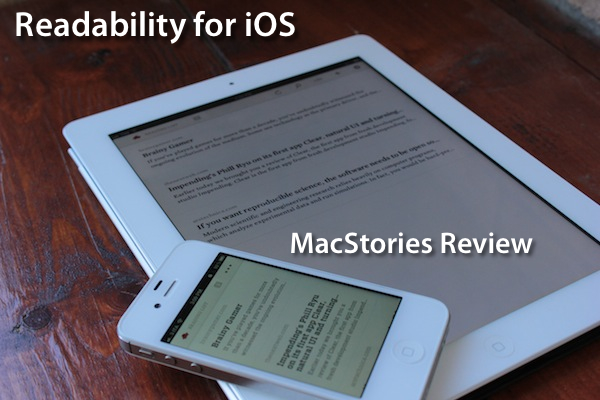
The official Readability app for iOS, available today on the App Store, had a complicated history with Apple and its approval process. Since Readability relaunched last year with an ambitious focus on publishers and “read anywhere”, the service struggled to get its native app for iPhone and iPad approved by Apple due to an initial controversy with iTunes app subscriptions, which were seemingly reserved to “publishing apps” only, and weren’t meant to be accessed by any third-party developer. With the app stuck in a limbo, Readability went back to the drawing board and developed a full-featured HTML5 web app for mobile devices, whilst releasing additional tools for the web and Kindle at the same time. Months passed, and Readability – which in the meantime put together a quite impressive list of advisors and supporting developers – announced an updated strategy with free access for everyone, and a paid option for users willing to actively and directly contribute to the sites they are reading the most in Readability. With the new free plan, Readability also announced they had submitted a new version of their iOS app to Apple. Three months later, the app is now live on the App Store.

I have been able to test the app – a collaboration between Readability and development and design studio Teehan + Lax – for the past week, and I’m fairly impressed by this first version. But let’s go back to the main point: what’s Readability? And how does the native iOS app complement the ecosystem the developers have built in the past 12 months?

Much like Instapaper, Read It Later, or recent entrants in this scene like Evernote Clearly, Readability’s goal is to declutter webpages to offer an elegant, comfortable reading view on any device. Meant for web articles, Readability can fetch a webpage’s text and images, strip out unnecessary elements like ads, and reformat everything with a focus on beautiful typography, a clean layout, and the possibility of syncing this reformatted content to mobile devices like an iPhone, iPad, or Android handset. Like the services mentioned above, Readability works in any web browser thanks to a bookmarklet or extension, as well as compatible third-party apps that have been updated to include a “mobilizer” functionality or a “send to” action to forward URLs directly to a Readability account. As you can see from Readability’s website, the list of apps supporting the service includes excellent names like Tweetbot (our review) and The Early Edition 2.

With the proliferation of read-later tools and apps we’ve witnessed throughout 2011, why would anyone switch from, say, Instapaper or Read It Later to Readability, which is a rather new player in the field? Well, for one, Readability isn’t exactly new to this market, as the company behind it, arc90, licensed the original codebase for its reading technology to Apple for the Safari Reader feature seen on the Mac and iOS. Second, to differentiate its product from the plethora of available read-later browser companions and mobile apps, Readability spiced up its offering with a unique “support the publishers” spin that, as we detailed, allows users to pay for Readability and give 70% of their subscriptions back to the websites they read.

Readability explains:

Here’s how it works: Every time you use Readability to read an article, a portion of your monthly contribution is earmarked for that publisher or writer. For example, if half of the stories you read in a given month come from The New York Review of Books, half of your earmarked funds will be allocated to The New York Review of Books.

With these differences in mind, I was excited to try the finally-approved Readability iOS app, and see how it would compare to Instapaper, which is my go-to app and service when it comes to saving articles for later, as I wrote in my review of version 4.0. From an Instapaper lover’s perspective, let me get this out of the way right now: if you’re used to all the features Instapaper offers – especially on the iPhone and iPad – you’ll be disappointed to find in Readability for iOS a “simple” app to read the articles you’ve saved from a browser. There is no discovery, no Friends integration, no support for forwarding liked items to Pinboard or Evernote. On the other hand, Readability’s simplicity and focused approach might just be what you’ve been looking for, so let’s dive in. Read more


OmniOutliner 1.2 for iPad Sets the Stage for iCloud Sync

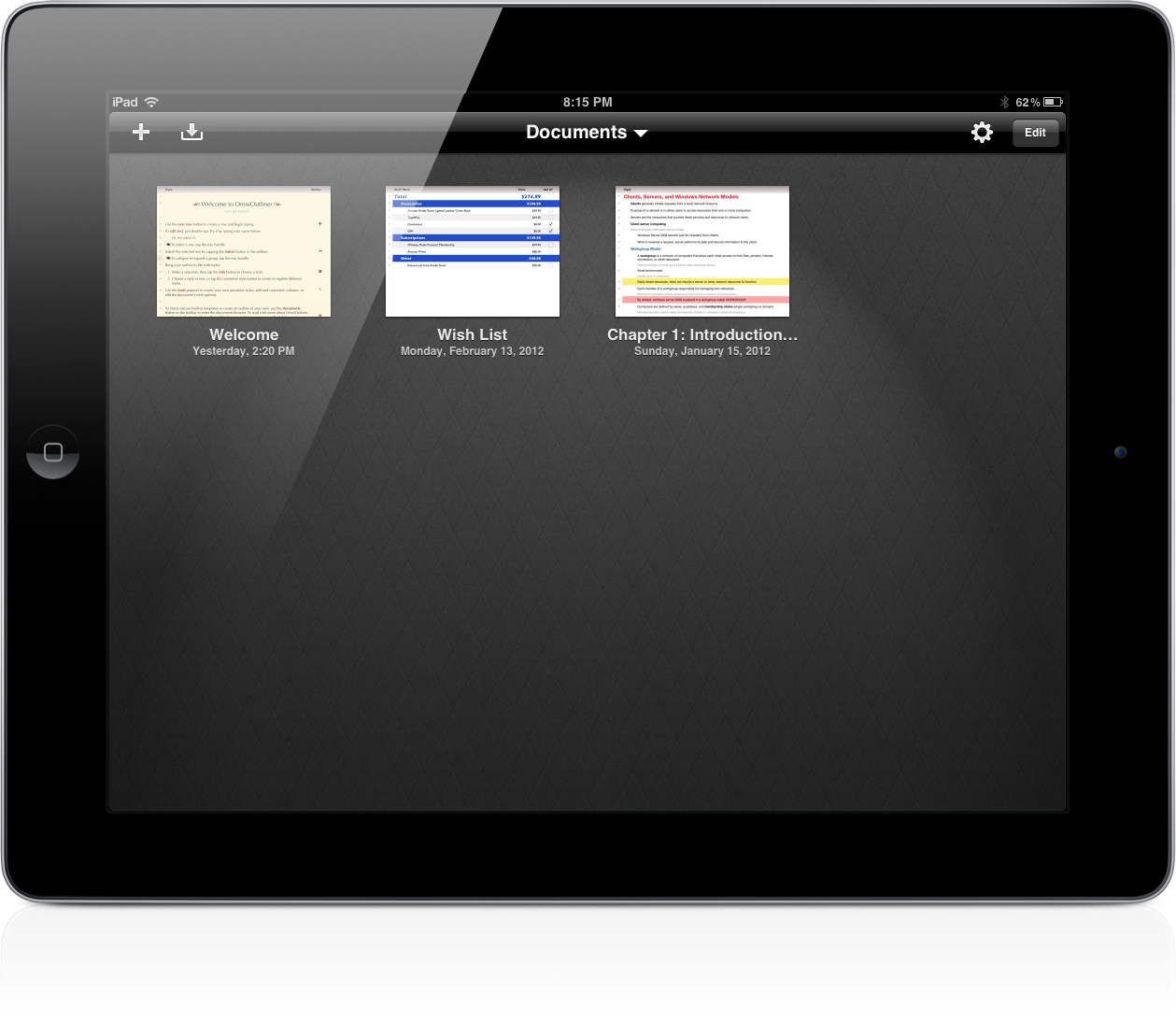
OmniOutliner 1.2 Document Browser

OmniOutliner 1.2 Document Browser

The Omni Group have removed the carousel in OmniOutliner 1.2 for a new document browser that closely resembles Pages’. Giving a broader overview of your outlines, the new file browser makes it much easier to scroll through dozens of documents without having to individually file past each one. The new file browser doesn’t let you create folders or sync to the cloud, but the original WebDAV and iDisk implementations are still available for online storage.

Read more


Vimeo 2.0 for iOS Review

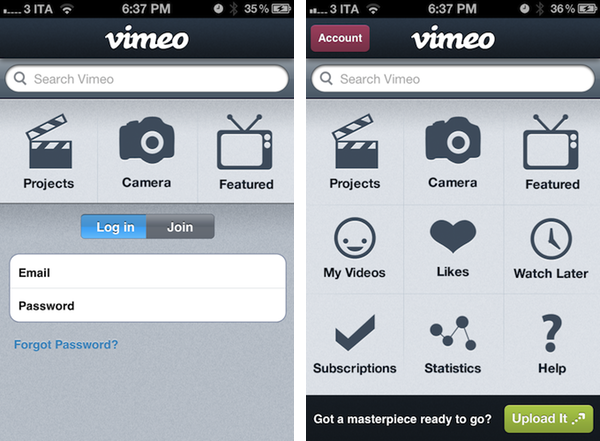
Released earlier today for free on the App Store, version 2.0 of Vimeo’s iOS app aims at making video discovering and editing more intuitive and accessible on the iPhone and iPad. With a brand new interface that was originally previewed in January, Vimeo 2.0 for iOS packs a new grid design on the iPhone that makes it easy to navigate the various sections of the site whilst retaining all the functionalities of the previous version (our review) and also adding new ones, but more importantly, it now allows iPad owners to completely manage their Vimeo accounts with options to browse videos, load subscriptions, check on the Watch Later queue, and even shoot, edit, and upload new videos straight from the device.

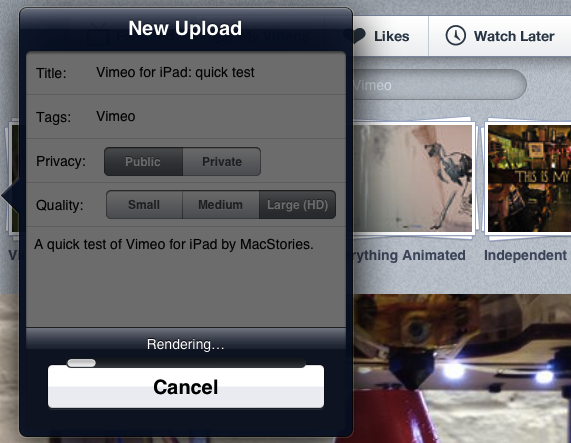
I took the app for a quick test this morning, uploading a video you can check out after the break. The (very) quick video was shot with a Canon EOS 550D, imported on the iPad through the Camera Connection Kit at 720p as .MOV file, edited in Avid Studio, then passed to Vimeo for upload. Interestingly enough, the Vimeo app couldn’t recognize my .MOV file in the Camera Roll, whilst Avid Studio successfully found it, allowed me to edit it, and exported it again at 720p to the iPad’s library. iMore has a good comparison of Avid Studio Vs. iMovie for the iPad. I prefer Avid Studio as well.

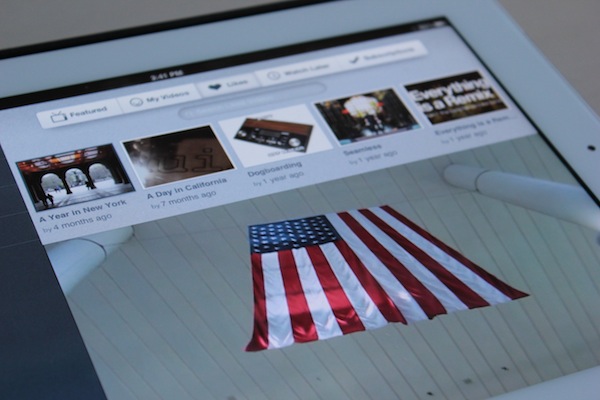
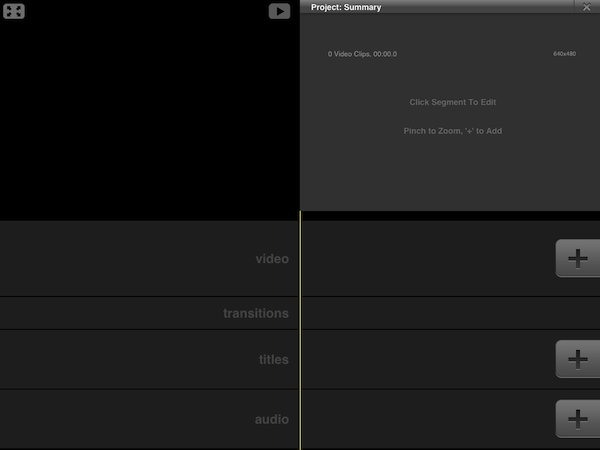
Vimeo for iOS puts great focus on discovery, sharing, and uploading of your own videos. Whereas the editing interface of the iPad is largely similar to its iPhone counterpart (meaning you’ll be able to easily drop media onto the editing timeline, add effects and transitions – but don’t expect the complexity of other apps like iMovie and Avid) with options to shoot new videos or load existing ones off the device’s Library, the remaining sections of the app have been reworked to fit better on the iPad’s larger screen. Upon firing up the app, you’ll be brought to the main Featured area, which lists featured videos and Vimeo staff picks, enabling you to start playing a video in the lower portion of the screen – all whilst being able to read descriptions, like a video, or save it for later. My Videos and Likes are also available in this page’s tab bar at the top.

The app works both in landscape and portrait modes, albeit I’ve found to enjoy it more in landscape given the additional screen real-estate. Videos can be played in standard definition or HD, just like on Vimeo’s website. Most of the functionalities of Vimeo.com have been ported over to the app, including comments, sharing options (for Facebook, Twitter, Tumblr, WordPress, and email), Creative Commons information, and stats. Overall, I thoroughly enjoyed the way Vimeo designers converted the design of Vimeo.com to a native client – I also found the iPhone’s grid UI scheme to be particularly easy to navigate.

There are a couple of interesting things about this app. For one, Vimeo has embedded a link to purchase a Vimeo Plus subscription into the app’s Settings, but this link simply points to Vimeo.com and not, say, Vimeo’s own Upgrade page. It’s still a curious choice given Apple’s history with Amazon and links pointing to external stores (which, apparently, Vimeo isn’t doing here as they simply redirect users to the website’s homepage). In the same Settings UI, you can check on your weekly upload limit, remaining HD uploads, and overall stats. You can allow only WiFi uploads, clear the file cache, and reset the app from a sub-menu in the Settings.

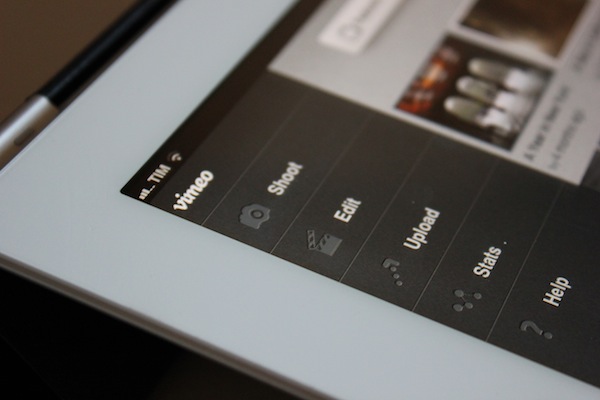
Whilst the Help section opens an awkwardly small Help Center webpage inside a popover menu, much better is the functionality offered by the Stats tab, which lists your Top Plays by number of views, date, and country. The Edit section, which is project-based, mirrors the feature set of the iPhone app, allowing you to import videos from your Camera Roll, edit them, then upload them to Vimeo. From this area, you can also delete projects, render and export, or simply add new projects by hitting the + button in the top right corner.

I think Vimeo’s second attempt at delivering a rich iOS experience is a good one. The iPad app still has some rough edges, and its editing capabilities aren’t obviously on par with more powerful offerings from the App Store, but it’s sufficiently good for quick edits, and pretty great at browsing and discovering new videos. It also makes for a sweet “catch-up solution” thanks to its lean back Watch Later feature integrated right into the app. The updated iPhone app, on the other hand, is cleaner, easier to use, although it could be deemed as slightly unoriginal after all the apps that have adopted a grid design in the past years. Still, the even-so-less-innovative Home screen grid implementation works fairly well for this kind of app.

Vimeo 2.0 is a great update, and an overall good app. Give it a try for free on the App Store, and check out an extremely quick attempt at capturing the essence of the app after the break. Read more