Federico Viticci

10769 posts on MacStories since April 2009

Federico is the founder and Editor-in-Chief of MacStories, where he writes about Apple with a focus on apps, developers, iPad, and iOS productivity. He founded MacStories in April 2009 and has been writing about Apple since. Federico is also the co-host of AppStories, a weekly podcast exploring the world of apps, Unwind, a fun exploration of media and more, and NPC: Next Portable Console, a show about portable gaming and the handheld revolution.

iOS 5 To Feature Panoramic Camera Option?

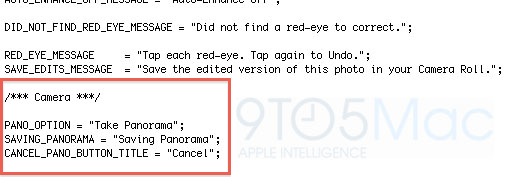
According to some code strings posted by 9to5mac and found in the first beta version of iOS 5, Apple may soon introduce a panoramic camera functionality to go alongside the photo editing enhancements announced at the WWDC keynote. As detailed by Scott Forstall on stage, iOS 5 will bring the possibility to crop, rotate and auto-enhance images from the native Photos app – these features won’t be available on the iPhone 3GS, but they represent a great addition for iPhone 4 users that won’t need to purchase additional basic photo-editing apps anymore. With red-eye reduction and Photo Stream compatibility, Apple touts the new Photos app as the best way to take photos on an iPhone, and send them to an iPad for a quick touch-up. However, as the code discovered suggests, there may be more coming in future betas.

There’s a variety of “pano” photo apps available in the App Store, some of them like Occipital’s 360 Panorama and Pano we reviewed on MacStories before. These apps allow you to take photos of what’s around you to build a panoramic, zoomable representation that “stitches” the various images you’ve taken together in a single file.

The code found in iOS 5 beta doesn’t suggest much, except that Apple has been thinking about a menu to “take” and “save” a panorama. These strings are usually a good indication of new features to come in iOS 5 – in January, iOS 4.3 beta code confirmed that Photo Booth camera effects would be implemented sooner or later, and indeed the iPad 2 (released in March) sported a native Photo Booth app on its custom 4.3 version.

“There Is No Chance” Cupertino Will Say No To Apple’s Spaceship Campus

Two days ago, Steve Jobs pitched Apple’s latest project to the Cupertino City Council: a massive, spaceship-like, 4-story new campus that would be located in the 98-acre ex-campus Apple acquired from HP last year. Designed with modern and green technologies in mind and entirely based on curved glass running around the whole structure, the new “mothership” would host 12,000 employees, come with a new auditorium, labs, office, and much more. When Steve Jobs presented the project, answering questions on environmental issues, energy and free Wi-Fi (the City Council asked whether Apple would provide Wi-Fi for everyone outside the campus, like Google does – Steve Jobs simply replied being Cupertino’s top taxpayer would be enough to contribute to the city), it was clear the City Council members were inclined to accept Jobs’ proposal, though no official announcement had been made there.

In a press conference responding to Steve Jobs’ campus proposal, Cupertino Mayor Gilbert Wong stated that “there’s no chance” the City Council is saying no, even if a public hearing will be necessary. However, Wong expressed his appreciation for Apple and Steve Jobs’ visionary attitude, confirming that when they have to deal with a large sales tax producer, they’re usually very accommodating to that company. Apple’s new campus should get done by 2015 if everything goes well.

Video of the press conference after the break. [via TechCrunch]
Read more


Reeder for Mac: Now Available On The Mac App Store

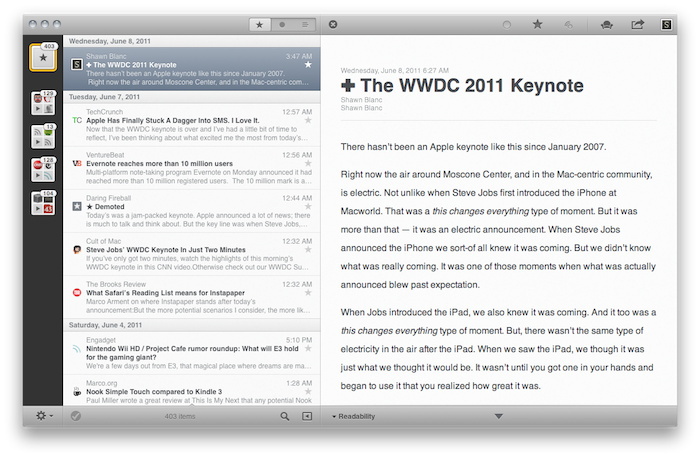
Over the past eight months, I’ve been following very closely the development of Reeder for Mac, a port of the popular Google Reader client for iOS to the OS X platform. As I was one of the first people to try the original Reeder for iPhone back in 2009, I immediately accepted Silvio Rizzi’s invite to join the beta testing group of Reeder for Mac in September 2010. Lots of things have changed since then. Sure, I never stopped using Reeder for Mac as my default desktop client, but there’s no doubt the app has gone through so many interface changes, design overhauls and feature additions I had to re-calibrate my workflow every time the developer updated something. That’s what you get by beta-testing things, but the evolution of Reeder for Mac was different: from our exclusive preview, to the first public beta and the one we reviewed last month, you can see how the app turned into something completely different from the experience I initially fell in love with. And that’s a good thing – the last full rewrite made Reeder for Mac insanely fast on Snow Leopard and ready to go on Lion. But enough with the beta talk. Read more


Configure An iCloud Email Account on Snow Leopard

Magician Software has posted a handy tip to configure an iCloud email account on Mail.app for Snow Leopard which, with the provided instructions, should work on any email program that supports IMAP as well. With the iCloud settings panel on iOS 5, Apple offers the possibility to associate a new iCloud-based @me.com email address to an Apple ID. So, for example, say you have an Apple ID with your Gmail account, you can create a new iCloud address to go alongside the Apple ID you use for your iTunes purchases, apps, and everything else. Unlike old @me.com email accounts that will need to migrate to the new iCloud infrastructure, these new addresses offered on iOS devices are already running on iCloud, allowing to receive and send messages using iOS 5 and OS X Lion DP 4 with an iCloud add-on, not available for older OS X versions.

For other OSes and email programs, Magician Software explains you’ll have to configure a custom IMAP server and MobileMe SMTP to get iCloud’s email up and running. On Snow Leopard’s Mail.app, for instance, you’ll have to start by adding a new account (@me.com) and using the same password of your Apple ID. In fact, iOS 5 doesn’t let you choose a password for now, it just simply assigns your Apple ID’s existing one to the new iCloud email address.

You will receive an error saying that it couldn’t reach the mail.me.com server, just ignore it and hit continue. At this part, it should be very similar to setting up a regular IMAP email. I can’t show you the next screen on setting up the incoming and outgoing servers as Lion doesn’t let me because of the support for iCloud. What you will need to do is change the drop down menu from the top (Currently saying: MobileMe) to IMAP, and changing the mail.me.com to

p02-imap.mail.me.com

the username should just be the name before the @me.com and the password, or course, your password.

Ignore all the errors that Mail.app will display, and use “smtp.me.com” (without quotes) for the SMTP settings. Take the account online, and you should be able to use your iCloud email account on any IMAP-enabled email client. As Apple explains, mail counts against the 5 GB of free storage provided with every iCloud account. [via]


iOS 5: 10 Videos From Around The Web

We have covered all the iOS 5 announcements in the past few days in our roundups and daily coverage, but there are so many new things about the new OS for iPhone and iPad that it would be impossible to list them all in a single article. So we have collected 10 videos from YouTube that show some of the most interesting aspects of iOS 5, such as Notification Center or the new custom vibration alerts for your Address Book contacts.

Check out the video gallery after the break.

Read more


Apple Releases iMac Graphic Firmware Update 2.0

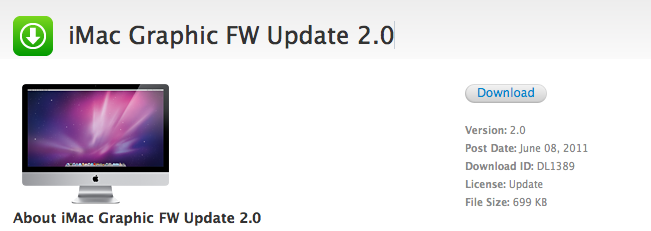
Owners of an iMac might want to fire up Software Update or head over Apple’s Downloads website to get the latest Graphic Firmware Update released a few minutes ago. Less than one megabyte in size, the update should fix an issue that, according to Apple, in “rare cases” may cause an iMac to hang either during startup or when waking from sleep. As usual, Apple recommends to not shut off the computer during a firmware update as that may result in computers failing to start up.

Go download iMac Graphic Firmware Update 2.0 here.


OnLive To Bring Cloud Gaming to iPad This Fall

OnLive, the cloud-based gaming platform that allows you to play a variety of PC and console games from a web browser on your computer or any TV through a cheap set-top box always connected to the Internet, has announced that the official app for iPad and Android tablets will be available this Fall in both the United States and Europe. Teased several times in the past, it appears the final version of the OnLive Player app has been completely rewritten to fully take avantage of cloud gaming features such as voice chat and multiplayer, but more importantly the developers have figured out a way to run PC games on a server, send video to the iPad, and let iPad owners interact with the game using touch input – not just buttons. In fact, it’ll be possible to enjoy OnLive on the iPad with a standard controller, but according to OnLive CEO Steve Perlman some games will be updated to support touch controls on the iPad and the server. This means that whilst you’ll be playing a game that doesn’t actually run on your local machine and doesn’t normally support touch on consoles and PCs, thanks to the iPad app (and developers’ support) it will.

The power of the cloud is definitely the theme this week, displacing what had been assumed to be platforms that could never be displaced,” said Steve Perlman, Founder and CEO of OnLive. “The OnLive Player App for iPad and Android shows how with the power of the cloud, the question is not whether cloud gaming will be able to catch up to consoles, it will be whether consoles will be able to catch up to cloud gaming.

Check out the demo video from OnLive CEO after the break. Currently, OnLive comes with a native Mac app that enables gamers to play the rather large selection of title available through the platform.

[image via]
Read more


iOS 5 To Bring FaceTime on 3G? Better Video Quality?

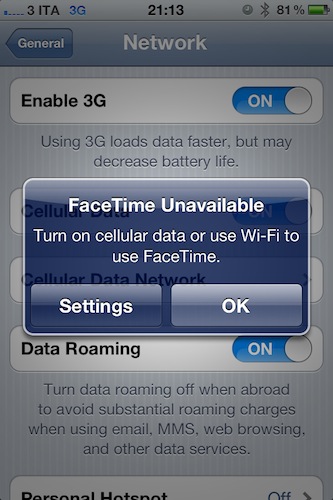
9to5mac has posted a screenshot passed along by a reader, in which iOS 5 shows an alert box asking the user to turn on cellular data or WiFi to use FaceTime. By playing around with the iOS 5 preferences in Settings->General->Network, we’ve found how to replicate the “issue”: turn off Cellular Data in the Network tab, open FaceTime’s prefs inside the Settings app, and you should get the alert box. If it doesn’t come up, try to turn FaceTime off and on again, making sure Cellular Data is still set to off. iOS 5 will tell you that you need data (3G) or WiFi to use FaceTime.

This could be big news for iPhone and iPad owners as FaceTime is currently restricted to WiFi networks, with many obviously speculating that the carriers forced Apple to make FaceTime available only on faster WiFi connections. On the other hand though, it needs to be mentioned that the jailbreak tweaks that enabled FaceTime on 3G on iOS 4.3 proved that, with less than optimal 3G speeds, FaceTime could be pretty terrible without WiFi.

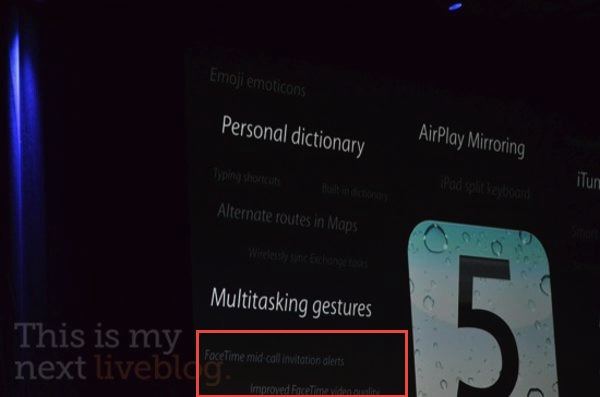
However, there’s one last piece to consider: at the WWDC ‘11 keynote, a slide showed by Scott Forstall on stage briefly hinted at improved video quality coming in FaceTime on iOS 5, alongside mid-call invitation alerts. See the image from This Is My Next’s liveblog:

Whether this means iOS 5 will finally bring the possibility to video call on the go it’s unclear at this point, and there’s a very good chance the alert box above is simply an iOS bug from the first beta. Or, Apple could be really working closely with selected carriers to enable FaceTime on 3G, at no additional costs.


Lion Boots From SD Card, Has New OS X Utilities Screen

Following a report from earlier this week that suggested it could be possible to burn OS X Lion to a DVD and install it from a Mac’s disc drive, a new video surfaced on YouTube shows that, by grabbing the .DMG  file inside the OS X Lion Installer app from the Mac App Store, users could be able to boot OS X Lion off an SD Card and choose from a new set of options after the system restarts. The new Mac OS X Utilities window, which appears at the end of the video, contains options to fire up Disk Utility to repair and erase partitions, possibility to restore from a Time Machine backup (Time Machine has been improved in Lion) and a standard “Reinstall” action to perform a Lion installation. The window also shows a link to “get online support” by browsing Apple’s online documentation.

Nature’s Eye Studios writes in an email to us:

Enabling Lion on an SD card was actually verry easy, easier than I expect it to be…

After downloading Lion from the Apple Developer site, you get a 4 GB DMG file, so the next step was to open up Disk Utility and erase an 8GB SDCX card (XC for the speed) After which I just had click the repair option in Disk Utility. Now select the Lion DMG as source and drag the SD card as destination. After about 10 minutes, the SD card was the Lion ESD installer. Then it was even easier: you just have to start the installation, and follow the on screen instructions.

To erase the hard drive or restore from a Time Machine backup, you have to boot from the installer; to do so, you have to turn off your Mac and turn it back on while holding Option (alt). When it powers up, you can choose from what drive to boot, you have your Macintosh HD and a Lion specific partition of your hard drive and then you have a USB device, which is actually your SD card. Follow the on screen instructions, and you’re able to erase your hard drive, and put everything back from a Time Machine backup.

Assuming the author of the video has followed the same method detailed by TUAW, the process should be fairly easy and useful to keep a portable copy of Lion that doesn’t live in your file system. Apple has announced at the WWDC keynote that Lion will be distributed only on the Mac App Store at $29.99, as opposite to previous speculation that claimed the company would also offer DVDs and portable USB drives for Lion. It’s unlikely Apple will publish documents to explain to users how to keep a physical copy of Lion (which involves opening the Installer package and finding a DMG file in the Contents folder), still it’s interesting to know there will be the possibility to do everything from Disk Utility as Lion’s Installer is nothing but a wrapper. Check out the video below. Read more