Federico Viticci

10761 posts on MacStories since April 2009

Federico is the founder and Editor-in-Chief of MacStories, where he writes about Apple with a focus on apps, developers, iPad, and iOS productivity. He founded MacStories in April 2009 and has been writing about Apple since. Federico is also the co-host of AppStories, a weekly podcast exploring the world of apps, Unwind, a fun exploration of media and more, and NPC: Next Portable Console, a show about portable gaming and the handheld revolution.

Scapple Beta

Scapple Beta

Developed by Literature and Latte – the creators of Scrivener – Scapple is a new “mind-mapping” app for OS X that has been released as public beta on the developers’ forums. Featuring a clean canvas to write notes and draw connections, Scapple’s focus is on not forcing users to maintain a hierarchical structure of the document.

There is a veritable panoply of mind-mapping software out there, but what’s different about Scapple is that it doesn’t force you to make connections. It doesn’t expect you to start out with one central idea and branch everything else off that. Instead, you are free to write anywhere on the virtual paper. Individual notes can be as short or as long as you like. Scapple allows you to get all of your ideas down, move them around, and find and make the connections as you go along. And it’s designed to make the whole process just as quick and fluid as it is on paper.

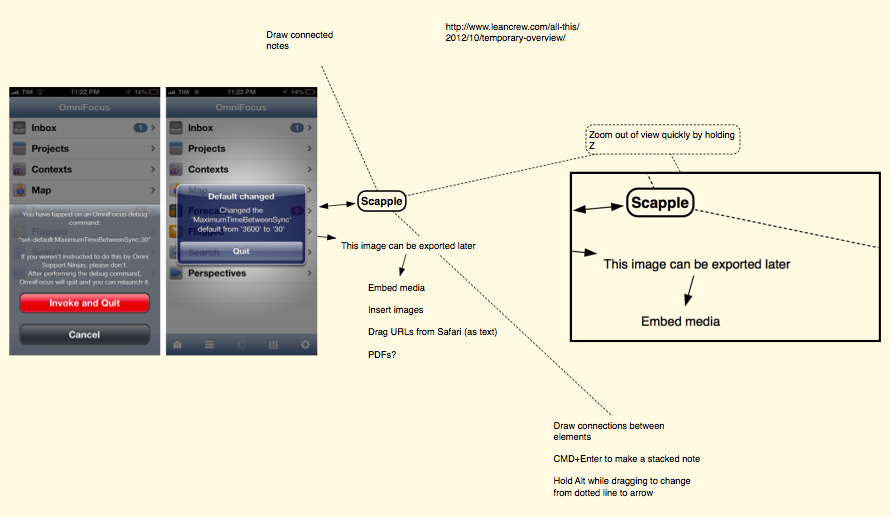
The app is clearly in beta and not finished, but I’m seeing some interesting ideas already. The app is easily navigable with either the cursor or the keyboard; you can create a new note with a double-click anywhere on the canvas, and you can select notes as you would with multiple files in the Finder. Notes can be “stacked”; to connect a note with another one, simply drop the source onto the destination. You can change the style of borders, lines, arrows, and every single note with an Inspector. I found Scapple very easy to pick up.

Dr. Drang notes an interesting feature about zooming: you can get a “quick” overview of a document by simply holding the Z key temporarily.

As someone who’s often working zoomed-in on a small section of a document, I love the idea of getting a temporary overview of the entire document by holding down a key. And the added ability to move when you unzoom just makes it that much better. If this is available in other graphics apps, I’d like to know about it; and if it isn’t, other developers should steal it.

Personally, my curiosity was piqued when I saw the already-available exporting options: maps can be exported (aside from the app’s own .scap format) to PDF, PNG, plain text, rich text, rich text with attachments, OPML, plain text list, or a folder of images. In fact, one of Scapple’s feature is the ability to present both text and images inline with the document.

I’m looking forward to the final version of Scapple. I hope it’ll support AppleScript to make it easier to script the export/import process and allow the app to be integrated with iThoughts on iOS. In the meantime, you can download the public beta of Scapple here.
Permalink

Change Default Sync Times of OmniFocus For Mac and iOS

Change Default Sync Times of OmniFocus For Mac and iOS

In my post about OmniFocus and flagged Mail.app messages, I wrote that there’s no way to tell the app to sync every few minutes. I was wrong. As reader Bill Pallmer told me, there are two settings to change the default sync behavior of OmniFocus for Mac. In Terminal, you can use these commands to change how often OmniFocus will start a new sync and sync after an edit, respectively:

defaults write com.omnigroup.OmniFocus MaximumTimeBetweenSync -float 30
defaults write com.omnigroup.OmniFocus TimeFromFirstEditToSync -float 2

The numeric value after the -float flag indicates time in seconds. As explained by Ken Case on The Omni Group forums, you’ll have to quit and restart the app after using these in Terminal; you also can’t go lower than 2 seconds for TimeFromFirstEditToSync and 15 seconds for MaximumTimeBetweenSync.

There are two hidden preferences which control the timing of automatic synchronization, MaximumTimeBetweenSync and TimeFromFirstEditToSync. Both are specified in seconds. MaximumTimeBetweenSync is how often OmniFocus looks for changes on the server when no changes have been made locally; it defaults to 3600 seconds (one hour). TimeFromFirstEditToSync is how soon OmniFocus will sync after you’ve made an edit, and it defaults to 60 seconds (one minute).

If you have the Mac App Store version of OmniFocus, change the first part of the command to com.omnigroup.OmniFocus.MacAppStore.

The great thing about these commands is that they also work on iOS in debug mode. They share the same name and settings, but a different URL:

x-omnifocus-debug:set-default:TimeFromFirstEditToSync:2

x-omnifocus-debug:set-default:MaximumTimeBetweenSync:30

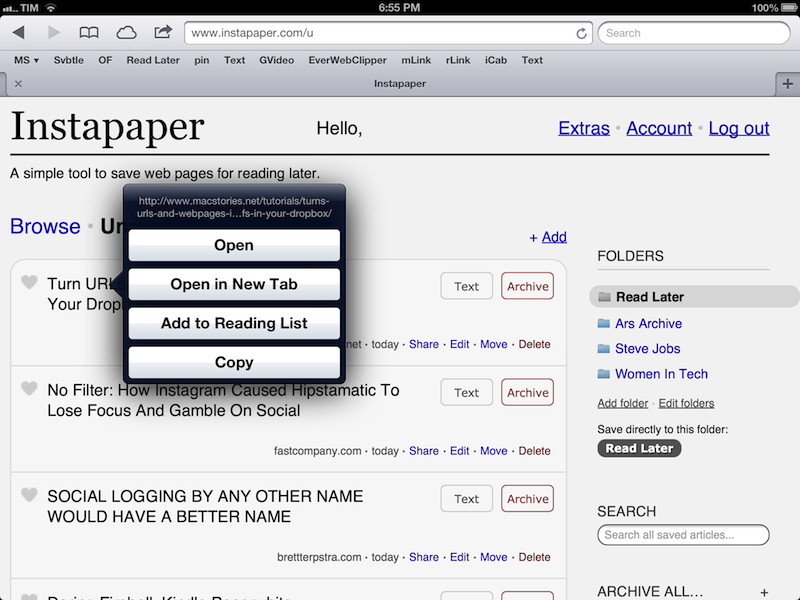
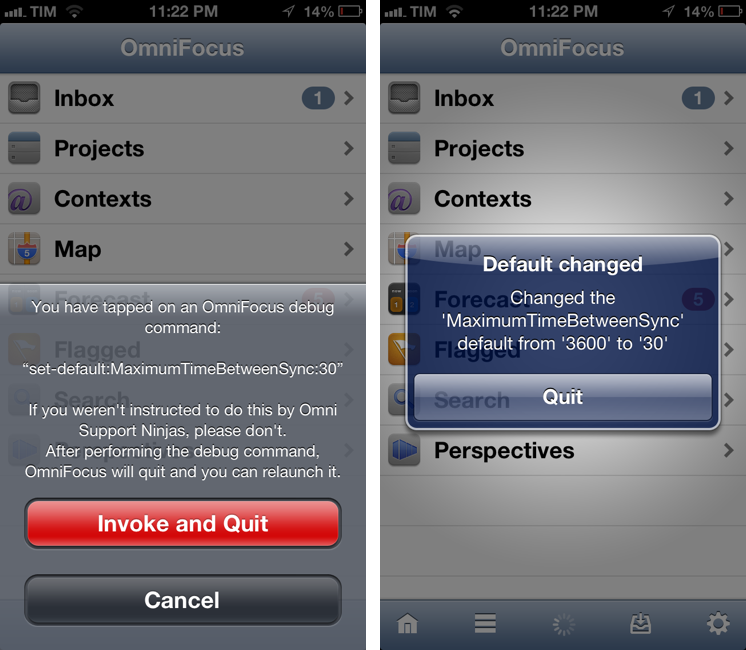
To activate the iOS settings, choose the value you want, and paste the URL into Safari: OmniFocus will open and tell you that you’re enabling a debug option, as pictured above. The app will quit; restart, and it’ll now sync more often according to how you changed the default setting. Obviously, remember that you’ll be consuming 3G data for sync, so don’t set it to refresh too often, unless you don’t have a problem with that.

To revert to factory settings on iOS, use:

x-omnifocus-debug:reset-default:MaximumTimeBetweenSync

This is a great tweak, because I run my own OmniFocus sync server for a variety of reasons, and I always want to make sure I have the latest version of my database. Thanks Bill.

Permalink

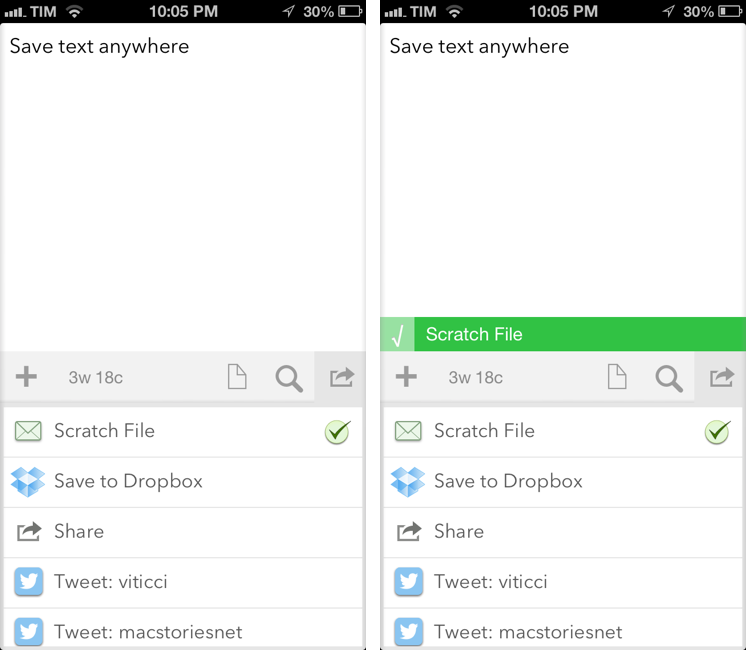
Drafts 2.2 Adds Custom Email Actions

Agile Tortoise’s Drafts for iPhone and iPad is one of my most-used apps for iOS. It sits on the Home screen of both my devices, and I rely on it to send text to a variety of apps and services. With a combination of support for URL schemes and external APIs, Drafts has become a fantastic way to get text saved somewhere else quickly. Plus, we’ve been following Drafts here at MacStories for a while now, and the app underwent quite the evolution recently.

After the major 2.0 update (our review here), I have been looking forward to version 2.2. Released today (app is version 1.2 on the iPad), Drafts now includes new actions for Nebulous Notes (a personal favorite of mine), Netbot, Notefile, and Pastebot. It’s also got a new “Use First Line as Title” setting and advanced options for actions.

More importantly, Drafts 2.2 comes with support for custom email actions, which is the reason I’ve been using Captio for the past two years. It’s with a bit of sadness that I drop Captio, but the app hasn’t even been updated for the iPhone 5 yet, and Drafts does so much more. Custom email actions allow you to send emails to predefined addresses using either your own email accounts, or a background service provided by Agile Tortoise. Read more


iOS 6 GUI PSD for iPhone 5 Now Available

iOS 6 GUI PSD for iPhone 5 Now Available

With every new major version of iOS or new device from Apple, design studio Teehan+Lax releases a free iOS GUI PSD. The PSDs, downloaded millions of times in the past few years, have helped designers and developers mock up their apps and iOS designs using Photoshop, while relying on graphic assets that look just like interface elements and controls of iPhones and iPads.

Today, Teehan+Lax released its new iOS 6 GUI PSD for iPhone 5:

This version, iOS 6 for iPhone 5, is a bit different than previous version. Those of you who have downloaded and used these files have probably noticed they’ve become quite bloated. As fast as our computers are today, they still get pretty sluggish when working in a document that contains tens of millions of pixels with hundreds of shape layers. This time around we focussed on making the file a bit more usable. It’s smaller in file size and has a reduced canvas making it quite a bit more manageable. We did this by removing some of the more obtuse elements.

Weighing at 13 MB, you can download the iOS 6 GUI PSD here.

Permalink

Shortcat: Spotlight For The User Interface

In my daily workflow, I rely on Alfred for Mac to find files, folders, and apps for me. Since July 2012, I have used Alfred 4,326 times for an average of 46.5 times a day. I use Alfred for a variety of tasks which include (but are not limited to) accessing favorite folders, launching Google search, acting on multiple files through the Buffer, and executing AppleScripts. Alfred is one of my favorite pieces of Mac software, ever.

I like launchers. They simplify my workflow while allowing me to save time and be more efficient. This is why I’ll keep an eye on the development of Shortcat, a new Mac app – currently in public beta – that aims at becoming a launcher for interface elements.

The developers describe Shortcat as “Spotlight for the user interface”, and that’s a fairly accurate description. Essentially, Shortcat relies on support for Assistive Devices (an Accessibility feature of OS X) to be able to “see” the labels of buttons and menus and “click” on them. So, for instance, instead of moving your cursor on the trackpad, you’ll be typing “back” to make Shortcat click the Back button in Safari.

Shortcat works better with apps that leverage Accessibility features and have properly labeled buttons and interface elements. In the app’s Help menu there’s already a list of apps that don’t work properly with Shortcat as it’s unable to “read” (and thus let you find) their interface elements. I am no Accessibility expert, but my guess is that these apps don’t support VoiceOver either.

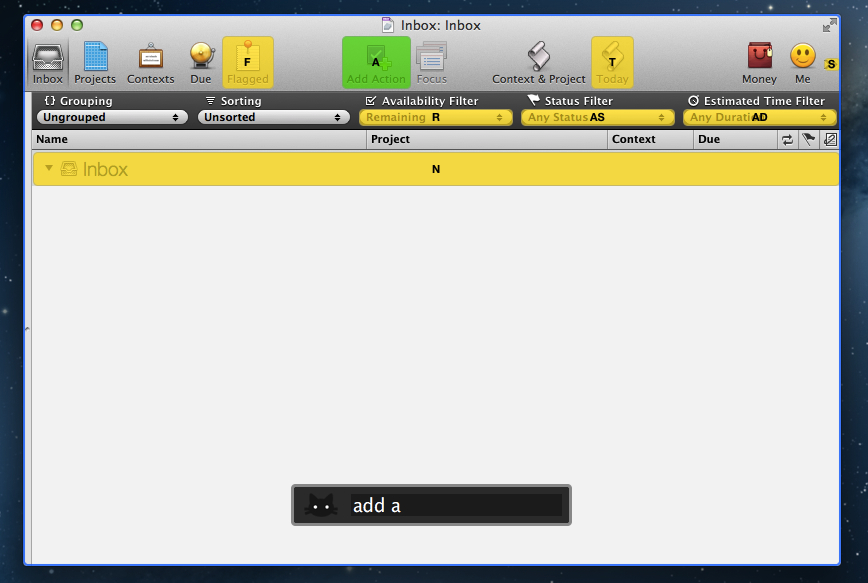
In my tests, Shortcat was a pleasant surprise. If you don’t know about Accessibility, the app will look like a fantastic trick – how can it click for me when I’m just typing? In actual usage, there are some things to be considered. When you invoke the app with a shortcut (it’s customizable from the Terminal in this version) and you start typing, it will highlight areas of an app that match the letters you typed. The best match is highlighted in green, other possible “destinations” for the mouse are yellow. You can click on a button or menu by typing its full name or an abbreviation, such as “Add Action” or “AD” for the toolbar button in OmniFocus.

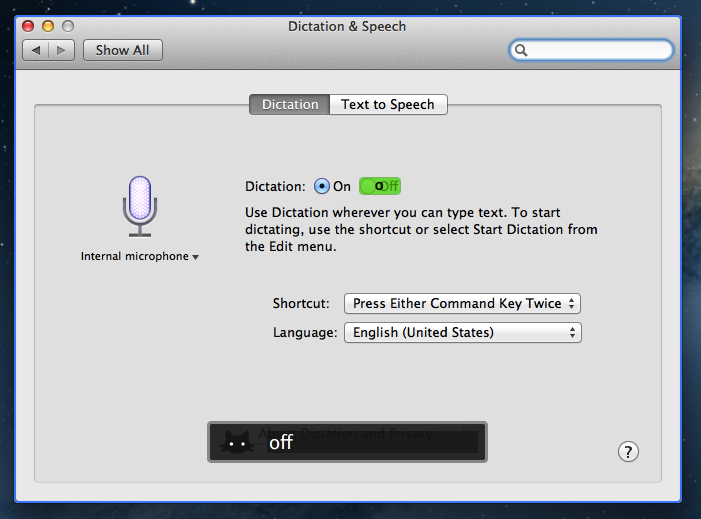
You can also tell Shortcat to show “hidden” results. By preceding your query with a dot, you’ll be able to reach interface elements that, at first glance, don’t have a label. I tested this with several apps, and, for instance, I was able to type “.1p” to click on the unlabeled 1Password extension in Safari, or “.n” to open the compose box in Tweetbot. Speaking of Safari, you can also use Shortcat to click on website navigation elements such as buttons or text. “Clicking” on hyperlinks with Shortcat will, just like a regular click, open them in a new tab.

Shortcat is an interesting experiment, but it needs more work before being ready for primetime. Its text matching algorithm is good, but still not perfect: sometimes, it associates things like “SYNZ” to “sync”, which isn’t particularly nice to see. I would also like to see a more polished graphical representations of highlights and selected regions of the UI, as right now the highlighting process seems more a “hack” than a consumer product. Also, I’m still not completely sure how, in every day usage, Shortcat could come in handy. Is it a utility to navigate large documents without typing? Or is it an app navigator? In a world of buttons associated with keyboard shortcuts, are virtual clicks really that necessary? Shortcat makes for a cool demo, but it needs to find a stronger message to make people “get” what it’s all about.

You can check out the Shortcat beta for free here.


Goodbye Tweetie

The original Tweetie for Mac – the app that went on to become Tweetie 2 or “Twitter for Mac – stopped working today. Twitter cut access to the API endpoint that allowed for it to work, thus effectively “killing” the app for those who were still using it.

Matthew Panzarino writes:

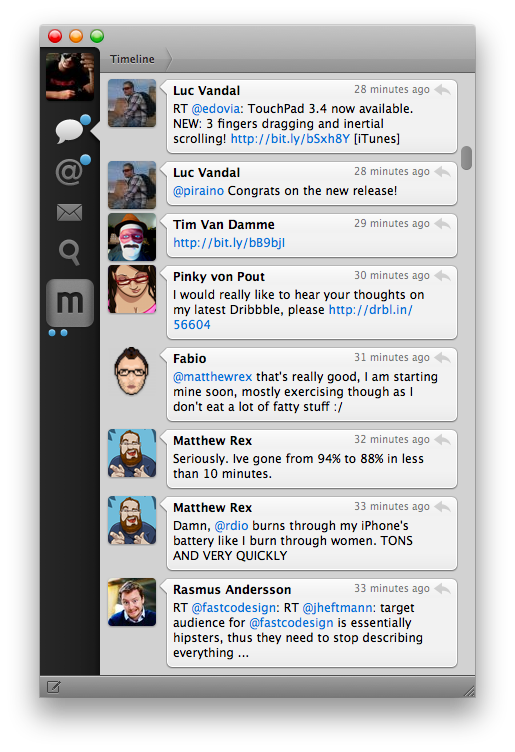
Tweetie for Mac came about on April 20, 2009, and it brought along its own set of UI paradigms that propagated throughout Mac app design culture. The sidebar navigation, for instance, is probably in use on whatever Twitter client you’ve got installed. The ‘nipple’ that indicates the current position on the navigation bar is also a Brichter invention, and now exists in hundreds of apps like Google+, Instapaper and dozens more. It eventually found its way to Tweetie 2 for iPhone as well.

To me, Tweetie was more than an .app bundle available from /Applications in the Finder. It represents a period of my life that I cherish every day.

I joined Twitter in February 2009. As I said, I was jobless at the time. I thought I could try my hand at writing about Apple and Macs, and my girlfriend said “go for it”.

On April 20, 2009, MacStories and Tweetie were born.

Today, we kiss Tweetie goodbye. MacStories and my girlfriend are still around, and my relationship with them is better than ever. I didn’t realize this back when we celebrated the site’s third birthday – that MacStories and Tweetie for Mac launched on the same day.

Tweetie and I had our ups and downs. I loved the app, but I became frustrated with the multiple delays version 2.0 was seeing. I wrote some things about Loren that I’m not proud of. Years later, I apologized to him, but I’m keeping those posts online to remember that sometimes I can be wrong, and ridiculously so. In late 2010, Loren was so gracious to let me beta-test “Tweetie 2.0”, which was launched as Twitter for Mac on the App Store. I used that app until Tweetbot for Mac came out. Loren moved on with his life and left Twitter; I, behind my keyboard, picked a different Twitter client.

I guess, in a way, this site owes much of its success to Tweetie for Mac. I woudn’t have been able to get to know developers, friends, colleagues, and readers if it weren’t for Twitter. If it weren’t for Tweetie, which to me, was Twitter.

I remember using Tweetie all the time. Sometimes I would go days without closing it, keeping it open because I was “looking for news” or trying to get into some new beta of an upcoming iPhone app. Other times I would close Twitter during the night, because, back in the “old days”, Twitter clients – not even Tweetie – had good timeline gap detection.

Tweetie set standards and inspired other developers to create new apps. It won awards, and it marked the starting point of a new era of third-party OS X development.

For me and many others, Tweetie defined Twitter.

Goodbye, Tweetie. Our community is better because of you.


Automatically Send Articles From Reading List to Instapaper

Two days ago, Ben Brooks asked on App.net if anyone had come up with a way to share Safari Reading List items to Instapaper. His question made me realize that it would be a fun project to find out, so in my free time I put together a workflow that runs automatically and in the background on my Mac mini.

Please note, what follows is a raw experiment. I have tested it, and it works, but it’s far from stable. It uses GUI scripting in AppleScript to mark Reading List items as read, and it heavily depends on iCloud, which, unfortunately, is far from reliable when it comes to bookmark syncing. Nothing should happen to your bookmarks (the script simply “reads” them), but backups are recommended, as usual. Read more


Marco Arment’s The Magazine: At The Intersection of Technology and Writing

When people ask me about my job, I usually reply: “I write about technology”.

Just a little over three years ago, I found myself unemployed, so I started MacStories. It wasn’t easy. Not because of WordPress, FTP, or getting black pixels to appear on a white background. I’ve never had a problem with putting words on a screen.

It wasn’t easy because where I live, a small town in Italy, writing about technology sounds a lot like “I spend my days at home looking at a computer while I drink coffee” . Which, to be fair, is a pretty accurate representation of my daily agenda. But how I do it, and why I do it, and understanding the whole idea of seeing technology as more than a bunch of cables – well, that was the not-so-easy part.

It still is. I know it will be for a long time. And yet I keep typing on this keyboard because I think it’s worth it. I do what I can by writing about my experiences.

Because, hopefully, thanks to technology, our kids will have a better future.

Because twenty years from now, people won’t “find out” they have cancer. They will know in advance, thanks to technology.

That’s quite a goal I, and others like me, are priding ourselves upon, you’d argue, when, effectively, what we do is reviewing apps and reflecting on the latest news. In practical terms, that’s what I do. But I see it as more than that.

Writing is about making connections.

In the past three years, I’ve seen how the great technology writers I look up to are able to make connections between topics and streams of thoughts: they look at the big picture.

On the flip side, technology writing, a scene that’s built on its very distinct and yet cohesive communities, has created connections between people. I wouldn’t have met the MacStories team if it weren’t for writing and following the same writers. I wouldn’t have gotten to know friends like Shawn, Stephen, Gabe, David, Matt, Matthew, Justin, Brett, and many more.

In fact, if it weren’t for this little writing thing of ours, I wouldn’t have met any of you.

Great writing creates connections inside and outside of text.

The Magazine

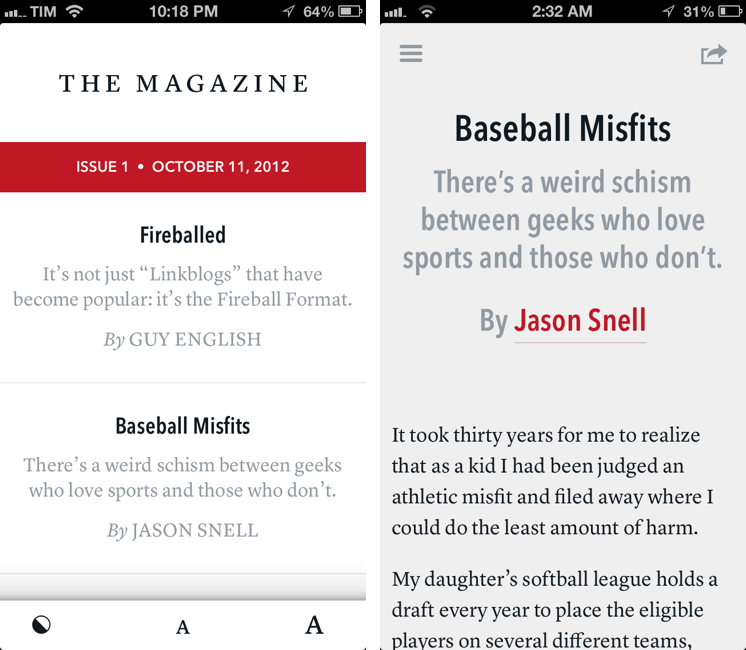
Marco Arment’s The Magazine falls exactly under this aspect of writing. It’s about people who love technology, delivered as a curated collection of articles from great writers. In a way, it’s the opposite of Instapaper: while Marco’s more popular app is what you make of it, The Magazine is Marco’s own vision. So, yes – you’ll have to trust him on this one.

I’ve never met Marco in real life. We’ve exchanged emails a couple of times and perhaps replied to each other on Twitter. The other day we talked about pears on App.net. But see, the great thing about the Internet is that I genuinely like this guy only because of his work and passion for technology.

I think The Magazine is a promising and notable initiative for a variety of reasons. Firstly, for as much as I praise the tech community, there are aspects of it that I’m not particularly fond of. I don’t like rumors and linkbaity headlines. Sometimes I think that it’s too much when a site tries to tell me everything about a topic with 20 articles. In the words of Marco, The Magazine will take a “a measured approach to the big picture” with “meaningful editorial and big-picture articles”. Or, as Guy English writes in “Fireballed” for the first issue, The Magazine is both old and new. It’s old in that it won’t share the same publication schedule of most blogs; it’s new, because it should encourage writers to create more, new “timeless pieces” based on a business model that their “Fireball Format” website wouldn’t probably allow. I suggest you read Guy’s article in the first issue (there is a free 7-day trial).

I’ve heard from several people who received copies of The Magazine in advance that, in hindsight, the idea is obvious. Get articles from great writers and make an app out of it with new content available periodically. To me, The Magazine seemed “obvious” more because of the technology it’s built with.

Earlier this week I wrote a post on how to hide Newsstand from iOS 6. The Magazine is entirely based on Newsstand, and, a year after the launch of iOS 5, it’s the first app that gives it a purpose, at least for me. Read more


iTunes and App Store Reminders with Recall

I don’t like some of the changes of the new App Store in iOS 6. That’s not a secret. But there is a single annoyance that goes way back before the iOS 6 days, all the way to when the App Store was relatively new in late 2008 and I got my first iPhone: the lack of a wish list.

I use the Wish List feature of iTunes a lot on my computer. Because I use iTunes mainly for buying apps and checking for updates, I rely on the Wish List to save interesting apps and games to check out later. However, I’ve dropped the occasional song or movie in the Wish List too.

The iTunes Wish List is simple and effective.

Too bad it doesn’t work on iOS devices.

While there have been some rumors on dedicated wish list features coming with an iOS update, in its current state the App Store (and iTunes Store) can’t use your iCloud account to sync items you’ve added to your wish list.

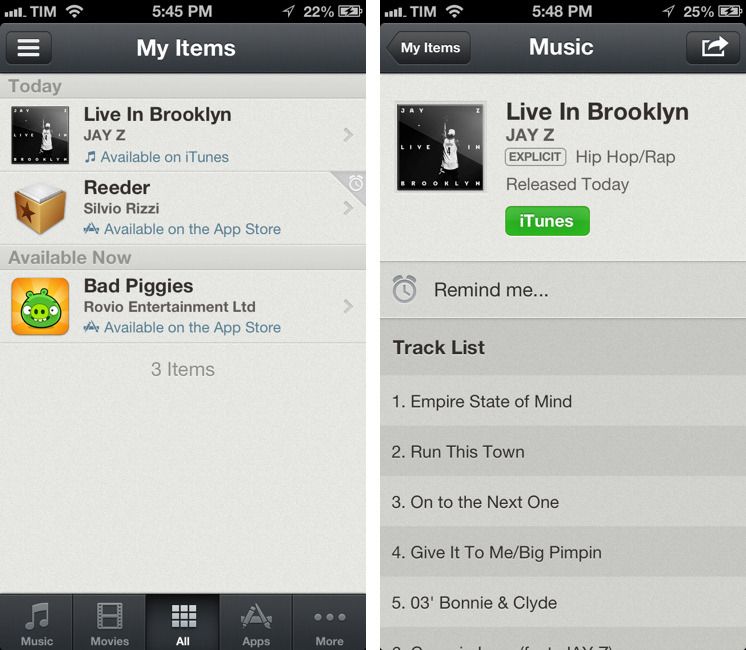
Recall by Overcommitted is not a wish list replacement in the sense that it’ll provide you with a list that syncs across devices. For that, I still use (and recommend) AppShopper, which is just phenomenal when it comes to tracking app updates and price drops with push notifications. Instead, Recall is about “never forgetting iTunes recommendations again”. It provides an alternative interface for the iTunes and App Stores, allowing you to save recommendations and create reminders for them. Read more