Posts tagged with "iOS"

My Must-Have iOS Apps, 2017 Edition

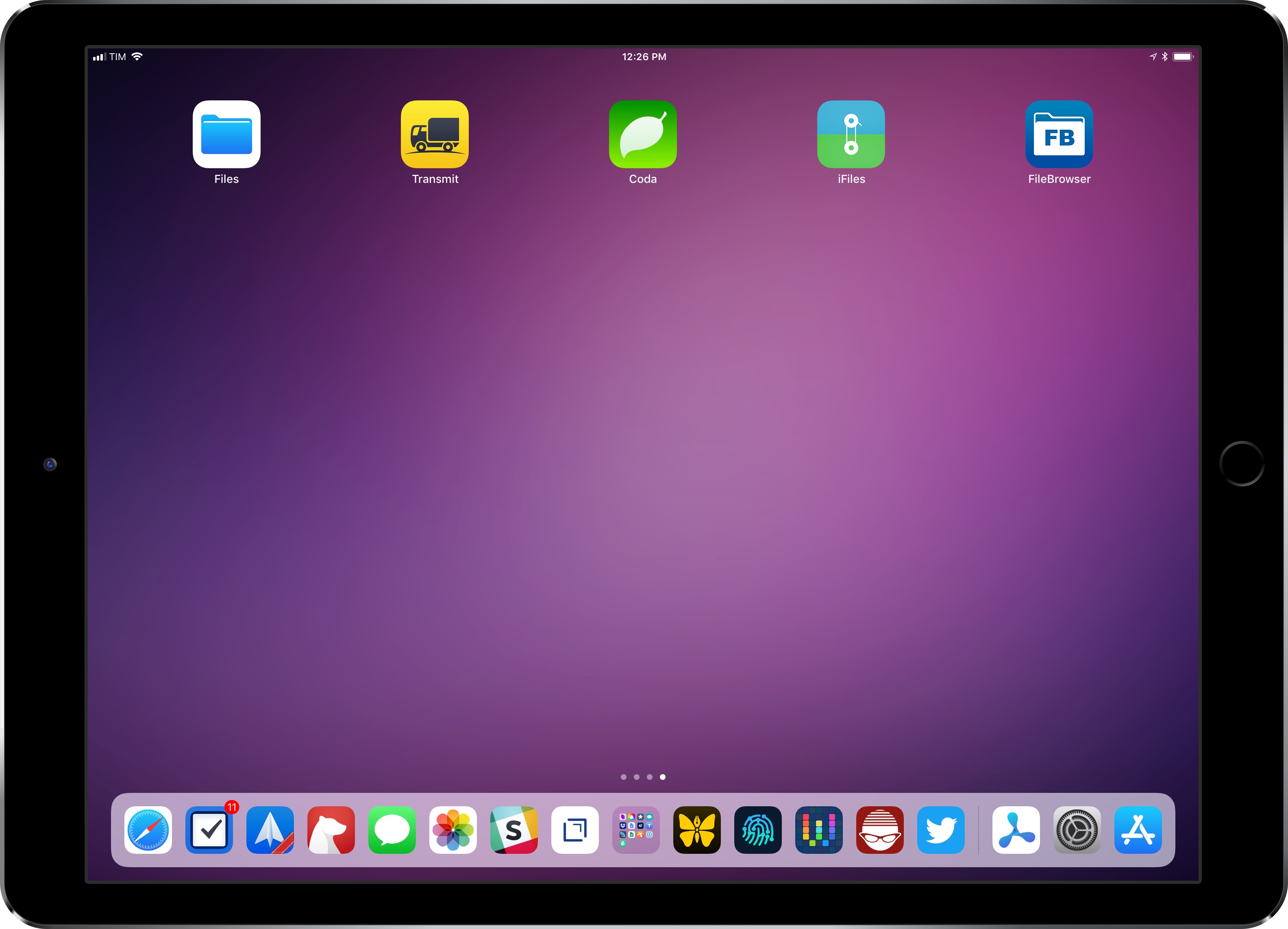
With the transition to iPad Pro as my primary computer fully achieved in 2016 and not surprising anymore, in 2017 I turned my attention to three other key areas of my life: working with the MacStories team, managing my time, and finding my favorite apps among many competing alternatives.

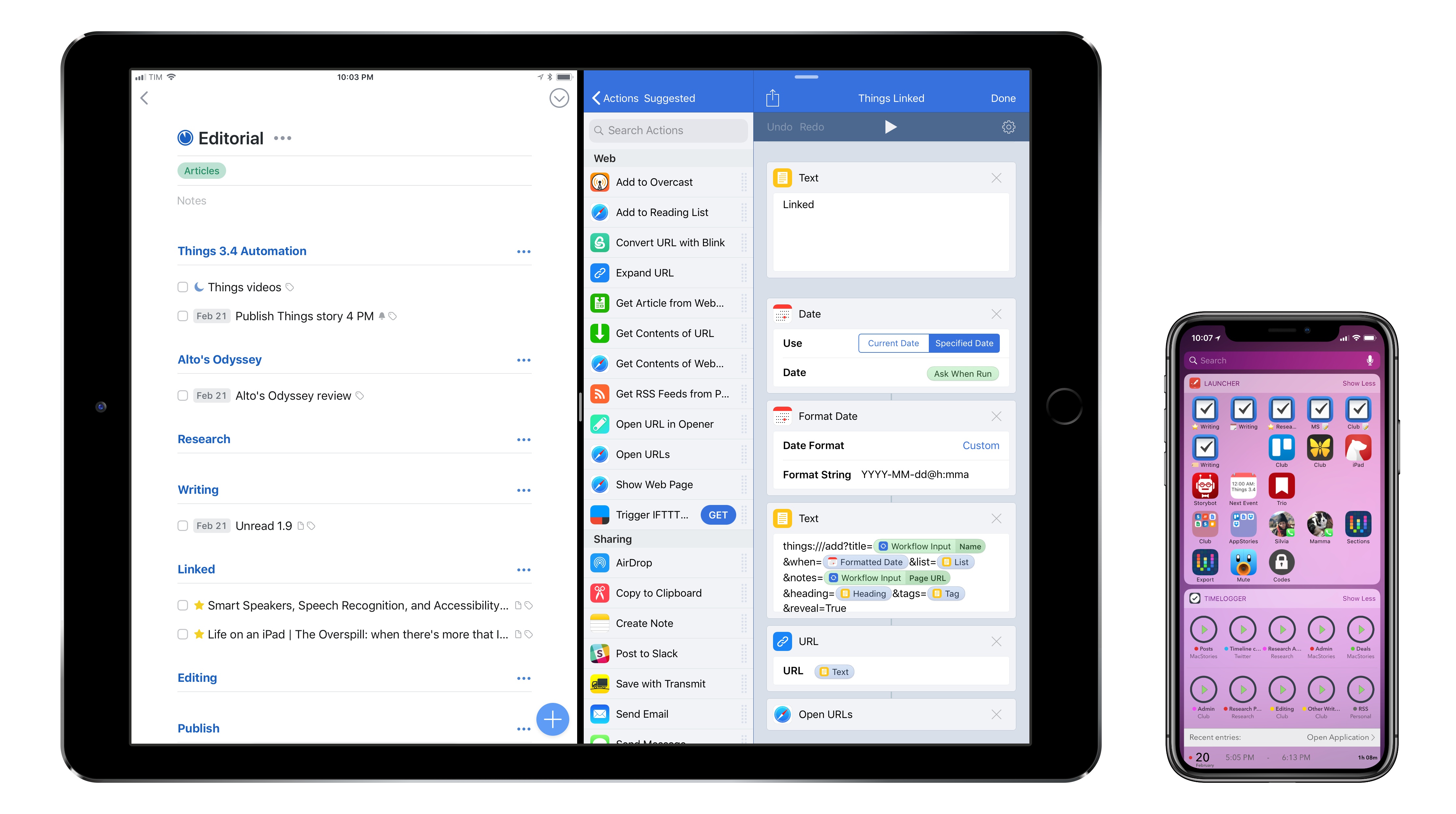
For the first time in several years, I didn’t publish a story documenting my journey towards the iPad and iOS in 2017. In many ways, that’s a closed chapter of my career: the iPad Pro has convinced millions of people that it can be a suitable replacement for or addition to a Mac; with iOS 11 and its productivity features, Apple only cemented that belief. While part of me misses arguing in favor of the iPad against widespread skepticism, I felt it was time to move on from explaining the “why” of the iPad to helping others get the most out of the device. For this reason, I spent the better part of 2017 covering iOS 11 (first with my wish list, then with an in-depth review), discussing the details of iPad productivity, and creating advanced workflows for Club MacStories.

As much as I like to write in isolation, MacStories is also a team that requires a direction and a business that begets further responsibilities. Learning how to balance the multifaceted nature of my job with my hobbies and personal life (which got busier thanks to two puppies we adopted in April) has been an interesting challenge this year, and one that taught me a lot about allocating my time and attention, as well as the kind of writer I am and aspire to be.

There has been a recurring theme that has characterized my relationship with iOS in 2017: I’ve made a conscious effort to try as many new apps and services as possible, ensuring I would have a basic knowledge of all the available options on the market for different categories.

As I was settling on a routine and set of apps that worked well for me, I realized that I didn’t want to lose the spark of excitement I used to feel when trying new apps in previous years. My job is predicated upon writing about software and having a sense of where our industry is going; while finding something that works and using it for years is great, I don’t want to become the kind of tech writer who’s stuck in his ways and doesn’t consider the possibility that better software might exist and is worth writing about. Even though my experiments didn’t always lead to switching to a different app, they made me appreciate the state of the iOS ecosystem and helped me understand my app preferences in 2017.

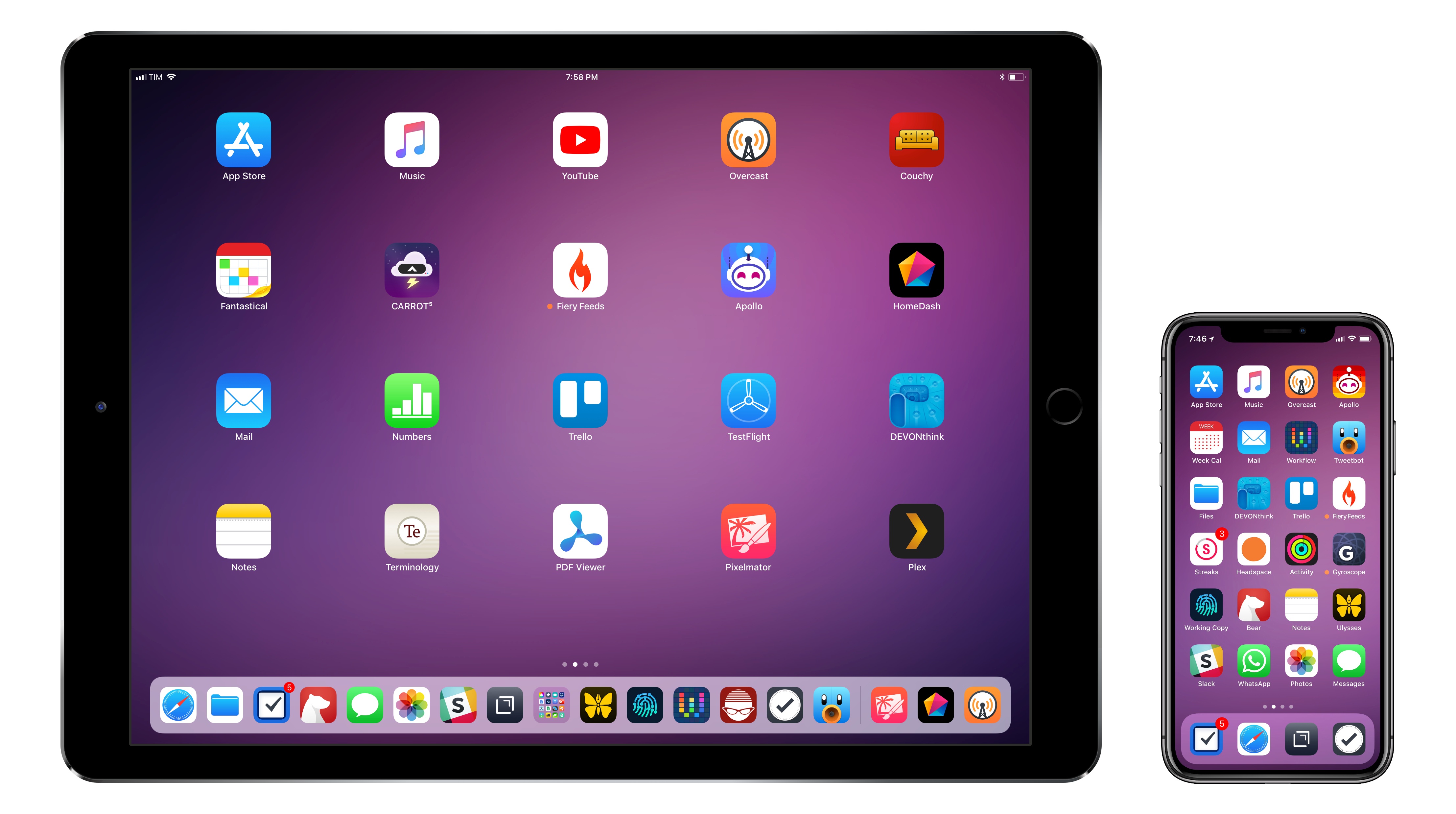
Thus, I’m going back to basics for my annual roundup this year. In the collection below, you’ll find the 75 apps I consider my must-haves – no web services, just apps for iPhone and iPad. Apps are organized by category and, whenever possible, include links to past coverage on MacStories.

As in previous years, you’ll find a series of personal awards at the end of the story. These include my App of the Year and Runners-Up; this year, I also picked winners for Feature, Redesign, Update, and Debut of the Year.

Read more


    Twitterrific for iOS Adds Black Theme, Dynamic Type, Temporary Muffles, Poll Support, and More

    Twitterrific 5 for iOS was updated today with several new and improved features. My favorite addition is a true black theme that looks striking on the iPhone X. Users that pick the black theme are given a choice between a dark theme that has been modified for ‘greater contrast and clarity’ and the true black theme.

    The app’s design has undergone other changes too. Users can pick avatars that are rounded rectangles, circles, squares, or squircles, and text sizes can be adjusted with more granularity thanks to the use of Dynamic Type.

    Muffles, which are rules that partially hide tweets from your timeline, can be temporarily disabled now. Previously, the only way to deactivate a Muffle was to delete it.

    Twitterrific’s experimental support for polls, which debuted on macOS recently, has been added to the iOS app too. To celebrate the holiday season, The Iconfactory has also added a new icon option: ‘Jolly Ollie,’ which features Twitterrific’s mascot in a Santa hat.

    Twitterrific is available on the App Store.


    Workouts++ Adds Podcast Playback, Mapping, New Workout Types, Siri and More

    Almost a year ago, David Smith released Workouts++, an alternative to watchOS’ built-in Workout app that adds an iOS component to leverage the data collected during workouts. Today, Smith released version 2.0 of Workouts++ with a host of new features enabled by advances in the Apple Watch and Apple’s health and fitness APIs, including podcast playback, location tracking and mapping, support for new workout types, Siri integration, and more. On top of that, Workouts++ is now free with no In-App Purchases, advertising, or subscription.

    Read more


    Punish Website Is a Blacklist-Only iOS Content Blocker

    Several weeks ago we got a question from a Club MacStories member wanting to know if any of us had come across a blacklist-only content blocker. We hadn’t. We did some research and still came up empty, which we reported back to MacStories Weekly readers. That prompted developer Salavat Khanov to step in and fill the gap with a new app called Punish Website.

    Khanov is the developer behind 1Blocker, a popular iOS content blocker that we’ve covered in the past. However 1Blocker, like its competitors, blocks ads, comments, and other content based on an elaborate system of rules. You can whitelist sites, but the default behavior is to block content unless instructed otherwise. Our reader wanted to come at the problem from the other direction with a content blocker that only blocks elements on blacklisted sites.

    That’s exactly what Punish does. It’s primarily an action extension that’s invoked from the system share sheet. When you come across a site that crosses your tolerance line for website clutter, all you need to do is tap the share icon in Safari and pick Punish. The extension UI will appear to confirm you want to add the site to your blacklist. After you tap the Done button, the site reloads free of distractions.

    To take a site off your blacklist, simply open the app and swipe left to reveal a delete button or use the Edit button. Managing your list is simple, but I’d also like to see a Cancel button added to the extension for those circumstances where you have second thoughts about invoking the blocker.

    I’m glad to see that Khanov developed Punish. It’s easy to paint all websites with the same anti-advertising brush, but the reality is that advertising is still a big part of how sites earn money and there’s a strong case for a more considered and deliberate approach, which Punish enables.

    Punish Website is available on the App Store for $2.99.


    RAW Power for iOS Review

    Earlier this year, I reviewed RAW Power for macOS and was impressed by its power and flexibility. Yesterday, Gentlemen Coders released a no-compromises version of RAW Power for iOS that matches the macOS version’s features and adds the ability to manage your photo library and make Depth Effect edits to Portrait mode photographs. There are a few rough edges here and there, but by and large, the app delivers on its promise of desktop-class, non-destructive photo editing on iOS devices.

    Read more


    Apple Posts How-To Videos Featuring Third-Party Apps

    Last month, Apple posted a series of short how-to videos to prepare customers for iOS 11. The videos each featured one new aspect of iOS 11 delivered in a light-hearted humorous style. Apple has added three new videos in the same style that feature third-party apps.

    The first spot, ‘How to retouch a photo,’ features Pixelmator and demonstrates how to erase a stranger from a photo. The video concludes on a light note with ’You did great! The guy never knew what hit him.’

    The second video, ‘How to copy and paste across devices with iOS 11’ features Curator, but highlights the Universal Clipboard, an iOS system feature. Curator is a mood-board and presentation app for creating collections of photos. The spot shows how to copy an image on an iPhone and paste into the Curator app on an iPad, explaining ‘the ice cream cone is now going to fly through the air’ and showing a time-lapse video of copying and pasting images over and over commenting ‘Really nice time-lapse everybody.’

    The final video features GoodNotes and is called ‘How to magically convert notes to text and share them with iOS.’ The video shows how to use the lasso tool in GoodNotes to select handwritten notes and convert them into text that you can share via the system share sheet.

    Like the videos posted by Apple in August, these spots strike a good balance between being informative and humorous. I’m glad to see Apple calling out third-party apps too because the ‘Pro’ in iPad Pro is as much about the third-party tools that are available as it is about the device’s hardware features.

    You can watch each of the videos after the break.

    Read more


    Metapho 3.0 Adds Video Support and More

    Metapho is a powerful utility for accessing, editing, and removing metadata from photos and videos. When I reviewed Metapho 2.0, I was impressed with how easy it was to access and edit image metadata. With version 3, Metapho has been extended into new areas without sacrificing the ease of use of prior versions.

    Perhaps the biggest change is that Metapho now supports video. Earlier versions of the app could only handle still photos, so it’s nice to see video added to the mix. The process works the same way as with photos. Access a video using Metapho’s action extension from the Photos app or from within the Metapho app itself. Metapho displays the video’s metadata, which can be edited or stripped.

    One of Metapho’s strengths is its design. Whether you start in the app itself or its extension Metapho displays the metadata for images in a clear and concise manner. Today’s update changes the layout by adding cropped versions of the photos or videos you are working on at the top of the page, so you know which image you are working on without it taking up an unnecessary amount of vertical space on your iPhone.

    Metapho’s extension also got a refresh with version 3. For the first time, you can select multiple photos to edit. It’s a small change, but one that should speed up the editing process for anyone working with several images or videos.

    Metapho is not a utility that I use often, but I keep it tucked away in a folder because when I need it, there’s no better way to edit photo and video metadata. It’s a great example of a thoughtfully designed app, so I’m glad to see its functionality expanded without compromising its utility.

    Metapho is available on the App Store.


    Unobstruct Clears a Path to a Better Web Reading Experience

    Too many websites wreck the reading experience by floating interface elements on top of articles. One of the worst offenders has been Medium, which John Gruber called out on Daring Fireball recently. Medium has made some improvements since then but didn’t eliminate floaters, and there are many other sites with social media buttons, branded navigation bars, and other material that hovers over webpages even as you scroll down the page. The practice makes it especially hard to read on the smaller screens of mobile devices.

    Inspired by the Daring Fireball article and a JavaScript bookmarklet to which Gruber later linked, Troy Gaul, a developer at The Iconfactory, created Unobstruct, a Safari content blocker for iOS that eliminates floating bars, buttons, and other UI elements. The simple app, which Gaul fittingly announced in a post on Medium, removes any HTML that is set to sit on top of a site’s content and not scroll.

    Unobstruct doesn’t hide persistent navigation bars by default because doing so would make it impossible to get around some sites. Instead, you can use the app’s action extension from the share sheet to hide the bar. Later, if you need the navigation bar, you can simply reload the page to get it back.

    I love Unobstruct’s colorful and feisty robot icon. It adds a bit of fun and whimsy to an otherwise utilitarian app. For insight into the icon’s design, be sure to check out Ged Maheux’s blog post, in which he details how he started the design by making rough sketches in The Iconfactory’s drawing app Linea, then moved to Adobe Illustrator after Gaul had picked his favorite.

    Unobstruct doesn’t block as broad a variety of webpage elements as some content blockers, but its singular focus on floaters pays off. In my testing, the app worked flawlessly to remove floating buttons automatically, as did the extension for eliminating navigation bars. Branding and sharing are important to websites, but they shouldn’t get in the way of the core experience – reading. The trend of obscuring content with floaters is a shame, but I’m glad I have Unobstruct to make browsing those sites a little nicer each day.

    Unobstruct is available on the App Store.