Adapt, Episode 17: iPad Accessories and Gear

On this week’s episode of Adapt:

The iPad Pro’s increasing popularity and its adoption of USB-C has opened a new world of accessory possibilities, and Federico has tried all of them.

You can listen below (and find the show notes here), and don’t forget to send us questions using #AskAdapt and by tagging our Twitter account.

AppStories+ Deeper into the world of apps
0:00
01:08:57

Adapt, Episode 17

AppStories+ Deeper into the world of apps

Sponsored by:

  • Pingdom: Start monitoring your website performance and availability today, and get instant alerts when an outage occurs or a site transaction fails. Use offer code ADAPT to get 30% off. Offer expires on January 31, 2021.
Permalink

My Must-Have Apps, 2019 Edition

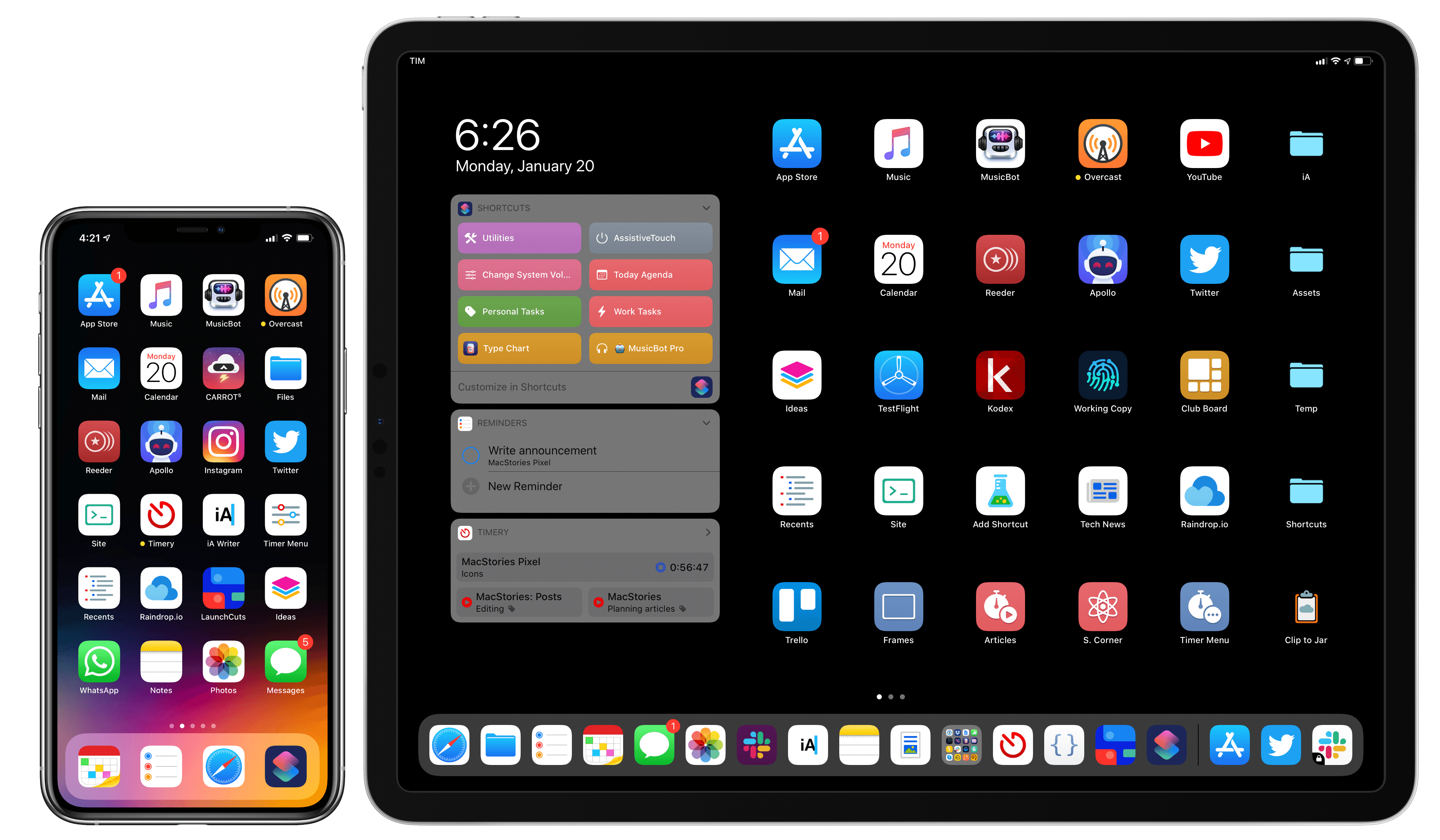
My Home screens.

My Home screens.

Every year in late October, I start putting together a rough list of candidates for my annual ‘Must-Have Apps’ story, which I’ve historically published in late December, right before the holiday break. As you can tell by the date on this article, the 2019 edition of this story is different: not only did I spend the last months of the year testing a variety of new apps and betas, but I also kept tweaking my Home screen to accomodate MusicBot and new Home screen shortcuts. As a result, it took me a bit longer to finalize the 2019 collection of my must-have apps; in the process, however, I’ve come up with a slightly updated format that I believe will scale better over the next few years.

In terms of app usage, 2019 was a year of stabilization for me. Having settled on a specific writing workflow revolving around iA Writer and Working Copy, and having figured out a solution to record podcasts from my iPad Pro, I spent the year fine-tuning my usage of those apps, refining my file management habits thanks to iPadOS’ improved Files app, and cutting down on the number of apps I kept tucked away in folders on my iPhone and iPad.

Two themes emerged over the second half of 2019, though. First, thanks to various improvements in iOS and iPadOS 13, I increased my reliance on “first-party” Apple apps: I embraced the new Reminders app and its exclusive features, stopped using third-party note-taking apps and moved everything to Notes, and switched back to Apple Mail as my default email client. I’ve written about the idea of comfort in the Apple ecosystem before, and I’ve seen that concept work its way into my app preferences more and more over the course of 2019.

The second theme, unsurprisingly, is my adoption of a hybrid Home screen that combines apps and shortcuts powered by our custom MacStories Shortcuts Icons. Following changes to running shortcuts from the Home screen in iOS 13, I realized how much I was going to benefit from the ability to execute commands with the tap of an icon, so I decided to mix and match apps and shortcuts on my Home screens to maximize efficiency. Thanks to the different flavors of MacStories Shortcuts Icons (we just launched a Color set), I’ve been able to assemble a truly personalized Home screen layout that puts the best of both worlds – my favorite apps and custom shortcuts – right at my fingertips.

For this reason, starting this year you’ll find a new Home Screens section at the beginning of this roundup that covers the first tier of my must-have apps – the “ultimate favorites” I tend to keep on the Home screens of both devices. Because I like to keep my iPhone and iPad Home screens consistent, it made sense to start grouping these apps together in their own special section. These are the apps I use most on a daily basis; I’m pretty sure you’ll find at least a couple surprises this year.

This entire story features a collection of the 50 apps I consider my must-haves on the iPhone and iPad, organized in seven categories; whenever possible, I included links to original reviews and past coverage on MacStories. As for the traditional list of awards for best new app and best app update: those are now part of our annual MacStories Selects awards, which we published last December and you can find here.

Let’s dig in.

Read more


Introducing MacStories Shortcuts Icons Color Edition, Featuring 350 Multi-Color Icons

The Color set is a brand new version of MacStories Shortcuts Icons.

The Color set is a brand new version of MacStories Shortcuts Icons.

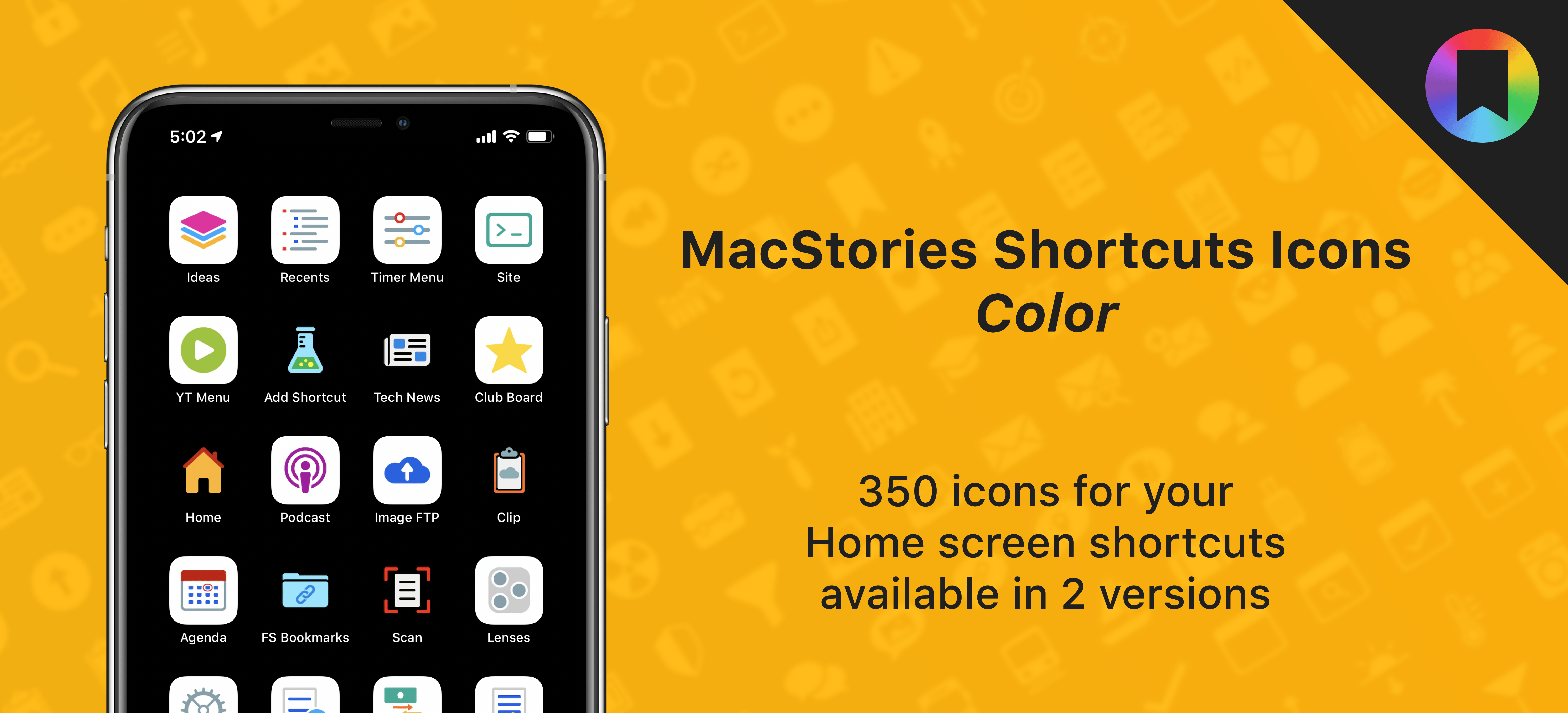
After working on this for months, I’m thrilled to announce the second product released under the MacStories Pixel brand: today we’re launching MacStories Shortcuts Icons (Color), a different version of our icon set that features multi-color glyphs and two background options.

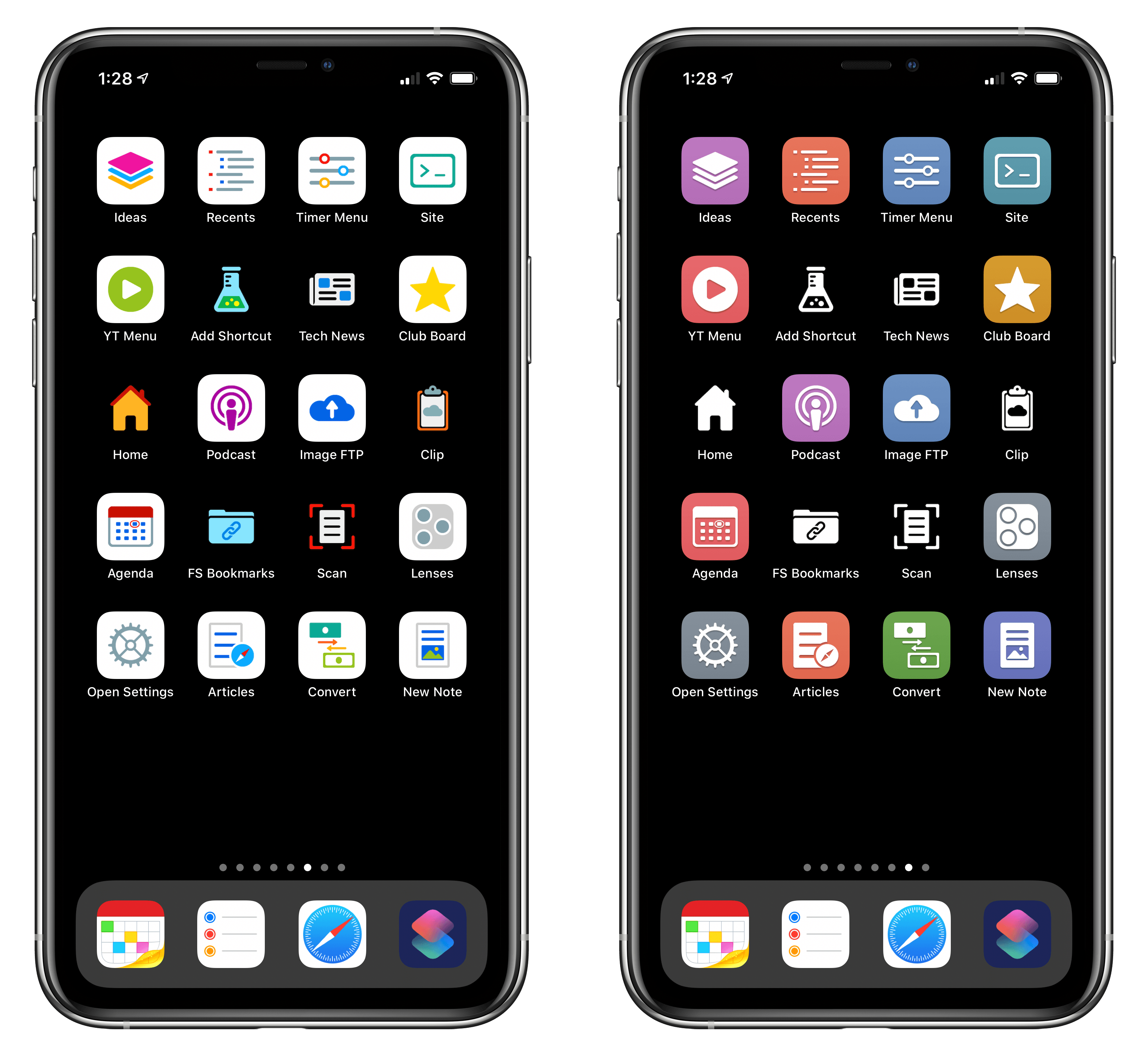
Here’s the gist of today’s launch: MacStories Shortcuts Icons (Color) are a new, separate set available for $14.99 here. What makes the Color set different: while the Classic set comes with monochrome glyphs, the Color version features multi-color glyphs with white or pure black backgrounds.

You can read more details about MacStories Shortcuts Icons (Color) here and buy the new set here.

And here’s a look at the difference between the two sets in practice:

The new Color set (left) features stunning multi-color glyphs. The Classic set (right) now includes black and white icons too.

The new Color set (left) features stunning multi-color glyphs. The Classic set (right) now includes black and white icons too.

As part of today’s launch, we’ve also redesigned the MacStories Pixel homepage to accomodate our new suite of products.

Read more


Sensei: A Beautifully-Designed Dashboard and Set of Utilities for Your Mac

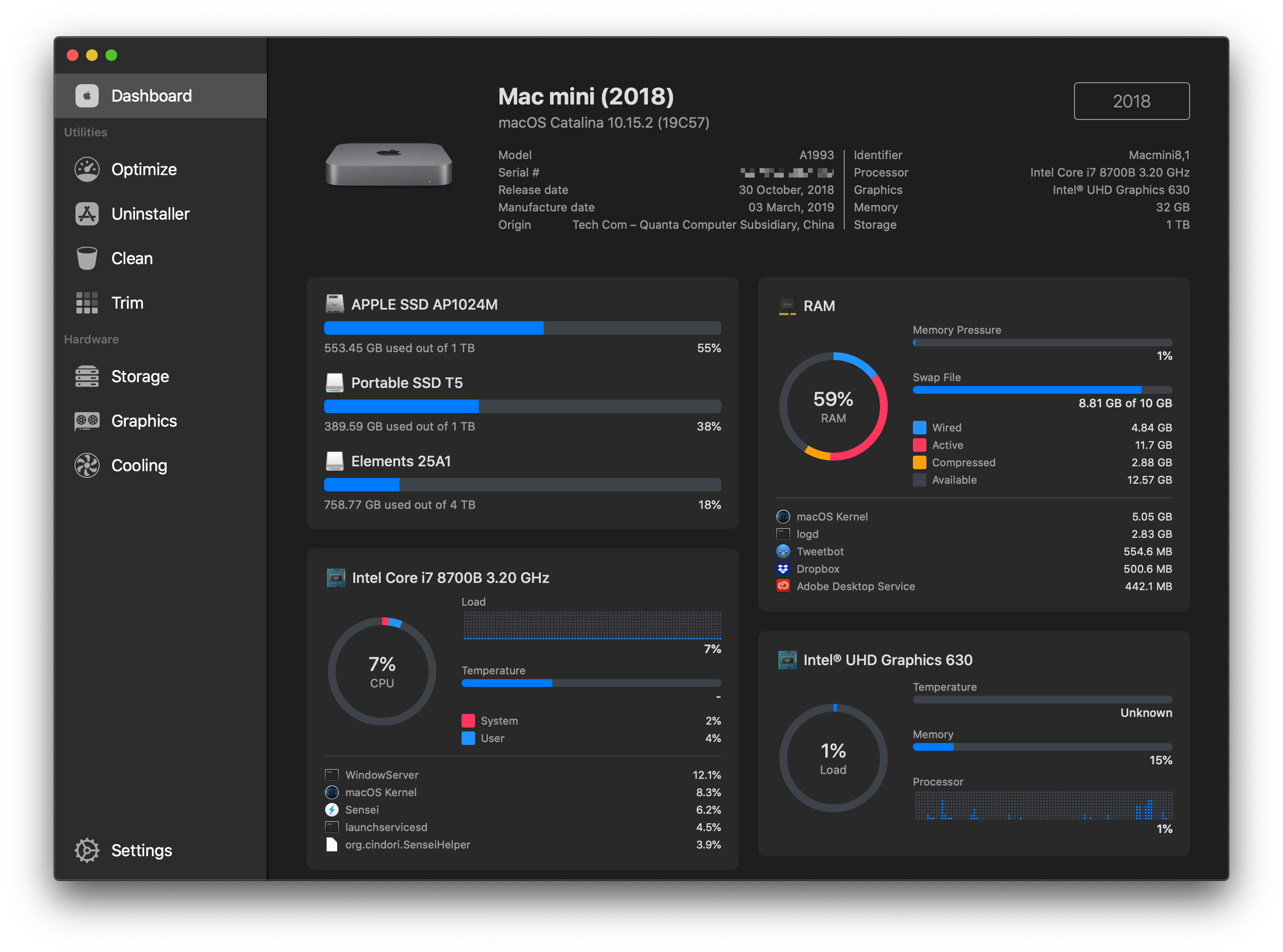
Sensei is a brand new Mac app that monitors the status of various components of your Mac’s hardware and provides a set of utilities to optimize its performance. The app is certainly not the first to offer these features – there are tools built into macOS and third-party apps that can accomplish many of the same functions, and in some cases more. However, what sets Sensei apart, and what has quickly won me over, is its ability to translate the data it collects and implement its utilities in a beautifully-designed, standalone app.

Read more


NapBot 1.3 Adds Independent Watch App, Today Widget, Notifications, and New Awake Minutes Trend

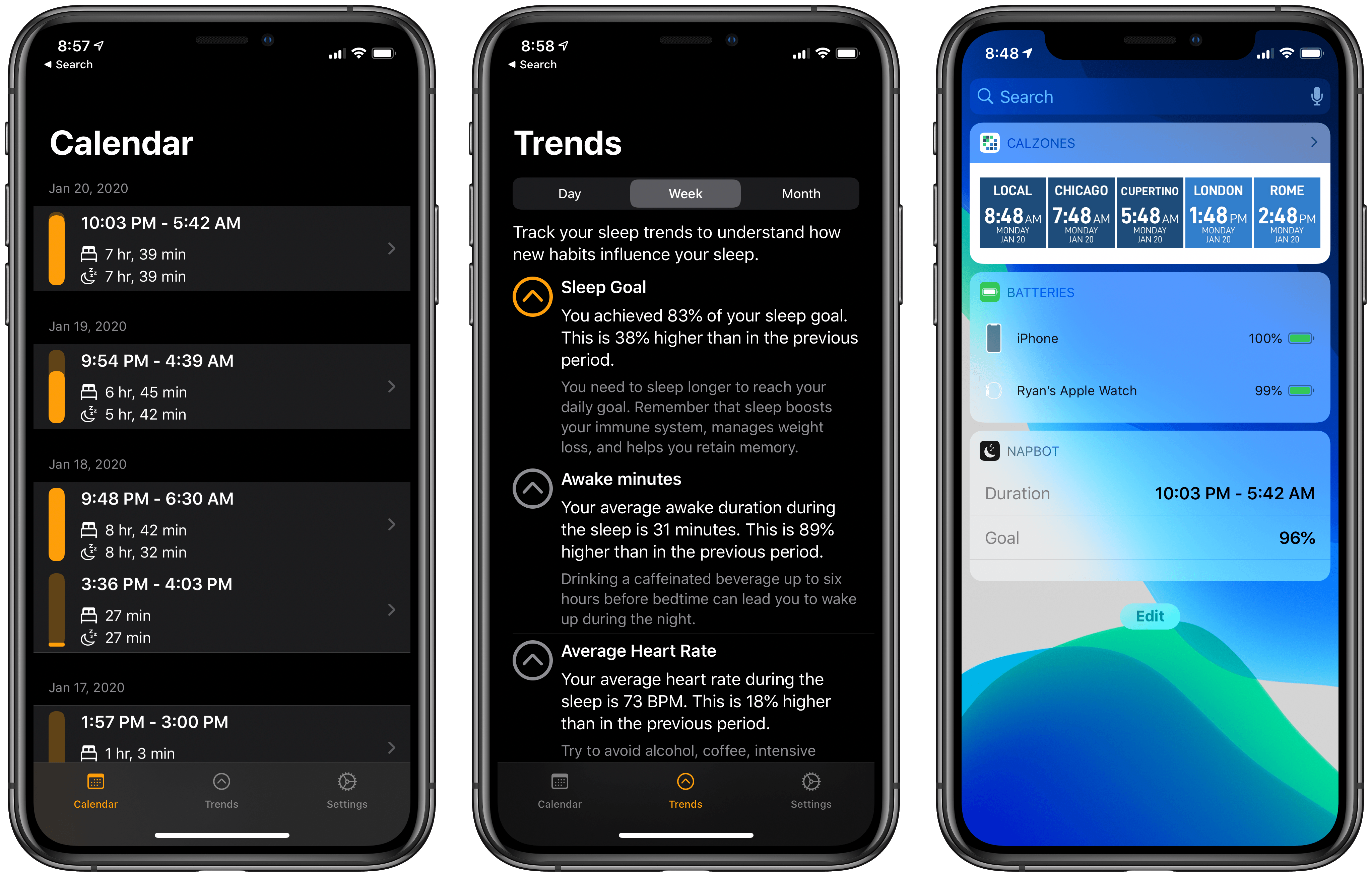
NapBot debuted last fall as a Swift UI-powered app that makes sleep tracking easy thanks to CoreML and a clean, simple design. The app recently received a variety of improvements via a 1.3 update that enhances both the watchOS and iOS components of NapBot.

On the watchOS side, NapBot now features a fully independent Watch app, meaning it can be downloaded from the Watch’s App Store and run without needing the iOS app installed. The current Watch app only shows sleep data for the previous day, rather than the full history that’s available on the iPhone, so I hope this release is just the first step toward offering full feature parity between watchOS and iOS apps.

Timed with its upgrade to independence, NapBot’s Watch app also now has complications available for every type of watch face and every complication size, so no matter which face is your go-to, you can find a fit for your sleep data.

The iPhone app now tracks a new trend, accessed from inside the Trends tab: Awake minutes. This enables keeping a pulse on how much time you spend awake during a normal night, and if the number doesn’t look good, NapBot will recommend you try reducing caffeine consumption during the latter parts of your day. If your Awake minutes trend shows just limited awake time, you’ll receive reassurance that brief waking periods can be perfectly normal.

Finally, NapBot has added a Today widget that documents your sleep data from the previous evening, and a notification in the morning to let you know sleep has been tracked. Using one or both of these options can reduce the need to open the full NapBot app as often and enable passive use instead, which I find ideal for a sleep tracking app.

The appeal of NapBot is in combining an easy-to-understand interface and effortless sleep tracking with data analysis powered by CoreML. Version 1.3 doesn’t change anything fundamental about the app, but it brings system feature integrations that make a meaningful difference in everyday use.


Apple Reveals Upcoming TV+ Lineup, including Amazing Stories, Central Park, Defending Jacob, and More

Steven Spielberg's Amazing Stories arrives March 6.

Steven Spielberg’s Amazing Stories arrives March 6.

Over the weekend, Apple debuted its TV+ content lineup for the first half of 2020 at the Television Critics Association Winter Press Tour. This Press Tour is a tradition of the TV industry, where traditional networks and streaming services alike share about the new content they’ll be releasing soon. Apple got to join the festivities this year for the first time, detailing its TV+ lineup through early summer, including release dates for highly anticipated series we already knew about, plus the debuts of new shows that hadn’t been previously announced.

Read more


Re:Schedule: A Calendar that Will Change the Way You Work [Sponsor]

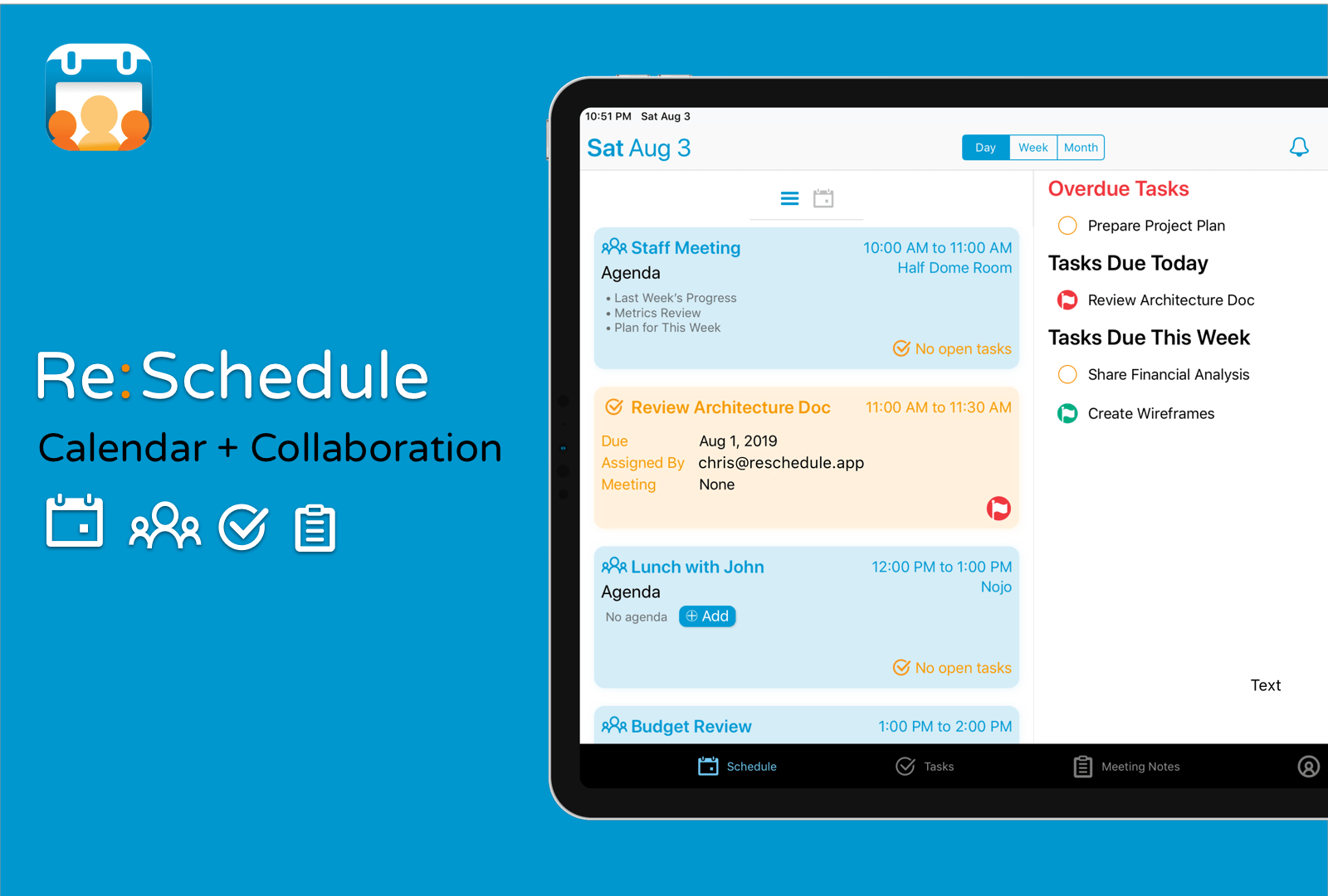
Re:Schedule is a new kind of calendar for busy professionals and team leaders that fuses time management, team collaboration, and meetings into a comprehensive package that will help you work more efficiently than ever before.

The power of Re:Schedule starts with its Day View, a unique take on managing the two competing demands on your time: meetings and tasks. By combining them side-by-side, you can allocate your time better than ever before. For example, you can drag tasks to your calendar to block off time to ensure they get finished or review a meeting’s agenda and its open action items all at once.

Organizing collaboration with Re:Schedule is a more natural way to work with others too. Information is organized by time, eliminating the overhead of managing folders, projects, teams, and permissions. The week and month views are perfect for managing tasks and understanding what needs your attention now.

Meeting workspaces bring every aspect of a meeting together in an easy-to-use interface that keeps your meetings on track and productive. Just tap on a meeting, and its workspace opens, allowing you to organize notes by agenda item and assign tasks to meeting participants who can follow along with the agenda during the meeting. When your meeting is finished, Re:Schedule automatically shares your notes with each participant. Even your team members who don’t use Re:Schedule can benefit from it thanks to email notifications.

Re:Schedule is fantastic for recurring meetings too. The app tracks a meeting’s history, organizing notes chronologically to help track past decisions and progress. Re:Schedule also enables you to see open tasks from past meetings and syncs with your Google Calendar account.

Transform the way you work in 2020 by signing up for Re:Schedule’s 30-day free trial today.

Our thanks to Re:Schedule for sponsoring MacStories this week.