My Two Weeks with Keyboard Maestro

I’ve been intrigued by Keyboard Maestro since I first heard about it on Daring Fireball years ago, but never installed and tried the app because of a somewhat widely shared notion that it’s “too difficult to use”. Recent Keyboard Maestro coverage on Brooks Review, ShawnBlanc.net and MacDrifter took my curiosity to a whole new level, so thanks to the Productive Macs bundle, I pulled the trigger and got a copy of Keyboard Maestro, which was later upgraded to version 5.0 for free with the same license.

There’s no easy way to describe Keyboard Maestro, but I’ll try: Keyboard Maestro is a trusted and powerful assistant for your Mac. When you don’t know how to do something, or how to make an existing menu or functionality faster and easier to use, you can turn to Keyboard Maestro and start building your own way out of options third-party developers or Apple didn’t think about.

Keyboard Maestro empowers you to take existing apps, menus, keyboard shortcuts – anything your Mac can perform – and mix them together to achieve something that fits better your workflow.

Keyboard Maestro isn’t strictly about tweaking. The app’s real power lies in how it puts the focus on discovering and building what’s better for you, and sticking with it. It’s no toy, but it’s fun to use once you get the (easy) hang of it.

Writing a review of Keyboard Maestro it’s like asking someone to “write a review of Apple”. The subject is so broad, the offer so variegate and ever-changing, it makes almost no sense to go into every single feature and over-analyze it with no context. Rather, I’d prefer to provide a more empirical look at this app in that I’ll share some of the tricks and functionalities I’ve come to learn and use in the past weeks.

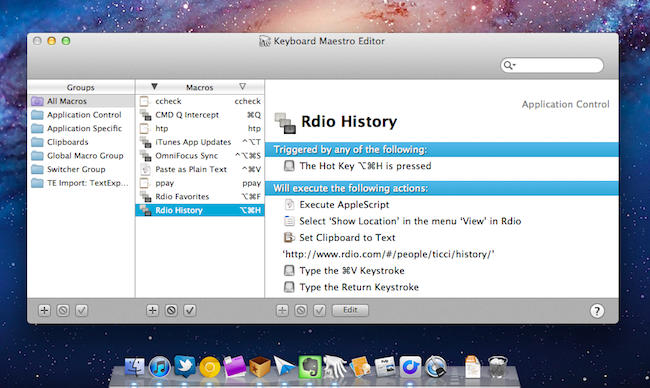
A simple way to understand Keyboard Maestro is this: you tell the app to do something for you automatically, in the background, whenever you want, and all you have to do to start such sequence is a trigger. The trigger can be a keyboard shortcut, something you typed, a system event – you choose the trigger and there’s plenty of options to look at when deciding which action should initiate a process. Read more

Google Launches “Google Music” Web App Optimized for iOS

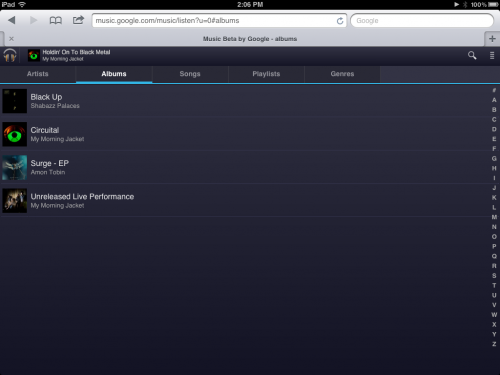
Announced with a tweet a few minutes ago, Google has rolled out an iOS-optimized (iOS 4 or later is required) web app for Google Music, the company’s invite-only cloud locker that allows users to upload music to Google’s servers. The web app can display music libraries and play songs from an iPhone, iPod touch or iPad running iOS, with a dark interface that’s also been optimized for the iPad’s larger screen with tabs for Artists, Albums, Songs, Playlists and Genres.

The web app has a search function for large libraries, lacks any upload feature on iOS devices, and because it acts as a standard audio source on iOS from Mobile Safari, it can run in the background and be controlled from the multitasking tray. The app supports swipes to switch between album and artists, and overall it looks like a very slick experiment from the Music Beta design team. The Next Web has the first details and screenshots:

The app looks pretty great and feels much snazzier than your average Google app. Hopefully this is a sign of good design to come. Functionally it is a pure ‘player’, with no ability to upload any music or browse any catalogs of music, much like the rest of the Google Music service at the moment.

If you’ve been invited to Google Music, you can check out the new web app from your iOS device at music.google.com. Google Music Beta was first launched in May with no iPhone-optimized interface.


Google Releases Blogger for iPhone

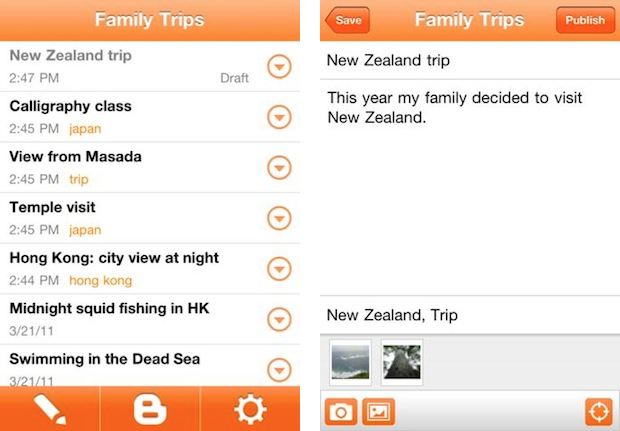
Earlier today Google announced the release of Blogger for iOS, an iPhone app aimed at Blogger users who have been looking for a way to edit or write new blog posts directly from their mobile devices. The app is free, and available on both iOS and Android. Blogger retains the service’s typical orange schemes; Blogger itself recently went under a major redesign for its entire platform. The app allows you to create a new blog post with tags, pictures and plain text, or edit an existing one or draft that you might want to finish on an iPhone.

You can also open a blog post you’ve been working on from your computer and continue editing it while you’re on-the-go. Your blog posts are automatically synced across devices, so you’ll always have access to the latest version. Pictures are worth a thousand words, and the Blogger app makes it easy to add photos either by choosing from the gallery or taking a new photo right within the app. You can also add labels and location to provide more details about the post.

This first version of Blogger runs on the iPhone and iPod touch – there’s no native iPad client yet. You can download Blogger for iPhone here.


iTunes U: 600 Million Downloads Since Launch, 300 Million Last Year Alone

iTunes U: 600 Million Downloads Since Launch, 300 Million Last Year Alone

The Loop reports on official iTunes U data provided by Apple today:

According to Apple, iTunes U has had more than 600 million downloads since it first launched in 2007. What’s even more impressive is that they’ve had more than 300 million in the last year alone — a testament to the growing popularity of the service.

Currently, iTunes U boasts more than 1,000 universities with active accounts. Schools contributing to the program range from big to small and include some of the world’s most prestigious institutions like Harvard, MIT, Cambridge, Oxford, University of Melbourne and University of Tokyo.

Apple’s iTunes U service – a collection of learning material that includes research, lectures, and more – may not be as popular as other consumer-oriented iTunes products like TV shows and apps, but it’s undoubtedly one of the company’s finest resources for education. Apple also confirmed 30% of iTunes U traffic comes from iOS devices – I wouldn’t be surprised to know the iPad helped rising mobile traffic since last year. And, 60% of iTunes U users are outside the United States.

Permalink

1Password Now On The Mac App Store: 50% Off, Menubar Icon, Lion-only

AgileBits’ 1Password, a fantastic tool to securely store, manage and organize passwords, online accounts, notes and credit cards which we’ve covered several times here on MacStories, is now available on the Mac App Store. The long-awaited release (1Password is one of the most popular third-party Mac apps, and it’s no surprise customers wanted a way to get it from the most popular OS X software marketplace) comes with a 50% sale price (1Password is currently $19.99) and a series of new features implemented in this new 3.9 Mac App Store version.

To get the app on the Mac App Store, AgileBits had to fine tune some aspects of their application, and at the same time update other areas to properly take advantage of the new features introduced in OS X Lion. This means 1Password has full 64-bit support, is Lion-only, and can run in full-screen mode. 1Password has always been that kind of app I want to keep open without looking at it all the time, so full-screen mode in Lion provides the perfect compromise to keep 1Password a swipe away, running in the background in its own space.

Version 3.9, however, doesn’t stop at simple Lion integration: AgileBits went ahead, and implemented application sandboxing before Apple will start requiring for all Mac App Store apps this November. Sandboxing limits what parts of your computer the app can access, and it’s a change Apple is enforcing to make apps more secure, and users feel safer when downloading third-party software. So with the new 1Password, you can either keep the app’s .agilekeychain file (the database with all your passwords and data) in Dropbox as usual, or within the app’s sandbox. If you choose Dropbox sync – which will enable you to sync the app across computers and iOS devices – you have to make sure Dropbox is located in your OS X account’s home folder (it should be if you follow Dropbox default settings). Because of this new architecture, when you’ll delete the app via Lion’s Launchpad its data file backups will be deleted, too, and only one 1Password data file (again, the database) is allowed. Last, the developers have enhanced the app’s security with PBKDF2 Calibration – they have a blog post here so you can read more about it. That’s it for the technical changes. 1Password works better with Lion, it’s more secure thanks to Apple’s new APIs for 10.7, and it already complies to rules that the company will start enforcing in two months.

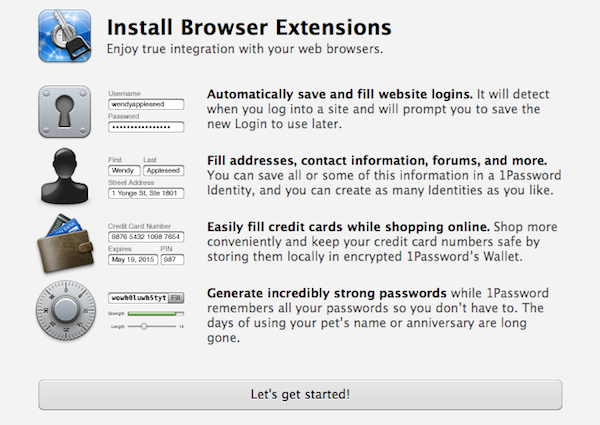
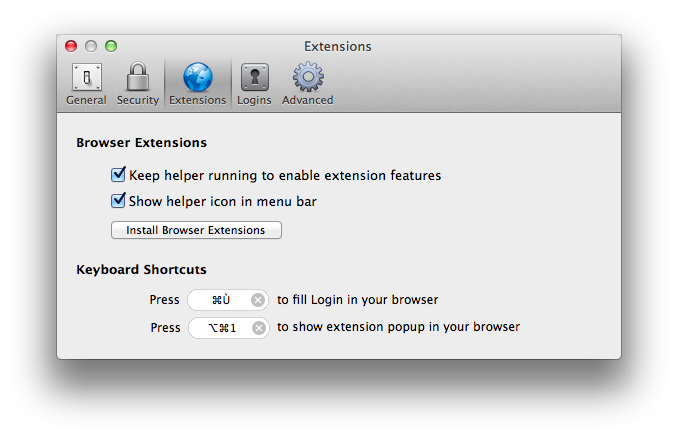
When it comes to new user features, 1Password 3.9 has a series of welcome additions that should simplify a user’s workflow and make the app more intuitive for Mac App Store newcomers. Whilst 1Password correctly recognized the old .agilekeychain data file I had in my Dropbox, those who haven’t used 1Password before will find a new first-run screen to help them find their way around browser extensions (more here), strong passwords, and automatic save and fill. 1Password’s preferences have been redesigned and simplified, as you can see from the screenshots; several menu items have been removed for simplification as well.

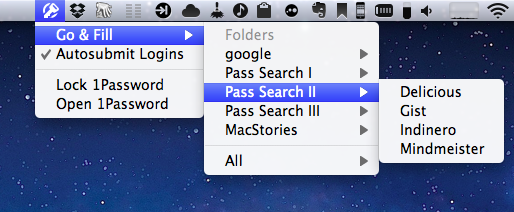
The biggest new feature in this Mac App Store release, from a user’s standpoint, is the new 1Password icon in the Mac’s menubar, which will help you with Folder / Tag Go & Fill access, AutoSubmit, and easily locking/opening 1Password directly from the menubar. The Go & Fill option is especially useful if you don’t want to manually type a URL in your browser, and prefer to let 1Password “take you” to a website, and have it automatically fill the login for you. The new menubar helper works great with the latest Safari on OS X Lion.

I’ve said this many times – 1Password is a must-have application for any Mac user who’s serious about keeping his personal data safe, protected, and always in sync across platforms. The newest update to the app is only $20 on the Mac App Store right now, and customers who purchased 1Password from AgileBits’ website within the previous 30 days can request a full refund if they’d rather buy it through the Mac App Store. Looking forward to a major 4.0 update, 1Password 3.9 is now on the Mac App Store and finely tuned for Lion.


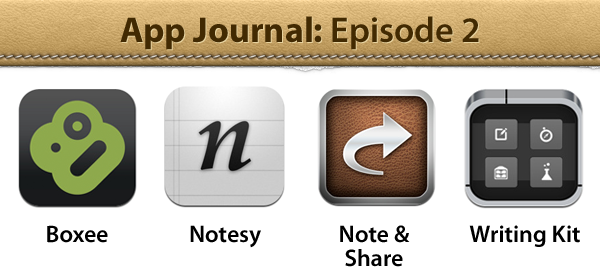
App Journal, Episode 2: Boxee for iPad, Notesy, Note & Share, Writing Kit

App Journal is a weekly series aimed at showcasing apps we have enjoyed using on our iPhones, iPads, and Macs, but decided not to feature in a standalone, lengthy review here on MacStories. App Journal is a mix of classic reviews, weekly app recommendations, and a diary of our experiences with apps that still deserve a proper mention.

For this week’s App Journal episode, I’m taking a look at four iOS apps: Boxee for iPad, Writing Kit, Notesy and Note & Share. You may notice three of them are note-taking apps – in fact, I’ve been playing with several apps of this kind recently, and have yet to decide which one suits better my writing workflow when it comes to quick notes for, say, Dropbox, or longer pieces written in Markdown.

Stay tuned for more App Journal episodes in the next weeks. Read more


Apple Could Already Be Planning A Third Campus To Cope With Employee Growth

Cupertino City officials will tonight be holding a meeting on Apple’s new ‘spaceship’ campus that was revealed by Steve Jobs himself back in June of this year. It will be the first opportunity that Cupertino residents will be able to raise issues about the project for the City to consider before approval is given for construction. But already, Apple may be planning the construction of a third campus with expected employee growth to be greater than the 13,000 this new ‘spaceship’ campus can hold.

This is according to Cupertino Mayor, Gilbert Wong, who told the Contra Costa Times that Apple Executives have informed him that they are expecting to start working on a third campus at an unknown location after they finish the ‘spaceship’ campus in 2015. Gilbert also notes that within Apple the campuses may just be named as simply as the iPad and iPhone product lines, with this forthcoming ‘spaceship’ campus simply dubbed “Apple 2”.

“I think it makes sense to call it Apple 2,” Mayor Gilbert Wong said Wednesday. “They have iPad 1 and iPad 2; iPhone 1 and iPhone 2. This building is probably going to have much more innovative technologies and products than what they have at” their first campus, also in Cupertino.

You’ll be able to watch tonight’s Cupertino City Council meeting either live in person or online where a broadcast will be streamed.

[Contra Costa Times via The Next Web]


Adobe Sees 45% Growth Of Premiere Pro On The Mac, Credits Final Cut Pro X

According to a report in The Loop, Adobe will today announce that sales of its professional video production tools have skyrocketed year-over-year. Which, in large part has been driven by growth on the Mac platform with disillusioned Final Cut Pro users moving over to alternative products after Apple released the controversial Final Cut Pro X version earlier this year.

As the backlash began from professional video editors, Adobe targeted them, giving discounts for Premiere Pro (Adobe’s alternative to Final Cut Pro) and publishing video tutorials and documents to ease the transition. This appears to have payed off with a 45% growth of Adobe’s video production tools on the Mac and total year-on-year growth across both the PC and Mac platforms at 22%.

In comparison to Adobe’s efforts, Apple hasn’t done much to quell concerns apart from release a Q&A article, refund customers for the purchase and only last week they began selling Final Cut Pro 7 again but at the standard $999 price.

[Via The Loop]