Posts in news

Google Search for iPad Gets New Features and Redesigned UI

A few minutes ago Google released a new version of its official Google Search app for iOS that, alongside bug fixes and full-screen mode for search results and images on the iPhone, brings a completely overhauled interface, as well as new functionalities, on the iPad. Google Search, available as a universal app, has in fact introduced a redesigned UI that falls in line with Google’s recent updates to its online services like Gmail, Google Reader, Google Calendar and Google+. Google Search on the iPad now sports a series of gray icons in the main page to quickly jump to History, other Google apps, voice search and Goggles, a feature that Google introduced on iOS months ago to search for products just by taking a picture of them. The History page got a visual overhaul, displaying search results as stacks of pages you can swipe through to get your previous search.

Often you may be looking to find something you have seen before again or are continuing research on a topic. But on a tablet, typing can be a challenge. That is why we have created a visual way to explore your search history. Swipe right to view snapshots of pages you’ve visited, stacked and organized by search term. You can also manage your search history from this new view.

Search results are now loaded with Google Instant and Instant Previews, meaning the engine will be able to predict your queries and, at the same time, offer a visual aid to display pages as thumbnails, rather than just text results. The typical search interface is still there, visualized with Google’s recently launched tablet view. The native app has allowed the developers to embed a toolbar at the top, which contains buttons to open voice search, apps, settings, and sign in with your Google account.
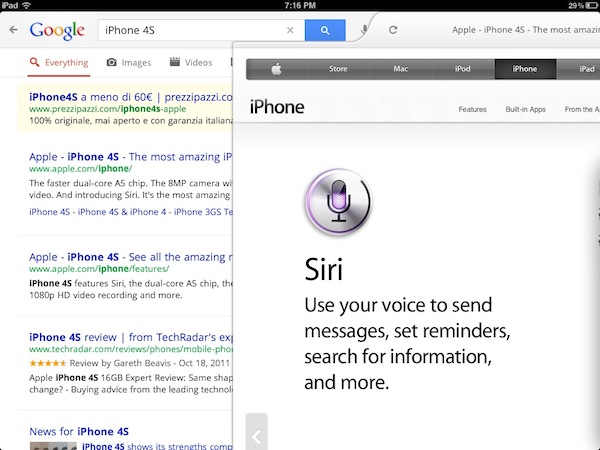
Another big change on the iPad is how results are displayed side-by-side with webpages. As you tap on a link from the search results, Google Search will “slide in” a webpage with a quick animation that enables you to go back at any time with a single swipe gesture. You can adjust the size of the panel and visualize a webpage alongside other search results. Furthermore, the webpage view features another toolbar with buttons to +1 on Google+ and search for a specific word inside the page. With the iPad in landscape mode Google has effectively built a sort of split-browser with search results automatically loading in the resizable panel on the right.

Once you pick a web page to visit, you’ll see the page load on a new, slide-in pane that will layer over the search results. You can slide the pane to the right to get back to your search results, and even keep scrolling through the results as your web page is loading. This allows you to go back and forth from results to web pages quickly to get the information you are looking for.

Especially on the iPad and in landscape mode, the latest Google Search update seems like a step in the right direction to enable users to search faster, switch between results quicker, and have access to search history in a more user-friendly interface. You can get Google Search for free from the App Store.

More screenshots and promo video below.
Read more


OmniFocus for iPhone Adds “iCloud Capture” To Import iOS Reminders

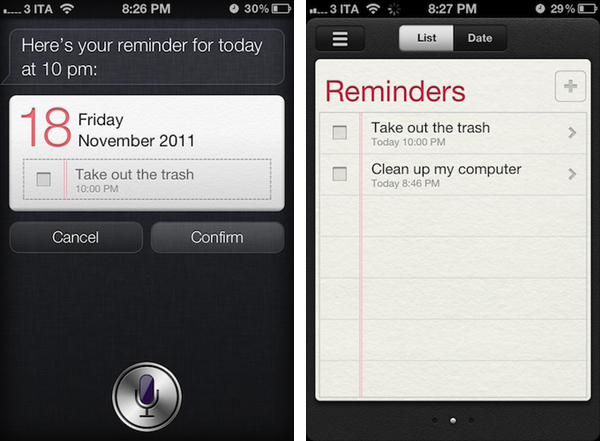
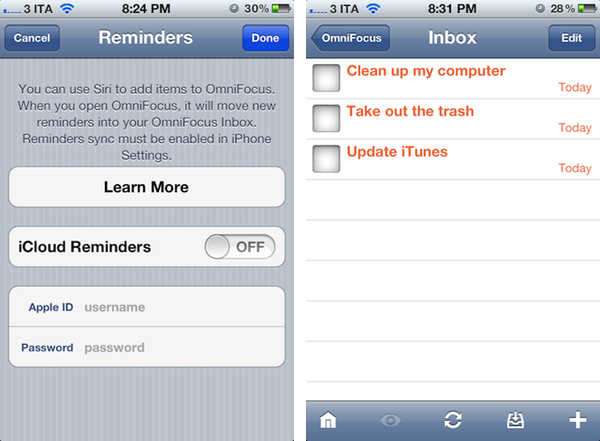
With the latest update to OmniFocus for iPhone, The Omni Group has figured out a way to let the app interact with iOS reminders and iCloud, and automatically fetch reminders created through the iPhone 4S’ Siri or Reminders app. Whilst you still can’t ask Siri to create new tasks directly into OmniFocus, the solution implemented by The Omni Group is very clever, and it gives you the illusion of native integration with the assistant, using iCloud and your Apple ID as a bridge between Siri’s reminder functionality, and OmniFocus.

The Omni Group has implemented a new feature called iCloud Capture that is capable of taking Reminders from your iCloud account, and move them into OmniFocus’ inbox. iCloud Capture, as explained in the Help section, literally takes input that would otherwise stay into Reminders, and moves “as much data as it can” away from Reminders and into OmniFocus. This is done in two ways: first, you have to create reminders that go into a “Reminders” or “OmniFocus” list. Second, you’ll have to log in with your iCloud account in OmniFocus’ settings, and enable iCloud Capture. Once enabled, OmniFocus will check for new reminders every time upon launch and move them into the inbox. The “upon launch” part is important, as OmniFocus can’t process iCloud data in the background – you won’t be able to add reminders via Siri, and expect OmniFocus to import & sync in the background. You’ll have to open OmniFocus for iCloud Capture to work, but it’s a minimal effort compared to the added convenience of being able to let OmniFocus seamlessly process and import reminders.

Please note that reminders will be deleted from Reminders.app as they’re moved to OmniFocus; title and dates will be preserved in the transition, but The Omni Group says that location reminders – which both Siri and Apple’s Reminders can use out of the box – will be “most effective” when they match Reminders’ contact locations and OmniFocus’ own implementation, which is quite different from Apple as it’s got more options. From my understanding of this limitation, it appears getting location reminders into OmniFocus from iCloud might work best if OmniFocus is using the same contact information rather than its “current location” or “exact location”, and I’ll need to investigate this further. For now, I can say that one location-based reminder did go through iCloud Capture, but another did not, and stayed inside Reminders.

The Omni Group didn’t add direct Siri integration, but they came up with one of the most clever ways I’ve seen to use Siri and iCloud to create reminders and have them automatically moved to OmniFocus every time you open the app. The system isn’t perfect, but has worked very well for me with simple reminders. Another good point of iCloud Capture is that Windows users will be able to move Outlook tasks to OmniFocus when they launch the app, as iCloud Capture checks for all reminders in your iCloud account, not just those created via Siri. Overall, I’d recommend giving iCloud Capture a try, and see if reminders might work better for you inside OmniFocus rather than Apple’s Reminders.

Update: The Omni Group has posted a series of videos showing how iCloud Capture works. Check them out after the break.

Read more


Apple’s Minor Tweak To iPad App Store Improves Navigation

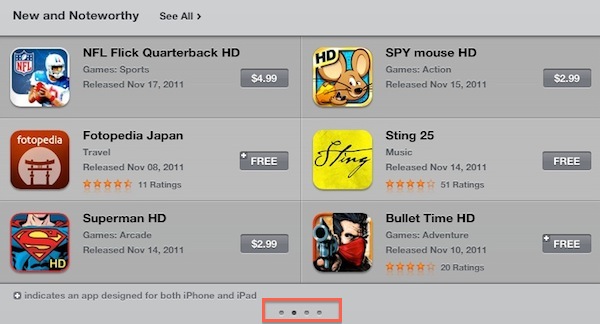
Earlier today Apple rolled out a very minor, yet important change for the App Store’s homepage on the iPad. Previously, “New and Noteworthy” and “Staff Favorites” sections in the iPad App Store could be viewed by hitting an arrow button that scrolled the various pages inside these sections. Now, users can swipe to navigate between pages of apps listed in the sections, with page indicators similar to the iOS’ Home screen available at the bottom to indicate a user’s position.

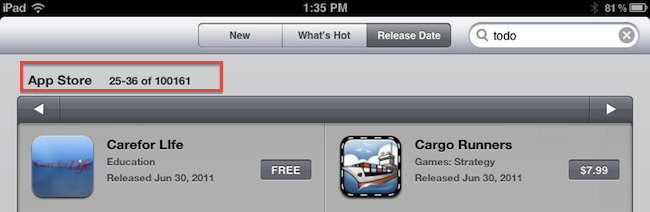
More importantly, this little tweak has been implemented in the “Release Date” tab of the iPad App Store as well. Browsing by release date is very convenient for two reasons: it lets you see every iPad app ever approved, and it displays the total number of available iPad apps in the Store. It used to be that, because of clunky navigation, moving between pages in “Release Date” view was slow, and the iPad would often lose its position after scrolling dozens of pages. With the new swiping method, the whole view is faster, and also appears more reliable at going back and forth between results.

Here’s how “Release Date” used to look:

And here’s how it looks now, with no buttons:

At the moment of writing this Apple is still using button-based navigation in the Purchased area, and we wish changes will eventually make their way there, too.

Today’s update to the iPad App Store (Apple also updates the App Store homepages every Thursday with new Featured apps) is minor, but as the company’s attention to detail often proves, minor tweaks can incredibly improve the user experience.


U.S. Carriers Struggling To Keep Up With High iPhone 4S Demand

U.S. carriers continue to struggle with high demand for the iPhone 4S, The Wall Street Journal reports today. Apple’s latest iPhone, launched on October 14th in seven countries including the United States, has been a success for the company in early sales, reaching over 4 million units sold in the first weekend of availability. For comparison, the iPhone 4 sold “only” 1.7 million units in its first weekend last year. But according to U.S. carriers, the iPhone 4S’ popularity isn’t just a passing fad among Apple fans and early adopters: as the device’s popularity continues to build. carriers are finding themselves struggling to get inventory from Apple.

Verizon Wireless customers may have to wait more than three weeks for the device, according to the carrier’s website. That compares with as much as 21 days at AT&T and up to 14 days at Sprint Nextel. While some tech blogs have suggested Apple’s manufacturing isn’t keeping pace, the carriers point to unexpectedly strong demand for the handset.

“We are having some supply issues in the sense that demand’s huge,” AT&T’s president of emerging devices, Glenn Lurie, said Wednesday. “We have had just record-breaking sales on it.

Obviously, both Apple and the carriers prioritize in-store retail sales over online orders; Apple, for instance, is giving customers the possibility to reserve an iPhone 4S at their local store, and it’s generally easier to find an iPhone 4S just by walking into a store, rather than ordering it online. On Apple’s online store, shipping times for the iPhone 4S are now set at 1-2 weeks. Furthermore, it appears the problem with shortages isn’t due to Apple’s manufacturing process – there’s simply too much demand for the device than Apple can meet both online and in physical stores at the moment.

At the Q4 2011 earnings call, Apple CEO Tim Cook said they were extremely pleased with the initial demand for the iPhone 4S and customers’ reaction to the new model, adding that the company was confident they had enough supply to meet demand. Since its U.S. launch, Apple has been quickly rolling out the iPhone 4S in new countries, reaching 44 in less than a month and with another round of international rollouts reportedly set for later this month.


Flipboard Introduces “Flipboard Accounts” To Sync Content Across Devices

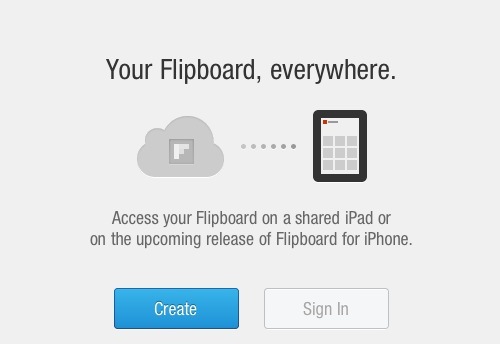
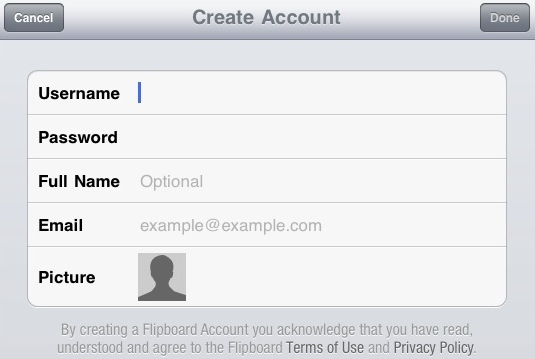
The latest version of Flipboard for iPad, 1.6, is out in the App Store and, alongside support for Tumblr and 500px, it brings a new option to create a “Flipboard Account” and start storing your favorite content in the cloud. With the upcoming release of Flipboard for iPhone, or for those users who share an iPad in the family, accounts will be the easiest way to load a user’s existing sources, subscriptions and social accounts without having to start over every time. The feature is already enabled on the iPad app, and it takes a very few steps to create an account. Enter a username, password, email and real name, and Flipboard will create an account for you. The app is even smart enough to fetch a profile picture from the services you’ve already configured, such as Twitter or Facebook.

Starting today, you can sign up for a Flipboard Account. With Accounts, your reading preferences stay with you no matter how you access Flipboard. For example, families and friends who share an iPad can log into Flipboard and find their favorite sections. And when Flipboard comes to the iPhone, accounts ensure that your Flipboard is configured exactly as you like it, with your favorite reading sources already saved and your social networks connected.

I tested Flipboard’s account management feature, and it worked flawlessly. I was able to create an account, log out after a few minutes and, upon logging into Flipboard again, all my sources and social accounts were pulled from the cloud with no errors, in seconds.

Flipboard has been previously rumored to be considering a web app, and accounts would certainly come in handy to easily load a user’s reading material on any platform. Flipboard for iPhone should be coming out any week now, and the company was reportedly considering deeper integration with TV Shows and Movies as well.


Skype 5.4 Beta For Mac Gets Facebook-to-Facebook Video Calling

Back in September Skype, now part of Microsoft, released a new version of its Mac client with direct Facebook integration for Contacts, the News Feed, and text chat. Skype 5.4 was the result of a partnership between Facebook and Skype, which began earlier this year with video calls on Facebook.com based on Skype’s video technology. However, in Skype 5.4 it wasn’t possible for a user to initiate a video call from Skype, and have it forwarded to Facebook.com in the browser.

With a blog post published this morning, Skype announced that the new beta version of Skype 5.4 for Mac has added Facebook-to-Facebook video calling, meaning that, once connected with Facebook, the Skype app will be capable of placing video calls from a Mac to friends online on the Facebook website.

Initiating a Facebook-to-Facebook call from within Skype is quite easy; all you need to do is connect your Skype and Facebook accounts. Then, select a Facebook friend and hit the video call button in Skype- your friend simply picks up the call from Facebook.

Because Facebook’s video calls are based on Skype, the company has managed to interconnect video calls from the desktop app with the new video calling function on Facebook.com. In my tests, the version of Skype I had installed didn’t prompt to update to a new one, and I had to download the new 5.4 beta manually. Users of Skype might find they have version 5.4.0.1217 installed; Skype 5.4 Beta is version 5.4.0.1771.

Other than Facebook video calling, 5.4 beta for Mac brings smoother video rendering, but no interface changes or refinements. Skype has been heavily criticized in the past year for the design choices they made with version 5, and the company even launched a competition to outsource some of the message styles included in the desktop app.

You can download Skype 5.4 beta for Mac here.


“iChat for iOS” Rumors Revived With New Code Strings Found

In the past few years, Apple has been rumored several times to be building a mobile version of iChat – its desktop IM communication tool – for the iPhone and iPad. And in spite of the iMessage protocol being essentially a stripped-down version of iChat for iOS users with typing indicators, attachments and even new features like read and delivery receipts, speculation has always pointed at Apple as being developing a full-featured iChat app for iOS to integrate with IM services like AIM and Jabber, just as iChat on OS X.

New code strings found by developer John Heaton inside iOS 5 (via TUAW) are bringing new life to the mobile iChat rumors. But unlike previous speculation, this code seems to indicate Apple may integrate iChat functions with its existing Phone and Messages apps. Speculation on the “facetimeService”, “aimService” and “iMessageService” strings suggests typical IM functions like text and video chat might as well live into a single existing app, rather than be scattered around the system with standalone applications. The Messages app for iOS, in fact, already integrates regular SMS and iMessage, photo and video attachments and group messaging. On the Mac, Apple was rumored to be integrating iMessage into iChat, rather than building a dedicated iMessage app. Putting all the rumors together, could this be an indication of a unified, cross-platform and integrated Messages app coming soon to iOS and OS X with iChat and iMessage functionalities?

Code strings aren’t the most reliable indicators of new features to come, as Apple often likes to bury functionalities in code and hide them from public release, even when they’re fully working and seemingly ready to go. Speculation on iChat for iOS has been growing strong lately especially after the release of iMessage, and many think it’d only make sense for Apple to least extend iMessage’s features to the desktop.


djay For Mac Adds ‘Harmonic Match’ And iCloud Support

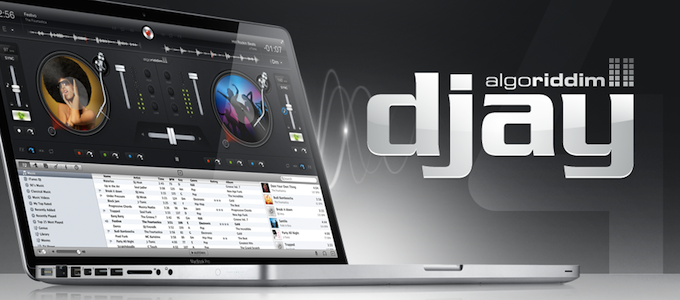
For those of you who are DJs or just enjoy listening and mixing music, the latest version of Algoriddim’s Mac App ‘djay’ might interest you. Now at version 4.0, Algoriddim is claiming that this is the biggest update to the app yet. The big headline new feature is ‘Harmonic Match’ a new system that allows users to “create perfectly matched mixes with a simple click”.

With the introduction of Harmonic Match, djay automatically detects a song’s key and allows to match it to songs of the same key within your iTunes music library. It allows you transpose songs into different keys, and even sort your entire music library by key, perfect for creating studio quality mash-ups of your songs.

Beyond Harmonic Match, djay 4.0 also features a new audio engine that allows high quality Audio FX on the fly, precision scratching, visual waveforms and a host of other more advanced features. A particularly useful new feature in djay 4.0 is the support for iCloud, which means cue data and other metadata can by synced across the Mac, iPad and iPhone versions of the app. Another nice touch is support for the multi-touch trackpad where a user can “use rotate gestures to adjust the EQ, or two fingers to scratch the record and operate the crossfader”.

djay for the Mac is available on the Mac App Store for a special launch sale price of  $19.99. Jump the break for a promotional video, as well as a full list of additions and improvements in djay 4.0.
Read more


AOL Launches “AIM Preview” With New UI, Group Chats, Cloud Sync

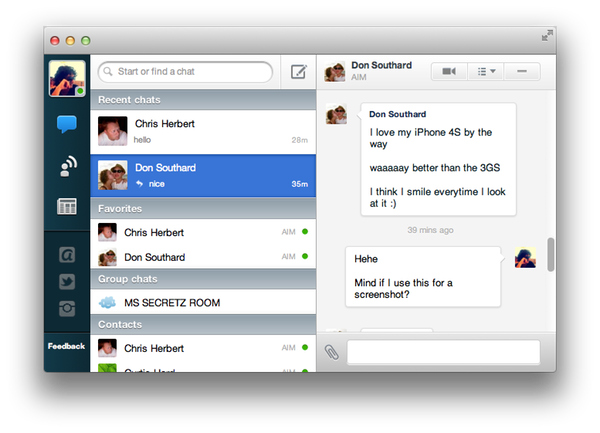
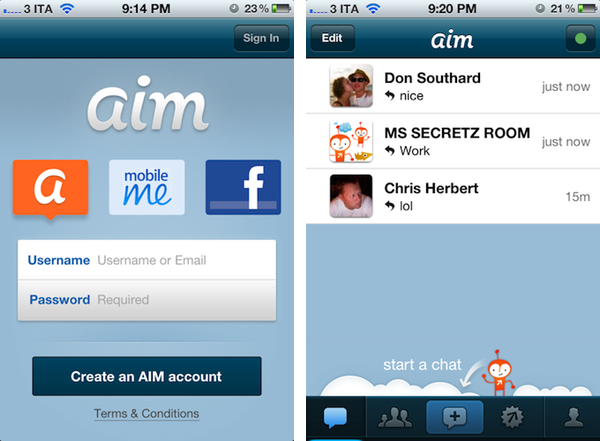
Following a series of experiments with iOS devices that included PLAY, a music app for iPhone, and Editions, a social reading app for iPad, earlier today AOL introduced a much larger project targeted towards the web, Mac, Windows and iOS: a completely redesigned AIM experience. Named AIM Preview and available at preview.aim.com, the new AIM service comes with new features like group and video chats, inline previews for videos and pictures and cloud sync for message history; AIM has also received new apps, especially a brand new web app, and updated Mac and iPhone clients.

I had time to test the new AIM, and my feelings are mixed. The website looks nice, and I was able to start chatting with my friends in seconds, share pictures and webcam shots, and even create group chats easily. You have access to regular AIM functionalities like “off the record” and “clear history”, and chats are organized in a left sidebar that lists Recent Chats, Favorites, and Contacts. Overall, I’d say the web app can be a nice alternative for when you can’t use your iPhone or Mac. Which brings me to the new Mac app: it looks good from the screenshots, but it’s far from perfect once you get to use it. The app supports Lion’s full-screen mode but scrolling (in the buddy list) isn’t native and it behaves like a bad copy of an iOS app. Icons are blurry, and several sections of the app take their time to load as I assume they’re web views embedded inside the app (not to mention the errors I got when first launching the app). And by sections I mean the additional stuff that AOL conveniently put into the app, such as headlines from its web properties (Engadget, Huffington Post, Joystiq) and “social” updates from Instagram, Twitter and Facebook.

Headlines are displayed with a curious arrangement of fuzzy images and questionable typography choices. Clicking on them opens your default web browser, rather than an inline view in AIM. Social updates are equally perplexing, as you’d expect AIM to be about IM, yet AOL is trying to cram the app with additional content from other sources that live at a different rhythm than traditional instant messaging. I’m wondering why would anyone check Twitter replies and direct messages in AIM instead of a Twitter client, and I can only imagine AOL thinks some casual users will find this “cool”.

As far as actual chat goes, AIM is slower than Apple’s iChat at sending messages (I’ve seen a 1 second delay between hitting Send and the message being displayed on screen) and the Mac app shares the same functionality of preview.aim.com for inline media previews (pictures, videos, tweets) and cloud sync. I also noticed the app supports Growl notifications, but it couldn’t visualize friends’ profile pictures in desktop notifications.

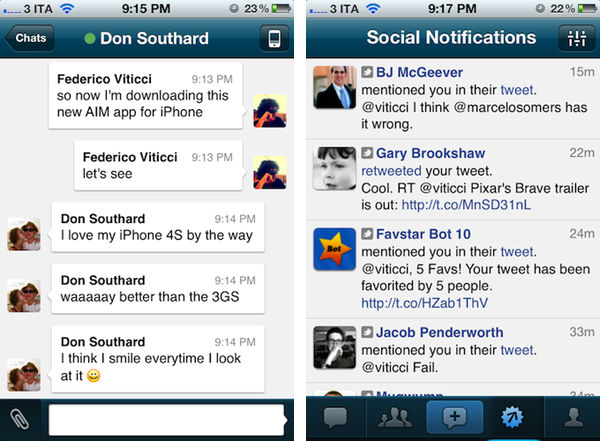
The new AIM for iPhone comes in two versions: free and $2.99 to remove ads and get additional sounds. The iPhone app left me with a more positive impression than its Mac counterpart: you can set quiet hours, tweak sound notifications, and start group chats directly from your phone. In spite of the iPhone’s cameras, I couldn’t find an option to start video chats from iOS. Social updates made their way to the mobile client too, but overall AIM for iPhone seemed more responsive and lightweight than the Mac app.

It’s easy to get excited about a massive redesign such as the one for AIM Preview. However, there are several aspects of the Mac app to fix and others to clarify about the entire service, such as headlines and social updates. You can find the new AIM at preview.aim.com, and a $2.99 iPhone app in the App Store.