Federico Viticci

10766 posts on MacStories since April 2009

Federico is the founder and Editor-in-Chief of MacStories, where he writes about Apple with a focus on apps, developers, iPad, and iOS productivity. He founded MacStories in April 2009 and has been writing about Apple since. Federico is also the co-host of AppStories, a weekly podcast exploring the world of apps, Unwind, a fun exploration of media and more, and NPC: Next Portable Console, a show about portable gaming and the handheld revolution.

DaisyDisk Gets Lion Update with Full-Screen, FileVault 2 Support

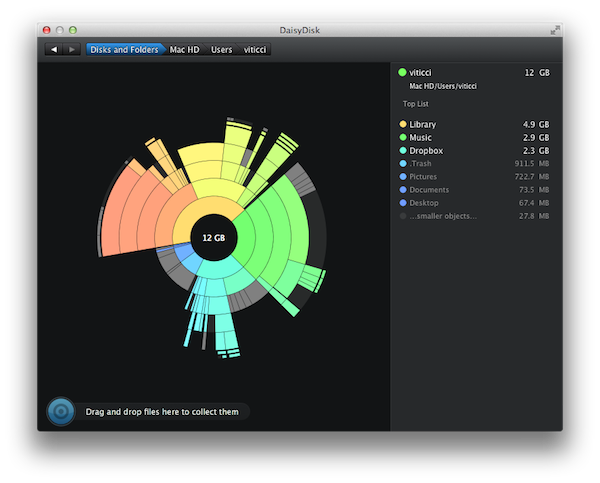
DaisyDisk is a beautiful Mac app to monitor available space on your computer’s internal and external drives, allowing you to see what’s eating up your drive’s GBs (or TBs) and easily remove it. I’ve taken a look at how DaisyDisk fits in my backup workflow before, as well as the new features and design changes introduced in version 2.0, a major update released earlier this year.

With version 2.1 released today, DaisyDisk gets more Lion-friendly with support for full-screen mode, and FileVault 2. For those unaware of Apple’s new whole-disk encryption system for OS X Lion, you can read more in my review of the 13-inch MacBook Air, where I also ran some tests to compare a FileVault-less OS X installation versus one with encryption enabled. With FileVault 2 support, DaisyDisk is now capable of scanning and deleting files off encrypted drives, such as the one on my personal iMac. As you can see in the screenshots, my Mac HD shows up as “encrypted startup disk” in the main list of available drives, yet scanning it doesn’t reveal any difference from external, non-encrypted drives as far as the user experience goes. I was able to navigate between folders and drives, delete files, and rescan as administrator, although I haven’t been able to verify the “basic support for Resume” mentioned in this update’s changelog. The release notes also indicates a few bugs have been fixed, and graphical elements tweaked to make navigation more intuitive.

DaisyDisk 2.1 is available on the developers’ website both as $19.95 purchase and free trial. The DaisyDisk team, however, is running a limited-time 50% off promotion on the Mac App Store, where you can get the app at $9.99. Read more


Apple Tweaks Italy Prices As VAT Rises to 21%

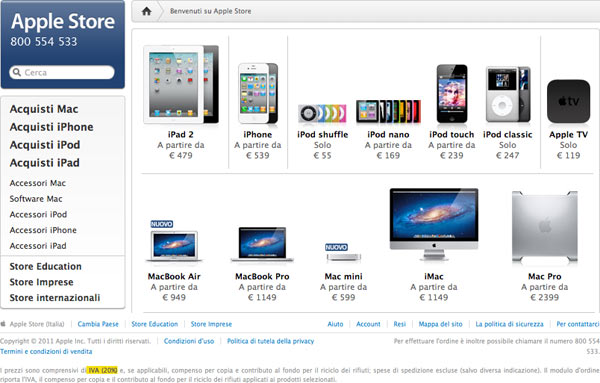
Apple’s online store with updated prices

Apple today took down its online store in Italy, raising prices for several products in order to account for Italy’s increase of value-added tax (VAT,  known as IVA – “imposta sul valore aggiunto” – in Italy) from 20% to 21% as part of the recently approved austerity bill.

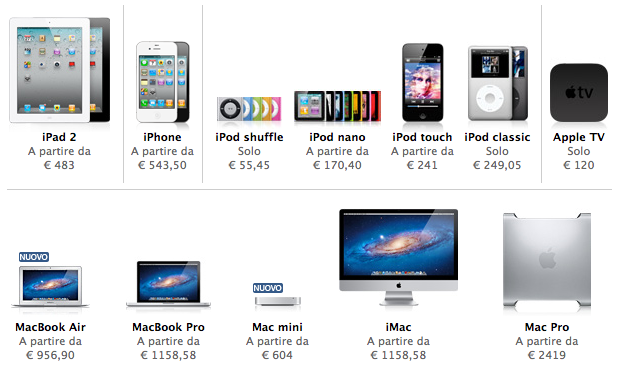
iOS devices have seen a small bump in prices with the 1% VAT increase. The 16 GB iPad 2, for instance, rises from € 479 to € 483; the 32 GB and 64 GB models have changed to € 583,83 and € 684,65, respectively. The entry-level iPhone 4 rises from € 539 to 543,50; the iPod touch goes from € 239 to € 241. The iPod line sees another minor bump with the iPod nano (€ 169 to € 170,40), iPod shuffle (€ 55 to € 55,45) and iPod classic (€ 247 to € 249,05). The Apple TV goes from € 119 to € 120.

As for the Mac, the biggest change can be seen in the standard configuration of the Mac Pro, updated from € 2399 to € 2419. Apple’s online store just came back online, and its VAT (IVA) footnote still reports 20%. Changes, however, can be compared in the screenshots above and below.

When the UK’s VAT rate changed from 17.5% to 20% earlier this year, Apple took down its online store to modify the prices accordingly, without absorbing the tax increase by reducing their prices.

Apple’s online store before the VAT increase

[image via setteB.IT]


Latest Chrome Stable Gets Native Lion Scrollbars and Full-Screen

Back in early August we reported the bleeding-edge version of Google Chrome, Chrome Canary, had been updated to include native full-screen mode and scrollbars on OS X Lion, which was released on July 20th on the Mac App Store. The Chrome team rushed to have a version of Canary fully compatible with the new OS, and we noted their implementation of full-screen was different from the average OS X app: Chrome allowed for two different toolbar / no toolbar modes triggered by a “curtain” icon at the top. With such implementation, the Chrome team made sure developers could test “real” full-screen mode with only the actual content of a webpage displayed, and a second option to see content + toolbars (tabs, bookmarks, etc).

The latest stable version of Chrome, released today, brings these Lion changes (and other bug fixes) to regular users, alongside other new features detailed on Google’s official blog. Most notably, Chrome stable has now access to the Native Client, a way for Chrome to execute C and C++ code inside the browser. The Native Client only supports applications from the Chrome Web Store for now, but Google is looking into supporting more platforms. Another technical change in this new stable release is the Web Audio API, which “enables developers to add fancy audio effects such as room simulation and spatialization”.

You can get the latest Chrome stable release here, and check out a brief explanation of the Native Client after the break. Read more


Apple Details Thunderbolt Display Connection Options


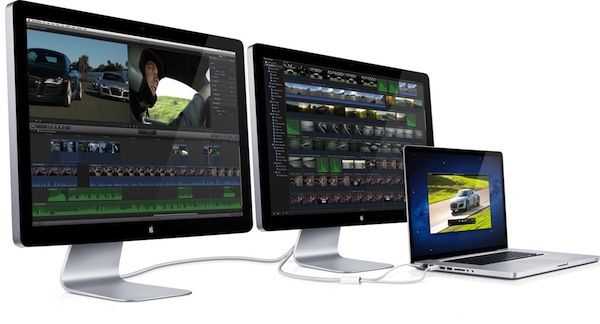
With a new support document [via] posted earlier this afternoon, Apple details some of the connection options for the 27-inch Thunderbolt Display, now shipping to customers who bought it after it was announced, and close to retail availability. The document in particular outlines some daisy-chaining options for the display and different Mac models, specifying which ones can connect to multiple monitors at once. For those users who want to daisy-chain Thunderbolt devices and a display, Apple recommends to connect the Thunderbolt Display to a Thunderbolt port on a Mac, and start daisy-chaining off that for “best performances”.

A note of interest from this document is that Mini DisplayPort displays won’t work if connected to the Thunderbolt Display, thus removing any possibility of daisy-chaining with old Mini DisplayPort interfaces and the newest Thunderbolt.

Mini DisplayPort displays will not light up if connected to the Thunderbolt port on an Apple Thunderbolt Display (27-inch).

MacBook Air (Mid 2011): Supports one Thunderbolt display.

MacBook Pro (Early 2011): Supports two Thunderbolt displays. The 13” MacBook Pro has a different “expected behavior” in that the screen will turn black if a second Thunderbolt Display is connected.

iMac (Mid 2011 and Late 2011): Supports two Thunderbolt displays. iMac (27-inch, Mid 2011) with two Thunderbolt ports supports a total of two Thunderbolt displays “regardless of which Thunderbolt port each display is connected to”.

Mac mini (Mid 2011): Supports two Thunderbolt displays. Mac mini with AMD graphics can support a HDMI compatible device on its HDMI port when using two Thunderbolt displays.

The support document is available here. The 27-inch Thunderbolt Display still reports shipping times of 2-3 weeks on Apple’s online store. Read more


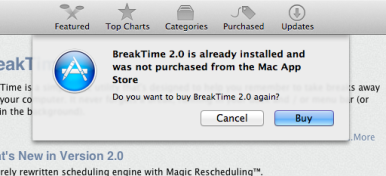
Mac App Store Gets “Re-Buy Warning” For Apps Already Installed

Mac App Store Gets “Re-Buy Warning” For Apps Already Installed

While many are still waiting for Apple to implement a basic wish list functionality in the Mac App Store (eight months after its public debut, there’s now a pretty good selection of high-quality software in Apple’s desktop storefront to choose from), Macworld has noticed the Mac App Store will now give you a heads-up before buying apps you already have installed on your computer. This can be particularly useful as a warning if you’re about to purchase an app you had previously downloaded from a developer’s website, out of the Mac App Store.

Though this doesn’t really reduce the pain of having to pay a second time for the same app, it does at least give less savvy users a heads-up before they accidentally buy a program all over again.

You can try this now with an app like OmniFocus, which is available with the same version (1.9.3) both on The Omni Group’s website and the Mac App Store. When the Mac App Store launched in January, the fact that it reported as “Installed” apps downloaded from a web browser caused some confusion among users.

It’s still unclear whether this dialog box requires the same version of an app to be already installed on a Mac (example: 1Password 3.9 is available on the Mac App Store, whereas AgileBits’ website give you access to an older version), but I assume this new “warning” does indeed require the exact same version to be installed, otherwise the Mac App Store version of an app will install alongside apps purchased elsewhere (this already happens if you head over the Purchased tab, and re-download a newer version of an app you already have on your Mac).

Permalink

App Journal, Episode 3: Dolphin Browser HD, Showreel, Faveous, ifttt

App Journal is a weekly series aimed at showcasing apps we have enjoyed using on our iPhones, iPads, and Macs, but decided not to feature in a standalone, lengthy review here on MacStories. App Journal is a mix of classic reviews, weekly app recommendations, and a diary of our experiences with apps that still deserve a proper mention.

As developers put the finishing touches to their iOS 5 and iCloud-based new apps and updates, this past week has been relatively slow in noteworthy App Store releases and features. Fortunately, I’ve dug up some gems worth mentioning, and I’ve been playing with the amazing If This Then That, now out of beta and open to the public.

Stay tuned for more App Journal episodes in the next weeks.

Dolphin Browser HD

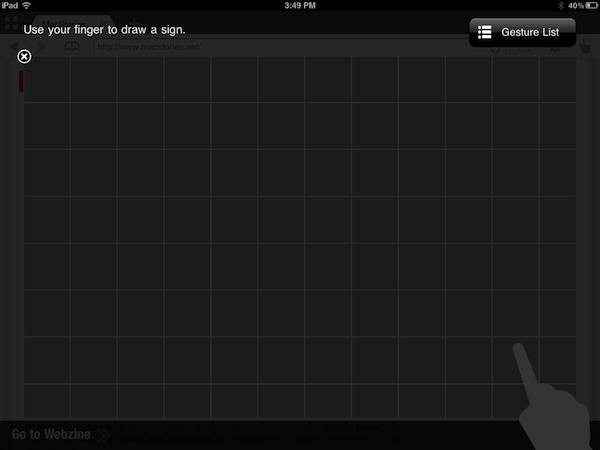
I was a little skeptical when I first heard about Dolphin Browser for iPad, a port of what appears to be a fairly popular browser for Android devices. Furthermore, the app is free, and I always wonder how it’s going to play out in the long term without a business plan. Still, I have to say Dolphin Browser is pretty good. Mind you, it’s no Grazing, but I was surprised to see two features cleverly implemented: gestures, and the “webzine”. With gesture support, you can assign any URL to a custom gesture you have to “draw” so you’ll be able to launch your favorite websites by simply performing the gesture on screen. There’s a set of built-in gestures for Facebook, Twitter, and other websites, but you can create as many as you want by opening a new URL, and choose “gesture for this page”. A new window will open, asking you to draw the shape with a single stroke – after that, the gesture will be assigned to the URL and saved in the Gestures area of the app. Gesture recognition is pretty good, and you don’t have to be an artist or get really precise down to the pixel for the app to see what you want to launch. Overall, it’s a quite clever idea that, however, might use a more universal access without having to open a dedicated Gestures overlay (I’d like to draw directly on the webpage, if that makes sense).

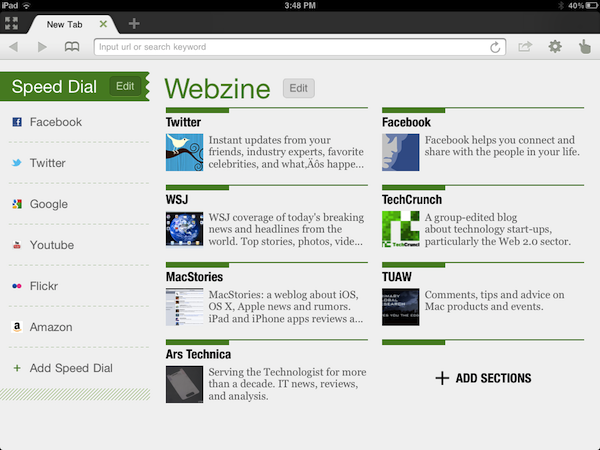
Second is the webzine, basically a Flipboard-like magazine interface that, however, resides right within the browser and not in a standalone app. Dolphin’s main page, in fact, lists a series of speed dials on the left (think frequently accessed websites) and the “webzine” on the right, pre-populated with blogs you might want to read in a more uncluttered fashion. The thing with the webzine in Dolphin is that you’re not really forced to open this “start page” every time – once you visit a blog, say MacStories, Dolphin will ask you if you want to read it through the webzine UI. When a website gets passed through the webzine, a nice and fluid animation brings text in the foreground with articles and images as big squares – again, it resembles Flipboard.

The big difference is that Dolphin’s webzine doesn’t fetch entire articles and images – the actual webpage is loaded behind the webzine page, and you can jump to it (to see the rest of a story, images, or videos) with a single tap. It’s still unclear to me whether Dolphin’s webzine fetches articles via RSS (I assume it does), but I find it surprising the developers didn’t implement a refresh button (just last night I was reading MacStories through the webzine, and two articles I had just posted weren’t showing up).

Dolphin is a decent browser for the iPad with two really neat functionalities. You won’t find the “power user” aspect of Grazing and iCab in here (Dolphin doesn’t even have contextual menus for links), but overall, it’s a good free browser. Get it here. Read more


“Fairly Different” iPhone 5 with 8 MP Camera, A5 Processor “Just Weeks Away”

In reporting about today’s allegedly “leaked” iPhone 5 design per Case-Mate’s product pages (later pulled), The New York Times’ Nick Bilton says an announcement of Apple’s next iPhone is “just weeks away”.

We’re just weeks away from the announcement of the new Apple iPhone 5, according to an Apple employee who asked not to be named because he was not allowed to speak publicly for the company.

Bilton then reports that according to descriptions he’s heard from Apple employees, the images posted today by Case-Mate looked “potentially authentic”. The cases indeed seemed to show an iPhone 5 in line with recent speculation surrounding the new device such as tapered edges, and thinner form factor. In the same article, Bilton mentions “an engineer familiar with the new iPhone” said the iPhone 5 would look “fairly different” from the previous-gen model. According to the engineer the iPhone 5 will feature an 8-megapixel camera as previously rumored, the faster A5 processor also seen on the iPad 2, and possibly NFC functionalities for mobile payments. NFC on the iPhone 5 was rumored before, too, but most recent speculation indicated Apple might save the feature for a future “iPhone 6” next year.

As I’ve written in the past, two people with knowledge of the inner workings of Apple’s next-generation iPhones say either the iPhone 5 or iPhone 6 will include a new chip that is made by Qualcomm.

Plenty of rumors posted in the past months failed to indicate whether Apple will soon announce a completely redesigned iPhone 5, and iPhone 4-like device with slightly improved specs, or both to address different market segments. You can read more on this in our iPhone 5/4S rumor roundup and retrospective. [image via]


Smartphone Games “Front and Center” at Tokyo Game Show 2011

Smartphone Games “Front and Center” at Tokyo Game Show 2011

Wired has an overview of what’s going at Tokyo Game Show – annual exposition of Japanese videogames – this year: smartphone and tablet games are “dominating” the show floor, whilst long-time publishers of regular console games decided not to have a booth.

In their place, dominating a massive section in the center aisle of the show floor, are smartphones and tablets: iPhones, Android phones, PlayStation phones and all manner of Japan-only devices with keys that easily let the country’s millions of texters type out entire novels’ worth of kanji messages. Cellphone games have been part of Tokyo Game Show for more than a decade, but until this year, the casual time-killers lurked on the periphery of the show, in the backs of the booths, attracting few onlookers.

The impressive growth of the mobile gaming industry is no secret to those who have been keeping an eye on the explosion of “app stores” through 2010 and 2011. But Wired makes a good point in its TGS coverage: there’s one niche of gamers mobile games have failed to attract, and that’s hardcore gamers. The “regular console games” that have dominated the Tokyo Games Show in the past years, and which are struggling to impress on iPhones, iPads, and Android handsets.

One challenge for Gree and other mobile gamemakers: Creating mobile games that appeal to hard-core gamers as well as casual players. Gree President and CEO Yoshikazu Tanaka noted the dilemma.

“I was just walking around the show floor,” he said at a press briefing Thursday, “and what I thought while I was looking around was, ‘Console games seem much more interesting than social games. They’re more cool.’”

Gree, for instance, is the company that bought OpenFeint and announced a CEO replacement this week. The issue is a complex one: Angry Birds is selling millions of copies (350 million to date), yet hardcore gamers still can’t find proper mobile counterparts for their favorite PS3, Xbox 360 and Wii games. Big companies like EA are reinventing themselves with strong mobile offerings, and revenue speaks clearly.

I believe the scarcity of “hardcore games” or lack thereof is more related to the youth of these mobile platforms, as well as ongoing technological advancements. Lets’s see what the A6 will bring.

[image via]

Permalink

Kensington’s BungeeAir Helps You Find Your iPhone

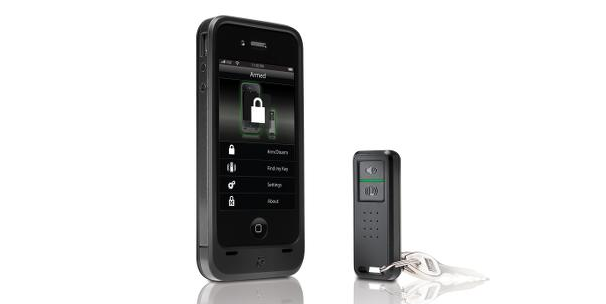
Accessory maker Kensington announced earlier this week the BungeeAir, a hybrid case/iPhone tracker/backup battery solution to protect an iPhone 4, increase its battery life, and, more importantly, find a paired device nearby. The BungeeAir, in fact, works in combination with a compact key fob, which through a 2.4 GHz wireless connection (the one supported by the iPhone 4) will alert users when they’re separated  from their device – Kensington is touting this as a convenient way to never leave an iPhone behind in public places, or simply find it again in your house. The BungeeAir comes bundled with a free app on the App Store, which besides support for alarms and vibration when the “wireless tether” is broken, adds a number of security features such as passcode protection for a lost iPhone, or a two-way “find” functionality to locate either the case (and thus, the iPhone) or the fob by pressing “Find” button.

BungeeAir is perfect for the professional on-the-go who relies on their iPhone to be productive throughout the day. Simply place the iPhone in the protective case and attach the BungeeAir fob to your keys, purse or badge and it will remind you if ever leave your phone behind, before it can get out of your sight. A convenient companion app lets you customize the security settings, and with the added feature that it can help you find your fob and attached misplaced keys.

Kensington’s BungeeAir might sound similar to Apple’s free Find My iPhone service, but it’s quite different in the way it’s meant for a much more “local” use – BungeeAir doesn’t have an online counterpart to track and geo-locate a lost or stolen iPhone, and the app allows you to customize the distance between the fob and the case after which you’d like to be alerted.

Kensington is offering two different versions of the BungeeAir. The BungeeAir Power Wireless Security Tether for iPhone acts as tether, battery, and case and is available for pre-order at $99 or on Amazon. The BungeeAir Protect Wireless Security Tether doesn’t have a battery, and can be yours for $20 less at $79.99. Check out Kensington’s three promo videos for the BungeeAir’s Remind, Find, and Secure features below. [via Macworld] Read more