Federico Viticci

10873 posts on MacStories since April 2009

Federico is the founder and Editor-in-Chief of MacStories, where he writes about Apple with a focus on apps, developers, iPad, and iOS productivity. He founded MacStories in April 2009 and has been writing about Apple since. Federico is also the co-host of AppStories, a weekly podcast exploring the world of apps, Unwind, a fun exploration of media and more, and NPC: Next Portable Console, a show about portable gaming and the handheld revolution.

This Week's Sponsor:

HomeSnap

A Private, Read-Only Window Into Your HomeKit Home


Apple To Release AirPort Utility for iOS?

In the early betas of iOS 5, it was reported the operating system gained a new functionality to set up AirPort stations on a local network. AppleInsider posted screenshots of the feature, and wrote:

Under Wi-Fi Networks, a new option reads “Set up an AirPort Base Station…” In setting up a Time Capsule, users are given the option to create a Wi-Fi network, complete with password, or “Do something different.” Selecting the latter option gives users the option to join an existing network, or to replace a base station. Users are also given appropriate error messages or details on how to fix any issues directly from the iOS Settings application.

As noted by Twitter user @SonnyDickson and a forum poster on MacTalk.com.au, it appears Apple is now preparing to release a dedicated AirPort Utility app for iOS, which should soon be available in the App Store, perhaps as early as next week when iOS 5 will be publicly released. In the iOS 5 GM release, a button named “Manage this Network” in the WiFi settings for an AirPort-based network will ask users if they want to download AirPort Utility from the App Store. The dialog box will then launch an iTunes link, which is not live yet, to download the app on the Store.

It’s unclear whether iOS 5 will have basic AirPort setup functionalities built-in, or if the features spotted in the early betas have all been moved to a separate App Store download. One of the key features of iOS 5 is PC Free, a set of tools that will allow iOS owners to set up their devices without using a Mac or PC – being able to configure an AirPort network directly from an iPhone or iPad would certainly be in line with Apple’s willingness to “cut the cord” and let iOS devices be independent from desktop computers. iOS 5 and iCloud will debut next Wednesday, October 12th, and Apple is also set to release another App Store app on that day, Cards.


New Apple TV Model References Found in iOS 5

In our “Let’s talk iPhone” event rumor roundup, we noted Apple could announce a new Apple TV on stage. Earlier this year, a number of separate reports have suggested Apple was working on a new Apple TV with A5 CPU (the same of iPad 2 and iPhone 4S) to enhance the device’s processing capabilities and allow for full 1080p playback. The current Apple TV model packs and A4 processor (iPad, iPhone 4) and plays back video up to 720p, but as we know the October 4th event didn’t see any Apple TV updates among iPod, iOS 5, iCloud and iPhone 4S announcements. A rumor from July even suggested Apple was working on a new video format called HD+ to launch this fall in the iTunes Store alongside a new Apple TV model.

According to a code string found in iOS 5 by 9to5mac, a new AppleTV3,1 is in the works, and it should be an updated version with upgraded internals such as the aforementioned A5 processor. The existing Apple TV model is referenced as AppleTV2,1 – Apple typically uses this kind of references to prepare iOS for upcoming devices. References in the iOS filesystem are never 100% accurate, but new devices found in the past through code strings have turned out to be real most of the time.

With Apple pushing towards 1080p video content with the new iPhone 4S camera and AirPlay Mirroring made possible by the A5 CPU, it wouldn’t be a surprise to see a refreshed Apple TV with faster CPU and more powerful video processing capabilities. As a side note, Apple recently started selling the current-gen Apple TV in more European countries.


AT&T “Working with Apple” To Show 4G Indicator on iPhone 4S

AT&T “Working with Apple” To Show 4G Indicator on iPhone 4S

According to a document posted by This is my next, AT&T is “working with Apple” to enable a 4G indicator in the iPhone 4S’ status bar.

the carrier is apparently “working with Apple” to change the indicator in the iPhone 4S (which tops out at 14.4Mbps, up from the iPhone 4′s 7.2Mbps) to show “4G” in the status bar as well. That’s surprising considering Apple’s general reluctance over the past four years to bow to carrier pressure on… well, pretty much anything — and what’s more, the indicator will require an iOS update to enable.

Among the improvements of the iPhone 4S, there are faster download speeds through HSDPA, which Apple has purposely avoided to define as “4G speeds” leaving the debate on 4G standards to “others to talk about” (as Phil Schiller noted at the October 4th event). The confusion generates from the “4G” marketing term, used by carriers like AT&T to indicate both HSPA+ and LTE networks. AT&T is rolling out improvements to its Long Term Evolution network while giving “4G speeds” to the older HSPA+ standard, a marketing choice that has caused confusion among consumers, the tech press, and device makers.

In the past, Apple has shied away from implementing carrier’s modifications to the iPhone’s software, giving them only choices over App Store 3G download limits, or Personal Hotspot. AT&T seems pretty confident they’ll enable the 4G indicator through a software update – iOS 5 is coming out on October 12th, two days ahead of the 4S’ release. Check out the leaked document here.

Permalink

App Journal, Episode 5: Mercury, MacHash, Music+, Worml

App Journal is a weekly series aimed at showcasing apps we have enjoyed using on our iPhones, iPads, and Macs, but decided not to feature in a standalone, lengthy review here on MacStories. App Journal is a mix of classic reviews, weekly app recommendations, and a diary of our experiences with apps that still deserve a proper mention.

Amidst iPhone 4S and Siri announcements, the sad news of Steve Jobs’ passing and iPhone pre-orders, App Journal took a break last week and is back this week with quick episode in preparation of the app releases that will follow after the launch of iOS 5 and iCloud on October 12th. You can expect a whole new category of apps for iPhone, iPad and Mac once iOS 5 and iCloud will be available to all users – developers have been spending all summer studying the new APIs, which include pretty neat things like Twitter integration, Newsstand, and iCloud Storage.

In the meantime, I’ve collected four simple apps that I’ve been trying in between Apple keynotes and iPhone 4S news. Check them out after the break, and stay tuned for more App Journal episodes in the next weeks. Read more


Tweet Speaker: Listen To Your Twitter Timeline

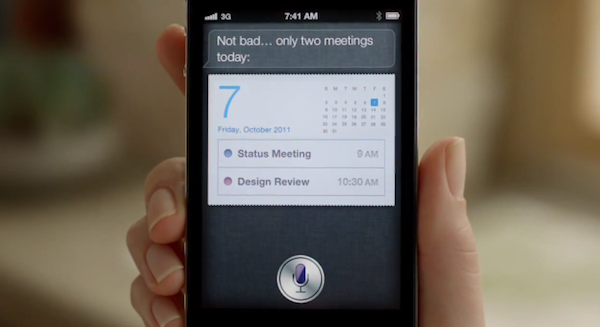
At the “Let’s talk iPhone” media event earlier this week, Apple officially previewed Siri, a voice assistant that will be integrated with several functionalities and apps of iOS 5 on the new iPhone 4S: Siri is a new way to get things done and obtain information just by asking. In the Siri demo, Senior VP of iOS Software Scott Forstall showed that it’ll be possible to get word definitions, look up anything on the Internet, do basic currency conversion, create reminders, and more. In fact, the list of Siri commands seems quite impressive, and the fact that the system is integrated with online services like Yelp and Wolfram Alpha should allow for always up-to-date, reliable and real-time data that lives outside the iPhone itself, but it’s immediately accessible.

What Apple didn’t preview during the Siri demo, and which I’m not sure will ship with the final version of the app next week, is Twitter integration. In iOS 5, Twitter is integrated systemwide to let you tweet photos and webpages, update your Address Book contacts and sign in with any Twitter enabled app. But will Siri be able to read your Twitter timeline? Or send a mention to a specific user? Or, again, will Siri eventually get these capabilities, if not next week perhaps in a few months?

I don’t know, but right now, there’s this sweet new app by App Cubby out in the App Store, it’s called Tweet Speaker and it lets listen to your Twitter timeline for $2.99.

Both App Cubby’s website and iPhone app share a beautiful design and attention to detail. Tweet Speaker offers an interesting mix of dark UI elements, clean and simple tweets and 3D buttons that provide a nice contrast again the wood texture in the background. Tweet Speaker looks great, and its interface is functional to the app’s main feature. Once authenticated with your Twitter account, Tweet Speaker will begin loading tweets from your timeline; alternatively, you can switch to mentions or a specific Twitter list. In the timeline view, a bar at the bottom lets you move between hours of the day and jump to, say, tweets from the afternoon or early in the morning. Tweet Speaker is fast at loading tweets and it’s even got support for Tweet Marker, if you’re already using the service in apps like Twitterrific or Tweetbot. A nice touch in Tweet Speaker’s UI are the small notification popups that will appear on screen as tweets are loaded or items sent to Instapaper (natively supported), and I also like the app’s horizontal pull-to-refresh that appears as you reach the most recent tweet in your timeline.

As you hit the play button, Twitter Speaker will start reading your tweets. There’s only one male voice available now (more will be coming soon), and it sounds pretty natural. I like how this voice treats retweets and mentions differently, saying “Mark retweeted  from Chris” or “Tim said in reply to Sofia” – it even goes as far as trying to fetch the title of an http:// link when available (like the title of an article on this site). Perhaps the touch functionality of Tweet Speaker won’t be used much when jogging or driving, but the app enables you to reply to tweets, retweet them, mark them as favorites, and load conversations between users. You can follow/unfollow users directly from Tweet Speaker, configure a tap&hold action for Safari or Instapaper – you can also send your iPhone’s audio to AirPlay to listen to tweets on the big screen or through your favorite speakers.

Tweet Speaker isn’t your regular Twitter client, it’s a Twitter companion that you might find useful if you’ve ever wanted to be able to listen to your Twitter stream while looking at a beautifully designed app. Get it here.


“Keep Looking, Don’t Settle”

Three years ago, I didn’t know what to do with my life. University wasn’t really for me, and I had just been fired from a job I didn’t like anyway. As I stood for weeks at a point where I needed to figure out how to survive without going back to my parents asking for help, it hit me: I could try writing about Apple for a few months and maybe someone was going to like the things I had to say and maybe I could make a living out of that. I decided I was going to do what I always loved: discussing technology.

I’m 23 now, and I write about Apple products every day. I don’t run a huge news site, my English is far from perfect, and I never met Steve Jobs. I never will. Yet somehow, I feel like I must thank him for making it possible for a guy with an iPhone in his pocket to turn a passion into a business that seems to be enjoyed by a few readers every day. Something I do believe in. That gets me out of bed in the morning. That makes me fight with my girlfriend sometimes, because I should care less about news reporting and spend a little more time with her in the evening.

Steve Jobs was – is – a visionary genius of our time, a leader, an artist and a man who firmly believed in what he loved, as well as the things he didn’t like.

This personal, brief and sincere “thank you” isn’t about the qualities of Steve Jobs. We all know those stories. For those who don’t, now it’s a good time to start reading.

I thank Steve Jobs for creating products that let me stay up at 5 am, writing. I thank Steve Jobs because he was right: the only way to do great work is to do what you love. And I know I am.

Thank you Steve.


Siri Example Phrases

Siri Example Phrases

Erica Sadun at TUAW says they’ve tracked down a series of example phrases for the iPhone 4S’ voice assistant, Siri. The list of “Apple-supplied examples” includes categories like Alarms, Friends, Messages, and Notes. The “Email” commands are the ones that intrigued me the most:

  • Email Lisa about the trip
  • Email Jennifer about the change in plans

  • New email to Susan Park

  • Mail Dad about the rent check

  • Email Dr. Manning and say I got the forms, thanks

  • Mail Lisa and Jason about the party and say I had a great time

In the first two examples, I assume Siri will start composing a new email message with “trip” and “change in plans” in the Subject field. That’s also assuming Siri interprets “about” as the subject of “email” – which would make sense. But the last phrase is where I think Siri will really prove its potential – chaining different fields and multiple strings of text together. You see, the last phrase contains a command (mail), two Address Book contacts (Lisa and Jason), a subject (about the party) and the message (I had a great time). The examples Apple ran yesterday on stage were rather simple, albeit still impressive, and provided some context into Siri’s artificial intelligence.

What I’m really curious about at this point is the chaining of multiple commands – if I had an assistant in real life, I imagine I’d ask her to “schedule a meeting with Jason then call Chris and check on my schedule for Friday”. Will Siri be able to go back and forth between multiple commands from a single question? Perhaps something a little simpler than my example above? Will it support basic if/then operations? I guess we’ll have to wait for a real hands-on to find out.

In the meantime, check out the full list of examples over at TUAW.

Permalink

Sparrow 1.4 Gets CloudApp Integration, Pull to Refresh

Sparrow, the minimal email client for the Mac that recently gained with full Lion compatibility, received a new update in the Mac App Store, this time adding native integration with file sharing service CloudApp, a “pull to refresh” gesture to check for new messages, and a number of fixes and improvements aimed at enhancing the email experience and make it faster and more stable.

With CloudApp support, users are now able to drag & drop files into Sparrow’s compose window, and have the app automatically upload them to CloudApp and insert a clickable link in the message. Once authenticated with your CloudApp account in Sparrow’s preferences, every time you’d like to send an attachment through CloudApp, you won’t need to have CloudApp installed on your Mac: Sparrow will directly communicate with CloudApp’s servers and upload the file for you. The UI for this action is very simple – the top section of the message is a CloudApp “drop zone”, while the lower part at the bottom is for classic email attachments as explained by the developers in this article. There is a new cloud indicator in the top toolbar of the compose window to show the status of an upload, which will turn blue after it’s complete. Overall, CloudApp integration is well done, simple and useful if you share with CloudApp on a daily basis.

Sparrow 1.4 also comes with the “pull to refresh” gesture made popular by Loren Brichter’s Tweetie on the iPhone years ago, and later implemented by thousands of other App Store apps. In Sparrow, you can pull the inbox to check for new messages, and whilst I don’t think I’ll ever use this functionality as I like my email client to stay in the background and refresh every few minutes automatically, I assume some people who want to manually check for new messages will like this option.

As usual with every Sparrow update, there’s a series of bug fixes and improvements under the hood. Sparrow now syncs and sends emails faster than before, and Gmail-like reverse threads have been implemented in the conversation view. Sparrow is now compatible with Zoho and Lotus Domino, it’s got a new draft management system and the mail database has been improved, too.

Sparrow 1.4 can be considered a minor update, but it’ll make those who rely on CloudApp for their file sharing needs more efficient when dealing with email. You can get Sparrow 1.4 on the Mac App Store.


iPhone 4S: An Interplay of Hardware and Software

Here’s a quick thought about the new iPhone 4S. There really isn’t much to say about the iPhone 4S as a device: it’s the iPhone 4, only faster. It looks like an iPhone 4. It weighs just like an iPhone 4 (unless you’re going to feel a 3-gram difference). It’s got the same Retina Display of the iPhone 4, and its glass back is just as likely to break as the iPhone 4’s. The iPhone 4 is the foundation of the new iPhone 4S.

But the iPhone 4S is undoubtedly better than the iPhone 4. Thanks to the dual-core A5 CPU and dual-core graphics Apple put into it, the 4S will deliver snappier navigation between apps and webpages, up to seven times faster graphics and an overall more responsive experience. In practical terms, this means the multitasking tray will open faster, launch apps in less time, and Safari will load webpages faster. Game developers will be able to create more impressive games with more complex graphics and texturing techniques; app makers will take advantage of the iPhone 4S’ A5 to develop software with more elaborate actions and architectures.

In day to day usage, the iPhone 4S will be the iPad 2 of hardware upgrades: when compared to an old iPhone 4, it’ll look amazingly fast. Even if I haven’t tried an iPhone 4S yet, this is pure math. The iPhone 4S is faster. Perhaps not every corner of the OS will show that, but the hardware will allow for faster operations out of the box.

The A5 processor (and faster graphics, and presumably more RAM) doesn’t simply make games more powerful and apps quicker to open and use. The A5 processor – a custom-made silicon designed by Apple – has repercussions on a variety of software-related functionalities, and this has enabled Apple to come up with new features that won’t make it to the iPhone 4 once iOS 5 comes out next week.

The iPhone 4S is the finest example of Apple’s interplay of hardware and software yet.

Take the new camera for example. Thanks to a new 8 MP sensor, wider aperture, new lenses and backside illumination, it shoots better, sharper, more vibrant pictures. They look good. The new optics inside the iPhone’s camera have allowed Apple to improve on one of the most popular aspects of the iPhone, which is taking photos everywhere you go. Yet the new camera isn’t just about the optic hardware itself: because of the A5’s processing power, Apple has added face detection for better exposure and focus when a subject is recognized, as well as better white balance. The iPhone 4S’ A5 comes with a new Image Signal Processor designed by Apple. On top of that, the faster 4S also happens to record 1080p video with image stabilization and noise reduction.

This is fairly technical stuff, but you see where this is going. In a demo of the iPhone 4S posted by the BBC earlier today, I noticed something odd about the 4S camera: the swiping animation to switch from the camera view to the Camera Roll (a new feature of iOS 5) looked strangely fast and smooth. I’ve been testing iOS 5 on my iPhone 4, and I can tell you that animation isn’t as nearly as responsive and immediate as the BBC’s demo video. Throughout the day, I’ve looked at other hands-on videos (not many of them are around this time, unfortunately), read first impressions from journalists who were in Cupertino and yes – everyone reported the camera was faster and more responsive. A simple functionality like swiping back to your Camera Roll to see the picture you’ve just taken has been improved thanks to new hardware. These are the details the make the experience better, more balanced and enjoyable as the months roll in and you get used to a device.

At this point, it’s starting to feel like iOS 5 was specifically designed for the iPhone 4S. The most technologically advanced features of iOS 5 are now available on the iPhone: improved camera and HD video recording, AirPlay Mirroring, Siri. That’s not to say Apple didn’t exclude some of these from the iPad due to design compromises (the thinner iPad 2 wouldn’t probably have room for the 4S’ camera) or obvious impracticality (Siri on a tablet?), but on a checklist comparing Apple’s devices running iOS 5, the iPhone 4S gets more. The iPad 2 still has Photo Booth on its side, but I wouldn’t be surprised to see it on the iPhone soon.

The importance of “hardware that enables better software” and “powerful software based on advanced hardware” is best explained by Apple’s own slide. Four hardware-related features (A5, new wireless system, new camera, 1080p HD recording), four software-related functionalities coming to the 4S. And that’s not to count the 200+ features of iOS 5, which will benefit from the improved specs of the iPhone.

The iPhone 4S is a good phone because it’s based on the iPhone 4. But the 4S has got some new stuff that has been made possible by its new hardware, and it will make for a more pleasant experience thanks to iOS 5, for a simple reason: Apple understands that hardware and software together drive innovation and customer satisfaction, not specs alone.