Federico Viticci

10765 posts on MacStories since April 2009

Federico is the founder and Editor-in-Chief of MacStories, where he writes about Apple with a focus on apps, developers, iPad, and iOS productivity. He founded MacStories in April 2009 and has been writing about Apple since. Federico is also the co-host of AppStories, a weekly podcast exploring the world of apps, Unwind, a fun exploration of media and more, and NPC: Next Portable Console, a show about portable gaming and the handheld revolution.

Matthew Panzarino’s Bing Impressions

Matthew Panzarino’s Bing Impressions

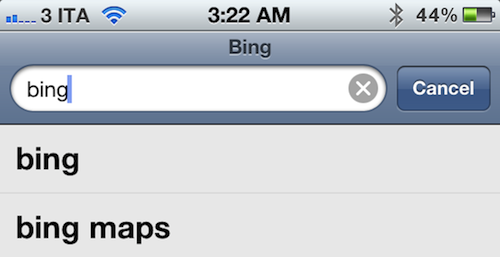
The Next Web’s Matthew Panzarino tries Bing search on his iPhone for a month and reports back with his real-life impressions:

The design is largely cleaner and more attractive than Google’s more cluttered results, and more preview text helps you decide on which link to follow. But, if you’re even reading this article there’s a good chance that Bing isn’t really being made for you.

Instead, Microsoft seems to be heavily targeting the ’99%’ of mobile searchers. Those who will be looking for a restaurant close by, seeing what Lady Gaga is up to now or what the score is on the game. This is smart, because it’s exactly who Apple is targeting with the iPhone.

The whole article is worth a read and offers real-world scenarios for what a search engine should be able to do on an iOS device. I’ve always thought Bing would be a good alternative to Google on the iPhone, and I was also surprised to see Microsoft ship a good dedicated iPad app last year (what’s up with decent search apps for the iPad?).

Actually, since I started using DuckDuckGo in my daily workflow I’ve noticed just how much Google’s search and services are tied to iOS, and how big of a deal it is to be the default engine on a device that sells millions every week. In forcing myself to use a standalone app for search – or type in an address in Safari, then search – I’m noticing how frustrating it is, really, to automatically launch Safari, hit the search box, and remember that Google is in there. Or Bing, if you went through the effort of changing the default search engine in Settings.app. Think about it: not only do Google and Bing benefit from all the iOS users that manually open Safari to search – they also get all the incoming links from third-party apps that forward web pages to Safari, the default browser.

Read Matthew’s Bing impressions, including what he thinks of Maps (likely something even Apple is working on), here.

Permalink

Dropzone 2.0 Gets Path-like Radial Menu

Back in November when I took a look at the Mac App Store release of Aptonic’s Dropzone, I was impressed by how the utility transitioned to the Mac App Store whilst keeping most of its functionalities intact. Through a simple drag & drop interface, Dropzone allows you to save time on common and oft-repeated tasks such as sharing images and bits of text, uploading files to your FTP server, or moving files from one location on your Mac to another.

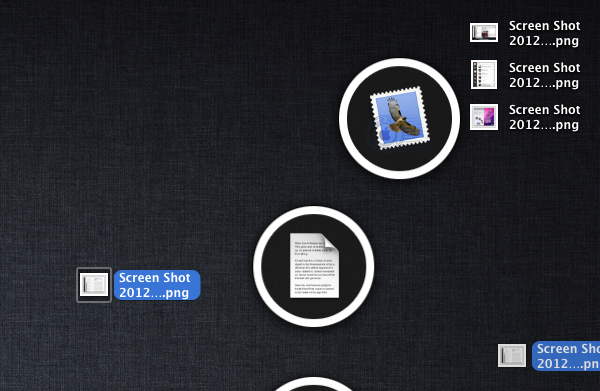
With Dropzone 2.0, released today on the Mac App Store, Aptonic has been inspired by Path’s radial menu (introduced in version 2.0 of the app) and created a new drag & drop interface based on Circles, which as the name suggests are circular icons that sport pretty much the same animation seen in Path 2.0 for iPhone. I don’t know if the new Circles system is more intuitive than the old dock/menubar-based grid of icons (as a Dropzone user myself, I’ll have to see how Circles works in daily usage and if the feature doesn’t get in the way), but it sure looks very nice. Aptonic has also put together an HTML5 demo of Circles, available here.

Dropzone 2.0 comes with other features and improvements as well:

  • New improved Amazon S3 support
  • New task completion sound
  • Added an option to choose whether to intall applications in the user or main application folder

Like I said, I’ll have to keep on using the new Dropzone to see whether the new Circles interface can grow on me. I love the custom sharing menu in Path, but I don’t know yet if the same approach can work for file management and the various shortcuts I have set up in Dropzone. To celebrate the launch of version 2.0, Dropzone will be available at $9.99 until February 5th.


Favs: An App For Your Internet Favorites

A few weeks ago, I tweeted I’d like to see some sort of Twitter client with its only focus being on Favorites – I keep Twitter open all day, and I save a lot of links. Prior to ending up in my Evernote or Pinboard accounts, the tweets I want to “save for later” are marked as favorites, which, I believe, provide an easy way to use a built-in Twitter functionality for general-purpose “bookmarks” that I may or may not consider for a post or more serious bookmarking in a second service. As you can see, I have a lot of favorites. The same is true for other services I use on a daily basis, such as Google Reader, Vimeo, YouTube, or Instagram: I like to be able to “star”, “like” and mark things as favorite so a) the service knows the stuff I’m interested in and perhaps will leverage this data sometimes in the future or b) perhaps other apps will. And while I’m still waiting for the ultimate app that looks at your Internet favorites and delivers content intelligently to you every day (albeit Zite is on the right path), it turns out someone has built a functional and nice-looking desktop aggregator called Favs.

Favs for Mac is in beta, so don’t expect a full review now – the developers are still polishing the interface and adding features, and it wouldn’t make sense to give a final verdict whilst the app is still being worked on. But the underlying concept is there, and it’s one of those things I’ve been looking for: a single app that collects favorites from a variety of services.

Currently, Favs lets you fetch favorite items from:

  • Delicious
  • Dribbble
  • Facebook
  • Flattr
  • Flickr
  • Github
  • Google Reader
  • Instagram
  • Pinboard
  • Stackoverflow
  • Twitter
  • Vimeo
  • YouTube
  • Zootool

The list is pretty impressive already, and I assume it can only grow before the final release. I don’t know what else I’d add to that list (multiple accounts are already supported) as most of the services I use are already covered – perhaps some kind of Evernote and Instapaper integration, though I honestly can’t imagine how Evernote could work with Favs. Right now, I’m just happy Favs is shipping with a solid selection of services, and I like how the developers also implemented a unified inbox for all your favorites.

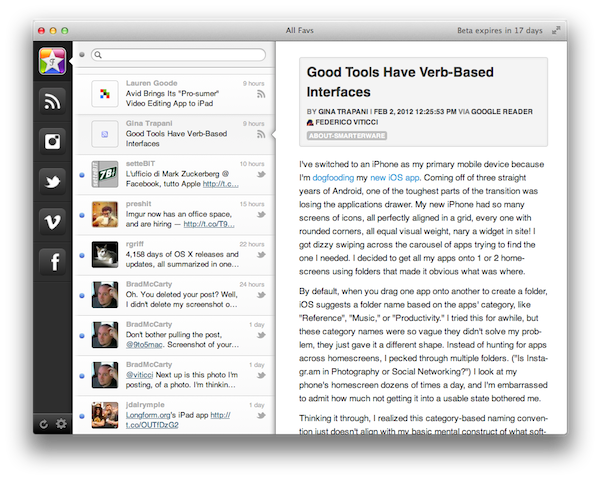
Favs, in fact, uses the old Tweetie-like interface with narrow sidebar + right panels (the one we’ve already seen in a multitude of Mac apps such as Sparrow and Reeder) to lay out service icons, unified inbox, and controls to manage settings and refresh all services. The app supports Lion’s full-screen mode, which is probably a good choice considering you’ll want to run Favs as a standalone app that is not your main Twitter or Google Reader client, as it’s focused on letting you view items that you wanted to save for later. Obviously one could easily dismiss this interface approach as “easy” or not innovative, but I believe this design can work for an application like Favs where you’re supposed to quickly switch between sections (sidebar), take a peek at headlines (mid panel) and read the actual content (right panel). As I’ve said this is a first public beta, which means features like keyboard navigation, sharing and contextual menus haven’t been implemented or refined yet. I was able to test Favs with my huge collection of Twitter favorites and it reliably loaded items from 500+ days ago without a single slowdown. I can only imagine things will get even better come the final release.

To me, Favs is a web nerd’s dream come true already. It’s got my Twitter favorites, my Google Reader stars, the stuff I like on Instagram, and it even lets me add multiple accounts if I really want to keep tabs on everything I save online. I look forward to reviewing a final version in the future, and I hope the developers are at least considering an iPad version for this.

For now, you can download the Favs public beta for free here.


Reader X for iPad Is A Different Take on Google Reader

Those who have been following MacStories in the past months know that I switched from Reeder for iPad to Mr. Reader for my daily RSS feed consumption and management. I have reviewed Mr. Reader on multiple occasions, and as I wrote I was particularly impressed by its attention to a clean interface and integration with services such as Send2Mac, Evernote, and Pinboard. Yesterday Mr. Reader also received a major update that brings themes and several optimizations to the app.

In spite of Mr. Reader gaining a well-deserved spot on my Home screen, I’m always looking for new apps that offer a fresh take on the (much discussed) subject of RSS and Google Reader. Such app is Reader X, released today on the App Store, which brings a minimal yet highly visual approach to RSS that shouldn’t disappoint those who are looking for a new and easy way to quickly scan headlines.

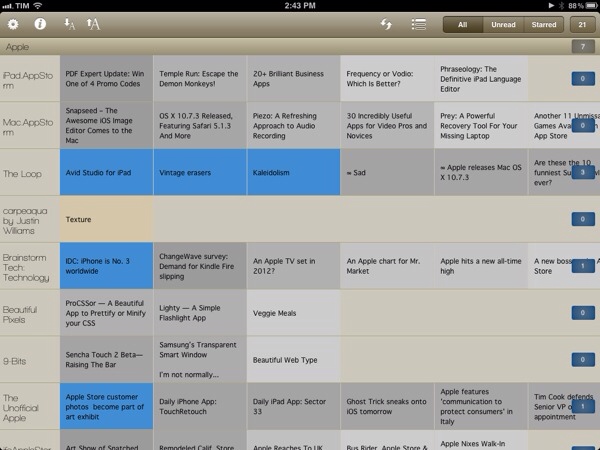
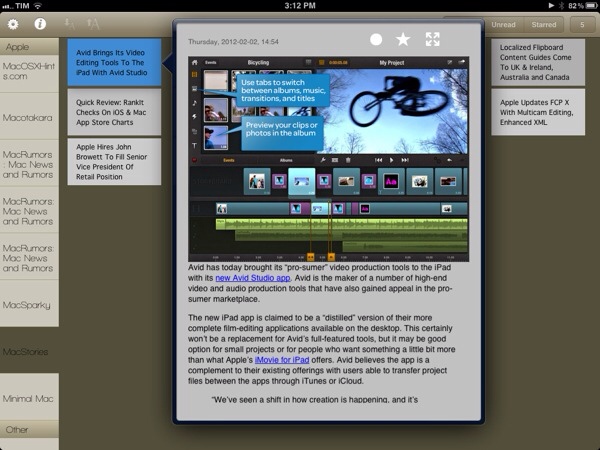
Reader X, in fact, doesn’t let you browse feeds by folder, or manage subscriptions, or scroll unread items vertically as you would expect from a standard RSS client such as Mr. Reader. Well, technically you can sort by folder and scroll vertically, but the implementation of Reader X is entirely different: the app displays feeds as a “mosaic” of news, a list of articles organized in horizontal stripes that represent the websites they belong to. This huge “wallpaper of news” syncs with your existing Google Reader account, and is capable of fetching unread and starred items, folders and all items from a single subscription. Upon firing up the app for the first time, the software will sync with Google Reader and get the latest entries for every subscription in your account; you can tell the app to pre-fetch webpages in the background, and show a badge on the Home screen.

The way news are visualized on screen is functional to what Reader X tries to achieve – that is, trying to offer a more scannable interface for items you’d have to manually scroll with your mouse (or fingers) in a list. Items in the wallpaper are color-coded: unread items are blue, starred entries are yellow, everything else is gray. Newer items have a more saturated color, whilst older entries are gradually fainted as you scroll back in time. Recent headlines are displayed on the left next to a website’s name, and you can also choose to “zoom in” a single subscription (such as MacStories) to browse the most recent articles from that source.

Holding true to its premise of quickly peeking into your RSS items, when you tap on an article headline in Reader X you’re not immediately taken to a full-screen web view. Instead, the app loads webpages in a popover window that, however, still allows you to enter full-screen mode and share a link on Twitter, Pinboard, Instapaper, Tumblr and ReadItLater. You can also share via email, or forward links to Safari.

I like the super-simple and straightforward interface design of Reader X, but I can’t help but wonder how this thing would look like with a bit more polish, especially in the popover and sharing menu design. I’m all for avoiding complex interfaces and over-designed applications, but Reader X feels like it could use some extra pixel love in some areas, so I am looking forward to future updates. I would also like to be able to change the default font of the list, though the one the app currently ships with isn’t too bad.

Reader X won’t replace my main Google Reader client. I do believe, however, that there is room in my workflow for a different take on RSS consumption – a companion app – that allows me to quickly skim through headlines in a visual way that doesn’t get in the way and can make me save precious time when going through RSS feels like a chore. Reader X isn’t perfect, but it sure takes advantage of the iPad’s screen and it’s a promising 1.0 version. You can get the app at $1.99 on the App Store.


A Complete Timeline Of Every OS X Release To Date

A Complete Timeline Of Every OS X Release To Date

Here’s a useful resource I’ve found via @danfrakes following the release of OS X 10.7.3 earlier today: Rob Griffiths has been maintaining since November 14th, 2005, a complete list of every OS X major version and software update released to date. Starting with the first Mac OS X Public Beta all the way up to the latest Lion update, Rob’s list comes with dates, intervals of days, and a link back to Apple’s support documents for each release.

Below the break is a table showing all major releases of OS X from the public beta through the latest public version, which is OS X Lion 10.7.3 as of February 1, 2012. Note that this release marks the 63rd release of OS X (counting both major and minor versions, and skipping two ill-fated updates). Wow.

Rob notes that, as of today, it’s been 4,158 days since the first OS X Public Beta was released; Apple has thus released an OS X update every 66.00 days on average, with the shortest period of time between two releases being the interval between 10.6 and 10.6.1 (13 days). The list is full of other interesting details and nuggets of information, and I’ve made sure to save it in Pinboard for future reference.

Check out the complete timeline here. [image via]

Permalink

Apple Releases OS X 10.7.3 [Direct Links]


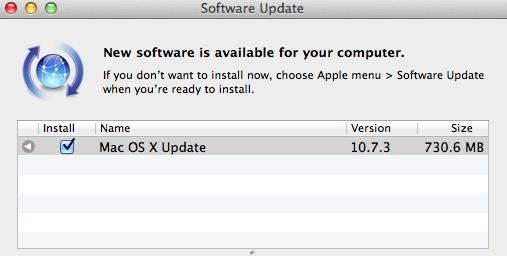
A few minutes ago Apple released an update to OS X Lion, which reaches version 10.7.3 and brings a number of bug fixes and improvements. This new version of Lion includes “general operating system fixes” and support for more languages; 10.7.3 also addresses compatibility issues with Windows file sharing and directory services.

The 10.7.3 update is recommended for all OS X Lion users and includes general operating system fixes that improve the stability, compatibility, and security of your Mac including fixes that:

Add Catalan, Croatian, Greek, Hebrew, Romanian, Slovak, Thai, and Ukrainian language support

Address issues when using smart cards to log into OS X

Resolve issues authenticating with directory services

Address compatibility issues with Windows file sharing

Extended release notes from Apple’s website note that Safari 5.1.3 is included with the update and mention more fixes in detail:

  • Add Catalan, Croatian, Greek, Hebrew, Romanian, Slovak, Thai, and Ukrainian language support
  • Address issues when using smart cards to log into OS X
  • Address compatibility issues with Microsoft Windows file sharing
  • Address an issue printing Microsoft Word documents that use markup
  • Address a graphics performance issue after sleep on some earlier iMacs that use ATI graphics
  • Resolve a Wi-Fi connection issue when waking from sleep
  • Address an issue that may prevent Safari from opening before joining a wireless network
  • Fix a potential issue authenticating to an SMB DFS share
  • Include RAW image compatibility for additional digital cameras
  • Improve binding to read-only Active Directory Domain Controllers
  • Improve binding and login speed for Active Directory users in a domain whose name ends in “.local”
  • Improve reliability of Dynamic DNS (DDNS) updates by Active Directory clients
  • Allow login with an Active Directory username that contains a space
  • Improve compatibility with Active Directory schemas that have been extended with the “apple-user-homeDirectory” and “apple-user-homeurl” attributes
  • Fix home directory Dock item for Active Directory users with mobile accounts
  • Allow NIS users with MD5-hashed passwords to log in

Direct links to the 10.7.3 update below:

Other software updates released today:


Launch Center 1.2 Gets All-New App Detection

One of my favorite apps in a long time, App Cubby’s Launch Center (our previous coverage here and here), just got a lot better thanks to an update released on the App Store a few minutes ago, version 1.2. Whilst one wouldn’t normally expect an app to get significant improvements in a 1.2 update, Launch Center’s latest version is, I believe, quite possibly the greatest addition to the app since its release, making it extremely easier to discover new third-party apps that can be integrated with no further configuration in Launch Center.

For those who are not familiar with Launch Center already, as we detailed in our previous reviews this utility allows you to set up custom shortcuts on your iPhone to launch common actions or often-used applications with a single tap. Upon firing up Launch Center, you’ll be able to create and manage shortcuts for, say, calling your wife or texting a coworker; you can create a quick action to activate the iPhone’s flashlight, launch a website in Safari, tweet, email someone, or Google your clipboard. As I’ve written before, Launch Center has replaced a bunch of existing apps in my dock thanks to its super-simple approach to aggregating default apps and functionalities that can be triggered through the popular URL schemes you can find documented on websites such as HandleOpenURL. And it’s from this idea of hidden URLs that only a few people know about that App Cubby decided to make Launch Center 1.2 all about app detection and integration.

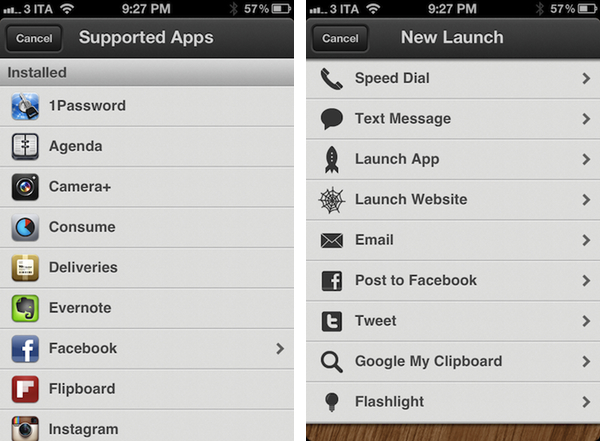
Launch Center 1.2 leverages your apps’ internal URL schemes to simplify the process of discovering new shortcuts and speeding up your workflow. Launch Center comes with a new section called “Supported Apps” inside the Launch App menu, which lists third-party apps that can work with Launch Center through a URL. Launch Center organizes this list in Installed Apps (the ones you already have on your device) and Featured Apps (which you don’t have installed, and you can get from the App Store). This list of support apps, it turns out, has been built directly by App Cubby and it is hosted on the developers’ servers alongside links to the icons that, as you can see from the screenshots, are served directly to the iPhone and look great on the Retina Display. The reason behind App Cubby’s decision to keep the list of supported apps on their servers is to encourage more developers to get in touch and ask for integration in Launch Center which, ultimately, has a chance of becoming the de-facto solution for quickly accessing apps’ settings/sections/menus using a technology Apple is (seemingly) okay with.

App Cubby writes:

We’d also appreciate help in spreading the word about URL schemes. It’s surprising how few apps support them, and those that do don’t always go very deep with supported actions. If you have an idea for an app and/or action that would make sense in Launch Center, please contact the developer of that app directly and point them to this page.

Launching an app is great, but the true power of Launch Center is in the ability to trigger specific actions deep within an app. For example, while using Tweetbot, you may leave the app buried deep within a search. To launch the app and tweet might take quite a few taps as you have to back out of the search, tap the compose button, select an account, paste text, etc. Launch Center can make that a reliable 2 taps. 1 to open Launch Center and 1 to trigger the action.

In my Launch Center, I was pleased to see many of my most-used apps were already supported. I have set up shortcuts for 1Password, Instagram’s camera and Facebook; I tweaked Tweetbot’s shortcut to jump directly to my Favorites, and created an OmniFocus launch to create a new task “using clipboard for note”. Other apps I see as supported (and installed on my device) include Agenda, Evernote, Consume, Flipboard, Delivery Status Touch, Camera+, Instapaper, Skype, and Reeder. Hopefully a lot more will be coming soon thanks to App Cubby’s decision to make their iOS App URLs page public.

As I said above, Launch Center has become one of my favorite new apps for iPhone. It speeds up my workflow and looks neat, and I look forward to seeing how many developers will get in touch with App Cubby to formally introduce support for Launch Center in their apps (I also would like to see App Cubby figure out a way to fetch icons for any app).

You can find Launch Center 1.2 in the App Store.


Quick Review: RankIt Checks On iOS & Mac App Store Charts

Developed by Steve Reynolds (Analytix, Clicky Touch), RankIt is a new iPhone app that allows you to check on iOS and Mac App Store charts for any app that’s currently available for sale. Whilst some iPhone apps have tried to bring the complexity of web-based App Store analytic tools to iOS in the past, RankIt focuses on simplicity in that it allows you to quickly enter as many apps to “monitor” as you want, and refresh at any time to see real-time rankings.

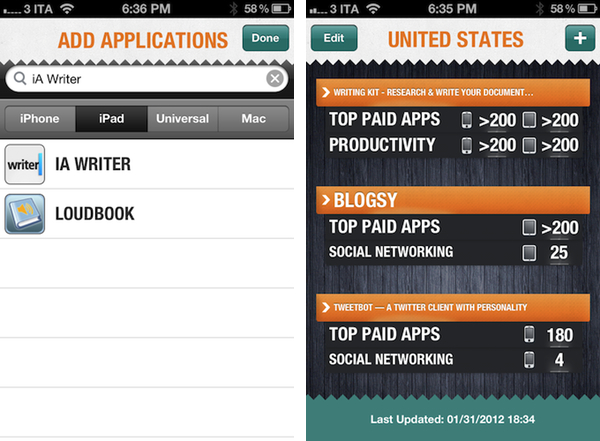
As you fire up RankIt for the first time, you’re asked to add an app from the App Store you’d like to check rankings for. You can choose between iPhone, iPad, Universal and Mac apps, and change from United States to 9 other markets with available charts. In Settings.app, you can further tweak RankIt to adjust the number of maximum ranks returned (from 50 up to 400), set a default country, and refresh on launch. Once you’ve entered an app to monitor, RankIt will quickly refresh its ranking to check on freshly updated charts. RankIt will display an app’s position in the Top Paid/Free charts, as well as its ranking in the category’s charts. Universal apps will show iPhone and iPad icons next to them; with one tap, you can open a single app view that displays rankings in multiple countries. You can refresh at any time, with RankIt taking only a few seconds to get updated charts from the App Store.

In spite of its simplicity, I believe RankIt can be a worthy addition to any iOS or Mac developer’s workflow. In fact, the app’s focus on “quick stats” might just be its biggest selling point when compared to more in-depth tools that can’t just be refreshed every 10 minutes, whereas RankIt seems to be meant exactly for this – quickly checking on the App Store’s charts. I’ll make sure to test RankIt again during one of the big app launches next week, and see how it handles updates in real-life usage scenarios.

RankIt is $1.99 on the App Store.


Witness Home Alarm System Gets AppleScript Support, Sneak Peek, Face Detection

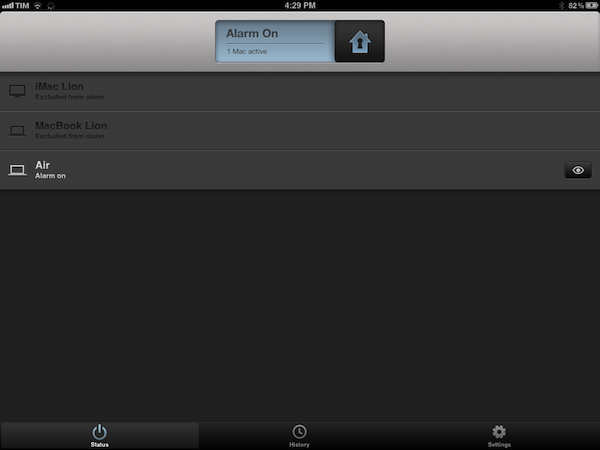
I’ve been a loyal and satisfied Witness customer since the app’s original release last year. Witness, developed by Orbicule (makers of Undercover and Macnification), is a Mac-based home surveillance system that uses your Mac’s built-in FaceTime/iSight camera to snap photos of whoever’s using your computer when you’re not there. This utility, in fact, securely communicates with a web service that’s connected to iOS apps (iPhone and iPad) that enables you to remotely lock your machine as you walk away from your house, and receive push notifications when the camera detects motion in front of your Mac’s screen. Witness sends push notifications, snaps photos and videos that are sent in real-time to your iOS devices (so you know instantly what’s going on), and can lock your computer using Lion’s standard login screen, or the app’s own lock dialog. You can read more about Witness in my review.

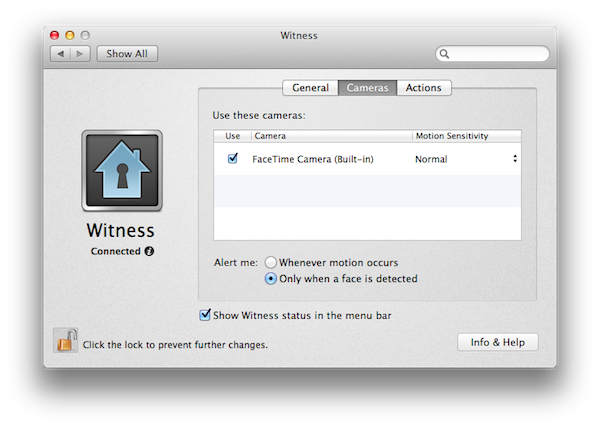
With Witness 2.0, released today, Orbicule has supercharged its home alarm system technology adding a series of functionalities that give more control to users away from their computers, and more issues to (possible) burglars looking to steal your Mac without being seen (or really, just people who want to mess around with your Mac without telling you). Aside from motion detection, which has been improved, Witness 2.0 comes with face detection, allowing you to be notified only when an actual person is sitting in front of your computer’s camera. There are settings to adjust motion sensitivity, and, overall, this feature can really come in handy if you have pets running around the house when you’re not there. I have tried this with my two dogs, and it worked remarkably well with motion sensitivity set to “Normal”: Witness didn’t detect anything with my dogs normally walking around, and I was only sent a notification when I held my dog right in front of the FaceTime camera. Similarly, Witness’ alarm didn’t fire off when I asked my girlfriend to simply walk around the living room, but I did get a notification as she approached my computer.

Next up: multiple cameras and sneak peek. Whereas Witness 1.0 allowed you to set up one camera (the built-in one) and watch images and videos sent after a successfully triggered alarm, Witness 2.0 lets you connect up to 3 cameras (USB or FireWire) and check upon your room from multiple angles. Combined with a new feature called Sneak Peek that lets you load an image from your camera at any time, Witness 2.0 offers a good combination of real-time capturing and multiple angles – I imagine this can be particularly useful for large rooms and office areas.

Last, Witness 2.0 has AppleScript support and auto-activation. You can ask Witness 2.0 to run an AppleScript when an alarm is activated, deactivated, or motion is detected, thus creating a whole new range of possibilities for remote automation. Someone’s using your Mac? Why don’t you tell iTunes to start playing this at the highest volume? Or perhaps open a totally creepy video in the default browser? With AppleScript support, you have endless possibilities for customization and it’s really up to you to find something that might be useful when executed automatically by the system. Even better, with Witness 2.0 you’re given the option to forget about activating your alarm as the iOS app now uses geo-location to see when you’re not near your Mac anymore, and activate the alarm for you. Obviously I still recommend manually activating alarms (especially if you’re working with multiple Macs in different locations) as geo-location can’t always be 100% reliable, but in my tests Witness managed to activate an alarm roughly 2 minutes after I left my house, so I’d say it worked fairly well.

With these new features and optimizations, I highly recommend existing Witness users to upgrade to version 2.o and check it out by themselves today. If you haven’t tried Witness yet, a single user license is available through Orbicule’s website at $39 with a student discount available.

Exclusive offer for MacStories readers: Using this link, you can purchase Witness 2 (single user license) with a 20% discount. The coupon code is directly applied, and it will be valid until February 6.