Weather
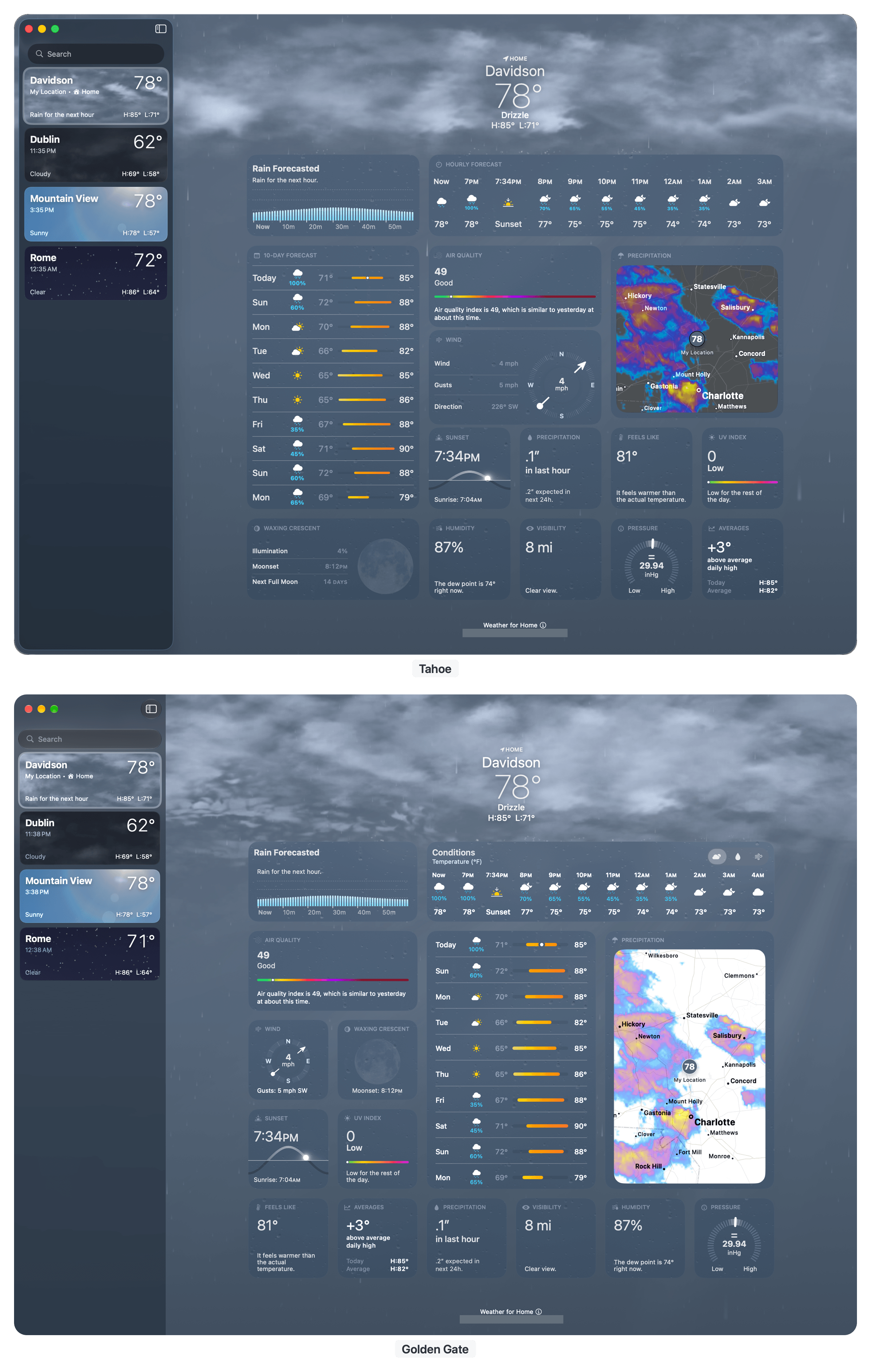
Weather has been redesigned for Golden Gate with a more orderly presentation. In Tahoe, the app featured an hourly forecast that stretched across the entire window (unless there was precipitation) just beneath the current conditions. Much of the more detailed weather data was confined to square tiles. Together it all formed an even rectangle, but the large number of square tiles made the design look a little messy, which also made it harder to scan quickly.
With macOS 27, the details below the current conditions are broken into two columns. The left column features a series of square and rectangular tiles, while the right column is bigger, allowing for more expansive layouts for hourly and daily forecasts and radar, which need the additional space. The bottom of both columns is anchored by a single row of square tiles. The underlying weather data hasn’t noticeably changed, but the new layout makes it easier to scan.
Two other changes are worth noting. There is now a segmented control near the top of the window to switch between current conditions, forecast precipitation, and wind. When each is selected, the hourly and daily forecasts change, as does the radar map. It’s an excellent addition that works equally well on every platform. Apple has also added a new Highlights section to Weather that appears at the top of the app’s weather data and summarizes notable upcoming weather events. Highlights is currently available only in U.S. English.
Maps

Maps’ two marquee features are enhanced Flyover mode and Local Lists. With Flyover, certain cities, including Boston, New York, London, and Chicago, include more detailed 3D renderings of their skylines. Turn on 3D mode and zoom in, and you’ll see what I mean. Apple has enhanced the 3D models for these cities with the help of AI to compose more detailed and realistic cityscapes.

Available in the U.S., Local Lists are a little like Guides, except instead of being hand-curated, they’re generated based on spots that are trending with Apple Maps users, like the list of Manhattan landmarks in my screenshot. The lists update periodically, too.
Other App Changes

Podcasts: Apple Podcasts on the Mac is catching up with the video features available on iOS, iPadOS, and visionOS. You can switch between watching and listening to a podcast on your Mac when a show supports HLS video streaming. Mac users can view the same video using Picture in Picture and can download it for offline viewing, which is great when traveling, too. Also, every Apple platform gains the ability to search from a podcast’s See All Episodes view, making finding back catalog episodes of a show easier.
Home: Home adds tools for finding and understanding HomeKit Secure Video recordings to all compatible Apple platforms, including the Mac. The new features require an iCloud+ plan with at least 2TB of storage, a compatible home hub such as an Apple TV 4K or second-generation HomePod, and an Apple Intelligence-capable iPhone, with Apple Intelligence enabled in Home.
Apple uses on-device processing and Private Cloud Compute to describe recorded footage and collect recordings of the same event from multiple cameras. You can also search for clips by the video’s description.
The vast majority of my clips are simply described as “Someone is seen,” which isn’t very helpful as a description or for searching later. Admittedly, those recordings are an unexciting collection of trips in and out of our garage and taking out the trash. However, when it comes to security cameras, mundane footage is exactly what I hope to capture. The question is whether Home can provide useful detail when something out of the ordinary happens, which my testing hasn’t yet answered.
Notes and Freeform
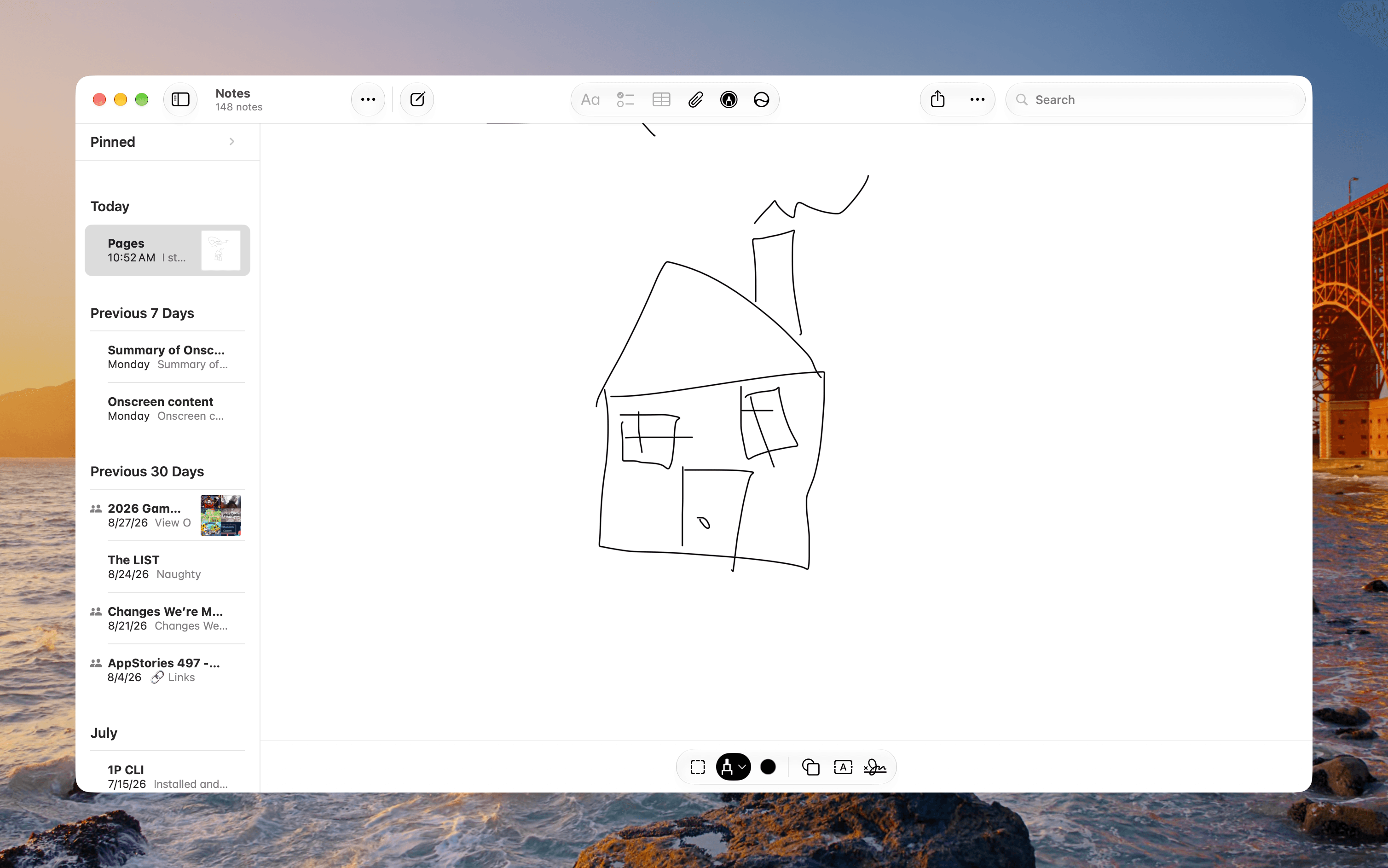
Federico covered Notes in his iOS and iPadOS 27 review, but there’s one small addition to Notes on the Mac worth highlighting: drawing with your finger on a Magic Trackpad or using a mouse. Just select the drawing tool and start scribbling by clicking and dragging on the trackpad or holding down the mouse button and dragging. Drawing with your finger isn’t easy, but Notes does a nice job of smoothing out your squiggles, and I can see this coming in handy as a way to quickly create a diagram or sign your name and paste it into a PDF. The same drawing feature has been brought to Freeform, too.
It’s worth noting that this feature works with touch and the mouse only. You can’t draw on the Magic Trackpad using an Apple Pencil or third-party iPad stylus like the Logitech Crayon.
FaceTime
This year, Apple is expanding Communication Safety to help protect children from images and videos depicting gore and violence. The protection extends to FaceTime on the Mac and iPhone. Apple also says users will enjoy improved FaceTime call quality on poor connections, although I haven’t been able to verify whether those improvements extend to the Mac. Mac users can also select Mandarin Chinese (Taiwan) for Live Captions.