Reminders
The Reminders app – which is my primary task manager thanks to my own Reminders CLI – is getting some very minor updates in iOS 27.
The natural language creation I described in the Calendar section is also in Reminders, and it’s just as bad there. If you’re looking for an excellent natural language utility for fast task creation on iPhone and iPad, I can’t recommend Remind Me Faster enough.
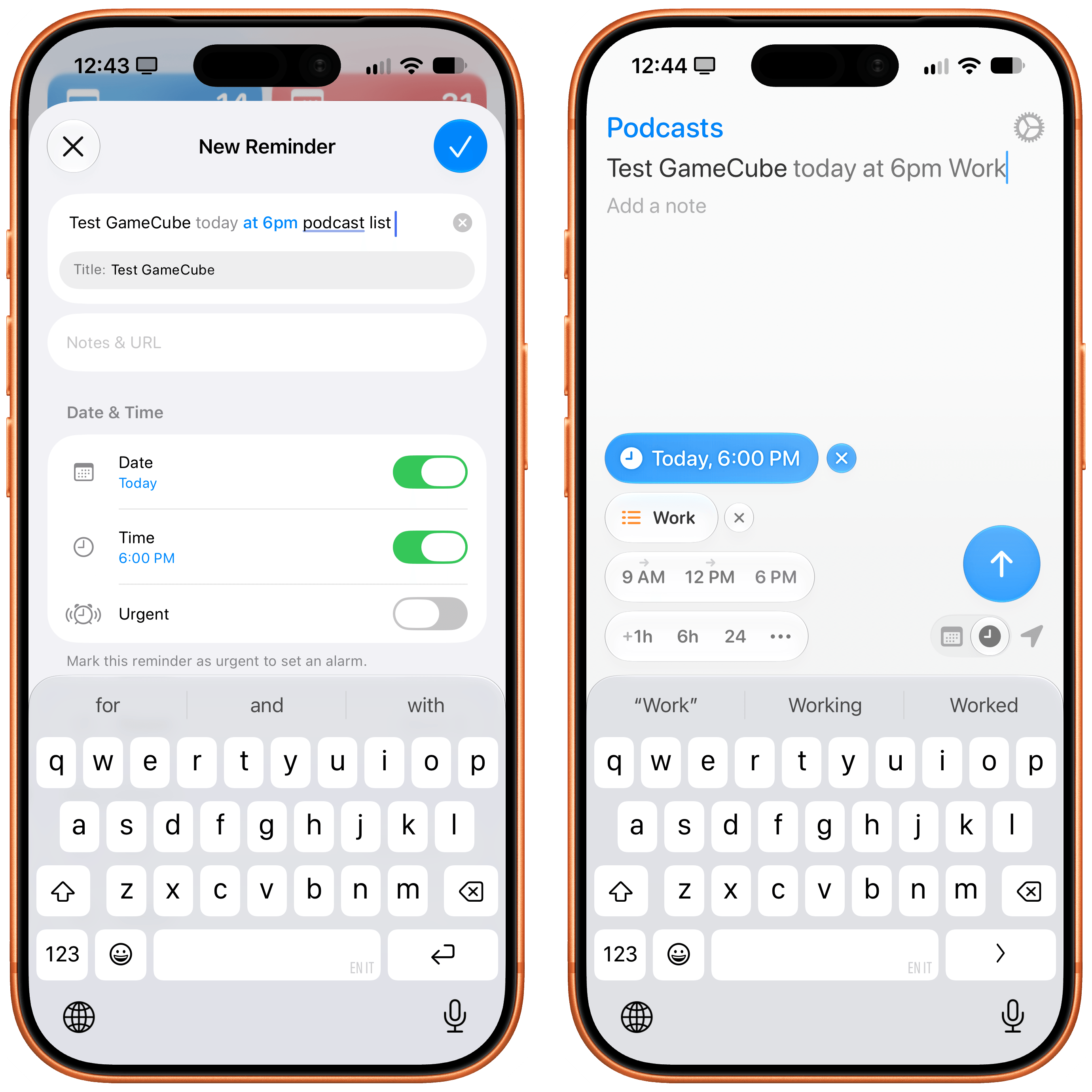
Remind Me Faster is still the best natural language entry utility for Reminders on all Apple platforms.
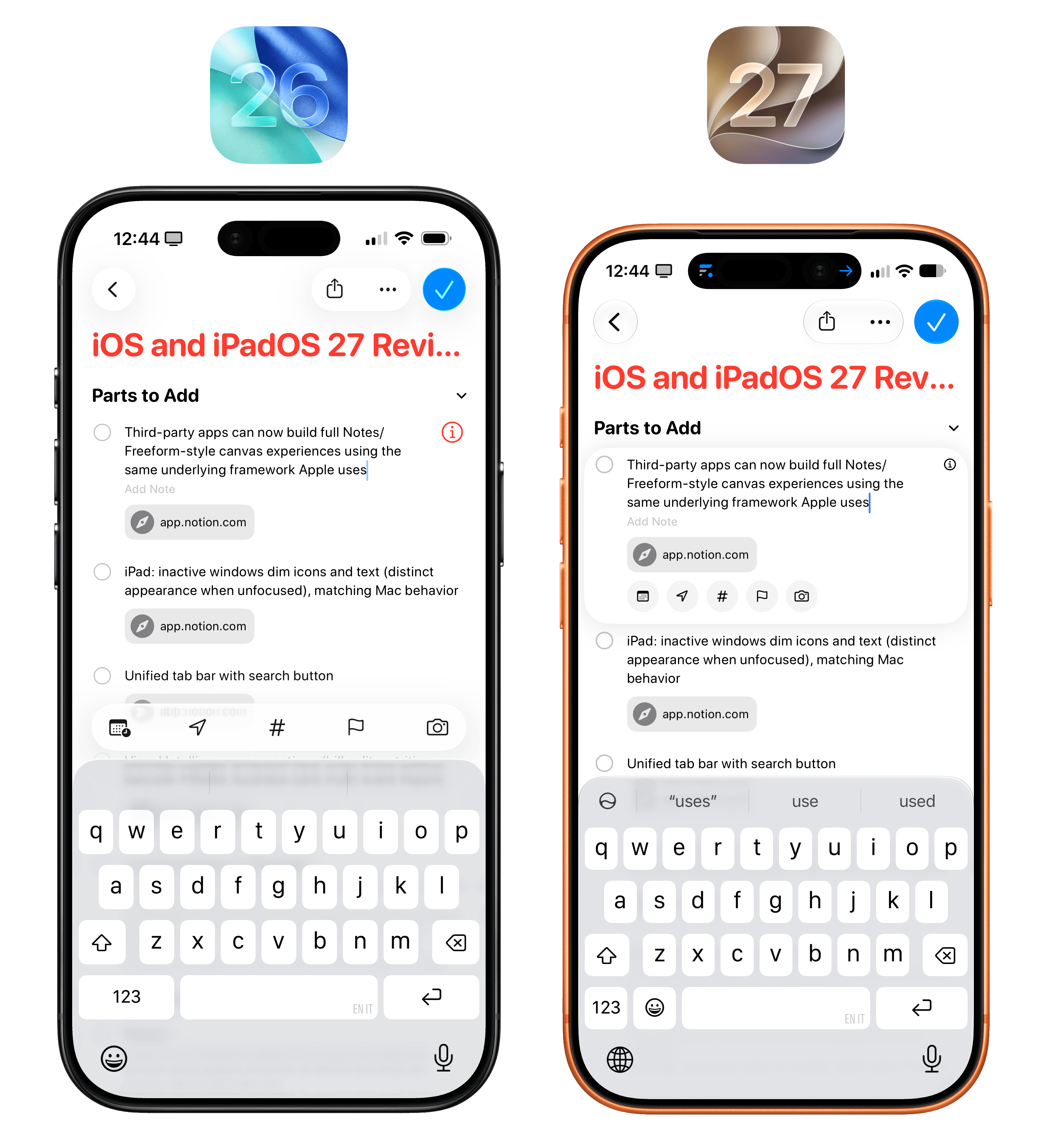
There’s a redesigned inline metadata editor: when you tap a reminder, the old toolbar above the keyboard has been replaced by small buttons at the bottom of the selected item’s card, which include more options than before. Alas, there is still no shortcut to quickly change the list a reminder belongs to.
Lastly, Apple claims iOS 27 features improved organization for items in grocery lists, but since I use my iPhone in English and live in Italy, I haven’t been able to test this for myself. (If you use Reminders in English, groceries in other languages won’t auto-organize.)
Safari
Aside from technical improvements to WebKit, which are beyond the scope of this review, there are three additions to Safari for iOS and iPadOS 27: AI-powered tab organization, AI-powered extension creation, and the ability to get notified when content on a website changes.
I’ll start with the last one, which has never worked for me in my testing over the summer. With the new ‘Notify Me’ feature of Safari, you can describe a change you’d like Safari to look for on any particular webpage, and set a frequency: hourly, daily, weekly, or monthly. Once you’ve described the change and set a schedule, Safari will start monitoring the selected page, and, in theory, should notify you when the change is detected.
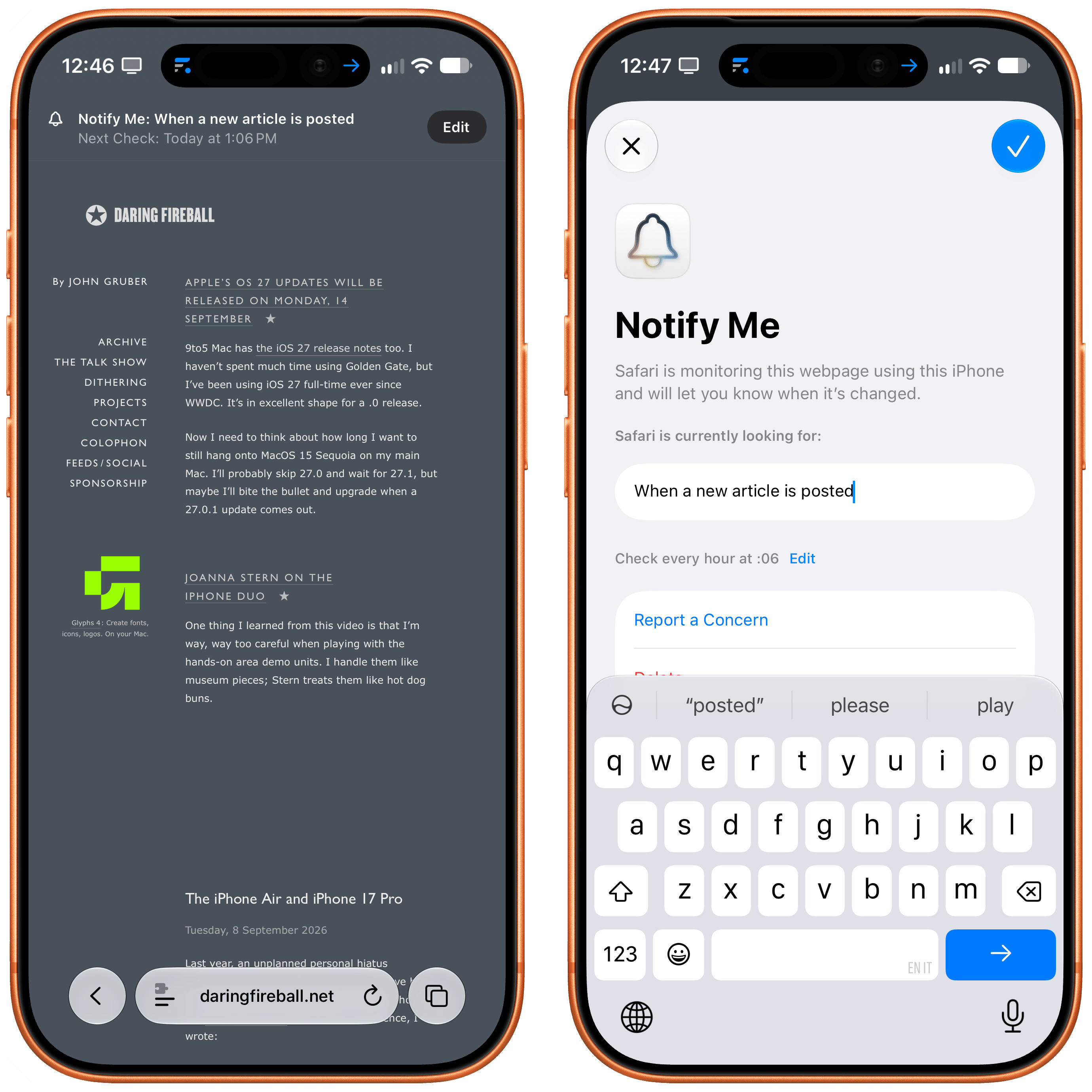
I’ve tried to test this feature with some blogs I follow by asking Safari to watch for “new articles posted”, and I’ve never been notified about any of them. I like the principle behind this addition: by using a combination of AI and Safari in the background, iOS can let you know if you’re missing out on any important new information added to, say, your kids’ school dashboard or a particular item that went on sale. I just hope Apple can improve the heuristics behind it so that it starts working for different types of websites. Your mileage, of course, may vary.
Next up is Apple Intelligence-powered tab organization into topics, which is…passable, but not great. The idea, once again, is sound: wouldn’t it be nice if AI could automatically tidy up your tabs and create topical tab groups for them? This feature works, but its results can be very generic, and can’t be improved or refined with additional prompting or custom instructions (a common refrain in the Apple Intelligence and Siri AI story this year).
For starters, you have to go hunt for this feature: in Safari’s tab overview, tap the filter button (the three horizontal lines), and you’ll see an option to ‘Organize Tabs’. Once enabled, Safari will start organizing related tabs into topics.
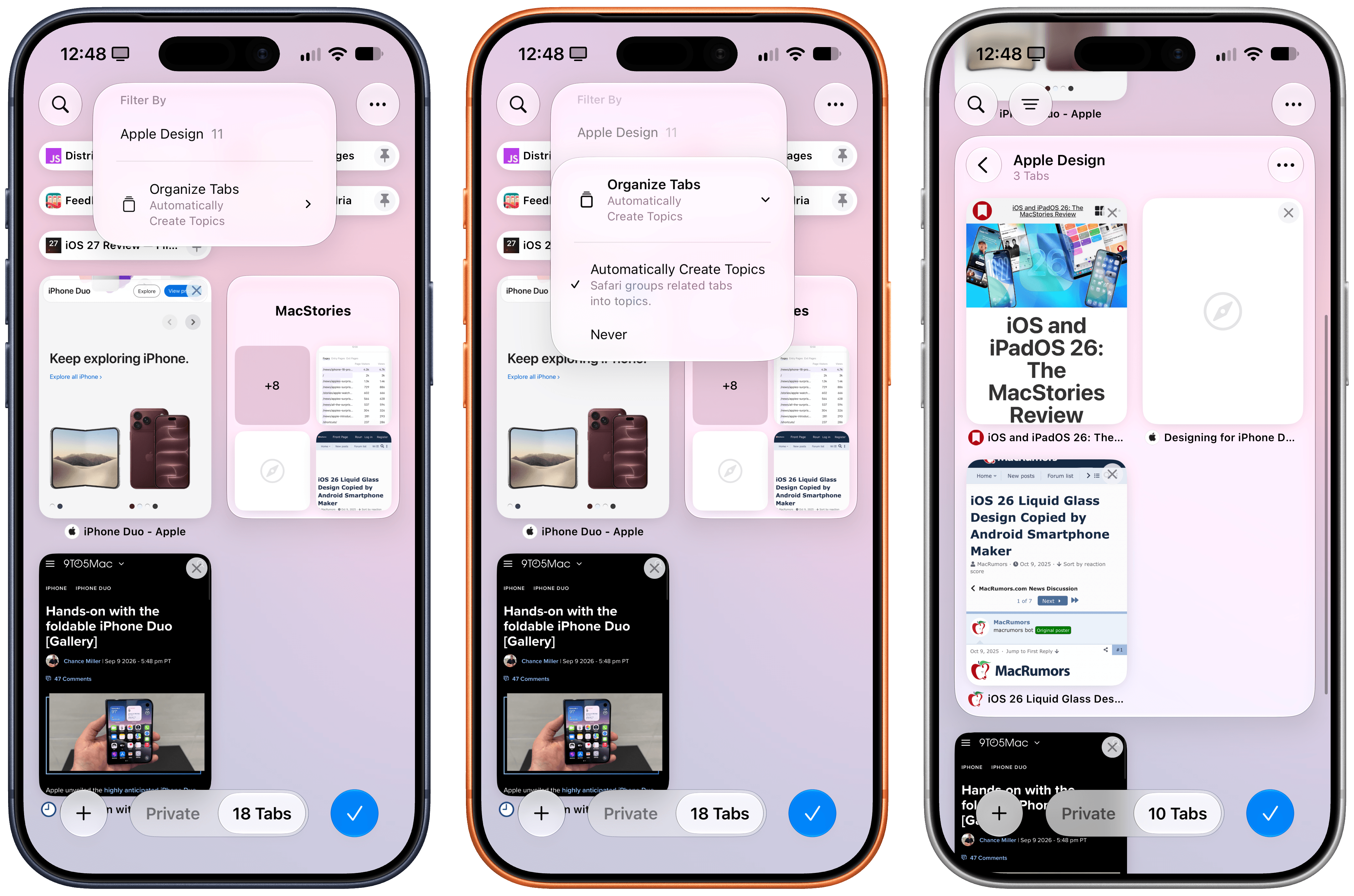
My issue with this feature is that it can be unreliable and it’s impossible to manage. Sometimes, I’m looking at a collection of tabs that are clearly related, and Safari just doesn’t organize them. There isn’t a button to ping Safari and tell it to organize those tabs, so you’re left staring at the Apple Intelligence abyss and wondering why it’s not working. Other times, tab organization does work, but the topics are so bland, they might as well not be there. If I’m opening 10 different MacStories tabs, with five about hardware and five about iOS, you’d think that Safari would organize them as “Hardware” and “iOS”, not throw all 10 of them into “MacStories”.
Since I’ve tested my fair share of AI browsers in the past year, I strongly believe that for AI-based tab grouping to be useful, it needs to be customizable. Let me assign rules or instructions to the browser! Without personalization, and with models that have small context windows and likely can’t process too much tab content at once, we’re left with pretty generic tab topics that aren’t that useful.
The last addition to Safari also marks Apple’s entry into the vibe-coding/“personal software” space for consumers with the ability to create your own Safari extension by describing it. Alas, like the other AI features in Safari, this has been very broken for me during the course of the iOS beta, to the point that – as of the release candidate – I was unable to create any extensions in Safari.
Again, the theory makes sense: you want to make a fun or productive tweak to Safari? Just describe the extension you want in natural language, and Safari will make it for you. In practice, I can’t comment on this feature since, every time I tried making an extension, Safari would say “Unable to create extension” and recommend other extensions from the App Store instead. I think it’s a nice touch that Apple, despite shipping what is essentially a little vibe-coding product to eschew the App Store altogether, is still suggesting third-party extensions, but we have to wonder how long that’s going to last if the future of computing involves the ability to just create any software you want, the moment you need it.
Anyway…that’s a topic for another time. For now, I hope Apple can get this feature working.
Shortcuts
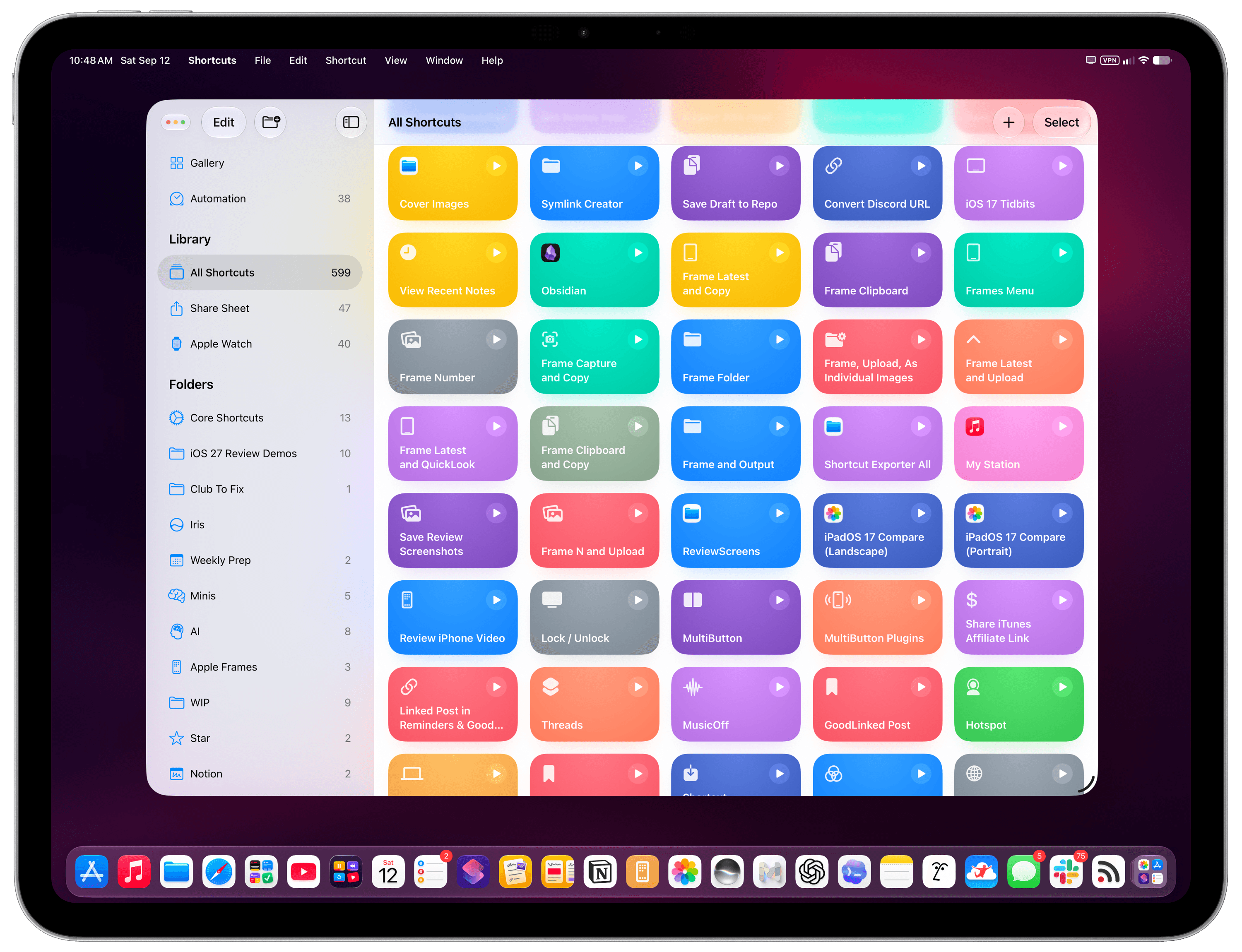
I decided to close out this chapter with my favorite Apple app of all time, which also happens to be the one that is receiving the most substantial updates in iOS and iPadOS 27: Shortcuts.
Looking back at the past few years of Shortcuts coverage in my annual iOS reviews, I wouldn’t have guessed we’d end up here again. Year after year, I’ve used this part of the review to complain about the same thing: new actions added to Shortcuts were mostly about toggling settings and launching apps; there was very little in the app for those of us who have been building complex workflows in it since the Workflow days.
Shortcuts for iOS and iPadOS 27 is different. There are plenty of new actions this year, and a few of them – global variables, reading what’s on screen, Markdown in Notes – fix problems I’ve been working around for over a decade. More importantly, however, Shortcuts is once again paving the way for the future of productivity on Apple platforms, and I can’t even describe how happy it makes me to see Shortcuts thrive and expand as a tool that will democratize automation.
In a world where any workflow can now be automated with AI and agents, Shortcuts for iOS and iPadOS 27 isn’t bucking the trend: it’s embracing it with new ways to create shortcuts with natural language, actions to tap into Foundation models in the cloud, and deeper integration with Siri AI to easily trigger any of your shortcuts, no matter what you’re doing on your iPhone and iPad. Beyond that, Apple is turning the Shortcuts app into a codified, browsable library of all the capabilities of Siri AI that can be freely remixed by users.
There’s a lot to get through.
New Actions
Apple added a variety of actions to the Shortcuts app this year, addressing two features in particular that have been heavily requested in the automation community for years: the ability to store content in Shortcuts with optional global variables, and more flexible conditional blocks.
Store Content, Get Stored Content, and Delete Stored Content
Let’s start with the big one.
Shortcuts finally has a way to save a value and get it back the next time a shortcut runs. There are three new actions for this: ‘Store Content’ saves whatever you pass as input under a name you choose, ‘Get Stored Content’ retrieves it, and ‘Delete Stored Content’ removes it. This system has been elegantly designed so that it’s very intuitive to use, but at the same time flexible enough for power users:
- You can store all kinds of text and files with the new Storage actions.
- A stored value can be specific to the shortcut it belongs to, or it can be marked as “global”, meaning that all other shortcuts in your library can access it.
- At any point, you can open a shortcut’s inspector panel, then select Storage, and review the content stored in the shortcut and available globally. You can change the local or global nature of stored content later, too.
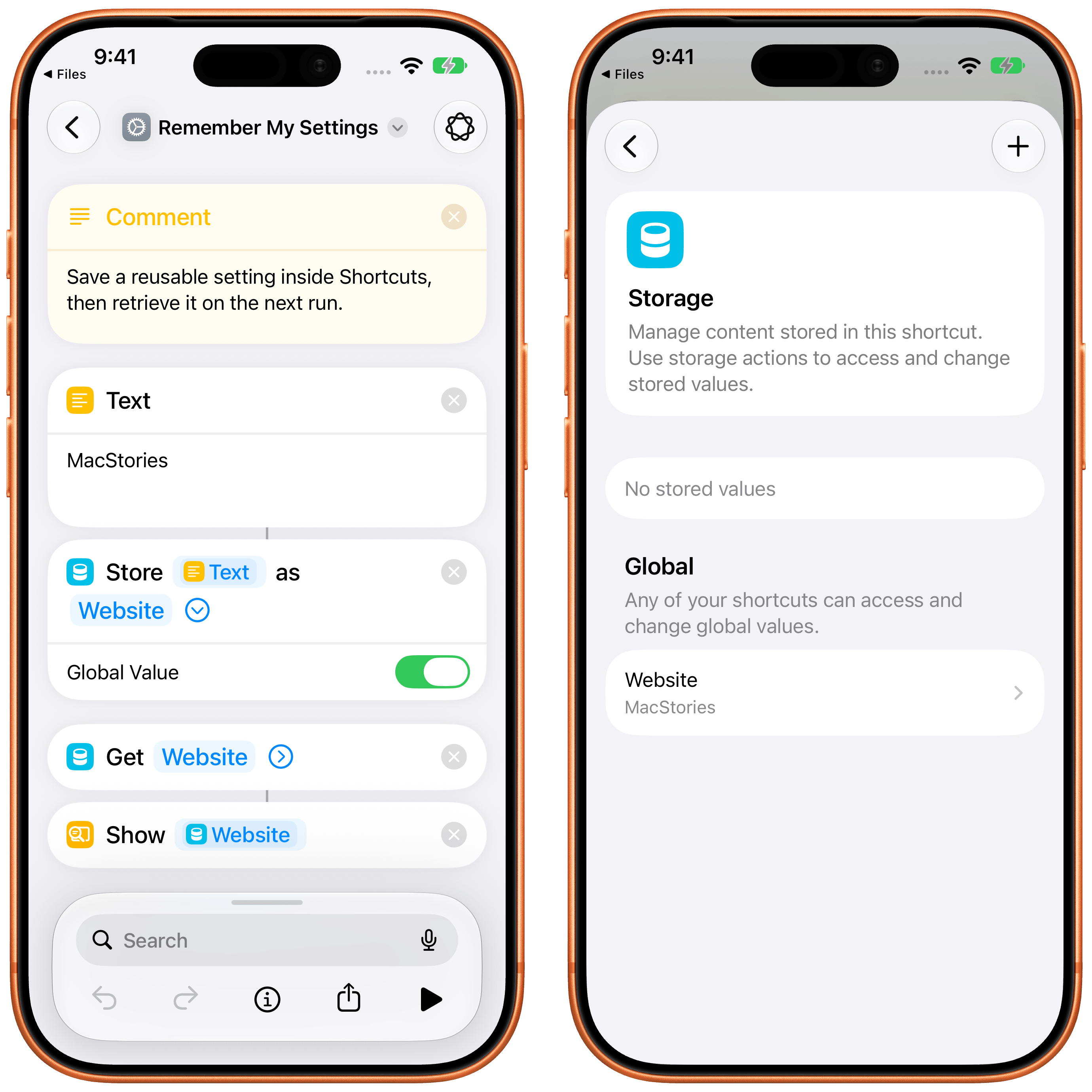
If you’ve never needed this, it may sound trivial. Believe me, as someone who has created thousands of shortcuts over the years, it’s not. Until now, if you wanted a shortcut to remember a secure credential, the last item you picked from a list, or whether it had already run today, you had to save a text file in iCloud Drive, rely on a note in the Notes app, or install Data Jar. I have entire groups of shortcuts in my library that are mostly file-management utilities just to remember a single setting. Over the years, I have created increasingly complex systems to store assets for my Apple Frames shortcut, only to eventually give up and use the MacStories CDN. Almost all of that can go away now thanks to the ability to store content inside shortcuts.
I say “almost” because, alas, it’s not possible to use the Storage actions as a distribution method across multiple users. If I design a new version of Apple Frames to store assets inside itself and share that shortcut with my readers, they won’t be able to retrieve assets stored in my iCloud account inside my personal Shortcuts storage container. This makes sense, and I don’t fault Apple for designing a system that is going to be optimized for individual users, but keep this in mind if you plan on sharing shortcuts that embed content you want other people to use in their own Shortcuts apps.
I should also stress the importance of the ‘Global Value’ toggle. When you turn it on, the stored content is saved in a special shared space in iCloud, so any shortcut on any of your devices can read from and write to it. This is Apple’s take on global variables, a concept that’s been requested by fellow advanced users of the Shortcuts app on several occasions over the years. With this system, it’s going to be possible to store things like secure credentials, templates, and image assets directly within Shortcuts – no more base64-encoded strings, at last.
Get What’s On Screen and Get Selected Text
As part of on-screen awareness in iOS 27, Apple has completely rebuilt the ‘Get What’s On Screen’ action with support for multiple data types and more flexible configuration options for visible apps.
With the updated action, you can read one of the following data items visible on screen:
- Contacts
- Email Addresses
- Files
- Images
- Messages
- Notes
- Phone Numbers
- Postal Addresses
- Reminders
- Text
- URLs
- Voice Memos
- Webpages
Each of these variables does, of course, contain its own set of properties: inspect the variable for on-screen images, for example, and you can see whether it’s a screenshot or screen recording; get a reminder from the screen, and you can see the list it belongs to, or whether it contains images.
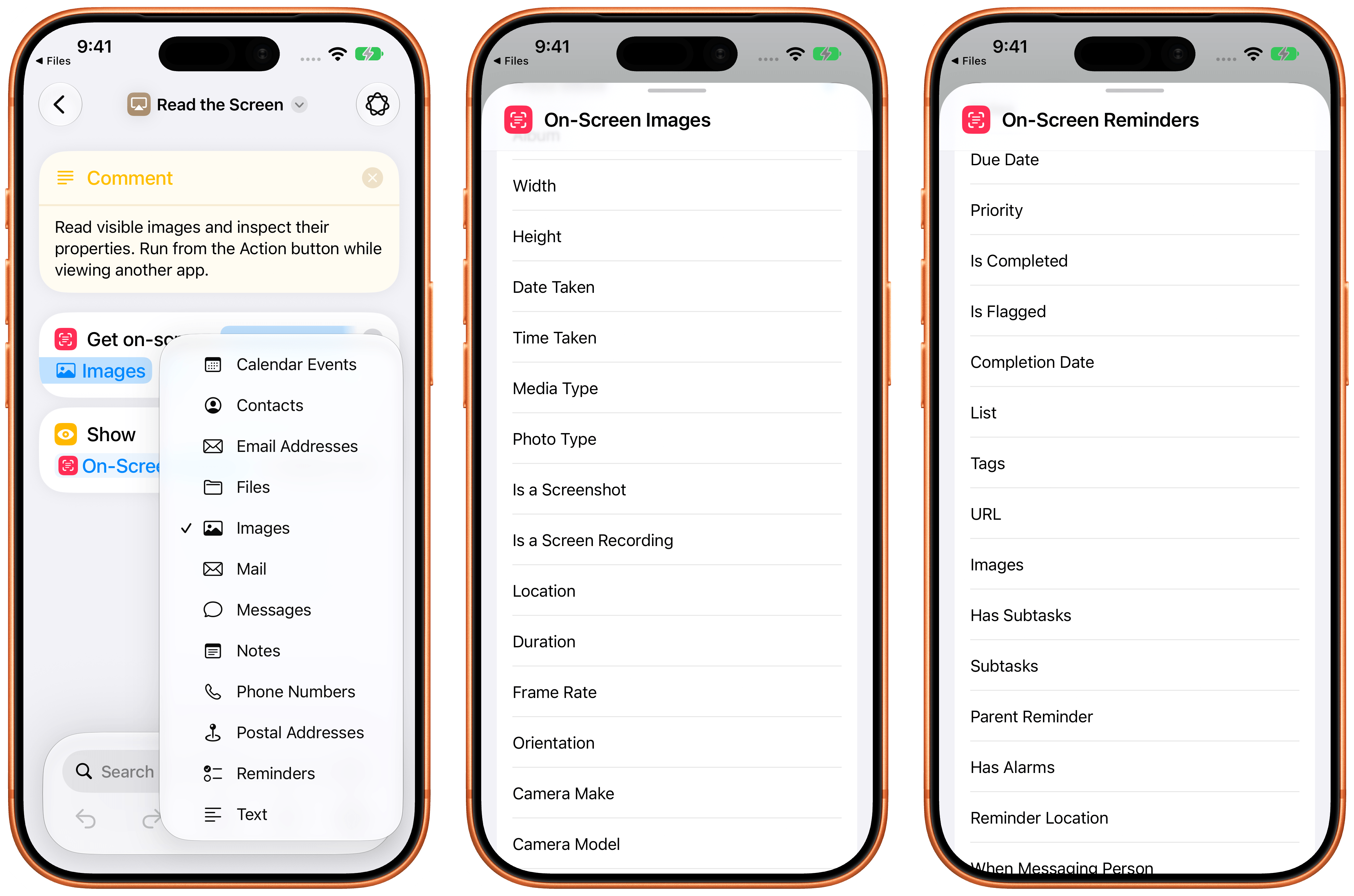
The possibilities of this new action are nearly endless: since it matches Siri’s on-screen awareness, you can do the same things as Siri AI, but programmatically and with controls designed by you. Even better, the action is fully compatible with iPads and the iPhone Duo: a toggle lets you choose whether you want to limit the scope to the visible app only or read from all visible apps.
There’s also another new action in this category: ‘Get Selected Text’. As the name implies, this action simply gets the text that is currently selected on screen – like the other action, it is best experienced when used via Siri and the Action button, or perhaps as a shortcut from the iPad’s Dock.
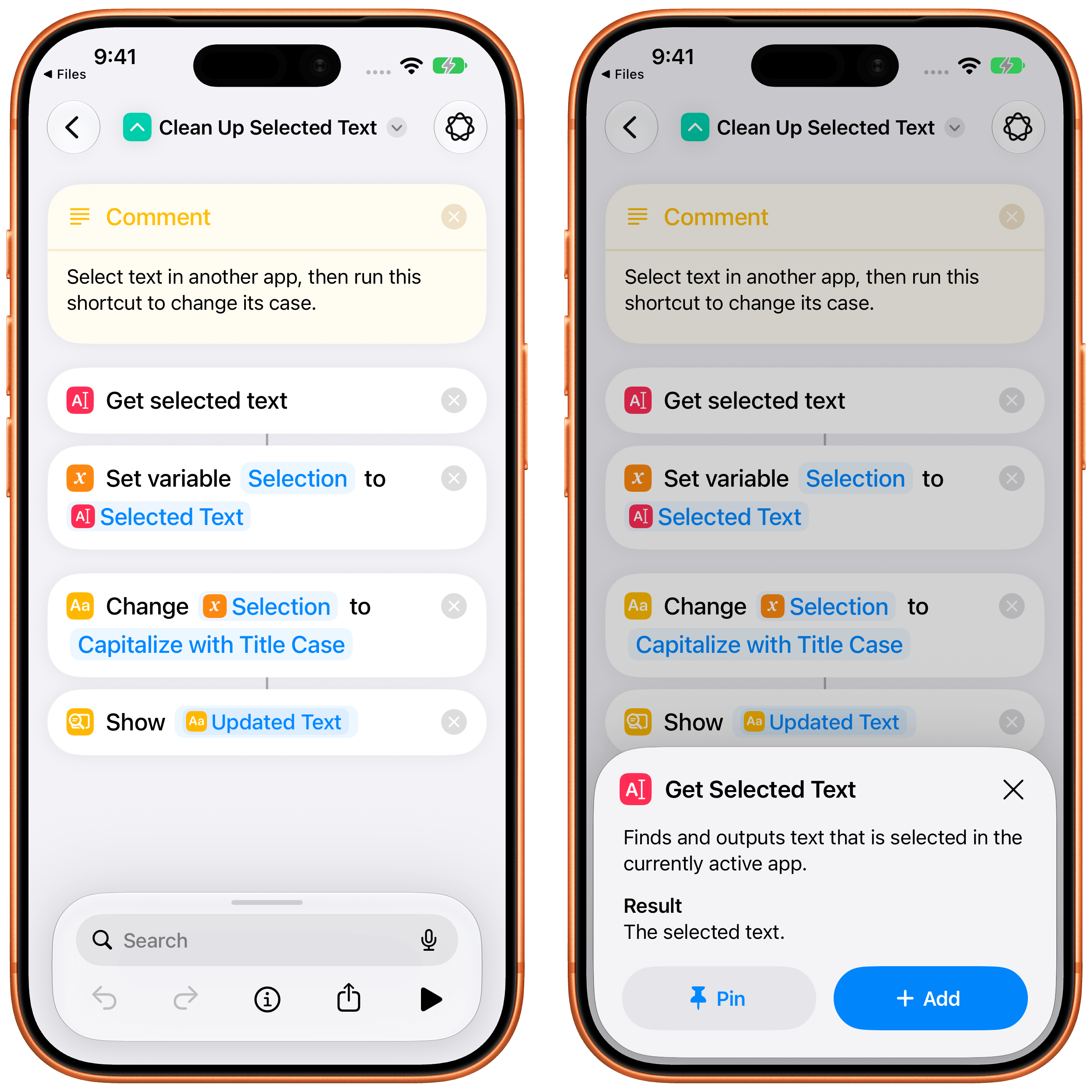
This action has no parameters. I’ve wanted this for years, mostly because it means text-processing shortcuts no longer have to go through the clipboard or the share sheet. It also means I can now make shortcuts that get Markdown text selected somewhere and publish that as an article on MacStories.
Add Item to List
Speaking of actions I’ve wanted for years: ‘Add Item to List’ can insert an item into an existing list variable at the beginning, the end, or a specific index.
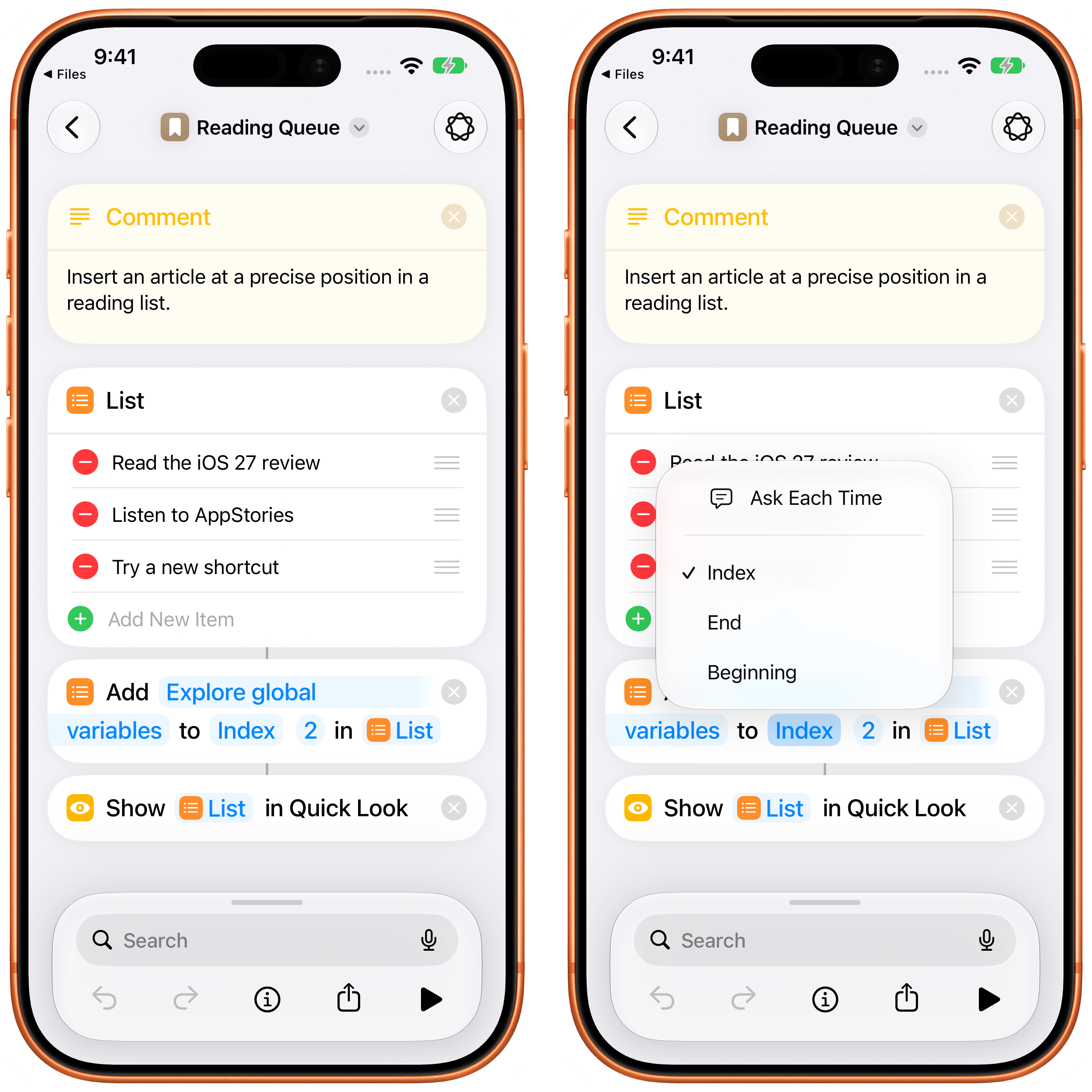
If you’ve ever built a Repeat loop just to reconstruct a list with one extra item in the right position, you’ll understand why I’m mentioning such a basic action in the review.
Find VPNs and Get Current VPN
Tailscale and VPN users, this one’s for you.
The new ‘Find VPNs’ action returns your VPN configurations with different filters as optional parameters; ‘Get Current VPN’ tells you which one is active, if any. Combined with the existing ‘Set VPN’ action, you can now build a proper VPN menu shortcut or an automation that checks whether you’re already connected before doing something else.
Messages
The Messages app received a variety of actions this year that confirm how Apple is thinking about Shortcuts now: it needs to expose the same actions that are otherwise available in Siri AI. The new actions are:
- Delete Conversations
- Delete Messages
- Mark as Read
- Open Inbox
- Search in Messages
- Send Tapback
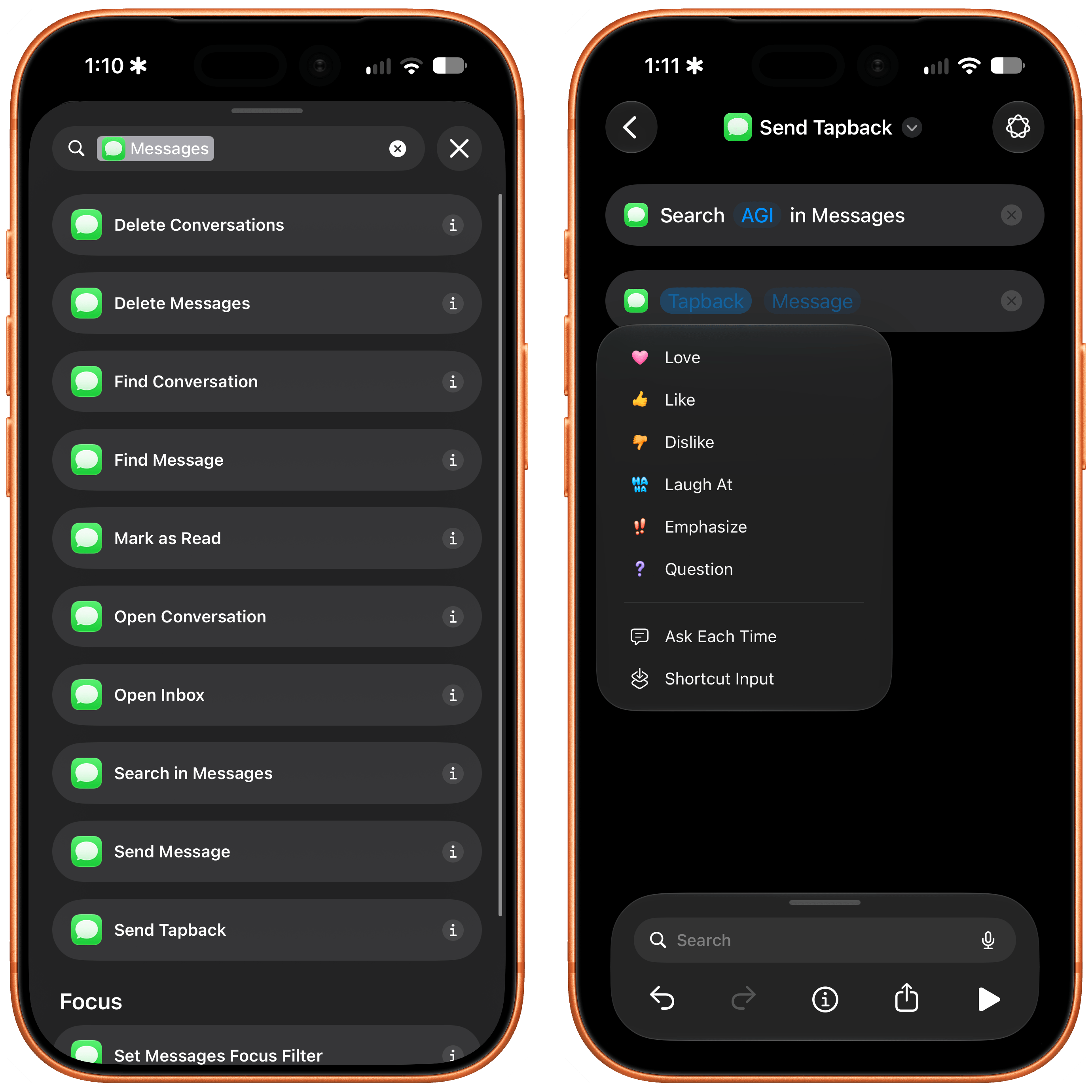
As you can see, these actions essentially reconstruct what you can do with Messages and Siri AI, but inside Shortcuts, with support for variables and user-defined flows. I especially like the ‘Send Tapback’ action, which reacts to a specific message with one of the six standard Tapbacks (Love, Like, Dislike, Laugh, Emphasize, and Question). To use this action effectively, you’ll have to pair it with the ‘Find Messages’ action, which needs to retrieve a variable for the specific message from the Messages app first.
Photos
As with Messages, Photos gained a bunch of new actions that match the capabilities of Siri AI:
- Auto Enhance Photo
- Delete Albums
- Favorite Photos
- Find Albums
- Hide Photos
- Open Photo
While I’ve never played around with Photos automation much, I’m very intrigued by the idea of scripting my albums in iOS 27.
Reminders
I’m very happy to see Reminders – which has been my task manager for almost a year at this point, a new record for me – receive some great new actions in iOS 27:
- Create Group
- Create Section
- Delete Groups
- Delete Lists
- Delete Sections
- Edit List
Sadly, the ‘New Reminder’ action still does not support adding a task to a specific section of a list – a strange omission given improved section support in other actions this year.
Updates to Existing Actions
In addition to new actions, I want to mention some updates to existing actions:
Notes: Markdown, at Last
As I mentioned before, Notes’ ‘Create Note’ and ‘Append to Note’ actions now support Markdown as text input. The ‘Append to Note’ action has also gained a ‘Section’ parameter to choose where in the note the text should go and an ‘Ignore Empty Lines’ option.
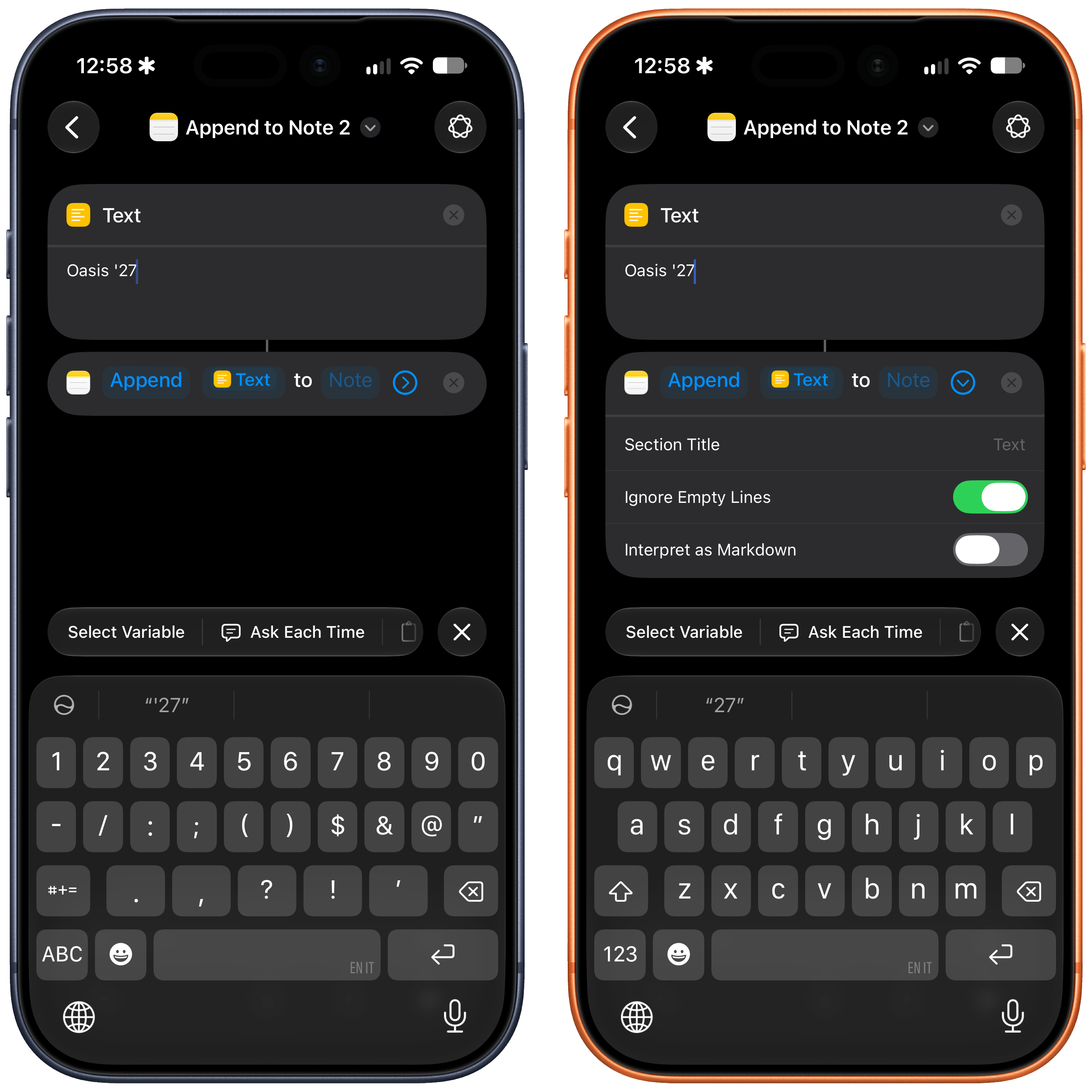
If you’ve built a journaling or logging shortcut around Notes – and I know a lot of you have – this replaces an entire category of workarounds.
If: Otherwise If
Eight years after Apple relaunched Workflow as Shortcuts, it has added support for “else if” branches inside conditional blocks.
Two years ago, I wrote about compound conditions making If blocks more readable; this is the other half that was missing from that redesign of conditionals. Programmers should obviously be familiar with the concept of “else if”, but if you’ve ever played around with advanced shortcuts, I’m sure you know what I’m talking about here. Instead of nesting a separate ‘If’ block inside an ‘Otherwise’ inside another ‘If’, you chain the conditions in a single block now. That’s really all there is to it, and this more elegant approach has also resulted in dramatically better performance for multi-condition flows in the Shortcuts editor.
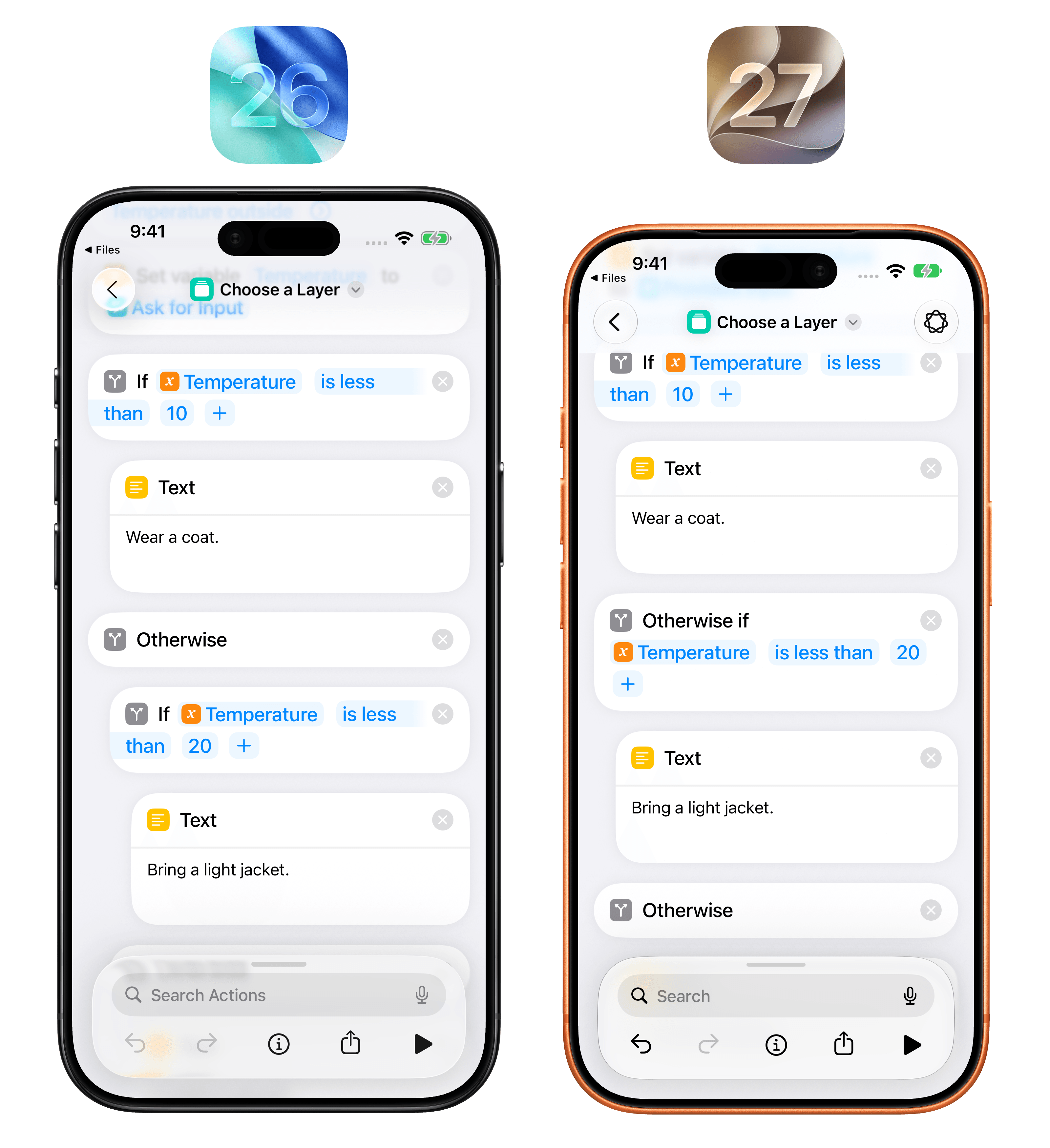
My older shortcuts are full of indented conditionals that I’m now going to rebuild.
Use Model: Follow Up, Cloud Pro, and World Knowledge
The ‘Use Model’ action has gained a couple of new options, matching what is also possible in Siri AI. First, Cloud Pro is available as a model option for tasks that require deeper reasoning, although it does not let users set a specific reasoning level like third-party developers can in their apps.
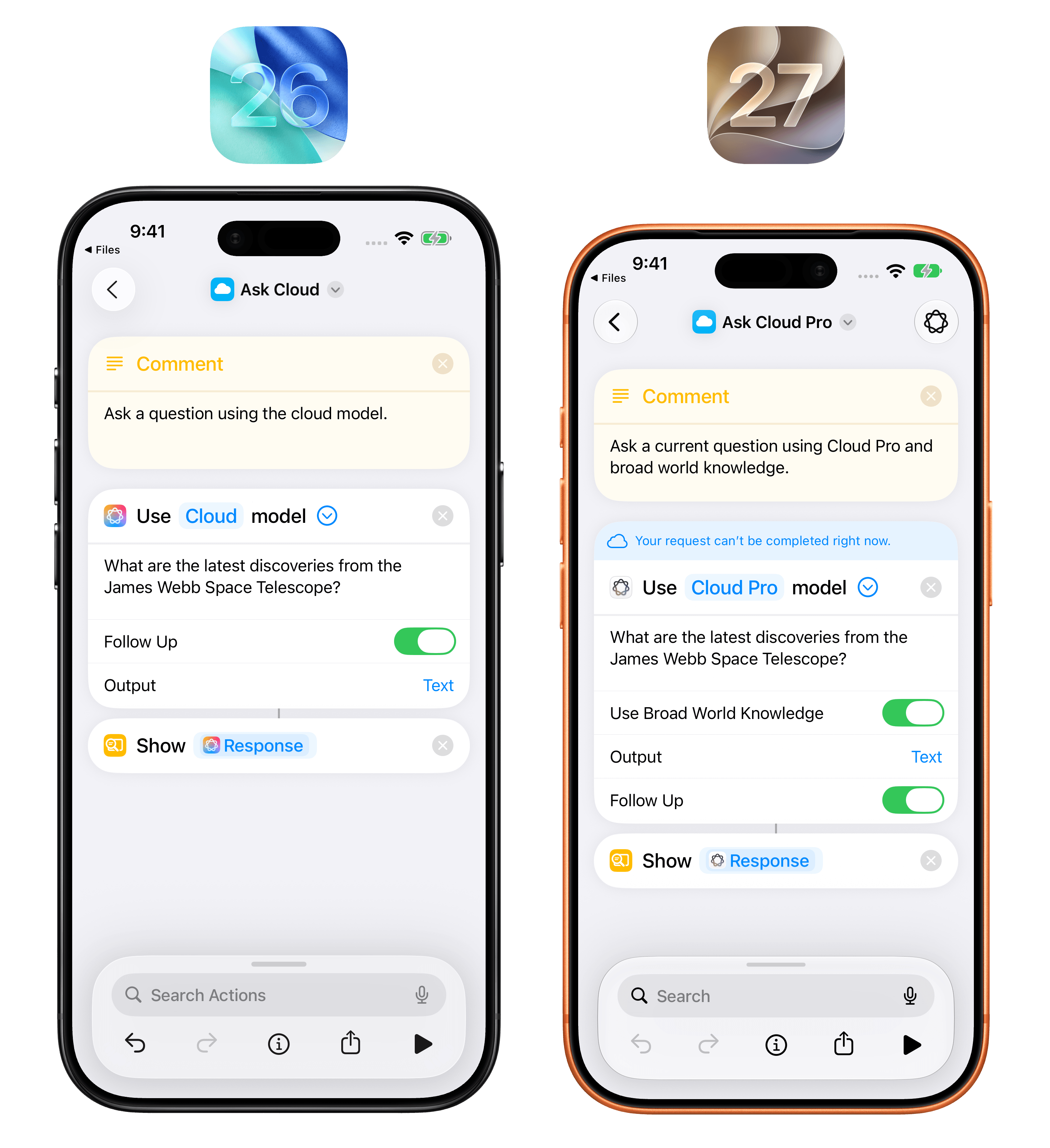
Additionally, there’s a new ‘Use Broad World Knowledge’ toggle that lets the model answer by tapping into Apple’s proprietary world knowledge database. In my tests, flipping this switch and combining it with Cloud Pro for web searches has produced some pretty good, up-to-date results.
Maps: Avoid Highways and Avoid Tolls
The ‘Get Travel Time’ action now has ‘Avoid Highways’ and ‘Avoid Tolls’ toggles, so your “time to leave” shortcut can finally match how you drive.
Extract Text from Image: Text, Lists, and Tables
‘Extract Text from Image’ has a new parameter with three options: Text, Lists, and Tables.
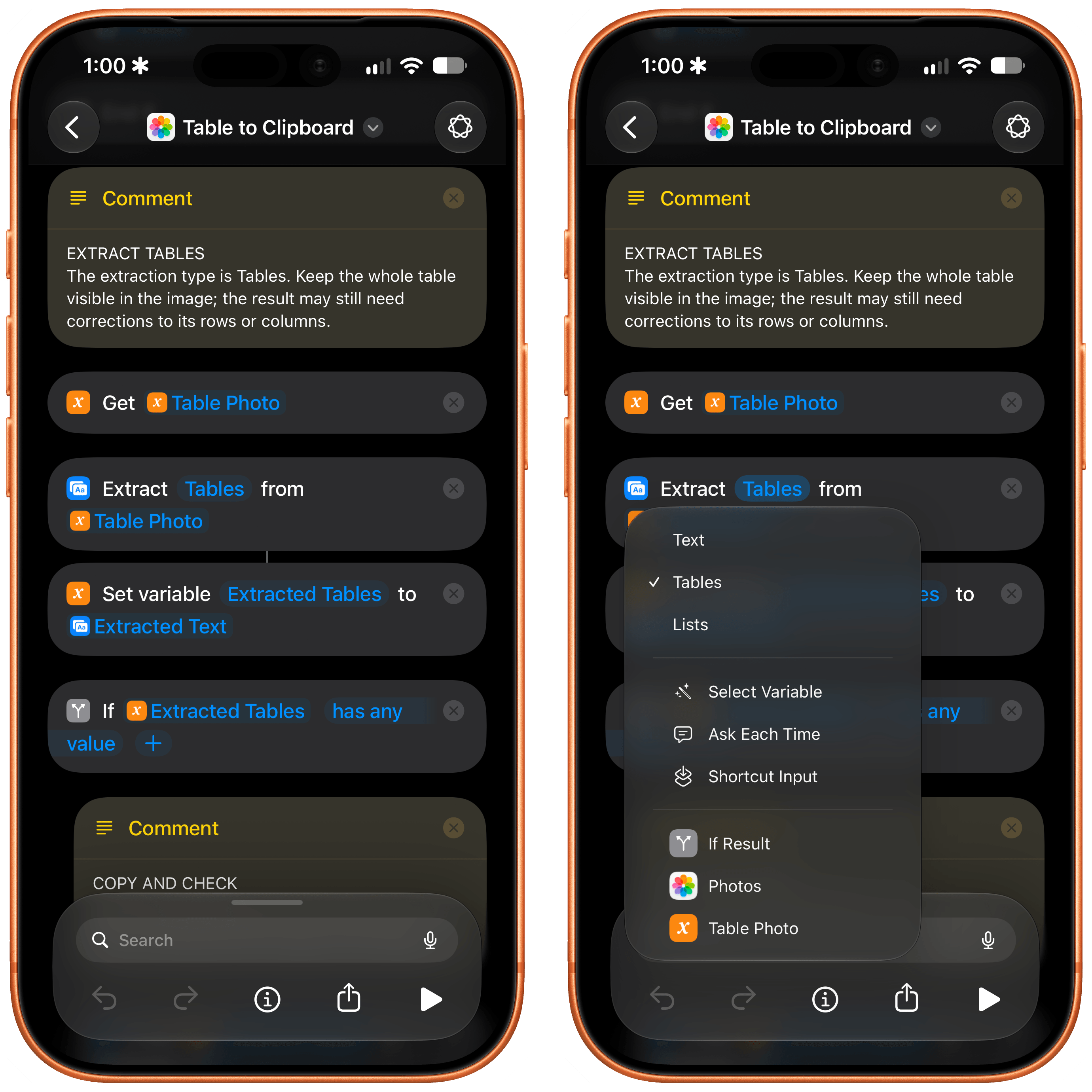
The last two mean you can point the action at a photo of a list or a table and get structured output instead of a flat block of text. This matches the vision capabilities of Siri AI in Visual Intelligence, and I’m especially keen to combine these with adding structured content to Apple Notes.
Scan QR or Barcode: Extract Mode
‘Scan QR or Barcode’ has two modes now: Scan opens the camera like before; Extract reads a code from an image you pass in as input.
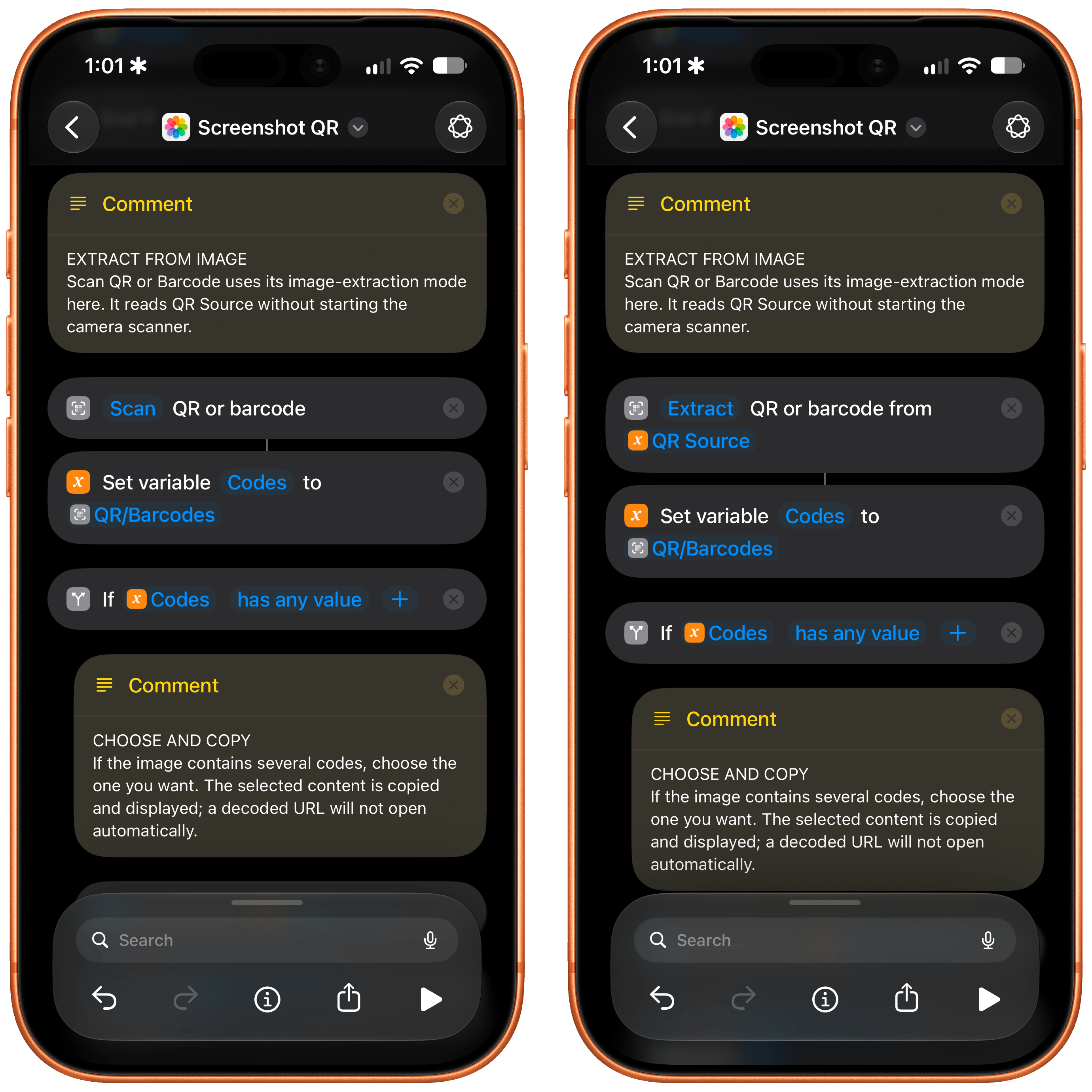
Yes, this means you no longer have to point your iPhone at your own screen to read a QR code in a screenshot. I’ve done that more times than I’d like to admit.
Safari: Create Tab Group
The ‘Create Tab Group’ action got a ‘Contents’ parameter that accepts URLs or existing tabs, so you can create and populate a tab group with a single action.
New Reminder: Urgent
While it didn’t receive support for sections, ‘New Reminder’ did get an ‘Urgent’ toggle, matching the modern urgency feature from the Reminders app last year.
Get Network Details: Ethernet
‘Get Network Details’ received an Ethernet option alongside Wi-Fi and cellular, with nine fields:
- Interface Name
- IPv4 Address
- IPv6 Address
- Subnet Mask
- Router IP
- Is Connected
- Link Speed
- Ethernet Standard
- Hardware MAC Address
Set Volume
Matching what is now possible in the Clock app, the ‘Set Volume’ action now lets you automate volume levels for alarms and timers, or alerts and system sounds, separately from media and ringtone.
Below, I’m compiled a collection of 10 shortcuts that demonstrate some of the new capabilities in iOS 27.
You can find all shortcuts in a new iOS 27 category of the MacStories Shortcuts Archive. 20 more shortcuts will be released for Club MacStories members later this week.

Selection Stats
Select text in another app and invoke this shortcut without leaving that app, or share the passage through the Share Sheet. It counts words and characters and estimates reading time at 200 words per minute. Demonstrates the new Get Selected Text action in iOS 27. Selection access depends on the source app.

Toll-Free ETA
Enter a destination to compare three driving-time estimates from your current location: normal routing, avoiding tolls, and avoiding highways. Demonstrates the new Avoid Tolls and Avoid Highways options in Get Travel Time in iOS 27. These are time estimates, not toll prices; this shortcut does not start navigation.

Dinner Rescue
Share a list of ingredients or enter what you have, your time limit, and dietary restrictions. Apple Intelligence suggests two dinner ideas and lets you follow up with substitutions or a full recipe. Demonstrates Follow Up and Broad World Knowledge in Use Model in iOS 27. Requires Apple Intelligence.

Project Starter
Enter a new project name to create a Reminders list with Next, Waiting, and Later sections. Each run creates a new list. Demonstrates the new Create Section action in iOS 27; Create List supplies the list that all three sections use.

Photo Shortlist
Review up to 30 photos from the past seven days, newest first. Choose the keepers to add to Favorites. Nothing is preselected; cancel the picker to leave your library unchanged. Demonstrates the new Favorite Photos action in iOS 27. Requires Photos access.

Screenshot QR
Share a screenshot or image containing a QR code, or run this shortcut to choose a photo. Pick a detected code to copy its content and see the result. Demonstrates Extract from image in Scan QR or Barcode in iOS 27. Links are displayed without being opened automatically.

Table to Clipboard
Share an image of a table, or run this shortcut to choose a photo. It extracts table text, copies the result to the Clipboard, and shows a preview. Demonstrates the Tables option in Extract Text from Image in iOS 27. Check the extracted rows before pasting them into your document.

Pack for Today
Choose Office, Gym, or Day Trip, add an optional must-remember item, and keep the items you need. The shortcut creates and opens a new packing note in Notes. Demonstrates Add Item to List at the Beginning and Create Note with Markdown in iOS 27.

Message Finder
Share a name, phrase, or reference number to search for it in Messages. Run directly to choose Search Messages or Open Unread Messages. Results appear in Messages. Demonstrates the new Search in Messages and Open Inbox actions in iOS 27.

Parking Pin
Save your current parking spot, find it later in Maps, or clear it when you leave. Run this shortcut when you park and choose Save This Spot. The stored location belongs to this shortcut; saving again replaces the previous spot. Demonstrates Store, Get, and Delete Stored Content in iOS 27.