Notes
While working on NotesCTL, my upcoming Apple Notes CLI for people and AI agents, I’ve been using the Notes app more as a capture system that sits in front of my intricate Notion workspace. I’ve long regarded the modern Notes app as one of the best of Apple’s built-in apps for iPhone and iPad, to the point where, over the summer, I even considered writing this entire review in Notes.
In iOS and iPadOS 27, in addition to excellent integration with Siri AI, Notes is getting some smaller improvements that, while not groundbreaking, will make power users happy. Perhaps they’ll even convince some of them to switch back from other note-taking apps.
Let’s start with the smaller things. In Notes’ action menu (open the copy and paste menu, then swipe left), you’ll find a new ‘Insert Divider Line’ option that, well, inserts a line in the current note.
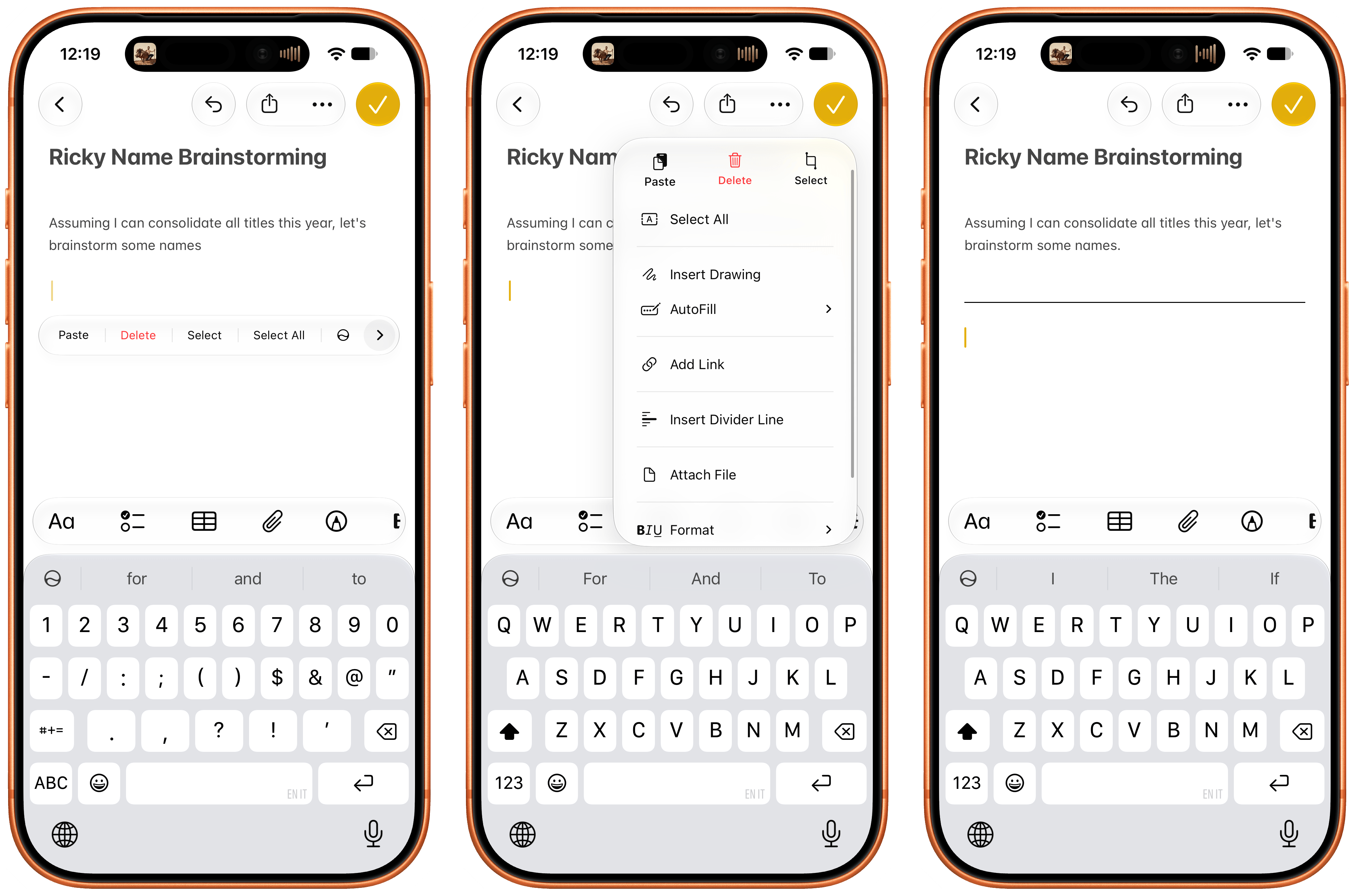
If you’ve ever worked on longer notes containing multiple sections, you know that this is actually a nice thing to have. Interestingly, divider lines are also backward compatible with devices running iOS 26: on those devices, divider lines will render as three dashes (---).
The ability to deeplink to a specific note inside the Notes app, introduced in iOS 17, is expanding in iOS 27 with support for linking specific sections of a note as well. As always, you can create an internal link to a note either via the ‘Add Link’ menu or by typing >> to bring up the inline note-linking tool. After selecting a note in the quick menu, if the note contains sections (headings), you can hit / to drill down into the contents of the note and select a particular section you want to link to.
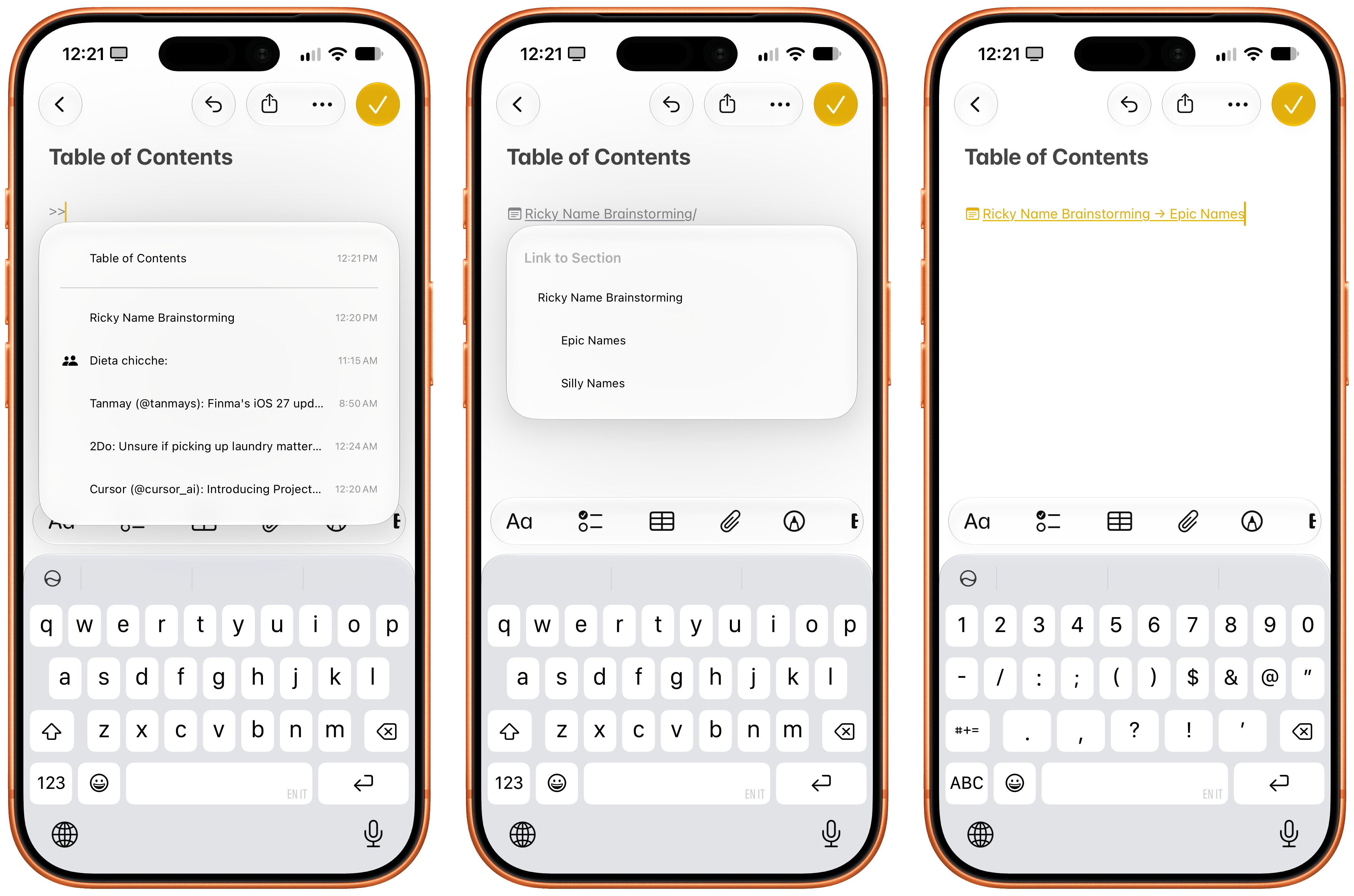
When creating section links from the full-blown ‘Add Link’ menu, you’ll find a dedicated ‘Link to Section’ page that lets you preview and navigate all sections contained within the note:
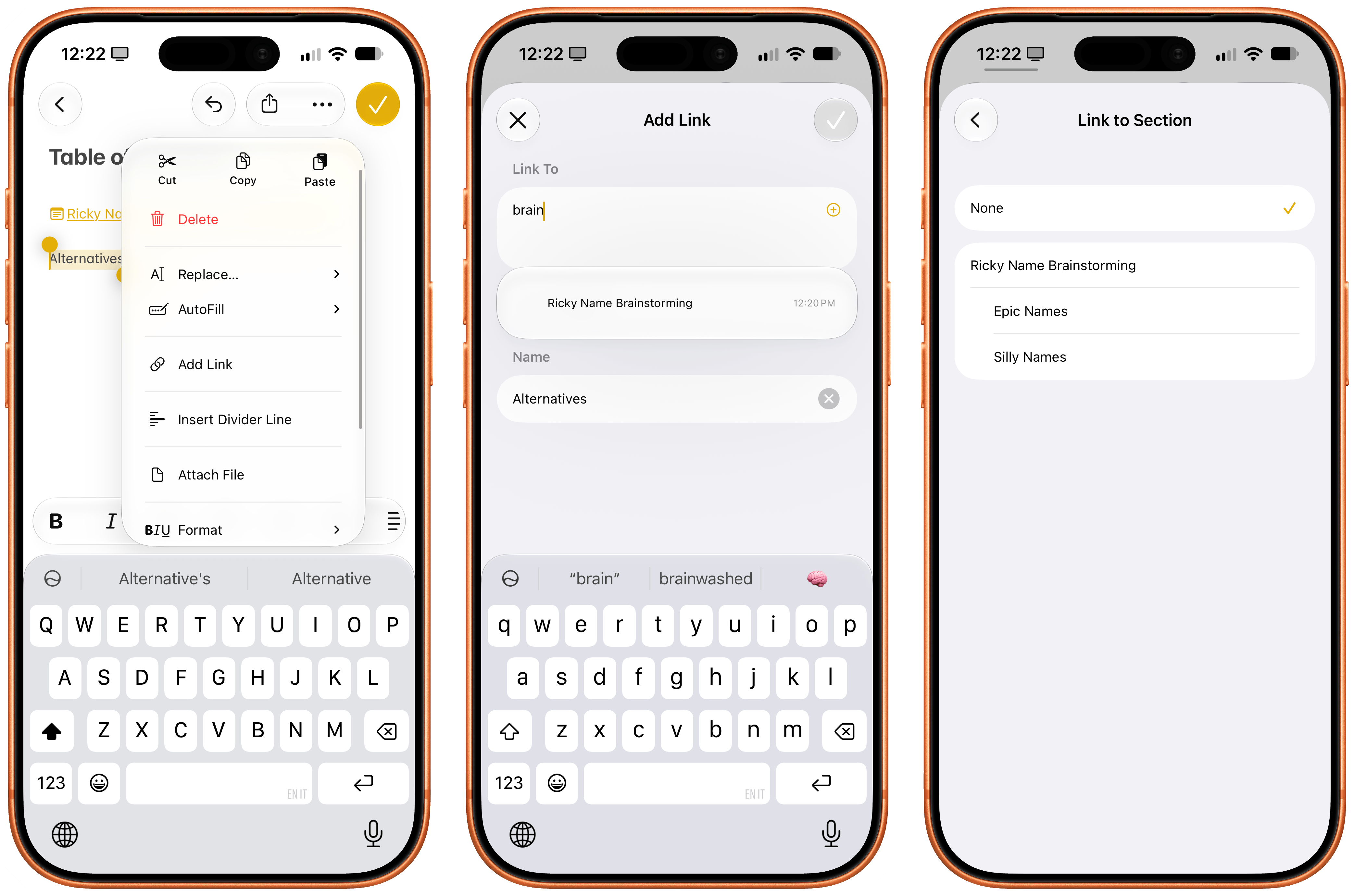
As with divider lines, these links cannot be created on iOS 26, but they are backward compatible with it. When you tap one of these links, you’ll be taken directly to the linked section of the destination note, which will be briefly highlighted on screen. This is a fantastic improvement to the Notes app, and it’ll make it possible for folks to create rich “table of contents” notes and Notion-like dashboards that cross-link to specific sections of other notes in the app. I love it.
Then, there’s the feature I did not expect to see in the Notes app, ever: integration with Markdown.
Support for the popular plain-text formatting standard has been implemented by Apple in a couple of different ways. You can export an entire note as Markdown from the share sheet. Doing this will convert every element of a note to Markdown, including tables and colored text, which makes Apple’s flavor of Markdown compatible with popular forks such as MultiMarkdown and GitHub Flavored Markdown. Even more interesting, however, is the fact that Apple Notes can export notes with attachments, which will be stored in an /Attachments subfolder and referenced within the Markdown text as an inline link. This is what I mean:
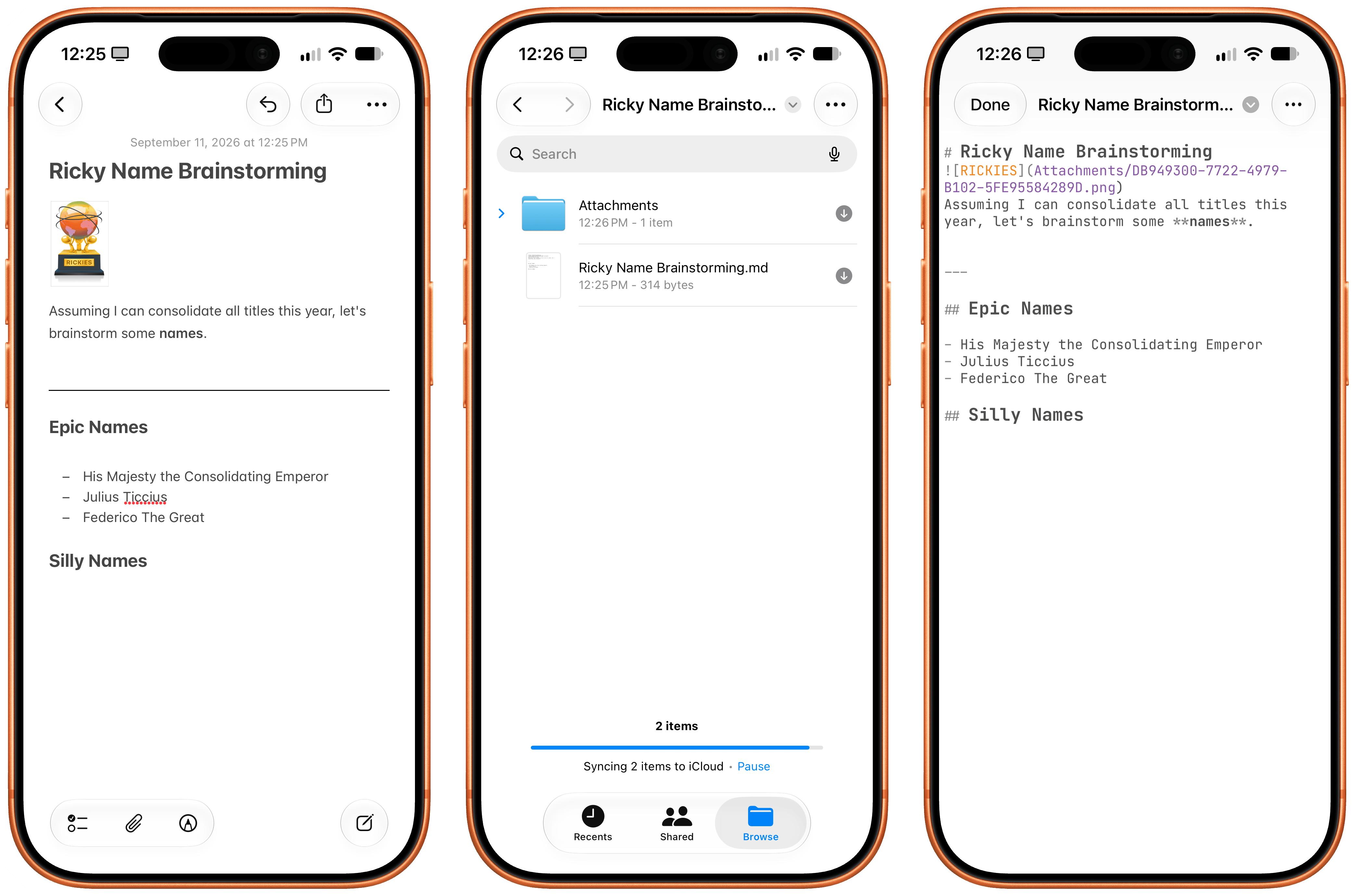
This is a solid decision: it means that you can now export a rich-text note from Apple Notes, grab the resulting folder, load it up in apps like iA Writer or Ulysses, and every reference to every attachment will load correctly. Even Apple Pencil drawings survive the Markdown export: they will be rendered as high-fidelity PNGs and stored in the Attachments folder. At this point, nothing is stopping you from creating a shortcut that takes a rich-text note from the Notes app, uploads images from the Attachments folder to a CDN, replaces the local references with a public HTTPS link, and gets that Markdown ready for publishing on a blog. I’m just saying.
I continue to be amazed by the progress that Apple has made in the Notes app in recent years. The app can now be used as a serious productivity powerhouse, which is why I’m building NotesCTL and look forward to releasing it soon.
I wouldn’t put it past Apple to copy Notion and add support for databases and properties to the Notes app. Stranger things have happened to this app, which is way more powerful than you’d expect given its humble origins nearly two decades ago.
Phone
The one addition to the Phone app this year is Call Context, which is another enhancement powered by Apple Intelligence. This feature is designed to surface relevant information about a contact or business while you’re on the phone with them; in my limited experience with this, it does work as advertised.
According to Apple, this feature will bring up reservation codes and confirmation numbers while you’re on a call with a business, but since I fundamentally dislike jumping on a phone call with hotels or airlines and prefer email or WhatsApp, I have not been able to test this.
Call Context did work when I was on the phone with a contact whose birthday it was. Mind you, the contact was my mom, so I didn’t really need a reminder. Regardless, I thought it was nice that the Phone app embedded a birthday popup and cute animation in the call screen, and I imagine this could be useful if you’re on a call with an acquaintance or a distant relative and want to pretend you remembered it was their birthday all along.

They’ll never know. Apple Intelligence will.
Photos
There are several additions to the Photos app this year, which can be categorized into three buckets that encapsulate iOS 27 as a whole: small quality-of-life features, performance improvements, and AI. Personally, I really like the first two categories, and I strongly dislike the AI features added to Photos; I find them pretty gross.
The Photos app is much faster than before, with new photos and videos loading up to 70% faster after they’ve been captured. I haven’t verified these claims with a stopwatch, but, anecdotally, the claim holds up. I took a lot of photos and videos this summer, and as soon as I opened the Photos app, the thumbnails were already there and I could open each item to view it in full screen immediately.
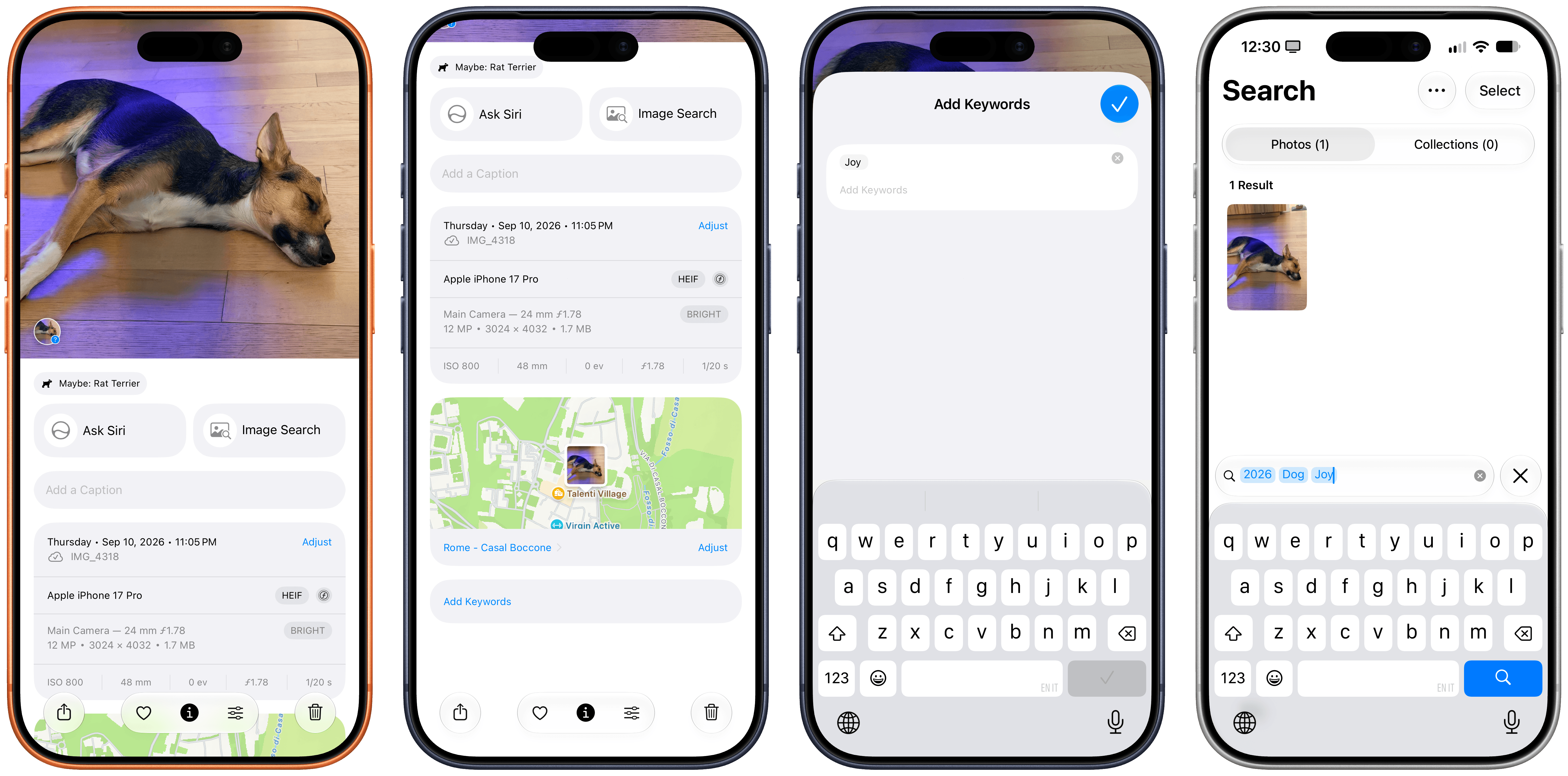
Apple’s focus on performance has also paid off in the search index, with up-to-date results that surface faster than before. To make search even more personal, you can now add custom keywords to photos and videos. To do this, swipe up on a photo to open the inspector, scroll to the bottom, and you’ll find a text field that lets you enter multi-word keywords. These keywords will show up in search results immediately, and they’re a nice way to find items with specific words that may not be supported by Apple’s search engine by default.
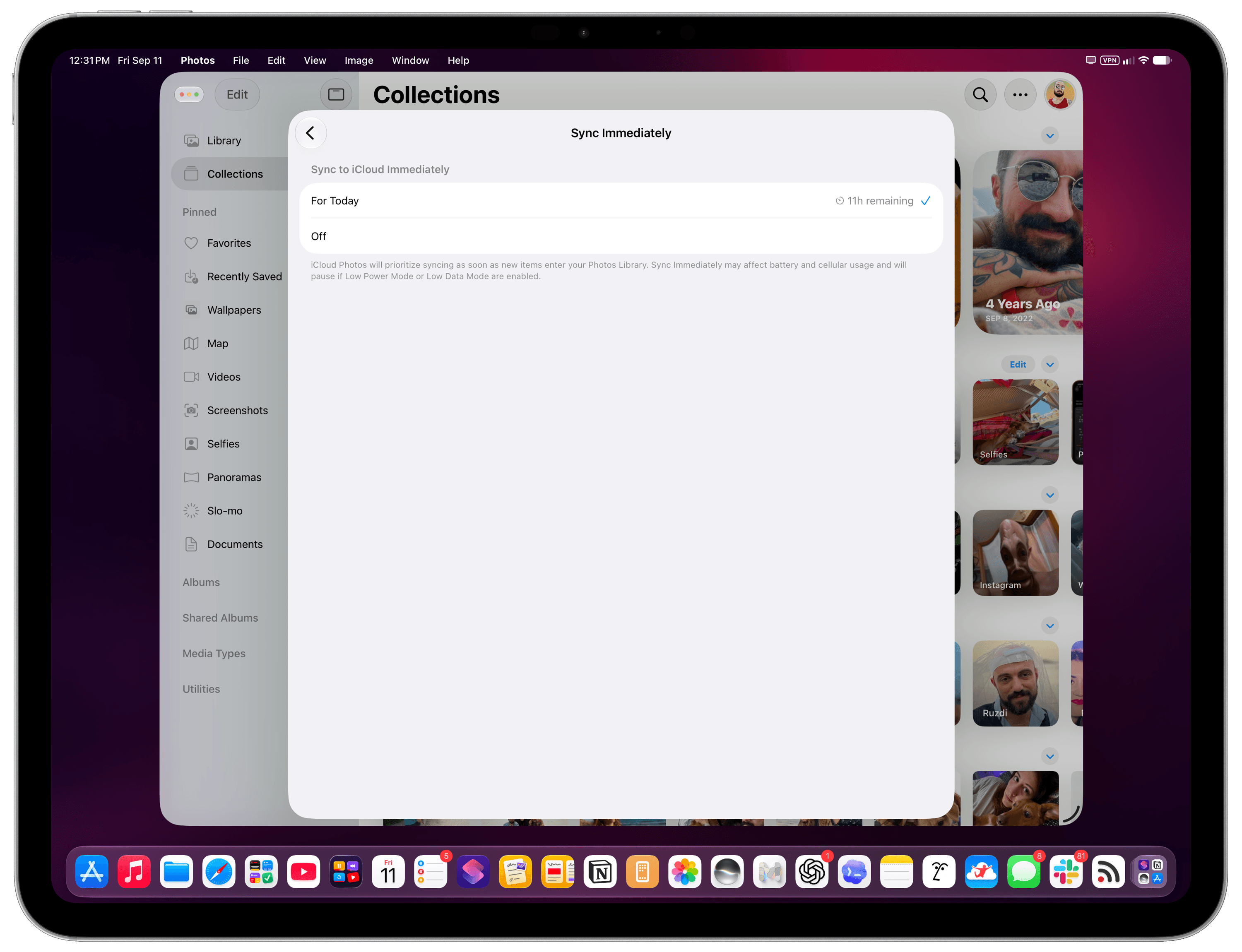
Speaking of photos showing up immediately: iOS 27 also brings a new option to prioritize iCloud sync for the rest of the day if you want to make sure that items upload to iCloud right away. To enable this, go to Collections, tap your profile picture at the top, then choose ‘Sync Immediately’ and set it to ‘For Today’. As Apple explains, this feature will affect performance and will be automatically disabled when Low Power Mode or Low Data Mode is turned on; in my experience, it’s been a great time-saver when working on this review to ensure that screenshots would sync across my devices as soon as I took them.
The smaller tweaks to Photos are my favorites this year. I have to start with one of the all-time greats returning to iOS: the Camera Roll is back. Well, sort of. In iOS 27, if you want to just see photos and videos you’ve taken and nothing else (no screenshots, no downloaded images from the web, etc.), you can press the filter button at the top of the screen and choose ‘Captured by Me’. Doing this will filter the main view of the Photos app to what it used to be: a beautiful grid of just your photos and videos.

This feature is awesome, but I’m bummed that it can’t be made a default view option of the app. I want Photos to always load like this; instead, when you quit the app and reopen it, you’ll have to re-apply the filter manually. Since this is one of the best “hidden” features of iOS 27, I feel pretty confident that lots of people will ask for it, and Apple will add a way to make the original Camera Roll the default view, in all its glory.
Another longstanding limitation of Photos that’s been addressed in iOS 27 is the inability to save frames of videos as images. How many times have you had to quickly and precisely take a screenshot of a video to freeze an exact frame from it? No more. In iOS 27, you can simply pause a video, press the ‘…’ button in the top-right corner, and choose ‘Save Video Frame as Photo’. Unlike screenshots, the resulting image will be saved at full resolution with metadata from the original video. This is exactly what I wanted Apple to do, and I have no notes.
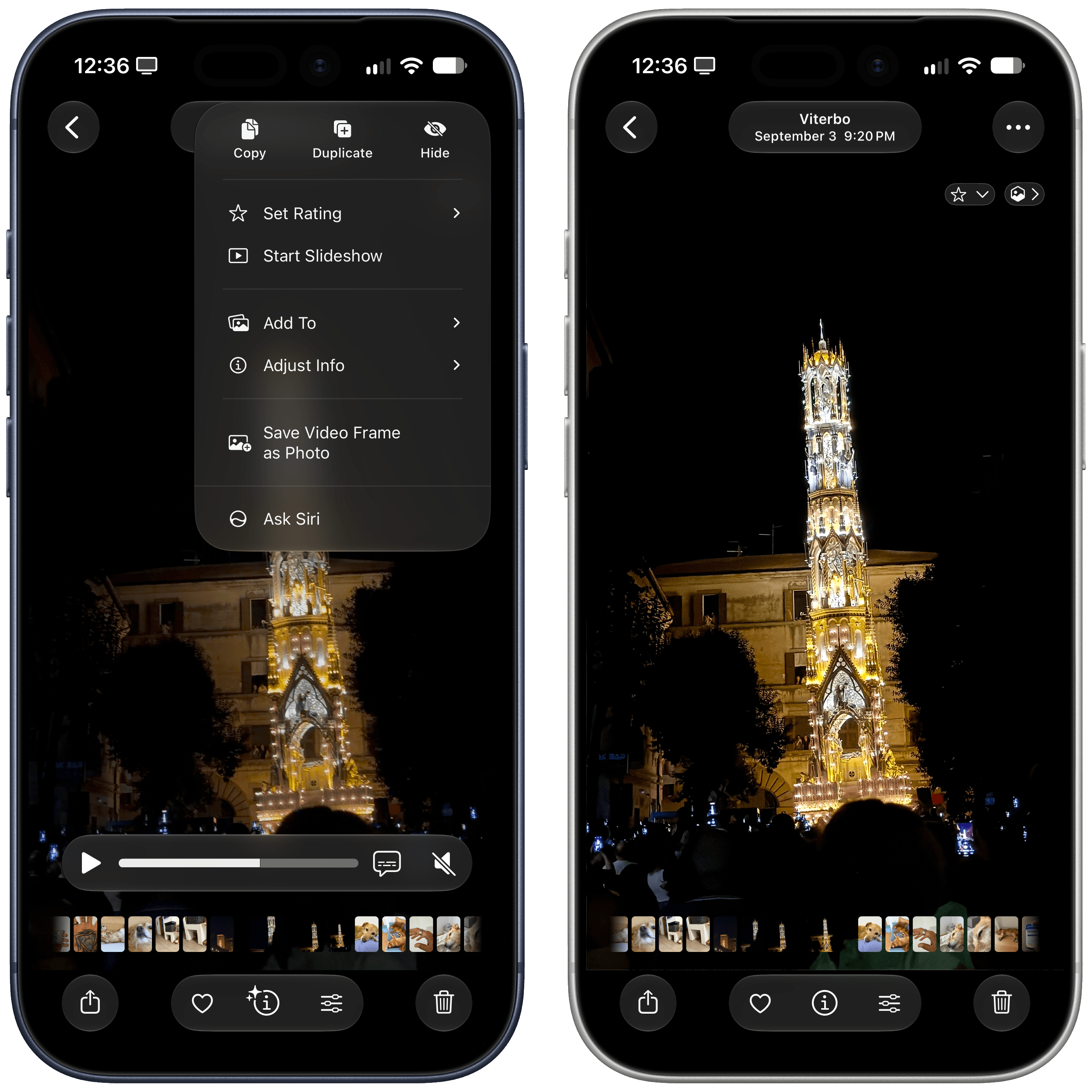
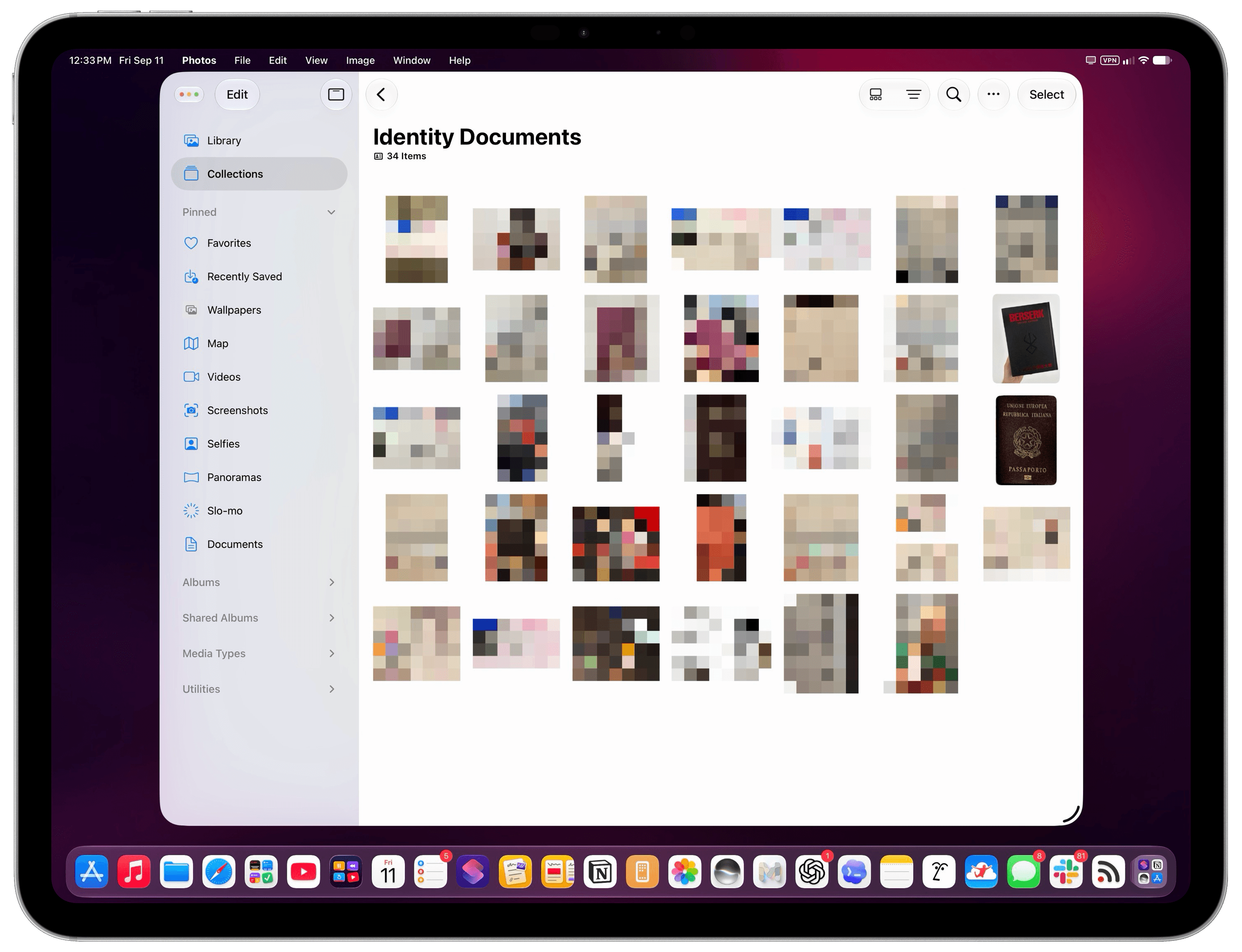
And how often have you ended up taking a picture of your passport or driver’s license again because you knew you had one in Photos, but you couldn’t find it? This has also been solved in iOS 27 with the new ‘Identity Documents’ collection. This section aggregates all pictures of IDs you’ve taken over the years. It’s not perfect since iOS 27 recognized Volume 1 of my Berserk collection as a government ID but, hey, who hasn’t wished to be Guts every once in a while?
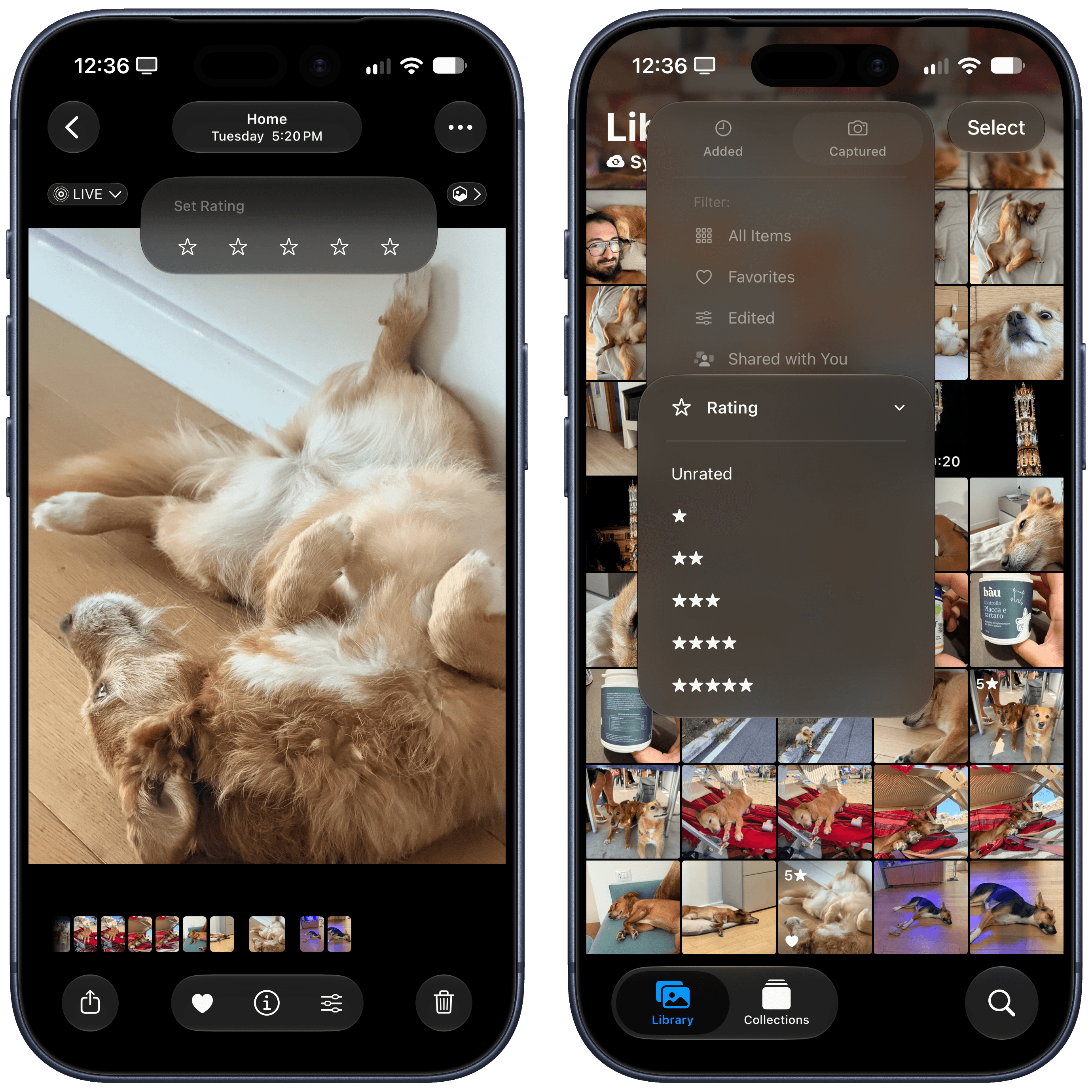
I’ve never been into star ratings, but they’ve found their way to Photos for iPhone and iPad. I’m fully aware that some people like to meticulously rate their music and photos, and because of that, I think Apple is doing the right thing in bringing the feature to the Photos app. After enabling this feature in the redesigned settings screen for Photos under Settings → Apps → Photos → View Options → Rating Controls, you’ll see a star badge appear at the top right of a photo when viewing it in full screen. You can tap that to give the photo a star rating, which can later be used as a filter in the main Library tab. Since I’d give all photos of my dogs five stars anyway, I wouldn’t know how to properly take advantage of this.
Another feature that I never use is shared albums (not to mention the shared library), but I should note that they’re getting some welcome enhancements in iOS 27. iCloud shared albums now support full-resolution sharing (imagine my surprise when I learned that it wasn’t the case already), and they can be set to expire after 30 days, giving other people a chance to get those photos after, say, a vacation, without cluttering your library forever.
Which brings me to the three Apple Intelligence features added to the Photos app: Spatial Reframing, Extend, and Clean Up. I find the first two kind of gross and useless (and I’ll explain why shortly); the third one already exists in iOS 26, but it’s been improved in iOS 27 with a ‘High Quality’ mode for detailed edits.
The new Clean Up, like the other AI features, can be accessed from the new Tools menu (the one with an Apple Intelligence logo) when viewing a photo. After you select it, you’ll see a loading bar while the model used by Clean Up is prepared. Clean Up defaults to an auto mode, which, as the name implies, automatically determines whether it should use a “fast” version of Clean Up for quick touch-ups or a “high quality” one for detailed work.
Objectively speaking, Apple’s claims that Clean Up has been overhauled in iOS 27 thanks to the new Foundation models hold up. When I tried to edit a photo of my dog and brushed over a flower vase in the background, iOS 26’s Clean Up removed the entire dresser the vase was on top of, and it left a smudgy mess in the picture. With the same gesture using iOS 27’s high-quality Clean Up, only the vase was removed.

See, I like Clean Up, and I use it frequently. So why don’t I like Spatial Reframing and Extend? Simple: while Clean Up is about touch-ups that remove small details of a photo without fundamentally altering its nature, I find generative features such as Apple’s Spatial Reframing and Extend, or what Google does on Pixel phones, to be slop generation machines for my memories.
Extend is a generative fill that uses a diffusion model to imagine pixels outside the bounds of an original photo. It just makes up what it “thinks” may have been around a subject in a photo, thereby altering a memory with whole scenery, structures, or objects that simply did not exist. Spatial Reframing is even stranger: it lets you adjust the composition and framing of a photo by twisting and rotating subjects, thus also imagining parts of an image that were never captured by you.

Although I use AI for so many things in my life, generative applications of it for images, music, creative writing, and, yes, memories aren’t areas I’m remotely interested in. I understand why Apple feels the pressure to add these options to their apps now given the competition and their marketing campaigns, but you won’t find a detailed explanation of these features in my review.