Automations
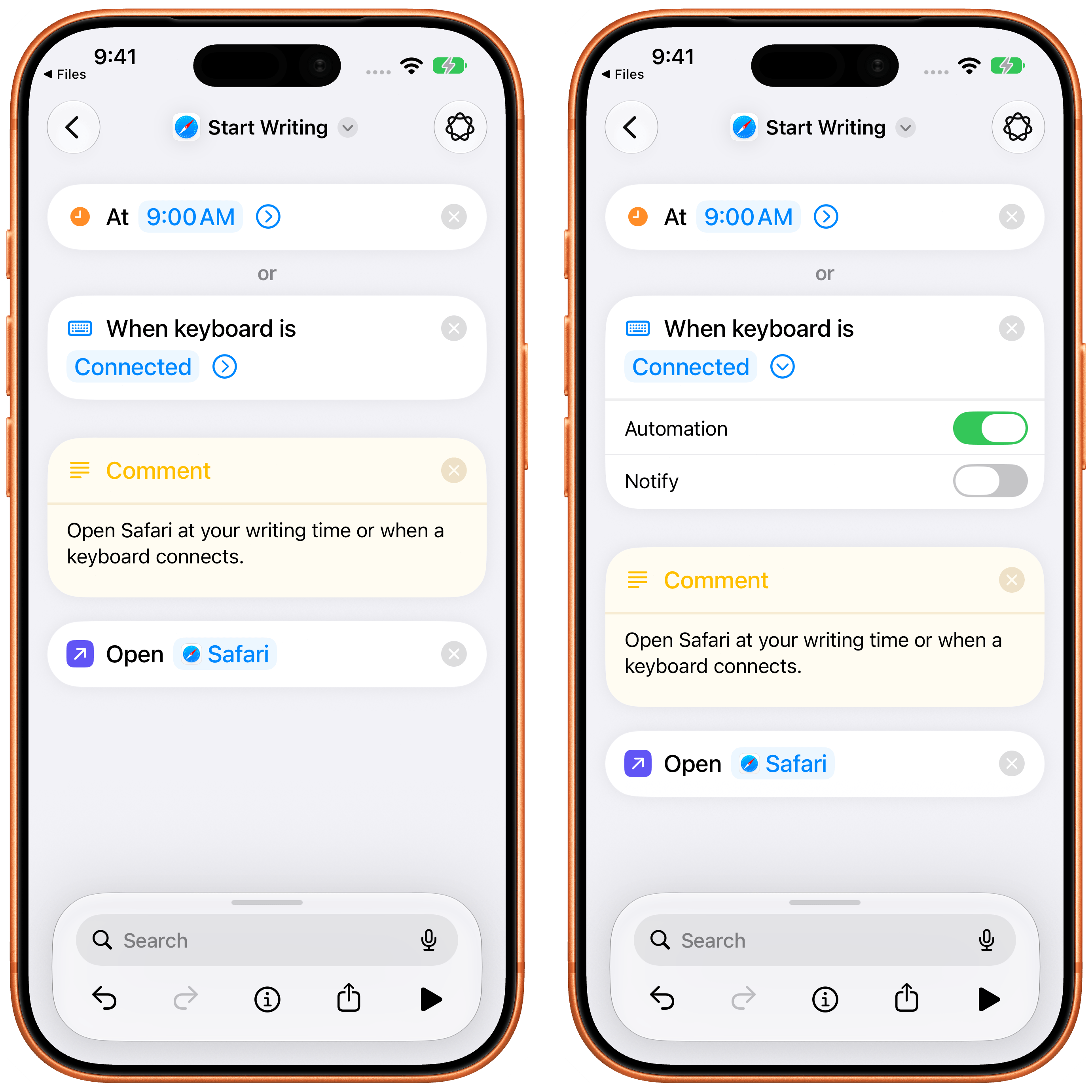
Alongside the plethora of new actions we’re getting in Shortcuts this year, my other favorite change is the complete redesign of automations: they’re no longer a separate section of the app, but instead appear as “special actions” at the very top of a shortcut, which means that you can also share shortcuts that contain automations with other users. Finally.
You can add an automation to a shortcut either via natural language (more on this in the next section), or by opening the action library in the editor and selecting the new ‘Automation’ category. Doing this will let you browse the catalog of automation triggers, and you can tap one to add it to the shortcut, where it’ll always be placed at the top, ready to be configured.
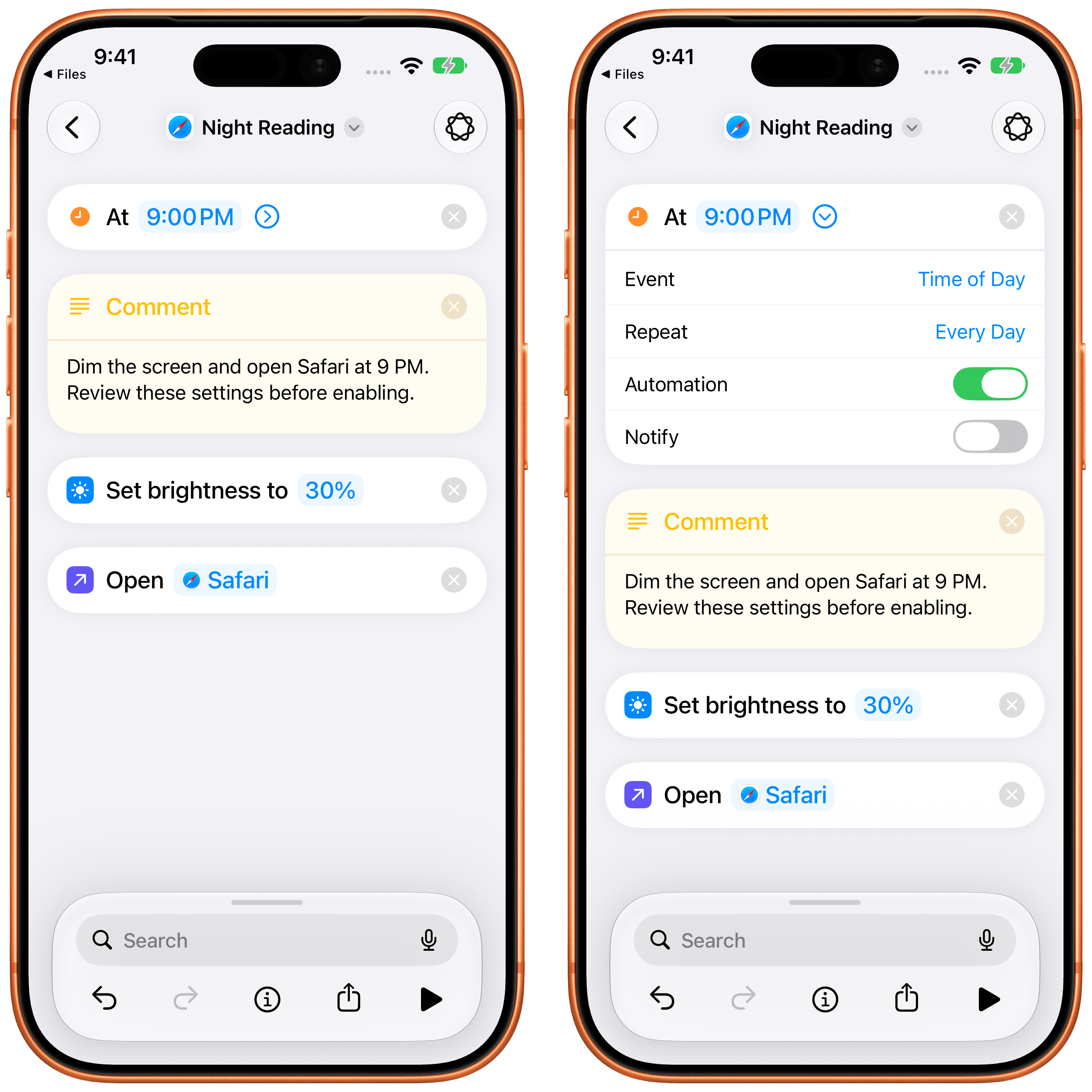
Because automation triggers are actions, though, it also means something else: we can now stack multiple automations in the same shortcut! Power users will love this: it lets us run the same shortcut when any of several conditions is met, instead of creating a separate trigger for each one, as was the case in iOS 26.
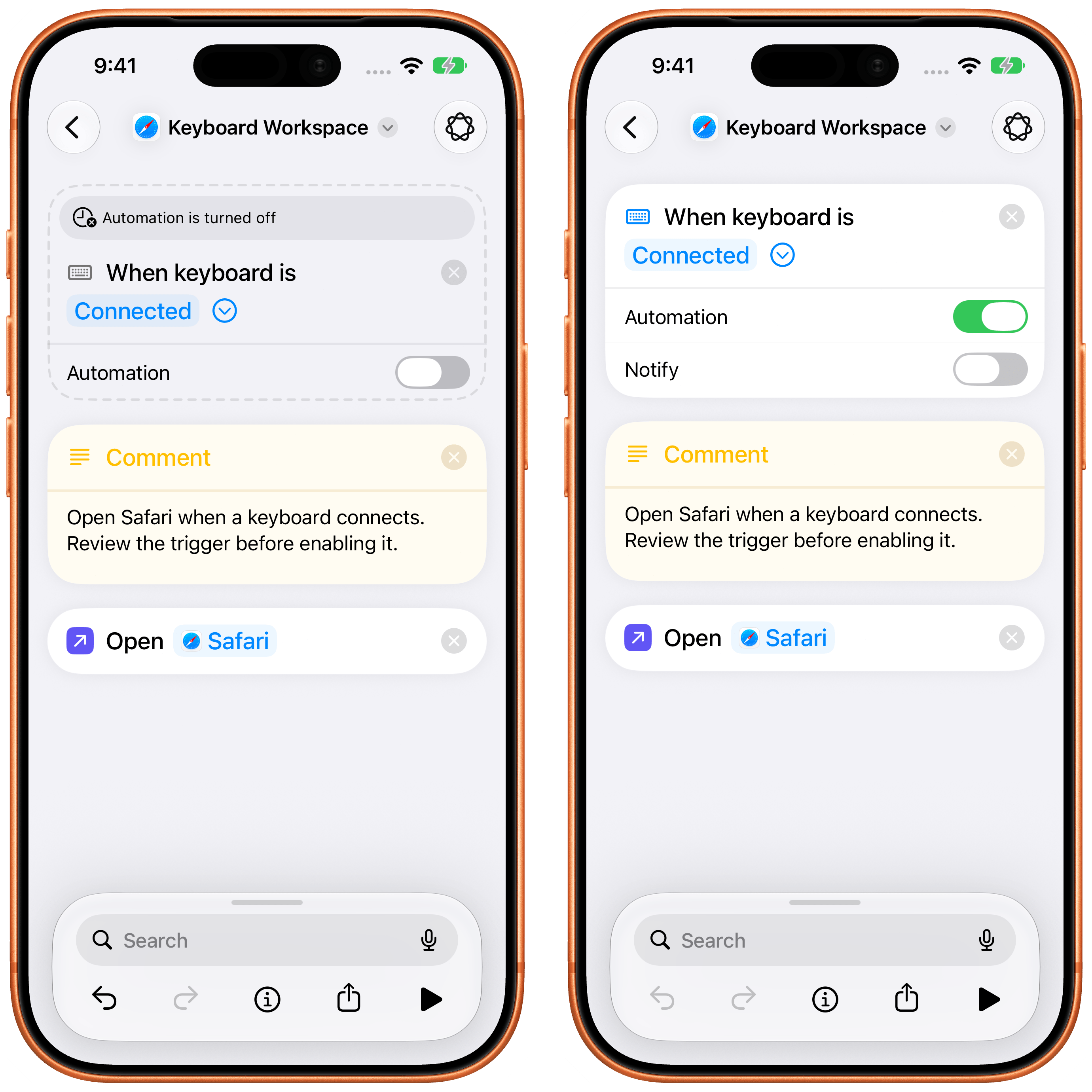
Apple has designed the sharing flow thoughtfully: to avoid the risk of someone else installing a shortcut from the web that contains an automation they don’t know about, automations will be disabled by default (and visibly grayed out) on the receiver’s end upon installation. To enable an automation, you’ll have to flip its main toggle at the top of a shortcut, and then it’ll be able to run with configuration options previously set by the creator of the shortcut.
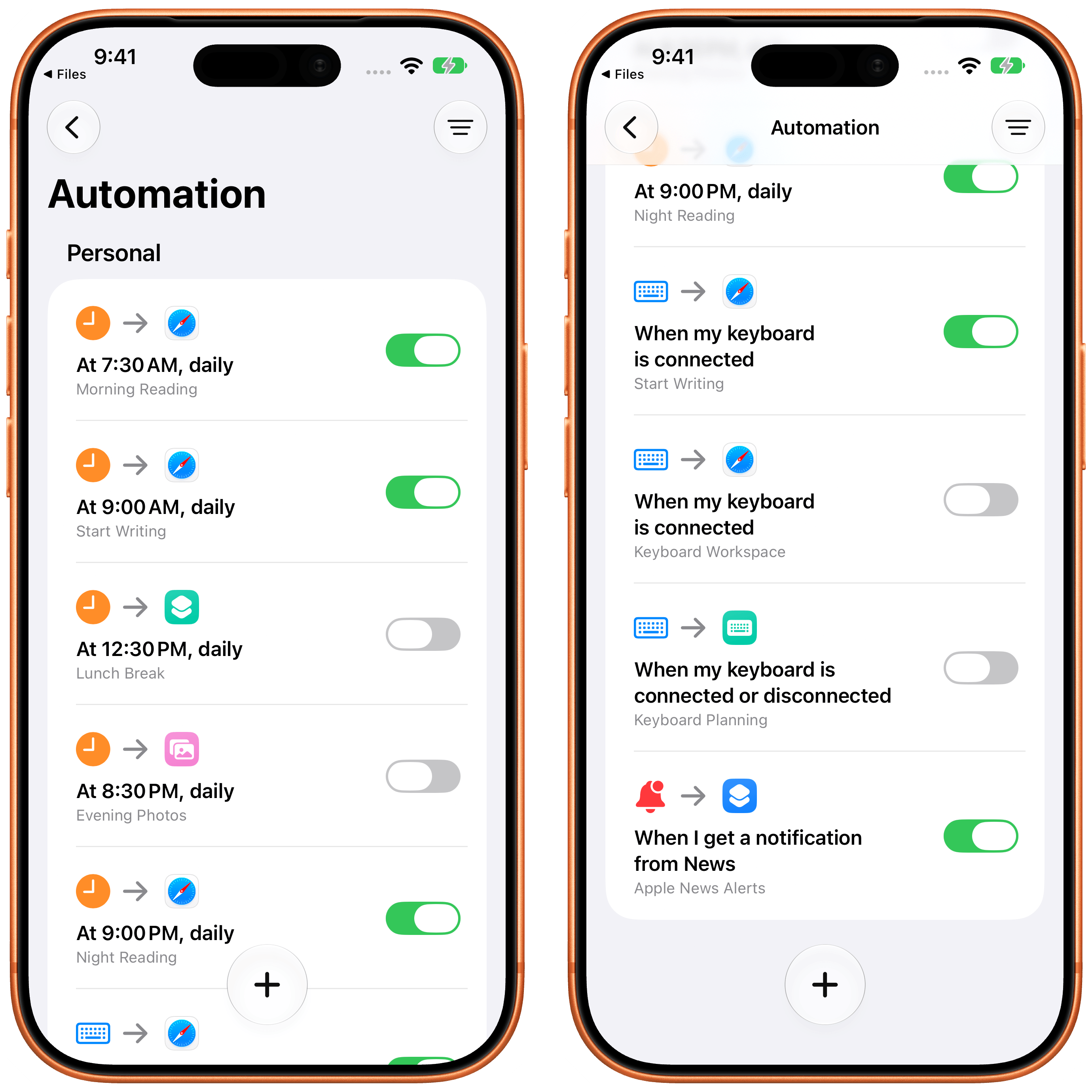
You can still browse all shortcuts that contain automations in a dedicated Automations page of the app, which also lets you quickly turn them on or off, filter them, and see the ones that you haven’t finished setting up.
As a longtime Shortcuts creator, I’m incredibly happy to see automations become something I can share directly with my readers instead of being a fiddly feature I need to explain how to set up manually. This is an excellent change, and having automations live in the editor also makes them easier to configure and tweak.
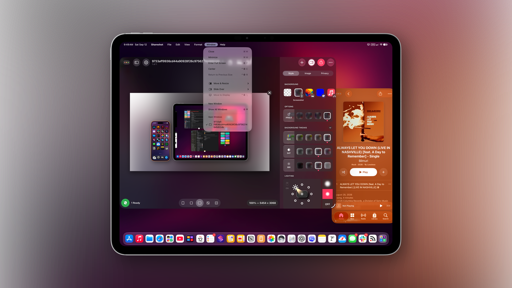
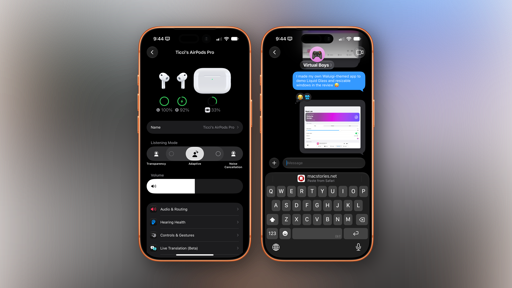
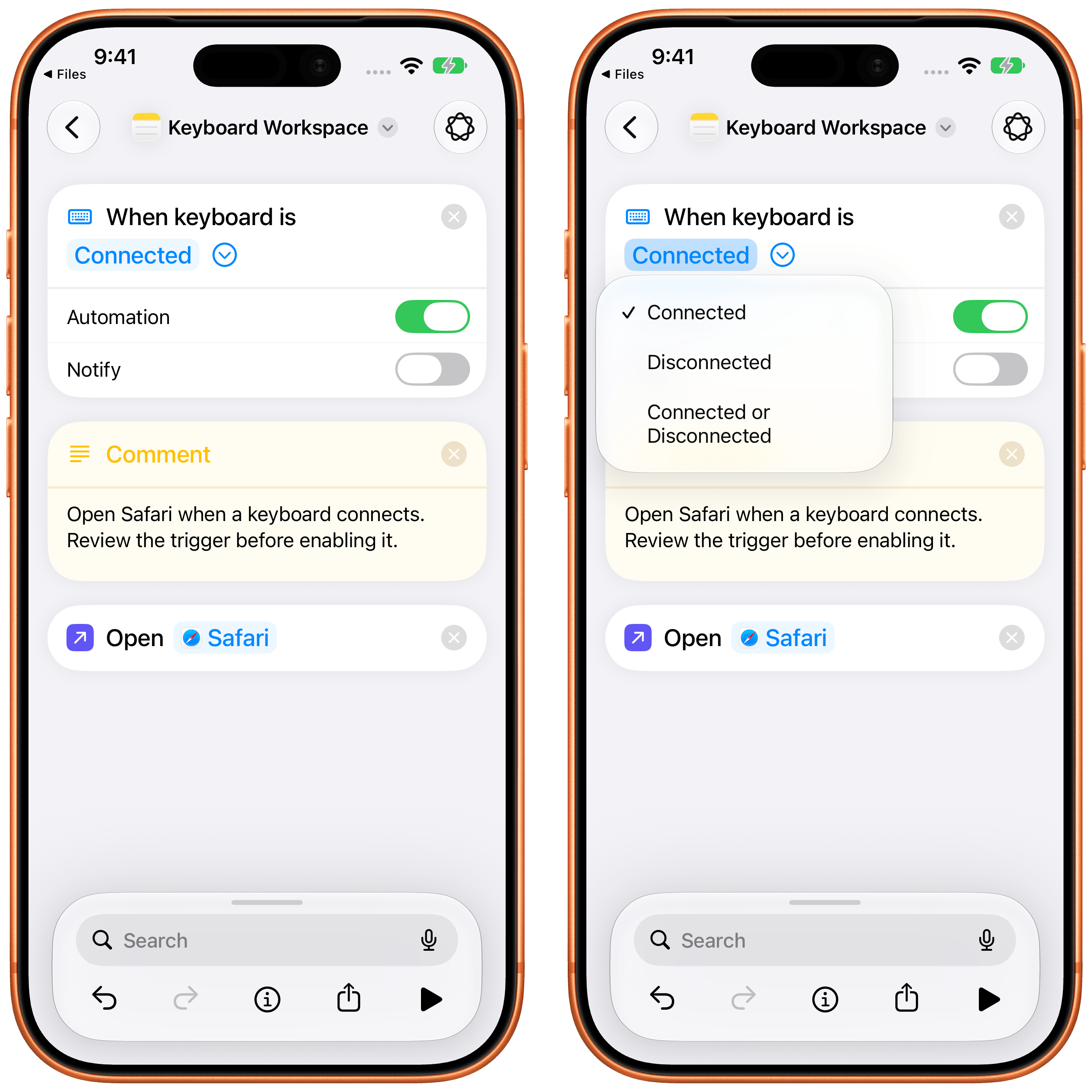
In addition to unified automations, there are also new automation types to choose from. With the new Keyboard trigger, you can configure a shortcut to run when any keyboard is connected to or disconnected from your device. This could be particularly handy with an iPad, for instance, if you want to switch to specific Home Screens or Focus modes when the Magic Keyboard is detached.
There’s also a Notification trigger. With this automation, you can let a shortcut run when you receive a notification from a specific app and optionally filter the title, subtitle, or message contained in the notification itself. You can even process a dedicated ‘Notification’ magic variable in the editor for further checks against its body text, time-sensitive nature, or date.
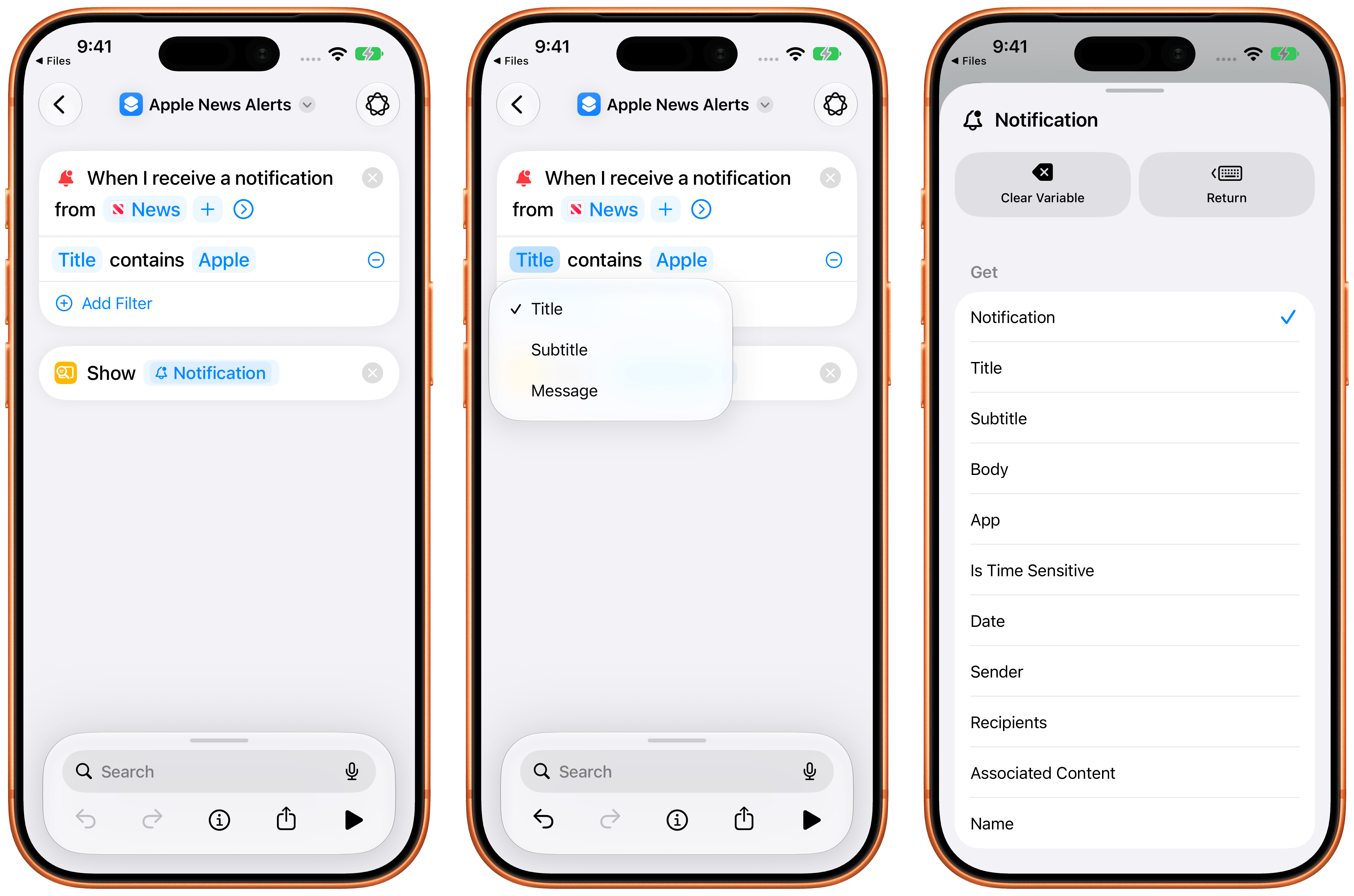
While I’m the type of person who tries to reduce incoming notifications as much as possible, I’ll admit that I see lots of potential for fun use cases of this automation trigger, such as flashing your HomeKit lights red when a food delivery is nearby, unlocking the front door when your spouse’s car pulls into the garage, and more.
Describe a Shortcut
I saved the most important feature of the Shortcuts app this year for last: you can now describe shortcuts with natural language, and AI will make them for you, in seconds, right inside Shortcuts.
I knew that this was going to happen soon when I released my Shortcuts Playground plugin for Codex and Claude earlier this year, and you may think that I’m upset that Apple “sherlocked” me with this feature. So, let me state this very clearly:
I’m ecstatic that Apple is shipping this feature in Shortcuts for free, and that they’ve made it so easy to use. The biggest barrier to entry for the Shortcuts app has always been teaching people how to use the editor and connect actions together: with the ability to describe a shortcut and will it into existence in a few seconds, that barrier has been destroyed. Apple has done an excellent job making it fast and reliable at generating simple- to medium-complexity shortcuts.
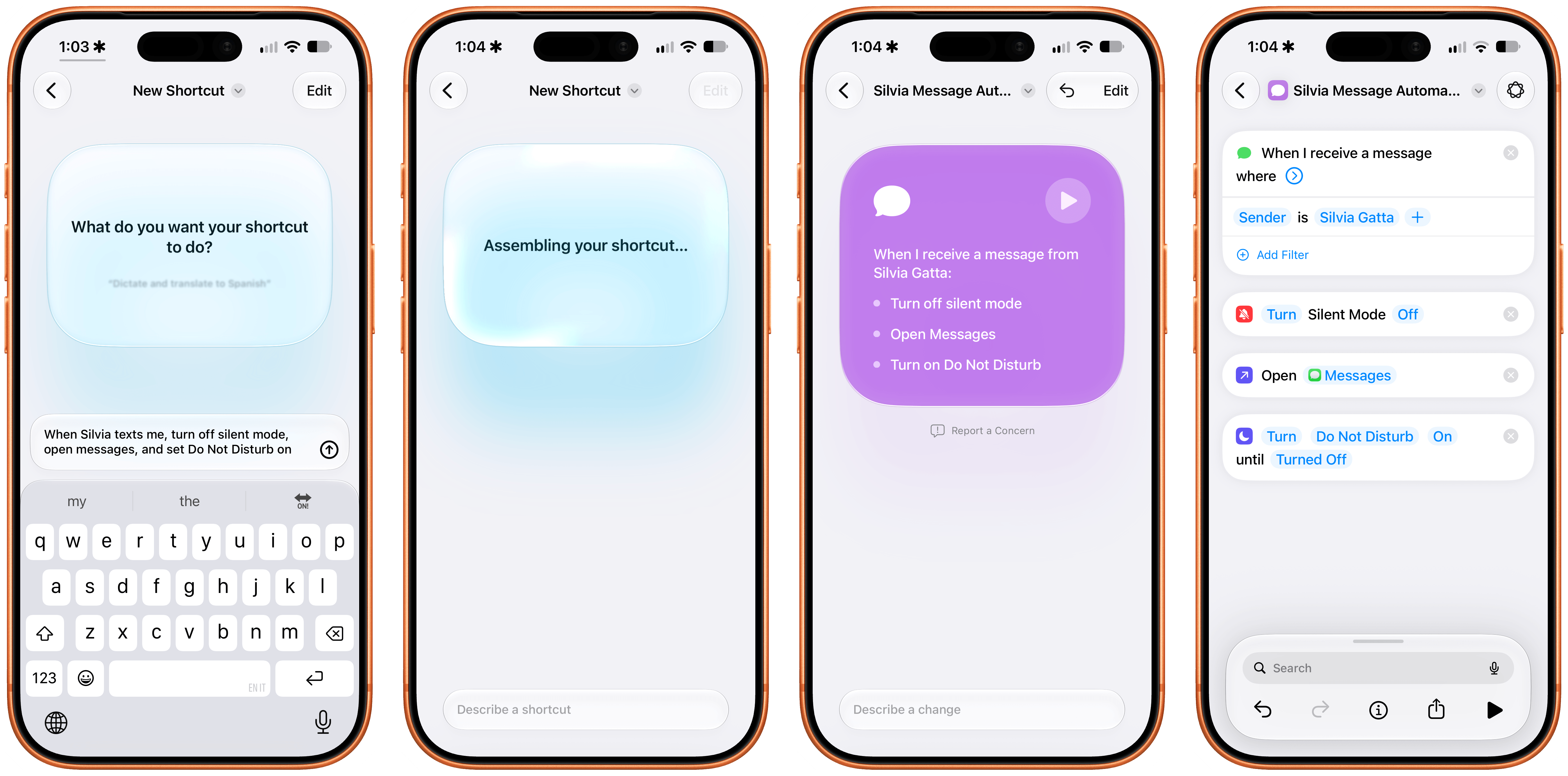
See, that’s why I’m not upset: Apple’s natural language shortcut creation cannot generate highly complex shortcuts that span hundreds of actions, or go off to the web to research an API and then make a shortcut for it. My Shortcuts Playground plugin can literally make and remix Apple Frames (I made version 4.0 of the shortcut with it!); Apple’s feature will stop short of generating anything that involves reasoning for longer than 30 seconds. There is still plenty of space in this field for an agent-agnostic, long-running plugin such as Shortcuts Playground to exist. (In fact, I’ll have a major announcement about it soon.)
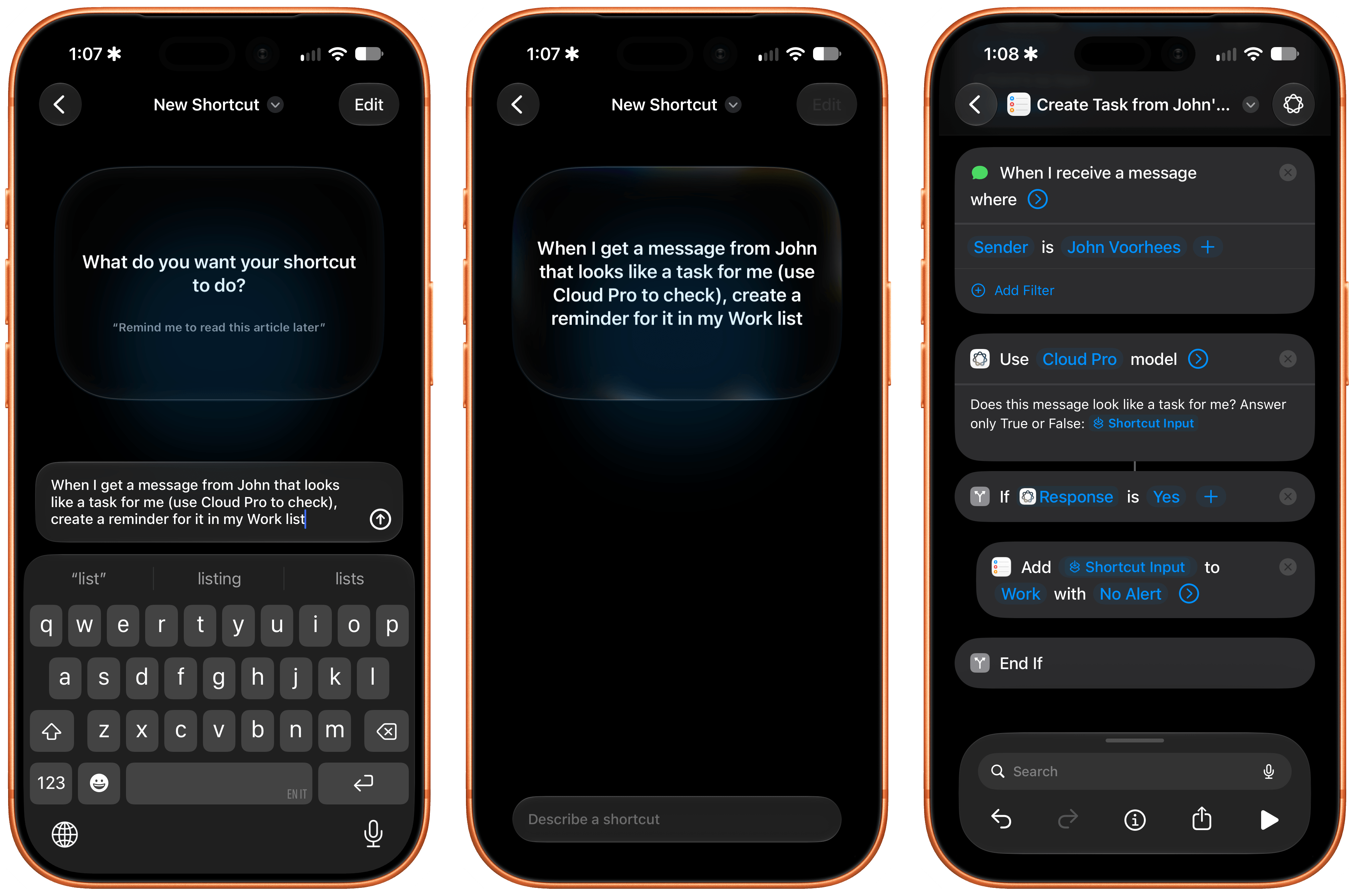
And here’s another thing: a simpler, faster, more reliable version of Shortcuts Playground made by Apple is exactly what I wanted and needed as a user. The ‘Describe a Shortcut’ feature can one-shot all kinds of shortcuts in 15 seconds or so. It can pre-fill all supported parameters in all supported actions. It can pre-scan parameters during the generation phase to make sure they’re valid (such as checking whether a note exists if you ask to make a shortcut to append to a specific note). It can configure all supported toggles in each action for you. It’s also beautifully designed with a gorgeous Liquid Glass animation, and it supports editing shortcuts with natural language by describing further changes to them.
Generating a shortcut in iPadOS 27.Replay
In case it is not clear enough: Describe a Shortcut is a marvel of engineering and, possibly, the most impressive demo of Foundation models to date. It’s no surprise that Apple believes in this feature so strongly that it’s now the default screen when you create a new shortcut in the app.
I’ve been testing this feature all summer, and while it’s not capable of making shortcuts for third-party apps (I assume this will be coming in the future) or third-party web APIs not in its knowledge base, it is an excellent starting point for most users of the Shortcuts app. I once called Shortcuts a bicycle for the mind; the ability to turn an idea into a working automation is the ultimate expression of that philosophy. This is what computers should do: they should help us spend less time managing the computer itself, and more time doing what we actually like.
Go play around with ‘Describe a Shortcut’, test its limits, and have fun with it. I bet it’s going to teach you some things you didn’t know about Shortcuts, and, most importantly, it’ll help you do things with your iPhone and iPad you didn’t think were possible.