Journal
I’ve long been the kind of person who wants to keep a journal, and I’ve never been able to stick to it. For a while now, I’ve thought that my problem is that I’m a writer by trade: after I spend all day writing and talking, I don’t want to sit down at the end of it and write some more about myself.
This is why the AI integrations in the Journal app for iOS and iPadOS 27 are especially interesting for someone like me. This year, you’ll find a new ‘Text’ icon above the keyboard (next to the smart journaling suggestions) that opens a panel of writing prompts. If you get stuck while journaling about your day or a particular activity, Apple Intelligence can help you keep going by asking questions related to what you’ve written so far. You can pick a question, which will be added to the journal entry in purple text, and then continue writing below it.
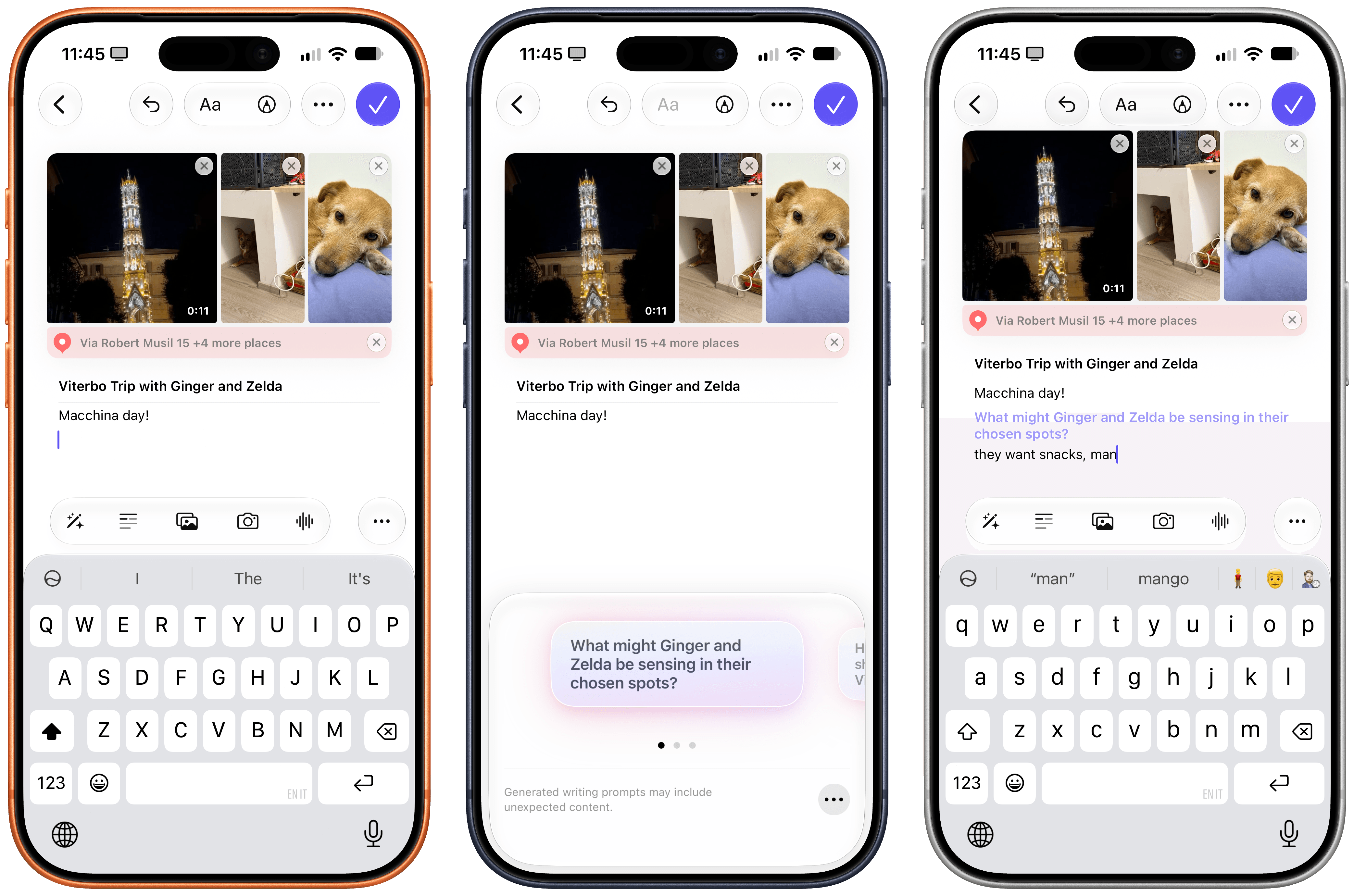
As with all generative text – and especially text generated by models that are not state-of-the-art in 2026 – some suggestions can be pretty good, others are kind of creepy, and some are just nonsensical. When I journaled about trying to finish this review in time, Apple Intelligence asked me if I felt stressed or how the rush would impact my day, and that was pretty good. But when I added a screenshot of my review workspace in Notion that had a pencil emoji, Apple Intelligence asked me if there was a deeper meaning behind it. And for another entry with separate photos of my dogs sleeping, Apple Intelligence – and I’m quoting this insanity below – asked:
What stories could emerge from the contrast between the two resting positions?
Buddy, they’re two pictures of my dogs sleeping. Don’t try so hard.
I’ll also note that journal entries now show timestamps in addition to dates, which I’m very surprised was not the case before.
I can’t believe I’m typing this, but Apple fixed Mail search in iOS 27 thanks to the new indexing behind Siri AI, and I’m now at the point where I may seriously consider switching to Apple Mail again. From my perspective, this is the biggest plot twist of the app story in iOS 27.
As part of this year’s focus on system-wide performance improvements and the new indexing that powers Spotlight and Siri AI, Apple completely re-engineered the Mail app’s architecture to support faster message loading and vastly improved search that finds relevant messages more quickly, with optional support for natural language queries. This has been a recurring frustration across my entire history of iOS reviews: Apple Mail’s search was never good enough. It was slow, it could never find what I was looking for, and as soon as AI integrations for Gmail started coming out two years ago, it seemed like I would be done with Apple Mail forever and use third-party services instead.
Lo and behold, they actually did it with iOS 27. The new indexing works and the search is great – it’s as simple as that. I’ve been able to find messages from 11 years ago in just a few seconds, and the app’s improved search suggestions do a nice job of highlighting the most relevant and recent messages from a specific contact while still showing you historical results from previous correspondence. And it is fast: on my iPhone 17 Pro, results from a decade ago appear as I type, and when I open an old message that I would assume is not in the system’s cache, it loads in less than two seconds.
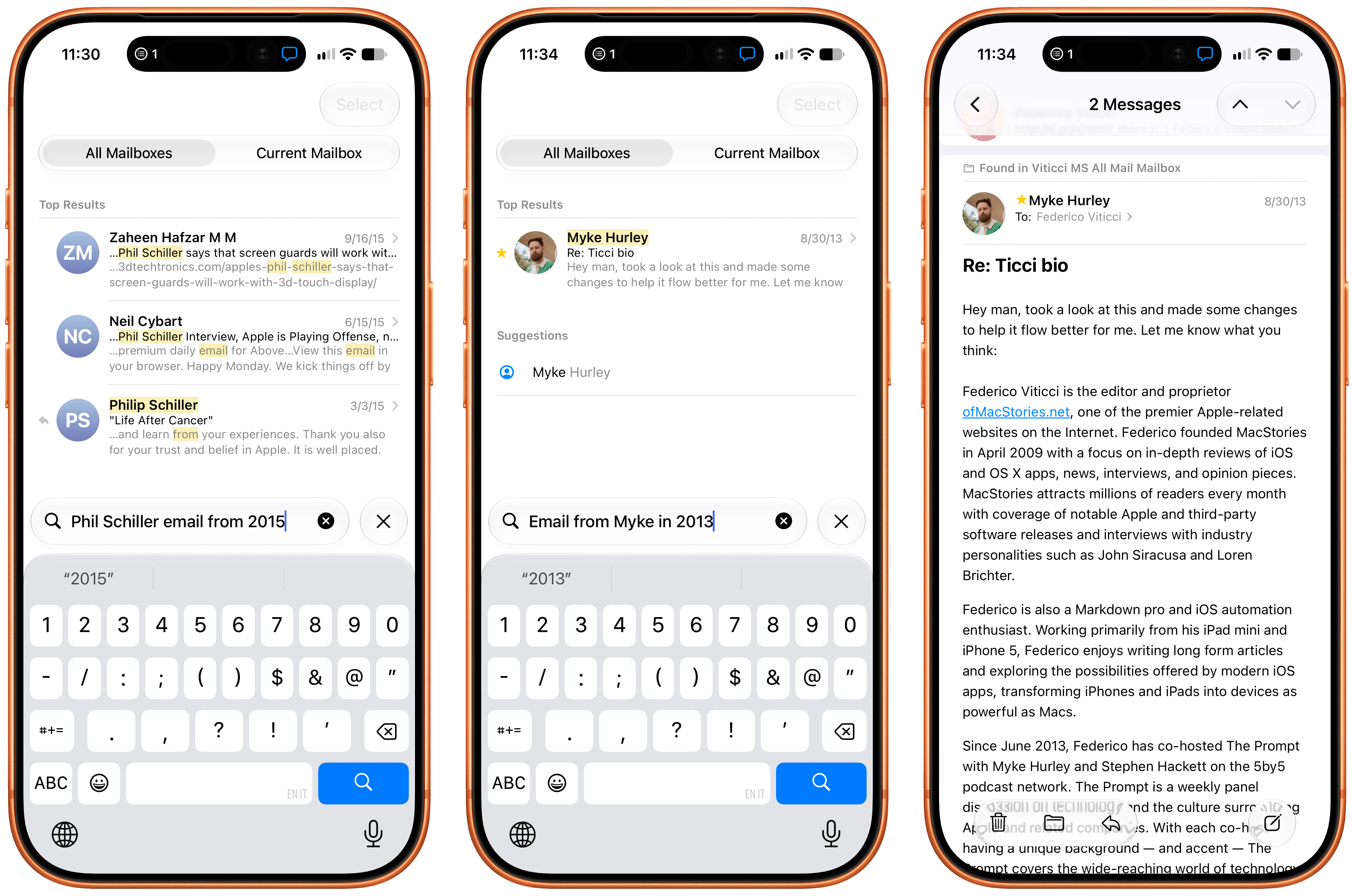
Even nicer: you don’t have to phrase your search queries too precisely to find messages. Thanks to Mail’s new ranking system and Apple Intelligence, the system will know what you mean if you type a sentence such as “Email from Myke in 2013”. Trying to search with this query in iOS 26 would return no results, whereas iOS 27 immediately found my first email conversation with Myke from 13 years ago.
This all comes together nicely when you combine the improved indexing and ranking of Mail with Siri AI. A few days ago, I asked Siri to find all emails from Google Search Console in my inbox and archive them. In less than 10 seconds, Siri AI asked me to confirm that I wanted to archive 40 messages and displayed a visual snippet. That was it. This kind of request would have taken at least a minute with a frontier model that would have pinged a Gmail connector and reasoned through the steps; Apple’s hybrid orchestration system did it in under 10 seconds because the data had already been indexed on-device. I’ve had similar positive experiences with Mail and Siri AI when searching for specific threads, asking to summarize the latest message in a thread, and more. Alongside Notes and Reminders, Mail makes for one of the best demos of Siri AI to date.
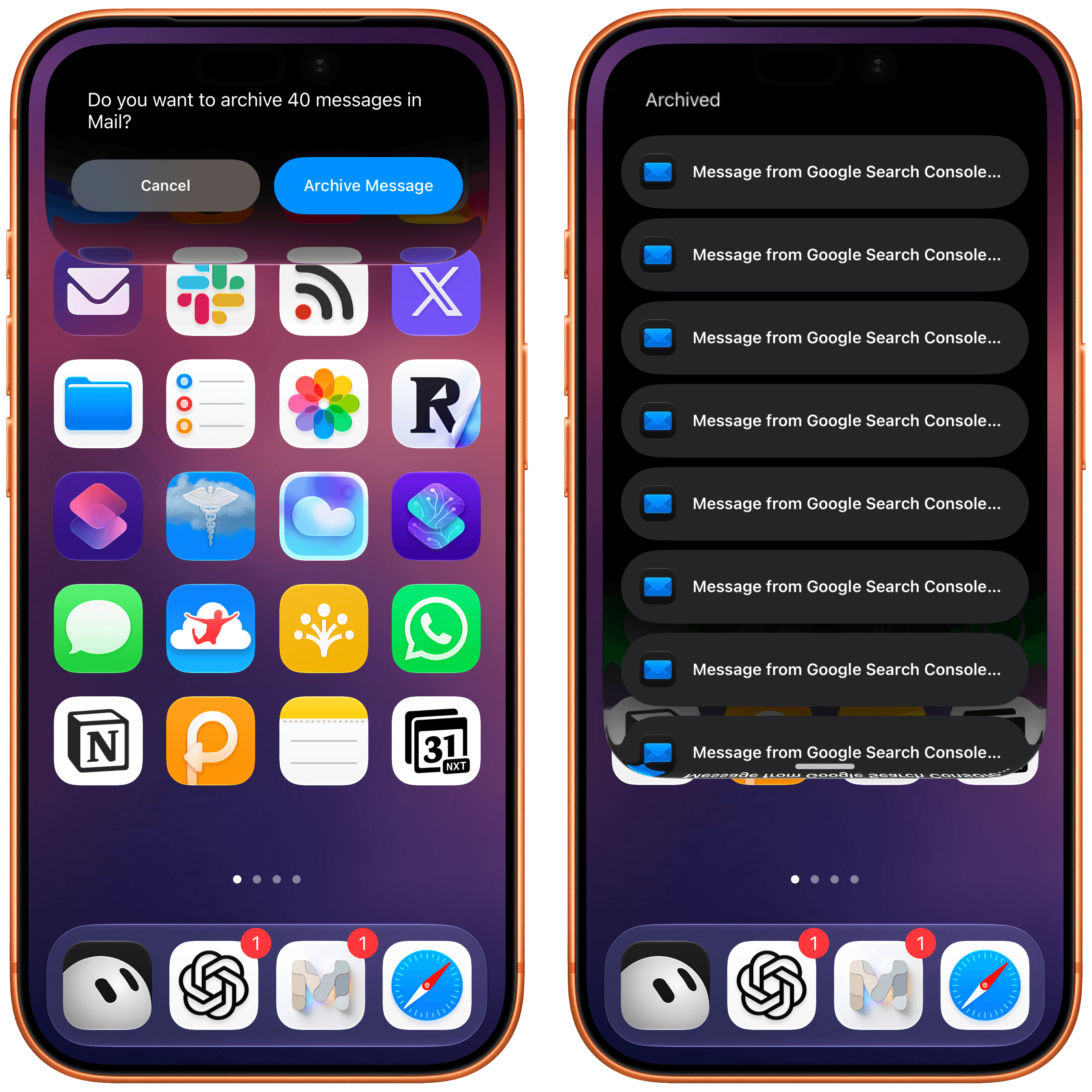
The Apple Mail engineers responsible for these improvements honestly deserve a round of applause this year. You know me: when I dislike something, I don’t mince words, but when I like something, I’m not shy about that either. As things stand in iOS 27, I genuinely believe Apple went from having the worst search of any native email client on iPhone and iPad to the best, if you consider privacy, speed, on-device processing, and just how nice everything looks with Liquid Glass. A plot twist, indeed.
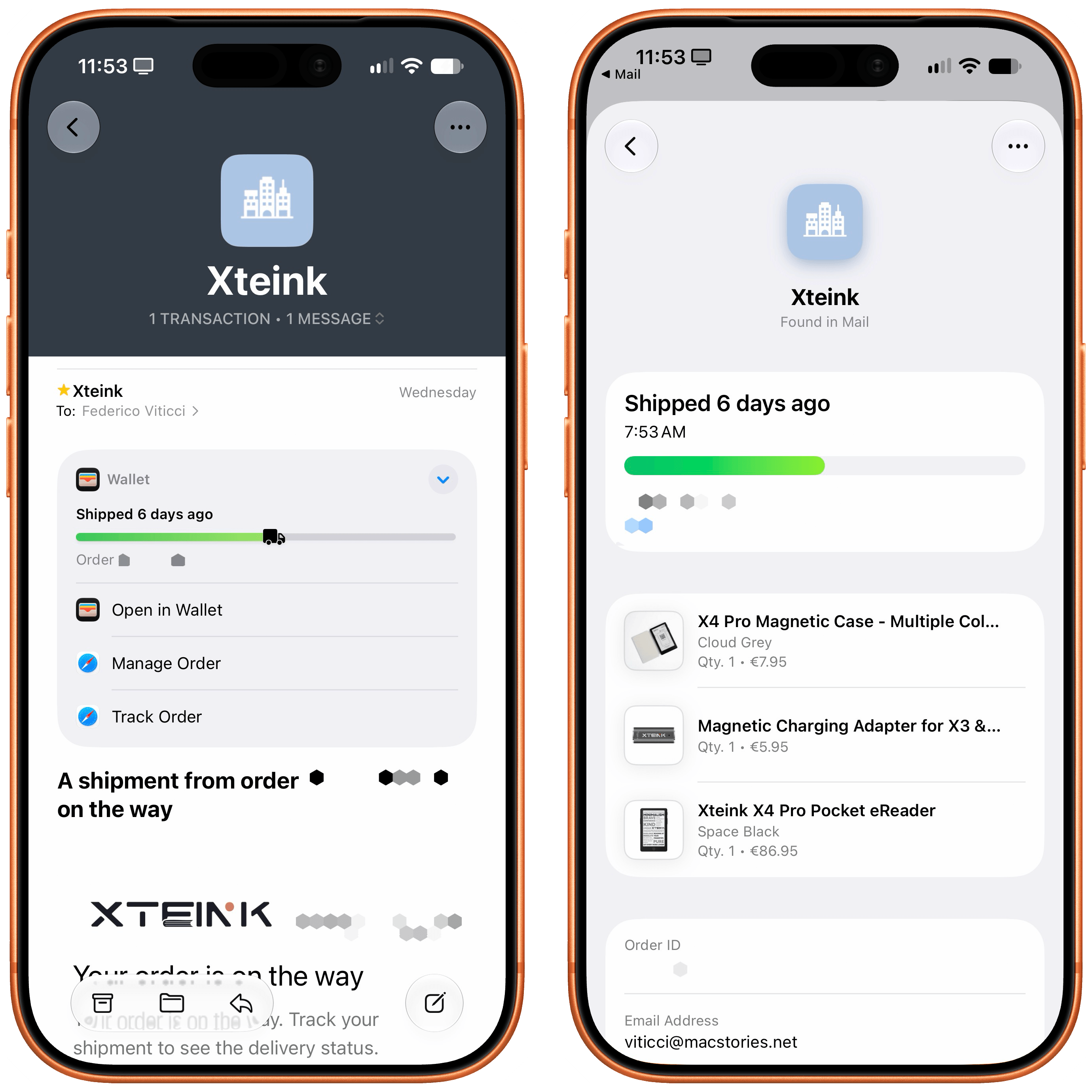
There are some other additions to the Mail app worth mentioning. App integrations are making their debut in the form of the same suggestions seen in Messages, which I will cover later. If you’ve enabled order tracking via Wallet, the integration in Mail will now show you links to manage or track an order in Safari in addition to opening it in Wallet.
Lastly, Apple Mail now also integrates with ‘Write with Siri’, and the system supports composing and editing messages in your own style based on context. I don’t like doing this personally, but I think it’ll be a popular feature with lots of users.
I did not expect a comeback story with Apple Mail in iOS 27. If you haven’t played with Apple’s email app in a while, now’s the time to take it for a spin again. Just let it index for a few days first.
Messages
Much to my surprise, the Messages app is having a relatively quiet year with iOS 27. As with the rest of the system, there are small improvements across the app, but there’s no single “big” feature in Messages for the first time in a while.
Let’s begin with Justin Bieber having mastered the art of filing feedback with Apple. Everyone knows that the best way to effect change is to complain loudly about an iOS feature on social media, which Bieber eloquently did last year when he voiced his keyboard dictation concerns on Instagram.
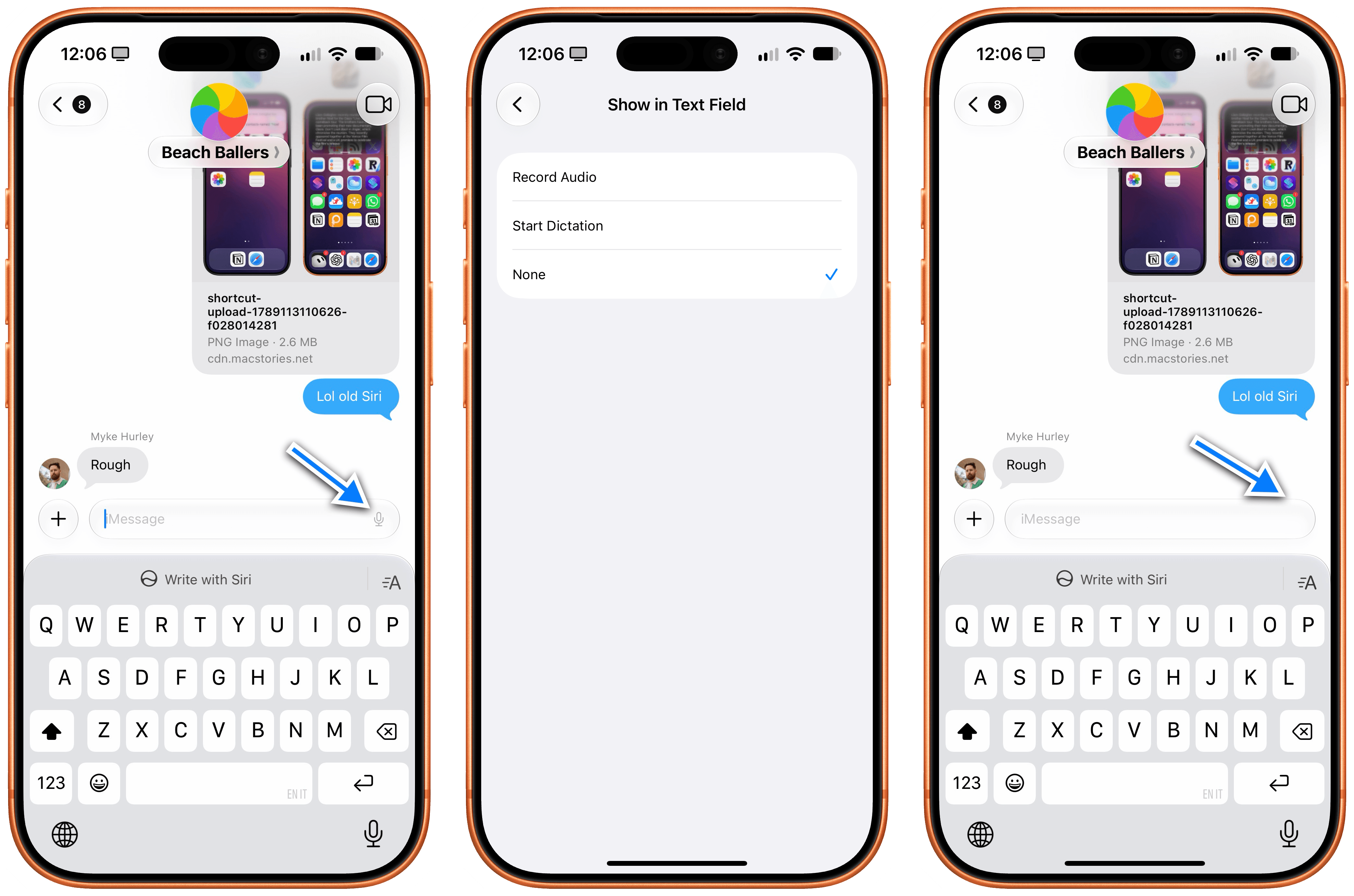
In iOS 27, you now have the option to hide the dictation button from the Messages text field so that you, or Mr. Bieber, won’t accidentally press it anymore. To do this, head over to Settings → Messages → Show in Text Field, and you’ll get options to show a button to record an audio message, start dictation, or – finally – ‘None’.
Not only is this a welcome tweak to the compose experience in iMessage, but we should all be relieved that Mr. Bieber won’t get to put John Ternus in “a rear naked choke hold”. The new Apple CEO lives to fight another day.
Moving on to non-threatening feature additions to iOS 27’s Messages app, Apple has now consolidated Tapback reactions in notifications. When multiple people in a group chat send the same reaction to a message, instead of getting separate alerts for them, the system will coalesce them in the same notification. It’s a small thing, but it’s nice to have.
Lastly, the Drawing app. This is a new app in the iMessage app drawer that lets you draw with native PaperKit tools (the same ones seen in Notes and Freeform, which third-party developers can now use too) to send drawings to your friends.
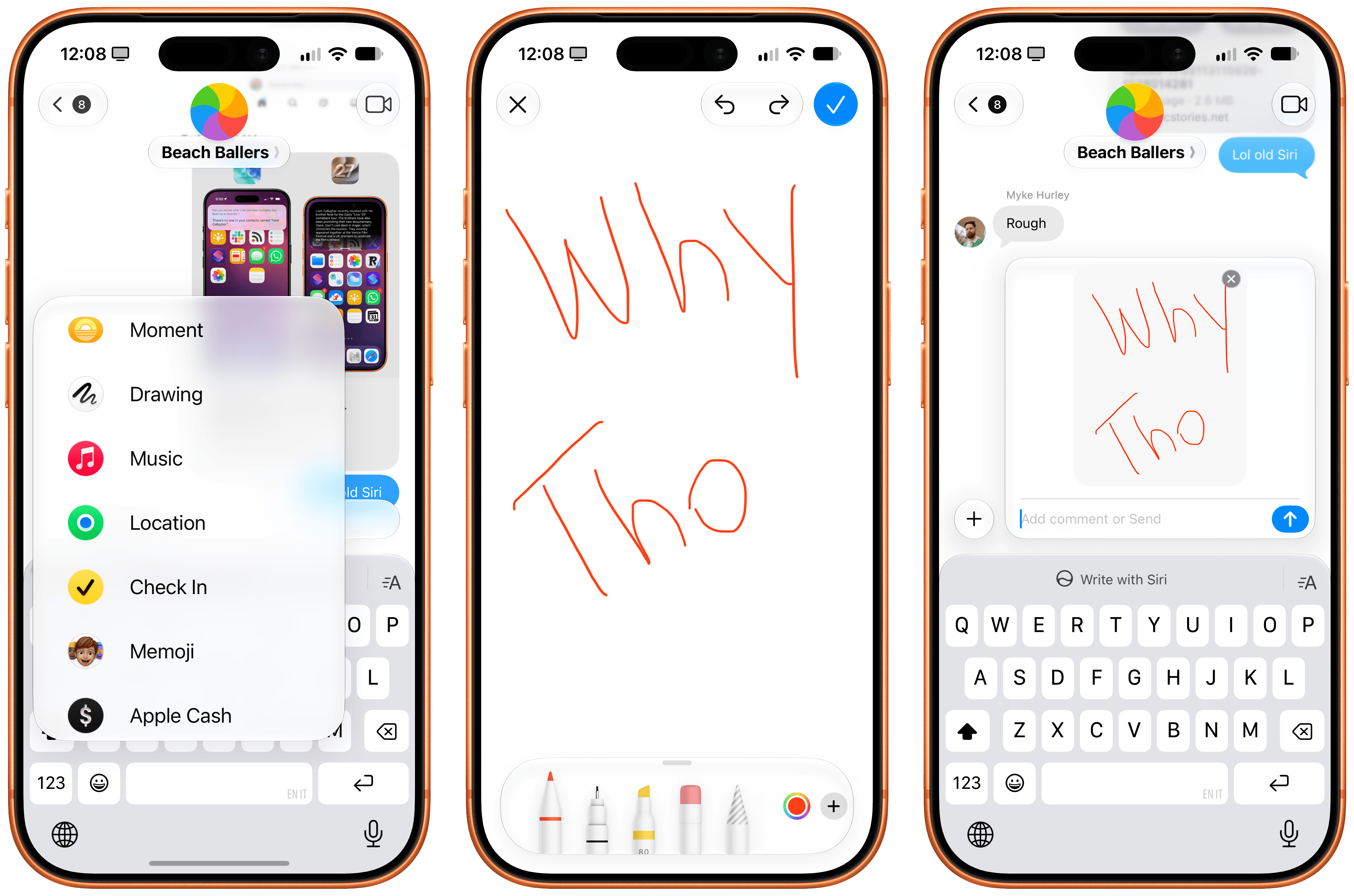
Why does this exist? Who at Apple is constantly sketching in iMessage and pushed for this?
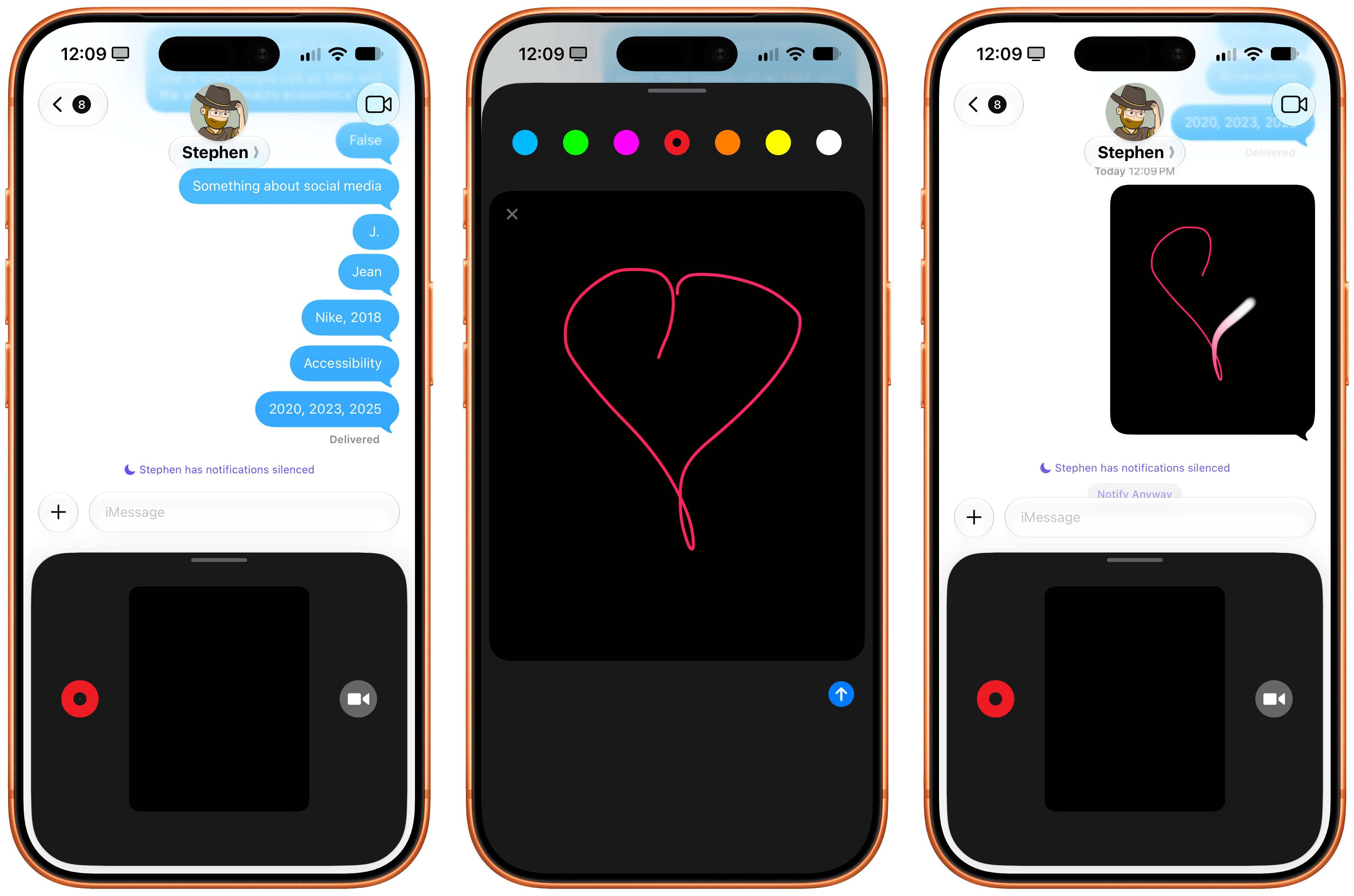
“This is it. You send your heartbeat. It is racing, thumping. Your crush sends their heartbeat back.”
And more importantly: why does Digital Touch also still exist?
Music
As the kids say these days, Apple Music continues to “mog” Spotify in the design department, and the iOS 27 version is so much better-looking than Spotify for iPhone, it’s not even funny anymore.
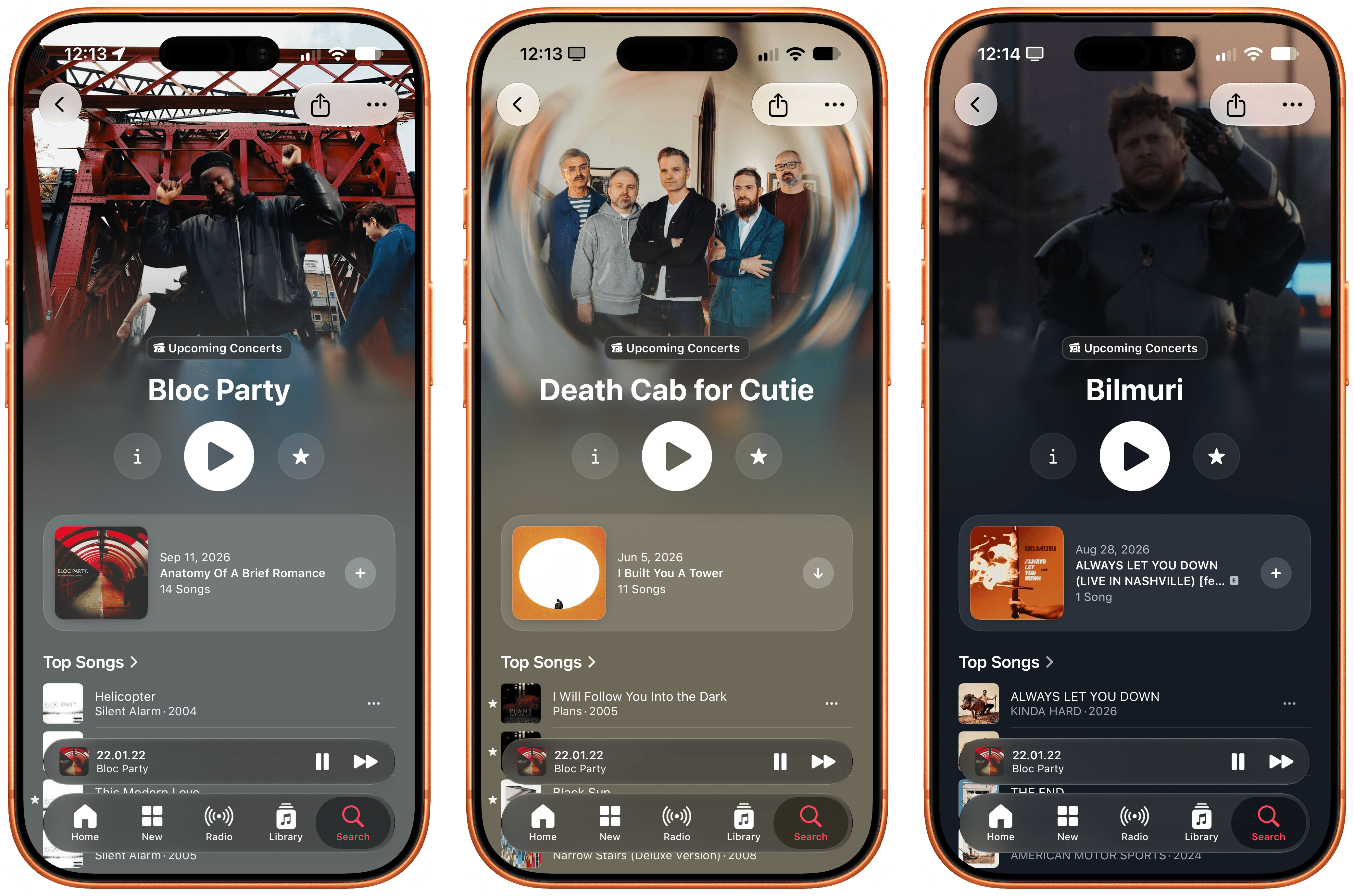
In iOS 27, Apple has redesigned artist pages with extended artwork whose color bleeds through the entire page, and put buttons to read an artist’s bio, play their top songs, and favorite them front and center. The result is dramatic and makes the old Music app feel like it was designed a decade ago.
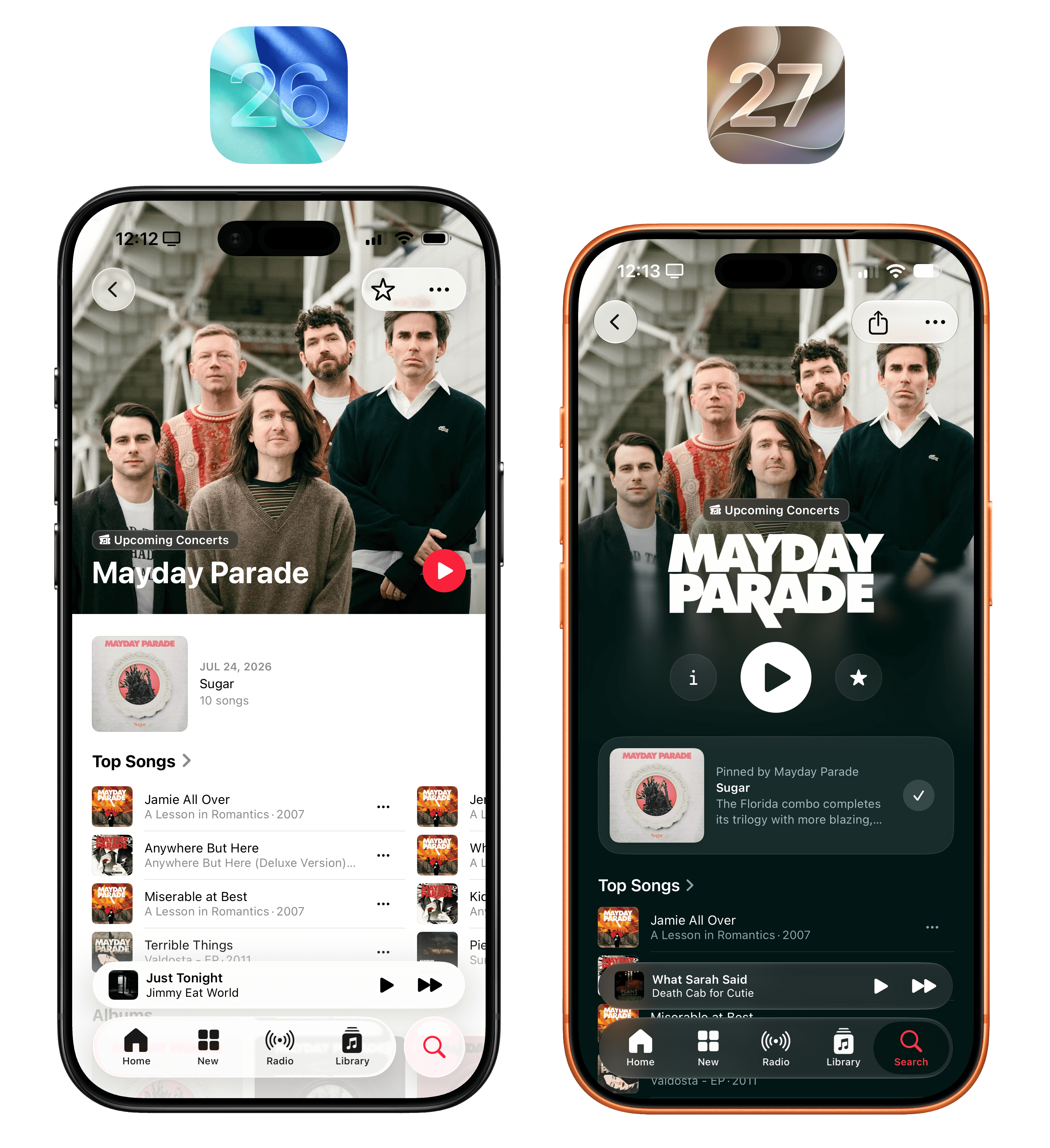
In addition to redesigned artist pages, Apple is also letting artists upload their own custom logos, as seen with Mayday Parade here.
I highly recommend taking a tour of different artist pages in Apple Music and looking at the enhanced art and motion effects the company has sprinkled throughout the catalog. No music streaming service looks as nice as Apple Music does, especially in iOS 27 – not to mention the app’s state-of-the-art real-time lyrics support, which continues to be one of my key reasons for not using Spotify.
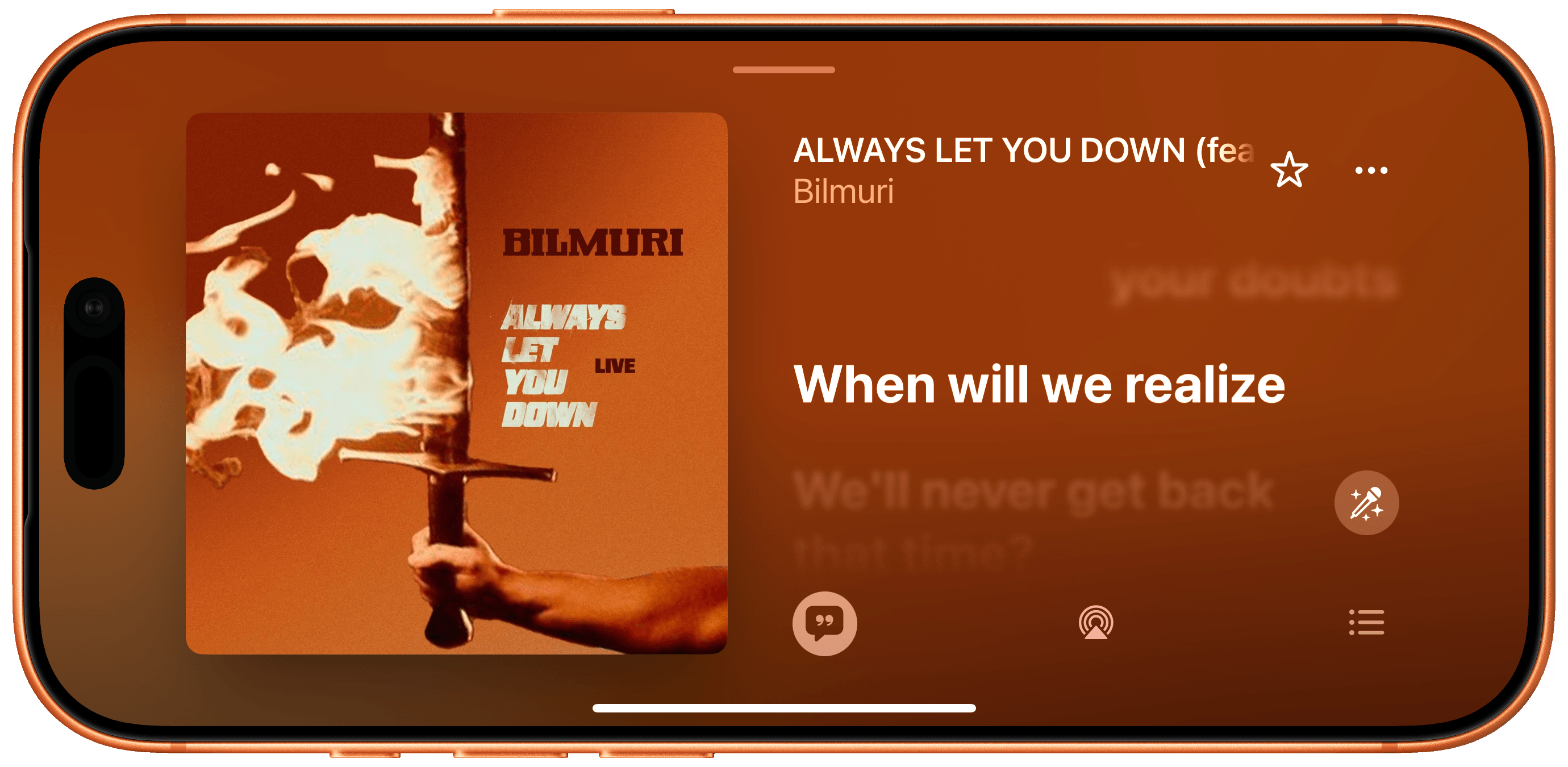
Also new in iOS 27: there’s landscape support in the Now Playing screen on iPhone (we all know why this was added in a bunch of system apps this year) as well as improved transitions for AutoMix, which I don’t use because I’m too old for it.
The one blemish of the Music app in iOS 27 is, unfortunately, its Siri AI integration. I don’t know if the Music or Siri team is to blame here, but conversational music playback and search with Siri AI is a far cry from the outstanding experience of Apple Mail. While Siri AI can play specific albums or playlists in your library quite reliably, the same can’t be said for searching Apple Music or extracting information from the service’s catalog. When I asked to play some of Oasis’ ‘Live 25’ songs, Siri AI queued 25 songs from Oasis instead, and that tells you everything you need to know.
I hope to see much deeper integration between Apple Music and Siri AI in iOS 28.