Apps
Given the growing number of built-in Apple apps, their cross-platform nature, regional restrictions for certain features, and the simultaneous release of iOS, iPadOS, and macOS 27, we think it’s best to split app coverage between my review and John’s. We debuted this approach two years ago; this year’s reviews will follow the same structure. It makes even more sense this year given Apple’s focus on fixes and smaller tweaks that encompass apps across its entire family of OSes.
This year, you’ll find the following apps covered in John’s upcoming review of macOS Golden Gate:
- Home
- Image Playground
- iPhone Mirroring
- Maps
- Passwords
- Podcasts
- Preview
- Sidecar
- Weather
I’ll be covering the rest here.
Calendar
Can you believe it? Fourteen years after Fantastical first brought natural language event creation to iOS, when LLMs were a distant dream, Apple’s Calendar app is getting support for “describing events” with natural language in iOS 27. Talk about a “finally” here.
When typing an event or reminder in the Calendar app, you’ll notice that some parts of the sentence will be highlighted in red to signify that they have been recognized by Apple Intelligence. By “some parts”, I mean the time of an event and the date, but only after you accept a suggestion for a recognized date above the keyboard. When an event gets parsed by AI, you’ll also see an Apple Intelligence symbol next to your typed sentence, and you’ll be able to tweak the event’s title in a separate field.
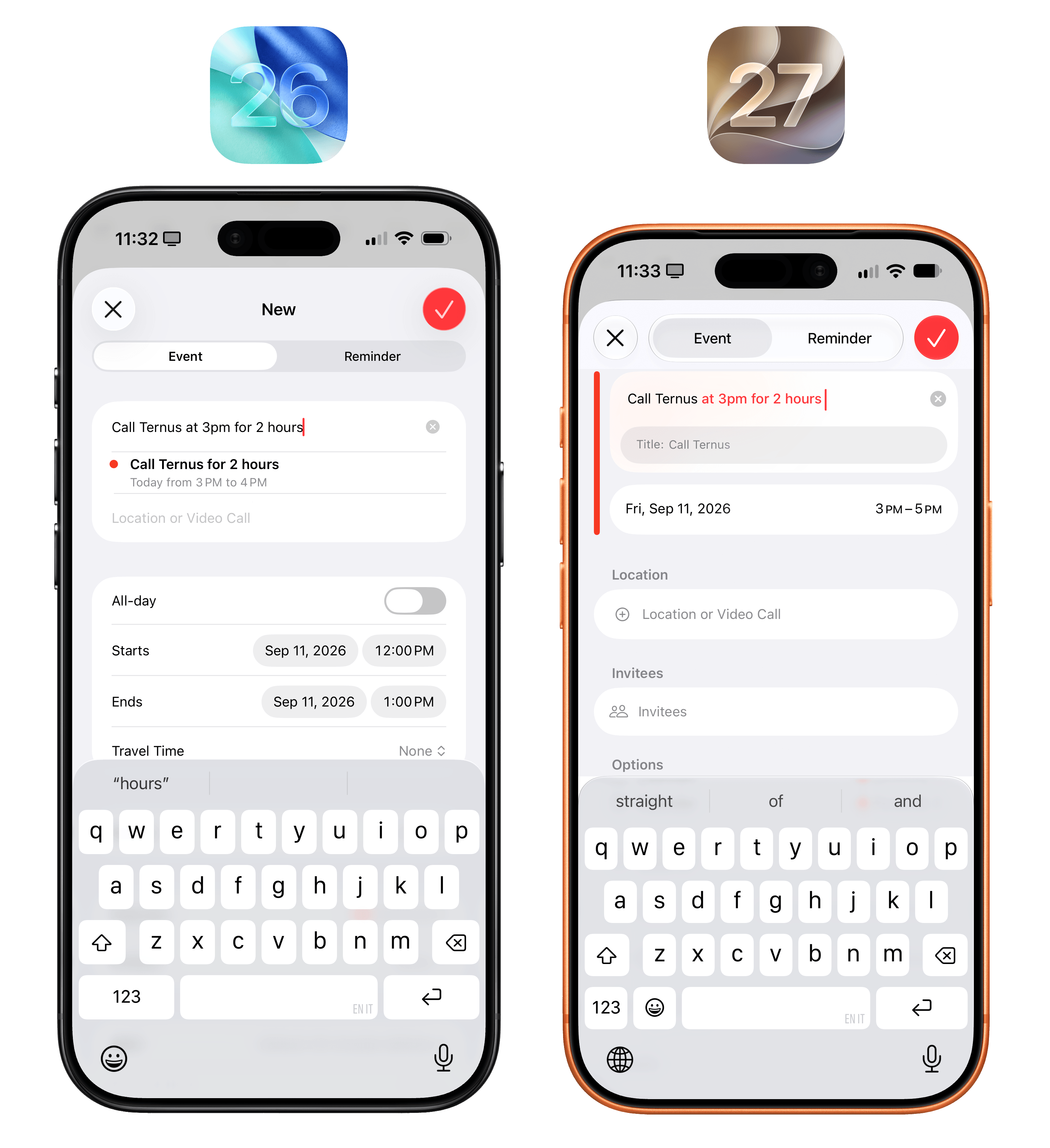
Unfortunately, despite being over a decade late to this feature, Apple’s take on natural language event creation is still inferior to Fantastical’s version from 2012. I’m actually astounded by how barebones this functionality is compared to the rest of the industry and other apps that were doing this before AI. Apple’s system does not support specifying calendars or any other metadata about an event. It only works automatically with event times, and if you want a date to be parsed, you need to manually accept a suggestion. I think a Shortcuts user with a decent prompt for the ‘Use Model’ action and the Cloud Pro model could do a better job than this parser.
For all these reasons, I’m very much let down by natural language event creation in iOS 27, and I hope Apple can ship a real version of this feature next year. They might as well have skipped this.
Camera
As happens every September, Apple likes to save some surprises for the Camera app very late in the beta cycle, so they can make new feature announcements coincide with new iPhone reveals. This year is no different: as part of the iPhone 18 Pro’s unveiling and its pro photography narrative, Apple also added customizable controls to the Camera app in the Release Candidate version of iOS 27.
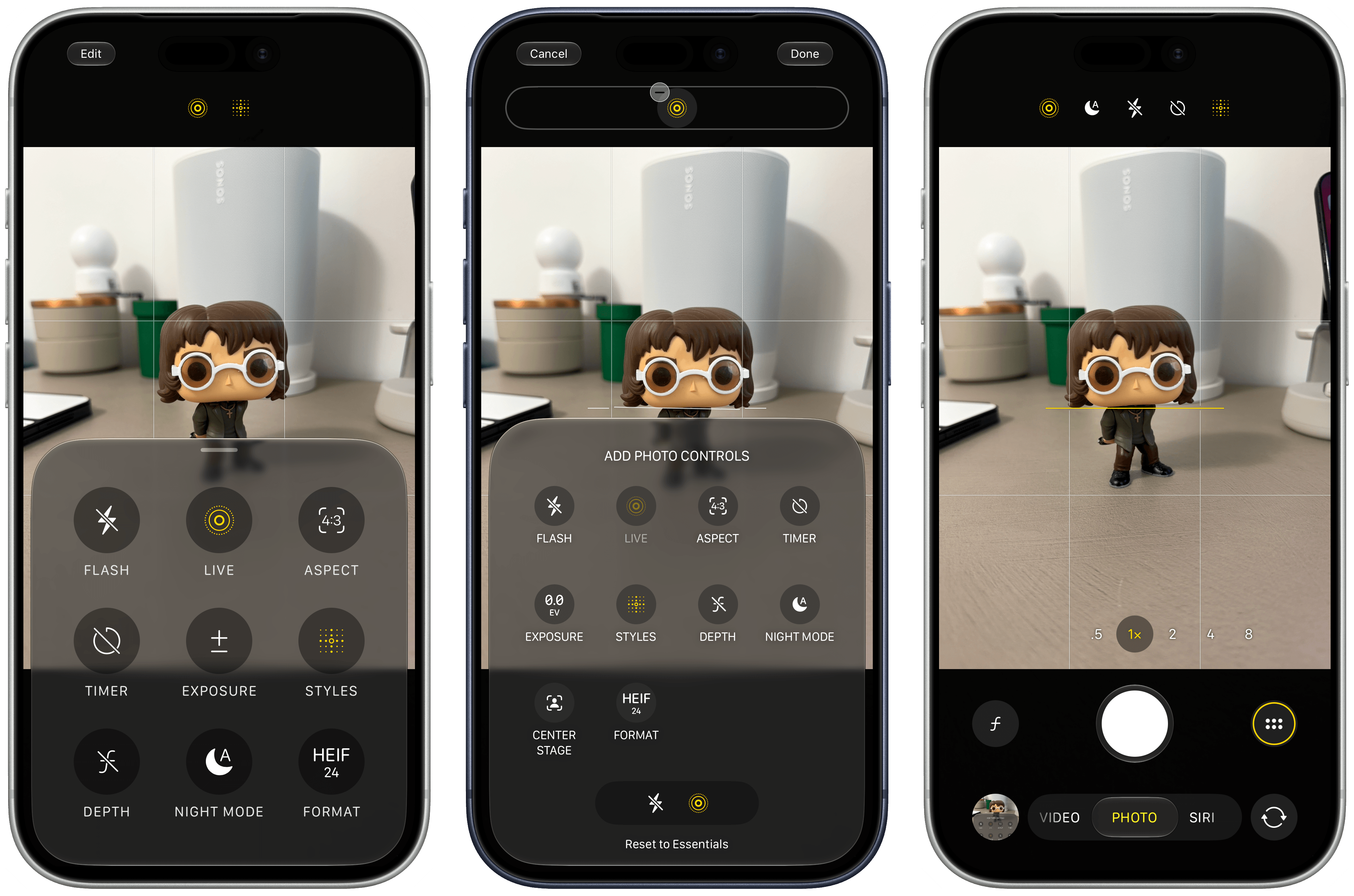
To customize which controls are available for quick access in the Camera app, tap the grid button on the right side of the shutter button, then tap ‘Edit’ in the top-left corner of the viewfinder. Doing so will reveal a good-looking Liquid Glass panel with a list of controls that you can tap to add to the strip at the top of the viewfinder. You can also remove existing ones, or reset everything to the default state if you want to revert your changes.
Note that control customization is available for all modes of the Camera except for Siri and Panorama.
Clock
Morning alarm people, rejoice: in iOS 27, you can now set an independent volume level for alarms that is different from your ringtone volume or other system alerts and sounds.
(I used to have alarms in the morning, like a regular person. Then, the alarm became my dogs kissing my face because they want to eat. I prefer it.)
This feature is actually part of a bigger overhaul of volume levels with separate sliders that you can find in Settings → Sounds & Haptics. While everything used to be controlled by the ‘Ringtone & Alerts’ slider in iOS 26, iOS 27 has spun off ‘Alarms and Timers’ and ‘Alerts and System Sounds’ into their own categories, probably because nobody uses ringtones anymore.
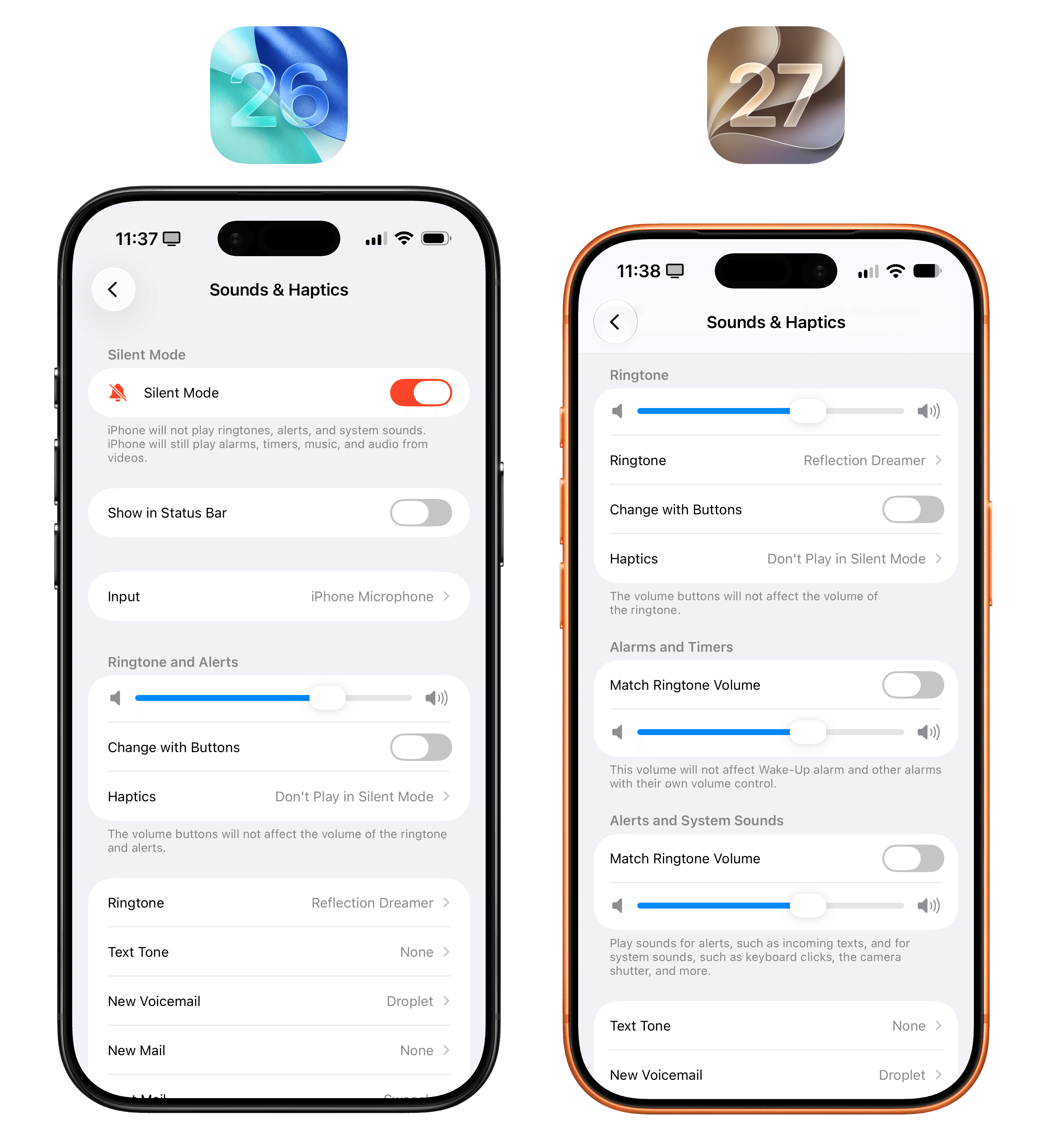
By default, the new sections will have ‘Match Ringtone Volume’ enabled; if you turn it off, you’ll unlock a separate volume slider for those features.
I keep my iPhone permanently on mute, so this feature isn’t for me, but, as always, I am glad to see more customization everywhere.
Files
There are only two improvements to the Files app worth noting this year.
The first one is for iPad users: if you transfer large files to external drives on a regular basis, you should notice that those copies will be up to five times faster than in iPadOS 26. Apple claims that this change makes the Files app “just as fast as Finder on the Mac”, and my understanding is that these tests were conducted with APFS-formatted drives over a USB4 connection. I do not need to transfer large files from my iPad Pro to an external drive anymore (I now record podcasts on my Mac via Google Chrome and Riverside), so I’m looking forward to seeing what my friend Chris has to say about this.
Second: Files now supports AI-powered renaming of files and folders. I like this feature a lot. When you press ‘Rename’ on a file or folder and wait a couple of seconds, you’ll see some naming suggestions appear above the keyboard. Choose one, and the file or folder will be renamed instantly.
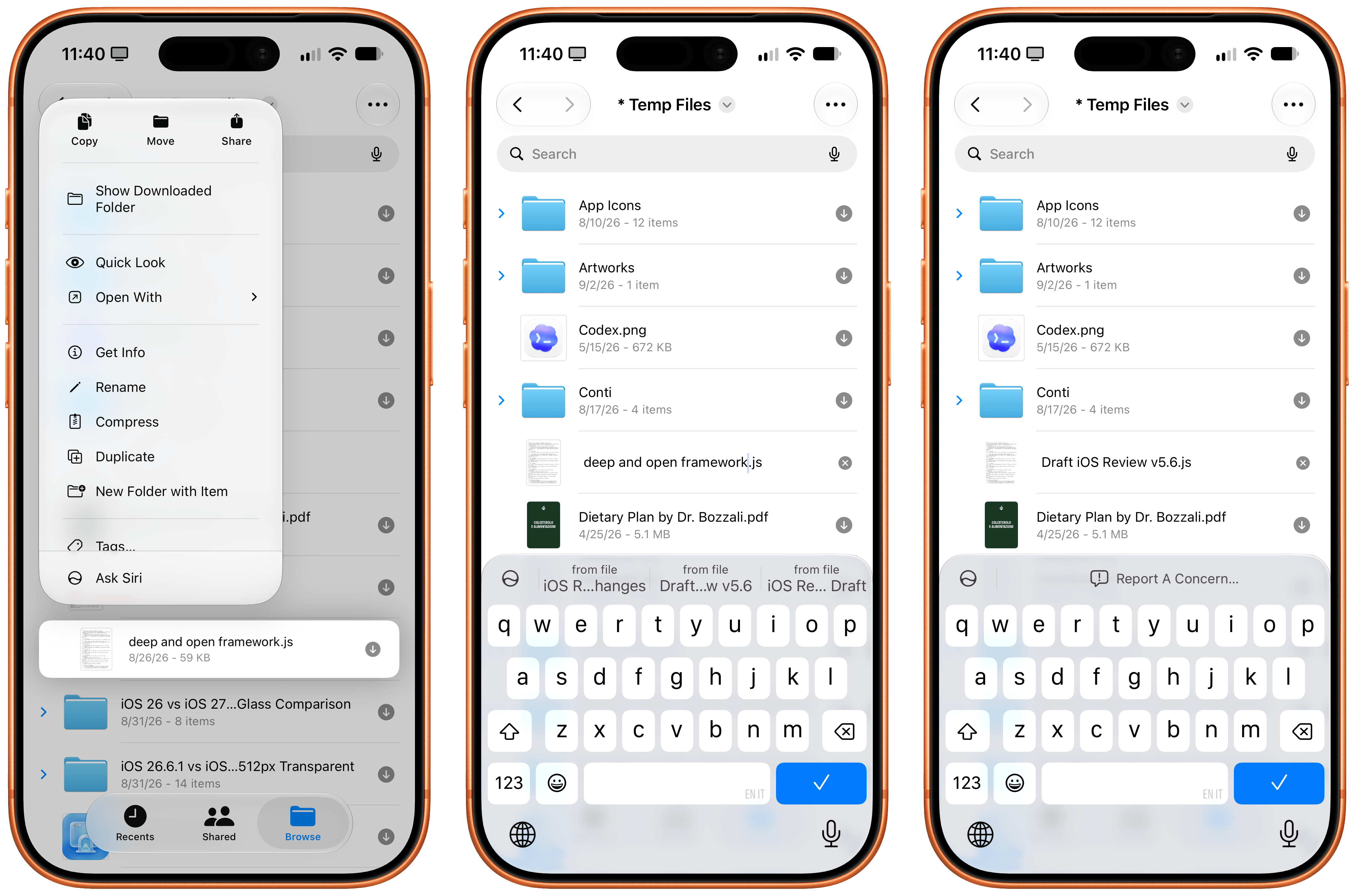
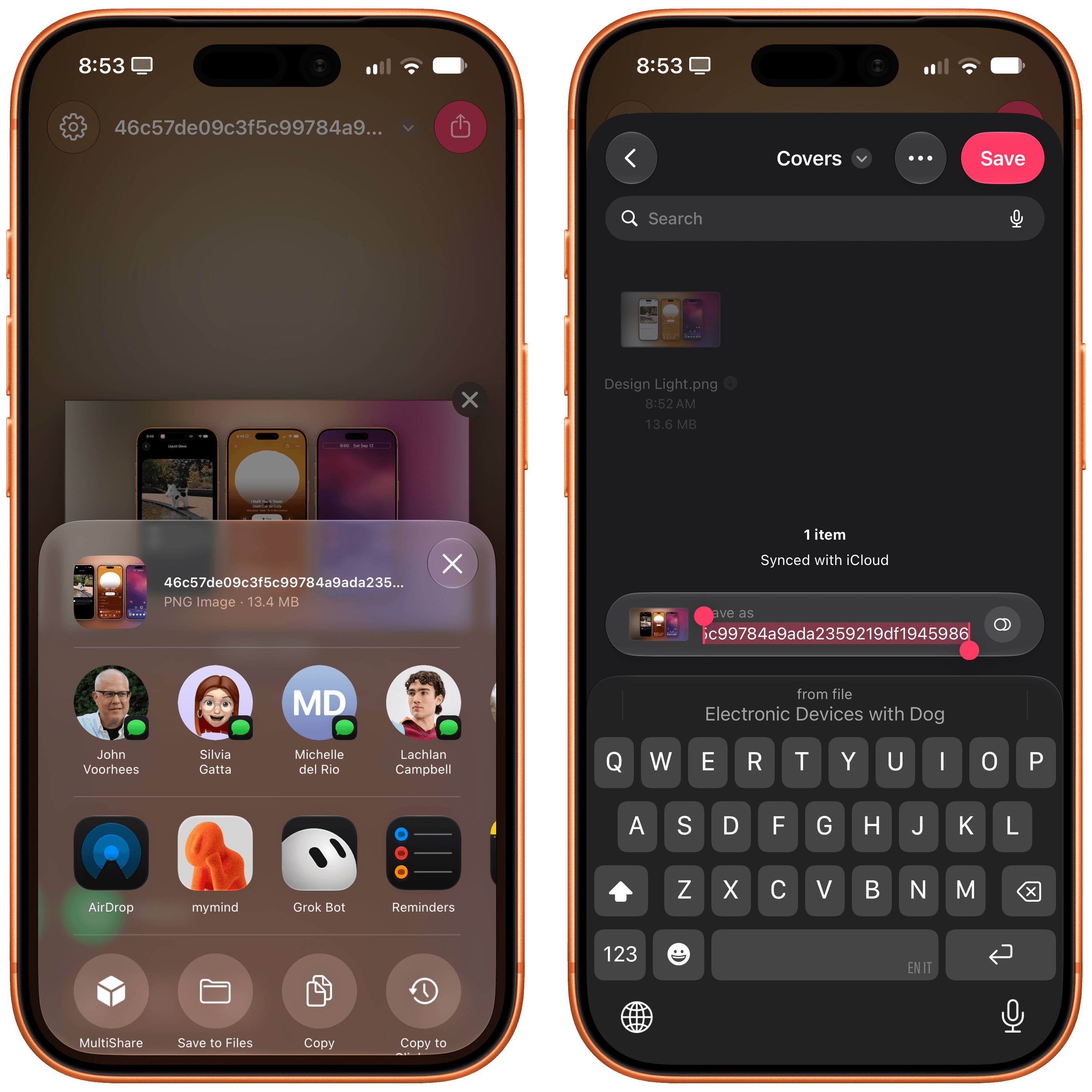
AI-assisted renaming also works when saving a document via the Files picker. Clarus was, in fact, recognized as a “dog”.
It’s interesting to observe how this feature works behind the scenes. The model powering this appears to be using a mix of file analysis and vision capabilities to suggest names. The model can suggest a cleaner title for a PDF by reading it, or a more descriptive name for a folder based on the items inside it, but it’ll also attempt to inspect an image with vision and offer a new name. For instance, I had a file in iCloud Drive called Codex.png for the Codex icon, and when I tried to rename it, the Files app offered “Blue Cloud” as a suggestion.
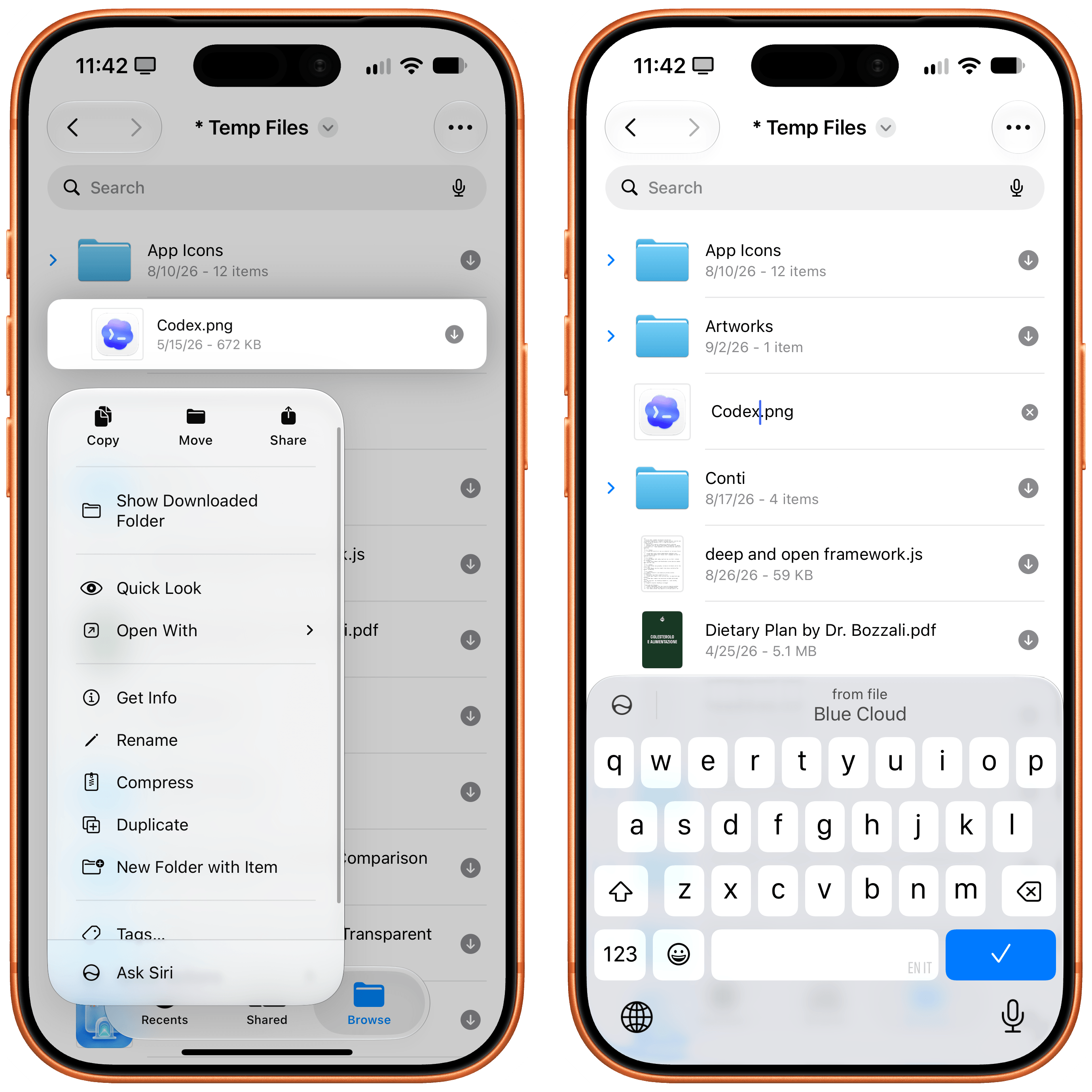
That’s not necessarily better than the actual filename I had, but it confirmed that the model is analyzing images before offering filename suggestions. Amusingly, when I tried to rename a photo of Liam and Noel Gallagher, the system came up with “Two People” as the name, but when I tried with a photo of my dog sleeping, it didn’t work.
For science, I also tried to prompt-inject this feature by leaving some instructions inside a text document I wanted to rename, and the model ignored them. Good job, Apple.
Find My
Continuing Apple’s streak of smaller additions throughout the OS this year, the Find My app has received a new option for location sharing and better support for pinpointing your location.
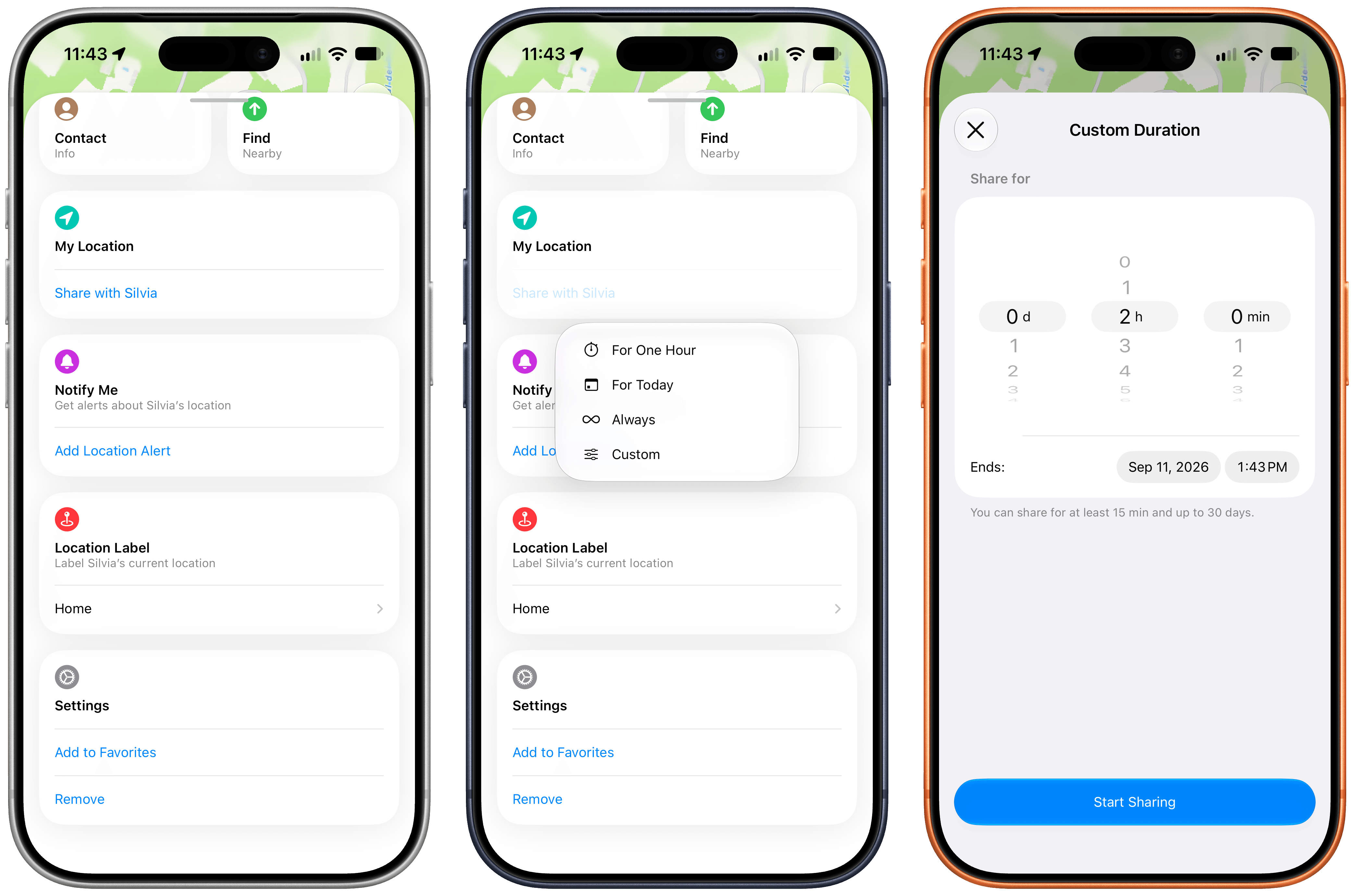
When sharing your location with someone, you can now choose a ‘Custom’ option that will bring up a date and time picker to share your location for an exact amount of time or until a specific date and time. This is great for conferences or vacations, for example, where you may want to share your location with other people but have it expire automatically at a specific time. It also works for quick sessions – the minimum duration is 15 minutes.
Additionally, in iOS 27, location sharing automatically picks the right device: your iPhone if it has an active phone number, or your Apple Watch if it’s a GPS + Cellular model.