MacStories Unwind: iOS and iPadOS Beta Updates and Shortcuts News

AppStories+ Deeper into the world of apps
0:00
30:11

AppStories+ Deeper into the world of apps


Sponsored by: GoodTask – Get It Done With the Task Manager Based on Apple’s Reminders and Calendars

This week on MacStories Unwind:

MacStories

Club MacStories

  • MacStories Weekly
    • Federico re-engineers his Timery timer setup in Shortcuts
      • John covers the many ways to use Shortcuts on the Mac
      • A Remote Control & Mobile Mouse giveaway
      • Results of our WWDC 2021 straw poll

AppStories

Unwind


AppStories, Episode 228 – Federico’s Research and Note-Taking Setup

This week on AppStories, we dig into the latest iteration of the research and note-taking setup that Federico is using to prepare his annual iOS and iPadOS review, a big part of which features Obsidian.

Sponsored by:

  • Pingdom – Start monitoring your website performance and availability today, and get instant alerts when an outage occurs or a site transaction fails. Use offer code APPSTORIES to get 30% off. Offer expires on January 31, 2022, and can be used only once.
  • Genius Scan – A scanner in your pocket.
  • Pillow – Sleeping better, made simple.

Permalink

Dr. Drang on How Shortcuts Fits Into Existing Mac Automation

We speculated for years about whether Shortcuts would come to the Mac and, if so, in what form. In 2019, Dr. Drang wrote about his concern that Shortcuts would come to the Mac as a Catalyst app that couldn’t interoperate with existing Mac automation tools. It was a legitimate concern, especially given the state of Mac Catalyst apps at the time.

As Drang explains in a post today, those early concerns haven’t materialized. Shortcuts for Mac isn’t limited by Mac Catalyst, and Apple has directly plugged the app into the existing Mac automation ecosystem. Drang concludes that:

All in all, this is looks like everything I wanted in Mac Shortcuts. As I said in the post two years ago, the ability to run every kind of automation from every other kind of automation is key to making a fluid system, where you can use each tool for what it does best. Also, it means that third-party automation tools like Keyboard Maestro, which has a good AppleScript dictionary for running its macros, will fit in well with the new environment even before they incorporate Intents that are directly accessible from Shortcuts.

As Drang notes, Shortcuts for Mac’s ability to run AppleScript and for shortcuts to be run from AppleScript or from the command line is an important feature that promises to significantly increase the app’s utility from day one. Even before existing Mac automation apps do anything to support Shortcuts, they will work with it if they support AppleScript or shell scripting. That will allow users to build shortcuts that incorporate workflows created in apps like Keyboard Maestro and for Keyboard Maestro to run shortcuts from the very start.

However, before automation fans run out and install Monterey to start building new automations, it’s worth noting that Shortcuts for Mac is a brand new app in the first beta of Monterey. As Drang notes, some functionality isn’t enabled yet, and there are significant bugs that need to be worked out throughout the app. That’s to be expected, and there are still good reasons to be excited about Shortcuts for Mac. For now, though, adventurous automators should approach Shortcuts for Mac with realistic expectations about what they will be able to create.

Permalink

Photo Editing and Management App Darkroom Adds Extensive Shortcuts Support

Photo editing and management app Darkroom, which added a new Clarity tool last month, has added substantial new Shortcuts actions to the app that allow users to automate a wide variety of its features for the first time. The update is notable because it allows Darkroom to work hand-in-hand with other apps, something which few photography apps do. For now, the shortcuts are available in Apple’s Shortcuts app on iPhones and iPads, but this fall, when macOS Monterey is released, the Darkroom team says that it plans to offer the same actions on the Mac.

The update features five Shortcuts actions:

  • Import to Darkroom
  • Flag Photos
  • Reject Photos
  • Add Photos to Favorites
  • Edit With Darkroom
Darkroom can automate cropping to a long list of aspect ratios.

Darkroom can automate cropping to a long list of aspect ratios.

The Import to Darkroom action adds images to Darkroom and can simultaneously apply a filter with the intensity you choose, set a frame aspect ratio with an inset, and optionally prepare the processed image for export. The Edit With Darkroom action can also apply filters and apply a frame to an image and adds the ability to crop an image to any of a long list of preset aspect ratios and add a watermark to images, all without opening Darkroom. Cropping an image has also been added as an edit that can be pasted to multiple images inside the Darkroom app itself.

The Flag, Reject, and Favorite actions do as you’d expect, allowing you to mark images accordingly without doing so from inside Darkroom itself. Flagging and rejecting photos is a recent addition to Darkroom, which I previously covered on MacStories.

It’s fantastic to see Darkroom adding such deep support for Shortcuts. The app itself is one of my favorite photo editors. However, by freeing its core features from the app itself, Darkroom gains the advantage of becoming part of more complex photo-editing workflows, automatically processing images in multiple apps, without the images having to be opened sequentially in each app. I’ve just begun to scratch the surface of what Darkroom’s new Shortcuts actions can do, but the possibilities are intriguing.


GoodTask: Get It Done With the Task Manager Based on Apple’s Reminders and Calendars [Sponsor]

GoodTask is the powerful, customizable task manager for getting things done on the iPhone, iPad, Mac, and Apple Watch. That’s because it’s built on top of Apple’s Reminders app and integrates with Calendars too. It’s a solid foundation that GoodTask extends with fast, reliable syncing, Siri and Shortcuts support, widgets, and much more.

GoodTask is highly customizable too. You can view tasks as lists or in Kanban-style boards, and filters allow you to create Smart Lists based on the criteria that are most important to you.

The app also offers Quick Actions for integrating multiple task options into a single tap or click and eliminating the need to repeatedly type common information. It’s a terrific way to streamline your workflow, so you can spend your time getting things done instead of creating new tasks.

The app also offers fully customizable widgets on the iPhone, iPad, Apple Watch, and Mac too, making it easy to see the tasks that are most important to you and your calendar at a glance. GoodTask has a theme system, too, offering built-in options as well as the ability to create and import themes to suit your personal tastes.

GoodTask extends beyond lists allowing you to set goals and review reports. The Today and Next Pages are designed to cut through the noise of your list and focus on what can be done now. It’s a fantastic way to avoid becoming overwhelmed by a long task list.

Start getting things done today by visiting GoodTask’s website to learn more about its Mac, iOS, iPadOS, and Watch apps and discover the power of the premier task manager based on Apple’s Reminders and Calendar apps.

Our thanks to GoodTask for sponsoring MacStories this week.


MacStories Unwind: An App Review Comic Book, Podcast Subscriptions, and Shazam Milestones

AppStories+ Deeper into the world of apps
0:00
18:09

AppStories+ Deeper into the world of apps


Sponsored by:
* MacStadium – The Developer Cloud for Mac.

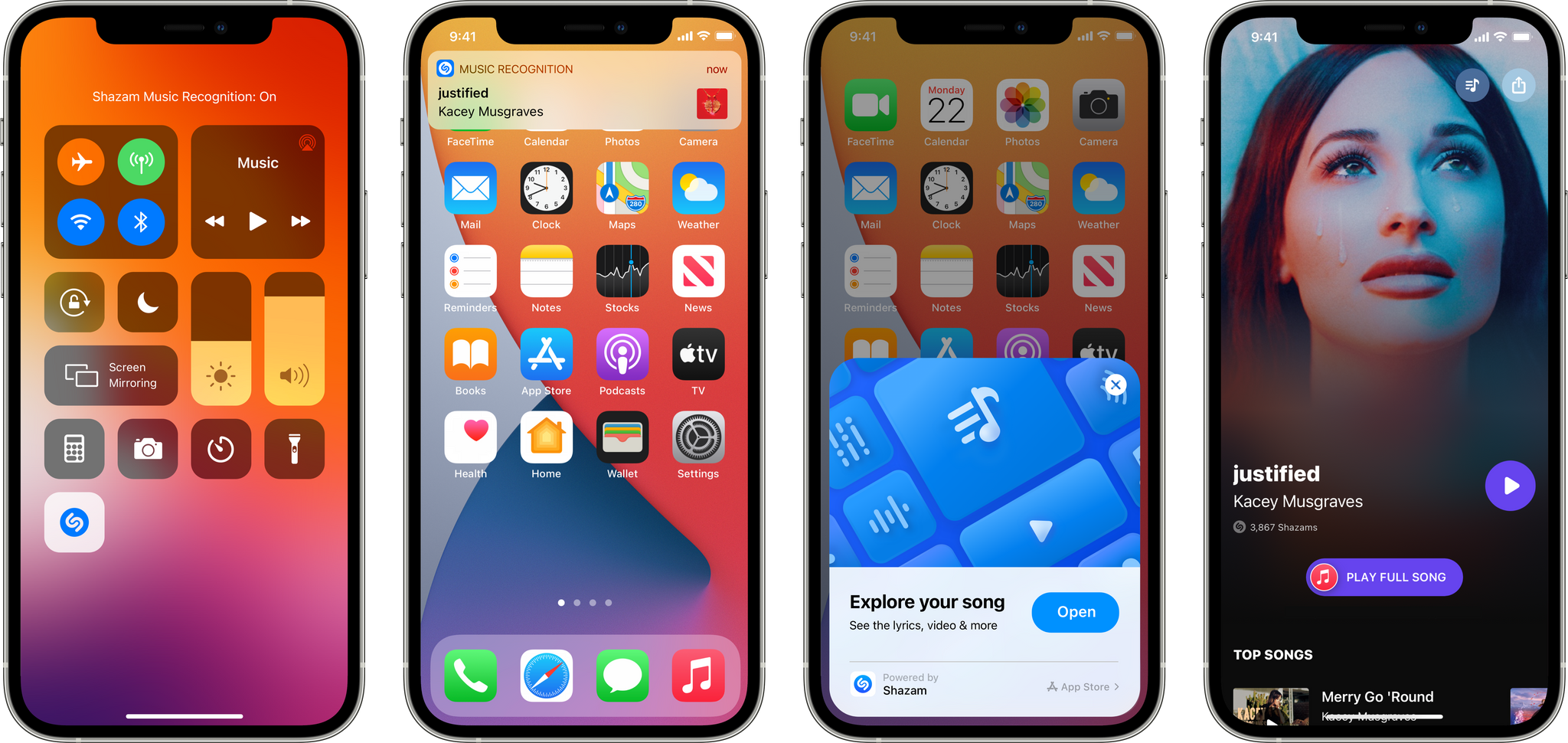
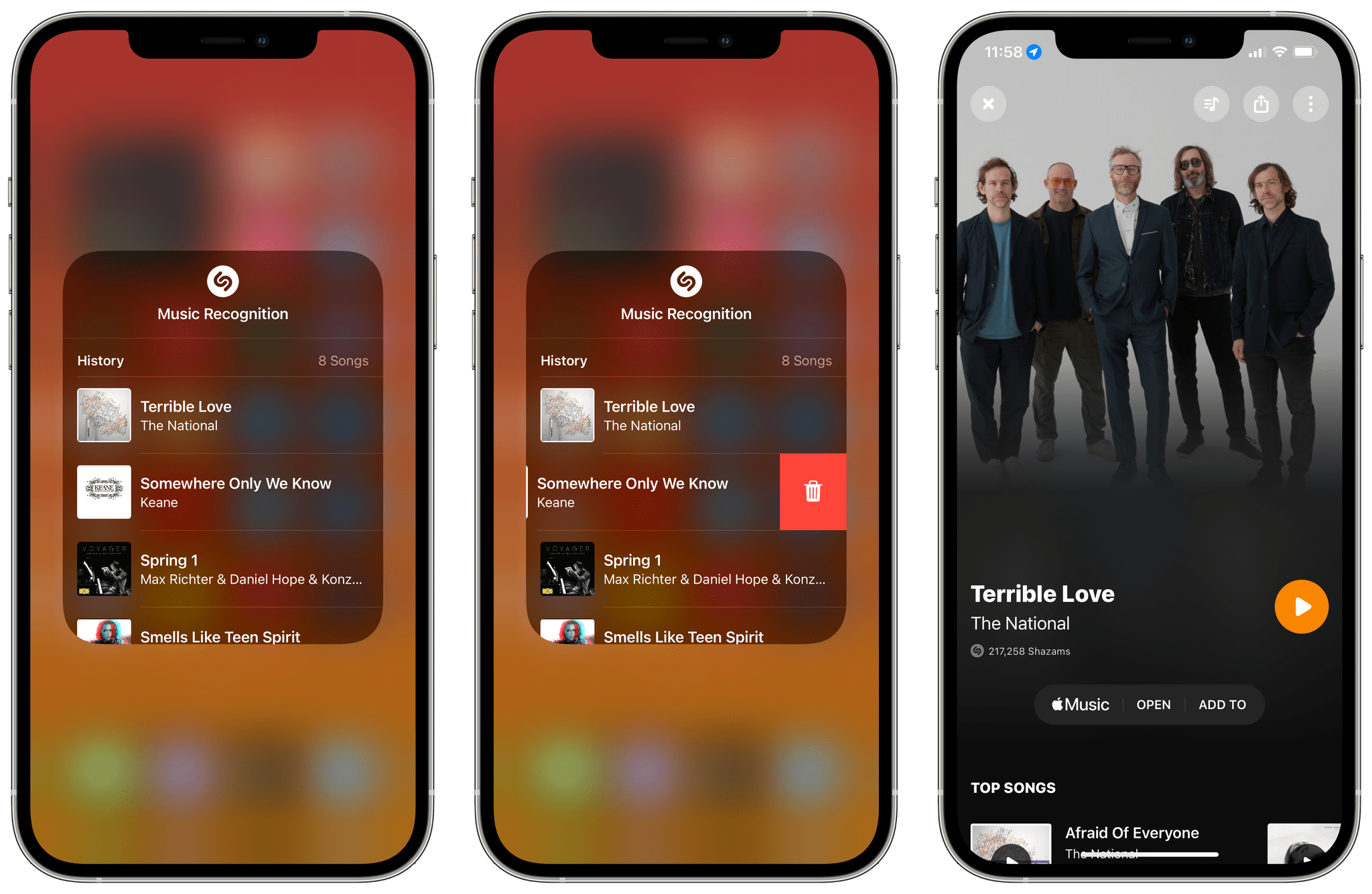
This week on Unwind, John is joined by Alex Guyot to recap the week, including John’s story about the 5th anniversary of the App Store Review Guidelines comic book, milestones reached by Apple’s Shazam service, plus Apple Podcasts channels and subscriptions, developer reactions to WWDC, and TV and movie Unwind picks.

MacStories

Club MacStories

  • MacStories Weekly
    • Federico on his new iOS and iPadOS review Focus mode
    • John imagines his ideal research app
    • An interview with Apollo developer Christian Selig
    • A Pillow giveaway
    • A reader poll

AppStories

Unwind Picks


The iPad’s New Universal Keyboard Shortcuts

Jason Snell, writing at Six Colors about one of the new keyboard-related additions to iPadOS 15:

In iPadOS 14, if you hold down the Command key, you can see a list of app-specific features and their key equivalents. It’s like a quick-reference card for keyboard shortcuts. In iPadOS 15, it’s been expanded to become more like the iPad equivalent of the Mac menu bar—not only does it list keyboard shortcuts, but it can list every command in the app, and you can click any of them to execute them. iPad apps that build out the Mac menu bar for their Catalyst version can pick this feature up for free. It’s another way that the Mac and iPad are trading features and complementing one another.

Then there’s the Globe key. Hold it down in any app in iPadOS 15, and you’ll see a different set of commands, all of which can be applied globally. (Get it?) These menus are full of shortcuts to switch to the home screen (Globe-H), open a Quick Note (Globe-Q), activate Control Center (Globe-C), and pretty much any other system-level area.

I particularly like Snell’s suggestion regarding these new global keyboard shortcuts and the Shortcuts app in the future. As I explained on Connected this week, I’ve been using iPadOS 15 since the first beta came out at WWDC, and I’m still learning all kinds of new keyboard shortcuts that are now supported by the system. Impressively, the new Globe modifier has been associated with all sorts of system functions, including Siri and Control Center.

If you use a third-party hardware keyboard that doesn’t have a Globe key, you can always remap another one in Settings ⇾ General ⇾ Keyboard ⇾ Hardware Keyboard ⇾ Modifier Keys. And while the keyboard shortcuts menu can be dismissed by holding the Globe key (or ⌘, for app-specific commands) again or clicking outside of it, you can also press the ⌘. shortcut (which is the equivalent of an Escape button on iPadOS) to instantly close it. Lastly, you can start typing while the menu is shown to quickly filter commands by name.

Permalink