CARROT Weather 5.4: XL Widgets, Time Sensitive Notifications, Complication Customization, Themes, Icons, and More

Last week, Brian Mueller released CARROT Weather 5.4 alongside the iOS and iPadOS update. The update takes advantage of new iOS and iPadOS 15 features and continues to put more control in the hands of users with new customization options, themes, and icons.

CARROT Weather’s new XL widgets.

CARROT Weather’s new XL widgets.

CARROT Weather 5.4 takes advantage of the new XL widgets in iPadOS 15 and the time sensitive notifications on both platforms. On the iPad, CARROT Weather now offers XL Maps and Forecast widgets. The added space allows the XL Maps widget to show weather maps for a wide geographic area. For me here in the Chicago area, that means I can see weather conditions for a big chunk of Illinois as well as parts of Wisconsin, Iowa, Indiana, Ohio, and Michigan, an area covering about 500 miles from east to west and 200 miles north and south.

The XL Forecast widget is big enough to include the:

  • Current conditions
  • High and low temperatures for the day
  • Wind speed and direction
  • Chance of precipitation
  • Sunrise or sunset times
  • Moon phase
  • An hourly forecast for the next 10 hours
  • A 7-day forecast

With just one widget, you’ve got all the information that most people want in one place without even opening CARROT Weather.

Read more


Safari Extensions for iOS and iPadOS 15: A Roundup of Our Favorites

With the introduction of iOS and iPadOS 15, Apple has created an entirely new class of utility app on the App Store: Safari web extensions. Mac users have enjoyed extensions for years. However, for iPhone and iPad users, they’re brand new and promise to make Safari more useful than ever by opening up new power-user functionality that extends Safari in ways that Apple hasn’t. Judging from the initial crop of extensions available, I think Safari users are going to be very happy.

Managing extensions from Settings (left) and Safari (right).

Managing extensions from Settings (left) and Safari (right).

There are a couple of ways to install Safari extensions for iOS and iPadOS 15. First, you can go to the Settings app, select Safari, and inside the Extensions section, turn on any extensions you’ve installed and give them permission to interact with webpages. Second, you can enable or disable extensions by tapping on the puzzle piece icon in the address bar and then choosing ‘Manage Extensions.’ The same popover that appears when you tap the puzzle piece icon also lets you ‘Edit Actions,’ picking favorite extensions that will appear at the top of your extensions list in whatever order you drag them into, similar to the way picking favorite share and action extensions and rearranging them works.

Okay, let’s dig into some of the best extensions already available.

Read more


How iPadOS 15 Ruined Chris Welch’s iPad Home Screen

Chris Welch, writing for The Verge, covers an aspect of iPadOS 15 I also pointed out in my review: iPadOS 15 no longer keeps the same icon grid layout in portrait and landscape orientations, and, if you place widgets on the Home Screen, its density is reduced.

Welch concludes:

Some will see this as a very minor inconvenience and carry on with updating to iPadOS 15 for all of the other benefits. Since the App Library is now there, you can even go in the complete opposite direction and load your homescreens up with widgets everywhere and only a few app icons. If that’s you, don’t let me stop you. On the whole, it’s a very good release.

But I’m really hoping in a future software update, Apple will add a setting to restore the old layout that kept everything more consistent. It’d be even better if the company made the grid more customizable on the whole. If we’re letting people choose between new and old Safari designs, why not offer a choice between having more things on-screen or a less dense grid that’s better optimized for widgets? There’s already a “Home Screen and Dock” section in settings, after all. Letting you adjust the grid to your liking is something that Android phones and tablets already get right. It’s not a huge ask.

I think the point about customization is exactly right, and also why I’m not complaining about the ability to choose a layout in Safari. As iPads are used by a variety of less tech-savvy and more experienced pro users, it’s now increasingly challenging for Apple to cover the platform’s full spectrum of workflows with non-customizable features. Welch makes a great point about the Home Screen grid’s rigidity and lack of control; I hope Apple provides more options for this in the future, along with a denser grid if you have widgets placed on the iPad Home Screen.

Permalink

Meet Daylite: The CRM with Apple Fans in Mind [Sponsor]

For small businesses trying to stay on top of clients, leads, and projects that are evolving every day, it can be tough, if not impossible, to manage everything. That’s where Daylite comes in clutch. Daylite is an award-winning, native CRM and business productivity app for your Mac, iPhone, and iPad that’s designed to help you and your team manage more clients, close more deals, and finish more projects.

Daylite is fully compatible with M1-powered Macs and works seamlessly with the Apple features you already use and love:

  • Integration with Apple Mail on Mac
  • Share your Apple Contacts and iCal
  • Leverage Siri and Caller ID on your iPhone
  • FaceID and TouchID support
  • Create contracts and other documents by pulling Daylite data into Pages, Numbers, and Keynote

What’s more, all of your information is accessible online and off, and it can be segmented, so it’s perfectly tailored to your specific client story. Combined with a sophisticated, elegant design that makes it easy to access and use your data on the go, Daylite is the complete package for your growing business.

Unlike most Web-based CRMs that focus on customer relationships and sales, Daylite’s productivity-focused design helps you and your team get more done throughout the full customer lifecycle. From meeting prospects and winning business to managing the moving pieces on projects, all the way through to following up for referrals and repeat business, it’s all done in Daylite.

Whether you’re in a legal, design, consulting, or other professional services firm, Daylite can help you build stronger client relationships and scale your business. Daylite also offers complimentary onboarding support to help new customers get started.

See what Daylite can do for your business today. Start your free 30-day Daylite trial today!

Our thanks to Daylite for sponsoring MacStories this week.


MacStories Unwind: iOS and iPadOS 15, the iPad Mini, and iPhone Camera Reviews

AppStories+ Deeper into the world of apps
0:00
20:04

AppStories+ Deeper into the world of apps


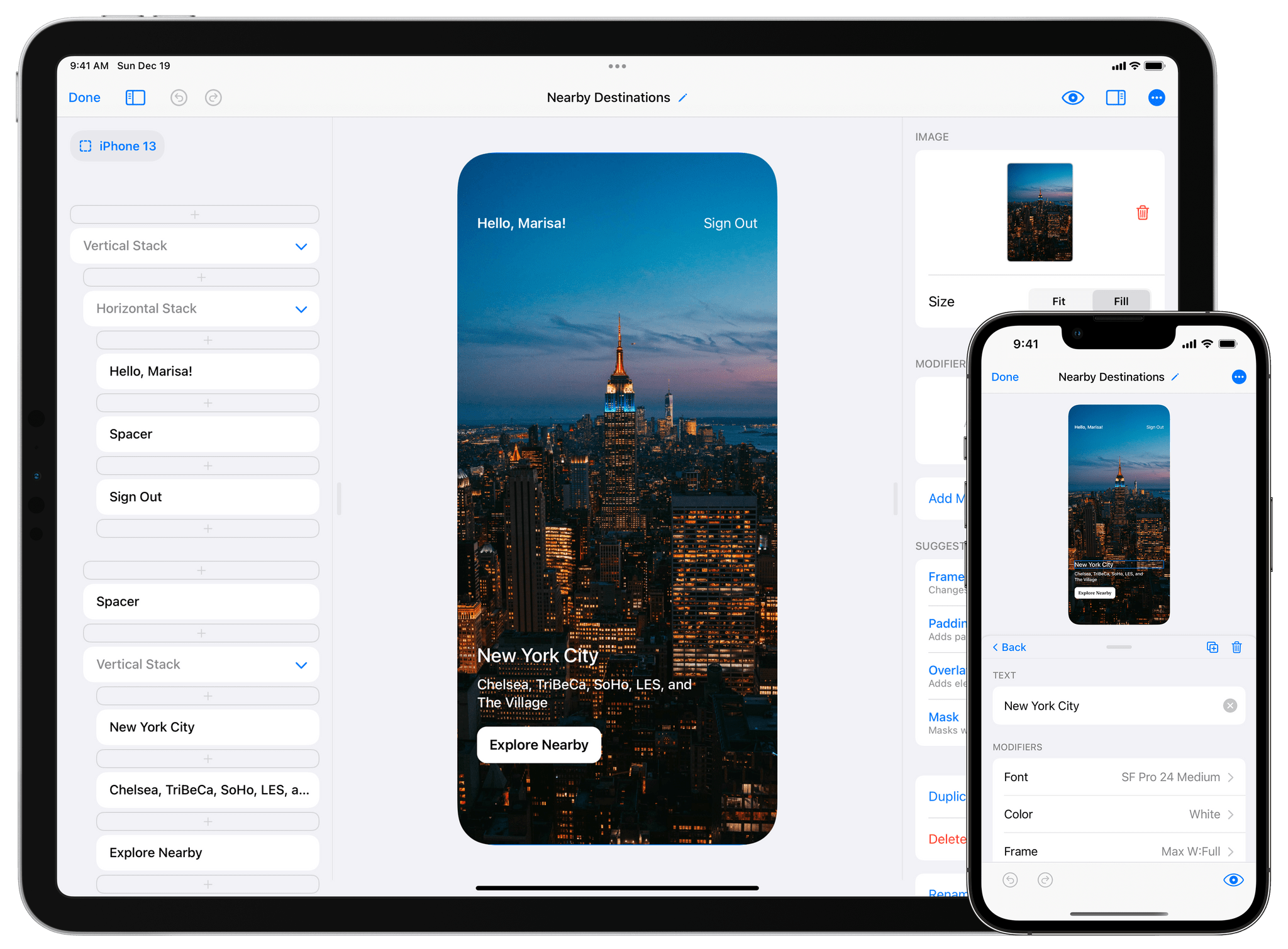
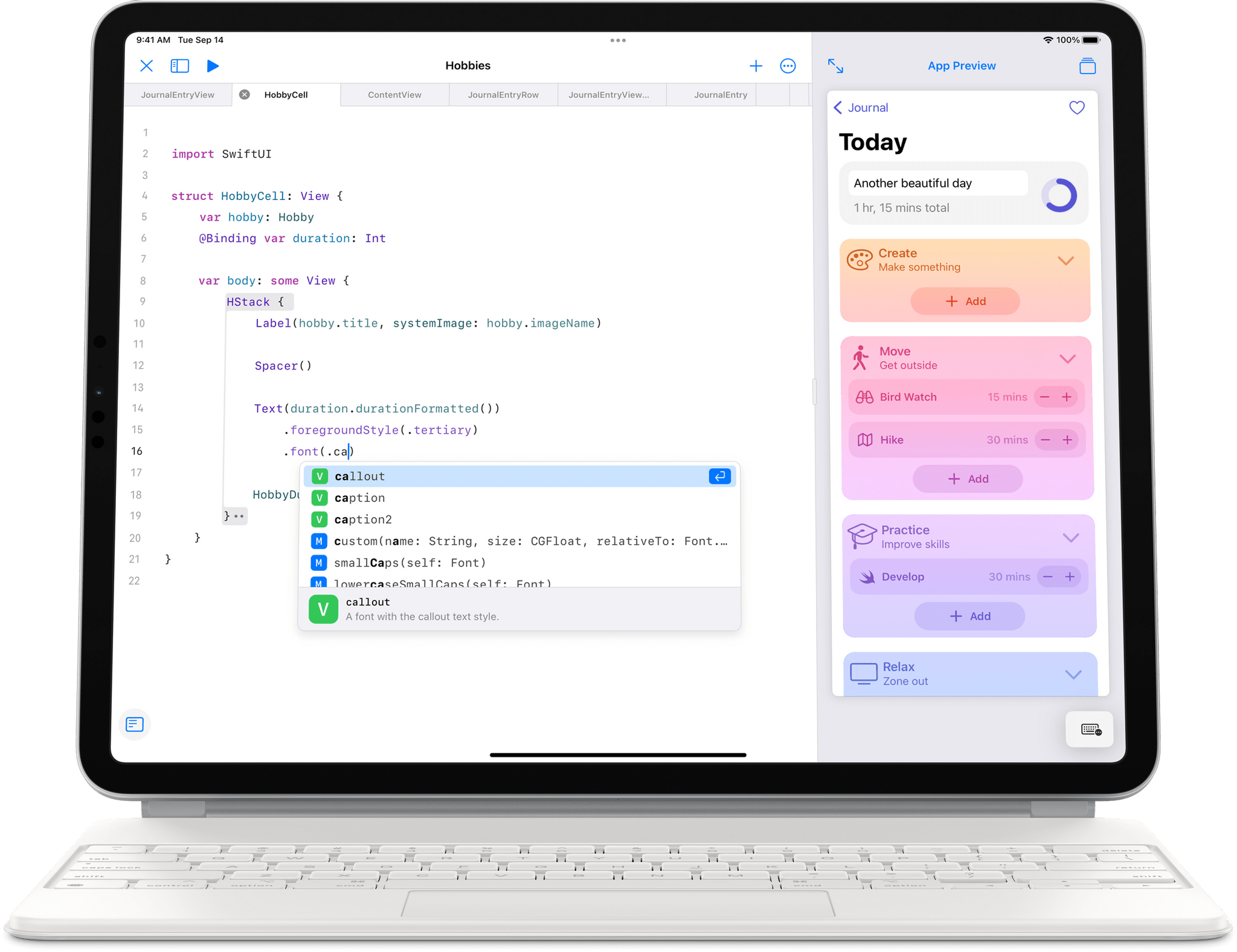
Sponsored by: DetailsPro – A Design Tool Made for SwiftUI

This week on MacStories Unwind:

MacStories

Club MacStories

  • MacStories Weekly
    • Coming Saturday:
      • The ‘Making Of’ Federico’s iOS and iPadOS 15 review
      • Two Club-only advanced shortcuts
      • Lots of app coverage

AppStories

Unwind


AppStories, Episode 241 – iOS and iPadOS 15: The MacStories Review

This week on AppStories, John interviews Federico about his iOS and iPadOS 15 review live in the Club MacStories+ Discord community, covering the challenges of writing this year’s review, Focus mode, Safari changes, Shortcuts, Live Text, the Shelf, listener questions, and more.


On AppStories+, Federico shares what review day is like and how he deals with negativity, John covers MacStories’ eBook production workflow, and Federico discovers an eBook reader that supports Quick Note and annotation.

We deliver AppStories+ to subscribers with bonus content, ad-free, and at a high bitrate early every week.

To learn more about the benefits included with an AppStories+ subscription, visit our Plans page, or read the AppStories+ FAQ.

Permalink

Matthew Panzarino Tests the iPhone 13 Pro’s Cinematic Mode and Interviews Apple Executives

Matthew Panzarino, TechCrunch’s Editor-in-Chief, put the iPhone 13 Pro camera’s new Cinematic mode through its paces at Disneyland in an excellent real-world test of the new feature. Panzarino also spoke to Kaiann Drance, Apple’s vice president of Worldwide iPhone Product Marketing and Johnnie Manzari, a designer on Apple’s Human Interface Team about how Cinematic mode works.

As Manzari explained:

“In cinema, the role of gaze and body movement to direct that story is so fundamental. And as humans we naturally do this, if you look at something, I look at it too.”

So they knew they would need to build in gaze detection to help lead their focusing target around the frame, which in turn leads the viewer through the story. Being on set, Manzari says, allowed Apple to observe these highly skilled technicians and then build in that feel.

“We’re on set and we have all these amazing people and they’re really the best of the best. And one of the engineers noticed that the focus puller has this focus control wheel, and, and he’s just studying the way that this person does this. Just like when you look at like someone who’s really good at playing the piano, and it looks so easy, and yet you know it’s impossible. There’s no way you’re going to be able to do this,” says Manzari.

“This person is an artist, this person is so good at what they do and the craft they put into it. And so we spent a lot of time trying to model the analog feel of a focus wheel turning.”

To make it all come together into one, coherent feature, Apple’s engineers had to solve a long list of technical challenges:

Some of the individual components that make up Cinematic Mode include:

  • Subject recognition and tracking
  • Focus locking
  • Rack focusing (moving focus from one subject to another in an organic-looking way)
  • Image overscan and in camera stabilization
  • Synthetic Bokeh (lens blur)
  • A post-shot editing mode that lets you alter your focus points even after shooting

And all of those things are happening in real-time.

Despite everything that goes into Cinematic mode, Panzarino notes that the battery impact of using it throughout the day was surprisingly slight.

Cinematic mode isn’t without its flaws, which are covered in the story, but it’s worth watching the entire video that Panzarino shot during a Disneyland visit with his family to get a sense for it yourself. If you study the video closely, you’ll pick up on the places where Cinematic mode struggles. However, sitting back and casually watching the video like you would after a vacation or if a friend sent it to you, the flaws largely fade into the background. I’m eager to test Cinematic mode for myself, and I don’t mean to suggest that it’s necessarily fine as it is, but I also expect that it will be a net positive in a lot of circumstances.

Permalink