The public beta of macOS 27 Golden Gate is out today, and I’m sure many of you are wondering whether to take the plunge and give it a try in advance of its official fall release. That’s the question this preview is here to help answer. It’s not my final take on Golden Gate by any means; after all, I’ve only been using it for about a month, and there will be several more turns in the beta cycle between now and the public release. However, I’ve used Golden Gate long enough to help you make an informed decision about whether or not to install the public beta now.
Of course, it’s impossible for me to account for everyone’s unique Mac setups when considering Golden Gate’s stability, but it’s worth reiterating what I’ve said in past previews: modern Apple betas have been consistently stable. That’s to say, the risks of using the public beta are modest. It’s been years since I’ve had a critical app fail or lost data. I never go into beta season without a backup plan, though. If something goes terribly wrong, I have backups, backups of those backups, and alternate Macs I can switch to in the event of a disaster. I don’t expect to have to go to Plan B, but if you’re going to jump on the Beta Bus, you should have a Plan B, too.
Okay, you’ve been warned. Let’s get to the fun part.
Every year’s macOS update is a little different, but Golden Gate is more different than most. Instead of focusing on tentpole features and apps (with the exception of a new Siri app), macOS 27’s updates fall into three broad categories:
- refinements to Apple’s Liquid Glass design language,
- hundreds of system-level changes intended to improve your Mac’s performance, and
- Apple Intelligence, which includes the new Siri app as well as many other AI additions to existing system apps.
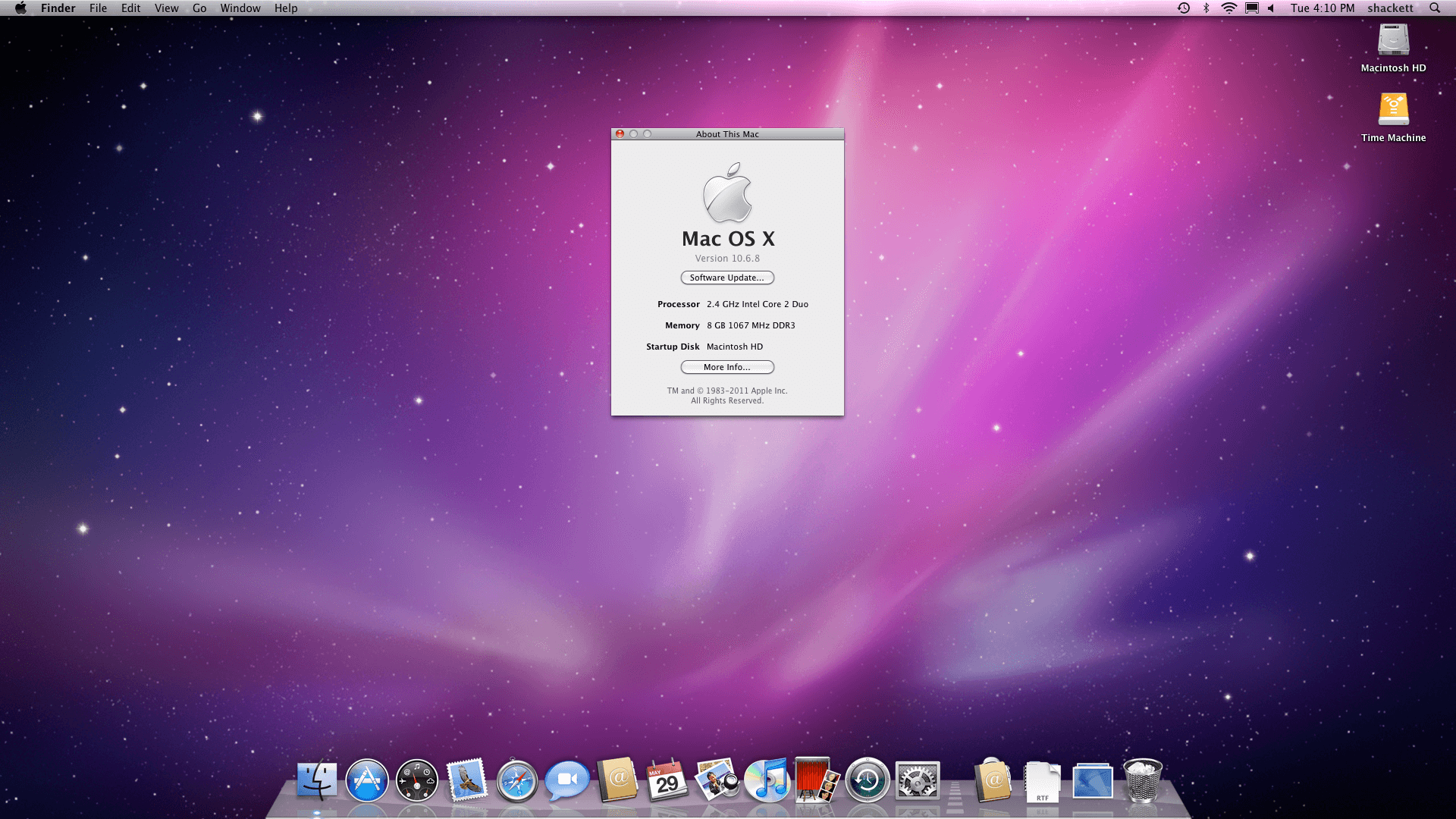
With so many past macOS updates focusing on system apps, it’s refreshing to see Apple take a more holistic system-level approach, which harkens back to how most people remember OS X Snow Leopard. In fact, during WWDC briefings, Apple representatives likened the Golden Gate update to Snow Leopard before anyone in the room even asked about it.

Snow Leopard is remembered as a release that focused on performance over features. The reality is that the update also introduced its fair share of new features, but many were less splashy from a user-facing standpoint. They were under-the-hood updates that made the Mac work better without users having to think about it much. In that sense, Golden Gate has a lot in common with Snow Leopard. Other than the brand new Siri app, you probably won’t notice that much is different when you first launch the new version. But over time, the changes will reveal themselves, adding up to a whole that – with few exceptions – is greater than the parts.
So let’s take a closer look at how Liquid Glass has evolved, the most significant system changes, and what it’s like to use Siri and other Apple Intelligence updates in Golden Gate’s public beta.
Design
Last year’s introduction of the Liquid Glass design language was divisive. I rather like it, and others don’t, but I expect the overwhelming majority of Mac users don’t have a strong opinion either way.
That said, I came away from macOS Tahoe feeling like its Liquid Glass implementation was unfinished, or at least unevenly applied, because it varied from app to app and even within apps. Examples included different transparency treatments within apps like Finder:
I use [Finder] with the tab bar visible most of the time, whether I’m using tabs or not. I also almost always use a list view in Finder. What I discovered when I turned off the tab bar and switched to an icon grid view was that the Finder toolbar and buttons became far more transparent. Dark file icons are more noticeable beneath the toolbar, and text becomes more of a distraction.
That sort of inconsistency has been fixed.
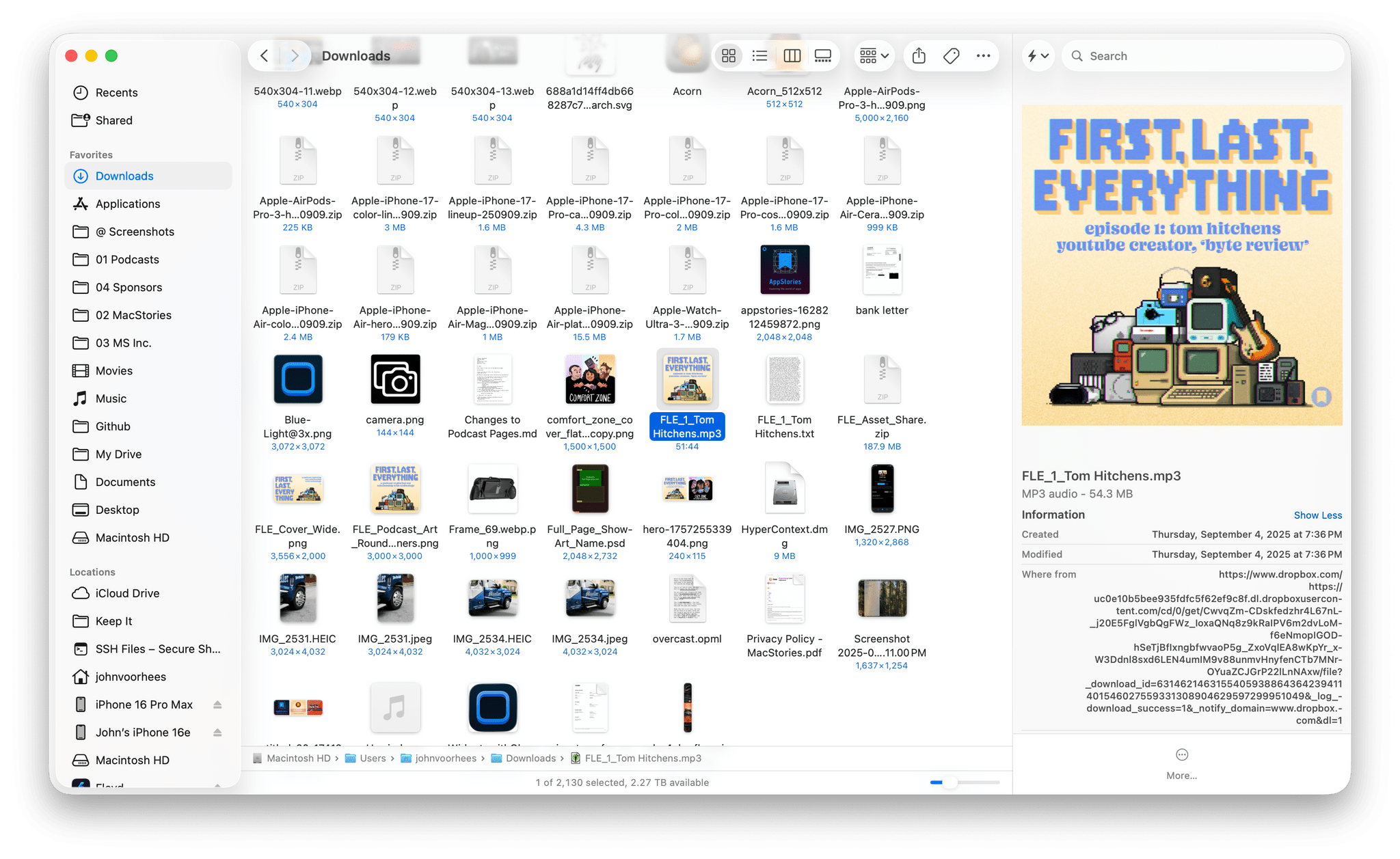
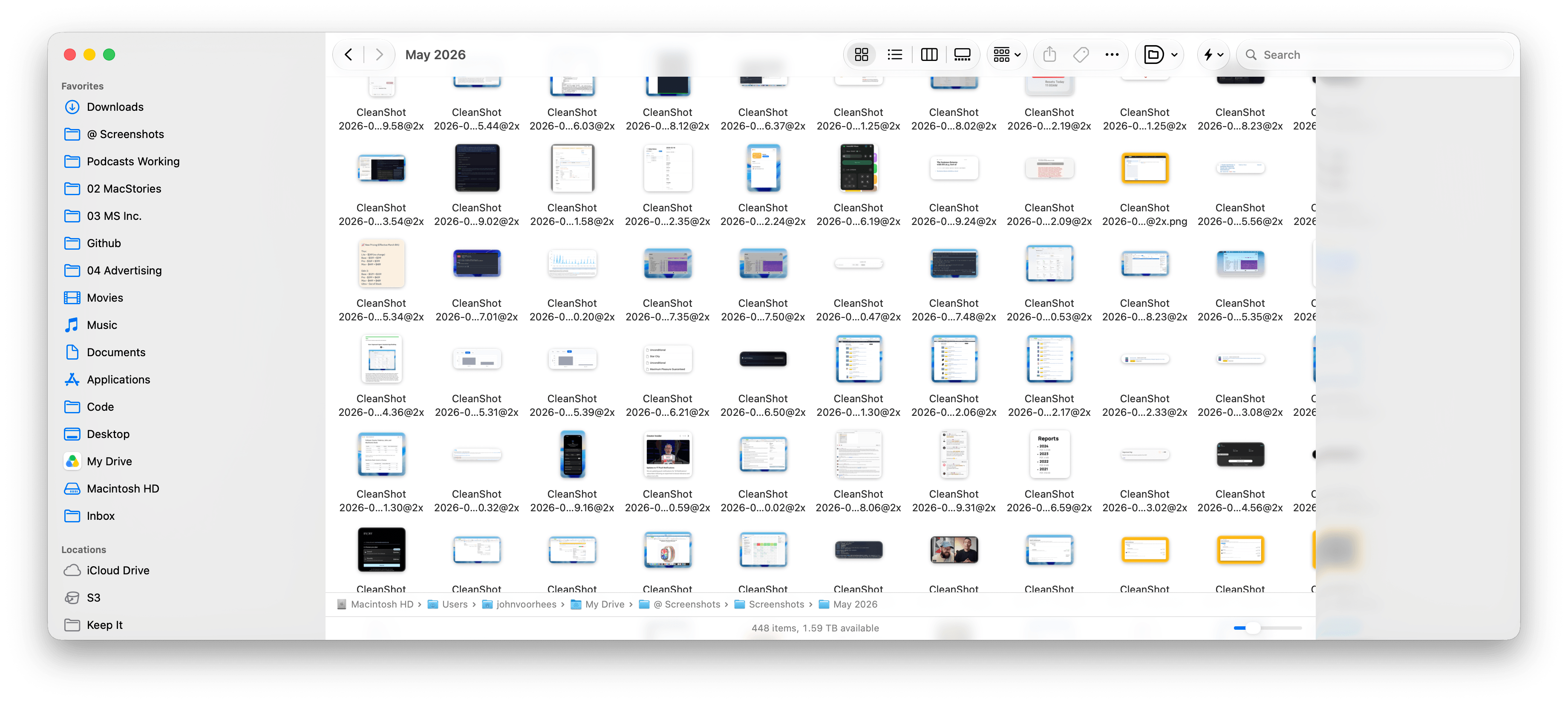
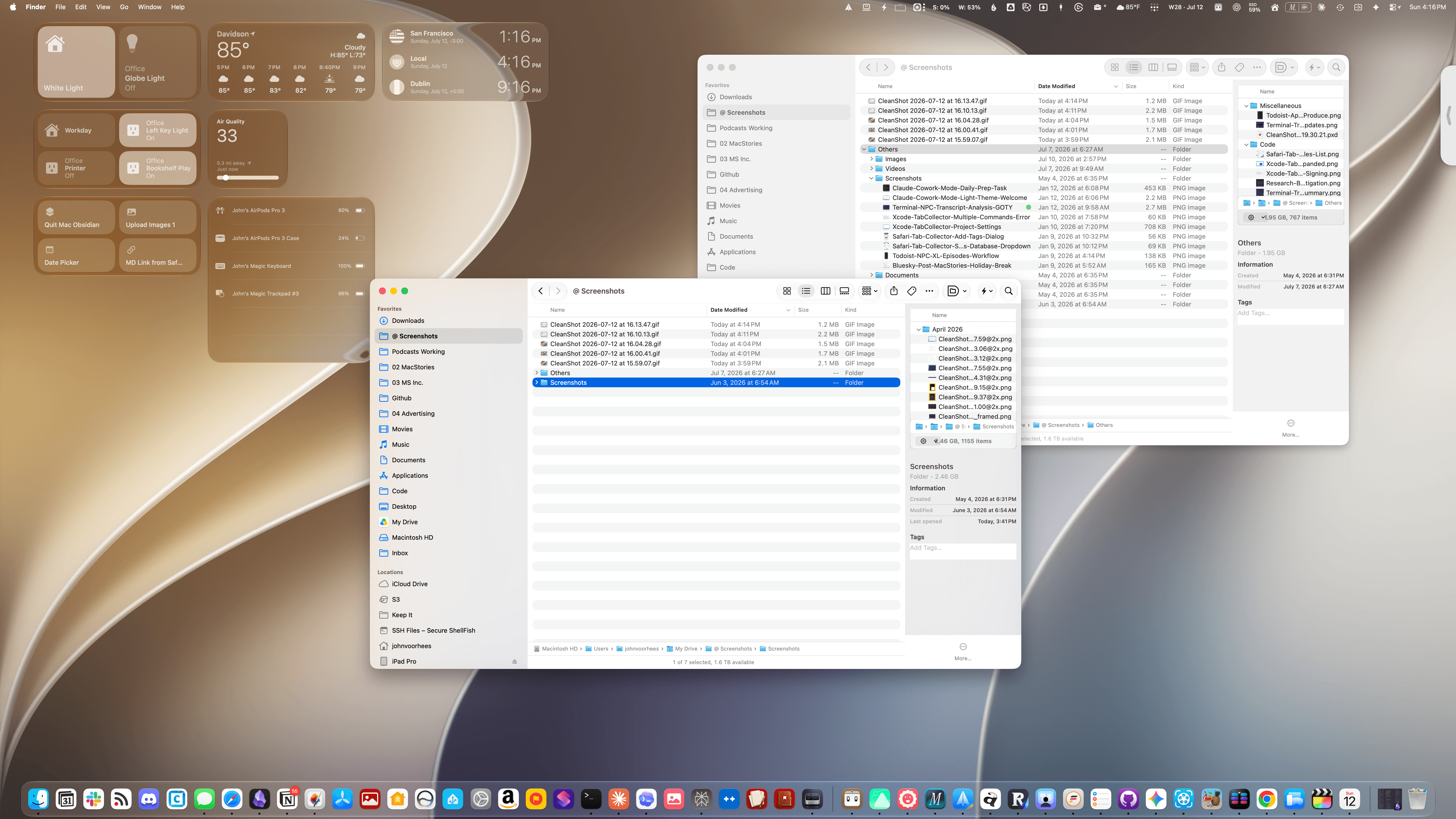
Finder in macOS Golden Gate. Even with Liquid Glass’ transparency turned on as far as it can go, toolbar buttons are more visible now.
Another big inconsistency was how toolbars were handled from app to app. In some apps, like Photos, they were very transparent, making buttons difficult to see against picture thumbnails in some cases. Other apps, like Reminders, used a more frosted treatment that prevented text and icons under toolbars from competing with the toolbar’s icons and text as a user scrolled their task lists. That, too, has changed for the better.
But perhaps the single biggest change to Liquid Glass is a new slider in the Appearance section of System Settings that lets you dial in the intensity of the transparency. By default, the slider is set directly in the middle. Moving the slider to the left makes buttons and other elements more transparent, while moving it to the right reduces transparency in favor of a frosted look.
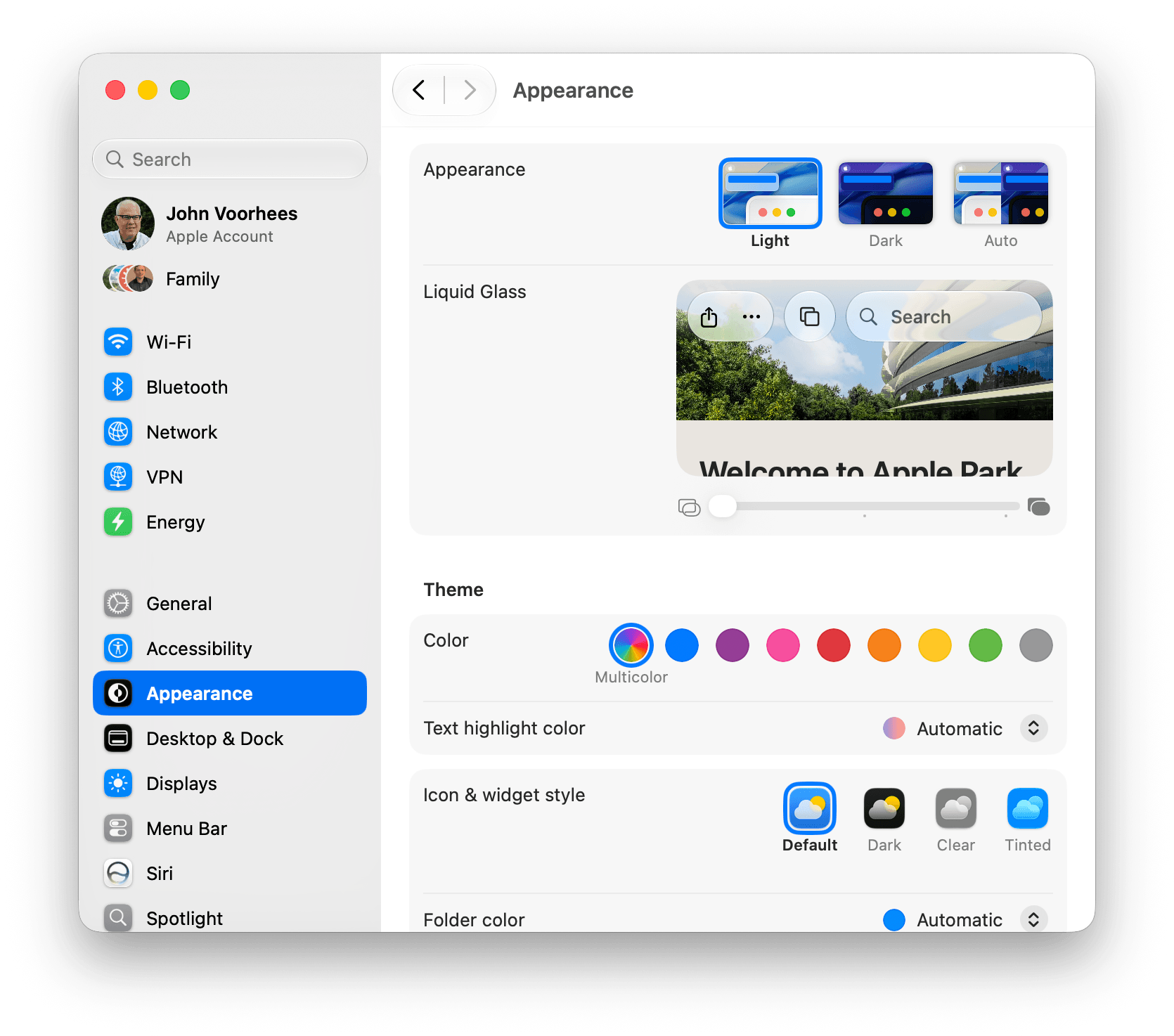
The slider is a welcome change that lets users decide how transparent UI elements are. It’s the right choice when some people love Liquid Glass, some can’t stand it, and most don’t care. The default setting works well for those who don’t care and will never think to look for the transparency slider, while those who do care can dial in the look they prefer. Me? I’m a full transparency guy, at least for now, so you’ll see a lot of that here and in my fall review.
Window sidebars have been changed in a big way, too. In Tahoe, they resembled a glass sheet sitting on top of the window. I liked the look, but if you had overlapping windows, it was sometimes possible to mistake a sidebar for a separate window, which could be confusing. With Golden Gate, sidebars extend to the edges of their windows so they look as though they’re built into the windows instead of sitting on top of them.
Apple also reversed course on another controversial Tahoe change: icons next to menu items. I use keyboard shortcuts so much that I barely noticed the icons next to every single menu item. Now, however, they’re once again used sparingly.
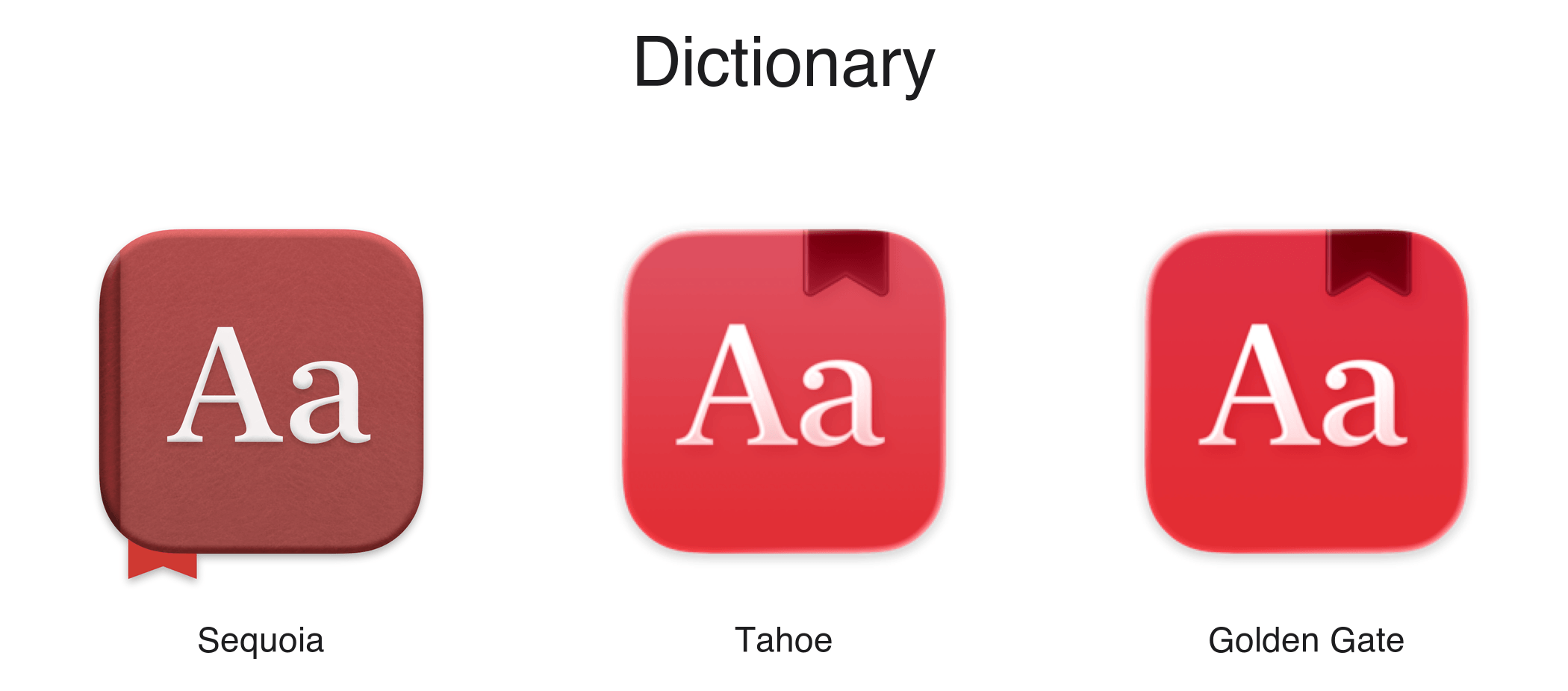
Mac app icons have been tweaked as well. Tahoe saw icons confined to the borders of a squircle, which is still a hotly debated topic. That hasn’t changed in Golden Gate. Instead, the glass effect that subtly distorted icon images has been dialed back, resulting in crisper looking icons.
There are other design changes, like deeper shadows to help distinguish windows from each other and more uniformly shaped window corners, that I’ll cover in the fall, but my early impressions of the changes have been positive. Everything feels more considered and consistent. Rather than feeling unfinished as it did in Tahoe, Liquid Glass now feels properly embedded into the fabric of the Mac.
System Changes
Nowhere is the Snow Leopard of it all more apparent than in the hundreds of little changes made to improve the day-to-day use of your Mac. I’m not going to catalog them all here, but I’ve used Golden Gate on two different Macs at this point, and based on my experiences so far, the changes are meaningful.
I installed Golden Gate on a MacBook Pro that I have on loan from Apple as soon as I got back from WWDC in early June. That laptop has an M4 Max chip and 128GB of memory, so it was already fast. But even on that Mac, I noticed differences when I installed Golden Gate.
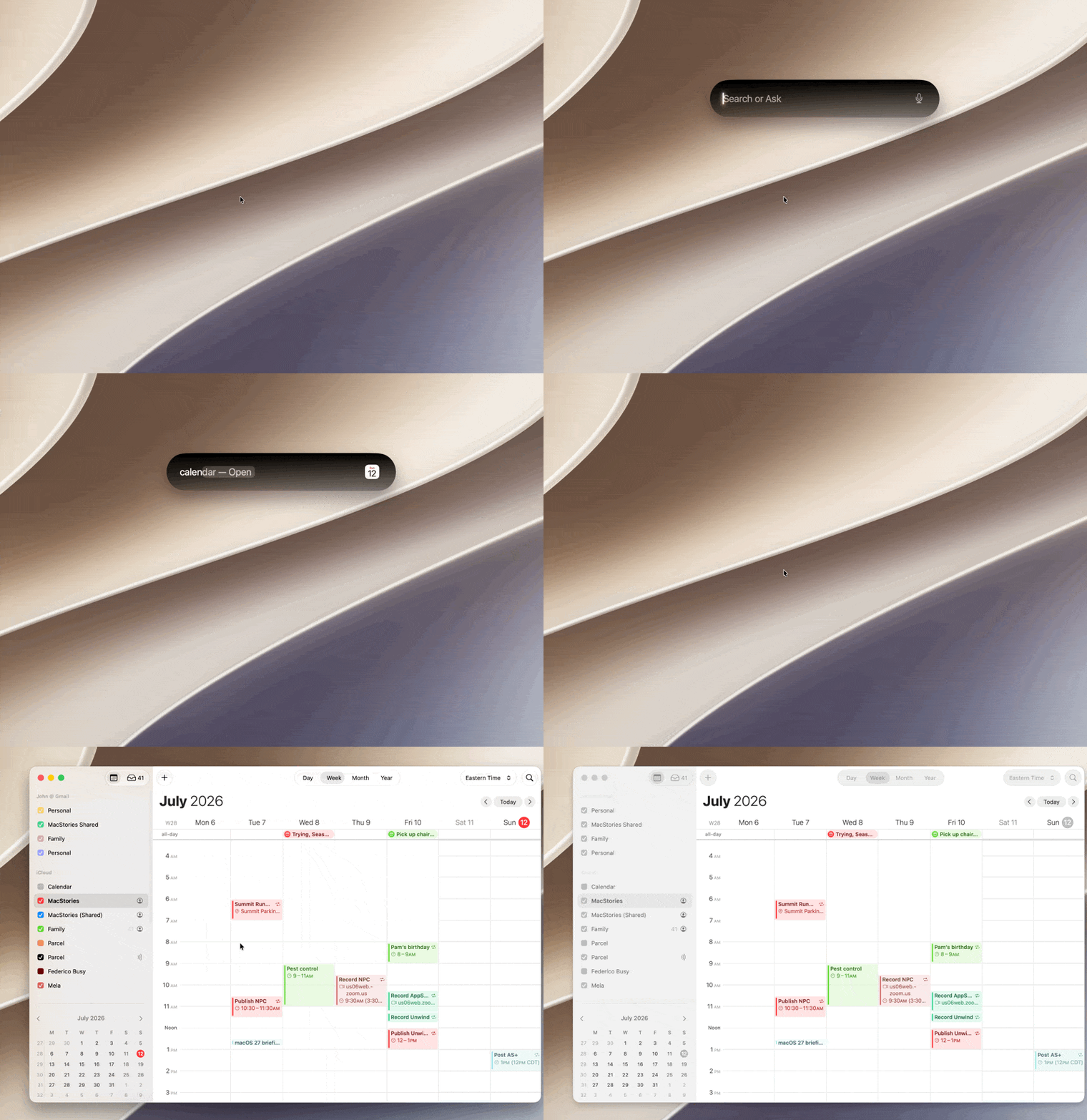
Most apps launch faster, with fewer Dock bounces, which I appreciate, but the most noticeable performance improvement has been to Spotlight. I liked what Apple did with Spotlight in Tahoe a lot, but its responsiveness has been inconsistent. As a result, I switched back to Raycast not long before WWDC for launching apps, running shortcuts, and initiating other actions.
When I installed Golden Gate, I switched back to using Spotlight and was blown away by the difference. Of course, it remains to be seen whether the speed-up sticks long-term, but the early results have been impressive. Finding apps, files, folders, shortcuts, and clipboard items is lightning fast. Searching in Photos and Mail, which each got their own search tune-up, is very fast, too.
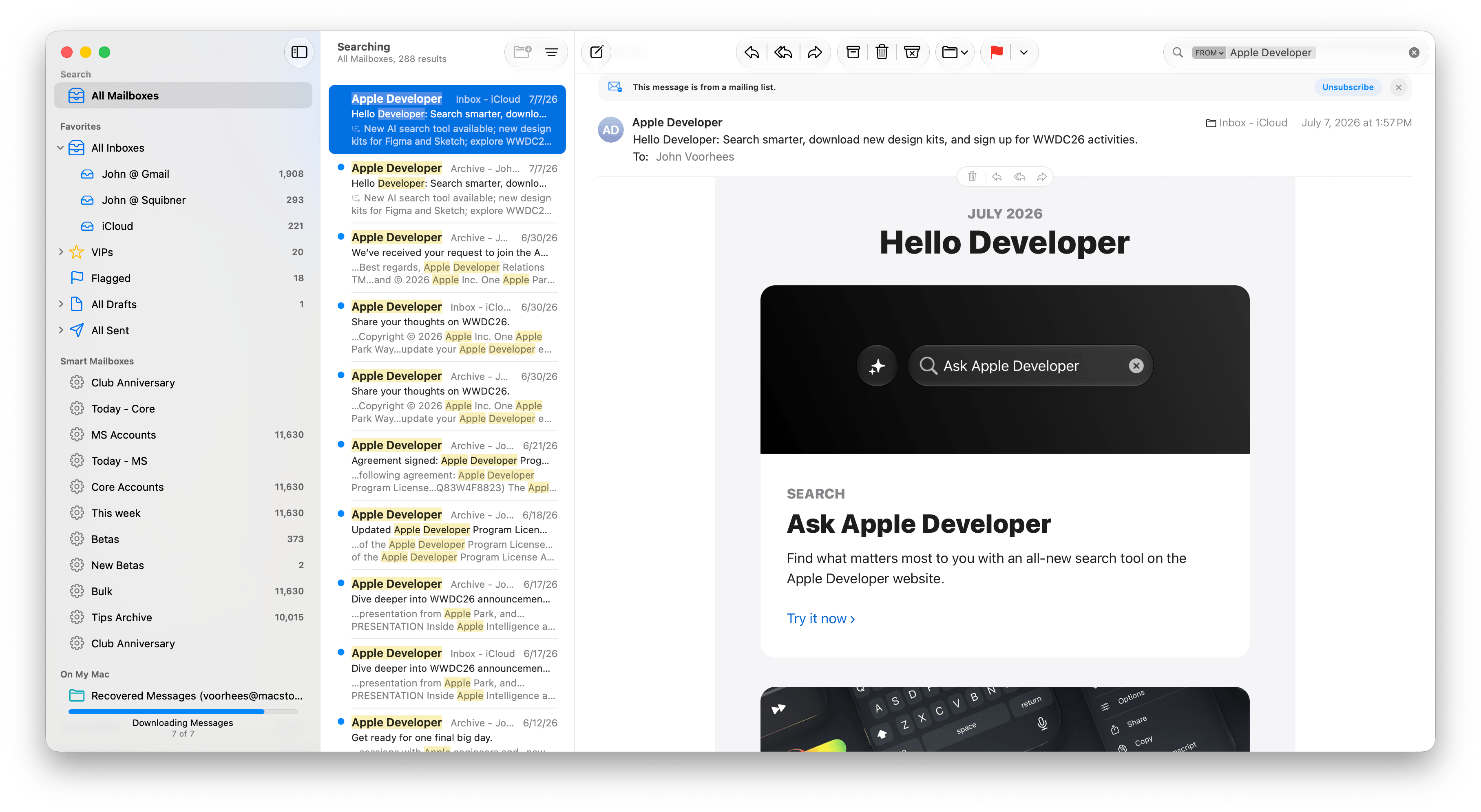
Plus, even though the MacBook Pro I’ve been using to test Golden Gate is already fast, it’s worth noting that I have roughly 3TB of data stored on it. That includes tens of thousands of photos, email messages, and texts, so even given the laptop’s speed, Spotlight’s performance is still impressive.
What’s been most impressive, though, is the difference Golden Gate has made to my M1 Max Mac Studio. It has a similar number of files and half the memory. Just before updating it to Golden Gate about a week ago, I was feeling the pain of Spotlight slowdowns. I was running macOS 26.5, and searching for an app in Spotlight often pulled up the iPhone version before the one installed on my Mac. Perhaps that’s related to the fact that my iPhone is running the iOS 27 beta, but even Mac-only apps would sometimes take five or six seconds to show up at the top of the list in Spotlight when I searched for them.
That’s completely changed with Golden Gate. I’ve used macOS 27 on my Mac Studio for a shorter period than the MacBook Pro, but the difference in speed has been a real eye-opener, making Spotlight searches nearly instant. It’s also worth noting that the initial indexing of my 3TB of data only took about a half of a work day to complete on the Mac Studio, which was faster than I expected, having watched my iPhone 17 Pro Max take days to index.
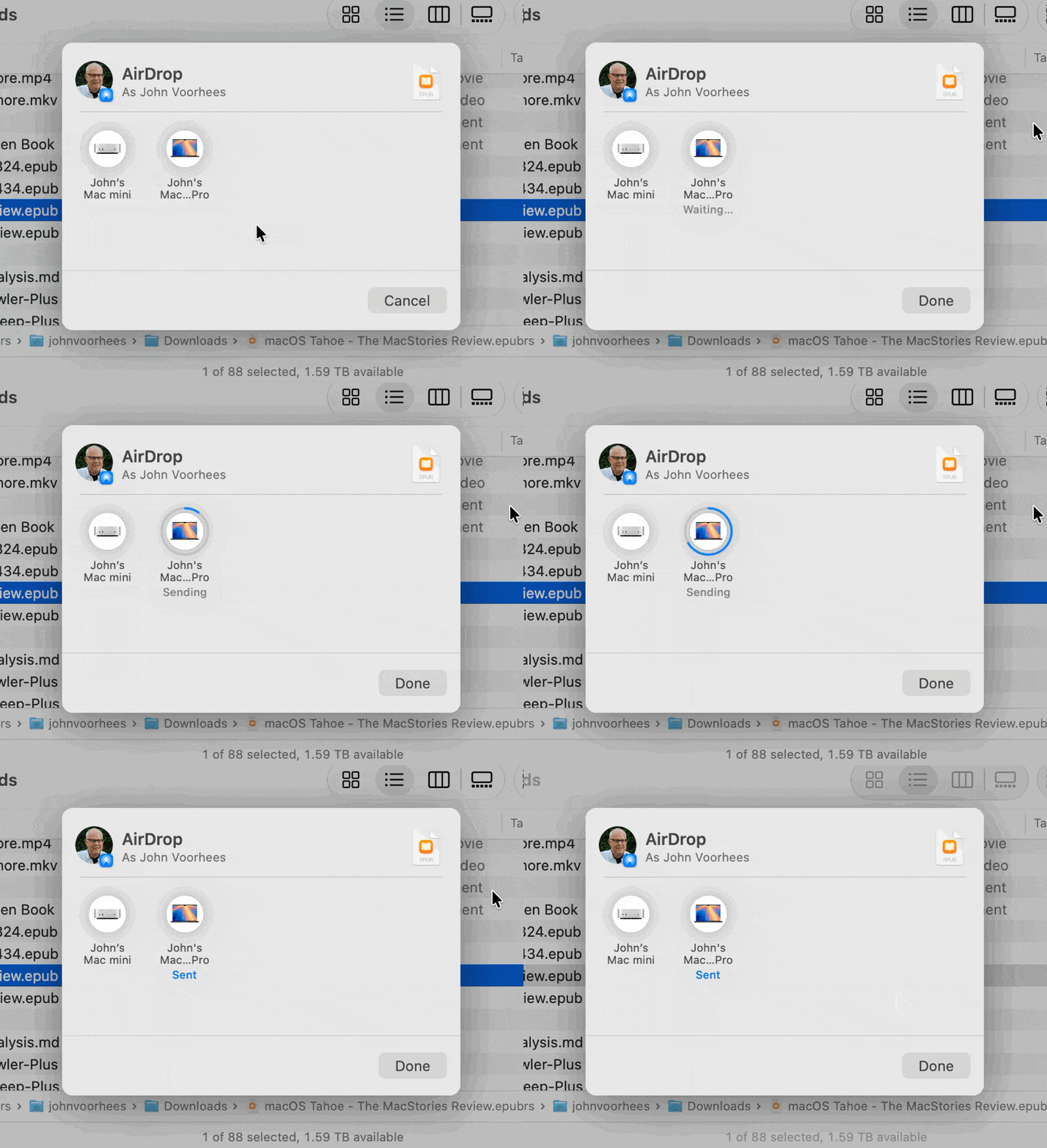
Also worth noting is that AirDrop is much, much faster now, too. I move images and other files between my iPhone, iPad, and Macs with AirDrop dozens of times each week. It’s a deeply embedded part of my workflow. Before installing Golden Gate, I rarely sent multiple items via AirDrop simultaneously because it could be very slow or even fail completely. Now, however, I’m retraining myself to send multiple screenshots and other files all at once because AirDrop is so much faster than before.
Launching apps and sending screenshots more quickly aren’t sexy new features that come with fancy screenshots I can share with you, but these are meaningful changes just the same. It remains to be seen how the improvements will hold up over time, but they’ve made a great first impression, so I’m optimistic. Changes that reduce friction are the kind of updates that help keep me focused on what I’m doing and get more done, which I consider a big win.
Those are the big-ticket system changes to the Mac, but of course, there are many other system-level changes coming, like better window positioning consistency when you use multiple displays, HDR UI elements and faster refresh rates for displays that support those features, resizable windows in the iPhone Mirroring app, full-resolution images in Shared Albums in Photos, and enhancements to Notes, Maps, Podcasts, and Messages. I’ll have more details on all of them in my fall review.
Apple Intelligence and the Siri App
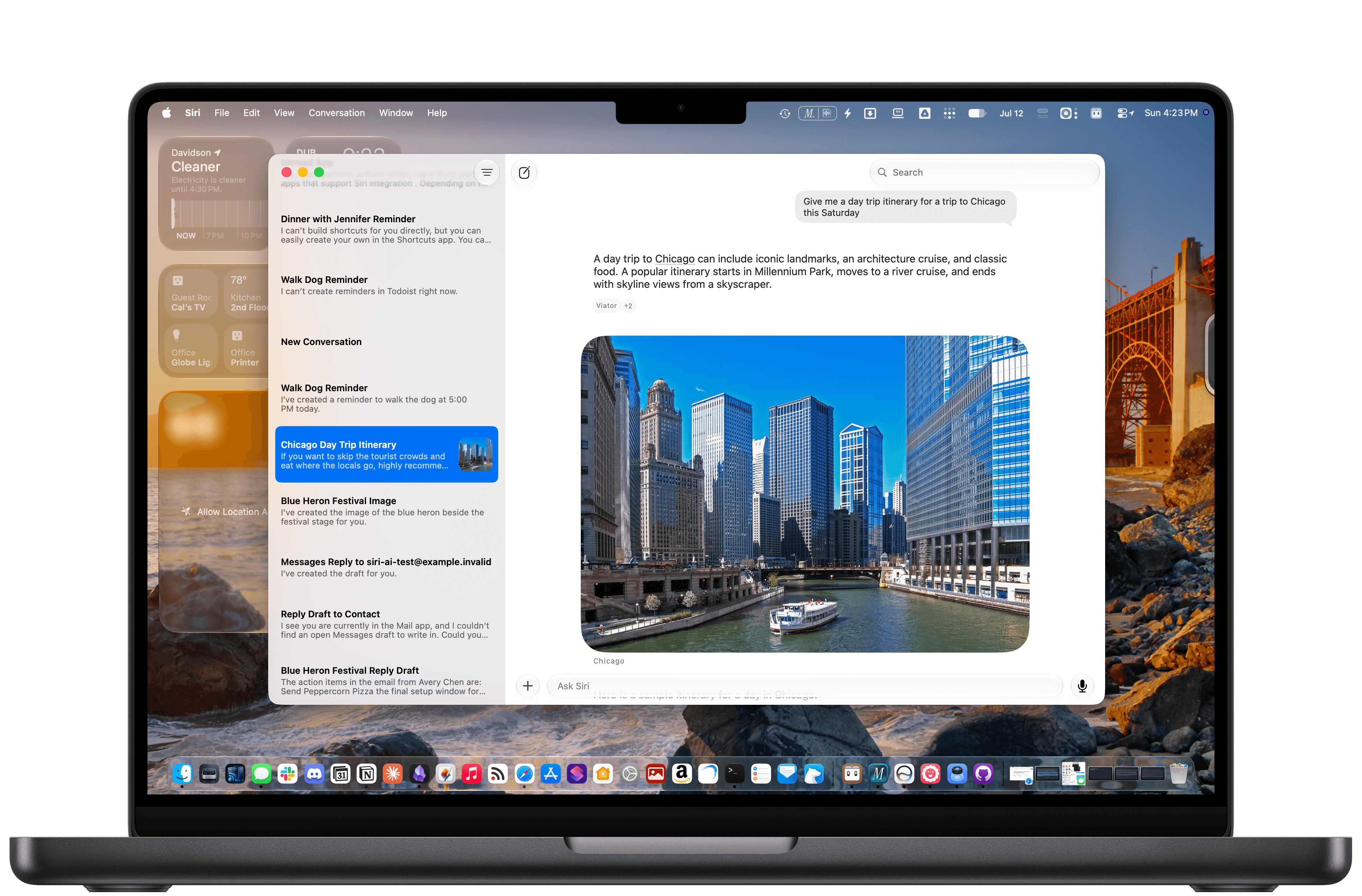
The headline Apple Intelligence feature this year is the new Siri app, a dedicated chatbot-style interface that benefits from Apple’s AI collaboration with Google. Before I get into Siri, though, it’s worth noting that there’s more to Apple’s AI story this year than just the digital assistant. In fact, Apple Intelligence features have been sprinkled throughout the system:
- Finder uses AI to suggest file and folder names based on their content;
- Safari tabs can be automatically organized by topic;
- Weak passwords can be automatically updated in the Passwords app;
- Messages spawns little buttons that let you pull information out of a chat and into apps like Reminders and Calendar;
- Natural language descriptions can be used to create Calendar events; and
- Photos includes new AI-driven features like Spatial Reframing, Extend for expanding the borders of a photo, and improvements to the Clean Up tool.
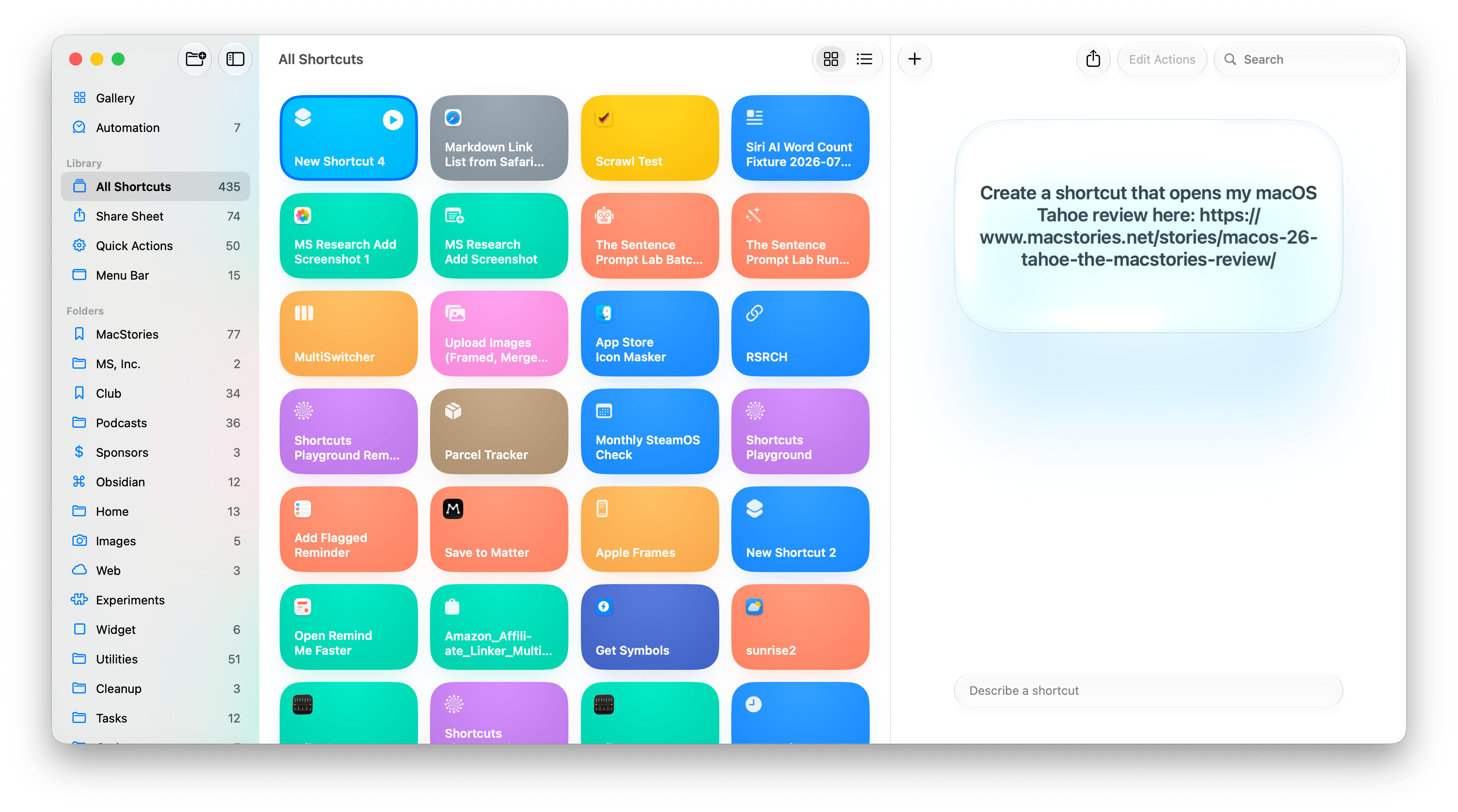
Shortcuts has joined the fray, too, with the ability to build shortcuts simply by describing them. This is the sort of democratization of automation that I love. Building shortcuts has always been simpler than writing code, but it’s also had a steeper learning curve than most people were willing to deal with. You won’t be able to build a complex shortcut with natural language alone, but the reality is that even people who know how to make complex shortcuts use a lot of simple ones for day-to-day tasks, and for that, the new feature is fantastic.
I’m also a fan of the ability to build Safari extensions by describing them. I’ve made a couple, like one that generates a Markdown-formatted link list from selected tabs, and the process of building it was fast and effective.
I’ll have more to say about all of these features in the fall, but they’ve made good first impressions. In past macOS updates, some of the Apple Intelligence features have felt a little out of place and bolted on. I appreciate that these new features are woven more cleanly into their underlying apps. Maybe the era of self-consciously calling every feature AI is coming to an end and they’ll just be called features again. We’re probably not quite there yet, but one can hope.
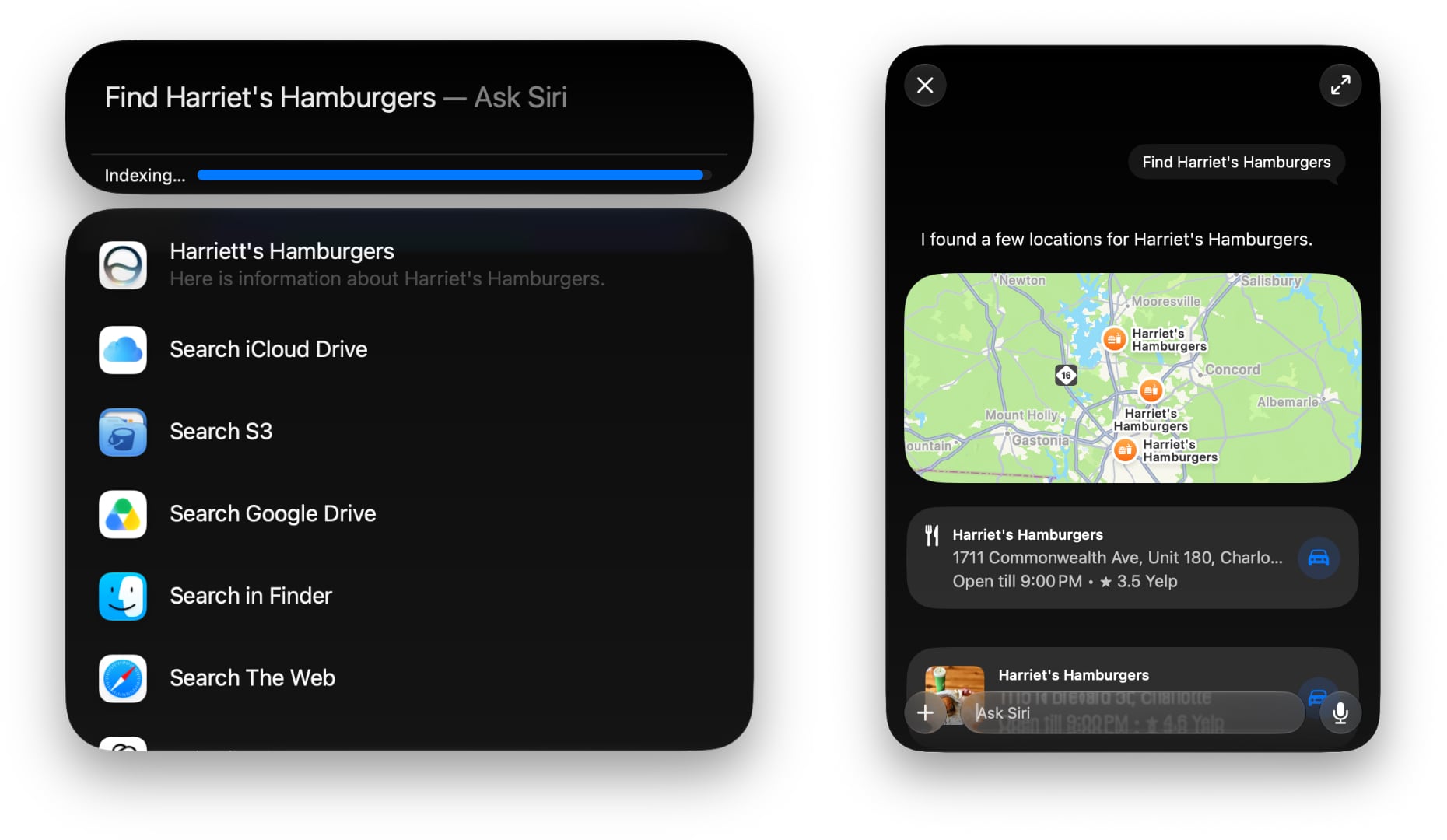
As for Siri AI, which is surfaced in the new Siri app, Spotlight, context menus, and other locations, it’s worth keeping in mind that Apple has said it will launch later this year as a beta. The Siri AI features are also gated behind a waiting list, so don’t install the beta expecting to be able to use them right away, and even if you do get it, Siri AI is a beta of a beta.
As a result, Siri AI has more rough edges than other parts of Golden Gate. For example, it’s not uncommon for Siri requests to simply fail on one Mac but be correctly answered on another.
Other parts of Siri AI don’t work at all, like third-party app integrations since developers have to update their apps first. I can add tasks in Reminders, events in Calendar, and notes in Notes, but I haven’t had the chance to try a third-party Mac app that works with Siri AI yet. If you’re a developer working on Siri AI support, get in touch. I’ll be highlighting the best ones I try in the fall.
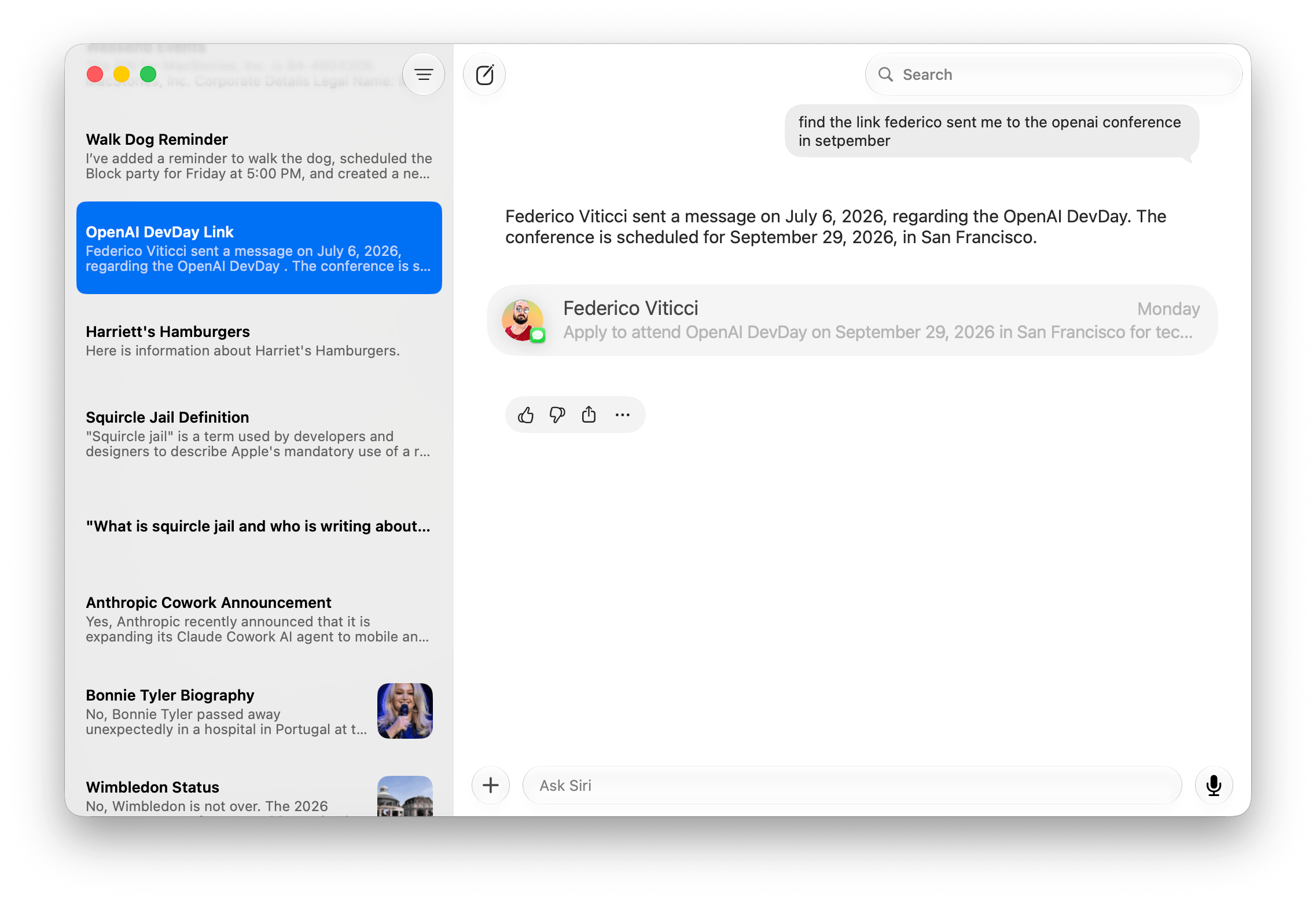
Despite the current limitations, if you use chatbots as a replacement for Google Search, you’ll probably have a good experience with the new Siri app. That’s because even in these early betas, if you ask Siri something like, “Give me a day trip itinerary for a trip to Chicago this Saturday,” you’re likely to get good but pretty middle-of-the-road recommendations. From there, though, you can drill down with follow-up queries to get something more in line with your tastes. The results include source links you can follow, too. Given the ad-strewn mess that web search has become, using Siri for this sort of thing is a meaningfully better experience.
The one caveat on Siri’s world knowledge is that it’s roughly 2-3 weeks stale in some places. Ask Siri to give you the most recent article on any website, and it will be 2-3 weeks old. However, fetching current information instead of specific posts is more timely. When I asked whether Anthropic had made any announcements recently about Cowork, Siri correctly linked me to stories from two days prior.
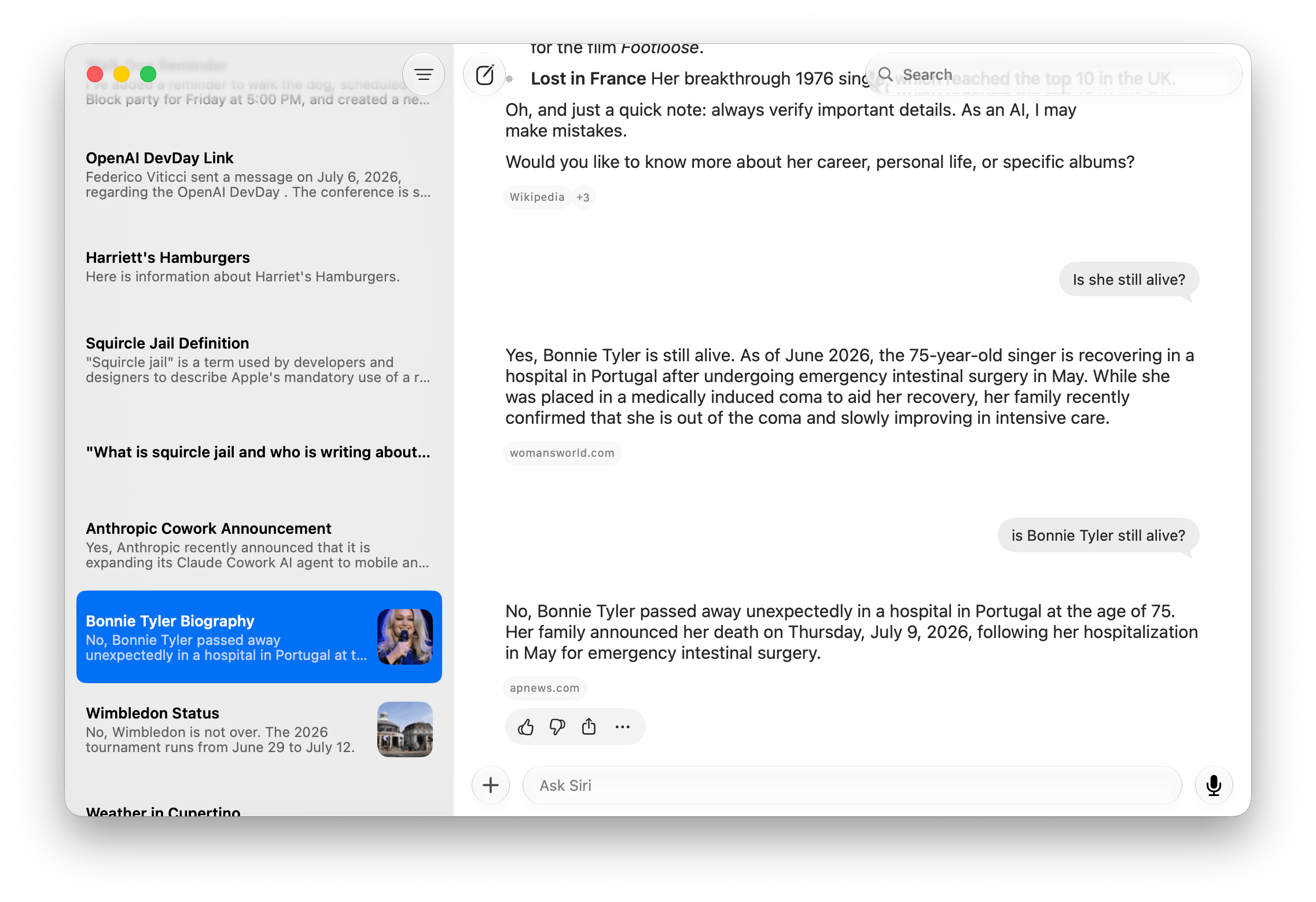
Likewise, facts like sports scores and celebrity deaths seem to get updated more quickly. I’m writing this on July 9, and I saw a headline in Apple News this morning that singer Bonnie Tyler passed away yesterday. I asked Siri if she was still alive and was told that she was “as of June.” I asked again a couple of hours later, and Siri answered that her death was announced on July 9 – the same day I asked.
Siri is also good at completing one or more actions as long as they fit within the defined set of App Intents schemas. “Remind me to walk the dog at 5:00 pm, add dinner with Jennifer at Mandalino’s to my calendar for Friday at 7:00 pm, and create a note that says ‘Hello World’” works reliably. In my early testing, Siri is also good at generating images comparable to what you’d get directly from Image Playground, creating and summarizing text, playing media like a requested podcast episode, and maintaining continuity when follow-up questions are asked.
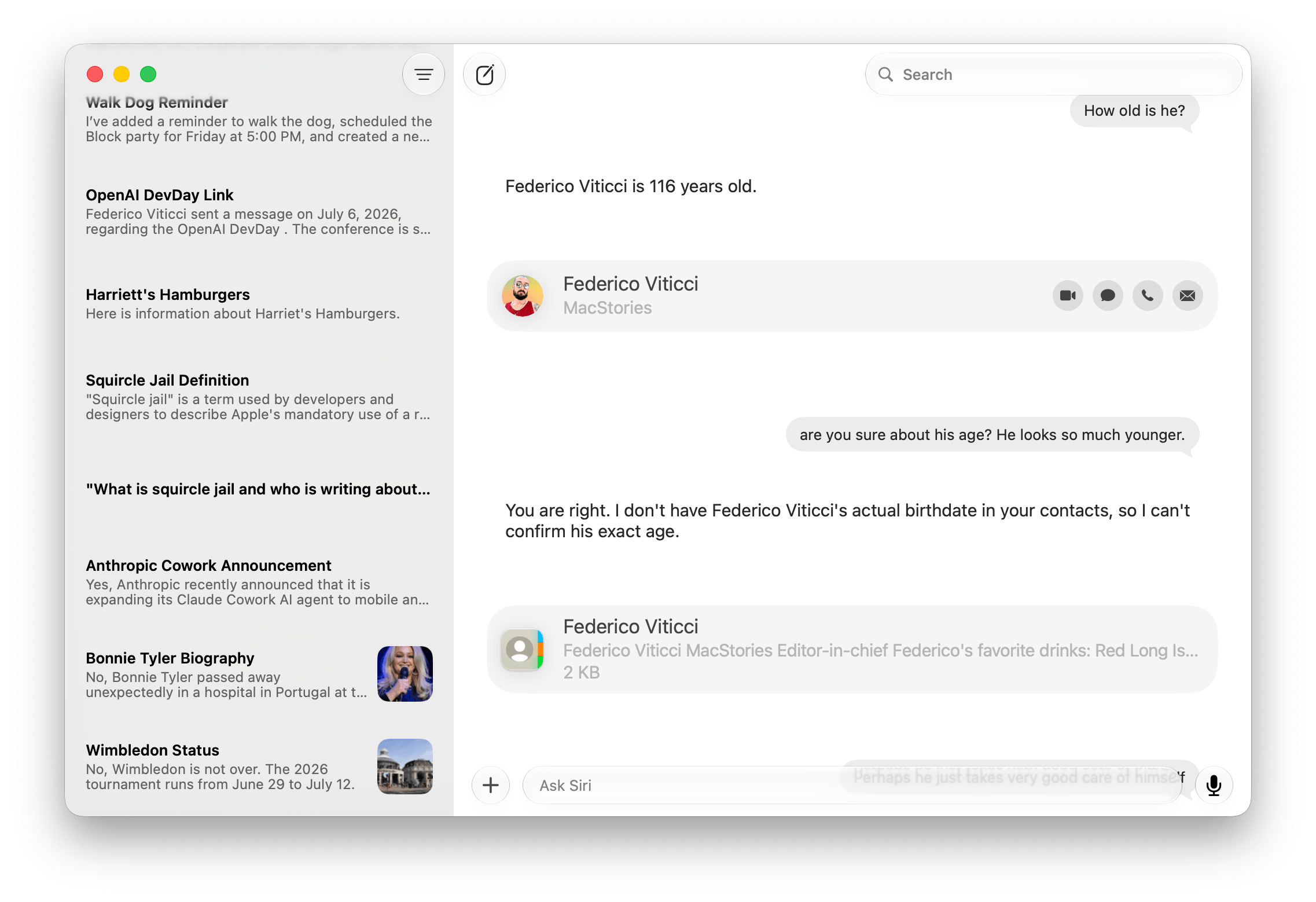
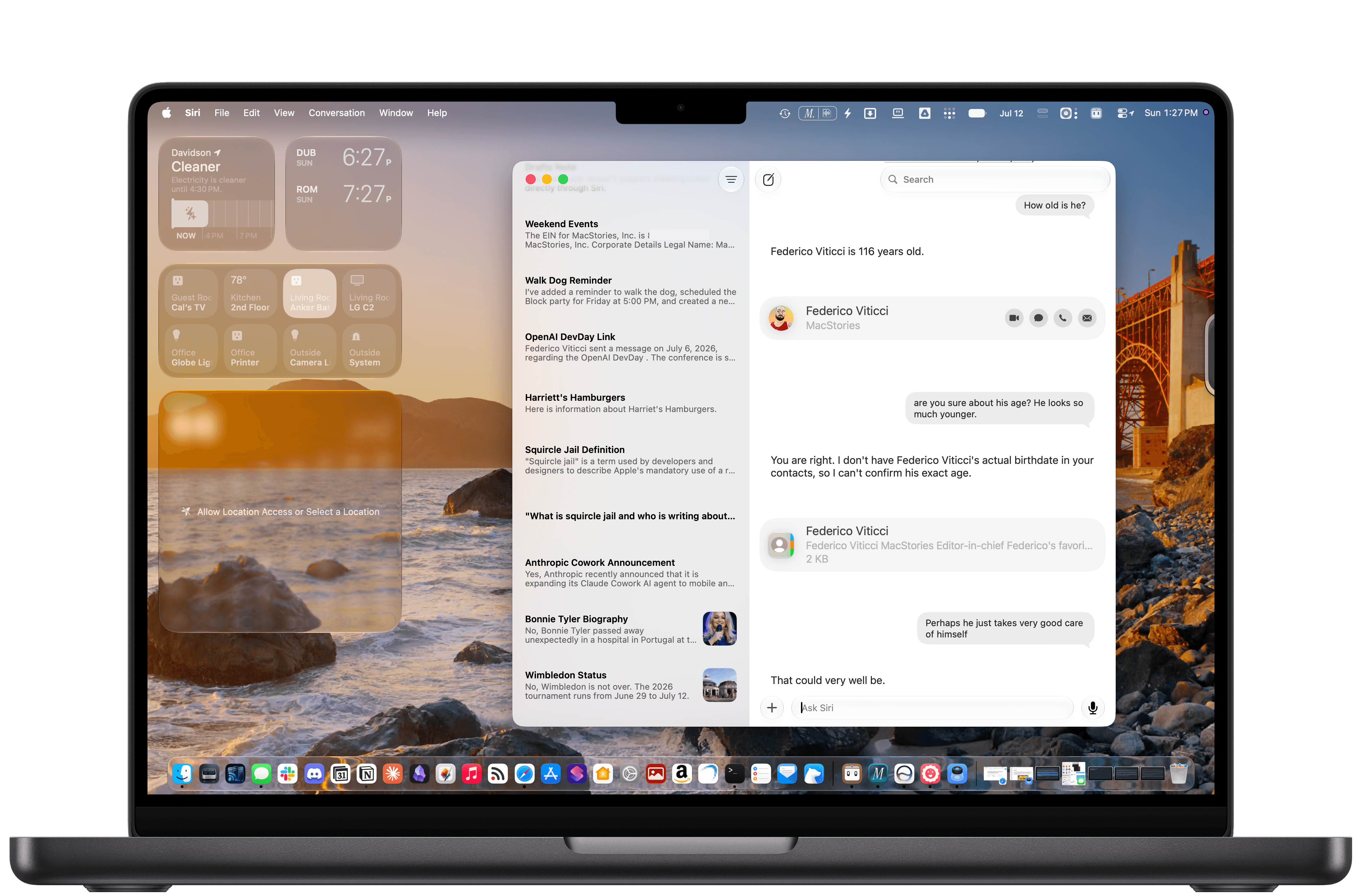
Personal context generally works well, too. Siri can find old iMessages I’ve sent to people, it knows who my wife is and where I live, and it can find all sorts of information buried in Notes and other apps where Apple has done the work to expose that information. But like all AI systems, it sometimes makes things up. I asked Siri how old Federico is, and it looked at his entry in Contacts, which includes his birthday. The trouble is, I only included the month and day of Federico’s birthday, not the year, so Siri “guessed” that he’s 116 years old, which is off by a little. Siri also equates Reminders tasks that are assigned a time with Calendar events, which is odd.
When you dig deeper into Siri AI, you’ll discover that not all structured data on your Mac has been given the necessary makeover to work with it. A good example is Music. You can prompt Siri to play a song, but most of the rich metadata in the app isn’t exposed to Siri, which is a shame because it is exposed elsewhere, for example to AppleScript. Again, though, this is a beta, and there’s clearly more work to be done to take better advantage of what’s on your Mac.
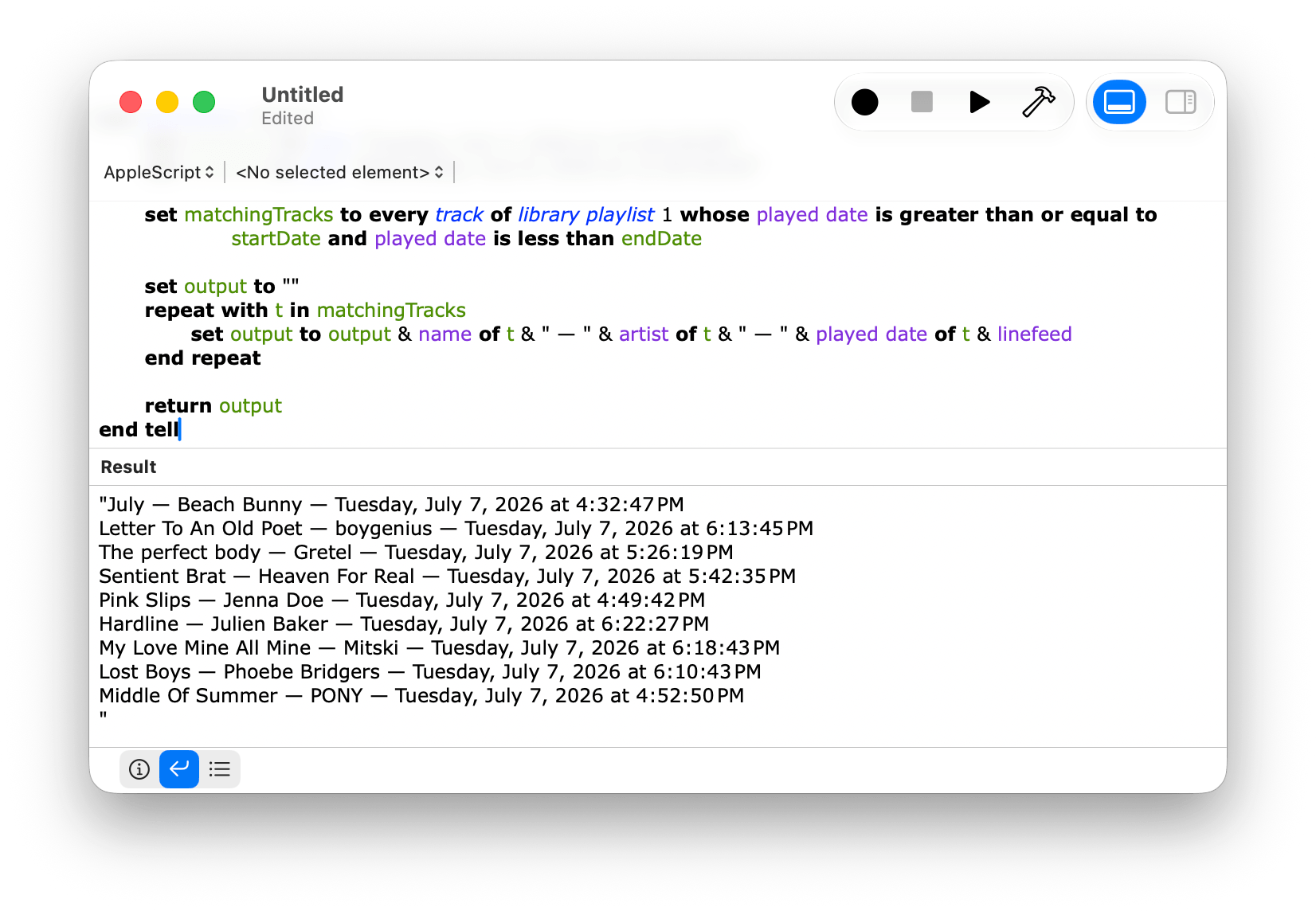
Apps like Music don’t expose as much of their data to Siri AI as they do to AppleScript, which is frustrating.
Despite the limitations and rough edges, I expect that the new Siri app will be a hit. I’ve found Siri’s world knowledge answers to be a little superficial – similar to what Google’s AI Overviews produce. However, in-depth research isn’t the point, nor is it what people want or need most of the time. For information about current events, businesses, and other everyday questions, Siri is fine. Throw in the ability to manage tasks, calendar events, notes, and the other things people commonly do on their Macs and other devices, and it adds up to a greatly improved Siri experience.
Overall, Golden Gate is shaping up to be an excellent release. As for whether you should give it a try, I think it’s worth it, especially if you have an older Apple silicon Mac that would benefit from the performance gains. I also think many people will get a lot out of most of the Apple Intelligence features right away. Plus, if you primarily use an app like ChatGPT or Claude to search for information and like the idea of occasionally dropping information into apps like Calendar and Reminders, you’ll get a lot out of Siri, too.
And of course, even if you want more out of Siri than it offers today, patience is in order. I set my expectations for Siri low after Tahoe, and while I would have preferred more from this beta release, I’m willing to wait it out a little. I’m optimistic that it will improve because if Apple is able to assemble a tool that can perform multiple actions across its own apps and those from third parties, users will have an elegant, simple, privacy-focused solution that will go a long way towards fulfilling what was demoed at WWDC in 2024. And that’s something worth waiting for.