


Here are today’s @MacStoriesDeals on iOS, Mac, and Mac App Store apps that are on sale for a limited time, so get them before they end!
Read more
#MacStoriesDeals - Thursday
Apple’s iPhone TV Ads: The Complete Campaign→
Apple’s iPhone TV Ads: The Complete Campaign
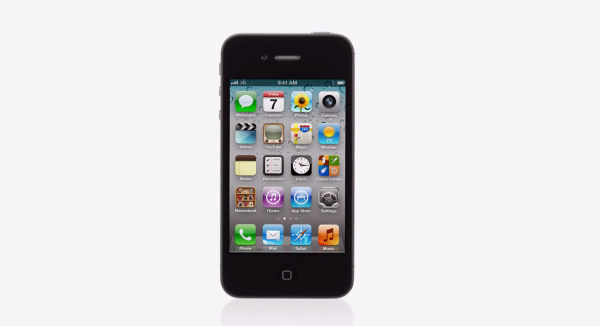
Adweek created a complete collection of every iPhone ad campaign to date, starting with the 2007 commercial “Hello” (aired on the night of the Oscars).
Without much fanfare, the iPhone campaign has surpassed its predecessor in terms of volume of work—”Get a Mac” lasted for 66 spots over four years (watch them all here), wrapping up its run in October 2009; the iPhone campaign is now entering its sixth year, and is up to 84 spots and counting. “Get a Mac” was beloved for its characters and wry humor. And while the iPhone work may lack that same level of charm—it is, at its heart, merely a series of product demonstrations—it is just as exquisitely produced and in many ways more varied.
I have previously written about how Apple’s commercials often tend to tell “stories” rather than simply showcasing the functionalities of a product. The complete collection of iPhone TV ads provides a fantastic example of how Apple’s marketing style can be a little different, but still effective and capable of establishing an emotional connection with the audience.
Check out Adweek’s gallery here.
Clear Sells 350,000 Copies In 9 Days→
Clear Sells 350,000 Copies In 9 Days
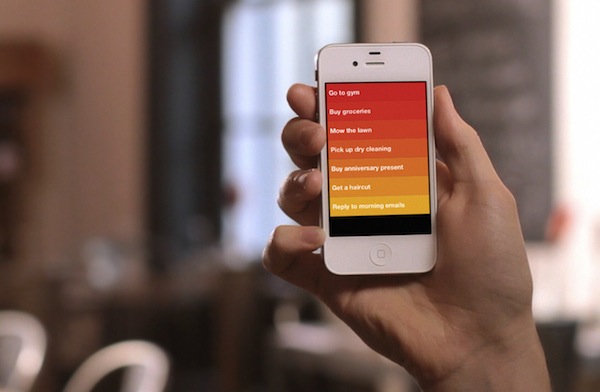
The Guardian reports “buttonless” todo list app Clear has sold over 350,000 copies in nine days of App Store availability:
We’ve sold just over 350,000 copies,” says product manager Nik Fletcher. “The launch day was massive, and by Wednesday last week it was number one on App Stores around the world. It’s been an incredible response.”
Clear costs 69p on the App Store, meaning that the app has generated net revenues of just over £169,000 so far, after Apple’s 30% cut. The revenues are being shared between Realmac, software studio Impending and co-creator Milen Dzhumerov, as Clear was a collaborative project.
Clear is another example of the App Store’s uniqueness as a platform for independent developers. A simple idea such as a todo list application for iPhone, coupled with a great UI and the right marketing strategy can be a sustainable business model for smaller development shops and individuals. It’s also another example of how buzz and social networks such as Twitter can build an incredible amount of hype around software these days (just take a look at the visualizations on Clear’s Vimeo teaser).
Make sure to check out our review of Clear if you missed it, and our interview with developer Phill Ryu.

iPad + Office + Apple + Microsoft: Why It All Makes Sense→
iPad + Office + Apple + Microsoft: Why It All Makes Sense
Rumors of Office for the iPad flared up again this week after The Daily posted an alleged photo of it, after apparently getting some hands on with a near-complete build. Some of you may recall me tweeting that day, what I thought was a crazy thought: Apple inviting Microsoft on stage next month at the iPad 3 keynote to demo Office for iPad. Apparently it wasn’t as crazy as I originally thought, because others are thinking it might just happen.
Office for the iPad makes total sense, though. And I wouldn’t be surprised if Apple did give Microsoft some stage time to unveil it at the new-iPad event in a few weeks.
Those are the words of Dan Frommer of SplatF, someone who (in my mind) has always made strong, rational cases for his arguments, never sensationalising or using hyperbole for the sake of it. In an article published a few hours ago, he lays out why “iPad + Office + Apple + Microsoft” actually makes sense. In it he lists out all the big arguments for such a Microsoft appearance at Apple’s iPad 3 keynote.
This isn’t like when Microsoft had to scratch and think before making Office for the Mac in the ’90s, when it would be lucky to sell a couple million copies per year. The iPad is way different: It should easily pass 50 million unit sales this year alone, and that’s potentially tens of millions of Office buyers for Microsoft. (Office, by the way, represented significantly more of Microsoft’s sales and profits last quarter than Windows.)
I strongly encourage you to read the full list of arguments in his article, I don’t think anyone could have laid out the argument for such a proposition any stronger than Dan did. On the flip side though, Daring Fireball’s John Gruber doesn’t think it’ll happen.
But what would be in it for Apple to offer such a spot to Microsoft? You can argue that the iPad with Office available is an even more attractive platform/device than the iPad as it stands today, sans Office. But why share the spotlight with Microsoft? Apple doesn’t need to.
#MacStoriesDeals - Wednesday

Here are today’s @MacStoriesDeals on iOS, Mac, and Mac App Store apps that are on sale for a limited time, so get them before they end!
Read more
Buzz: My New Phone App Replacement and Contact Hub
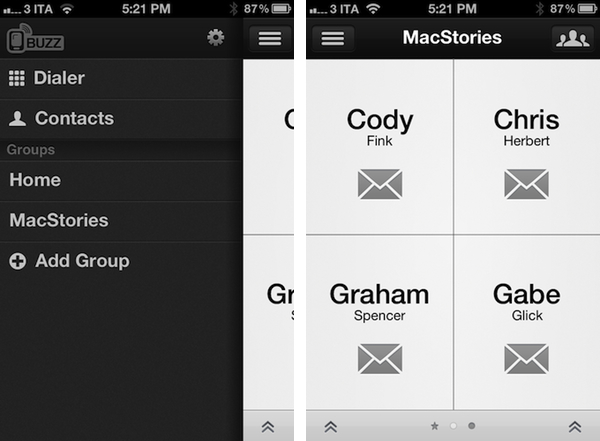
I’m not typically one that likes to replace Apple’s core iOS apps with third-party alternatives, but Savvy Apps’ latest iPhone app, Buzz, allows me to access my contacts faster than Apple’s own Phone software, and I had to leave a spot for it in my Dock.
For the past two weeks, I’ve been testing Buzz, the latest production by iOS design and development firm Savvy Apps by Ken Yarmosh. Similarly to Agenda, also by Savvy Apps, Buzz comes with its own clean, custom UI focused on presenting text against a light background that contributes to increasing readability and finding things in seconds. Whilst I believe Agenda benefits more from this design aesthetic because of how it handles information density (a calendar app can get pretty busy), the same focus on clarity and simplicity works equally well for Buzz, which is a quick dialer/contact management app that emulates many of Apple’s Phone functionalities in a completely new interface.
Think of Buzz as a minimalist take on Apple’s Phone app, aimed at enhancing a few important functionalities, leaving out many others that are (at least in my workflow) rarely used. Whilst Phone.app obviously offers control over recently missed phone calls, the voicemail, and your system favorites, Buzz takes the “quick shortcut” aspect of apps like Launch Center and Matt Gemmell’s Favorites, combines it with group management and native integration with the Address Book, and comes up with a rather unique implementation that allows for a very lightweight usage, or deeper full-blown contact interaction. I believe many out there will find it hard to completely give up on the native Phone app – especially for the Recents view – but I found Buzz to be enough for me and, if anything, a better solution for my daily Address Book needs. Read more
Apple Purchases Land In Oregon For Another Large Data Center

An Apple spokeswoman has confirmed to news agency KTVZ.com that it has purchased land in Prineville, Oregon and plans to build a data center. The land, purchased from Crook County covers 160-acres and was purchased for a reported $5.6 million. Apple confirmed the purchase after they were named as the purchaser in a February 15th filing in Crook County.
Apple spokeswoman Kristin Huguet confirmed Tuesday that “we purchased the land and it’s for a data center,” but could not speak to details beyond that, other than to say it will be a “green” facility.
Rumors of Apple scouting out land in Prineville for another large data center emerged in December last year when it was reported that Apple was in discussions over purchasing the land. The land Apple purchased is nearby Facebook’s data center in Prinneville, which is pictured above.
Storify for iPad Review
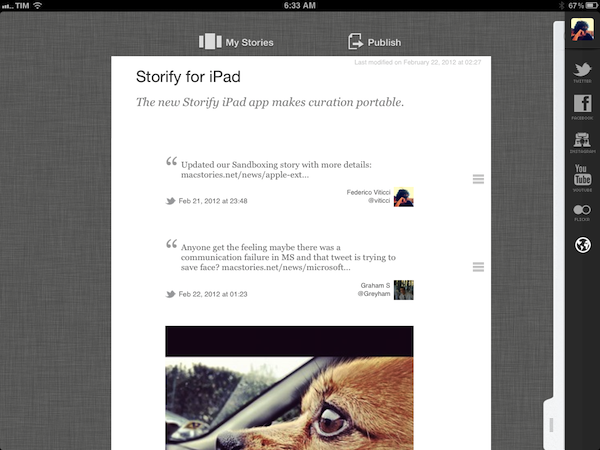
Since its release in April 2010, the iPad has been widely regarded as a “consumption device” not really suited for “content creation”. Whilst we have already examined the issue with dismissing the iPad as a device that’s not capable of doing the same things a computer can – and my friend Shawn has a good take on why “content” generally is an awful marketing umbrella – the Storify iPad app, coming today for free on the App Store, is yet another example of how the iPad is changing the way we create through unique interfaces built around touch and the strengths of iOS.
Storify is an interesting service. Per se, Storify isn’t strictly focused on allowing you to create original content (images, text, or a combination of both) that you can share with your friends; rather, Storify is a curation tool that, among other services, leverages Twitter and the openness of the web to let you create “social stories” based off elements shared by people you follow, or just about anyone else on the Internet. Storify wants to tell stories by “curating social media”. I have covered the topic of curation – especially Twitter curation – several times on MacStories, and I recently mentioned Storify in my review of Tweet Library, an iOS app by Manton Reece that enables you to create collections of tweets for future reference. As I detailed in the article, Storify integration in Tweet Library means you can easily collect tweets from a variety of sources (people you follow, Twitter lists, favorite tweets – Tweet Library does a great job at breaking up Twitter sections in neatly organized “sources” panels) and publish them online as a bundle on Storify. The first official Storify iPad app, however, brings the full feature set of Storify (or at least the majority of its online functionalities) to the tablet, mirroring the web counterpart available at storify.com to allow you to create visually rich social stories that go beyond collecting data from Twitter.
I have been able to test Storify for iPad in the past weeks, using it to create and edit stories that I’ve embedded on MacStories such as this one, or this one. When I first talked to Storify CEO Xavier Damman about their upcoming iPad client, I wondered how well the team had managed to port the desktop user interface and experience of Storify, which is largely based on drag & drop, to the iPad. Furthermore, the Storify web app benefits from the desktop nature of the web browser, which makes it easy to switch between dozens of tabs, collect links, snippets of text, and images, or simply open links from other applications without having to worry about “switching back” using a multitasking tray, such as the one we have on iOS. These are all problems a native iPad app should somehow address, I thought, as it’s not just as easy and quick to switch between the browser and multiple sources on an iPad, and I wouldn’t want the Storify creation process to become slow or, worse, cumbersome. It turns out, the Storify team solved the problem with converting mouse interaction to multitouch, and quite beautifully. Read more