This Week's Sponsor:

Copilot Money

Copilot Money, The Best Money Tracker, Launches on the Web – Limited-Time: Get 26% Off + 2 Months Free


Posts in reviews

Instacast HD Review: It’s Incredible

I remember when I first reviewed Instacast for the iPhone back in March, declaring it the Twitter of Podcast apps. While possibly dramatized, what Instacast has done for mobile podcasts is what Loren Britcher did for Twitter apps. The interface, lightweight and smooth, capitalizing on common sense gestures and thoughtful design elements, quickly made Instacast one of my favorite iPhone apps. Instacast is the only non-Apple app that has a spot on my iPhone’s dock. An intelligent conversation, a good laugh, and Geek Friday are always just a tap away.

Instacast got smarter. Sure there were times when enhanced podcasts didn’t work or a wonky update caused weird crashes, but they were fixed and plenty of new features were added. Continuous playback always kept a friendly voice on the loudspeaker. Later, iCloud syncing was added in preparation for future updates. Future updates that of course would finally see Instacast taking on bigger endeavors.

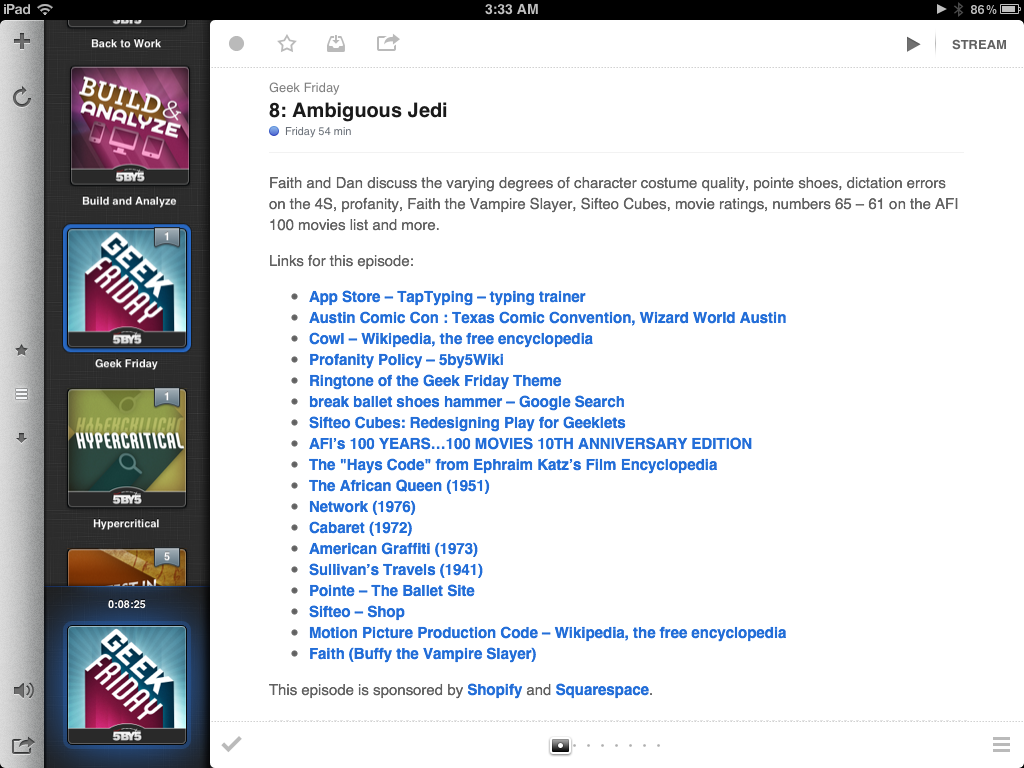
There were lots of days on the couch when I thought about Instacast coming to the iPad. Until recently of course, I hadn’t known what to expect before I was invited to take a look at the first beta. I imagined that Instacast, containing a library of podcasts, would take on a form similar to iTunes. I imagined the interface as a grid, where you would easily scroll through podcast cover-art and see badges revealing the number of unplayed episodes. How silly!

Martin Hering first hinted at the design in September, and I later had the privilege of revealing more of the interface near the end of October. An excited Joshua Schnell and Myke Hurley have also been eager to share the new interface, giving it due praise on the App Orchard and at Macgasm. The hype around Instacast HD for the iPad has been astounding, and for good reason. Instacast HD is incredible.

Read more


MacStories Product Review: AViiQ Portable Charging Station

MacStories Product Review Banner

MacStories Product Review Banner

It’s true that we can’t leave home without our myriad of chargers and gadgets, loosely stuffed into any available backpack pocket and bundled with the endless length of cords required to recharge such devices. Every charger, every USB cable, and every associated gadget can take up an amazing amount of space, and while I’m careful not to lose anything, keeping track of everything you bring with you becomes a drag. And if those Cables get entangled together? Game over.

Instead of taking four different individual chargers for our iPads, iPods, and Bluetooth headsets, what if we reduced that to one item that could contain all of our cables and smaller gizmos that we don’t need immediate access to? Wouldn’t it be nice if we could unfold a mat and have all of our cables neatly presented for immediate charging? Past the break, we’re taking a look at something as convenient, and we advise everyone that this could possibly be on your holiday wish-list by the time you’re done reading this review.

Read more


LogMeIn Ignition Adds Direct Integration with Dropbox, Google Docs, WebDAV Servers

In the past months LogMeIn, makers of the Ignition app for iOS, have released a series of updates to enhance Lion compatibility on the desktop and improve the file sharing capabilities of the iOS client, which, as we detailed in our various reviews, is a great way to remotely access computers (Macs and PCs) over the air. LogMeIn Ignition isn’t the cheapest app on the App Store, but its rich set of features and support from LogMeIn (a company that, among other things, also produces a free VPN tool for OS X) make it a worthwhile purchase for those looking for a complete solution to control a computer’s screen and access to its files.

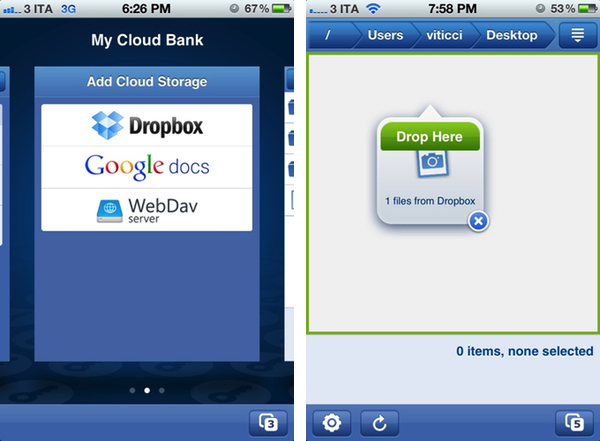
The latest version of Ignition, released today, adds a single, yet important feature called Cloud Bank that brings direct integration with Dropbox, Google Docs and any WebDAV server to the iOS app. LogMeIn Ignition was already capable of moving files between computers and iOS’ local document manager with an intuitive drag & drop menu and copy/move functionalities; nowadays, however, users are more likely to keep their documents in the cloud, rather than physically stored on a computer’s drive, and LogMeIn’s move towards integration with cloud-connected services is certainly welcome as a way to get files from the cloud and onto a computer remotely.

My Cloud Bank allows LogMeIn Ignition users the ability to take full advantage of being remote by connecting them to their files no matter where they are. We’ve extended the functionality of our File Manager feature and given users the benefit of using cloud storage services in conjunction with remote access and local file storage on their devices.

Think of Ignition as a bridge between the cloud and a remote computer. With Cloud Bank, Dropbox and Google Docs are easily accessible through Ignition’s usual interface, with the same copy menu from computer-based remote connections. You’ll be able to move files between Dropbox and a computer you’re remotely connected to, or get a spreadsheet from your Google Docs account into a computer without, say, giving the person that’s using the remote machine access to your Google credentials. With WebDAV support, users will be able to configure services like DropDAV, which turns Dropbox into a WebDAV server and works out of the box with apps like Pages and Keynote.

I look forward to seeing whether LogMeIn will ever consider adding support for iCloud files, as that seems the most logical step to seamlessly fetch an iOS user’s cloud documents. In my tests, Cloud Bank has been extremely reliable in dealing with large Dropbox transfers from the cloud to a computer I was remotely connected to via 3G.

LogMeIn Ignition is available at $29.99 on the App Store.


App Journal, Episode 8: Newstream, Audium, PopClip, Read


App Journal is a new series aimed at showcasing apps we have enjoyed using on our iPhones, iPads, and Macs, but decided not to feature in a standalone, lengthy review here on MacStories. App Journal is a mix of classic reviews, weekly app recommendations, and a diary of our experiences with apps that still deserve a proper mention.

This week’s App Journal is all about reading, text, and music. With the iOS reading scene going through some interesting shake-ups with Readability announcing a free service, Flipboard for iPhone coming soon and Evernote getting into the “distraction-free reading” business with Clearly, I take a look at two little gems from the App Store that offer their own take on RSS feeds and article consumption.

As the holiday season nears, developers are putting the final touches to the apps they’ll be selling for Thanksgiving and Christmas to new iPhone and iPad owners. Stay tuned for more App Journals in the next weeks.

Newstream

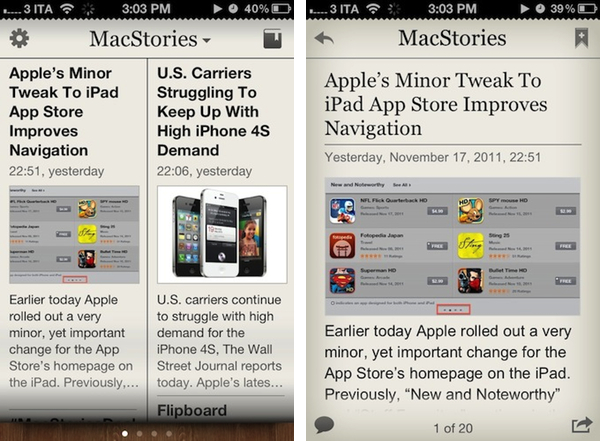
While we wait for Flipboard to arrive on the iPhone, Amazing Softworks’ Newstream offers an interesting solution to turn your favorite websites into newspaper-like reading experiences. Using regular RSS feeds to fetch a website’s latest articles, Newstream allows you to create a list of favorite sources that will be turned into virtual publications on a newsstand that you can swipe through. The app loads an article’s text and images, and lets you tap on headlines to read the full text in a single-article view. When you’re done, you can go back to the main screen, and swipe to another website. Alternatively, you can tap on a website’s name at the top and instantly jump to another one through a popover menu. Articles can be tweeted, shared on Facebook, emailed to your friends or added to the app’s own reading list. Unfortunately, there is no support for Instapaper or Read It Later in the app, which means the reading list won’t sync to other devices or services. The app doesn’t even sync or import feeds from Google Reader, which means you’ll have to add your favorite blogs manually.

I think Newstream’s limited feature set might also be its strongest selling point for people looking for a simple way to load a subset of RSS feeds into a separate app with an easy-to-read format. Newstream is $2.99 on the App Store.

Audium

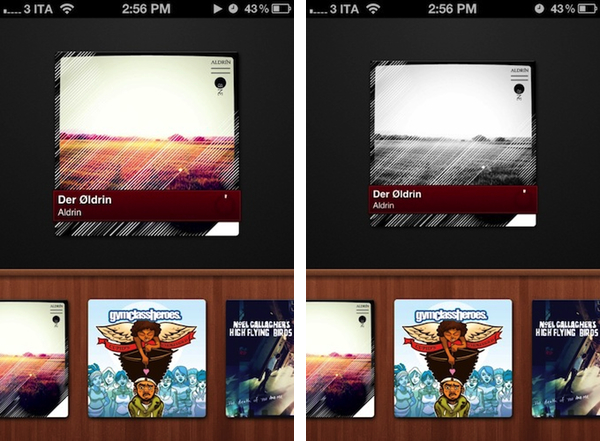
Developed by Michael Pringle, Audium is a beautiful, lightweight and gesture-based music player for your iPhone. Instead of imitating the Music app’s interface by adding a number of new features as many third-party music players do, Audium focuses on simplicity and ease of use. Audium doesn’t display a list for your artists and songs – instead, it visualizes artworks from albums you’ve synced on your device at the bottom of a wooden shelf. Swipe through albums, and double tap on one to start playing; double tap again to pause, swipe left or right to change song. It’s very simple. You can even swipe up or down to adjust the volume, and the app displays a tiny circular indicator rather than a classic progress bar to see how much time is left in a song.

Audium is a clever app that’s intuitive and fully takes advantage of the iPhone’s touch-based interface. It’s a $0.99 download from the App Store.

(album artwork via Aldrin)
Read more


“Video Stream” App Stores and Pushes Videos with iCloud

With iOS 5, Apple introduced Photo Stream, a service based on iCloud to store your most recent photos in the cloud, and automatically have them pushed to all your devices, including the Mac (with iPhoto and Aperture) and Windows PCs. Photo Stream has been criticized by some for its lack of settings and customization options (you can’t selectively choose which photos go in Photo Stream, and which ones you’d like to keep private), but most of all many users have been disappointed by the lack of video support. Especially with the new iPhone 4S, users are finding themselves shooting decent videos with a vastly improved camera, without a way to automatically store these videos in Photo Stream and find them later on an iPad or Mac.

As we noted in our iPhone 4S review 1080p video can end up consuming a lot of space, so perhaps due to upload concerns Apple decided to focus on pictures with Photo Stream. After all, even a decent WiFi connection might require several minutes to get a 5-minute 1080p video uploaded to the cloud, and downloaded back on other devices. Yet a third-party app for the iPhone and iPad, Video Stream, aims at providing iOS 5 users with a way to store videos in iCloud and push them effortlessly to all their iCloud-connected devices.

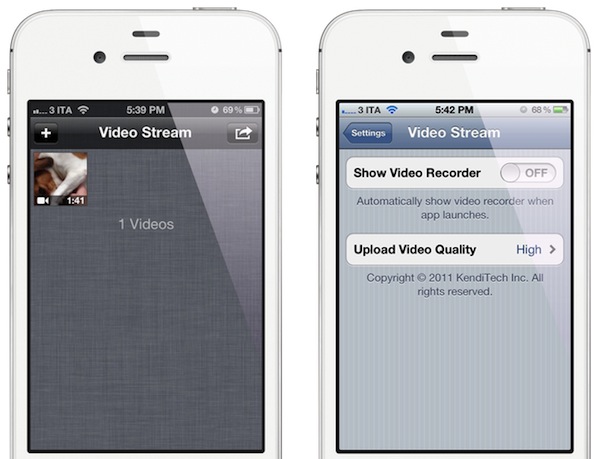
Video Stream is a $0.99 download from the App Store, and it runs on the iPhone and iPad. The concept is simple: you can manually import videos from your Camera Roll (or shoot new ones directly into Video Stream) and the app will start uploading them to iCloud. Once it’s done, the videos will begin showing up on other devices running Video Stream, like an iPad. And because the system is based on iCloud’s Documents & Data, files will unsurprisingly become visible on a Mac as well (though the developers say that a native Mac app is also in the works). Video Stream is a third-party app, so videos won’t be automatically uploaded after they’ve been recorded with an iPhone or iPad: you’ll need to import them into the Video Stream app.

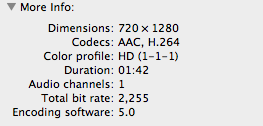
An obvious caveat of video is that even a couple of minutes can generate a large file. For this reason Video Stream needs to compress a video before it’s uploaded, and the app offers three options: Low, Medium and High quality. For instance, I chose “High” for a 1080p video I shot with my iPhone 4S, and I ended up with the following video information on my Mac (for a 28.7 MB video file).

Video Stream isn’t a permanent solution to store your video library in the cloud (just like you shouldn’t use Apple’s Photo Stream to build your personal photo library), but it gets its job done. Which means easily pushing videos across devices and offering options to reduce file size, thus cutting upload times in half.

Video Stream is $0.99 in the App Store.


Review: Aquaria

When I was 6, my parents bought me a Super Nintendo. I didn’t know much about video games back then, but I knew that after Nintendo’s Game Boy I wanted the SNES. Sure enough, I got a European SNES for my birthday with some games to go with it, including Stunt Race FX and Super Metroid. Stunt Race FX eventually got reconsidered as a “gem” from the SNES era years later, but I remember I didn’t like it much back then. I did love Super Metroid, and even if the challenge was a little too hard for a six year old kid, I got away convinced that games like Super Metroid were the ones I liked. In the years that followed, I played Super Metroid on an emulator (somehow, I lost my original SNES cables) with a much better understanding of its plot, and all the Metroids that were released on the Game Boy Advance (Fusion and Zero) Game Cube and Wii (the Prime series). I even went through that pain that was Metroid Prime Hunters for the original DS. I loved Metroid.

At the same time, I tried to explore other offerings from the genre that Metroid and Castlevania nurtured. That meant going through Symphony Of The Night on the PSX, and other less inspired titles for Nintendo’s GBA. But I loved the so-called “Metroidvania” games – characterized by large maps with areas that you have to explore and unlock through upgrades to your main character, 2D side-scrolling, crazy hard boss fights and generally decent plots – so I kept playing.

As I grew up and got a job, I found to have less time for gaming. I bought a Nintendo Wii and Xbox 360 but never really got to fully enjoy them. In fact, I’ve only recently started to get back into portable gaming thanks to iOS devices and a Nintendo 3DS, which I acquired last week (but more on this in another story). So it was with a mix of curiosity, excitement and, after years of non-playing, apprehension that I approached Aquaria for iPad, a porting of a popular, award-winning PC game. Would a Metroidvania game for iOS still hold up to my old expectations and renewed interest for multi-touch based adventures and puzzles? Read more


Dropzone 1.0 Released On The Mac App Store

Way back in 2009 I first reviewed Dropzone, a dock-based utility by Aptonic that, through a grid interface allowed users to quickly perform common but tedious actions like uploading images or sharing text with a single drag & drop. Later, I took another look at Dropzone as a way to effortlessly download Mac apps as .DMG files, and have the app automatically extract the contents of a disk image and install an application for me.

With the 1.0 release on the Mac App Store today, Aptonic had to make a few changes to Dropzone in order to be approved by Apple and sell its app on the Mac’s native digital storefront: Dropzone is now a menubar app – which you can still decide to launch on login – and gone is the dock access that was also made popular by Dropzone’s own icon and Stacks-like appearance. However, in spite of the technical changes, Dropzone 1.0 still shares the same user interface and set of actions of the previous version: for those not familiar with the concept of the app, Dropzone offers a series of built-in actions (and others that you can manually download and install) to perform tasks automatically and save precious seconds and clicks when working with your Mac. So, for instance, you can drop pictures onto Dropzone’s window and have them uploaded to Flickr, or compressed in a .zip archive and emailed to someone. You can drop files and move them to a specific destination on your Mac, or configure FTP servers and directories if you find yourself constantly uploading files via FTP every day. Dropzone aims at letting you save time with boring tasks and, at the same time, quickly share items with your friends or coworkers without going through separate clients and web upload tools.

Dropzone is very lightweight, and it’ll ultimately make your life easier through drag & drop. Version 1.0 is available at $13.99 on the Mac App Store.


Review: Galaxy on Fire 2 HD

Galaxy on Fire 2 HD is an excellent sci-fi game with an extensive storyline, massive amounts of side missions, and graphics that will render you speechless. The original version of this game has been around for almost a year but the developers have released this HD version which is optimized for devices packing Apple’s A5 processor, which include the iPhone 4S and the iPad 2.

The storyline holds true to the original version of Galaxy on Fire 2 but for those unfamiliar with the game, here is the back story:

A hyperdrive malfunction sends intergalactic adventurer and war hero Keith T. Maxwell tumbling through space and time. Awakening 35 years later at the far end of the galaxy, he quickly finds himself fighting for his life against a mysterious alien armada that is wreaking havoc on the warring races occupying this volatile sector of space.

The story is just interesting enough to keep me motivated to see it through to the end. The developer boasts that game has 10+ hours of gameplay and that is no lie. I have passed the 10 hour mark, have not completed the main storyline, and there are still more side missions left than I know what to do with.

You spend the majority of the game in a third person view of a spaceship and the only exception is when you are docked at a space station. In these stations you will experience text based conversations with other characters. Through conversations you will acquire more missions and receive money for successfully completing them. You can also get money by mining astroids for Ore and then selling the materials in the space station’s Hangar. Money can be used to buy more powerful spaceships and weapons, hiring wingmen, or purchasing components to build your own weapons. Different planets will have different prices for all items so there is definitely an element of economic strategy to the game. There is a Space Lounge on every planet and it is the place to go when you need a mission or want to earn some extra money. The types of missions vary from transporting cargo or passengers across the galaxy to being hired security for other citizens. Overall the gameplay is entertaining and it makes it hard to put the game down.

The real selling point of this release is the stunningly enhanced visuals. All the 3D models used in the game have been completely rebuilt and many elements such as asteroids and jumpgates are four-times the original resolution. The developers have added additional light sources for incredible realism which can be truly appreciated when taking an “Action Freeze” – it is like a screenshot except you can spin the camera around in any direction to find the best angle, utilizing the light sources to enhance the quality of the freeze frame. New textures and enhanced backgrounds all equate to an amazing visual representation of a living, breathing universe that is so immersive I guarantee you will lose track of time while playing. Read more


Ecoute 3.0 Brings New UI, Queue, Lion Features

Back in January I reviewed Ecoute 2.0, a major update to a standalone iTunes music player that was made quite popular by its support for “themes” to be used in a desktop music controller. Today, developers PixiApps have released Ecoute 3.0, which represents a big shift in terms of user interface and underlying engine, but builds on the feature set offered by Ecoute 2.0.

For those unfamiliar with standalone music players, Ecoute belongs to this family of apps that are capable of playing iTunes’ media library without actually using iTunes. By fetching the required files to make iTunes’ library available outside of the iTunes environment automatically, Ecoute offers an alternative view for music, videos and podcasts, while at the same time giving the user additional tools to share songs online, create keyboard shortcuts, and more. Unfortunately, it appears Ecoute 3.0 still can’t automatically identify an iTunes library stored somewhere else than the default location, as I noted for version 2.0 in January. The app does have, however, an option to manually open iTunes libraries stored on your Mac or external drive.

From a feature standpoint, Ecoute 3.0 is fairly similar to its predecessor. You can share tracks on Last.fm, Twitter and Facebook, assign keyboard shortcuts to various playback controls, install themes, navigate with gesture swipes and control the artwork widget on your desktop. These are features that were implemented in version 2.0, and have been improved for 3.0. Still, there are some important additions in this update: for one, the app is fully compatible with OS X Lion (natural scrolling, full-screen mode) and 64-bit. These optimizations have brought along a faster UI and more responsive search results when filtering your media library.

Speaking of user interface, the biggest change in Ecoute is the application’s design, which has completely changed from Ecoute 2.0. The app now uses a multi-column layout that adapts on screen depending on what you’re browsing and works with three-finger swipe navigation. Say what you will about Lion’s gestures, but I find this method incredibly more intuitive than Ecoute’s old interface. Now playing information has been merged with the title bar, where you’ll also find buttons to love a track, enter full-screen, and the duration of a song. Gone is the huge bottom bar from Ecoute 2.0, which leaves room for more compact music controls and, overall, provides a more elegant look to the entire app. Ecoute 3.0 feels a lot cleaner and it’s been simplified to make browsing music fast and lightweight.

There are other new features in Ecoute 3.0. Artwork view has been given its own section and you can now automatically display it after a period of inactivity; minimal mode and gapless playback have been implemented, giving a reason to those who can’t stand iTunes’ bloated interface to go even more minimal with Ecoute; you can also “shuffle by albums” and have multiple selections.

More importantly, at least for me, Ecoute 3.0 comes with a queue feature (accessible through Lion’s typical popover control) that lets you re-organize the songs you’re about to listen to. You can drag & reorder songs as well as add more to the queue from Ecoute’s main list.

If you’ve been looking for a fresh new way to access your media library in a standalone, easy-to-use app while leaving iTunes to perform heavier tasks such as TV show and movie management, I recommend Ecoute 3.0 today just as I did with Ecoute 2.0 in January. The app is elegant, responsive, fully updated for Lion, and you’ll be able to customize it with themes. Ecoute 3.0 is available at $8.99 on the Mac App Store.