This Week's Sponsor:

Copilot Money

Copilot Money, The Best Money Tracker, Launches on the Web – Limited-Time: Get 26% Off + 2 Months Free


Posts in reviews

Denominations: A Simple Currency Converter

Developed by Abraham Vegh, Denominations is a simple currency converter that focuses on the concept of converting money to another currency, rather than the functionality alone.

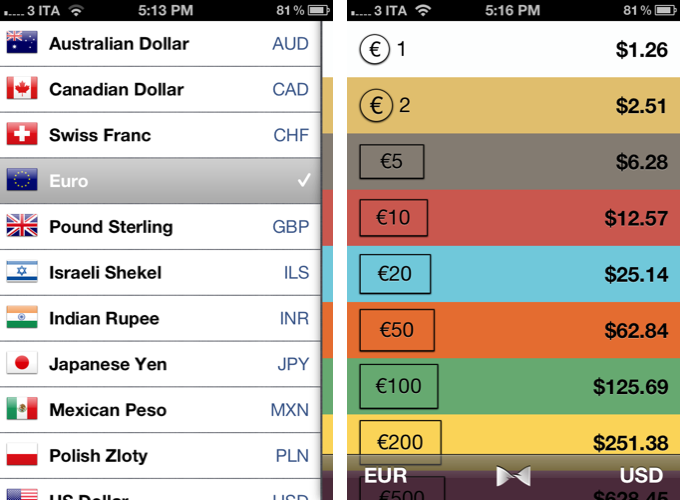
Most currency converters on the App Store feature a number pad for entering values – like a calculator – and a menu to choose currencies to compare. Denominations is different: instead of letting you enter your own numbers, it comes with a predefined set of amounts to compare. You can set two currencies, and quickly switch between them with the tap of a button. Denominations’ focus is on the idea of understanding conversions in another currency without having to think too much.

I don’t think Denominations can replace currency converters like Currencies – after all, I still need to convert the amounts I want – but I believe it has some neat possible usage scenarios worth considering. For instance, as a tourist I might just want to know “how many pounds are 10 Euros”, instead of doing my own manual conversion at the coffee shop. Or I might need to know that, approximately, my dinner will cost around 50 Euros, which Denominations says are worth 62 dollars today (rates are updated server-side every 15 minutes). Quick, at-a-glance information that doesn’t require me to think and manually enter numbers.

Denominations’ design is concise, with a flat color scheme that’s reminiscent of the simplicity of Clear, again signifying a trend in recent App Store releases to focus on information rather than ornamental menus. Developer Vegh is already working on adding more currencies, bug fixes, and tweaks for an upcoming version.

Denominations is available at $1.99 on the App Store.


Review: Magellan Virtual Analog iPad Synthesizer

In my post about the current state of music-making and discovery on the iPad, I concluded with a roundup of the best, most sophisticated software to professionally create music on the iPad. As I did with shuffler.fm and discovery, I would today like to add a new app to the list of the best software synths available for the iPad. The app that I found worthy of being added is the newest product by music software company Yonac Inc, called Magellan.

Yonac made a name for itself by producing an extensive amount of music-related apps since early 2010. One of their most elaborate and popular efforts has been the Shredder guitar synth to create analog and digital synth leads or pads by playing guitar into the iPad through an interface like the IK Multimedia iRig or the Apogee JAM. The company was also right there when the iPad got unveiled. They developed and promoted one of the very first synth software for the iPad, the Yonac miniSynth.

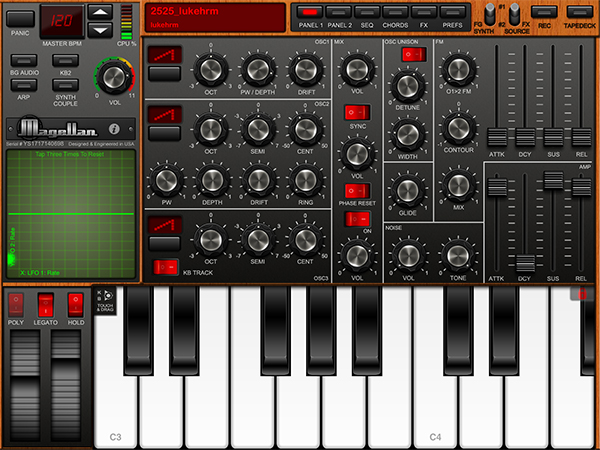
Magellan is their new masterpiece. It’s a fully fleshed-out virtual analog synth with a lot of power. Let me sum up its basic feature set: two synthesizer engines running at the same time, each of them equipped with three oscillators for basic sound generation, frequency modulation, a step sequencer, and two filters plus eight effects. The app has got an easy to understand interface and produces an immense variety of sounds in very high audio quality. This review not only judges the quality and usability of Magellan, I will also give so detailed instructions and tricks so that you immediately can start making sophisticated music tracks with the app right after you’ve downloaded it. So, if you are curious, stay a while and let me explain you how Magellan works and why it may become a strong competitor to other high-end iPad synths like the KORG iMS-20 or the Sunrizer.

Read more


Buzz Contacts 2.0 Refines Interface, Improves Navigation

Buzz

Buzz

Savvy Apps’ Buzz Contacts is one of the finest iPhone apps to quickly access contacts from the Address Book and organize them into groups. Back in February I wrote a review of the first version of the app, and I liked what Ken Yarmosh and his team built:

Buzz is focused on groups. From a Facebook-like panel on the left, you can create as many groups as you want (such as “Friends”, “Family”, or “Work”) and assign contacts to them. Switching between groups is easy, as you just have to open the panel again and tap. Each group can have multiple pages of contacts, and each shortcut in the group’s grid view can be assigned a default action — be it call, message, or email. From the group’s management window, accessible by hitting the Groups icon in the upper right corner, you can reorder contacts, and organize pages if a group has more than four shortcuts.

The group actions of Buzz are something I found myself using on a daily basis. By tapping on the lower section of a group’s page, in fact, you get shortcuts for group messaging and emailing that will automatically use all the email addresses / phone numbers stored in your Address Book to send emails or texts to multiple recipients at once. This is particularly handy for teams, groups of friends, or family members. It’s been a huge time saver for me, as I would have to manually re-insert each contact every time I want to start a new group message or email.

Buzz Contacts 2.0, released today as a free update for existing customers, is a fantastic step forward in terms of design polish, navigation, integration with other services and apps, and overall speed of the app – an essential aspect of a utility that aims at making it easier and quicker to access your contacts.

In version 2.0, Buzz Contacts received a new icon and support for themes. Like Agenda, Savvy Apps’ other popular calendar app for iOS, users can now choose between different takes on the app’s color scheme and, interestingly, they can do so by either opening the Settings or swiping left/right on the top bar to change colors instantly. I prefer the app’s standard black theme, but I found the swipe implementation to change themes particularly well done.

Where Buzz Contacts 2.0 really excels, though, is the in functionality it adds to group management and navigation. Retaining the same Facebook-inspired panel interface of version 1.0, Buzz 2.0 adds Frequent and Outgoing sections at the top of the sidebar; in my usage, I found the Frequent “smart group” to be a great way to have the app monitor my most-contacted people for me, offering a series of shortcuts for emails, calls, or messages that I access on a daily basis. It’s reminiscent of the functionality Dialvetica offered, and it’s perfectly integrated with the other features offered by Buzz.

Buzz

Buzz

Such features include a double-tap action to bring up options for single contacts, which in version 2.0 got support for scheduling through Agenda or Due (so you won’t forget to contact your coworkers or friends anymore), possibility to send contact details via email or message, and integration with Box, Camera+, and Dropbox to easily add attachments to emails. This is a welcome addition to my workflow, as I rely on a Dropbox shared folder to store files for our team, and now I can easily forward them via email to a single contact (or everyone within a Buzz group) so I can add comments in the message. Or, more simply, I can attach photos from the Camera Roll or Camera+ and send them to my closest friends without leaving the app or composing a message manually.

Buzz Contacts 2.0 adds a reworked dialer that’s now easier to access and that works with phone numbers, names, and initials. Whether you prefer to dial a contact by name or number, Buzz will display results from your Address Book in real time, highlighting in green the numeric or alphabetic matches as you type. You can then double-tap on a contact to bring up the action menu, add it to a group from the dialer (a new option in 2.0), or initiate a new phone call (there’s a setting to avoid confirmation for phone calls).

To improve navigation, Buzz 2.0 deepens its reliance on swipes to create an actionable environment that’s equally powerful and intuitive. You can swipe horizontally between multiple pages of a group, and swipe to the right to open the group in a simpler list view. An additional swipe to the right will go back to the slide-out panel, which is now more responsive and better highlights the active view. In this new version, you can also swipe vertically between groups and the dialer – an option that single-handedly reinvented my usage of Buzz as it’s dramatically faster than going back to the sidebar for every kind of section switching.

Buzz Contacts 2.0 is full-featured and easy to use. Whereas an app like Launch Center Pro can work as a quick contact launcher, Buzz Contacts is a powerful contact manager and hub that in this version has been greatly improved with faster navigation and integration with other apps and services. Buzz Contacts remains the best solution for group-based contact management in my opinion, and thanks to a better dialer and support for swipes, it can now aspire to replace Apple’s Phone app for other users as well.

Buzz Contacts 2.0 is available at $0.99 for a limited time.


Plain Text, Macros, Markdown, and Nebulous Notes

Nebulous Notes

Nebulous Notes

If there’s a category of iOS apps I’m always interested in checking out, that would be text editors. I write for a living, and while a better app won’t make me a better writer, a text editor that works for me can make me type and research more efficiently. Text editors are tools, and I’m always curious to see whether the market is offering new ones to get the job done with faster, smarter techniques. As Gabe said, fiddling often gets a bad rap, but my fiddling with text editors has actually allowed me to find apps that facilitate the only process that matters: typing words on a screen.

In the past year, I have taken a look at several text editors. I compared my favorite ones – picking Writing Kit as my go-to editor and research app – but I also kept WriteUp on my iPad’s Home screen, as the app received some interesting updates including iCloud support and swipe text selection. For the past two months, though, I have found myself coming back to another text editor that I had been previously recommended by various Internet pals: Nebulous Notes. And in spite of my publicly stated praise for Writing Kit, I have been getting lots of writing done with it – so much that I haven’t used any other app for my posts and notes. Read more


Flip’s Escape Offers Tons Of Pixel Fun For iOS

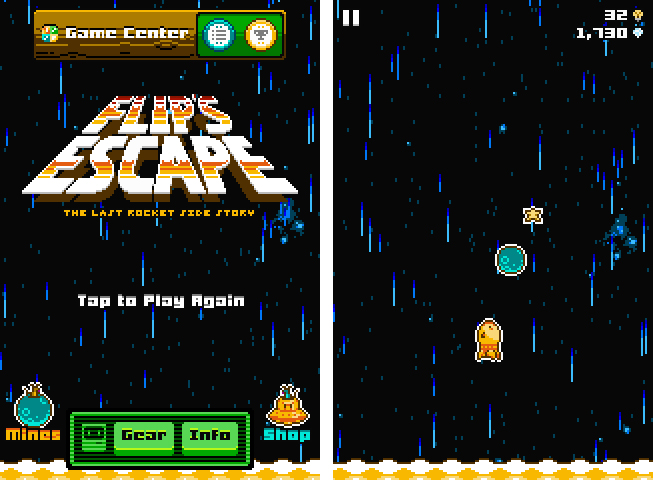
Last week, Shaun Inman (creator of the popular statistics and RSS server software Mint and Fever)’s newest game, Flip’s Escape, got approved by Apple. It ties in with the loose storyline of The Last Rocket after escaping from the collapsing factory. Flip, the rocket you play the game as, needs to flee from the shockwave which resulted from a large explosion. At the same time Flip has to avoid colliding with asteroids during his epic escape. Read more


Review: Things 2 With Cloud Sync

Things by Cultured Code, a developer company based in Stuttgart, Germany, has been around since the day the App Store and iOS 2.0 were unveiled. The app is famous for its minimalist, iconic interface and features which are a perfect mix of simplicity and serious business from the very first version on. It’s the perfect example for the ethos of “If 1.0 sucks, all other versions will suck as well”, it was done right the day it came out.

Yet, the first Things just didn’t work for me — I don’t know why, but it didn’t stick. I’ve never tried out other solutions, neither complex workhorse that is OmniFocus, nor have I tried a basic to-do app like Remember The Milk. The last three years, I was a Simplenote guy. I’m really into minimalism; in fact, that’s the reason why I initially desperately wanted to try out Things. But Simplenote worked better than Things for me. You could paste anything into it and the new content would be immediately available across all your devices, and on the web. My notes were always with me. And after I found Notational Velocity for Mac, a Simplenote desktop client, I completely stopped searching for other solutions.

But now, Things have changed. After over a year of beta testing, Things 2 with Cloud sync has finally arrived, and besides its big syncing feature, it’s got a bunch of other cool refinements and new possibilities along the way. Read more


Drafts 2.0: New Fonts, New Look, A Brand New Kind of Sync, And Now On iPad

"Drafts are made for a writer who does. Who writes with pen or just two thumbs. When the ink runs dry and the lock screen glows. Swipe right, tap Drafts, and then compose."

“Drafts are made for a writer who does. Who writes with pen or just two thumbs. When the ink runs dry and the lock screen glows. Swipe right, tap Drafts, and then compose.”

I like to think of Drafts as the Field Notes of iOS. It’s inexpensive yet of high quality, unassuming but sharp, highly portable and convenient. While the icon, a simple white chiclet key, doesn’t emphasize Draft’s suave user interface, it is symbolic of the keyboard shortcut for Safari and other browsers, where ‘command + D’ adds the open webpage as a bookmark. The name Drafts itself may curtail ideas of long-form note-taking, although it’s not antagonistic towards writers feeling inspired to write more than a few sentences. Drafts is considerably the everyman’s notebook, unfraught with bindings and covers, instead fitted between two panes of glass in Apple’s iPhones.

Drafts, for those whom haven’t read the original review, is simply a digital notebook for capturing thoughts, lists, and ideas in plain text or Markdown. Those ideas can then be shared with social networks like Twitter or Facebook, your email or calendar, with friends on Messages, to a capturing tool like Evernote, or into a folder on Dropbox. If you’d like, you can use it like Birdhouse for drafting Tweets, or you can use it like Notes for grocery lists and reminders. No matter how you use it, your journal is held together in a simple list, organized by date last accessed, and is quickly searchable.

Read more


Shuffler.fm Is The Perfect Tool For Genre-Specific Music Discovery

About a month and a half ago, I published a post about the current state of music making and discovery on the iPad. In the first part of that post I listed, described, and analyzed some prominent apps for discovering new music on the iPad. I concluded that these apps are state of the art when it comes to discovering music. Last week, while searching for music integration features for a music blog I run as a side project, I stumbled upon shuffler.fm. And after using it for some days now, I wish I could rewind time and add this service to the list in my music editorial, because it does something the other apps like Aweditorium or even radio apps like Tuner do not offer: it combines genre-specific music discovery with reviews and critical opinion. Read more


Ecoute Is The Best Music Player For iOS. Period.

Since I started to write about UI design and iOS apps again 5 months ago, I became more and more disappointed with the native music player on my iPod touch. During my research, I found many innovative modifications of the iOS table view, and I often wished that Apple will integrate some of them into their system apps, especially their music player. But since Apple is a company that believes in radical minimalism and coherence throughout its ecosystem, this never happened and also won’t likely happen in the future. I tried out many alternatives like GoodMusic, but no app was able to satisfy both my design and usability needs on my iPod touch. Until yesterday. Yesterday, Pixiapps released Ecoute for iOS.

Ecoute for Mac has been the app Pixiapps focused on during the last years. It is a minimalist, easy to use iTunes replacement with iconic UI and many cool hotkey and playback features. I’m still an iTunes guy, because I need a reliable solution for managing my over-1100-record digital music collection. But Ecoute for Mac was the first app which really made me think about switching my desktop music player. And now, Ecoute debuts on the iPhone. Although the app is promoted as “Ecoute for iOS”, there is no iPad version available yet. For me this is not really a problem — I like the semi-skeuomorphic design of the iPad music player very much and was never seriously thinking about replacing it. But when I opened up Ecoute on my iPod for the first time, I immediately knew that this was exactly what I’ve been searching for. I basically want three things in a mobile music player: easy navigation, intelligent gesture integration for flawless in-app movement, and a focus on album artwork. Except for some flaws in terms of navigation, Ecoute measures up to all these requirements. Read more