Posts in Featured

An Ecosystem’s Uniqueness and Similarities

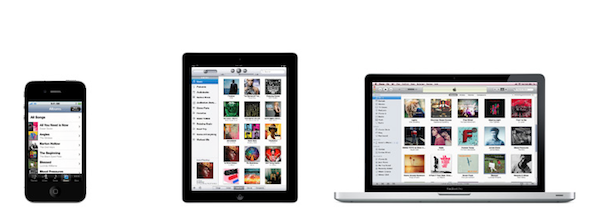
Over the past 24 hours I’ve seen a lot of words thrown around about Windows 8, ecosystems, operating systems, and what should Apple do in regards to Microsoft’s all-in-one attempt to deny the post-PC era altogether by unifying PCs and post-PC devices in a single OS.

There’s some great commentary about this already out there. What I’d like to briefly touch upon is this: does Microsoft’s approach with Windows 8 confirm a somewhat popular argument – that Apple is ultimately breaking, not unifying, the experience with the distinction between iOS and OS X?

It’s easy to look at the issue from such a perspective. If Windows 8 runs on all devices – let’s pass on Windows Phone 7 for smartphones – then that’s most definitely a real ecosystem, not Apple’s. As iOS and OS X are two different operating systems (different distribution methods, installers, frameworks, GUIs, native apps, names) running on at least three different form factors (the phone, tablet, and laptop), Apple’s “lock-in” strategy comes out defeated in the confrontation against Windows 8.

I don’t want to argue on which OS is “better” (a definition that doesn’t even make sense, right now) or which one will sell more copies; rather, I believe there are a few key areas that several early commenters of the Windows 8 Developer Preview failed to highlight.

In Apple’s vision, separate operating systems can live inside the same ecosystem. The single defining aspect of this vision is the Apple ID, which on iOS devices, Macs, PCs, and web browsers gives you access to:

  • Songs, Movies, TV Shows, Books, Podcasts;
  • Apps;

  • The Apple Online Store;

  • Your iOS device’s location (still free with MobileMe);

  • Email, Calendar, Contact and data sync with MobileMe;

  • Your desktop operating system (with Lion’s Apple ID support).

For as much as it’s difficult to keep this all together with a single Apple ID, that’s what it does. Soon, Apple will introduce iCloud to overhaul MobileMe’s syncing capabilities and turn them into seamless pushing of documents, data, and media across devices.

In fact, you may remember Steve Jobs demoted the Mac to just a device back at WWDC. Why? Because the Mac isn’t more “important” than an iPhone or iPad anymore. The ecosystem (and iCloud is a big part of that) is what matters now. Yet this vision doesn’t imply multiple OSes mean separate ecosystems: iCloud is one, and it works on iOS, OS X, Windows PCs, and the web.

Sign of Apple’s appreciation of a single ecosystem can be found in the iWork suite, the Apple Online Store, and even Ping.

In this context, Apple’s strategy isn’t too dissimilar from Microsoft’s. After all, Redmond has got its own set of web platforms, too, and Windows 8 will feature an App Store and other kinds of tablet/PC integration. But there is a key difference that some people, when comparing Windows 8 to “Apple”, surprisingly omit: based on what we’ve seen (that is, the first, incomplete, buggy Developer Preview), Apple’s ecosystem strategy is nothing like Microsoft’s.

Apple wants to build a single ecosystem by keeping its OSes separate. They want to do so because they believe the similarities that keep the ecosystem together are equally important as the uniqueness of each operating system – its strengths and virtues and hardware features.

Today I asked on Twitter: Would Apple fans applaud an iPad that runs both iOS and OS X? By far, the response was “no”. The reason’s simple: iOS was built with multi-touch in mind, whereas touching a Mac’s screen is still awkward (and doesn’t work). In its very own nature, OS X works with clicks and drags, not taps and swipes. Lion epitomizes Apple’s intention to enable some kind of deeper touch interaction with Macs sometime in the future, but the fact still holds true: you can’t touch OS X. iOS and Lion look similar in order to carefully transition the users from a platform to another in the ecosystem stream, but they’re unique and true to their own interfaces, interaction schemes, and destination hardware.

You will be able, however, to touch Windows 8 on a tablet. Or to scroll Windows’ Metro with a mouse wheel on a desktop PC. And here’s where I believe Apple and Microsoft, ultimately, diverge: Apple is creating an ecosystem that works with multiple OSes, provided these OSes run on the devices they belong to. For Microsoft, on the other hand, Windows itself is the ecosystem, and that has to be integrated on every device. There is a subtle difference between ecosystems and OS uniqueness, and you’ll be the judge of which strategy will win over the other two years from now.

There are several ways to build an ecosystem. I don’t know if I’ll like Microsoft’s one, but I’m sure there will be both subtle and key differences to consider when comparing it to Apple’s future strategy.
Access Extra Content and Perks

Founded in 2015, Club MacStories has delivered exclusive content every week for nearly a decade.

What started with weekly and monthly email newsletters has blossomed into a family of memberships designed for every MacStories fan.

Learn more here and from our Club FAQs.

Club MacStories: Weekly and monthly newsletters via email and the web that are brimming with apps, tips, automation workflows, longform writing, early access to the MacStories Unwind podcast, periodic giveaways, and more;

Club MacStories+: Everything that Club MacStories offers, plus an active Discord community, advanced search and custom RSS features for exploring the Club’s entire back catalog, bonus columns, and dozens of app discounts;

Club Premier: All of the above and AppStories+, an extended version of our flagship podcast that’s delivered early, ad-free, and in high-bitrate audio.

Learn more here and from our Club FAQs.


Apple: A Step Ahead, and Three To The Side

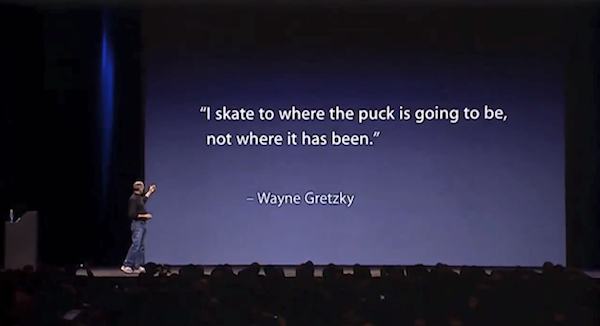
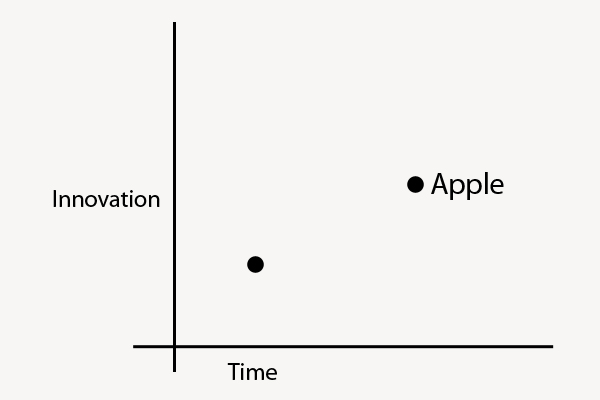
Here’s a thought: Apple isn’t ahead of its competitors only in terms of hardware design, software, and product marketing. When Apple takes a step ahead, it also takes three more to the side – and that’s what’s helping them shape the industry today.

We often refer to Apple as a company “ahead of the competition” with products like the iPhone, iPad, OS X and iTunes. I believe what’s driving the single “step ahead” isn’t the (successful) combination of products and customer satisfaction – it’s the company itself, its culture, the image they want to show to the world. The “step ahead” is Apple’s DNA.

But consider the three steps to the side that help Apple differentiate itself from the competition, and roll out products and services that people are actually willing to pay for. These three steps are taken in regards of hardware, software, and the overall message the interplay of both has to deliver.

Hardware: iPhone, iPad, iPod, Mac. These products have an attractive design, and they’re the result of Apple’s deals to secure components before anyone else at a lower price, for the long-term. That’s why it took months for competitors to figure out multi-touch after the first iPhone, and why Ultrabooks still can’t match the MacBook Air.

Software: iOS, OS X, iTunes, iCloud. Software is the soul to Apple’s products, it is the reason why Apple hardware “just works”.

Message: Apple wants to make the best products in the world. Products they can sell for a profit, and make people happy with at the same time. Through the right combination of prices, attractive design, and marketing, the “interplay of hardware and software” is what defines Apple’s message.

Apple strives to innovate, but wants to do so by being unique with its own hardware, software, and message. Competitors often try to take their risks with either hardware, software, or the message, but they can’t do all three at the same time.

This is where competitors and Apple stand:

You can also think of “Innovation” as “Liberal Arts” and “Time” as “Technology”. When Apple takes a major leap forward, it does so because it’s in their DNA to innovate and sit at the intersection of Technology and Liberal Arts; alongside the single breakthrough in terms of innovation, they take three equally disruptive steps to the side to stand out from their competitors thanks to the great efforts they’ve gone through to advance in technology.

Technology evolves with time. Apple’s three steps allow them to have a considerable time advantage – this is the reason why many phones today still can’t match the original iPhone from 2007.

Four years ago, Steve Jobs said:

iPhone is a revolutionary and magical product that is literally five years ahead of any other mobile phone.

But is still ahead just because Apple kept iterating on the original idea?

Technology isn’t a 100 meters sprint race. Companies that want to be successful can’t keep running the same race, more of the same following more of the same. Just take a look at RIM. Apple knows that technology alone is not enough. And thus evolving with time alone (upgrading the same product with new hardware) won’t matter much if risks aren’t taken other directions as well.

Apple reinvented itself as it was moving ahead. Steve Jobs, announcing the iPad in January 2010:

Everybody uses a laptop and a smartphone. And a question has arisen lately: is there room for a third category of device in the middle? Something that’s between a laptop and a smartphone. And of course we’ve pondered this question for years as well. The bar’s pretty high. In order to really create a new category of devices, those devices are going to have to be far better at doing some key tasks. Better than a laptop. Better than a smartphone. Now, some people have thought…that’s a netbook. The problem is, netbooks aren’t better at anything. They’re slow, they have low quality displays and they run clunky old PC software. So, they’re not better than a laptop at anything. They’re just cheaper. They’re just cheap laptops. We don’t think they’re a new category of device.

Progress, ultimately, is adaptation. This started with the iPhone in 2007, and ends with iCloud in 2011. When iOS 5 and iCloud come out this Fall, there will be a brand new vision – and therefore, kind of adaptation – moving forward. A company that constantly adapts to an ever-changing market generates desires for the new, whilst simplicity and usability lead to customer satisfaction. At a higher level, it is the interplay of progress and simplicity that keeps Apple growing.

Technology and liberal arts aren’t mutually exclusive.

Access Extra Content and Perks

Founded in 2015, Club MacStories has delivered exclusive content every week for nearly a decade.

What started with weekly and monthly email newsletters has blossomed into a family of memberships designed for every MacStories fan.

Learn more here and from our Club FAQs.

Club MacStories: Weekly and monthly newsletters via email and the web that are brimming with apps, tips, automation workflows, longform writing, early access to the MacStories Unwind podcast, periodic giveaways, and more;

Club MacStories+: Everything that Club MacStories offers, plus an active Discord community, advanced search and custom RSS features for exploring the Club’s entire back catalog, bonus columns, and dozens of app discounts;

Club Premier: All of the above and AppStories+, an extended version of our flagship podcast that’s delivered early, ad-free, and in high-bitrate audio.

Learn more here and from our Club FAQs.


Deus Ex: Human Revolution Coming to the Mac

Feral Interactive has announced that a native Mac version of Deus Ex: Human Revolution, the critically acclaimed prequel to Deus Ex, will be released in the upcoming months. The game is set to come out during Winter 2011/12, with Feral’s dedicated mini-site receiving an update with more information about the title soon.

Deus Ex: Human Revolution is an action-based role-playing game developed by Eidos and published by Square Enix. It tells the story of Adam Jensen, a security chief for one of the world’s most powerful corporations; in 2027 – Human Revolution is set 25 years before the original game – corporations have extended their powers beyond the reach of local governments. Adam is forced to undergo cybernetic augmentation to fuse his body with mechanical parts, and he’s thrown in the middle of a global conspiration.

From Ars Technica’s review of the game:

The game’s uncanny ability to give you multiple ways out of situations is carried right through to the final encounter, and the game even ends with an important decision. Every option you’re given before the credits roll is attractive in its own way, though at the same time, none of the choices truly provide comfort. Human Revolution can be oppressively bleak at times, but it earns its tone.

Although the game world has plenty of room for more stories told by future titles, this story comes to a very definitive end. That’s something rare in big-budget games today, especially when they take place in an established franchise. But a real conclusion just confirms why this game deserves so much praise: by the end of the game’s impressively long run time, you’re left satisfied by the story and the characters within it.

Below is the trailer of Human Revolution from E3 2010. Feral Interactive isn’t new to Mac game ports, having released Borderlands: Game of the Year Edition for OS X last year. [via The Loop]
Read more

Access Extra Content and Perks

Founded in 2015, Club MacStories has delivered exclusive content every week for nearly a decade.

What started with weekly and monthly email newsletters has blossomed into a family of memberships designed for every MacStories fan.

Learn more here and from our Club FAQs.

Club MacStories: Weekly and monthly newsletters via email and the web that are brimming with apps, tips, automation workflows, longform writing, early access to the MacStories Unwind podcast, periodic giveaways, and more;

Club MacStories+: Everything that Club MacStories offers, plus an active Discord community, advanced search and custom RSS features for exploring the Club’s entire back catalog, bonus columns, and dozens of app discounts;

Club Premier: All of the above and AppStories+, an extended version of our flagship podcast that’s delivered early, ad-free, and in high-bitrate audio.

Learn more here and from our Club FAQs.


App Journal, Episode 2: Boxee for iPad, Notesy, Note & Share, Writing Kit

App Journal is a weekly series aimed at showcasing apps we have enjoyed using on our iPhones, iPads, and Macs, but decided not to feature in a standalone, lengthy review here on MacStories. App Journal is a mix of classic reviews, weekly app recommendations, and a diary of our experiences with apps that still deserve a proper mention.

For this week’s App Journal episode, I’m taking a look at four iOS apps: Boxee for iPad, Writing Kit, Notesy and Note & Share. You may notice three of them are note-taking apps – in fact, I’ve been playing with several apps of this kind recently, and have yet to decide which one suits better my writing workflow when it comes to quick notes for, say, Dropbox, or longer pieces written in Markdown.

Stay tuned for more App Journal episodes in the next weeks. Read more

Access Extra Content and Perks

Founded in 2015, Club MacStories has delivered exclusive content every week for nearly a decade.

What started with weekly and monthly email newsletters has blossomed into a family of memberships designed for every MacStories fan.

Learn more here and from our Club FAQs.

Club MacStories: Weekly and monthly newsletters via email and the web that are brimming with apps, tips, automation workflows, longform writing, early access to the MacStories Unwind podcast, periodic giveaways, and more;

Club MacStories+: Everything that Club MacStories offers, plus an active Discord community, advanced search and custom RSS features for exploring the Club’s entire back catalog, bonus columns, and dozens of app discounts;

Club Premier: All of the above and AppStories+, an extended version of our flagship podcast that’s delivered early, ad-free, and in high-bitrate audio.

Learn more here and from our Club FAQs.


Adobe Adds Full Support For Newsstand In Its Digital Publishing Suite

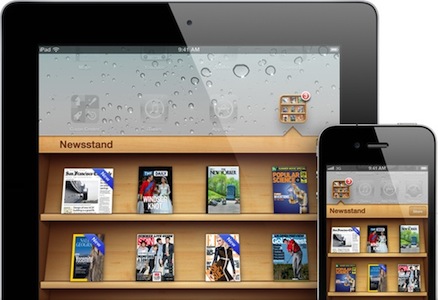
Adobe has today announced that publishers who use the Adobe Digital Publishing Suite will be able to create newspaper and magazine files that appear in Apple’s new Newsstand feature. Announced at WWDC and arriving in iOS 5 this Fall, Newsstand will allow new editions of Newspapers and Magazines to be automatically downloaded (in the background) as soon as they are made available - and storing them all in a pseudo-folder on a user’s home screen.

Today’s announcement by Adobe reveals that their Digital Publishing Suite will be able to create files that are compatible with Newsstand, allowing publishers to create and deliver new editions directly to users with little fuss. Todd Teresi, from Adobe’s Media Solutions department said the “support for Newsstand will provide Adobe’s publishing customers the ability to deliver engaging content directly to the digital doorstep of subscribers on their iPads”.

Applications built with Adobe Digital Publishing Suite and enabled for Newsstand will allow publishers to better merchandise their content with support for Newsstand push notifications and icon covers displayed on the Newsstand shelf, reflecting the latest issue of the magazine or newspaper.

This move by Adobe is quite a significant motion of support for Apple’s Newsstand feature because their Digital Publishing Suite is already used to create more than 600 titles, including high profile publishers such as Conde Naste and Reader’s Digest. With little effort, all these publishers can now add support for Newsstand.

[Via MacRumors]

Access Extra Content and Perks

Founded in 2015, Club MacStories has delivered exclusive content every week for nearly a decade.

What started with weekly and monthly email newsletters has blossomed into a family of memberships designed for every MacStories fan.

Learn more here and from our Club FAQs.

Club MacStories: Weekly and monthly newsletters via email and the web that are brimming with apps, tips, automation workflows, longform writing, early access to the MacStories Unwind podcast, periodic giveaways, and more;

Club MacStories+: Everything that Club MacStories offers, plus an active Discord community, advanced search and custom RSS features for exploring the Club’s entire back catalog, bonus columns, and dozens of app discounts;

Club Premier: All of the above and AppStories+, an extended version of our flagship podcast that’s delivered early, ad-free, and in high-bitrate audio.

Learn more here and from our Club FAQs.


Facebook for iPhone 3.5 Released With New Sharing Options, Wall Design

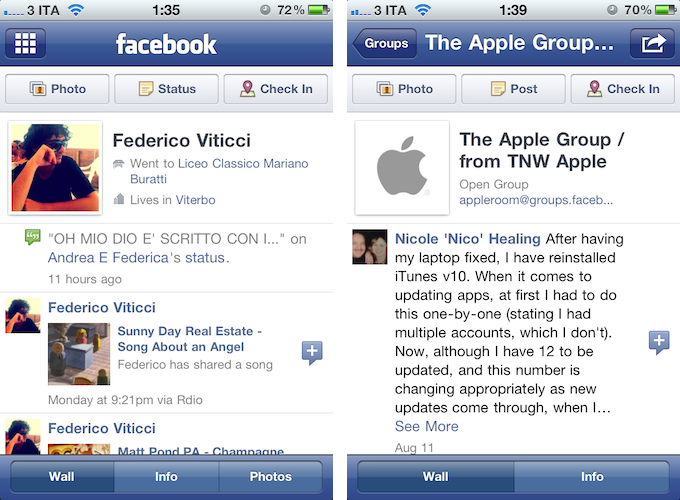
A major update to the official Facebook app for iPhone was released earlier today, adding new sharing options from the compose screen and privacy controls that match the options set on Facebook’s website. First off, Facebook 3.5 brings a new design for Profile and Group walls; the app appears to be more streamlined and in line with Facebook’s recent changes to its web UI.

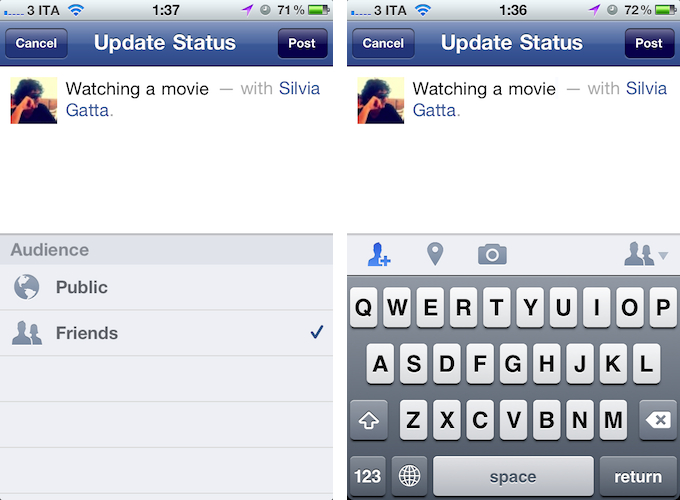
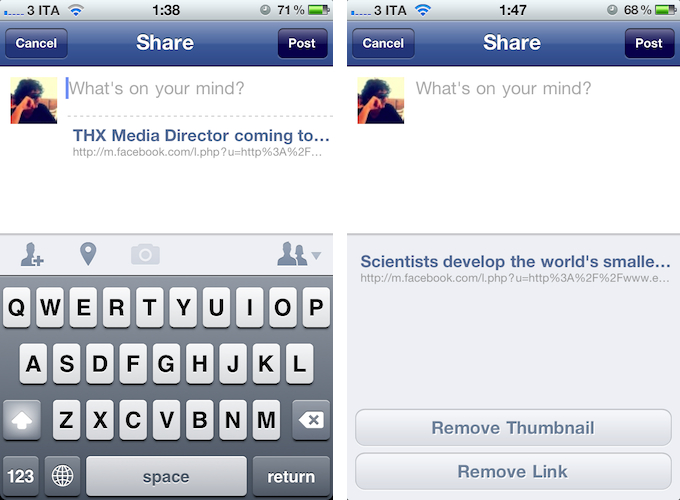
Perhaps more importantly, Facebook for iPhone now lets you tag friends and places in posts, and share links from a web view opened through Facebook. The updated compose screen has got buttons to add friends from a list (and even search), tag a place, or add a new photo or video. As for sharing links, Facebook now lets you open a webpage in-app, and instantly reshare it (with an optional comment) with your friends. When sharing a webpage from a web view, tapping on its link in the compose screen will enable you to remove the link entirely, or just its thumbnail.

Facebook 3.5 also comes with bug fixes, as mentioned in the changelog:

  • Improved Notifications speed
  • Fixed a number of Chat bugs
  • Made it easier to select filters in News Feed
  • Fixed a bug with the Notifications bar disappearing
  • Fixed a number of Photos bugs
  • Improved performance and stability overall

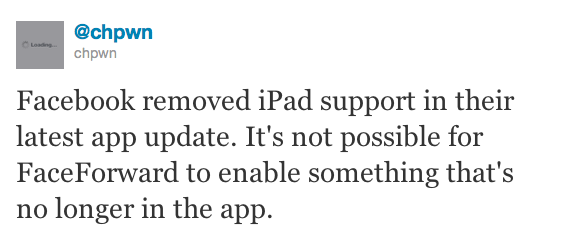
An official iPad app from Facebook is expected to be officially unveiled soon, likely at the upcoming f8 conference on September 22. The iPad client was discovered inside the iPhone application back in July, although it appears the latest version removes iPad elements, thus making it impossible for Cydia tweaks like FaceForward to force-enable the yet unofficial iPad app.

Facebook for iPhone is a free download on the App Store.

Access Extra Content and Perks

Founded in 2015, Club MacStories has delivered exclusive content every week for nearly a decade.

What started with weekly and monthly email newsletters has blossomed into a family of memberships designed for every MacStories fan.

Learn more here and from our Club FAQs.

Club MacStories: Weekly and monthly newsletters via email and the web that are brimming with apps, tips, automation workflows, longform writing, early access to the MacStories Unwind podcast, periodic giveaways, and more;

Club MacStories+: Everything that Club MacStories offers, plus an active Discord community, advanced search and custom RSS features for exploring the Club’s entire back catalog, bonus columns, and dozens of app discounts;

Club Premier: All of the above and AppStories+, an extended version of our flagship podcast that’s delivered early, ad-free, and in high-bitrate audio.

Learn more here and from our Club FAQs.


BundleHunt: 11 Great Mac Apps & Design Goodies at $49

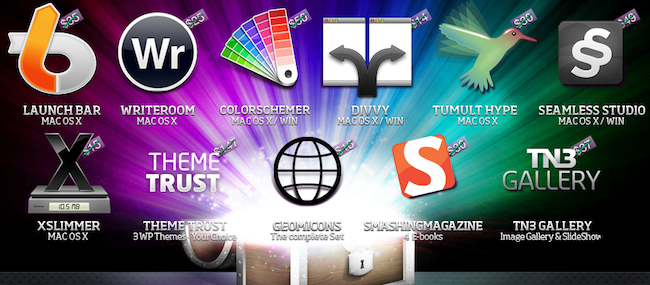
How great would it be to have access to some kind of deal for useful and well-designed Mac apps bundled with resources for web design, CSS, or even Photoshop? That’s exactly what BundleHunt is offering in its latest initiative to sell a bundle of “11 Mac Apps + Design Goodies” at $49.99. For the same price of a Thunderbolt Cable you’ll get gems like Launchbar and Divvy – we reviewed the latter here – as well as Hype, the beautiful HTML5 design app, Xslimmer and WriteRoom. And on top of the OS X love, you’ll also get your hands on 4 Smashing Magazine design ebooks, 3 WordPress themes from Theme Trust, and a complete Geomicon icon set.

BundleHunt includes:

  • LaunchBar: Objective Development’s LaunchBar is the original application launcher for the Mac, used every day by folks who care about being productive with their Macs. Gestures may be the hot new trend in Lion, but let’s not forget about the power of the keyboard. LaunchBar lets you control every aspect of your Mac, it’s highly customizable and efficient in letting you access applications, folders, contacts, bookmarks – you name it. Normally $35.
  • Color Schemer Studio 2: This app lets you build color schemes quickly, so you can create and save palettes, and use the color wheel to check out harmonies between your color choices. Available on the Mac and Windows, it fully supports web (RGB) or print (CMYK) standards. Sold  for $49.99.
  • WriteRoom: A full-screen writing environment to get words on a page, stay focused, and keep your work synced across the Mac and iOS. Normally $25.00.
  • Divvy: A new way to manage your desktop by quickly choosing the exact proportions of application windows with keyboard shortcuts. You can create as many shortcuts as you want, and manage your apps’ settings through Divvy’s grid interface. $14.00.
  • Tumult Hype: With “no coding required”, Hype enables designers to build beautifully animated websites that will work on desktop computers, iPhones, and iPads. By rivaling Flash content with a universal standard supported by any modern web browser, Hype uses WebKit to visually build animations, giving you additional tools to create custom JavaScript code and edit an element’s HTML. Original price is $30.00.
  • Seamless Studio: A desktop app that makes it easy to design vector patterns for the web, print, fabric, or any other design project. Available both on Mac and PC, regular price is $49.00.
  • Smashing Magazine: Ebooks from Smashing Magazine are available as PDF, ePUB, Mobipocket (DRM-free) and they include: Mastering CSS for Web Developers; Professional Workflow Package; Modern Web Design & Development; Mastering Photoshop for Web Design, Volume 2. Normally $30.00.
  • TN3 Gallery: An HTML-based customizable image gallery with slideshow, transitions and multiple album options so you can create web galleries that support CSS, XML, and Flickr. $37.00.
  • GeomIcons Full Icon Set: 315 royalty-free vector icons in EPS format desgned by Brent Jackson. $16.00.
  • ThemeTrust: 3 WordPress themes licensed under GPL, with support for widgets, and more. $147.00.
  • XSlimmer: Sometimes applications come packaged with unnecessary code that your Mac will never use, and Xslimmer understands this. You can use Xslimmer to right-size your Mac apps and remove binaries or other chunks of code your Mac won’t need, while retaining the functionality of the app and, actually, trimming the code down to what’s really used so that apps will launch even faster. Normally sold for $15.

I’d argue that LaunchBar and Divvy alone make up for the bundle’s price, yet with BundleHunt you’re going to save $400 and get a variety of other Mac software, plus some useful goodies for your next design work. $49 gets you 7 great apps to add to your Mac’s library with licenses delivered directly to your email inbox.

Disclaimer: For every bundle purchased through MacStories, we receive a small kickback. If you’re interested in the bundle and supporting the MacStories crew, please use the link here or any of the affiliate links above.

Access Extra Content and Perks

Founded in 2015, Club MacStories has delivered exclusive content every week for nearly a decade.

What started with weekly and monthly email newsletters has blossomed into a family of memberships designed for every MacStories fan.

Learn more here and from our Club FAQs.

Club MacStories: Weekly and monthly newsletters via email and the web that are brimming with apps, tips, automation workflows, longform writing, early access to the MacStories Unwind podcast, periodic giveaways, and more;

Club MacStories+: Everything that Club MacStories offers, plus an active Discord community, advanced search and custom RSS features for exploring the Club’s entire back catalog, bonus columns, and dozens of app discounts;

Club Premier: All of the above and AppStories+, an extended version of our flagship podcast that’s delivered early, ad-free, and in high-bitrate audio.

Learn more here and from our Club FAQs.


WeatherSnitch 2.0: Beautifully Detailed Weather Data and Forecasts

I have tried several weather apps for the iPhone in the past year. Eventually I decided to stick with a combination of BeachWeather and WeatherSnitch for iPhone, even though I appreciated the attention to details of Shine, a beautifully designed weather app that was subsequently updated to work better internationally.

So it was with a bit of curiosity that I approached WeatherSnitch 2 last month, when I learned that the developers had switched the original WeatherSnitch to a free app, and released a major 2.0 version as a standalone, paid app. As it turns out, WeatherSnitch 2 builds on the excellent feature set of version 1 adding a darker UI, more reliable and accurate weather data and forecasts, moon phases, and more. WeatherSnitch 2.0 looks a lot like its little brother, now free on the App Store, albeit it’s been completely rewritten to have a new design with snappier animations, and faster update times.

WeatherSnitch 2 lets you add multiple locations, search the ones you’ve already added, and add your current location by tapping on the default GPS icon as in Apple’s Weather app for iOS. Speaking of Apple’s Weather widget: I believe average users will be more than fine with iOS 5, Weather in Notification Center and the additional features Weather received through the betas, but there will still be room for apps that provide a more detailed look at weather data, forecasts, and so forth.

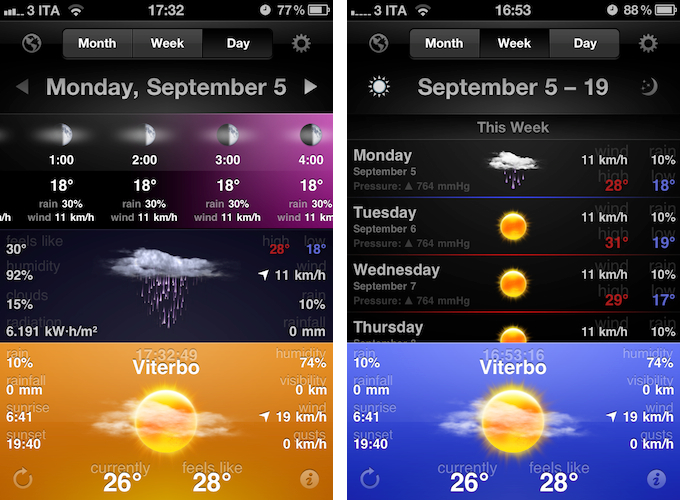
Locations you’ve configured in WeatherSnitch will appear along the bottom of the app as a section you can swipe to change between places. The single-location section lists current time, weather and “feels like” factor, an icon representing the weather, and a bunch of additional information such as rainfall, sunrise and sunset time, humidity percentage, visibility, and wind. Units, colors and other options can be tweaked in the Settings, which have some clever switches for on/off items, as well as units and types (see screenshots below). The bottom part of the UI is WeatherSnitch’s main controller, as swiping between locations automatically updates the data visualized above in the Month, Week, and Day views.

Month view is pretty self explanatory in that it displays a calendar with weather icons and temperature associated to each day of the month. Tapping on a day opens a small popover with the icon in greater detail, high and low temperatures, and humidity percentage. My favorite view, however, is the middle “Week” one. Not only does Week lists weather forecasts for “this week”, “next week” and “week after next” in a vertically scrollable interface with wind/rain/temperature/pressure data, it also lets you switch between day and night forecasts with the tap of a button. The animation for this is delightfully simple, attractive, and powered by a dark linen background.

“Day” is perhaps the most complex of the three views. It contains a continuously scrolling “hour bar” at the top with hour/temperature/wind/rain data and gradually fading colors that reflect the time of day; as you move forward, WeatherSnitch updates the day header at the top, thus allowing you to go as far you want inside the Day view. In the middle, there’s what I interpret as a “day average” section – the developers call it a ”a new detail bar” that offers extensive details for each day. The detail bar can be swiped to reveal a nice 3D animation (reminds me of 3Do) to switch night/day forecasts.

WeatherSnitch 2 is a good-looking piece of software with lots of weather data to assimilate – perhaps even too much. In fact, I’m told the developers are working on an update to allow for deeper customization and let users choose what pieces of data to show on screen, optionally with bigger text labels. WeatherSnitch 2 doesn’t disappoint, it’s intuitive and fun to use thanks to support for swipe gesture, and the homescreen icon with optional badge looks fantastic on the iPhone 4. You can get WeatherSnitch 2 at $1.99 on the App Store. Read more

Access Extra Content and Perks

Founded in 2015, Club MacStories has delivered exclusive content every week for nearly a decade.

What started with weekly and monthly email newsletters has blossomed into a family of memberships designed for every MacStories fan.

Learn more here and from our Club FAQs.

Club MacStories: Weekly and monthly newsletters via email and the web that are brimming with apps, tips, automation workflows, longform writing, early access to the MacStories Unwind podcast, periodic giveaways, and more;

Club MacStories+: Everything that Club MacStories offers, plus an active Discord community, advanced search and custom RSS features for exploring the Club’s entire back catalog, bonus columns, and dozens of app discounts;

Club Premier: All of the above and AppStories+, an extended version of our flagship podcast that’s delivered early, ad-free, and in high-bitrate audio.

Learn more here and from our Club FAQs.


Yoink: Enhanced Drag & Drop for Lion’s Full-Screen Apps

As I noted in my MacBook Air 13-inch review, the smaller the screen, the better full-screen apps get on Lion. For those still unaware of the new feature, OS X Lion comes with the possibility of enlarging applications to fill the entire screen – thus the name “full-screen mode” – so that, similarly to iOS, users can focus on one app at a time. Whereas some full-screen apps can look comically large on bigger displays such as a 21.5-inch iMac or Apple Thunderbolt Display, I found that smaller screens make more sense in regards to full-screen mode in that you don’t feel like you’re wasting available pixel space. Apple’s system applications have already been updated to take advantage of full-screen mode, and we’ve seen third party developers starting to play around with the new API as well, coming up with interesting solutions to modify the user interface accordingly to full-screen mode.

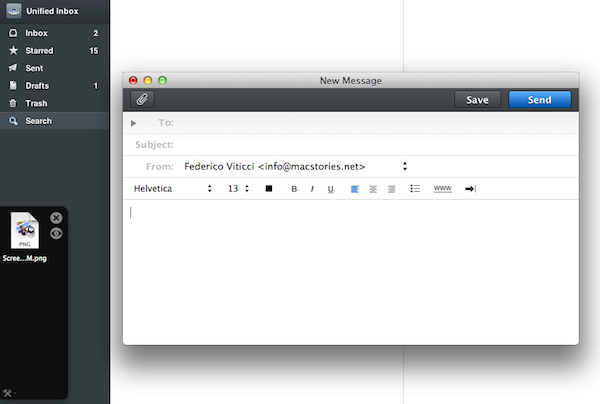
Personally, I have enjoyed using apps like Evernote, Sparrow and Reeder in full-screen mode on my MacBook Air. With a four-finger swipe, I can easily switch between these apps, and go back to my main desktop where all my other application windows reside. However, as full-screen apps live in their own separate graphical environment, I wished on a couple of occasions that Apple would implement an easier method to move files between spaces and full-screen apps in Lion. Rather than delving into the technical details of drag & drop and APIs, here’s a practical example: say I run Sparrow in full-screen mode, and I need to quickly drop an attachment onto a new message window. I could use the app’s “attach file” dialog, but drag & drop would be more intuitive. On Lion, there’s no simple way to drag files from Desktop 1, and drop them into a full-screen app. In fact, the “easiest” trick I’ve discovered to achieve such a functionality is to click & hold a file, hit the Mission Control key on my MacBook Air’s keyboard, select a a full-screen app and wait for it to “spring load” (e.g. the window flashes and after a few seconds comes in the foreground), then drop the file. Clumsy and slow.

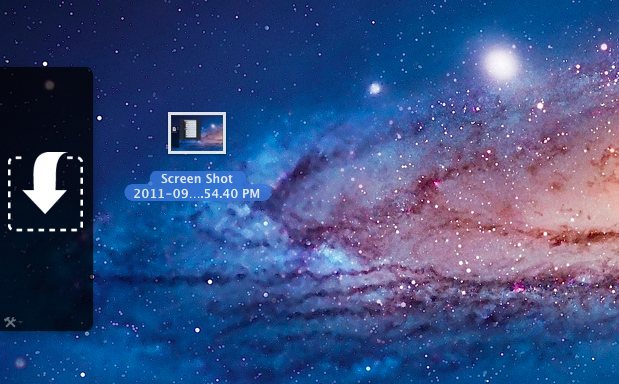
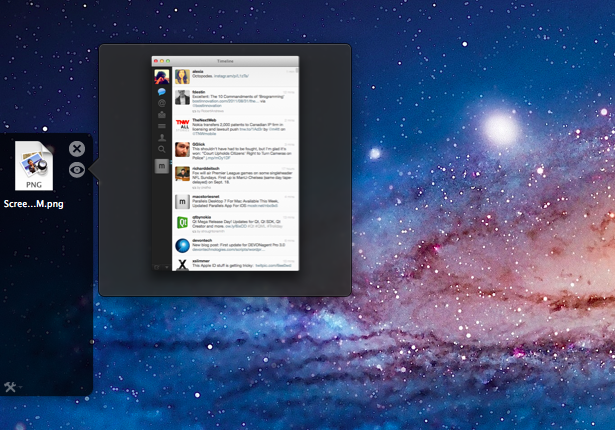
A new app by Eternal Storms – makers of Flickery and ScreenFloat, among others – called Yoink, aims at improving Lion’s behavior with drag & drop and full-screen apps. Built from the ground-up with Lion-only APIs, Yoink places an unobtrusive, translucent “shelf” at the side of your Mac’s screen every time you start dragging a file. Drop the file in there, switch to your full-screen app with a gesture, get the file out of the shelf. Done.

Yoink is a drag & drop assistant for Lion, in that it provides you with a virtual “safe zone” to temporarily store files – or rather, links to them – you want to move from one location (say your desktop) to another space or full-screen app.

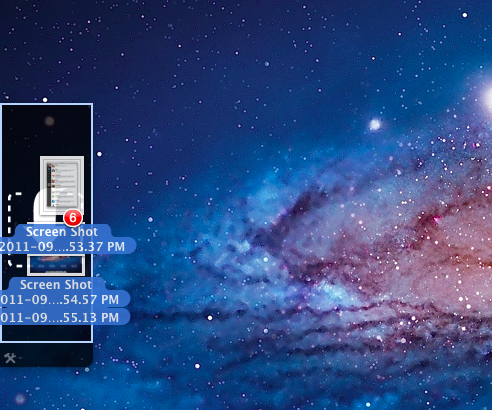
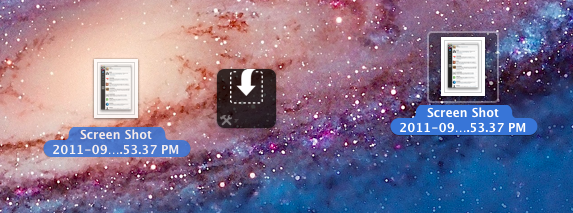
Yoink doesn’t “copy” a file, or multiple ones, to its shelf: it only acts as a bridge between the original file, and the destination of the drop. So, back to my Sparrow example: I can select a bunch of files from my desktop, drop them into Yoink, switch back to Sparrow with a gesture, and get the files out of Yoink. Very simple. This works with any full-screen app, any space – Yoink works wherever you can drop a file. In fact, nothing stops you from using the app as a drag & drop utility for your Finder windows instead of full-screen apps, although the app is clearly focused on the latter.

In my tests, I’ve found Yoink to be very lightweight in memory footprint, and easy to use. The app only appears when you start dragging a file – you won’t see its window all the time – and you can customize it to sit on the left, or right of the screen. Alternatively, you can tell Yoink to quickly move next to your cursor as you drag a file, then go back to screen’s side. Yoink can store multiple files, Quick Look them, and let you scroll and select multiple items with CMD-click.

Yoink is available at $2.99 on the App Store, and you can head over the developer’s website to check out a demo video and get a better idea of the app in action. If you work with full-screen apps on a daily basis and you’d like to enhance Lion’s drag & drop support, Yoink is a must-have.

Access Extra Content and Perks

Founded in 2015, Club MacStories has delivered exclusive content every week for nearly a decade.

What started with weekly and monthly email newsletters has blossomed into a family of memberships designed for every MacStories fan.

Learn more here and from our Club FAQs.

Club MacStories: Weekly and monthly newsletters via email and the web that are brimming with apps, tips, automation workflows, longform writing, early access to the MacStories Unwind podcast, periodic giveaways, and more;

Club MacStories+: Everything that Club MacStories offers, plus an active Discord community, advanced search and custom RSS features for exploring the Club’s entire back catalog, bonus columns, and dozens of app discounts;

Club Premier: All of the above and AppStories+, an extended version of our flagship podcast that’s delivered early, ad-free, and in high-bitrate audio.

Learn more here and from our Club FAQs.