Federico Viticci

10779 posts on MacStories since April 2009

Federico is the founder and Editor-in-Chief of MacStories, where he writes about Apple with a focus on apps, developers, iPad, and iOS productivity. He founded MacStories in April 2009 and has been writing about Apple since. Federico is also the co-host of AppStories, a weekly podcast exploring the world of apps, Unwind, a fun exploration of media and more, and NPC: Next Portable Console, a show about portable gaming and the handheld revolution.

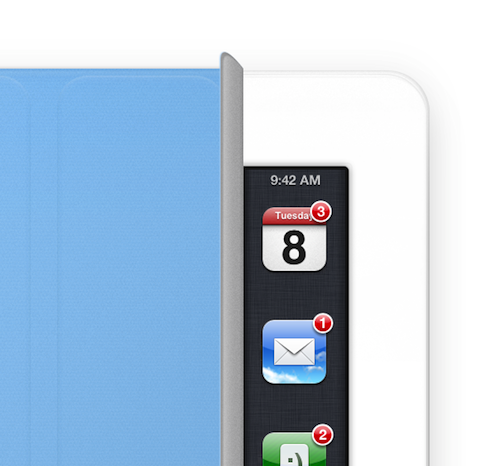
Apple To Release White iPad 2?

9to5mac reports they got their hands on another iPad 2 digitizer coming from Shenzhen, this time in white:

The piece that we have (from Shenzhen City), thanks to the folks at the iFixYouri iPhone repair shop, is the “digitizer” sometimes known as the the thick bezel.

If you look closely at the back of the part, below, you will see the camera hole, which happens to fit perfectly with the iPad 2 screen protectors from our friends in Asia.

The leaked white part comes as a surprise as Apple has notably had issues with the release of the white iPhone 4, first announced at the WWDC last year and then delayed multiple times due to manufacturing problems with the white color. A recent rumor suggested Apple fixed the problem with a new Japanese paint – could it be the same of this white iPad 2?

The next-generation iPad is expected to be announced on Wednesday. Here’s a roundup of all the rumors and speculation we’ve heard so far.


First Lion App Compatibility List Is Here, You Can Contribute Too

With the first developer beta of Lion “out in the wild”, it’s no secret people want to know which apps are working on the new OS, and experimenting with ways to let incompatible software run just fine on 10.7. Website RoaringApps has put together the first unofficial app compatibility list for OS X Lion, and it’s already a pretty huge one.

Anyone can contribute to the Wiki by sharing details of an app that’s working on Lion or has issues, or you can join the community to discuss the list with fellow Mac testers and developers.

Again, the list is very useful and available here. Check it out.


First iPhone 5 Part Surfaces, Shows Larger Screen

9to5mac has posted a photo from Chinese reseller of Apple parts iDealsChina showing a a purported digitizer panel for the next-generation iPhone, dubbed iPhone 5. The front panel shows a bigger display with an “edge-to-edge” screen that reduces the size of the bezels, especially at the sides. iDealsChina writes:

China’s 1st iPhone 5 photo has surfaced! From this photo it seems that the screen size will be larger than iPhone 4. There has been a lot of specualtion about a larger screen and maybe this will be one of the upgrades we will see when iPhone 5 is released this summer.

We heard that more photos of parts for iPhone 5 may be available soon. The part we would like to see is the back of iPhone 5 to verify if the rumored tapered back is true.

Several readers have pointed out that the image could be easily modified in Photoshop, but it also appears to back up the rumors surfaced in the past weeks about a new iPhone with a 4-inch screen “edge-to-edge” buit to face the competition of Android handsets sporting bigger and larger displays. In spite of the problems with a new iPhone resolution happening this year, we heard a few months ago that the iPhone 5 would be a “complete redesign” with major new features, like NFC support. It’s not clear from the photo whether or not Apple could keep the iPhone form factor at the same size and increase the size of the display at the same time.


2x Graphic Files Found in Lion May Hint at “Retina Display” for Macs

A report surfaced earlier this week suggested Apple may soon start building support for “HiDPI display modes” in Mac OS X to allow developers to take advantage of high-resolution displays and provide graphic files for apps at much greater detail. The HiDPI mode, from what MacRumors managed to gather taking a look at Lion’s Quartz Debug, would let developers save different sets of graphic elements into an application bundle, standard ones and 2x-enlarged ones that will have the same physical size on a display, but more detail thanks to the high-resolution mode. A 15” MacBook Pro with a standard 1440x900 display, for example, could go to 2880x1800 and have the same 15-inch size, but more detail because of its pixel density. Just like on the iPhone 4’s Retina Display, 2x files would be automatically used for the hi-res display.

While the HiDPI mode needs to be manually enabled for now, we have found a series of 2x-enlarged files in the current version of Safari for OS X Lion, version 5.1. The files carry the same “@2x” suffix of those seen on iPhone 4 apps, and are twice the size of those saved without 2x mode. The “HideReaderButtonCapLeft” file, for instance, is 6x30 in 2x mode and 3x15 in standard mode. Same applies for all the other files in Safari 5.1.

This isn’t the first time we discover 2x files hidden in Apple’s applications, and while they don’t really confirm high-res displays are coming in the near future (remember the @2x files we found in iBooks for iPad last year), they should be a good indication of the method Apple is testing to let Macs run more detailed applications on higher resolution displays. It doesn’t come as a surprise that the method is the same of the iPhone 4, and likely the same that will be adopted on the iPad as well. With next year’s MacBook Pro refresh rumored to be a complete redesign of the line, Apple may implement a “Retina display” to leverage 2x-mode for apps.


Buy Todolicious Today, Donate To The New Zealand Red Cross

Mac app Todolicious by Mustacheware was one of the first Mac App Store-exclusive apps we covered ahead of the launch of the new Store and, overall, an elegant to-do manager for the Mac that makes it easy to jot down tasks with an intuitive keyboard-based panel you can invoke at any time. With the choice of multiple themes and cute sound notifications for completed tasks, Todolicious still is one of the “best new apps” available in the Mac App Store (also mysteriously not featured  by Apple since January 6th).

An update to Todolicious was released today adding a new editing engine and an option to delete completed to-dos, but that’s not what we want to focus on right now. The update is great and adds a bunch of much requested fixes, but what we think is absolutely worth of your consideration is the fact that Mustacheware decided to donate 100% of sales today to the New Zealand Red Cross in response of the earthquake that occurred on February 21. If you buy Todolicious today (February 25), you’ll give your contribution to the victims of the earthquake and, at the same time, you’ll end up with a sweet application on your Mac.

So head over the Mac App Store now, and download Todolicious.


Consumer Reports Can’t Recommend the Verizon iPhone

In spite of earlier reports that suggested ratings and reviews publication Consumer Reports would give a thumbs up to the Verizon iPhone (and debates on its testing methods), this is clearly not happening. For the second time since Consumer Reports smacked the AT&T iPhone 4 in July due to signal degradation issues (and eventually confirmed they could be easily fixed with duct tape, a free bumper or a better holding of the phone), the iPhone 4 can’t be recommended.

The Verizon iPhone 4 has a problem that could cause the phone to drop calls, or be unable to place calls, in weak signal conditions, Consumer Reports engineers have found in lab tests.

The problem is similar to the one we confirmed in July with the AT&T version of Apple’s newest smart phone. It can occur when you hold either version of the phone in a specific but quite natural way in which a gap in the phone’s external casing is covered. The phone performs superbly in most other respects, and using the iPhone 4 with a case can alleviate the problem.

Consumer Reports has performed its usual set of tests to determine whether or not the iPhone 4 on Verizon could be inserted into the list of recommended products. The iPhone 4 is among Consumer Reports’ highest rated smartphones, but can’t be recommended by Consumer Reports itself. Verizon, on the other hand, is widely recognized as America’s most reliable and recommended network. The Verizon iPhone has collected very positive reviews from all around the web.

With the iPhone 4, we placed a finger in contact with the lower-left-side gap. Reception typically dropped notably within 15 seconds or so of the gap being bridged. The iPhone eventually dropped calls when touched at very low signal strength—that is, at levels of around one bar in the phone’s signal-strength meter.

For those interested, video is embedded below. For those running a Verizon iPhone: sorry it can’t be recommended, but enjoy your phone.

Read more


DropPhox: The Easiest Way From Your iPhone’s Camera to Dropbox

DropPhox, a $1.99 app by DaVinciWare, provides an easy solution to take pictures and videos on your iPhone, and instantly upload them to the popular service Dropbox, used these days by a plethora of applications and external services. The app’s tagline, in fact, is “Snap and send to Dropbox”.

Once authenticated with your Dropbox credentials in the settings, the app will create a folder in your Dropbox to save photos and videos shot on the iPhone. By default, the path is /DropPhox. In the in-app settings you can also choose to keep GeoTags while uploading, whilst you’ll have to head over the Settings app to modify other preferences. The selection here is pretty rich: you can edit the date format (International, US, Japan), choose the photo size (keep original, or automatically scale to 600x800, 960x1280, 1200x1600) and select the badges you’d like to see on the homescreen and tab bar. I particularly appreciate the possibility to choose photo size as most of my iPhone 4 pictures will end up being resized at 600x800 anyway.

With DropPhox set up to upload to Dropbox correctly, there really isn’t much else to say: open the app and start shooting. As you take pictures and videos, the queue will upload them to Dropbox in the background. It’s very nice. After taking a photo or video, you’ll only have to tap on an additional “Use” button to send stuff to Dropbox.

DropPhox could use some additional UI refinements, but it works well as a way to get photos and videos on to Dropbox in seconds. Sure, everything will depend on the speed of your Internet connection, and that’s why the size settings are very welcome (especially when using an iPhone 4 on 3G). Go download it here.


Apple Gets Back To Basics with Lion

Apple Gets Back To Basics with Lion

Great post by David Chartier at Macworld:

iOS and Mac OS X are symbiotic entities. When designing iOS, Apple distilled the Mac down to something pocketable, but the core concepts are there, such as an app-centric workflow, an always-accessible “home base” Dock, and a fierce pursuit of intuitive interfaces. After gaining knowledge and experience from nearly five years and four versions of iOS, Apple clearly felt that it’s time to return the favor in Lion. Apple is incorporating some of the fresh simplicity of iOS back into its point-and-click desktop computing platform that, at its conceptual core, is almost three decades old.

It’s all there in the first beta: AirDrop lets you share files in your local network with one click (and I wonder if iOS 5 will gain support for this feature). The Finder is streamlined, redesigned and it’s got Coverflow-like navigation in the icon view. There is a unified UI for managing Mail and Calendar accounts. The Launchpad really looks like an iOS homescreen. Mission Control, one of my favorites, brings Spaces, Exposè and full-screen apps all together into a simpler interface.

We only have one beta of Lion, but the future points in this direction: simplification.

Permalink

OS X Lion Adds TRIM Support for SSDs

Here’s some great news for SSD owners like me (on a 2008 unibody MacBook Pro) or people that bought a new shiny MacBook Air with integrated Flash storage earlier this year: the developer beta of Mac OS X Lion adds support for the TRIM command on SSD. As you can see in the screenshot above captured by MacGeneration, there’s a “Oui” (yes) next to TRIM command info.

What’s the big deal with TRIM support? To put it simply, operating systems like Snow Leopard that don’t have TRIM support will treat solid state drives as regular, spinning drives when writing and deleting blocks of data. Snow Leopard doesn’t exactly know it’s dealing with an SSD, and while you’ll notice incredible performance improvements in daily usage, the same performances will slowly degrade over time without TRIM support. TRIM correctly tells the operating system which blocks of data are no longer in use in the solid state unit, and the OS passes the information along to the SSD controller so it can wipe blocks internally.

Basically: this is great news for SSD aficionados and, looking forward, a smart move from Apple as the move to solid state drives in all Mac computers seems inevitable.