Federico Viticci

10873 posts on MacStories since April 2009

Federico is the founder and Editor-in-Chief of MacStories, where he writes about Apple with a focus on apps, developers, iPad, and iOS productivity. He founded MacStories in April 2009 and has been writing about Apple since. Federico is also the co-host of AppStories, a weekly podcast exploring the world of apps, Unwind, a fun exploration of media and more, and NPC: Next Portable Console, a show about portable gaming and the handheld revolution.

This Week's Sponsor:

HomeSnap

A Private, Read-Only Window Into Your HomeKit Home


Final Cut Studio Back On Sale at $999

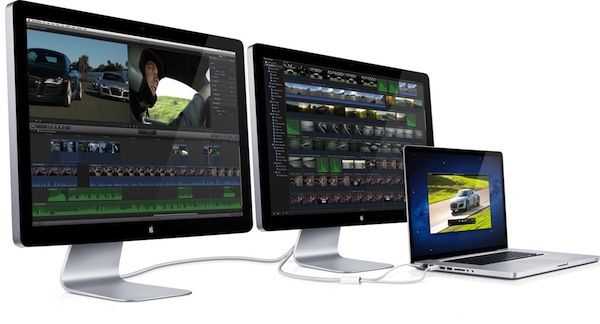
Following the controversial launch of Final Cut Pro X in June, Apple has put the former version of its video editing suite, Final Cut Studio, back on sale at $999 and $899 for educational customers, MacRumors reports. Final Cut Pro X is a complete rewrite of the application, rebuilt from the ground-up to take advantage of 64-bit architectures, featuring new video editing functionalities such as Magnetic Timeline, trackless canvas, and Content Auto-Analysis.

The app was first unveiled at the Supermeet during NAB Show in Las Vegas back in April, capturing the attention of video professionals thanks to its redesigned interface, dynamic editing UI, and improved rendering engine. However, when FCP X came out in June at $299, the lack of several features omitted from the first release caused a stir in the pro video community, forcing Apple to post a FAQ outlining the reasons behind the changes in Final Cut Pro X. Apple said they were committed to making Final Cut Pro X ”a breakthrough in nonlinear video editing”, although many suggested the company should put the old version back on sale to ease the transition process from FCP 7 to FCP X.

According to MacRumors:

We confirmed with an Apple telesales representative at 800-MY-APPLE that Final Cut Studio, part number MB642Z/A, is again available for $999 and $899 for educational customers. The product is only available through the 800-number and is not available in Apple Retail Stores or on the Apple Online Store.

Final Cut Studio includes Final Cut Pro 7, Motion 4, Soundtrack Pro 3, DVD Studio Pro 4, Color 1.5 and Compressor 3.5. The suite was discontinued with the launch of Final Cut Pro X, with Apple preferring a single-app model as Motion 5 and Compressor 4 also went on sale on June 21 on the Mac App Store.


“Enhanced for OS X Lion” Gets A Mac App Store Section

On August 16, we reported Apple had started promoting certain applications updated to take advantage of the new features introduced in OS X Lion with the “Enhanced for OS X Lion” tagline. Back then, the list included apps like Fantastical, Screenflow, and Touchgrind, but Apple wasn’t featuring those applications in a specific Mac App Store section, as they usually do with apps pertaining to a category or “theme”. We suspected Apple would introduce a standalone section as more customers upgraded to Lion and developers pushed Lion-specific app updates, and as reported by CNET that’s exactly what happened earlier today in the weekly App Store homepage refresh.

Apps Enhanced for OS X Lion is available here, and it showcases apps that have been recently updated to include features like multi-touch gestures, full-screen mode, Resume and Versions, or, in the case of Twitterrific, improved scrolling for Lion. The section aggregates more than 45 apps from a variety of categories, such as Social Networking, Productivity, Photography, and Music. As usual with Apple’s dedicated App Store sections, the company is likely to add more apps over time, and keep the section – admittedly one of the most “relevant” in the Mac App Store right now – featured on the Store’s homepage for several weeks.

Check out “Apps Enhanced for OS X Lion” on the Mac App Store.


Prowl 1.3 Adds iPad Support and “Do Not Disturb”

Back in July I decided to take a look at Prowl, an iOS app and web service that takes notifications from Growl, the popular app for the Mac soon to receive a major update, and transforms them into push notifications for your iPhone. So say you’ve left Transmission downloading a large torent at home, when the download is complete and Growl displays a desktop notification for that, Prowl will grab that message, push it up to the cloud, and back down to your iOS device when you’re on the go. Prowl works with any app that’s supported by Growl, and I was impressed by the quantity and quality of third party apps based on the Prowl API when I spent my first weekend with the app.

An update to Prowl for iOS was released today, and as the developers had previously teased this new version adds native iPad support and a “do not disturb” feature to force quiet hours when enabled. If you don’t want your devices to wake you in the middle of the night, that’s certainly welcome. And whilst the iPad app looks fairly similar to its iPhone counterpart in terms of design, the main notification list has been tweaked to be more refined and smaller in size. Notifications can be collapsed and expanded, and the settings have been moved to app’s toolbar.

This release also includes the following bug fixes:

  • Fixed quiet time setting the wrong time zone, thus being an hour off.
  • Fixed not leaving edit mode when removing the last entry.
  • Fixed some settings pages lacking titles.
  • Fixed cropping of Prowl app icon.
  • Fixed marking notifications as “new” even after backgrounding.
  • Fixed some description text sizing problems.

Prowl 1.3 retains its underlying simplicity in both design and function while adding some useful options to control how notifications are displayed. Get it here at $2.99.


MarkdownNote Brings Live Markdown Previews to OS X

Folks who enjoy writing in Markdown have already installed Brett Terpstra’s fantastic Marked for Mac, a nifty utility to generate HTML previews from Markdown documents written in any OS X application. You can read our review of version 1.2 here. Those who prefer a more cohesive writing environment with plain text/Markdown and HTML output living in the same application, however, might want to take a look at MarkdownNote, a new entry in the Markdown editing space that’s got some interesting features.

MarkdownNote has been available for quite some time on the iPad, and it’s now jumped over to the Mac with a feature set that takes advantage of Lion’s full-screen, Resume and Versions. MarkdownNote’s distinctive functionality is “live preview”, a split interface that lets you write in plain text with Markdown on the left, and have another panel immediately format Markdown as HTML on the right. This happens as-you-type, and with Markdown’s strong and italic formatting options you’ll only have to properly close such “tags” for the preview to refresh accordingly. MarkdownNote has a menu on the bottom left to resize the panels for Markdown and Live Preview, with options to set the editor and preview at 50, 70 or 100 percent.

MarkdownNote can save .txt files (everyone loves plain text, right?) , it lets you pick your own font and it’s got some further options to play with in the Preferences. When you’re done writing, you can copy the HTML and paste it somewhere else as usual. I’ve found MarkdownNote to be extremely useful in full-screen mode, as the split interface makes for a great alternative to having large borders around your text – with this app, you don’t waste space and you’ve got a live-updating preview at the same time.

MarkdownNote and Marked

Best of all, MarkdownNote works great with Brett’s Marked, although you may wonder why would anyone use Marked when MarkdownNote has got a live preview. I think MarkdownNote is great at letting you write and quickly keep an eye on the correct visual output, but I still prefer Marked for editing – after I’ve written a long piece, I fire up Marked, choose my favorite style, see how many words I’ve typed, and I go through my Markdown. I love this combination of writing tools.

At $3.99 on the Mac App Store, MarkdownNote gives you an easy way to write in Markdown and instantly see how the words you typed will look like, and use keyboard shortcuts to facilitate the process of Markdown writing itself. MarkdownNote works really well in combination with Lion’s full-screen mode and Marked – if you’re a Markdown nerd, you should give this a try.


EmojiBar Puts Emoji In Your Lion Menubar

With OS X Lion, Apple introduced system-wide support for Emoji characters, implemented on iOS 4’s Japanese keyboard last year and recently extended to all international keyboards in iOS 5 beta. Emoji characters are a cute, fun way to share more detailed emoticons with friends on social networks and messaging apps, and because they’re based on Unicode, they can be used in a variety of other ways, including domain names.

On Lion, users can display Emoji characters and easily insert them using the OS’ default character picker; EmojiBar, a $0.99 app available on the Mac App Store, makes emoji-picking even easier by putting those characters right into the menubar, accessible from a popover. EmojiBar is very simple, and nicely designed: a click on its icon opens the popover, another click on the emoji you need will copy it to the clipboard, and display a notification (notifications can be disabled in the Settings). Icons on the left let you switch between different kinds of emoji characters, whilst the Recents tab gives you access to your most used emojis (presumably your favorite ones as well).

I like the app’s simple approach and design. I know OS X can accomplish the basic functionality by itself, but it’s always nice to see an app doing one thing, and one thing well. You can download EmojiBar here.


Yoink: Enhanced Drag & Drop for Lion’s Full-Screen Apps

As I noted in my MacBook Air 13-inch review, the smaller the screen, the better full-screen apps get on Lion. For those still unaware of the new feature, OS X Lion comes with the possibility of enlarging applications to fill the entire screen – thus the name “full-screen mode” – so that, similarly to iOS, users can focus on one app at a time. Whereas some full-screen apps can look comically large on bigger displays such as a 21.5-inch iMac or Apple Thunderbolt Display, I found that smaller screens make more sense in regards to full-screen mode in that you don’t feel like you’re wasting available pixel space. Apple’s system applications have already been updated to take advantage of full-screen mode, and we’ve seen third party developers starting to play around with the new API as well, coming up with interesting solutions to modify the user interface accordingly to full-screen mode.

Personally, I have enjoyed using apps like Evernote, Sparrow and Reeder in full-screen mode on my MacBook Air. With a four-finger swipe, I can easily switch between these apps, and go back to my main desktop where all my other application windows reside. However, as full-screen apps live in their own separate graphical environment, I wished on a couple of occasions that Apple would implement an easier method to move files between spaces and full-screen apps in Lion. Rather than delving into the technical details of drag & drop and APIs, here’s a practical example: say I run Sparrow in full-screen mode, and I need to quickly drop an attachment onto a new message window. I could use the app’s “attach file” dialog, but drag & drop would be more intuitive. On Lion, there’s no simple way to drag files from Desktop 1, and drop them into a full-screen app. In fact, the “easiest” trick I’ve discovered to achieve such a functionality is to click & hold a file, hit the Mission Control key on my MacBook Air’s keyboard, select a a full-screen app and wait for it to “spring load” (e.g. the window flashes and after a few seconds comes in the foreground), then drop the file. Clumsy and slow.

A new app by Eternal Storms – makers of Flickery and ScreenFloat, among others – called Yoink, aims at improving Lion’s behavior with drag & drop and full-screen apps. Built from the ground-up with Lion-only APIs, Yoink places an unobtrusive, translucent “shelf” at the side of your Mac’s screen every time you start dragging a file. Drop the file in there, switch to your full-screen app with a gesture, get the file out of the shelf. Done.

Yoink is a drag & drop assistant for Lion, in that it provides you with a virtual “safe zone” to temporarily store files – or rather, links to them – you want to move from one location (say your desktop) to another space or full-screen app.

Yoink doesn’t “copy” a file, or multiple ones, to its shelf: it only acts as a bridge between the original file, and the destination of the drop. So, back to my Sparrow example: I can select a bunch of files from my desktop, drop them into Yoink, switch back to Sparrow with a gesture, and get the files out of Yoink. Very simple. This works with any full-screen app, any space – Yoink works wherever you can drop a file. In fact, nothing stops you from using the app as a drag & drop utility for your Finder windows instead of full-screen apps, although the app is clearly focused on the latter.

In my tests, I’ve found Yoink to be very lightweight in memory footprint, and easy to use. The app only appears when you start dragging a file – you won’t see its window all the time – and you can customize it to sit on the left, or right of the screen. Alternatively, you can tell Yoink to quickly move next to your cursor as you drag a file, then go back to screen’s side. Yoink can store multiple files, Quick Look them, and let you scroll and select multiple items with CMD-click.

Yoink is available at $2.99 on the App Store, and you can head over the developer’s website to check out a demo video and get a better idea of the app in action. If you work with full-screen apps on a daily basis and you’d like to enhance Lion’s drag & drop support, Yoink is a must-have.


Apple Releases iOS 5 Beta 7

Apple has just pushed iOS 5 beta 7 to developers, releasing the new build through Software Update on iOS devices. At the moment of writing this, the iOS Dev Center still reports beta 6 as the latest version available. iOS 5 beta 6 was seeded on August 19, bringing several bug fixes and performances improvements to the next major version of iOS that’s expected to become publicly available this Fall.

iOS 5 comes with new features such as direct Twitter integration, PC-Free setup, iCloud support, and a new notification system. We will update this post with more information on the latest beta as it becomes available.

Update: iOS 5 beta 7 is now available on the Dev Center alongside a new Xcode Developer Preview, iTunes 10.5 beta, and Apple TV Software.


Another iPhone Prototype Lost In A Bar

As reported  by CNET, in a bizarre turn of events it appears Apple may have lost another unreleased iPhone model in a bar, this time at the Cava22 in San Francisco. According to the website, Apple never filed a police report based on such loss, likely from an employee field-testing the unit, although it ”sparked a scramble by Apple security” in an effort to recover it quickly. The device, CNET says, was lost in July. Rumors surrounding the next-generation iPhone date back to late 2010, although they have intensified lately as the company approaches the rumored October release date for the “iPhone 5”.

You may recall last year’s loss of an iPhone 4 prototype, which was lost by an Apple employee and sold to Gawker Media’s Gizmodo. Steve Jobs eventually joked on the incident, but Apple did intervene in a legal action against Gizmodo and the “seller” of the device, saying that unreleased prototypes are “priceless” in regards of the kind of information that gets out to competitors ahead of time.

This year’s lost iPhone. however, hasn’t showed up on the Internet yet, and it may have been sold on Craigslist for around $200.

Apple electronically traced the phone to a two-floor, single-family home in San Francisco’s Bernal Heights neighborhood, according to the source.

When San Francisco police and Apple’s investigators visited the house, they spoke with a man in his twenties who acknowledged being at Cava 22 on the night the device went missing. But he denied knowing anything about the phone. The man gave police permission to search the house, and they found nothing, the source said.

Apple usually goes to great lengths in order to protect its iPhone prototypes, using special cases to make these devices look like older models, as with last year’s lost iPhone 4 that was actually found inside a 3GS-like case. It’s not clear whether this year’s (allegedly) lost iPhone is the same version that will end up in consumers’ hands later this year, or if it’s an iPhone 4 prototype running a faster chip that was apparently sent to developers for testing months ago. CNET’s report doesn’t specify whether Apple ever got the phone back, and Craigslist didn’t respond to a request for comments, either.


Customize Your Mac’s “Paste and Match Style”

On the Mac, the paste function associated with the CMD + V keyboard shortcut has a well-known side effect: if you’re writing a document and you paste something from your clipboard, the document’s style won’t be automatically matched. Quite possibly a “feature” per Apple’s design choice, since I switched to the Mac I’ve always been annoyed by such “remember every style” behavior, and from the reaction I’ve seen on Twitter, it turns out quite a few people dislike when they end up with weird styles in their outlines or email messages as well.

But, you might argue, there is a way to paste and match style, and that’s represented by the ⌥⇧⌘V shortcut…which requires four fingers to execute, and it’s not always implemented in the same way in third party apps. Chrome, for instance, uses ⇧⌘V, and many other apps follow a similar trend to modify the default shortcut for Paste and Match Style.

In the past few days, I’ve come across some interesting solutions to unify Paste and Match Style with a simpler keyboard shortcut, and make it the default paste action on OS X if you never want to paste with “styles”. This can be particularly handy for writers, who often prefer a plain text environment or a styled one that’s, however, consistent throughout a document. Read more