Federico Viticci

10766 posts on MacStories since April 2009

Federico is the founder and Editor-in-Chief of MacStories, where he writes about Apple with a focus on apps, developers, iPad, and iOS productivity. He founded MacStories in April 2009 and has been writing about Apple since. Federico is also the co-host of AppStories, a weekly podcast exploring the world of apps, Unwind, a fun exploration of media and more, and NPC: Next Portable Console, a show about portable gaming and the handheld revolution.

Prowl 1.3 Adds iPad Support and “Do Not Disturb”

Back in July I decided to take a look at Prowl, an iOS app and web service that takes notifications from Growl, the popular app for the Mac soon to receive a major update, and transforms them into push notifications for your iPhone. So say you’ve left Transmission downloading a large torent at home, when the download is complete and Growl displays a desktop notification for that, Prowl will grab that message, push it up to the cloud, and back down to your iOS device when you’re on the go. Prowl works with any app that’s supported by Growl, and I was impressed by the quantity and quality of third party apps based on the Prowl API when I spent my first weekend with the app.

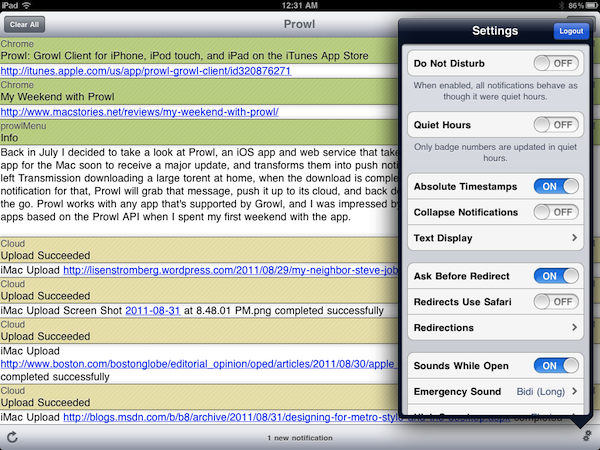
An update to Prowl for iOS was released today, and as the developers had previously teased this new version adds native iPad support and a “do not disturb” feature to force quiet hours when enabled. If you don’t want your devices to wake you in the middle of the night, that’s certainly welcome. And whilst the iPad app looks fairly similar to its iPhone counterpart in terms of design, the main notification list has been tweaked to be more refined and smaller in size. Notifications can be collapsed and expanded, and the settings have been moved to app’s toolbar.

This release also includes the following bug fixes:

  • Fixed quiet time setting the wrong time zone, thus being an hour off.
  • Fixed not leaving edit mode when removing the last entry.
  • Fixed some settings pages lacking titles.
  • Fixed cropping of Prowl app icon.
  • Fixed marking notifications as “new” even after backgrounding.
  • Fixed some description text sizing problems.

Prowl 1.3 retains its underlying simplicity in both design and function while adding some useful options to control how notifications are displayed. Get it here at $2.99.


MarkdownNote Brings Live Markdown Previews to OS X

Folks who enjoy writing in Markdown have already installed Brett Terpstra’s fantastic Marked for Mac, a nifty utility to generate HTML previews from Markdown documents written in any OS X application. You can read our review of version 1.2 here. Those who prefer a more cohesive writing environment with plain text/Markdown and HTML output living in the same application, however, might want to take a look at MarkdownNote, a new entry in the Markdown editing space that’s got some interesting features.

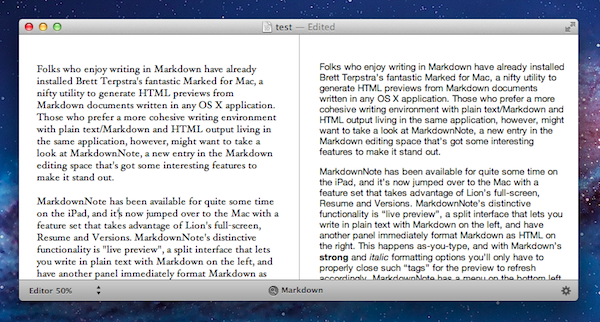
MarkdownNote has been available for quite some time on the iPad, and it’s now jumped over to the Mac with a feature set that takes advantage of Lion’s full-screen, Resume and Versions. MarkdownNote’s distinctive functionality is “live preview”, a split interface that lets you write in plain text with Markdown on the left, and have another panel immediately format Markdown as HTML on the right. This happens as-you-type, and with Markdown’s strong and italic formatting options you’ll only have to properly close such “tags” for the preview to refresh accordingly. MarkdownNote has a menu on the bottom left to resize the panels for Markdown and Live Preview, with options to set the editor and preview at 50, 70 or 100 percent.

MarkdownNote can save .txt files (everyone loves plain text, right?) , it lets you pick your own font and it’s got some further options to play with in the Preferences. When you’re done writing, you can copy the HTML and paste it somewhere else as usual. I’ve found MarkdownNote to be extremely useful in full-screen mode, as the split interface makes for a great alternative to having large borders around your text – with this app, you don’t waste space and you’ve got a live-updating preview at the same time.

MarkdownNote and Marked

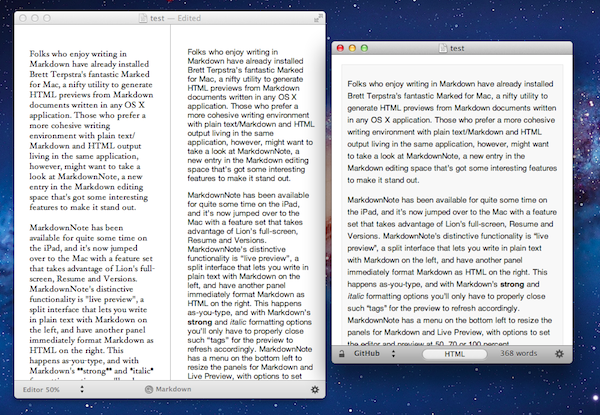
Best of all, MarkdownNote works great with Brett’s Marked, although you may wonder why would anyone use Marked when MarkdownNote has got a live preview. I think MarkdownNote is great at letting you write and quickly keep an eye on the correct visual output, but I still prefer Marked for editing – after I’ve written a long piece, I fire up Marked, choose my favorite style, see how many words I’ve typed, and I go through my Markdown. I love this combination of writing tools.

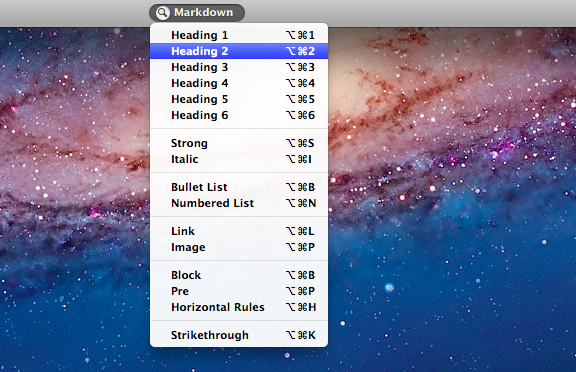
At $3.99 on the Mac App Store, MarkdownNote gives you an easy way to write in Markdown and instantly see how the words you typed will look like, and use keyboard shortcuts to facilitate the process of Markdown writing itself. MarkdownNote works really well in combination with Lion’s full-screen mode and Marked – if you’re a Markdown nerd, you should give this a try.


EmojiBar Puts Emoji In Your Lion Menubar

With OS X Lion, Apple introduced system-wide support for Emoji characters, implemented on iOS 4’s Japanese keyboard last year and recently extended to all international keyboards in iOS 5 beta. Emoji characters are a cute, fun way to share more detailed emoticons with friends on social networks and messaging apps, and because they’re based on Unicode, they can be used in a variety of other ways, including domain names.

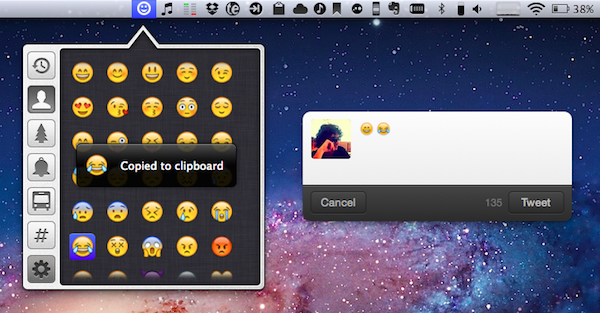
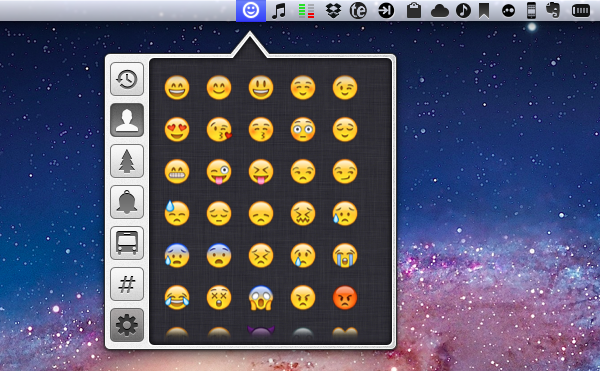
On Lion, users can display Emoji characters and easily insert them using the OS’ default character picker; EmojiBar, a $0.99 app available on the Mac App Store, makes emoji-picking even easier by putting those characters right into the menubar, accessible from a popover. EmojiBar is very simple, and nicely designed: a click on its icon opens the popover, another click on the emoji you need will copy it to the clipboard, and display a notification (notifications can be disabled in the Settings). Icons on the left let you switch between different kinds of emoji characters, whilst the Recents tab gives you access to your most used emojis (presumably your favorite ones as well).

I like the app’s simple approach and design. I know OS X can accomplish the basic functionality by itself, but it’s always nice to see an app doing one thing, and one thing well. You can download EmojiBar here.


Yoink: Enhanced Drag & Drop for Lion’s Full-Screen Apps

As I noted in my MacBook Air 13-inch review, the smaller the screen, the better full-screen apps get on Lion. For those still unaware of the new feature, OS X Lion comes with the possibility of enlarging applications to fill the entire screen – thus the name “full-screen mode” – so that, similarly to iOS, users can focus on one app at a time. Whereas some full-screen apps can look comically large on bigger displays such as a 21.5-inch iMac or Apple Thunderbolt Display, I found that smaller screens make more sense in regards to full-screen mode in that you don’t feel like you’re wasting available pixel space. Apple’s system applications have already been updated to take advantage of full-screen mode, and we’ve seen third party developers starting to play around with the new API as well, coming up with interesting solutions to modify the user interface accordingly to full-screen mode.

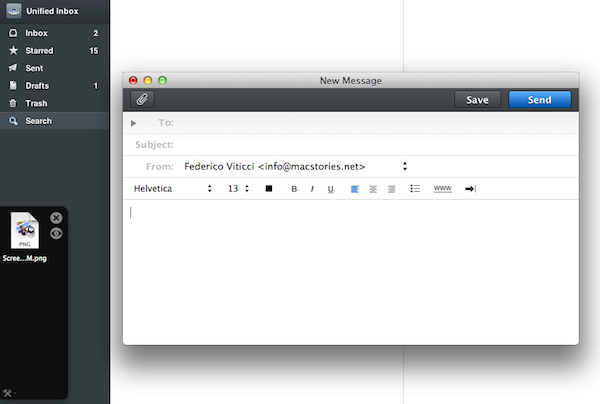
Personally, I have enjoyed using apps like Evernote, Sparrow and Reeder in full-screen mode on my MacBook Air. With a four-finger swipe, I can easily switch between these apps, and go back to my main desktop where all my other application windows reside. However, as full-screen apps live in their own separate graphical environment, I wished on a couple of occasions that Apple would implement an easier method to move files between spaces and full-screen apps in Lion. Rather than delving into the technical details of drag & drop and APIs, here’s a practical example: say I run Sparrow in full-screen mode, and I need to quickly drop an attachment onto a new message window. I could use the app’s “attach file” dialog, but drag & drop would be more intuitive. On Lion, there’s no simple way to drag files from Desktop 1, and drop them into a full-screen app. In fact, the “easiest” trick I’ve discovered to achieve such a functionality is to click & hold a file, hit the Mission Control key on my MacBook Air’s keyboard, select a a full-screen app and wait for it to “spring load” (e.g. the window flashes and after a few seconds comes in the foreground), then drop the file. Clumsy and slow.

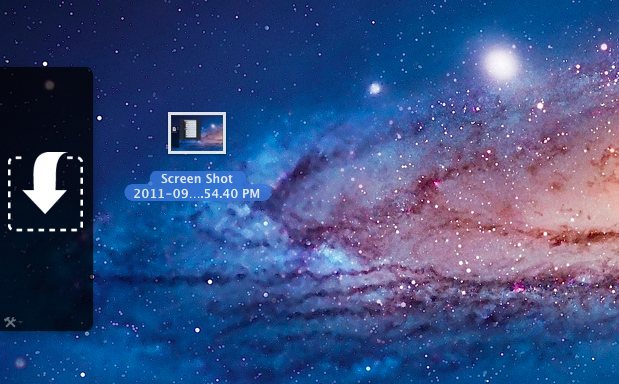
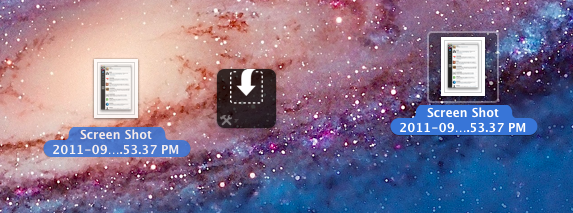
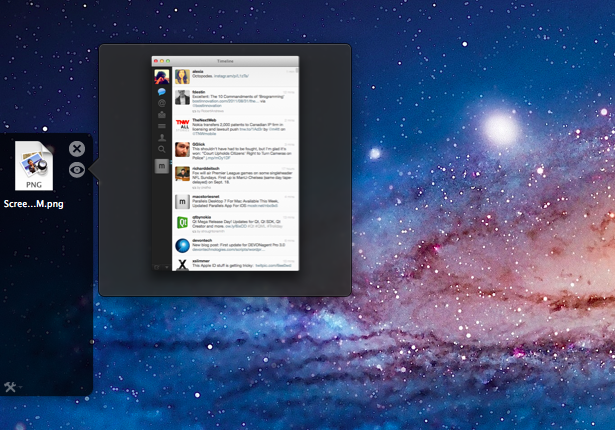
A new app by Eternal Storms – makers of Flickery and ScreenFloat, among others – called Yoink, aims at improving Lion’s behavior with drag & drop and full-screen apps. Built from the ground-up with Lion-only APIs, Yoink places an unobtrusive, translucent “shelf” at the side of your Mac’s screen every time you start dragging a file. Drop the file in there, switch to your full-screen app with a gesture, get the file out of the shelf. Done.

Yoink is a drag & drop assistant for Lion, in that it provides you with a virtual “safe zone” to temporarily store files – or rather, links to them – you want to move from one location (say your desktop) to another space or full-screen app.

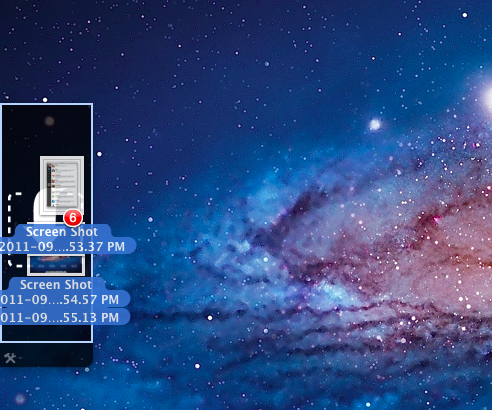
Yoink doesn’t “copy” a file, or multiple ones, to its shelf: it only acts as a bridge between the original file, and the destination of the drop. So, back to my Sparrow example: I can select a bunch of files from my desktop, drop them into Yoink, switch back to Sparrow with a gesture, and get the files out of Yoink. Very simple. This works with any full-screen app, any space – Yoink works wherever you can drop a file. In fact, nothing stops you from using the app as a drag & drop utility for your Finder windows instead of full-screen apps, although the app is clearly focused on the latter.

In my tests, I’ve found Yoink to be very lightweight in memory footprint, and easy to use. The app only appears when you start dragging a file – you won’t see its window all the time – and you can customize it to sit on the left, or right of the screen. Alternatively, you can tell Yoink to quickly move next to your cursor as you drag a file, then go back to screen’s side. Yoink can store multiple files, Quick Look them, and let you scroll and select multiple items with CMD-click.

Yoink is available at $2.99 on the App Store, and you can head over the developer’s website to check out a demo video and get a better idea of the app in action. If you work with full-screen apps on a daily basis and you’d like to enhance Lion’s drag & drop support, Yoink is a must-have.


Apple Releases iOS 5 Beta 7

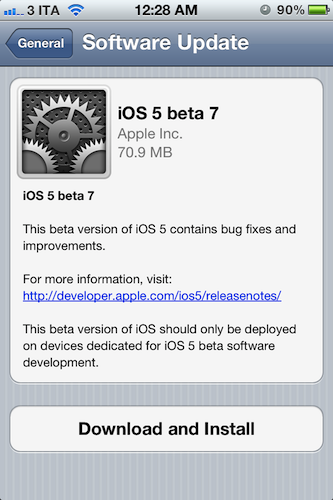
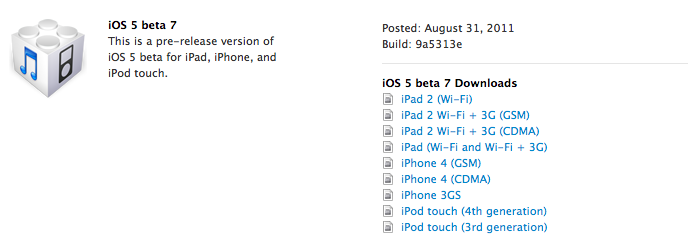
Apple has just pushed iOS 5 beta 7 to developers, releasing the new build through Software Update on iOS devices. At the moment of writing this, the iOS Dev Center still reports beta 6 as the latest version available. iOS 5 beta 6 was seeded on August 19, bringing several bug fixes and performances improvements to the next major version of iOS that’s expected to become publicly available this Fall.

iOS 5 comes with new features such as direct Twitter integration, PC-Free setup, iCloud support, and a new notification system. We will update this post with more information on the latest beta as it becomes available.

Update: iOS 5 beta 7 is now available on the Dev Center alongside a new Xcode Developer Preview, iTunes 10.5 beta, and Apple TV Software.


Another iPhone Prototype Lost In A Bar

As reported  by CNET, in a bizarre turn of events it appears Apple may have lost another unreleased iPhone model in a bar, this time at the Cava22 in San Francisco. According to the website, Apple never filed a police report based on such loss, likely from an employee field-testing the unit, although it ”sparked a scramble by Apple security” in an effort to recover it quickly. The device, CNET says, was lost in July. Rumors surrounding the next-generation iPhone date back to late 2010, although they have intensified lately as the company approaches the rumored October release date for the “iPhone 5”.

You may recall last year’s loss of an iPhone 4 prototype, which was lost by an Apple employee and sold to Gawker Media’s Gizmodo. Steve Jobs eventually joked on the incident, but Apple did intervene in a legal action against Gizmodo and the “seller” of the device, saying that unreleased prototypes are “priceless” in regards of the kind of information that gets out to competitors ahead of time.

This year’s lost iPhone. however, hasn’t showed up on the Internet yet, and it may have been sold on Craigslist for around $200.

Apple electronically traced the phone to a two-floor, single-family home in San Francisco’s Bernal Heights neighborhood, according to the source.

When San Francisco police and Apple’s investigators visited the house, they spoke with a man in his twenties who acknowledged being at Cava 22 on the night the device went missing. But he denied knowing anything about the phone. The man gave police permission to search the house, and they found nothing, the source said.

Apple usually goes to great lengths in order to protect its iPhone prototypes, using special cases to make these devices look like older models, as with last year’s lost iPhone 4 that was actually found inside a 3GS-like case. It’s not clear whether this year’s (allegedly) lost iPhone is the same version that will end up in consumers’ hands later this year, or if it’s an iPhone 4 prototype running a faster chip that was apparently sent to developers for testing months ago. CNET’s report doesn’t specify whether Apple ever got the phone back, and Craigslist didn’t respond to a request for comments, either.


Customize Your Mac’s “Paste and Match Style”

On the Mac, the paste function associated with the CMD + V keyboard shortcut has a well-known side effect: if you’re writing a document and you paste something from your clipboard, the document’s style won’t be automatically matched. Quite possibly a “feature” per Apple’s design choice, since I switched to the Mac I’ve always been annoyed by such “remember every style” behavior, and from the reaction I’ve seen on Twitter, it turns out quite a few people dislike when they end up with weird styles in their outlines or email messages as well.

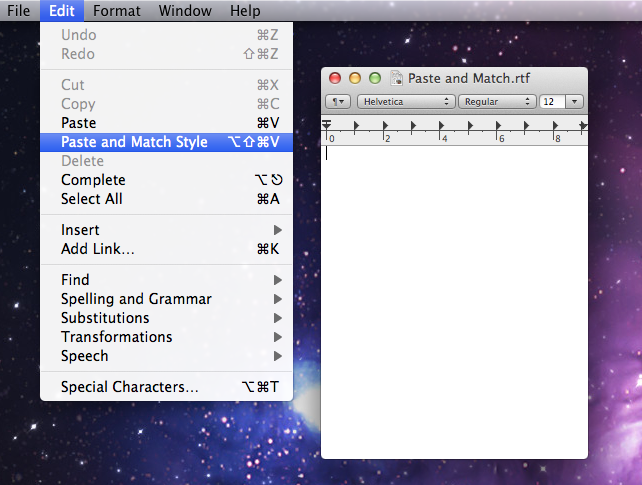
But, you might argue, there is a way to paste and match style, and that’s represented by the ⌥⇧⌘V shortcut…which requires four fingers to execute, and it’s not always implemented in the same way in third party apps. Chrome, for instance, uses ⇧⌘V, and many other apps follow a similar trend to modify the default shortcut for Paste and Match Style.

In the past few days, I’ve come across some interesting solutions to unify Paste and Match Style with a simpler keyboard shortcut, and make it the default paste action on OS X if you never want to paste with “styles”. This can be particularly handy for writers, who often prefer a plain text environment or a styled one that’s, however, consistent throughout a document. Read more


App Journal, Episode 1: Writron, Tempus, BillMinder

App Journal is a new series aimed at showcasing apps we have enjoyed using on our iPhones, iPads, and Macs, but decided not to feature in a standalone, lengthy review here on MacStories. Sometimes, an app is so simple, so focused on one task that a full review in our typical format would be unnecessary. But at the same time, we felt like we needed a way to get the word out about these little gems, other than a quick tweet or footnote on #MacStoriesDeals.

Think of App Journal as a mix of classic reviews, weekly app recommendations, and a diary of our experiences with apps that still deserve a proper mention. Because after all, that’s what we love: talking about great software.

In Episode 1 of App Journal, I take a look at Writron for iPhone, Tempus and BillMinder. Stay tuned for new App Journal episodes in the next weeks.

Writron

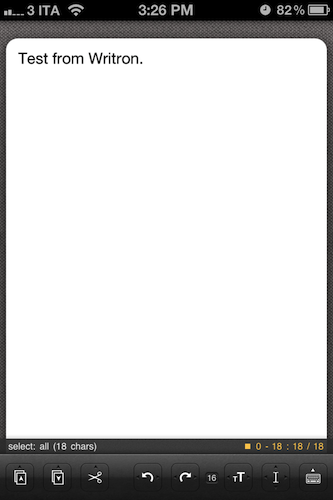
Writron is an app I found on the App Store last week and bought because of its simple, elegant icon and price tag. Admittedly, these are two factors that contribute to impulsive app-buying when iTunes credit is available, and curiosity takes over. Writron is a “text input tool” that can forward text to other apps and online services. That’s it. Once you’ve written some text using the app, you can tap & hold the sharing button to send it to Mail, Twitterrific, or other services supported with Mobile Safari such as Google, Evernote, Twitter, and Wikipedia. You can edit the “send to” menu to include options like Maps, Google Translate, Wikipanion, Wiktionary, and Twitter for iPhone. Additional templates will be added periodically and can be downloaded within the app.

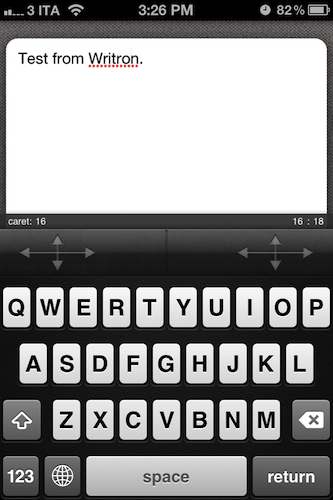
Writron achieves two goals: it’s a text input tool with a heavy sharing component. And whilst sharing isn’t too dissimilar from what other apps like Note & Share offer, the writing experience is quite different. Writron comes with a toolbar between the keyboard and the text field; this toolbar has buttons to share, paste, cut, undo and redo, increase/decrease font size and move the iOS’ default cursor. Whereas tapping on these buttons triggers their basic functionality, Writron’s full potential is unlocked when you “tap, hold, and slide”. Here’s an example: tapping and holding the undo button will get you access to a scrollable timeline of words you typed, which you can control by sliding your finger across the toolbar itself. You don’t see a list of previously typed words and letters when you do so – instead, Writron directly manipulates text as you slide you finger back and forth through history, letting you know when you’re “out of undos and redos”. The same sliding concept applies to the “move cursor” action: you can tap on it to select a word, an entire sentence, or move to the beginning of your text, but it’s when you begin sliding that you’ll notice Writron can freely move the cursor between letters according to your finger’s movement. It’s seriously cool.

Writron may not revolutionize your workflow but it’s a neat little app that I’m sure will have its own passionate niche of aficionados. Writron is only $0.99 on the App Store. Read more


“Shrine of Apple” Wants To Photograph Every Apple Product Ever Made

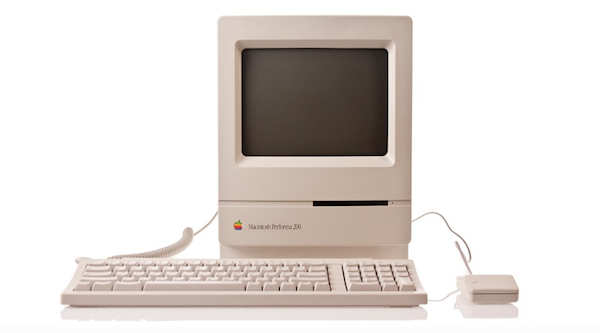
Brought to my attention this morning by The Loop’s Jim Dalrymple, Shrine of Apple is a new website that launched last night with a very ambitious goal: to photograph every Apple product ever made. Not just the ones from 2007 up until today – all of them. From the About page:

Our mission is to showcase the entire spectrum of products that Apple have sold to the public since 1976 – every product Apple Inc has ever produced, in the highest quality and definition possible. Every desktop, every laptop, every notebook, monitor, iPod, iPad, iPhone, mouse, keyboard, modem, cable, port, adapter, docking station, memory expansion card….and that’s just their hardware. Operating systems, productivity suites and all the great software titles that Apple have published will make an appearance too!

The website launched with a relatively small collection of products, with many more queued up for the next weeks. Shrine of Apple’s database consists of detailed high-res photos of products complete with original packaging when available, manuals, and cables. The website’s categories include Desktops, Displays, iPads, iPhones, iPods, Laptops, Peripherals, PDAs, Servers and Software, with more to come. The current selection includes old gems like the Apple IIe Numeric Keypad, Lisa 7/7 Office software, and the Macintosh PowerBook 150.

With high-res photography, descriptions, related links and a true passion for Apple products, I wouldn’t be surprised to see Shrine of Apple becoming a de-facto standard for Apple fans looking up information on old computers and devices, provided by someone who really “knows” and cares about these products, not a faceless online database. Shrine of Apple is, in fact, the creation of Jonathan Zufi, “leading expert in the field of mobility and wireless devices by day – vivid Apple collector by night”.

Make sure to check out Shrine of Apple, and follow the website on Twitter for updates on new products and photos.