Federico Viticci

10762 posts on MacStories since April 2009

Federico is the founder and Editor-in-Chief of MacStories, where he writes about Apple with a focus on apps, developers, iPad, and iOS productivity. He founded MacStories in April 2009 and has been writing about Apple since. Federico is also the co-host of AppStories, a weekly podcast exploring the world of apps, Unwind, a fun exploration of media and more, and NPC: Next Portable Console, a show about portable gaming and the handheld revolution.

Turn URLs and Webpages Into PDFs In Your Dropbox

I stumble across a lot of interesting webpages on a daily basis. Sometimes it’s a video I want to watch later; sometimes it’s an article I don’t have time to read right away. Other times, I find a webpage that I want to keep around for future reference. For me, there’s a difference between articles to read later and reference material: whereas a new item added to Instapaper has a short life span in terms of attention (read, share, archive), a webpage I want to keep around forever needs to be turned into a document I can read anywhere, highlight, annotate, and carry around between platforms and devices. For that, I like PDFs.

I keep a “PDFs” folder in my Dropbox that contains all the documents I check upon regularly for work and personal purposes. They can be eBooks, tutorials, or guidelines from Apple that are essential to my writing online. Thanks to the increasing support for cloud services in apps like PDF Expert, GoodReader, and iAnnotate, I can keep a single copy of a PDF in my Dropbox, use the app I want to annotate the document with, and forget about duplicates thanks to sync. Furthermore, I’m fairly sure that, due to their popularity, PDFs will still be readable and supported 20 years from now, so I don’t have to worry about data preservation and file formats.

Lately, I have become obsessed with turning longer articles I find on the Internet also into PDFs for long-term archival. For as much as I like Instapaper, I can’t be sure that the service will be around in the next decades, and I don’t want my archive of longform and quality content to be lost in the cloud. So I have come up with a way to combine Instapaper with the benefit of PDFs, Dropbox, and automation to generate documents off any link or webpage, from any device, within seconds.

(Disclaimer: what follows is an explanation of a hack I created for personal use. It uses publicly available tools and apps to fill a personal need. You shouldn’t create PDFs off websites and redistribute them – you should support the sites you read instead).

In short, I use the Instapaper Text bookmarklet to fetch a webpage’s text and images (while preserving hyperlinks and great typography) and I convert the resulting page to PDF using wkpdf. Created by Christian Plessl, wkpdf is a command line tool that uses WebKit and RubyCocoa for rendering HTML content to PDF. Since wkpdf uses WebKit’s HTML rendering, it can generate good-looking PDFs that maintain most CSS2 and CSS3 stylings and properties. I have tried another command line tool for file conversion, Pandoc, but I like wkpdf better for straight HTML to PDF conversion. Read more


Buzz Contacts 2.0 Refines Interface, Improves Navigation

Buzz

Buzz

Savvy Apps’ Buzz Contacts is one of the finest iPhone apps to quickly access contacts from the Address Book and organize them into groups. Back in February I wrote a review of the first version of the app, and I liked what Ken Yarmosh and his team built:

Buzz is focused on groups. From a Facebook-like panel on the left, you can create as many groups as you want (such as “Friends”, “Family”, or “Work”) and assign contacts to them. Switching between groups is easy, as you just have to open the panel again and tap. Each group can have multiple pages of contacts, and each shortcut in the group’s grid view can be assigned a default action — be it call, message, or email. From the group’s management window, accessible by hitting the Groups icon in the upper right corner, you can reorder contacts, and organize pages if a group has more than four shortcuts.

The group actions of Buzz are something I found myself using on a daily basis. By tapping on the lower section of a group’s page, in fact, you get shortcuts for group messaging and emailing that will automatically use all the email addresses / phone numbers stored in your Address Book to send emails or texts to multiple recipients at once. This is particularly handy for teams, groups of friends, or family members. It’s been a huge time saver for me, as I would have to manually re-insert each contact every time I want to start a new group message or email.

Buzz Contacts 2.0, released today as a free update for existing customers, is a fantastic step forward in terms of design polish, navigation, integration with other services and apps, and overall speed of the app – an essential aspect of a utility that aims at making it easier and quicker to access your contacts.

In version 2.0, Buzz Contacts received a new icon and support for themes. Like Agenda, Savvy Apps’ other popular calendar app for iOS, users can now choose between different takes on the app’s color scheme and, interestingly, they can do so by either opening the Settings or swiping left/right on the top bar to change colors instantly. I prefer the app’s standard black theme, but I found the swipe implementation to change themes particularly well done.

Where Buzz Contacts 2.0 really excels, though, is the in functionality it adds to group management and navigation. Retaining the same Facebook-inspired panel interface of version 1.0, Buzz 2.0 adds Frequent and Outgoing sections at the top of the sidebar; in my usage, I found the Frequent “smart group” to be a great way to have the app monitor my most-contacted people for me, offering a series of shortcuts for emails, calls, or messages that I access on a daily basis. It’s reminiscent of the functionality Dialvetica offered, and it’s perfectly integrated with the other features offered by Buzz.

Buzz

Buzz

Such features include a double-tap action to bring up options for single contacts, which in version 2.0 got support for scheduling through Agenda or Due (so you won’t forget to contact your coworkers or friends anymore), possibility to send contact details via email or message, and integration with Box, Camera+, and Dropbox to easily add attachments to emails. This is a welcome addition to my workflow, as I rely on a Dropbox shared folder to store files for our team, and now I can easily forward them via email to a single contact (or everyone within a Buzz group) so I can add comments in the message. Or, more simply, I can attach photos from the Camera Roll or Camera+ and send them to my closest friends without leaving the app or composing a message manually.

Buzz Contacts 2.0 adds a reworked dialer that’s now easier to access and that works with phone numbers, names, and initials. Whether you prefer to dial a contact by name or number, Buzz will display results from your Address Book in real time, highlighting in green the numeric or alphabetic matches as you type. You can then double-tap on a contact to bring up the action menu, add it to a group from the dialer (a new option in 2.0), or initiate a new phone call (there’s a setting to avoid confirmation for phone calls).

To improve navigation, Buzz 2.0 deepens its reliance on swipes to create an actionable environment that’s equally powerful and intuitive. You can swipe horizontally between multiple pages of a group, and swipe to the right to open the group in a simpler list view. An additional swipe to the right will go back to the slide-out panel, which is now more responsive and better highlights the active view. In this new version, you can also swipe vertically between groups and the dialer – an option that single-handedly reinvented my usage of Buzz as it’s dramatically faster than going back to the sidebar for every kind of section switching.

Buzz Contacts 2.0 is full-featured and easy to use. Whereas an app like Launch Center Pro can work as a quick contact launcher, Buzz Contacts is a powerful contact manager and hub that in this version has been greatly improved with faster navigation and integration with other apps and services. Buzz Contacts remains the best solution for group-based contact management in my opinion, and thanks to a better dialer and support for swipes, it can now aspire to replace Apple’s Phone app for other users as well.

Buzz Contacts 2.0 is available at $0.99 for a limited time.


Tweet Marker Plus Relaunches As Watermark, Adds Support For App.net

Manton Reece’s Tweet Marker Plus, a service to index Twitter and provide filtering and search tools, has been relaunched as Watermark. As explained by Reece in a post on his personal blog, the new name wants to reflect the “gradual move away from Twitter and syncing”. Initially launched as a free service, Tweet Marker has been integrated as a syncing solution in dozens of Twitter clients such as Tweetbot and Twitterrific. The Plus version, launched in April, built on the success of Tweet Marker to offer a web interface for Twitter timelines, fully indexed by day and searchable outside of the Twitter platform. I wrote:

The most visible feature of Plus, the web timeline, is very straightforward, but I believe it’ll prove to be a worthy addition for, say, those users who rely on iOS and Mac apps at home, but who are forced to stay on Windows environments at work. Tweet Marker’s web timeline can pick up from where you last left off on another connected client, and it’s got a “scroll to marker” option to manually load your last-seen tweet. On the timeline itself you can reply, retweet, mark as favorite and check out a tweet’s unique URL, but these actions will simply forward you to a dedicated page on Twitter.com. Tweet Marker’s Plus timeline isn’t meant to be a full-featured client: rather, it is a basic way to rely on your existing sync position if nothing else is available.

With the Watermark rebranding, Reece is gradually shifting away from Twitter following the controversy that has arisen in the past months in regards to the service’s API changest and relationship with third-party developers. Keeping the same infrastructure, monthly fee, and core functionalities, Watermark is a new “client and archive tool”, independent of the free Tweet Marker sync service, which will keep working as usual with Twitter apps that support it.

Watermark’s new focus on providing a platform that goes beyond Twitter is represented in this initial version by its support for App.net, Dalton Caldwell’s rising real-time communication service that costs $50 per year. Reece writes:

As part of the relaunch it immediately gains a new feature: App.net posts. You can now add an App.net account and it will download any posts from your friends, making them available for search. Watermark is already storing tens of millions of tweets, and I’m excited to start adding App.net posts to that archive as well.

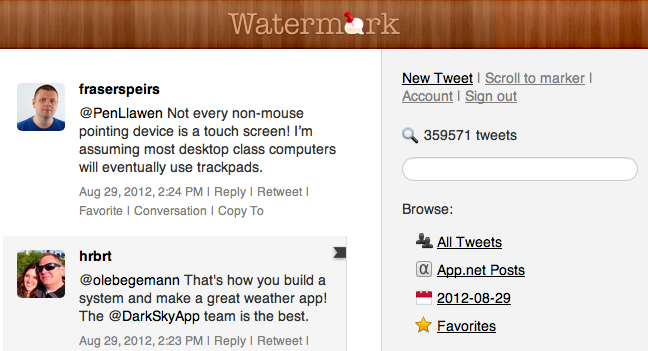
While still heavily Twitter-based from an interface standpoint, the new Watermark sports an App.net option in the section on the right, where users can browse “all tweets”, favorites, and load past tweets by day with a calendar menu.

Clicking on App.net Posts in Watermark will open a web based timeline; right now, there are no further options available for App.net posts (the service only downloads posts from friends and adds them to the search archive) as App.net doesn’t even have an official search functionality yet. Manton says there’s still “plenty to improve” for App.net support, and that he’s also evaluating timeline position sync for App.net accounts – indeed one of the hallmark features of Tweet Marker.

Tweet Marker Plus was one of my favorite services to provide the kind of Twitter functionalities that Twitter the company always ignored: powerful search and filtering tools, collections, and additional browsing options. Like Cue, Tweet Marker Plus has proven to be a worthy addition to my workflow to retrieve tweets and leverage the information shared on the platform every day. As Twitter becomes more hostile towards third-party developers and apps that take data out of Twitter, it’s great to see Tweet Marker Plus expanding to new platforms. I find App.net very promising in its intent to sell an API as a product to its users, and Watermark can build on the success of Tweet Marker Plus to perfectly integrate with the service, free of the restrictions and “requirements” of Twitter.

Watermark is $5 per month.


Droplr, Mac App Store, and Sandboxing

Droplr, Mac App Store, and Sandboxing

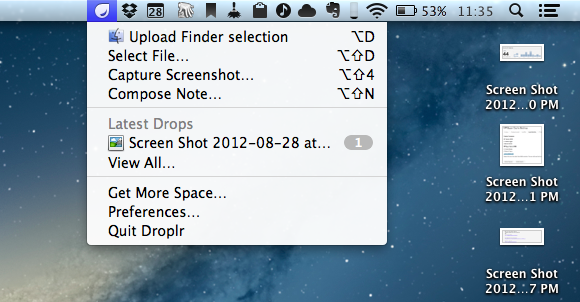
The developers of Droplr, a sharing utility for OS X, have announced that in order to release version 3.0 of their app on the Mac App Store, they will have to tweak the app’s “upload from Finder” functionality to comply with Apple’s rules.

The primary difference will be in the use of the global hotkey (opt+d by default) to share the currently selected item(s) in the Finder. The standalone version will continue to work as it always has, simply select something in the Finder, use the key combination, and that item will be uploaded to Droplr. For the Mac App Store version, when the key combination is triggered with the Finder active, instead of uploading the currently selected items, it will present you with an “open file” dialog where you’ll need to navigate to the item(s) you’d like to share and select them. We don’t believe this provides the best experience, but we do believe it’s an acceptable tradeoff to be able to remain in the Mac App Store, especially given many of our users don’t use the key combination as a primary method of sharing with Droplr.

This update from the Droplr team is particularly interesting as, back in May, speculation arose as to whether Apple would start rejecting any app with “global hotkey functionality” on June 1, when the company began enforcing its new Sandboxing policies for Mac App Store apps. As it turned out, the rumor didn’t specify which kind of apps would fall under Apple’s ban, but several third-party developers confirmed their applications carrying similar functionality went through Apple’s approval process.

However, it appears the “issue” with Droplr 3.0 and the Mac App Store is simply related to standard Sandboxing practices, not strictly hotkeys. It is safe to assume that, per Apple’s Sandboxing implementation, an app like Droplr can’t benefit from unrestricted access to the Finder to automatically upload a file in the background. Several developers I have contacted about this issue confirmed that it’s not a surprise Apple is requiring an Open dialog to access a file outside of the Sandbox, and that this would have been true even if Droplr wasn’t combining the feature with a global hotkey. So while a calendar app can show itself with a hotkey, or a todo app can display a systemwide quick-entry panel, Sandboxing requires an app that accesses files directly (like Droplr does) to go through an Open dialog.

Read Droplr’s blog post here, and our report from May on Mac App Store apps and global hotkey functionality here.

Permalink

Save Safari Tabs As A List in OmniFocus

Save Safari Tabs As A List in OmniFocus

This is a nice tip to save the tabs of the frontmost Safari window as a list in OmniFocus (via Shawn Blanc). Through AppleScript, tabs are saved as webpage titles and URLs in a note in the OmniFocus inbox; the note is named with the ”URL List from Safari Tabs” + timestamp format.

Using OmniFocus’ AppleScript Dictionary, you could modify the script to assign a specific context to the task for easy retrieval of your tab lists with Perspectives or OmniFocus’ own URLs. For the latter option, you can use Launch Center on iOS to quickly jump to OmniFocus projects and contexts; also keep in mind that any OmniFocus item (a task, a project, a context) has a unique ID that you can get using the “Copy as Link” option from the app’s contextual menu.

Permalink

Plain Text, Macros, Markdown, and Nebulous Notes

Nebulous Notes

Nebulous Notes

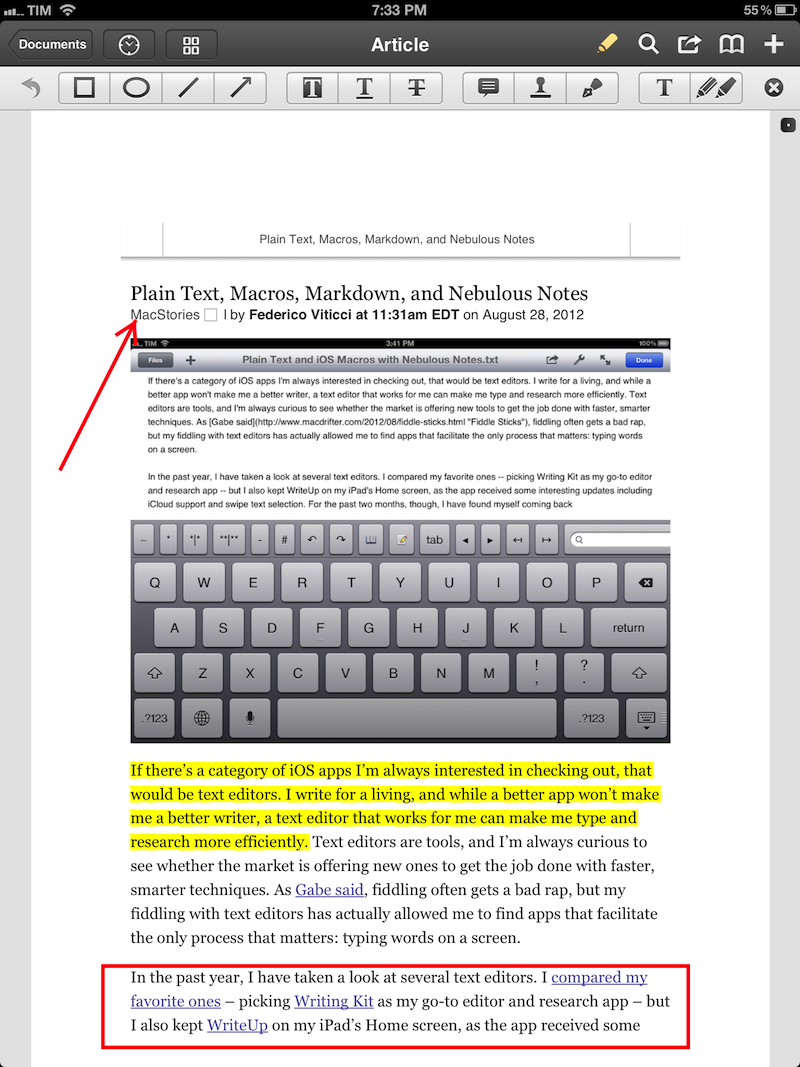
If there’s a category of iOS apps I’m always interested in checking out, that would be text editors. I write for a living, and while a better app won’t make me a better writer, a text editor that works for me can make me type and research more efficiently. Text editors are tools, and I’m always curious to see whether the market is offering new ones to get the job done with faster, smarter techniques. As Gabe said, fiddling often gets a bad rap, but my fiddling with text editors has actually allowed me to find apps that facilitate the only process that matters: typing words on a screen.

In the past year, I have taken a look at several text editors. I compared my favorite ones – picking Writing Kit as my go-to editor and research app – but I also kept WriteUp on my iPad’s Home screen, as the app received some interesting updates including iCloud support and swipe text selection. For the past two months, though, I have found myself coming back to another text editor that I had been previously recommended by various Internet pals: Nebulous Notes. And in spite of my publicly stated praise for Writing Kit, I have been getting lots of writing done with it – so much that I haven’t used any other app for my posts and notes. Read more


Craig Federighi and Dan Riccio Promoted to Senior Vice Presidents

Craig Federighi and Dan Riccio Promoted to Senior Vice Presidents

With a press release, Apple today announced that Craig Federighi, Vice President of Mac Software Engineering, and Dan Riccio, Vice President of Hardware Engineering, have joined the executive team of the company as Senior Vice Presidents. Both will report directly to CEO Tim Cook.

As senior vice president of Mac Software Engineering, Federighi will continue to be responsible for the development of Mac OS X and Apple’s common operating system engineering teams. Federighi worked at NeXT, followed by Apple, and then spent a decade at Ariba where he held several roles including vice president of Internet Services and chief technology officer. He returned to Apple in 2009 to lead Mac OS X engineering. Federighi holds a Master of Science degree in Computer Science and a Bachelor of Science in Electrical Engineering and Computer Science from the University of California, Berkeley.

Riccio, as senior vice president of Hardware Engineering, will lead the Mac, iPhone, iPad and iPod engineering teams. He has been instrumental in all of Apple’s iPad products since the first generation iPad. Riccio joined Apple in 1998 as vice president of Product Design and has been a key contributor to most of Apple’s hardware over his career. Dan earned a bachelor’s degree in Mechanical Engineering from the University of Massachusetts Amherst in 1986.

In the same press release, Apple has also announced that Bob Mansfield, who announced his retirement in June, will remain at Apple to ”work on future products”, also reporting to Tim Cook.

In the past two years, Craig Federighi joined other members of Apple’s executive team on stage for product announcements and demoes. In June, Federighi appeared at Apple’s WWDC keynote in San Francisco to demonstrate the latest features of OS X Mountain Lion, released a month later.

Apple’s Leadership webpage has already been updated with the new profiles of SVPs Federighi and Riccio.

Permalink

CandyBar Goes Free, Heads To The Iconfactory

CandyBar Goes Free, Heads To The Iconfactory

Panic has announced popular Mac customization utility CandyBar has gone free and unsupported due to system changes in Mountain Lion (namely, code signing). The app will also head to The Iconfactory, where it “may turn into something new”.

Since we’re unsure about the long-term future of changing system icons, we’re not comfortable charging money for CandyBar, and we’re also not comfortable simply making it disappear, instead we’re going to make the current CandyBar free — but unsupported.

And here’s from The Iconfactory blog:

We and our good friends over at Panic have taken a hard look at the future of desktop icons on the Mac and unfortunately, the writing is on the wall. There may come a time, very soon in fact, when it won’t be possible to customize any system level icon on the desktop except perhaps folders. Apple’s push to sandbox applications, the addition of signed apps and the increasing unification of OS X and iOS mean CandyBar’s days (in its current form) are numbered.

First launched back in 2007, the ease of use of CandyBar spurred the proliferation of websites and communities aimed at showcasing icon and UI replacements for OS X, such as MacThemes and IconPaper. In an interview with MacThemes from 2008 (via Shawn Blanc), Panic’s Cabel Sasser said:

The innovation, the elegance, the lack of focus testing, the general feeling that people care about the end product, it makes us want to keep doing what we do. It’s a feedback loop of inspiration.

Goodbye, CandyBar. You’ve been a trusted companion and served us well in moments of deep crisis.

Permalink

Scratch Review

Scratch

Scratch

For the past week, I have been trying Scratch, a new quick note-taking app by Karbon. While the app still can’t replace Drafts in my workflow, it has some unique ideas that will be worth a second consideration in the future.

The idea behind Scratch is to offer a simple way to save plain text in Dropbox. Like Drafts, Scratch allows you to create notes that you can forward to a variety of services like Messages, Email, and the aforementioned Twitter and Dropbox. Unlike Drafts, Scratch is also capable of appending text to an existing file in Dropbox. A number of hacks to manually add appending capabilities to Drafts have surfaced in the past month.

I like the design of Scratch. The app sports custom toolbar and menu design, but it’s the kind of carefully thought-out custom that’s a great fit for the iOS platform, now mature enough to accept and foster an ecosystem of different-looking apps. The main point of interaction in Scratch is the compose area, where you’ll be jotting down your notes. As in most text editing apps these days, there is a formatting toolbar located above the virtual keyboard; in Scratch, the toolbar is fully customizable and offers quick access to other features of the app as well.

Read more