Federico Viticci

10761 posts on MacStories since April 2009

Federico is the founder and Editor-in-Chief of MacStories, where he writes about Apple with a focus on apps, developers, iPad, and iOS productivity. He founded MacStories in April 2009 and has been writing about Apple since. Federico is also the co-host of AppStories, a weekly podcast exploring the world of apps, Unwind, a fun exploration of media and more, and NPC: Next Portable Console, a show about portable gaming and the handheld revolution.

Jasmine: Free, Elegant YouTube Client for iPhone and iPad

In my ongoing coverage of YouTube apps for iOS (a rising trend following the removal of the official YouTube app from iOS 6), I have been able to test Jasmine, a new YouTube client developed by Jason Morrissey, creator of Alien Blue.

If you’re looking for a YouTube app that’s elegantly designed, easy to use, and that runs both on the iPhone and iPad, I think Jasmine is your best option for now. And knowing Jason, I believe the app will soon get better with fixes, more features, and improvements to the interface. I’ve been testing Jasmine for the past two weeks, and especially on the iPad, the app has become my go-to client when I want to sit back and watch some videos on YouTube.
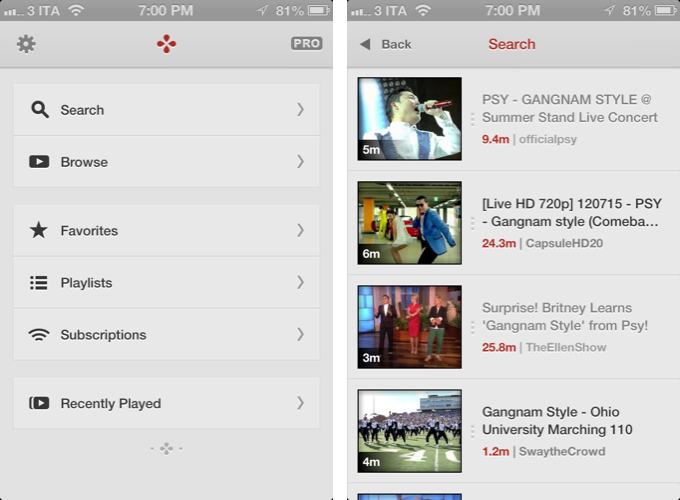
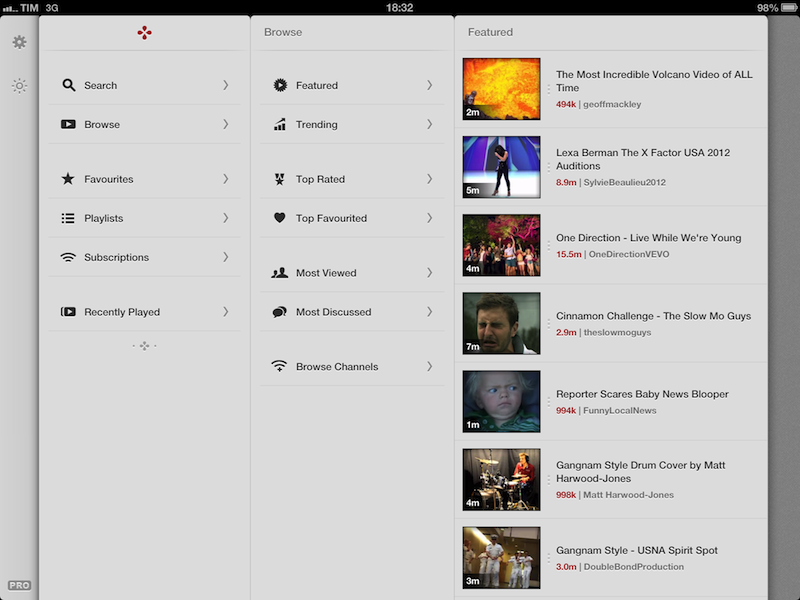
Both on the iPhone and iPad, the app has a light gray color scheme with font and menu navigation choices somewhat reminiscent of Morrissey’s work with Alien Blue; the app is fast at moving between sections, and you can tap on the status bar to switch to a “night mode” that makes the entire UI black. On the iPad, the app makes use of a Tweetie-inspired panel navigation, both in portrait and landscape mode; the performances are good, and panels contribute to facilitating the process of instantly seeing whether a video belongs to a playlist or a search query. Speaking of search, one of Jasmine’s nicest touches is the search field, which rotates and expands inline with a cute animation. I’d like to see search suggestions in a future update, though.

In Jasmine – like any other client these days – you can log into your YouTube account, or use the app to just search and browse YouTube content. The main screen/panel features shortcuts for search, browse, favorites, playlists, subscriptions, and recently played videos. The latter is just a local collection of videos you’ve watched on your device – it won’t sync with History on YouTube.com or another instance of Jasmine on another device (idea: iCloud sync could be used to sync videos across devices). The “Subscriptions” section, on the other hand, does synchronize with channels you’ve subscribed to through YouTube’s website (or another app), and lets you watch videos on a single channel basis, as well as a list of “latest videos” from all subscriptions – a useful feature to catch up on every new upload. Furthermore, if you want to discover more channels, you can search, enter a specific username, or check out YouTube recommendations in-app.

As I used Jasmine, I noticed I kept coming back to the “Browse” area. I don’t typically do this on the (cluttered) YouTube website, but I found myself casually checking out YouTube’s Featured and Trending videos a lot more with Jasmine.
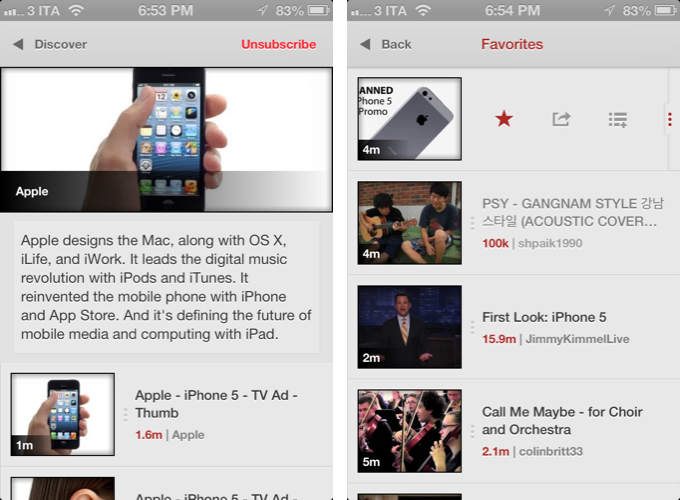
Both channels and videos are presented with their own custom page. Videos have a large thumbnail at the top (which you can tap to play), and more actions below, such as comments (you can leave new ones), a link to the uploader’s page, description, ratings, related videos, mark as favorite, add to playlist, and share. Sharing supports the services iOS natively comes with, and is presented through the new iOS 6 share sheet. There is no option to set a specific streaming quality (like in Tube+), but there’s a setting you can turn on to be asked every time which kind of quality you’d like to load a video with (medium, 720p, etc).

If you don’t want to open a video page to share or mark as favorite, you can swipe on a result to bring up an action bar with buttons to share, add to playlists, and star. The same can be accomplished by tapping & holding a video, and I wish this feature also allowed me to quickly open an uploader’s page, like FoxTube does.

There are some things I wish Jasmine did better. For instance, I can’t find a section to catch up on the videos I “saved for later” on YouTube; and speaking of available sections, I think that, on the iPad, the larger screen could allow for an option to save personal shortcuts (say, to a playlist or search) in the sidebar.

On the surface, Jasmine looks extremely simple. But don’t let the app’s clean design and no-clutter approach fool you: Jasmine packs a lot of YouTube functionalities as well as nicely implemented little touches (the pinch-to-close gesture to dismiss panels on the iPad, the custom pull-to-refresh animation) that make for an intuitive and pleasant YouTube experience on iOS. And like I said above, if you own an iPad and have been looking for a great YouTube client, you should check out Jasmine.

Jasmine is free, with an in-app purchase to unlock parental controls and support the development of the app.

Twelve South Launches “HiRise” Stand and Desk Storage System

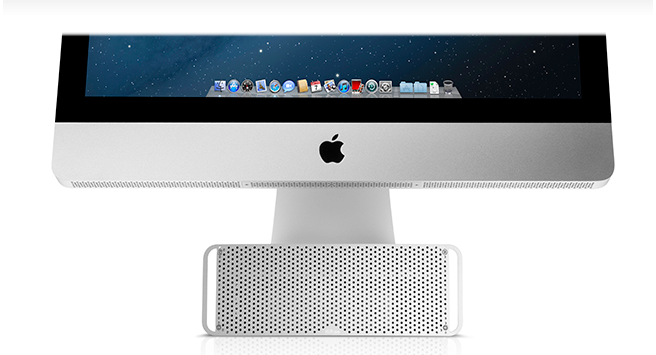
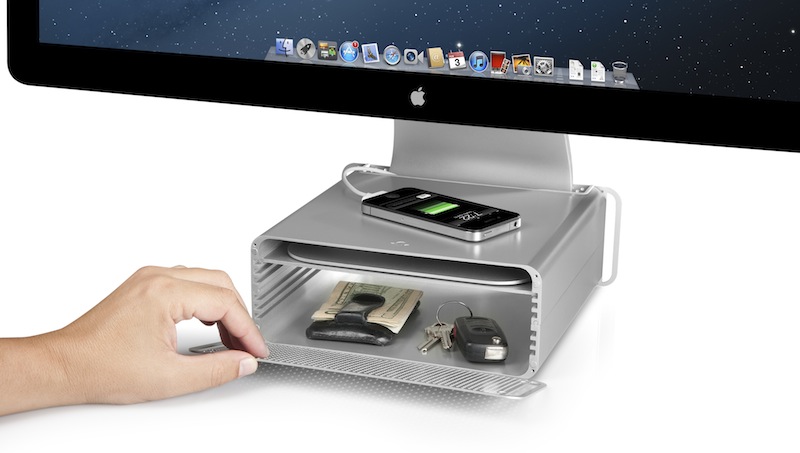
Twelve South, makers of fine accessories for Macs and iOS devices, have announced today the latest entry in their family of add-ons for iMacs and Apple displays: the HiRise. Made of aluminum and stamped steel, the HiRise is a height-adjustable stand that doubles as a storage system for your desk, so you won’t end up cluttering your workspace with keys, your wallet, or USB drives anymore.

The main purpose of the HiRise is to elevate the base of an iMac or Apple display to a more comfortable position for your preferred viewing angle. By using an internal metal “shelf”, you can adjust the height of an iMac depending on your viewing position, and, alternatively, you can use the HiRise to place an iMac and Apple display already on your desk at the same height (a minor detail that has annoyed owners of multiple displays for a long time).

It’s time to do better than a phone book!” said Andrew Green, Creative Director of Twelve South. “We see Mac users prop their beautiful hardware up on reams of copy paper and cringe. Many agree that just a few extra inches of height makes their Mac tremendously more comfortable to use. Enter HiRise for iMac. It raises your Mac to six different positions. It hides connected hard drives and keys inside. But coolest of all, its design integrates with your Mac to look like nothing else you’ve ever seen.

With a perforated, Mac Pro-like metal front plate that attaches magnetically, the HiRise can also work as a hidden, classy storage space for your desk. According to Twelve South, HiRise fits all Apple iMacs, Apple Thunderbolt Displays “and Apple Cinema Displays with metal L-shaped desk stand”.

While the main purpose of this accessory could easily be replicated with some quick DIY skills (case in point: an iPad box), Twelve South’s typical attention to detail should ensure a premium-quality product with a grade of finish and “Apple feel” that should be difficult to find in other solutions. However, the price may be a little steep depending on just how much you’d value such an accessory: the HiRise will set you back $79.99 from Twelve South’s website.

Check out more photos of the HiRise here, and a video below.
Read more


iOS 6: Messages Now Automatically Selects Last-Used International Keyboard For Each Contact

I like to think that sometimes Apple takes a look at the crazy ideas people share about iOS and OS X on Twitter, and picks a couple that they think could be neat additions to the OSes.

In April, I tweeted the following idea:

iMessage should be able of automatically switching international keyboards based on the recipient’s language.

The idea came from the fact that I’m constantly switching between the Italian and English keyboards on my devices. For most of my online communications, I use the English keyboard; for my Italian friends, family members, and acquaintances, I obviously use the Italian one. Wouldn’t it be neat if iOS could remember the last keyboard used with a contact, so that you wouldn’t have to switch keyboards every time?

Like I said, I like to think sometimes Apple listens. As @SiVola told me earlier today on Twitter, the Messages app of iOS 6 is now capable of automatically selecting an international keyboard based on the last one you used in a conversation. So, for instance, when I open a conversation with Chris, the English keyboard will be the active one; when I text my girlfriend, the Italian one will be automatically selected. No need to switch using the “globe” icon.

I tested this with various keyboards on iOS 6, and I can confirm it works. I tested on the latest version of iOS 5 to make sure as well – this is new to iOS 6 (and I hope it’s not a bug!); in my tests, it took 1-2 sent messages for iOS to “remember” the correct keyboard to use. Furthermore, Apple implemented this functionality in a way that it won’t affect the keyboard you have selected at a system-wide level: after I’ve sent a text to my girlfriend, I can open Tweetbot, and the keyboard will be in English just like I left it.

Of all the minor additions and refinements of iOS 6, this is now my favorite one. It’s the kind of detail that, to me, makes the experience more natural and fast without complicating my workflow with new menus or options to learn.

Perhaps Apple didn’t read my tweet. Or maybe someone did. Whatever the story is – thanks for this feature, iOS team.


iPad + Linode, 1 Year Later

iPad + Linode, 1 Year Later

Last year, programmer Mark O’Connor decided to swap his MacBook for an iPad and Linode. Foregoing any discussion as to whether the iPad could be considered a PC, Mark simply started doing real work with it. Using Vim as a work environment, O’Connor relied on a combination of Mobile Safari, VNC apps, email, and SSH console to work from anywhere. The article in which he described his experience and workflow took off.

One year later, O’Connor says the experiment is over. But not because he stopped using his iPad as his main device – in fact, he’s using it even more. In a follow-up to last year’s post, O’Connor says that the iPad stopped being an experiment a long time ago – having become a natural part of his setup that has allowed him to work ”on river islands, half-way up trees and on exclusive rooftop terraces”.

The 10-hour battery life, 3G connection and small form-factor of the iPad + wireless keyboard combination frees me from so much; today I can work wherever I can sit.

As he says, however, not everything’s perfect. In noting the deficiencies of Mobile Safari in terms of performances as a full desktop browser replacement (though JavaScript is much improved in iOS 6), O’Connor admits he’d be interested in checking out the Surface, Microsoft’s upcoming tablet effort.

Last but not least, the Metro vibe feels fresh and new and I’m intrigued by Microsoft’s choice to make Javascript + HTML5 a first-class way to develop for the system. I’m already looking forward to hacking my own tiles together to smooth my workflow and simplify my day.

I am no web developer or programmer. From my personal experience, however, I can say that, in the past year, I’ve seen several apps coming out for the iPad that filled some of the most glaring omissions in my workflow. Poster and Posts, two great apps to write for WordPress; OneEdit, for batch processing of images; iStorage, a decent file manager; Diet Coda, to access FTP servers and upload images; Nebulous Notes, to write plain text even faster with macros. And these are just a few examples.

The iPad is still no full Mac replacement for me. But as Apple keeps giving more great tools to developers, I am looking forward to the apps they’ll come up with to enjoy an increasingly more mature platform.

Permalink

A Reasonable Take On Apple’s Maps Problem

A Reasonable Take On Apple’s Maps Problem

Mike Dobson of TeleMapics has published a balanced, reasonable, and informative article on the various technical issues that Apple is facing with the new Maps on iOS 6.

The issue plaguing Apple Maps is not mathematics or algorithms, it is data quality and there can be little doubt about the types of errors that are plaguing the system. What is happening to Apple is that their users are measuring data quality. Users look for familiar places they know on maps and use these as methods of orienting themselves, as well as for testing the goodness of maps. They compare maps with reality to determine their location. They query local businesses to provide local services. When these actions fail, the map has failed and this is the source of Apple’s most significant problems. Apple’s maps are incomplete, illogical, positionally erroneous, out of date, and suffer from thematic inaccuracies.

Alongside his sarcasm-free explanation of many aspects of building a mapping solution, Mike offers some suggestions that are worth considering as well.

It’s a recommended read, which I suggest checking out here.

Permalink

Apple Airs First iPhone 5 TV Ads: “Physics”, “Cheese”, “Thumb” - Plus “Ears”

Today, Apple aired the first official iPhone 5 commercials. Available both on YouTube and Apple’s website, the TV ads focus on some of the marquee features of the iPhone 5.

“Physics” focuses on the design of the iPhone. It asks how’s it possible that the iPhone can be bigger, but also smaller – referring to the bigger screen of the device and its thinner form factor.

There are laws to physics, right? So explain this, how can something get bigger, and smaller? There’s more of it, and less of it. Well, I guess the laws of physics are more like, general guidelines.

“Cheese” is about Panorama. The ad shows a man trying to take a picture of a group of kids in costumes, using the iPhone’s Panorama functionality (which is not exclusive to the iPhone 5) to capture the whole group.

Every picture tells a story, of course some stories are bigger than others.

OK, guys here we go, everybody say Cheeeeeeeeeeeeeee…[breathes in]…eeeeeeeessssseee.

Got it!

The last one, “Thumb” is, again, about the iPhone’s screen, but this time from a user’s perspective. It tries to convey the message that, in spite of the taller screen, the iPhone’s display is still usable with one thumb, because Apple used “common sense” to make it bigger, but not too big.

Your thumb, it goes from here, to here. This bigger screen goes from here, to here. Now that’s either a, an amazing coincidence, or b, a dazzling display of common sense. Pretty sure its the common sense thing.

The three ads are available on Apple’s website and YouTube channel. We have embedded the YouTube versions below.

Update: Apple also posted an additional “Ears” ad for the new EarPods. The ad repeats the same message Apple explained at the iPhone 5 keynote – human ears are all different, and headphones should consider these differences.

Ears are weird. I dunno what shape that is, but its not round. So why would headphones be round? They should be shaped like this. Ear shaped. You know, so they fit in your ears.

According to initial speculation on Twitter, it appears the voiceover for the ads was done by Jeff Daniels, currently starring in the HBO show “The Newsroom”.
Read more


iPhone 5 Lines Around The World

As the iPhone 5 begins its international rollout, lines have begun forming at Apple retail stores in preparation of tomorrow’s launch.

The iPhone 5, announced at a media event on September 12, will go on sale tomorrow at 8 am in nine countries: US, Canada, UK, France, Germany, Australia, Japan, Hong Kong, and Singapore. The iPhone 5 is a major upgrade from the iPhone 4S: it features a taller, 4-inch screen, a faster processor, an improved camera, better audio, and a thinner, lighter design with an aluminum back and glass inlays. Apple launched online pre-orders for the device last Friday, and in the first 24 hours the iPhone 5 topped two million pre-orders.

As we’ve done for every recent Apple product launch, we’re collecting some of the best photos and videos of customers waiting in line at their Apple stores. We’ll be updating this post throughout the next 24 hours; come back later for the latest updates and photos from around the globe.

If you want to send us photos or videos from your local Apple store, send us an email at: tips at macstories.net

Read more


Apple: “The More People Use Maps, The Better It Will Get”

Apple: “The More People Use Maps, The Better It Will Get”

In a statement sent to AllThingsD, Apple said they are working hard to improve the customer experience with the new Maps of iOS 6. In particular, the company notes that “it’ll get better” with time and usage.

We launched this new map service knowing it is a major initiative and that we are just getting started with it. Maps is a cloud-based solution and the more people use it, the better it will get. We appreciate all of the customer feedback and are working hard to make the customer experience even better.

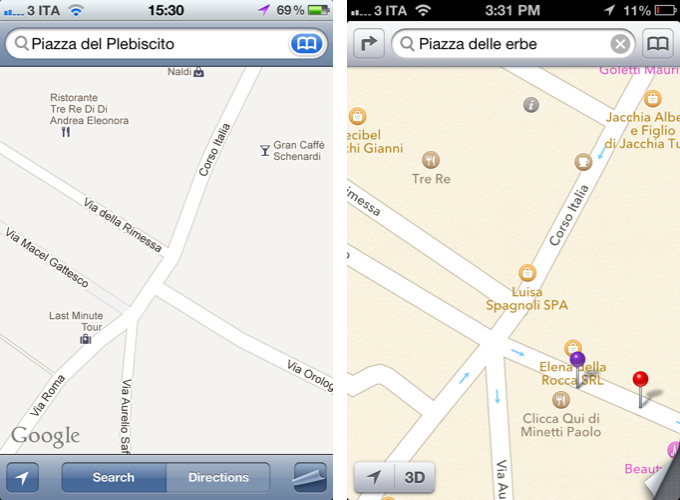
In my review of iOS 6 yesterday, I dedicated a section to Maps, comparing its features to those of iOS 5’s Google Maps product in Italy. Following yesterday’s launch, people have increasingly noticed that Maps, unlike Google Maps, is lacking in several areas like business listings, satellite views, Flyover accuracy, and more. Screenshots of Maps discrepancies with reality and plain-wrong data are all over the web.

In our Reading List in the sidebar (on the right), we’ve collected some of the best Maps-related articles from around the web.

There’s no denying that Maps will get better with time and usage. But unlike Siri, which Apple also said will get better with time, people have become dependent upon accurate maps for their livelihood. If I really had to nitpick, though, I, too, am curious to know how actually Apple plans to improve Maps without allowing customers to actively suggest other options.

Personally, I wonder how users who had (and will have) real-life issues like this would react to Apple’s statement.

Permalink

Use Term.ly As A Dictionary Pop-Up on OS X

Use Term.ly As A Dictionary Pop-Up on OS X

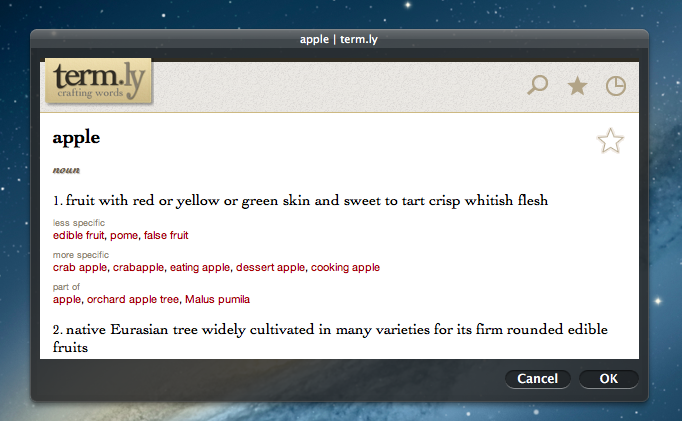
Earlier this week, Gabe of Macdrifter shared a great tip to use Term.ly, the dictionary service, as a pop-up to get definitions on OS X without opening the Term.ly website in the browser. His method requires building an Automator service that uses the “Website popup” action to display web contents inside a floating window, optionally using an iPhone resolution to get the mobile website.

I created an Automator service that allows me to select some text and then pop open the Term.ly definition as a small pop-over panel. I can then select a word in Term.ly and it will replace the selected word in my document and add the new term to my clipboard.

I like Term.ly because it’s easy to use, yet the content is focused and in-depth. For instance, the service will offer you “more specific” or “less specific” alternative words to choose from, and if it “understands” the word you’re passing along, say “tree”, it’ll also display options for “made of” (wood) and “member of” (forest). It’s really clever.

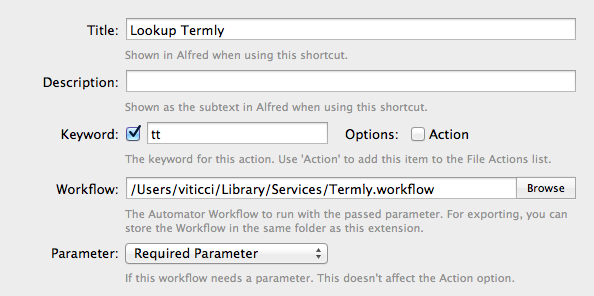
Gabe mentions it’s also possible to call the service using Launchbar. If you, like me, use Alfred instead, you can set up an extension that looks up words using Gabe’s workflow, as you can see in the screenshot above.

Term.ly is run by Agile Tortoise, which also happens to make two of my favorite iOS apps – Drafts and Terminology.

Permalink