Google Hangouts Evolves to Better Compete with Slack

Dieter Bohn of The Verge reports on some major changes coming soon to Google Hangouts. Google’s new strategy for the service aims to make Hangouts a formidable Slack competitor as a team collaboration tool. The changes are focused in two main areas:

  • Hangouts Chat will add new group chat rooms, similar to channels found within Slack, but with all the nice Google perks – Docs and Sheets integrations, extensive search tools, and a bot that can look at users’ Google Calendars and suggest the best meeting time.
  • Hangouts Meet is the new name of Hangouts’ video functionality, which Google promises will tie up far less processing power than before. Meet will also provide easy methods for adding people to a group call.

Bohn adds:

Google Hangouts has been having an identity crisis ever since Google tried to relaunch it as an end-all, be-all replacement for Gchat. It’s been ping-ponging between Google Plus, business video chat, Google Voice, Project Fi, SMS, and lord knows what else. Focusing on business chat seems like a better strategy — and thankfully one that doesn’t feel beholden to some other Google product with a dubious future. Hangouts is fully a Google Cloud / G Suite product now, and it will be developed for those users.

Google’s changes to Hangouts follow recent moves by Facebook and Microsoft in the collaborative chat space. These days, it seems everyone wants a piece of the workplace collaboration pie.

Apple added collaboration tools to iWork last year, but otherwise the company has shown no signs of creating its own competitor to Slack. I do wonder, though, how iMessage could potentially evolve in the future to serve many of the needs that tools like Slack currently meet. The user base is already there, and iMessage Apps could provide the extensibility needed to compete with Slack.

The question, however, is not “Could Apple do it?” Instead, it’s “Would they want to?” They could very well be content to simply serve as the platform where these competing services live.
Permalink

The Way Siri Learns New Languages

Stephen Nellis, writing for Reuters, shares an interesting look into Apple’s method for teaching Siri a new language:

At Apple, the company starts working on a new language by bringing in humans to read passages in a range of accents and dialects, which are then transcribed by hand so the computer has an exact representation of the spoken text to learn from, said Alex Acero, head of the speech team at Apple. Apple also captures a range of sounds in a variety of voices. From there, an acoustic model is built that tries to predict words sequences.

Then Apple deploys “dictation mode,” its text-to-speech translator, in the new language, Acero said. When customers use dictation mode, Apple captures a small percentage of the audio recordings and makes them anonymous. The recordings, complete with background noise and mumbled words, are transcribed by humans, a process that helps cut the speech recognition error rate in half.

After enough data has been gathered and a voice actor has been recorded to play Siri in a new language, Siri is released with answers to what Apple estimates will be the most common questions, Acero said. Once released, Siri learns more about what real-world users ask and is updated every two weeks with more tweaks.

The report also shares that one of Siri’s next languages will be Shanghainese, a dialect of Wu Chinese spoken in Shanghai and surrounding areas. This addition will join the existing 21 languages Siri currently speaks, which are localized across a total of 36 different countries.

Debating the strengths and weaknesses of Siri has become common practice in recent years, particularly as competing voice assistants from Amazon, Google, and Microsoft have grown more intelligent. But one area Siri has long held the lead over its competition is in supporting a large variety of different languages. It doesn’t seem like Apple will be slowing down in that regard.

Permalink

iPad Diaries: Optimizing Apple Notes

iPad Diaries is a regular series about using the iPad as a primary computer. You can find more installments here and subscribe to the dedicated RSS feed.


I’ve been using Apple Notes every day since its relaunch with iOS 9 in 2015.

Apple’s refreshed note-taking app landed with impeccable timing: it supported the then-new iPad Split View in the first beta of the OS released in June, and Apple deftly positioned Notes as a nimble, multi-purpose tool that many saw as a much-needed escape from Evernote’s bloated confusion. I almost couldn’t believe that I was switching to Apple Notes – for years, it had been derided as the epitome of démodé skeuomorphism – but the app felt refreshing and capable.

Notes in 2017 isn’t too different from its iOS 9 debut. Apple added integration with the Pencil in late 2015, private notes with iOS 9.3, and they brought sharing and collaboration features in iOS 10, but the app’s core experience is still based on the foundation laid two years ago. Unlike, say, Apple Music or Apple News, Notes has remained familiar and unassuming, which gives it an aura of trustworthiness and efficiency I don’t perceive in other built-in Apple apps (except for Safari).

I keep some of my most important documents in Notes – from bank statements to health records – and anything I want to save for later tends to be captured with Notes’ extension. Apple Notes is my brain’s temporary storage unit – the place where I archive little bits of everything before I even have time to think about them, process them, and act on them. Some of the content I save in Notes is eventually transformed into DEVONthink archives or Trello cards; other notes live in the app and they’re continuously edited to reflect what’s on my mind. I rely on Apple Notes and it’s one of my most used Apple apps (again, along with Safari).1

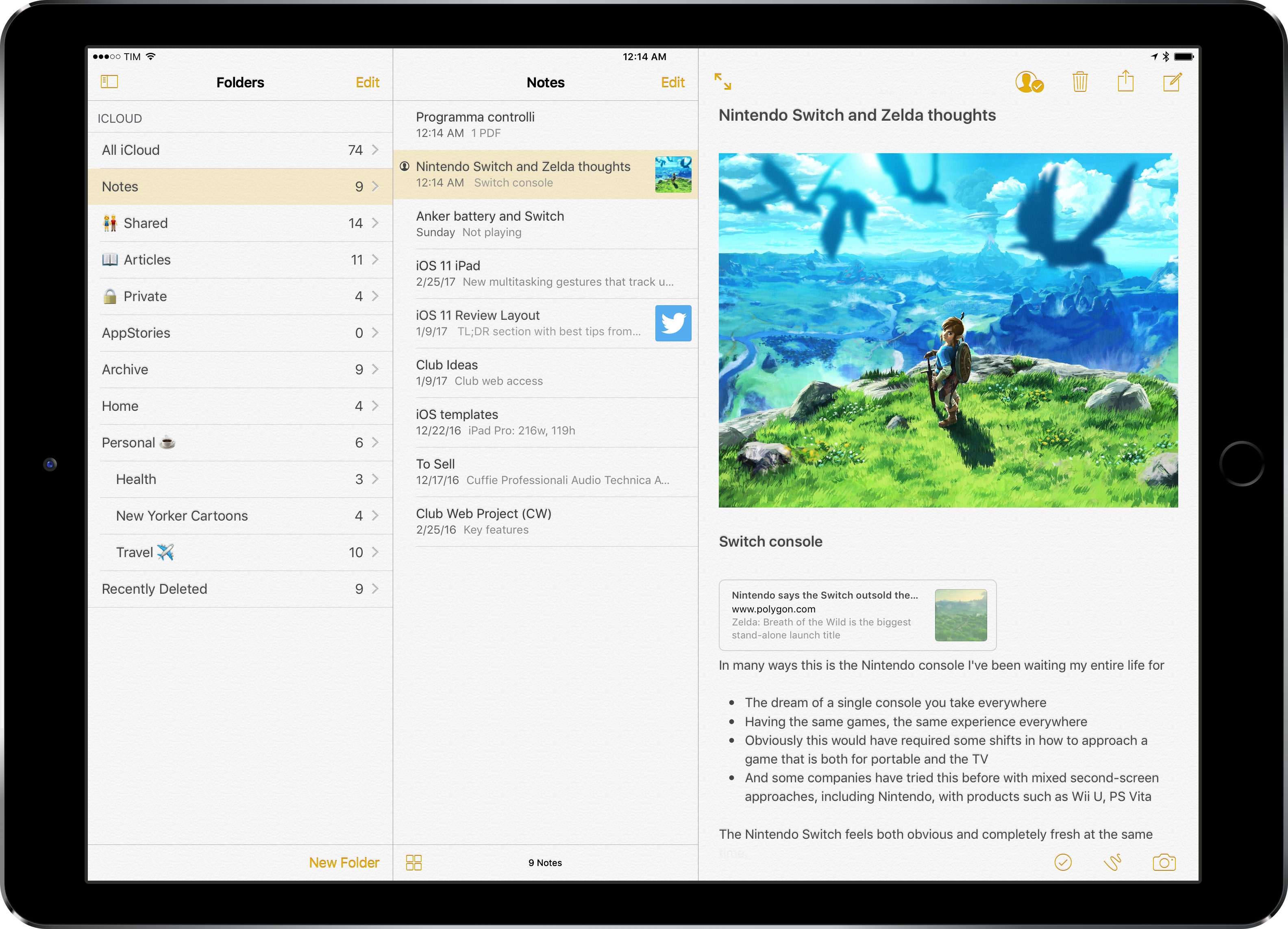
Apple Notes, however, is not a great pro iPad app. Notes falters where other Apple software falls short: it’s entrenched in iPhone paradigms at the expense of more advanced controls and customization options for iPad users. While Apple showed some promising steps towards “power-user features” with the three-pane layout added in iOS 10, I’ve long wished for a deeper degree of personalization in Notes for iOS. And given Apple’s reluctance to tweak Notes’ structure and functionality, I’ve come up with my own workarounds.

Read more


Bumpr Expands Your Choices of Where Links Open

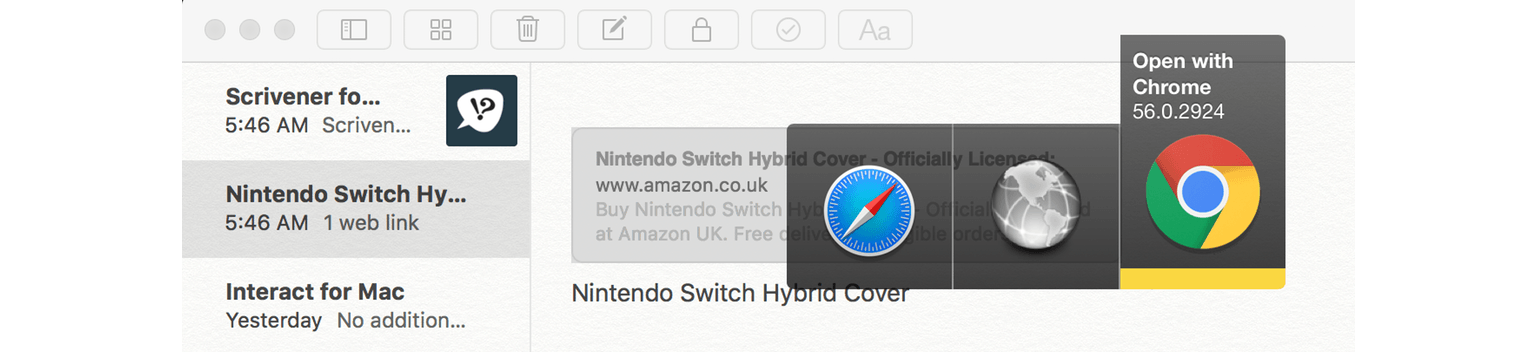
Bumpr is a clever Mac menu bar utility that is set as your default web browser and email client to give you more choice of how you open web and email links. That seems counterintuitive at first because setting a default usually means picking one app over another, but here’s how Bumpr works. Instead of opening a particular app, Bumpr intercepts the link and opens a menu of options for each of the browsers or email clients installed on you Mac depending on whether you click a web or email link.

Read more


Dropbox, Twitter iOS Apps Gain Option to Clear Cache

In the last two days, updates to the official Twitter and Dropbox apps for iOS have added an option to clear the contents of their caches.

Cache management has always been an issue on iOS: some apps can accumulate several hundred MBs of cached data and there isn’t an easy way to purge all these separate app caches, which is why companies are implementing their own custom solutions. Currently, Facebook has a cache of 534 MB on my iPhone; Twitter and Instagram have 365 MB; Super Mario Run, GIPHY, and Google Maps have 340 MB stored in cache.

These numbers add up, particularly if you don’t buy Apple’s highest-capacity iPhone models. I appreciate that developers are fixing this problem themselves, but Apple should add a native option in the iOS Settings app to clear app caches more easily.

Permalink

TouchRetouch Review: Object Removal Made Easy

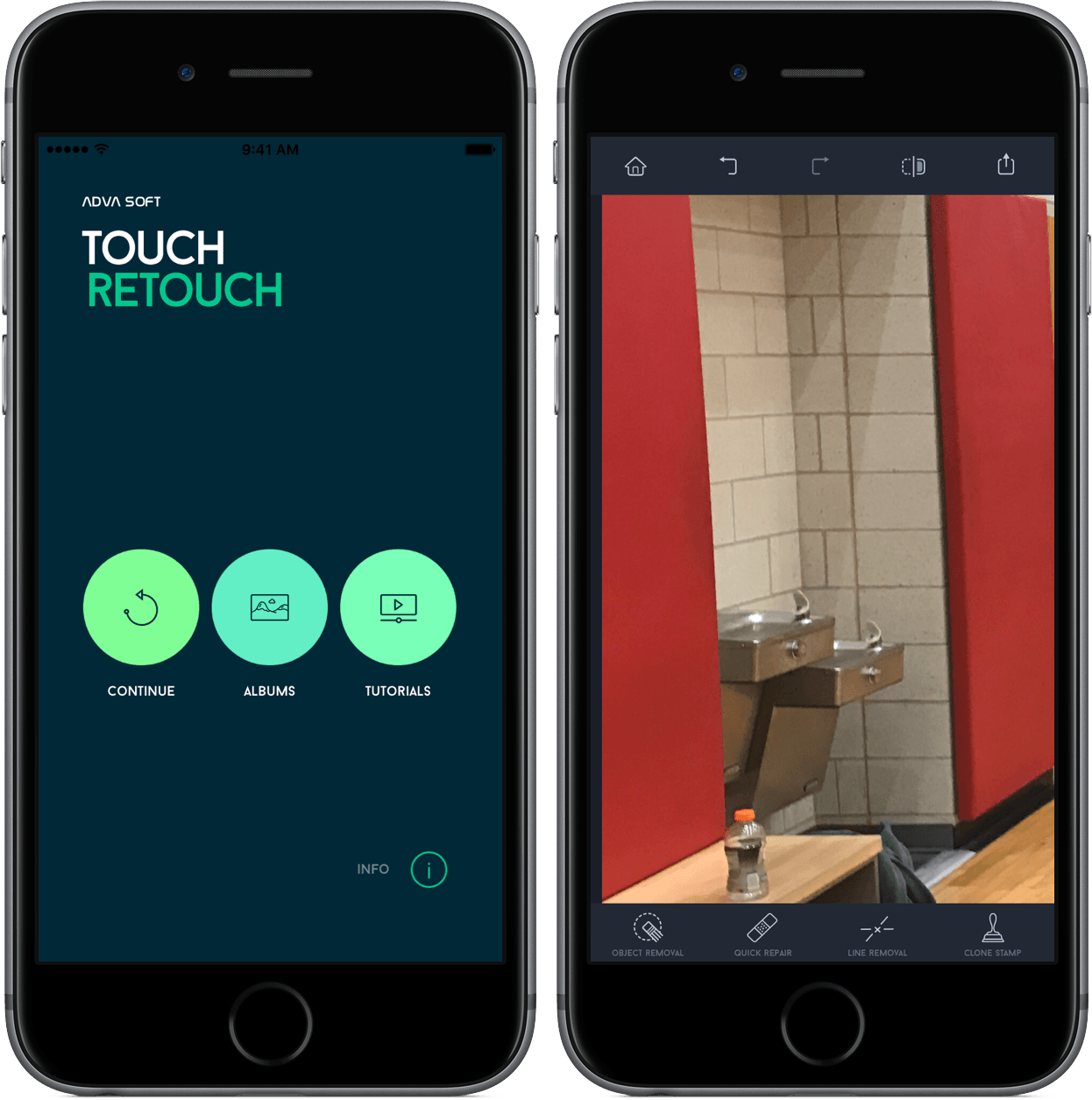
On my best days, I’m a novice photo editor – a lot of my work involves color and brightness tweaks to make my shots look better. If I’m feeling adventurous, though, I’ll try to touch up the pictures and remove unwanted objects, blemishes, or lines.

A lot of times, that ends in horrible failure.

However, TouchRetouch makes me feel like a pro photo editor. In just a few taps, I’ve been able to remove elements in my pictures at my will, making my photos look much better than before. And with a pretty interface and a low price, I think I’ve found another tool to add to my repertoire.

Read more


Connected, Episode 132: Fun Conjecture Hour

This week, Stephen talks about a possible iMac Pro while his co-hosts play Zelda. They come back to round robin some things that they find frustrating about working from iOS and the iPad.

On this week’s Connected, we share some more thoughts on USB-C and describe the areas where iOS is still lagging behind the Mac. You can listen here.

Sponsored by:

  • Casper: Because everyone deserves a great night sleep. Get $50 off with the code ‘CONNECTED’
  • Squarespace: Make your next move. Enter offer code WORLD at checkout to get 10% off your first purchase.
  • Away: Travel smarter with the suitcase that charges your phone. Get $20 off with the code ‘connected’.
Permalink

Prisma Launches Store for User-Created Filters

Prisma, the popular photo editing and sharing app, launched a filter store today with its latest update. The store allows filters created through a new desktop tool to be shared with others publicly. At this time, only the most active Prisma users can access the desktop tool and share their filters in the store, but according to The Next Web, the app’s developers hope to expand the option to more users in the future.

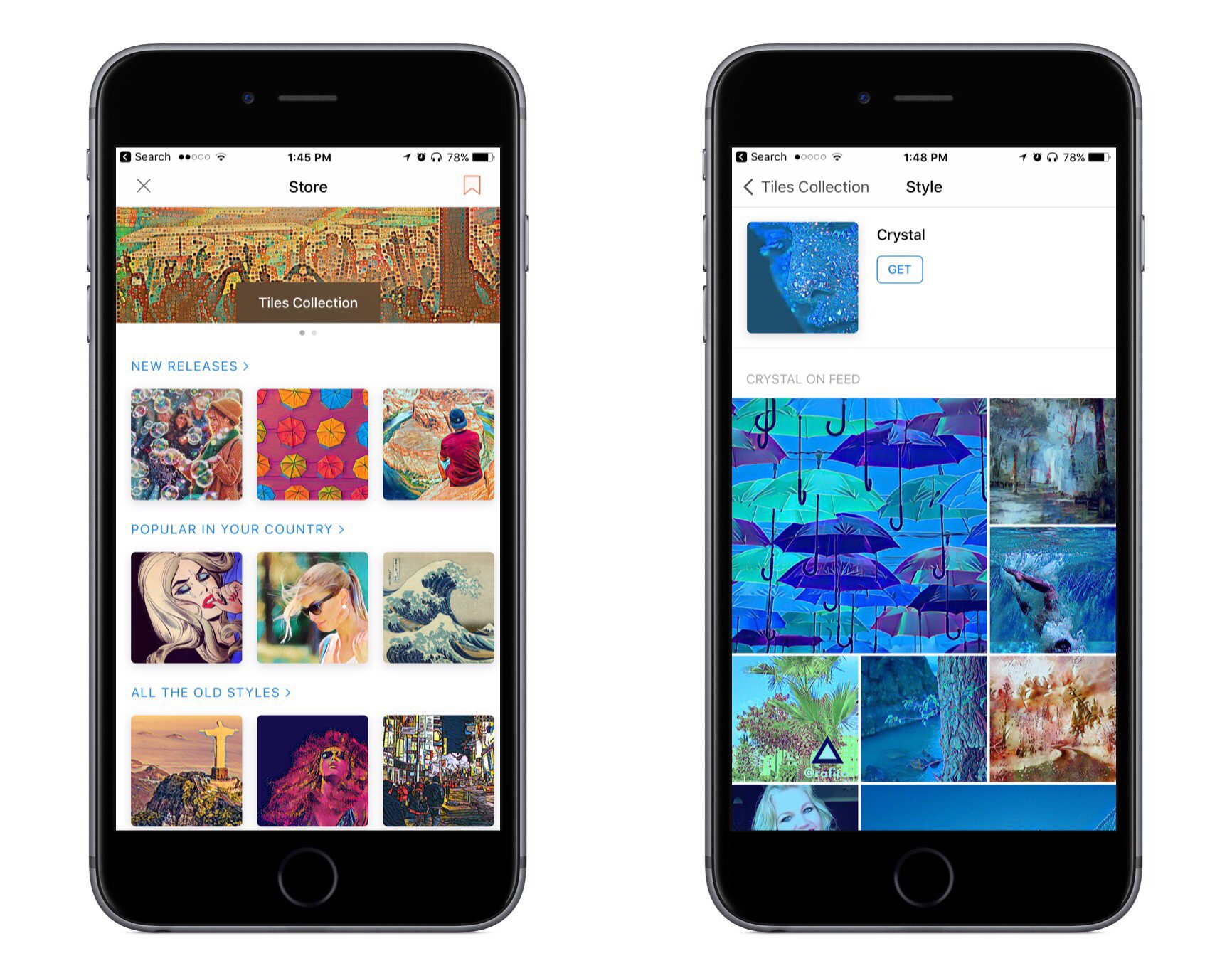
The filter store can be accessed whenever you’re taking a photo by tapping the orange icon in the center of the screen. The store’s main page presents a number of filters, currently categorized as ‘New Releases,’ ‘Popular in Your Country,’ and ‘All the Old Styles.’ There isn’t a particularly large selection of filters currently available, but that should change with time.

My favorite part about the store is that when you tap an available filter to view it, you’ll also see a feed of images that have used that filter. I find this helpful for evaluating whether a particular filter might work well with the type of photo I’m editing.

One other thing worth mentioning about the store is that on its main page there’s a bookmark icon in the top-right corner. Tapping this will present a list of all the filters you currently have installed. This is a nice way to gain a quick overview of all your current filters and remove any you may not want. You can also view filters you’ve removed in the past from this screen.


Prisma is a free download on the App Store.


Apple Pay Launches in Ireland, Coming Soon to Italy

Benjamin Mayo, writing for 9to5Mac:

As we reported exclusively last night, Apple Pay is now live in Ireland. The service allows iPhone and Apple Watch owners to use the NFC chips in their devices to pay for their shopping at contactless terminals in retail stores across the country.

Apple Pay requires iPhone 6, iPhone 6s, iPhone SE, iPhone 7, or any Apple Watch, and is launching with support for Ulster Bank and KBC in Ireland. Apple has also announced that the service is coming soon to Italy.

I’ve been waiting for Apple Pay to launch in Italy, and I’m glad to see Apple has confirmed the service will roll out “soon”. However, as I feared, my bank – despite being one of the largest banking groups in Italy – is not going to be supported at launch. This has happened with 14 other countries (including Ireland) before, though, and I hope Apple will quickly get other major Italian banks on board.

Permalink