Posts tagged with "photos"

Apple Releases OS X 10.10.3 with Photos App, New Emoji

Apple released version 10.10.3 of OS X Yosemite today, bringing a new Photos app that works with iCloud Photo Library from iOS 8, 300 new emoji, and a slew of bug fixes. We’re working on our Photos article – in the meantime, iMore has done an excellent job in covering iCloud Photo Library and the new app.

I use OS X twice a week at this point, so I only installed the public beta of 10.10.3 last week and took the Photos app for a quick spin. Since late last year, iCloud Photo Library has become my only photo management solution, where I’ve transferred about nine years of photos from all my devices. The new Photos app for Mac took a couple of minutes to download my library; after that, it showed the same collections and edits as my iPhone and iPad. The process was painless.

I’ve upgraded my iCloud account twice to put everything in iCloud Photo Library, and I couldn’t be happier. There have been many cautionary tales about Apple’s cloud services and photo management apps, but I think they nailed it this time. I’m happy with iCloud Photo Library because it’s seamlessly integrated with my iPhone’s camera and photos – I don’t have to manually upload anything, and I don’t have to think about managing photos. This is quite the departure from what I used to do, and I like how I’m not wasting time with scripts anymore.

For this reason, I welcome Photos for OS X. Even if not for me, I like knowing that my photos – the same photos I keep on other devices – will show up on my Mac as well.
Photos for OS X and Pros

Serenity Caldwell on Apple’s new Photos app for OS X:

See, true professionals know what they like, and can seek it out from Apple’s programs or elsewhere. But new users? They don’t know what they like, or what they need. They don’t know what the difference between an aperture and shutter speed is, or why that’s important. They just want to be able to take good pictures and make them look good for Twitter, Facebook, Flickr, cards, you name it. They want it to be easy.

Bingo. I may be an “advanced user” of some aspects of iOS, but when it comes to photography I don’t understand half of the terminology involved with prosumer photo apps.

I don’t know what kind of precise improvements my photos need. But I know what I want from my photo app – the simple ability to take a picture and have a single copy on all my devices. This is why I could never get into the idea of “processing” my photos: a picture is either good or bad for me, and the basic editing tools in the Photos app for iOS are enough for my needs.

As I wrote before, iCloud Photo Library is shaping up to be exactly what I want from iOS and OS X for photo management and lightweight editing.

Permalink

Photos for Mac Coming with OS X 10.10.3

Apple announced today that Photos for Mac, first showcased last year, will be included in Yosemite’s 10.10.3 update set to be released later this Spring. As previously explained, Photos for Mac will sync with iCloud Photo Library and replace iPhoto as the single place where users will be able to browse, organize, edit, and share their photos.

A few months ago, I took all my photos and put them into iCloud Photo Library. I’m talking about almost 9 years of photos stored in iCloud. The service (which costs me €0.99/month as everything is under 20 GB) has been working extremely well for me. Photos are available on all my devices and I like that I can take pictures on my phone, come home, and find everything on my iPad when I sit down.

I’m curious to see how Photos for Mac will integrate with the rest of the ecosystem and if performance will keep up. In the meantime, you can read hands-on impressions at The Verge, Re/Code, and Wired.

Permalink

Why Every Photo Storage Startup Dies Or Gets Acquired

Casey Newton on Picturelife selling to StreamNation:

No wonder people keep building superior services: it’s impossible to store your photos with Apple, or Google, or Amazon, and not imagine you could do it better. And the need grows larger every day. Last year, trend forecaster Mary Meeker of Kleiner Perkins estimated that we upload 1.8 billion photos to the internet a day, up from 500 million the year before. But while services like Picturelife have attracted thousands of paying customers — I’m one of them — they haven’t found enough to build a sustainable business.

I liked Picturelife. For a while, I used it to browse photos, even though I still kept a copy in Dropbox for backup.

These days, I’m using iCloud Photo Library, with no other backups or workflows involved. I pay €0.99/month for iCloud storage and all my pictures are on my iPhone, iPad, and iCloud.com. I realize that this is an unpopular choice – primarily because of iCloud’s not-so-great reputation – but the service has been working flawlessly for me and I like how I don’t have to think about managing it. It’s built right there into the Camera and Photos app and it demolished the need for a third-party photo app for me.

I hope this post won’t jinx it.

Permalink

Pixel Picker iOS 8 Extension Picks Colors from Images in Any App

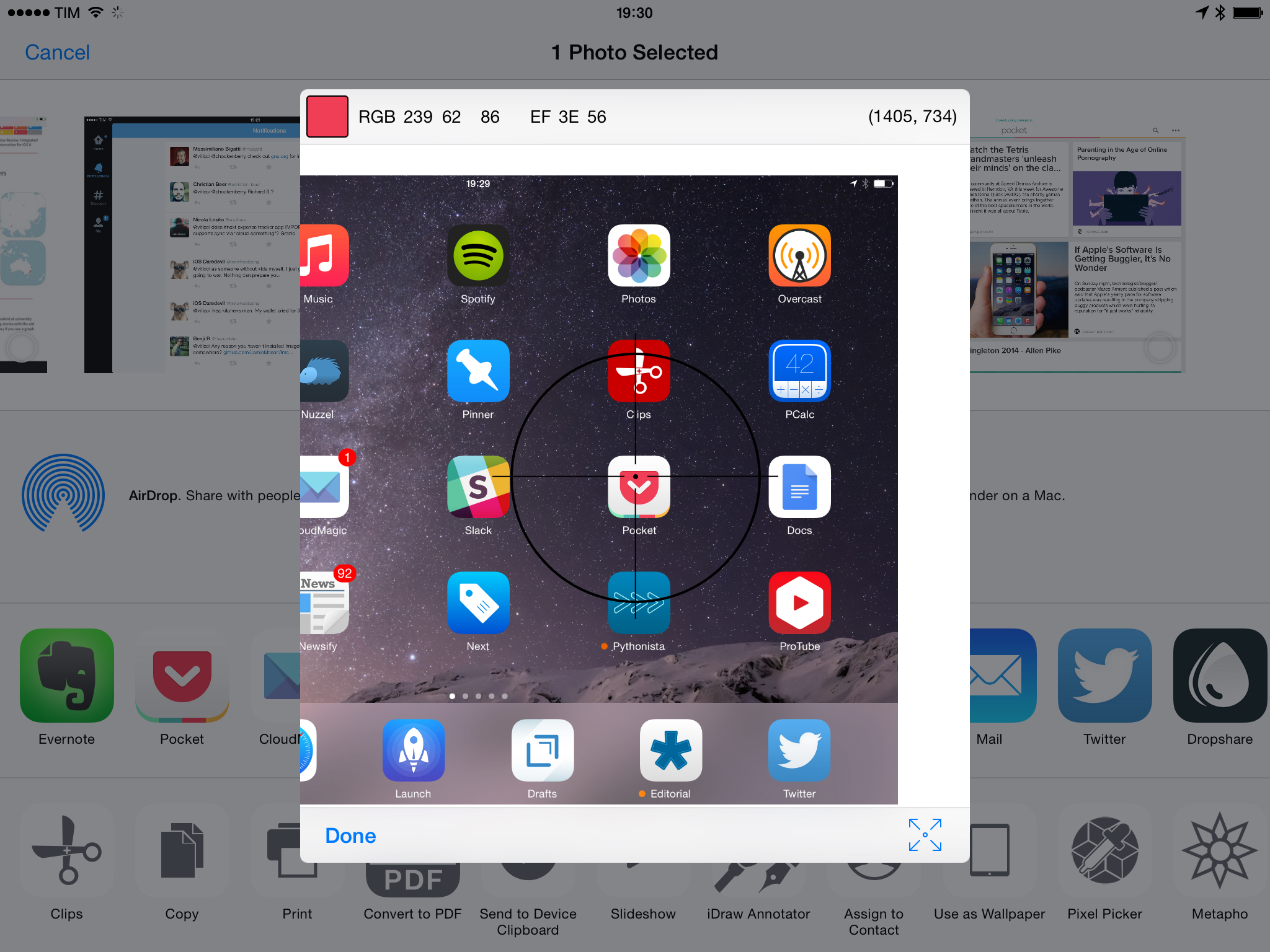
The Pixel Picker action extension in Apple's Photos app.

The Pixel Picker action extension in Apple’s Photos app.

I sometimes need to pick specific colors from screenshots I take on my iPhone and iPad, and while I’m aware of the existence of more powerful color pickers for iOS, I’ve been using and liking Pixel Picker.

Developed by Muse Visions, Pixel Picker is a simple and free app for iOS 8 that uses an extension to bring up a color picker in the Photos app. Through an action extension, you can bring up Pixel Picker for any image in your library; the extension will take the selected image, put it in a popup, and display a picker you can move over the pixels you want to know the color of. Because the extension works for any image that can be passed to the iOS 8 share sheet, you can run Pixel Picker in any other app that can share images, such as Messages or Twitterrific.

You can pick pixels more precisely by zooming and panning on the image, and the extension will display the RGB code of the recognized color in the upper left corner of the popup window.

Unfortunately, Pixel Picker doesn’t come with a button to quickly copy the RGB value to the clipboard, nor does it offer additional options besides picking one color at a time. It’d be nice to save colors into personalized palettes, have different output values, or perhaps have a history of colors saves from the extension.

Pixel Picker is decidedly not for designers and developers who need a serious tool for web or app design. In spite of its limitations and barebones UI, Pixel Picker gets the job done for me. The action extension is simple enough and it works, and, while the app is free, you can unlock a $0.99 In-App Purchase to remove ads in the app (you never see them in the extension) and support the developer.

Pixel Picker is available on the App Store.


Metapho’s iOS 8 Extension Lets You Quickly Share Photos Without Metadata

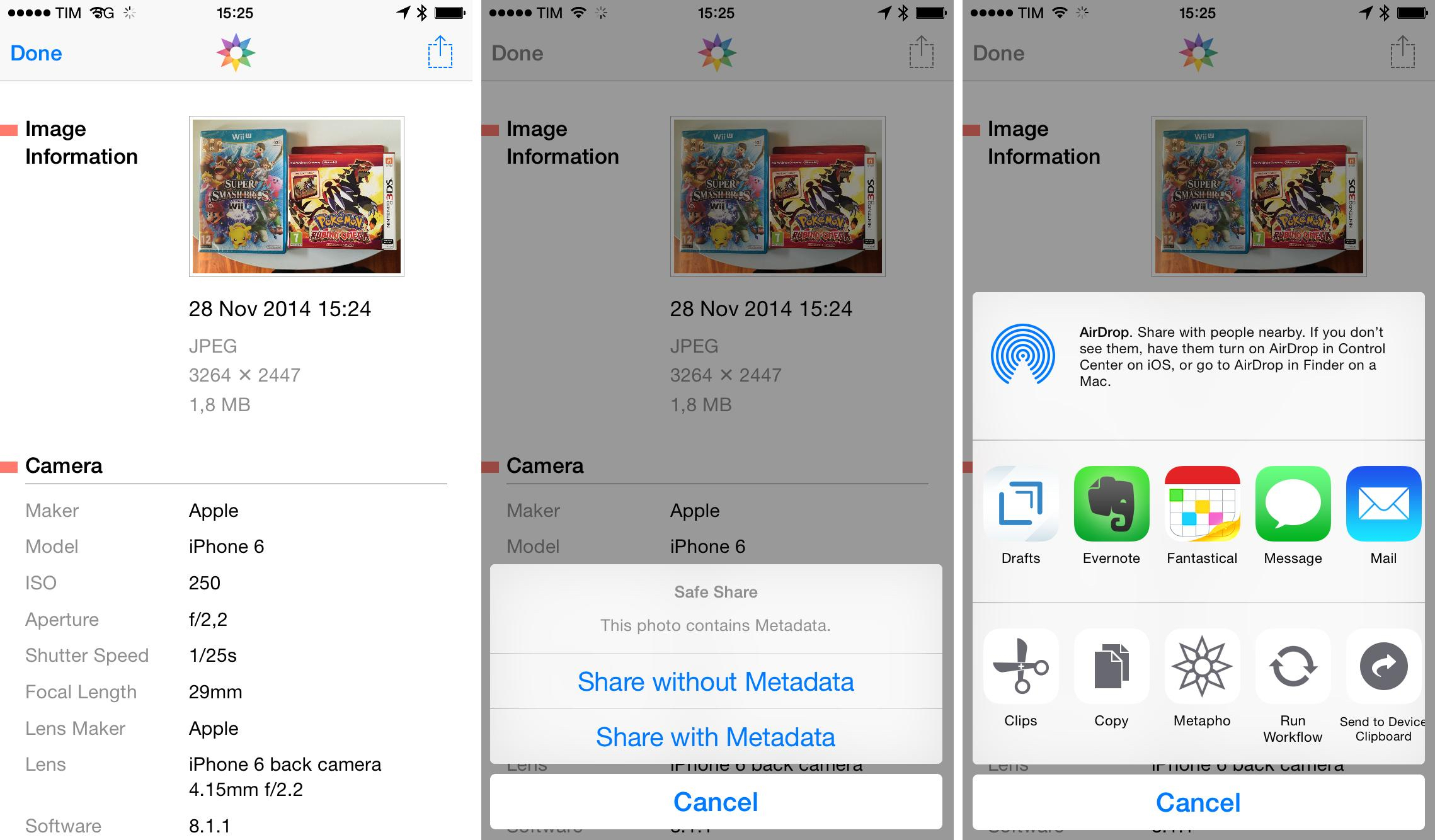
I often want to share photos without revealing the extra bits of information contained inside them – generally, I just don’t want people to know the location where a picture was taken. I’ve talked about how to remove metadata from iPhone photos before, but Metapho (an app that I briefly mentioned in September) now lets you easily share photos without metadata thanks to iOS 8’s extensions.

Read more


What Photographers Need to Know About iOS 8.1 and Yosemite

The new OS X and iOS jive better now than ever before. Both platforms are packed with new features and I’ve only touched on the aspects that are especially significant for photographers. I’m personally most excited about iCloud’s ability to give us access to our image archive at all times and AirDrop between Mac and iPhone.

Photographer Austin Mann (you may have heard of him before) has shared a good collection of tips and tricks for taking pictures and managing files on iOS 8.1 and OS X Yosemite. I’m trying iCloud Photo Library as my main photo management solution, and I’m positively (and surprisingly) impressed so far.

Permalink

Built for iOS 8, DateStamper Lets You Apply Date Stamps to Photos

Photo shot on iPhone 6 and modified with DateStamper (vibrancy effect).

Photo shot on iPhone 6 and modified with DateStamper (vibrancy effect).

When I was a kid, my parents used to take a lot of pictures. Family gatherings, vacations, Sunday road trips, our dog growing up. They weren’t photographers by any means – they just wanted to document our lives and create memories. They useddisposable Kodak cameras most of the time – lots of them. Before smartphones and when “cellphones” meant this, those thousands of pictures collected in dozens of photo albums are the ones that stuck around to this day. They haven’t been lost in a cloud backup. They’re in my closet.

Read more