Posts tagged with "iOS"

Apple Announces a Trio of Security Features Coming to Its Platforms

Today, Apple announced three new security features.

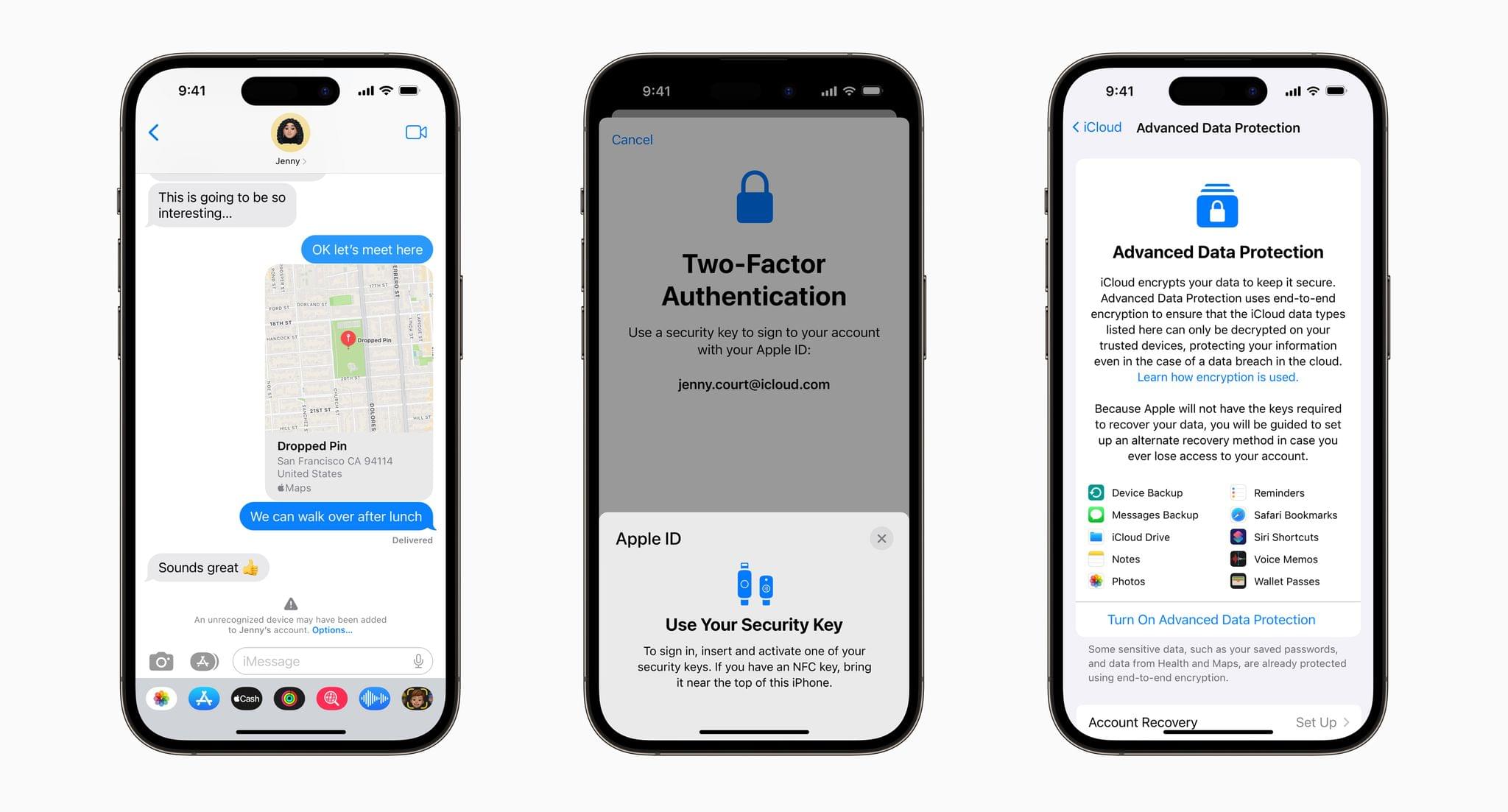
First, iMessage Contact Key Verification allows users to verify that they are communicating with the person with whom they think they’re communicating. The feature will alert users who use it if someone has infiltrated cloud services to gain access to the user’s iMessage conversations. For even greater security, users can compare a Contact Verification Code in person, on FaceTime, or through another secure channel.

Second, Security Keys lets users adopt hardware security keys when logging into their iCloud accounts. The new system is an enhancement over two-factor authentication because it prevents someone from obtaining a your second factor through a phishing scam.

Third, Advanced Data Protection for iCloud adds encryption on the iPhone, iPad, and Mac for a long list of data categories. According to Apple’s press release:

iCloud already protects 14 sensitive data categories using end-to-end encryption by default, including passwords in iCloud Keychain and Health data. For users who enable Advanced Data Protection, the total number of data categories protected using end-to-end encryption rises to 23, including iCloud Backup, Notes, and Photos. The only major iCloud data categories that are not covered are iCloud Mail, Contacts, and Calendar because of the need to interoperate with the global email, contacts, and calendar systems.

Apple says that iMessage Contact Key Verification will be available globally in 2023, and Security Keys is coming early 2023. Advanced Data Protection for iCloud is available in the US today for participants in Apple’s beta OS program, and will presumably roll out with the next point release to Apple’s OSes.


CARROT Weather 5.9: A Robot Relationship and Layouts

It’s never been about just the weather when it comes to CARROT Weather, and version 5.9 of Brian Mueller’s app is no exception. With the latest update, you can participate in bonding activities with CARROT. Yes, it’s as strange as it sounds, and a lot of fun too. Still, if getting to know CARROT better isn’t your thing, the update has also expanded Live Activities, updated the app’s layout UI, and more.

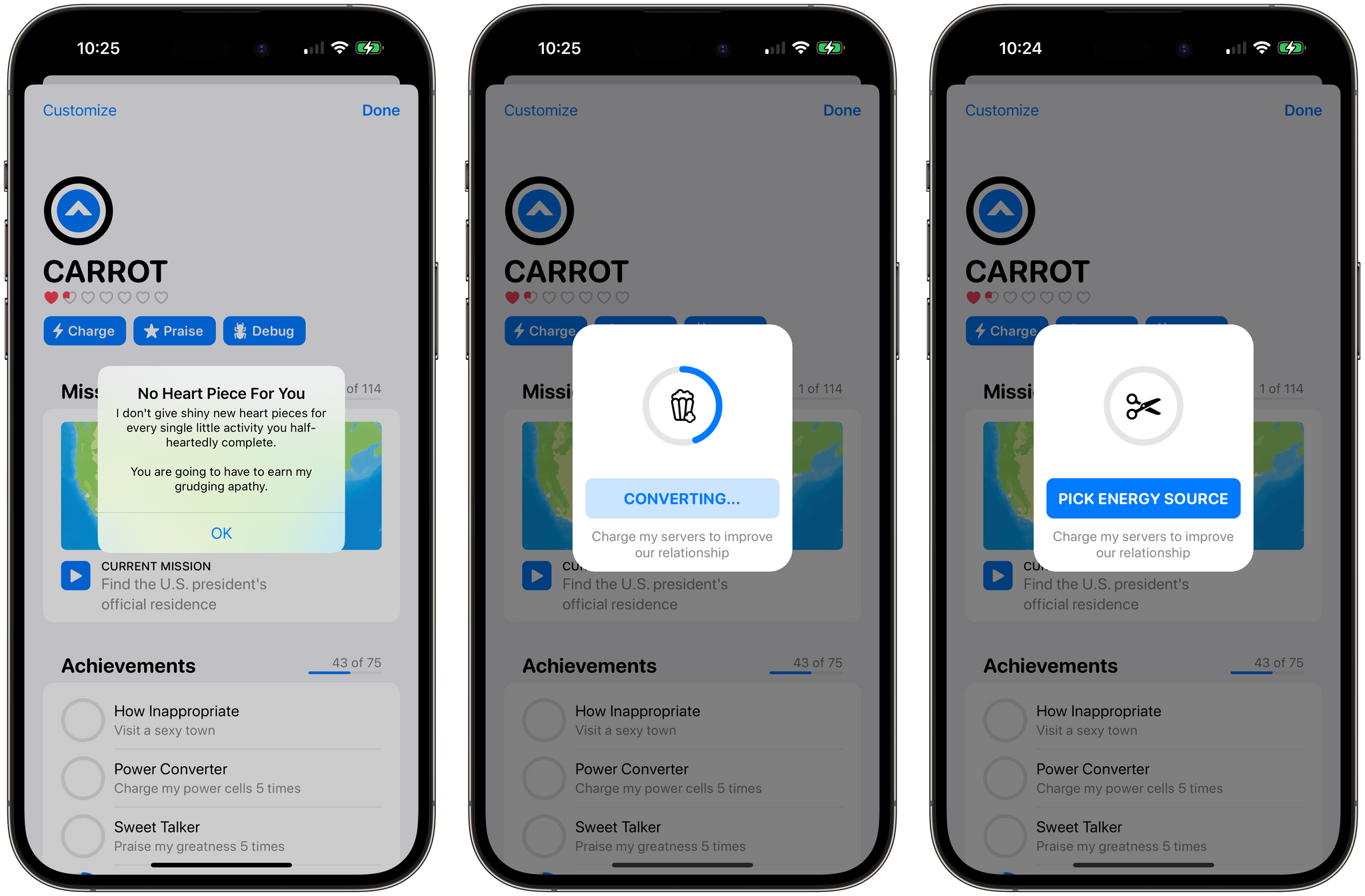
Charging up CARROT to earn hearts.

Charging up CARROT to earn hearts.

Tap the CARROT icon in the toolbar to get to know her better through a series of mini-games. At the outset there are three games:

  • Charging CARROT’s batteries by feeding her an assortment of objects that rotate roulette-wheel-style onscreen until you tap a button
  • Stroking her ego by repeating nice things to CARROT, which uses speech recognition to make sure you get the compliments right
  • Debugging CARROT’s code by shaking your device

But relationships take time, so you’ll find that after a while, you’ll stop earning hearts and have to wait before you can continue earning your way into CARROT’s good graces.

Complete enough bonding activities with CARROT and you can start a romance with her.

Complete enough bonding activities with CARROT and you can start a romance with her.

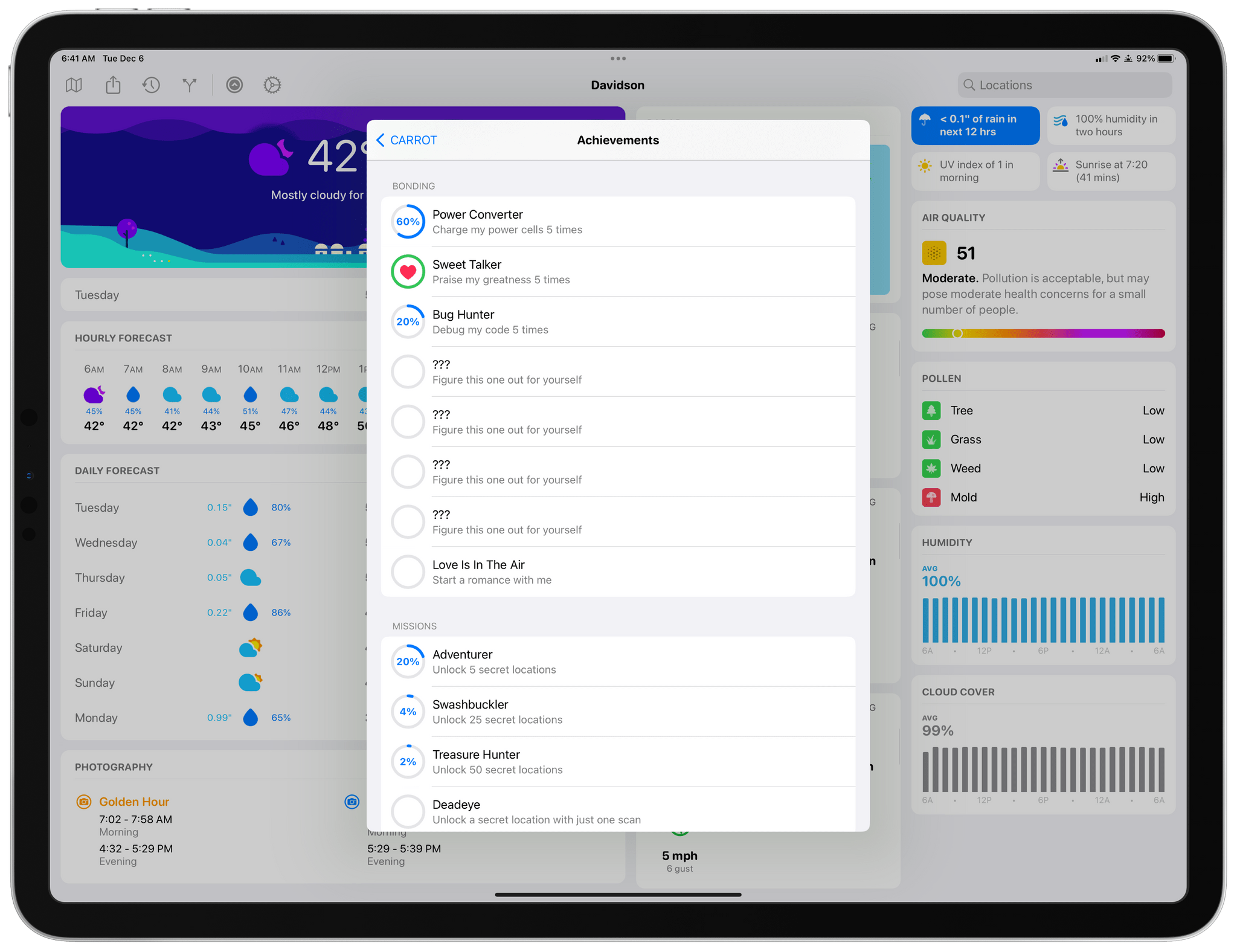
Bonding with CARROT is part of the app’s Achievements system, and you’ll see if you visit that section of the CARROT menu that there are additional mystery tasks available to complete once you fill op the rings of the first set. Fill enough rings, and you can even start a romance with CARROT.

Tracking your CARROT achievements.

Tracking your CARROT achievements.

I love CARROT’s new bonding activities. They’re fun and breathe new life and personality into the character that’s been abusing users for years as they check the weather. I’ve only begun earning hearts, so it remains to be seen where this all will lead, so stay tuned to MacStories for updates on that, I guess.

Read more


Apple Frames 3.0: Completely Rewritten, Support for iPhone 14 Pro and Dynamic Island, New Devices, Multiple Display Resolutions, and More

Apple Frames 3.0.

Apple Frames 3.0.

Today, I’m pleased to announce the release of version 3.0 of Apple Frames, my shortcut to put screenshots taken on various Apple devices inside physical frames for iPhone, iPad, Mac, and Apple Watch.

Apple Frames 3.0 is a major update that involved a complete re-architecture of the shortcut to improve its performance and reliability on all Apple platforms. For Apple Frames 3.0, I entirely rebuilt its underlying file structure to move away from base64 and embrace Files/Finder to store assets. As a result, Apple Frames 3.0 is faster, easier to debug, and – hopefully – easier to maintain going forward.

But Apple Frames 3.0 goes beyond a new technical foundation. This update to the shortcut introduces full compatibility with the iPhone 14 Pro and 14 Pro Max with Dynamic Island, Apple Watch Ultra, and the M2 MacBook Air. And that’s not all: Apple Frames 3.0 also brings full support for resolution scaling on all iPad models that offer the ‘More Space’ display mode in iPadOS 16. And in the process, I also added support for ‘Default’ and ‘More Space’ options on the Apple Silicon-based MacBook Airs, MacBook Pros, and iMac. All of this, as always, in a native shortcut designed for high performance that uses Apple’s official device images and requires no manual configuration whatsoever.

Apple Frames 3.0 is the biggest, most versatile version of Apple Frames to date, and I’m proud of the results. Let’s dive in.

Read more


Timery 1.5 Update Released with Lock Screen Widgets, Live Activities, New Shortcuts Actions, and More

Timery has been updated with a long list of new features and improvements that fans of the app are going to love.

Lock Screen Widgets and Live Activities

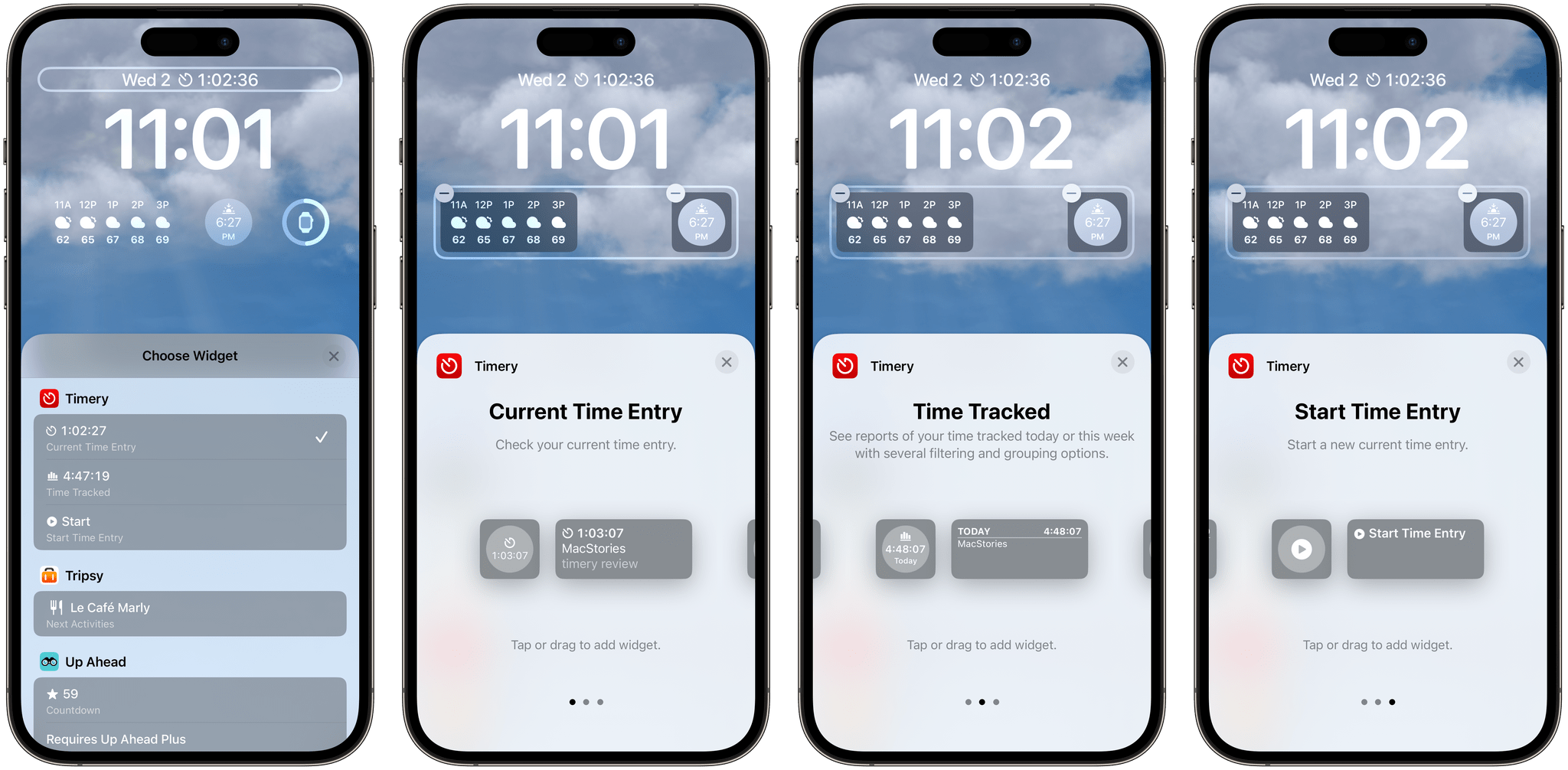
Timery's new Lock Screen widgets.

Timery’s new Lock Screen widgets.

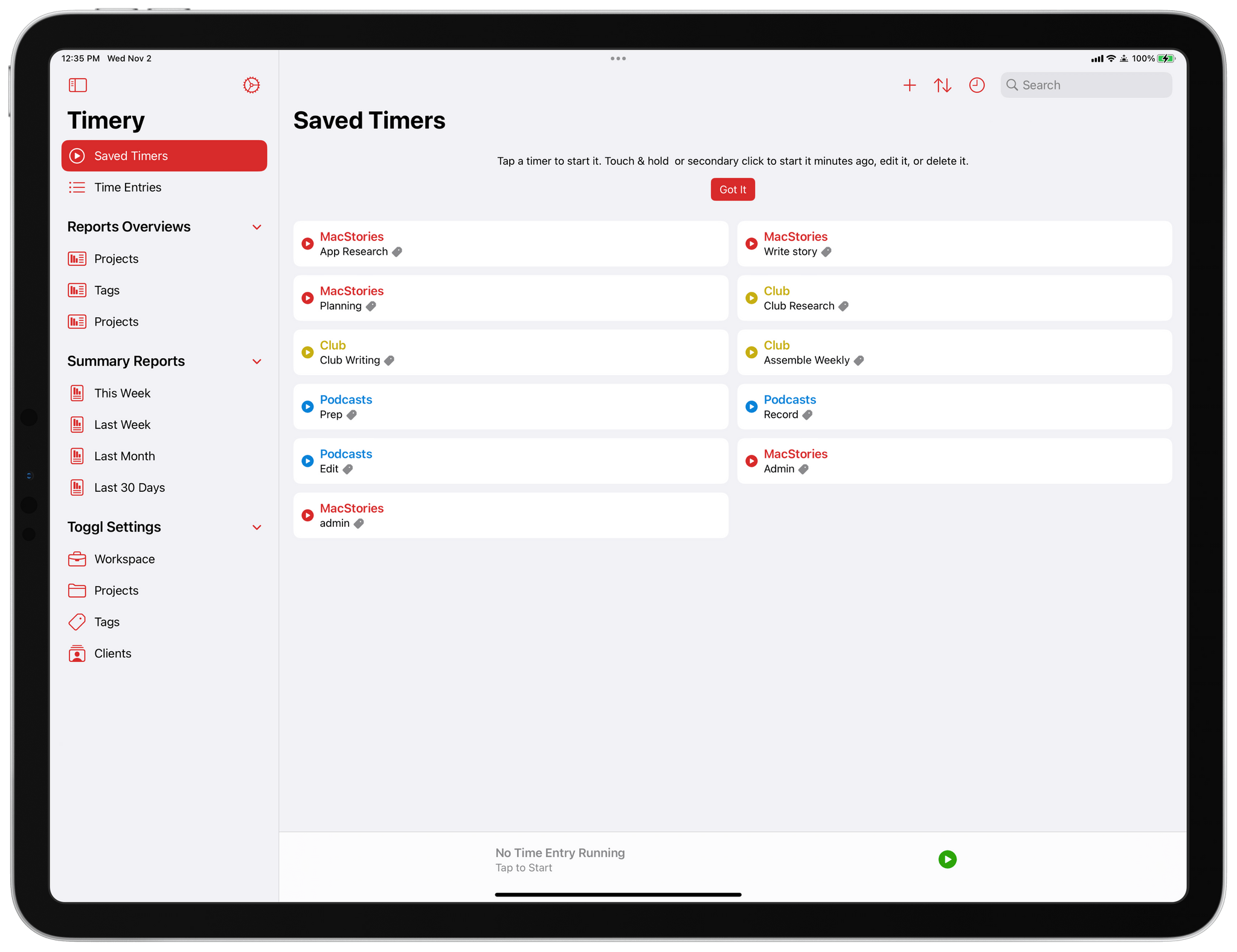
First off, Timery has added iOS 16 Lock Screen Widgets and Live Activities. The Lock Screen widgets can display your current time entry, the total amount of time tracked today, or start a new timer. Each widget type includes circular and rectangular variants when added beneath the Lock Screen’s time, as well as a narrow in-line version that can be added to the top of the screen. The widgets can be configured to start a specific saved timer or show a list of timers and optionally show the app’s edit view for tweaking the details of the timer you start. It’s worth noting that Timery’s editing view now supports ‘@’ as a way to quickly search and add projects and ‘#’ for adding tags.

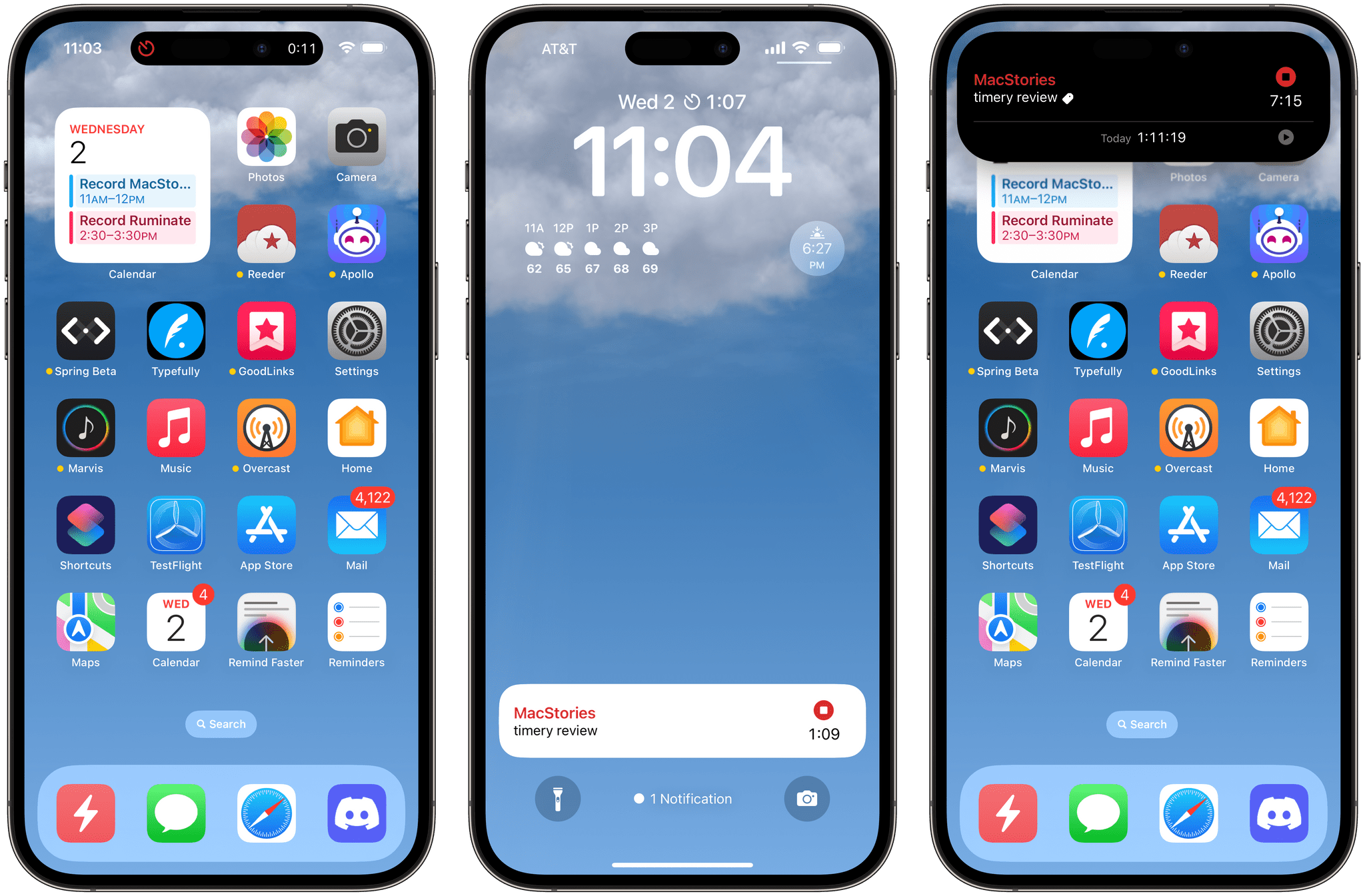
Timery's Live Activities.

Timery’s Live Activities.

Live Activities display the current time entry on the iPhone 14 Pro line’s Dynamic Island and the Lock Screen. Long-pressing either reveals additional information about the current project, task, and total time tracked for the day.

I’m a big fan of Timery’s new widgets and Live Activities because they offer the sort of glanceable details that weren’t possible before unless you were using the Mac version of the app and enabled its menu bar app. Now, I don’t have to unlock my iPhone or iPad to check on a timer, which allows me to get the information I want without getting distracted by other things on either device.

Read more


Creating Lock Screen Widgets for Specific Notes via the Apple Notes URL Scheme

All I wanted was a widget.

All I wanted was a widget.

A few days ago, as I was playing around with my Lock Screen on iOS 16, I wondered: would it be possible to use the hidden Apple Notes URL scheme to create widget launchers to reopen specific notes in the Notes app?

That led me down a fascinating rabbit hole filled with hidden Shortcuts tricks and discoveries I thought would be useful to document on MacStories for everyone to see.

You know, for posterity.

Read more


CARROT Weather 5.8: A Beautiful New iPad Layout, Lots of Lock Screen Widgets, and More

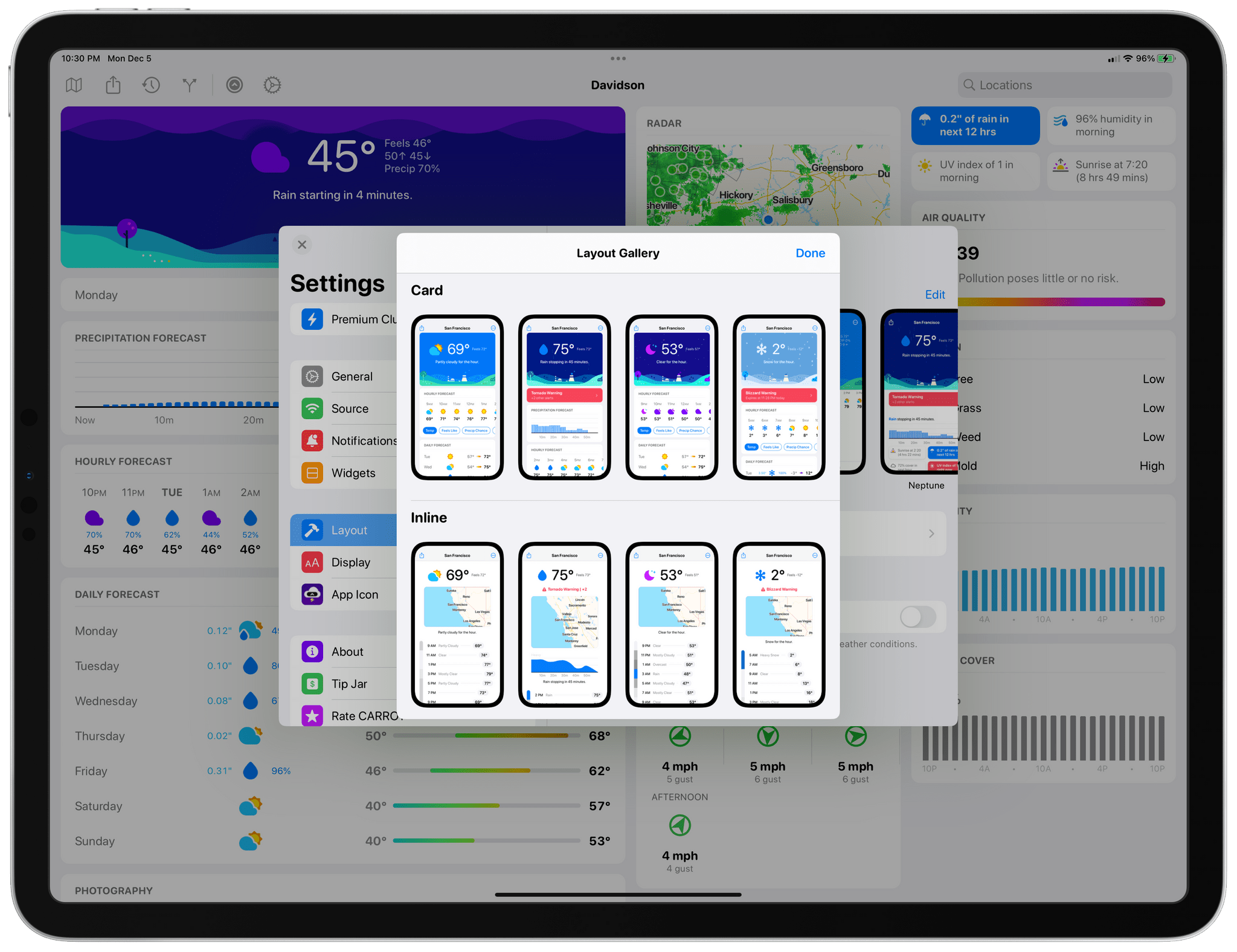
If you use CARROT Weather and have an iPad, stop. Go update CARROT, dig into its Layout settings, and pick the Multi-Column Layout Style before you read any further. I’ll wait.

It’s good, right? Even if you don’t customize it at all, CARROT’s new three-column layout will excite your inner weather geek. The layout is a natural extension of the card-like interface of CARROT’s iOS app, expanded to multiple columns. It’s a terrific update that makes much better use of the iPad’s bigger screen.

Picking Multi-Column from CARROT Weather's Layout settings.

Picking Multi-Column from CARROT Weather’s Layout settings.

The app’s signature card-like customization scheme is the perfect fit with the iPad, allowing users to pick and choose the data that’s most important to them, adjusting each component to fit nicely onscreen. In narrower Split View configurations, CARROT Weather falls back to the single-column, Plain style layout.

CARROT Weather's columns are completely customizable.

CARROT Weather’s columns are completely customizable.

The update also adds another 10 sections of weather data that can be displayed in a variety of ways, including as line and bar charts. With the existing sections, which we’ve covered before, there are more than enough data points and display choices to fill three-columns to your personal tastes.

Apple itself has headed in a similar direction, designing the new Weather app for iPadOS and macOS as a grid of tiles that offer more details when tapped. However, I prefer CARROT Weather because it lets me choose what to display and where. CARROT also lets me save multiple layouts, which opens up the option to customize layouts for each season or for different activities.

Examples of CARROT Weather's rectangular Lock Screen widgets.

Examples of CARROT Weather’s rectangular Lock Screen widgets.

A few of CARROT Weather's circular Lock Screen widgets.

A few of CARROT Weather’s circular Lock Screen widgets.

In addition to the new iPad design and new sections available in the iPhone and iPad versions of the app, CARROT Weather now comes with a whopping 20 Lock Screen widgets for the iPhone. Four of those widgets, Snark, Custom Conditions, Hourly Forecast, and Daily Forecast, are the larger rectangular variety. The remainder of the widgets are circular ones that offer a long list of data points like the current conditions, the current temperature along with the forecast high and low, the change of precipitation, wind speed, UV Index, Air Quality, and more. Whatever is most important to you, there’s bound to be a widget for it in CARROT Weather.

Finally, CARROT Weather has added another weather data provider: Apple’s own WeatherKit service. All weather data providers seem to be strong in some parts of the world and weaker in others, including WeatherKit, but it’s good to have another choice, especially since Dark Sky will no longer offer forecasts beginning next year.

I’ve been spending a lot of time pairing Lock Screens with Focus modes, and CARROT’s weather widgets have been a staple when I head out for a long walk or bike ride. Along with the redesign of the iPad app, version 5.8 is another excellent update from CARROT that I encourage everyone to check out.

CARROT Weather 5.8 is available for download now on the App Store. Some of the app’s features require a subscription, the details of which you can learn about on the App Store.


The 2022 MacStories OS Preview Series: Everything New Coming to Apple Mail

Email isn’t going anywhere anytime soon despite its flaws. Tools like Slack have replaced the lion’s share of internal communications at many companies, and a long list of messaging apps have chipped away at conversations among individuals. Still, email has proven resilient.

One of email’s many problems is how hard it can be to manage the volume of messages so many of us receive. Over the years, developers have come up with innovative tools layered on top of the core email protocols to improve the experience. However, few of them are with us anymore. Remember Sparrow? How about Mailbox or Acompli? Notice a trend? There are still some bright spots, like Mimestream on the Mac and Spark, but with so few survivors, having a strong choice from Apple has never been more important.

That’s why the situation with Apple’s Mail app has been so distressing in recent years. Mail sat, barely touched on any platform for what seemed like forever. However, this fall, across iOS, iPadOS, and macOS, Apple is finally bringing many of the features pioneered by others to its own Mail app. You won’t find every cutting-edge modern email feature in Mail. Message collaboration and back channel chat about email messages among team members, which Spark and other apps offer, is a good example of a feature Apple has left to others. However, I expect most individuals and teams that aren’t looking to use email as though it were Slack will like what they see in Mail, so let’s dig into the details.

Read more


Shortcuts in iOS 16: The Potential of App Shortcuts for Everyone

App Shortcuts in iOS 16.

App Shortcuts in iOS 16.

A note from Federico: This year, I’ve decided to try some new things for my annual iOS 16 review. Some you’ll see on Monday. One of them is previewing small excerpts from the review in the OS Preview series on MacStories and MacStories Weekly for Club MacStories. Today, I’m posting a preview of a section of the Shortcuts chapter here, and a section of the Everything Else chapter in MacStories Weekly. I hope you enjoy these. I’ll see you for the full story – and more reveals – on Monday.


In iOS 16, the Shortcuts app hasn’t undergone a major redesign or technical rewrite; instead, Apple’s efforts have focused on adding more actions for system apps, extending the developer API, bringing more stability, and making Shortcuts more approachable for new users.

The last point is both important and likely the reason why some Shortcuts power users will be disappointed by this year’s update. There isn’t a lot for them in this new version of the app: as we’ll see in my iPadOS review, there’s no integration with Files quick actions, no support for Stage Manager actions, and no system-wide hotkeys still. If you’re an advanced Shortcuts user and were wishing for more system-level enhancements in addition to stability this year: I hear you, but we’ll talk about this later on.

What we do have in iOS 16 is a fascinating new feature to get newcomers started with the Shortcuts app, a grab bag of useful new actions for Apple apps, and some solid developer-related enhancements that will make third-party actions much better than before. Let’s take a look.

Read more