This Week's Sponsor:

BetterTouchTool

Now with a Powerful Launcher for Your Mac


Posts tagged with "email"

Sparrow for iPhone Review

Back in 2006, when Apple was still rumored to be working on a revolutionary mobile phone, many wondered if such device would be able to do core tasks like email and messaging as well as RIM’s BlackBerry. Months later, when the iPhone was officially announced at Macworld, the introduction of the device alone led some people to write that it was “already impacting its new competitors” – namely RIM, and its BlackBerry line of phones that had captured a great portion of corporate America. Yet, those people were right: the numbers are speaking for themselves now, and the many issues behind RIM’s poor management and marketing choices can be traced back to the iPhone’s introduction.

At Macworld 2007, a healthy-looking Steve Jobs said: “This is a day I’ve been looking forward to for two and half years. Every once in a while, a revolutionary product comes along that changes everything. […] Today we’re introducing three revolutionary products of this class.

Today Apple is going to reinvent the phone”.

Looking back at that day now, it’s a shared sentiment among those who have been following Apple for the past years that Steve touched his highest point in presentation style and product-unveiling skills with that keynote. Because while Steve may no longer be with us today, his words still resonate stronger than ever. On that day, Apple did reinvent the phone. And as it turns out, the revolution wasn’t just about multitouch and elegant hardware design.

It was about the software.

Later on during that keynote, Steve arrived at the third section of the presentation and iPhone feature set, which was also described as an “Internet communications device”. The first item in that slide was Rich HTML email – “for the first time, really rich email on a mobile device”, he said. Sure enough, the iPhone’s Mail app was demoed on stage to show off its rich HTML-parsing capabilities, which included inline images, rich text, support for phone numbers and web links, and more. When the iPhone went on sale six months later, on June 29, and debuted online to rave reviews from the press, many praised its email capabilities, among other things.

But then something happened in the following months. As Apple kept adding features to iPhone and refining its core apps including Mail, users and developers began wondering when Apple would allow for third-party apps to be installed on the device. For as much as Apple was adding new functionalities and fixes, there are always niches and sub-markets that Apple can’t address in new software releases – corporate email was one of them, as, admittedly, that were still several things Apple wasn’t adding to its email client to please business users from corporate environments. When Apple did confirm its plans to open up iPhone OS and offer an App Store, users wondered if it would be possible, like it still is on a Mac, to install replacements for the “core apps”, such as the browser, email client, or calendar application. In a somewhat unexpected and much criticized turn of events, Apple made it clear to developers that it would not accept third-party apps duplicating the functionality of build-in iPhone applications.

John Gruber has a good recollection of the events from 2008 – case in point MailWrangler, an email app that was rejected at the time.

I have a theory. It is more, well, emotional than logical. But it’s the only theory I can think of that makes any sense at all and fits the available evidence. The theory is that there is an unpublished rule that Apple — and in this case, where by “Apple” I really mean “Steven P. Jobs” — will not publish third-party apps that compete with or replace any of the four apps in the iPhone’s default “dock”: Phone, Mail, Safari, and iPod.

In the following years, in spite of App Store-related controversies showing up every once in a while, developers more or less “understood” how Apple’s approval process worked, and kept working on apps that would be “safe” for sale within Apple’s rules. Publishing a set of guidelines certainly helped in making things clear for everyone, but new apps that belonged to categories not mentioned in the guidelines would still appear in the App Store, forcing Apple to revise its guidelines or impose new limits. This often happens after new iOS technologies are made available to developers – a recent example is the banning of Notification Center utilities. However, one thing has been clear since MailWrangler’s rejection in 2008: full replacements for Apple’s system apps can’t be developed for the App Store. Developers can use the frameworks behind system features to develop third-party apps: Address Book companions, Calendar utilities, photo editing apps – these are all built using APIs and frameworks available publicly. The same has been true for browsers, which have to use Safari’s rendering engine, and alternative mail clients, which haven’t been exactly popular on the App Store, with the exception of Google’s Gmail app – an app that, however, is based on web views.

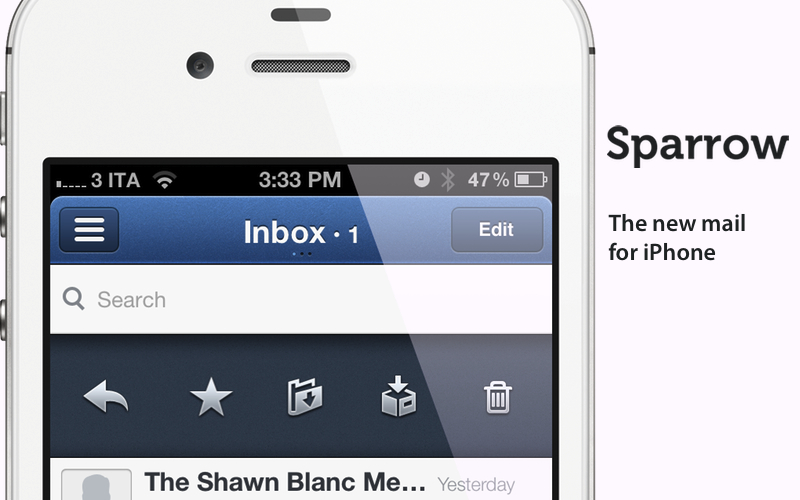
Today marks an important day in the history of the App Store. For the first time, Apple is letting a third-party developer sell a full-featured, custom email client that uses its proprietary email engine to iPhone users. Sparrow, already popular on the Mac and available on the Mac App Store, comes to the iPhone’s App Store today, and it promises to offer a newer, fresh take on email to lure back customers whose only choice since 2007 has been Apple’s Mail.app. Read more
Dom Leca On UI Conventions and Sparrow 2.0

Dom Leca on UI Conventions and Sparrow 2.0

Sparrow’s Dom Leca on The Verge:

What’s the give and take between adhering to popular OS X UI conventions and going in your own direction?

I think there is a huge variety of design on OS X but the 2 main choices that a developer / designer really has are the orthodox way, sticking with the Apple HIG in a strict manner, or the Loren Brichter’s way.

I am not saying that there is no in-between. A lot of our inspiration in Sparrow comes from other developers who are not strictly following the HIG or Loren’s UI style. But like on the iPhone with the pull to refresh or the cell swipe, Loren created a new standard with its Tweetie core animation sidebar.

Jared Erondu has another interview with Leca today over at Macgasm today; in the article, Leca mentions some of the future plans for Sparrow 2.0, including a people-centric view for the desktop application:

The main idea we have for version two is that the concept of messages will be thrown in the background and people will take a central place. It will be a people centric app. You won’t look for the last message you received, but for the last people who talked with you. In terms of navigation, and the way you will treat your mail, the functioning of labels, folders and stuff like that – it changes the way it works a lot.

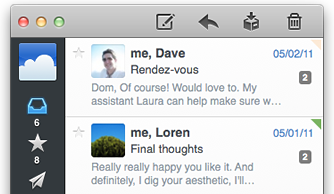
Sparrow may have borrowed a lot from Brichter’s Tweetie design, but in the past year the app has been constantly updated, adding innovative functionalities that you can’t find anywhere else (CloudApp and Dropbox integration for attachments is a personal favorite). Whilst Sparrow recognized Brichter’s UI approach as functional to what they were trying to achieve (switching accounts) and iterated on the concept blending that specific UI convention with new Lion elements, standard HIG stuff and their own vision, others have – unfortunately – blindly re-implemented Tweetie’s design adding little or no innovation to the mix.

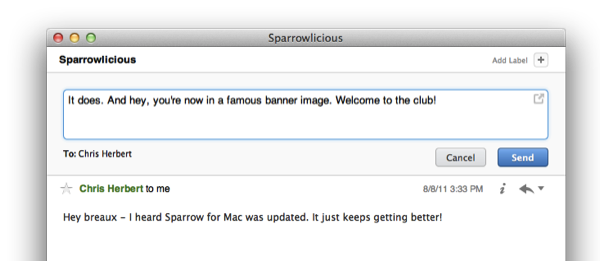
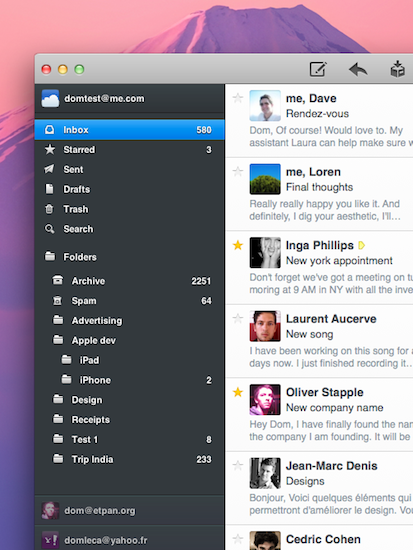
This is what the first Sparrow beta looked like. With Sparrow for iPhone announced in August and now nearing the beta stage, I have big expectations for Sparrow in 2012.

Permalink

Google Releases Gmail for iOS

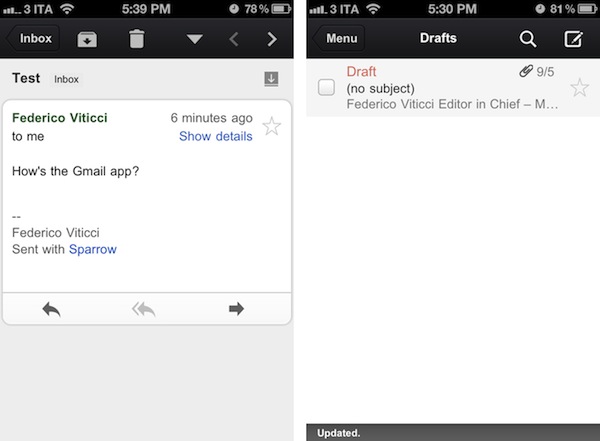
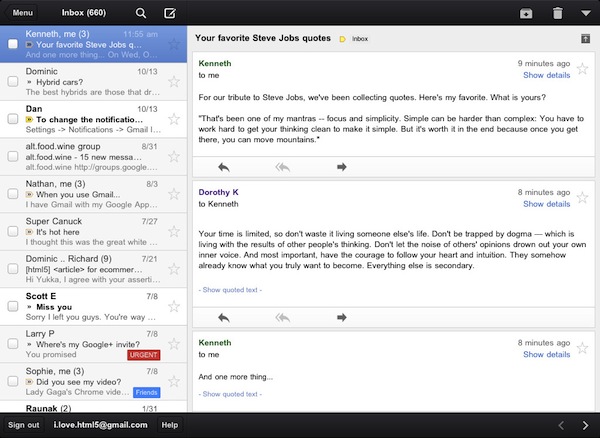
Google has just released its first official Gmail app for iOS, available on the App Store here. The app runs natively on the iPhone and iPad, features notifications, messages threads, Priority Inbox and many other Gmail features from the web interface. In developing Gmail for iOS, Google says they have tried to bring the best features of Gmail for the web – which is also optimized for iOS devices – to the iPhone and iPad while taking advantage of the native capabilities of these devices.

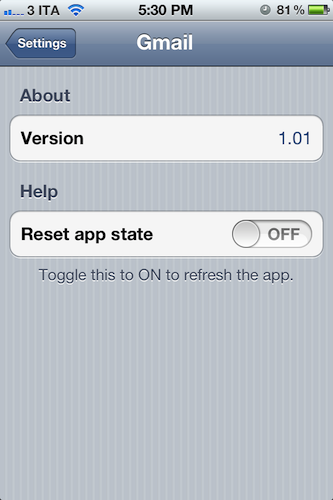
The company has indeed implemented name auto-completion and Camera Roll integration for image attachments, but we couldn’t find support for multiple email accounts in this first version. Also, we were unable to receive “badge notifications” for new messages, although this may be related to the just-launched nature of the app and an error that several users are reporting on Twitter. The lack of multiple account support is disappointing, frankly, as the app simply loads up a web view upon first launch, asking you to log in with a Google account, and that’s it. There are no settings, no account options – there is a “reset app state” button in the iOS Settings app, which will simply reset the app’s state (logging you out of your account) as the name suggests.

As many have already noticed, the interface of the app seems to consist mainly of a web view inside a native environment that guarantees some of the aforementioned features such as attachments from the Camera Roll. Some animations are smoother than Gmail’s web counterpart – such as the swipe-to-reveal Inbox action – and this should be an advantage of the “native” nature of some elements of the app. Other animations and menu, however, are clearly web-based, and not as smooth and responsive as you would expect from, say, Apple’s Mail app. Overall, it appears Google took Gmail’s existing web app for Mobile Safari, added some new features and graphical elements in the inbox and message list, and released it as a free app on the App Store. This app clearly can’t be compared to Android’s native Gmail experience, or Apple’s Mail app for iOS, which still remains a fine and powerful client. If you’re a fan of Gmail’s web app for iOS devices, I believe you’re going to like some improvements of this “native” version, but I can’t imagine any Gmail power-user – people who regularly switch between two or more accounts every day – doing any serious email work with this app.

There are some nice improvements over the Gmail web app for iOS devices, but this is far from the “pretty fantastic” native app many were expecting.

From the feature list:

  • Get alerted to new messages with push notifications and sounds
  • Find an email in seconds with search across your entire inbox
  • Autocomplete email addresses from your Gmail contacts or select from your device’s address book
  • Upload photos with a click using the new attachment button in compose view
  • On iPad, navigate your inbox and read your mail simultaneously with split view

You can find Gmail for iOS on the App Store.

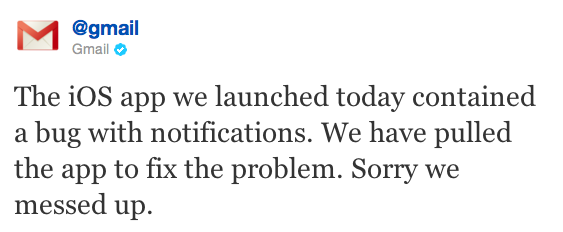
Update: Google had to pull Gmail from the App Store to fix the notification bug mentioned above.


Sparrow 1.4 Gets CloudApp Integration, Pull to Refresh

Sparrow, the minimal email client for the Mac that recently gained with full Lion compatibility, received a new update in the Mac App Store, this time adding native integration with file sharing service CloudApp, a “pull to refresh” gesture to check for new messages, and a number of fixes and improvements aimed at enhancing the email experience and make it faster and more stable.

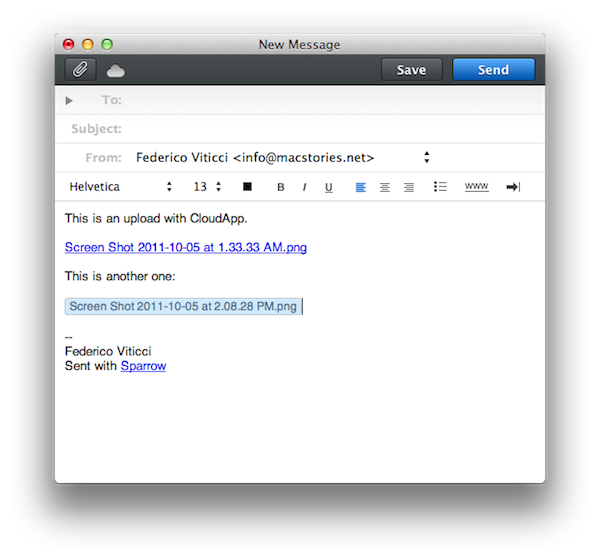
With CloudApp support, users are now able to drag & drop files into Sparrow’s compose window, and have the app automatically upload them to CloudApp and insert a clickable link in the message. Once authenticated with your CloudApp account in Sparrow’s preferences, every time you’d like to send an attachment through CloudApp, you won’t need to have CloudApp installed on your Mac: Sparrow will directly communicate with CloudApp’s servers and upload the file for you. The UI for this action is very simple – the top section of the message is a CloudApp “drop zone”, while the lower part at the bottom is for classic email attachments as explained by the developers in this article. There is a new cloud indicator in the top toolbar of the compose window to show the status of an upload, which will turn blue after it’s complete. Overall, CloudApp integration is well done, simple and useful if you share with CloudApp on a daily basis.

Sparrow 1.4 also comes with the “pull to refresh” gesture made popular by Loren Brichter’s Tweetie on the iPhone years ago, and later implemented by thousands of other App Store apps. In Sparrow, you can pull the inbox to check for new messages, and whilst I don’t think I’ll ever use this functionality as I like my email client to stay in the background and refresh every few minutes automatically, I assume some people who want to manually check for new messages will like this option.

As usual with every Sparrow update, there’s a series of bug fixes and improvements under the hood. Sparrow now syncs and sends emails faster than before, and Gmail-like reverse threads have been implemented in the conversation view. Sparrow is now compatible with Zoho and Lotus Domino, it’s got a new draft management system and the mail database has been improved, too.

Sparrow 1.4 can be considered a minor update, but it’ll make those who rely on CloudApp for their file sharing needs more efficient when dealing with email. You can get Sparrow 1.4 on the Mac App Store.


Sparrow Developers Working on “Sparrow for iPhone”

As revealed by Dominique Leca to Business Insider, the company he co-founded is now working on an iPhone version of Sparrow, which is in the very early stages of development and simply known as “Sparrow for iPhone” at the moment. For those not familiar with the Mac app, Sparrow is an alternative email client for OS that started out as a mix between classic email and Tweetie-like UI to deliver a fresh Gmail experience on the desktop, and eventually evolved into a powerful solution to access Gmail (including features like shortcuts, stars, and labels) as well as classic IMAP. The app got more social and better integrated with Lion, adding full-screen mode and a completely redesigned sidebar for navigating through your inboxes. Some people say Sparrow’s success is due to the fact that the app does email, but it doesn’t feel like email; Sparrow is sold at $9.99 on the Mac App Store with a lite version available, and a licensed version also up on the devs’ website.

We previously reported on Sparrow adding Twitter’s Loren Brichter to the team of advisors, raising $250,000 in funding over the last months; according to Leca, Sparrow has made more than half a million dollars since the Mac App Store release, although they don’t like the fact that Apple’s store for OS X apps lists both indie software and applications from Apple such as Final Cut Pro X, iWork, or OS X Lion.

In the interview, Leca also reveals they’ve started working on an iPhone version of Sparrow, aimed at enhancing Apple’s Mail experience with a different and faster UI, attachments from the compose view, and lots more. If we had to speculate on Sparrow’s focus for iOS, we’d say porting the Gmail integration that has characterized the desktop app to iOS would be a good idea.

Still, the problem for Sparrow is that Apple has always been reluctant in accepting apps that “duplicate functionality”, such as email applications. That’s why Google hasn’t released an official Gmail app for iOS yet, whilst Android has one. Apple does, however, accept third-party browsers for iOS, albeit they’re based on the same engine of Safari – they can’t use their own interpreters. This is the reason behind the lack of a real Firefox version for the iPhone – the Firefox Home that Mozilla ships is actually based on WebKit, like any other alternative browser for iOS. They’re basically skins on top of Safari’s engine, with different functions and interfaces. Same applies to photo album management apps, which are simply connected to the Camera Roll (and Apple’s Photos app) through an API. An API or similar technique doesn’t exist for email messages, thus the lack of third-party email apps for iOS. Much has changed since 2008 (for instance, Apple now accepts web app wrappers such as MailWrangler), but native third-party email apps still haven’t made it to the App Store.

Leca seems somewhat confident in Apple’s intention to start opening up iOS soon to approve apps like Sparrow for iPhone, which in order to work would have to feature its own email assets in order to directly work with Gmail, out of Mail app, with a different UI and compose view. From the interview:

BI: So do you think they’ll approve it?

DL: I think they will. They’re accepting third party browsers, so why not mail? This would be really inconsistent. Opera has a browser out there, and I think Mozilla has one coming too.

BI: So you think it’s only a matter of time until Apple loosens the chains?

DL: Yeah, I guess so. In regards to apps that compete with their own apps, I think iOS is sufficiently settled and I think people have been evangelized enough now so Apple will feel more secure opening it up.

The current iPhone mail app is just about perfect, but we’re just making things faster in terms of UI, and we’re adding a lot of small details for power users, like attaching images straight from the compose window.

We’re looking forward to Sparrow’s upcoming features on the Mac and mobile version, although I’m personally not sure as to whether Apple could really decide to let others sell email apps or real browsers in the App Store. Sure, the platform is mature enough to let users easily differentiate between Apple’s default solutions and standalone apps, but that would mean giving up a bit of control on the ecosystem, something that Apple has carefully nurtured in the past three years. I believe Sparrow would also be a great addition to the iPad – which I use regularly to manage and respond to emails – but, again, I don’t know why and how could Apple free developers from the ties of Safari and Mail in the near future. [Business Insider via MacRumors]


Sparrow 1.3.2: Drag & Drop to Labels, Conversation & Reply Redesigns, and Gradients!

Sparrow has a really sweet Mac update available this afternoon from the Mac App Store, bringing lots of new features and tons of bug fixes to improve its game and interface on Lion. The last update brought full-screen support and a redesigned sidebar that’s significantly improved my workflow, and now that sidebar is getting some additional use thanks to drag & drop. Whether you’re on an IMAP account or using Gmail, you can drag and drop emails into a folder or label to quickly move and archive messages. That alone makes us really happy, but check out what else Sparrow has added past the break.

Read more


Sparrow 1.3 Brings Lion Support, Interface Changes

Sparrow started out as a minimal, Tweetie-like email experiment for Mac back in October of last year and, following the success of the public beta, eventually evolved into a powerful desktop solution to access Gmail and IMAP email accounts using new interface concepts inspired by iOS apps, Mac gems like Twitter and Reeder, or other changes previewed by Apple in Lion. As we reported in our previous coverage, the latest big update to the app, Sparrow 1.2, went as far as adding social support with Facebook integration,  Gravatar support, and more.

Sparrow 1.3 was approved yesterday, but the developers had to quickly pull it from sale as a critical bug that caused the app to crash was discovered. After apologizing for the technical error and uploading a patched version for non-Mac App Store users, the team announced a fix had been already submitted with the request of an expedited review from Apple. Personally, I updated to Sparrow 1.3 yesterday and didn’t experience any issues, but I decided to hold my coverage until the promised fix would be available on the App Store – more importantly, the entire app had to come back on Apple’s servers as the developers pulled it to make sure no one would install a “buggy” version. Read more


Captio 2.0 Released, Adds iPad Version

Back in September I reviewed Captio, a simple utility for the iPhone aimed at letting you easily send an email to yourself with just one tap. What’s the deal with sending emails to yourself, when you can take a note in apps like Simplenote, Evernote, or Apple’s Notes app itself? For some people, quickly sending an email with apps like Captio, or Note 2 Self, is faster than opening up a full note-taking app and creating a new note with the proper formatting options, tags, or more. Captio allows you to launch the app, type, and hit the Send button to find the note later in your inbox. When combined with desktop tools like OmniFocus, which has excellent support for email integration, Captio and similar apps become simple yet powerful solutions to get thoughts out of your brain and into your trusted GTD system. The same applies to online services like Basecamp, Evernote or Remember The Milk, which support quick email input.

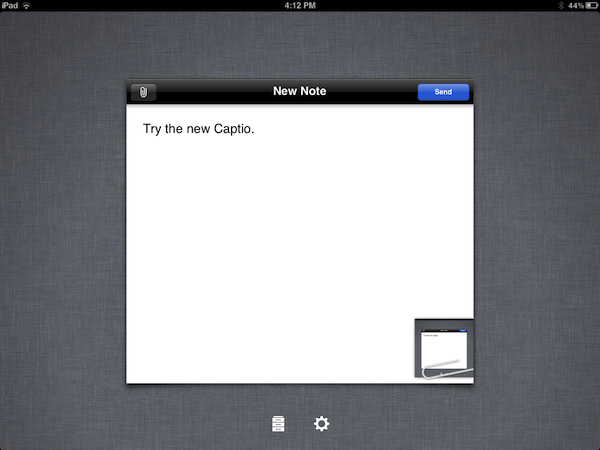
Captio 2.0, released today, finally adds native iPad support to send notes from your device to your preferred email account, and – this is also new in version 2.0 – lets you configure an IMAP account in-app if you don’t want notes to be delivered using the developers’ email system. I found that notes delivered via IMAP took a few seconds more than the developers’s built-in account, but if you don’t want to route your notes through an external service now you have an option. The interface designed for the iPad is very straightforward, with the popular linen background sitting below a floating panel to write your note and insert attachments. In spite of its simplicity, Captio’s design is elegant and pleasant. In this new version, you can also access a notes archive to see old emails you sent for one month. In the preferences located in the Settings app (not the account settings in Captio), you can choose to disable the message footer, repeat the first line of the note in the email body, and tweak the subject prefix. On top of that, TextExpander Touch support has been enabled in Captio 2.0 as well.

At this point, with local storage, IMAP options and a native iPad version, Captio has become the best way to send an email to yourself from any iOS device. You can download Captio at $1.99 on the App Store. Check out more screenshots of the app after the break. Read more


How The iPad Changed A 9-Year Old Girl’s Life

How The iPad Changed A 9-Year Old Girl’s Life

Evonne Barry at the Herald Sun tells the story of Holly Bligh, a 9-year old girl from Melbourne, Australia, whose life has been changed forever since she started using an iPad instead of regular paper and textbooks. As the publication reports, in fact, Holly has albinism, a condition that, alongside her skin, also affects her vision. Before the iPad, Holly’s parents and teachers were forced to print out papers with larger characters in order to let her read properly. The iPad, with its multitouch capabilities, changed that. Holly can now read her books with ease thanks to pinch and zoom, and her mother says the device is improving her ability to be independent from teachers as well.

But there’s more. Holly’s mother, Fiona, decided to send an email to Steve Jobs to personally thank him for producing a device that contributed so deeply to the betterment of her daughter’s life, and he replied.

Within hours of directly emailing multi-billionaire chief executive Steve Jobs, she was thrilled to receive a response.

“Thanks for sharing your experience with me. Do you mind if I read your email to a group of our top 100 leaders at Apple?” he wrote.

Mr Jobs signed off with “Thanks, Steve”, and asked for a high-resolution photo of Holly with her iPad.

This isn’t the first example of how the iPad as a revolutionary device changed the lives of children affected by different conditions and disabilities. Still, it’s always nice to hear a good story, rather than speculation on the next MacBook Air or Sandy Bridge CPU. Make sure to head over the Herald Sun for the full article.

Permalink