Siri AI and Apple Intelligence
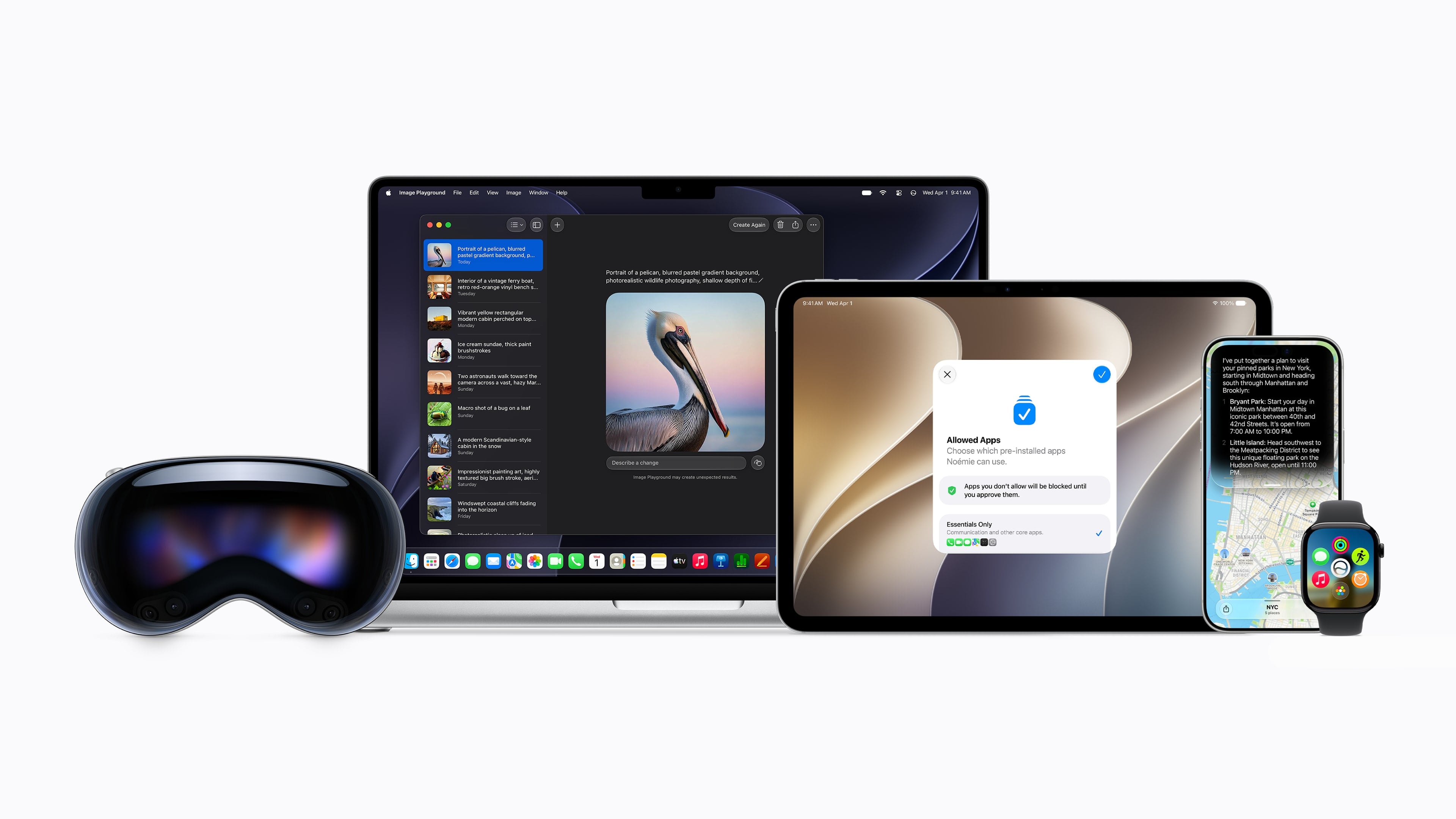
The Siri app may be the marquee update of Golden Gate, but Apple Intelligence touches nearly every surface of the OS this year. In fact, I wouldn’t be surprised if, as soon as next year, features that integrate some sort of AI are still categorized under the umbrella term “Apple Intelligence” but are no longer treated as the standalone category that they have been for the past few years.
I say that because what’s striking this year is that everything about Apple Intelligence feels better integrated into macOS. Siri is perhaps the best example of all. What was once a voice assistant remains a voice assistant, but it has its own app now, too. Plus, Siri can be invoked from Spotlight, the Services menu, or simply by highlighting text and querying it with the “Ask Siri” contextual popup. It’s the sort of tight integration that Apple is known for, and its absence made some past iterations of Apple Intelligence feel bolted on.
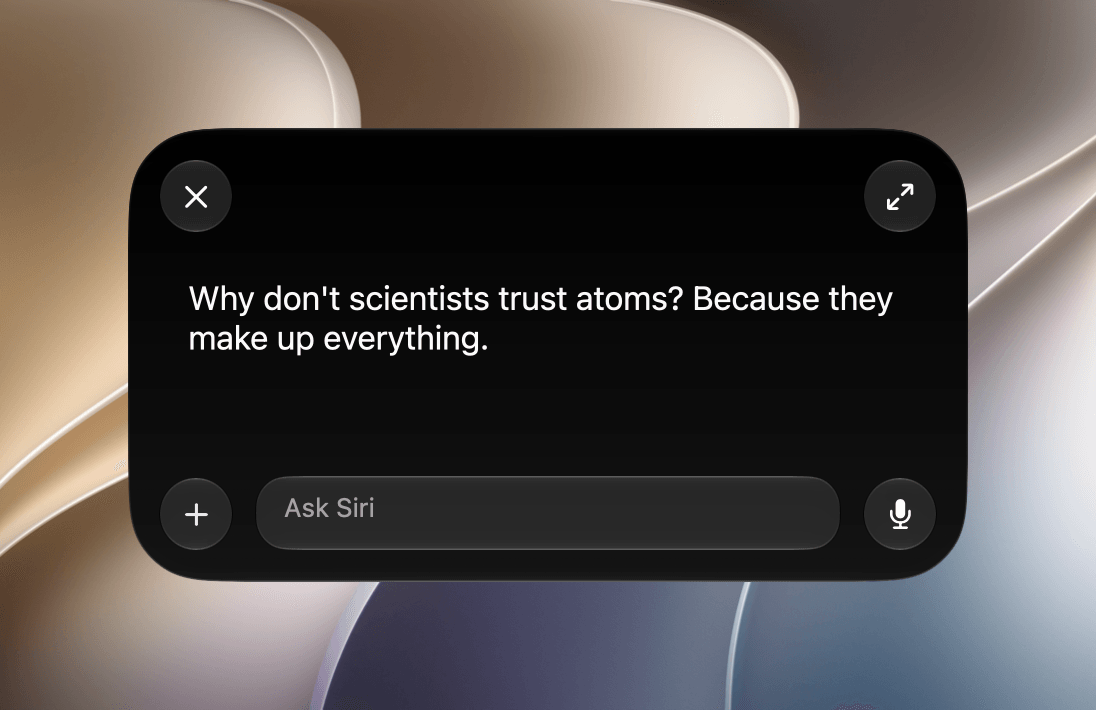
Before diving into the new Siri app, it’s worth keeping in mind that Siri AI is launching as a beta on Apple’s platforms and is only available in English. Apple has also restricted Siri AI’s use, prohibiting kids under 13 from using it, and it’s not available in the EU on the iPhone, iPad, and Apple Watch, but is available on the Mac. The new AI features won’t be available in China initially either.
What’s less clear is what limits Apple will put on Siri AI usage. Apple is offering enhanced access for now, but says cloud-based features are subject to usage limits and expanded access will eventually be a paid feature. The practical impact of these limits is currently unclear. That’s an important thing to keep in mind because my evaluation of Siri AI is as it exists today. Whether it’s worth paying for more than whatever the base usage winds up being will have to be evaluated another day.
I’ll get to all of the Apple Intelligence features you need to know about here and elsewhere in this review, but the best place to start is with the new Siri app because it’s undeniably the epicenter not just of Apple Intelligence, but all of macOS Golden Gate.
The Siri App
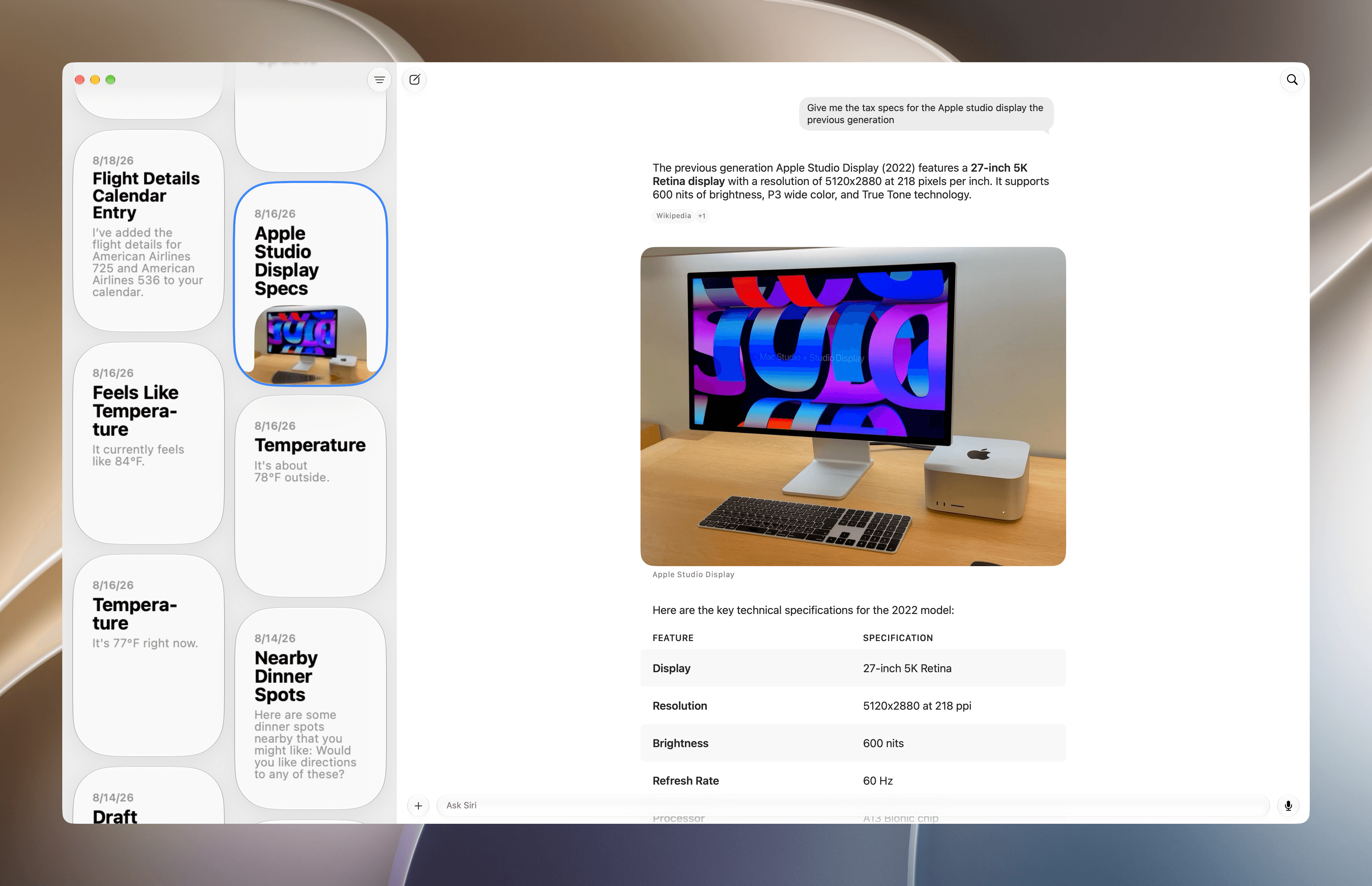
What goes around comes around. Siri started life as a standalone app all the way back in 2010. With the release of macOS 27 and Apple’s other OS updates, Siri is once again a separate app, while also remaining deeply integrated in other parts of macOS.
However, the new Siri app isn’t users’ only alternative. Siri’s new smarts have been baked into Spotlight, the Services menu, and individual system apps. That makes Siri more accessible than ever, lowering the friction of getting answers considerably, which is a big improvement over past Siri implementations.
But having Siri answer questions and having it take actions on your behalf are very different things. So, while you can ask Siri just about anything from anywhere, the results you’ll get will depend considerably on the information or actions you’re seeking. Siri’s world knowledge and ability to take actions at your direction are a big leap from the past. If asking world knowledge questions is your primary use case, I expect you’ll like the Siri update. However, if you’re already deep into tools like ChatGPT Work, Codex, Claude Cowork, or Claude Code for automation or assisting you with typical office work, you’re going to hit friction points quickly. That’s why it’s worth exploring what Siri can and can’t do as you think about how it might fit into your everyday work.
There’s a lot of ground to cover with Siri, so let’s get started with the Siri app itself.
The App and How It Works
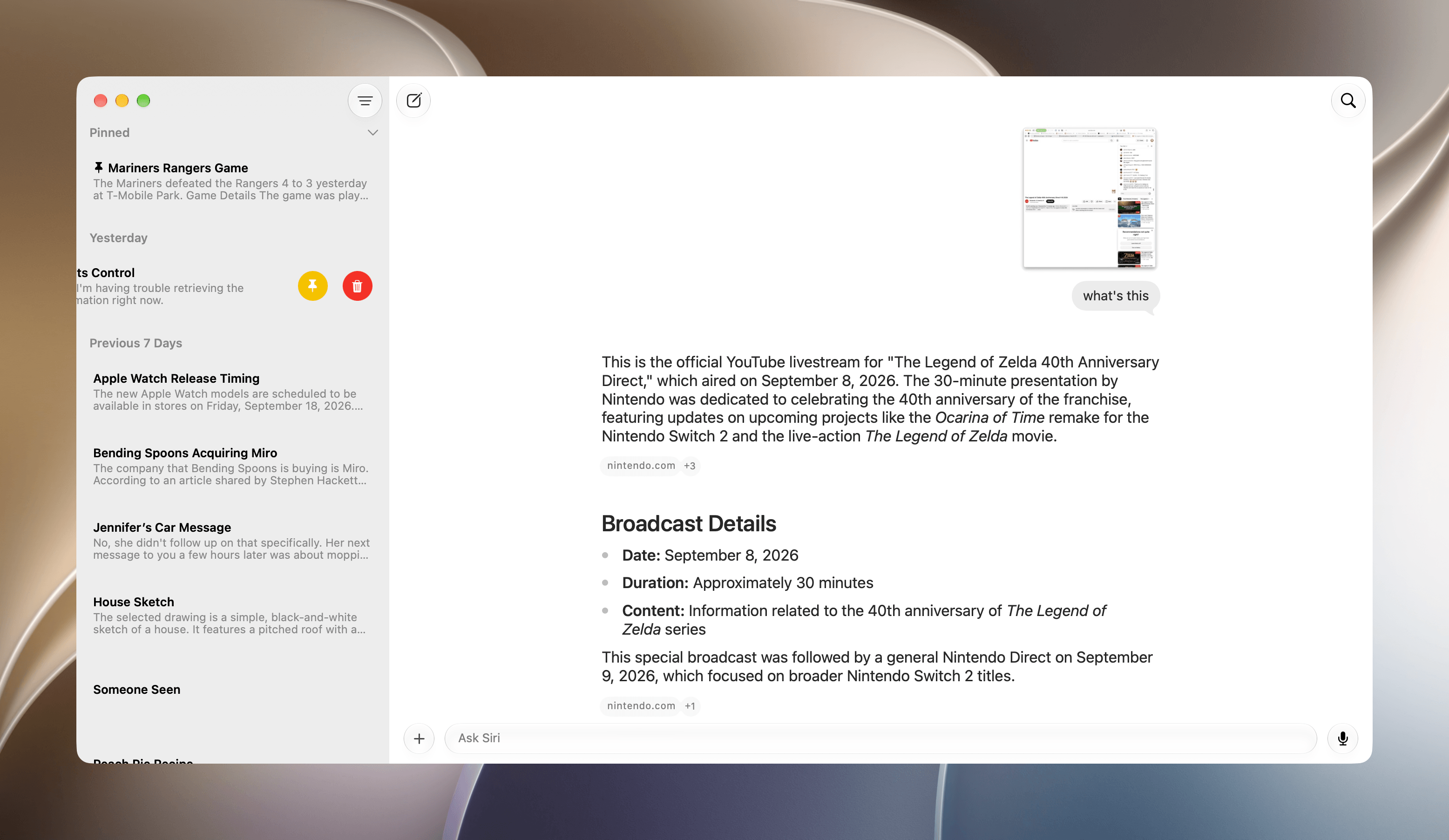
If you’ve used an app like ChatGPT, Claude, Gemini, or Perplexity before, you’ll know how to use the Siri app. In fact, it’s far simpler than those apps. The Siri app has a sidebar on the left that displays your past chat threads in reverse chronological order, syncing them among your devices via iCloud Sync. Threads can be displayed as a list or a grid, which shows off images and other rich media in a thread. You can also pin conversations, which then sit at the top of the list or grid regardless of how many other chats you begin, and delete past conversations individually or in batches by selecting multiple chats.
The main part of the Siri app’s window is where you chat with Siri AI, Apple’s updated assistant. From here you can type queries or speak them using Apple’s built-in dictation feature. You can also add files and images to a conversation, start a new conversation or search past conversations. There’s really not anything more to it than that. In fact, the Siri app doesn’t even have its own in-app settings. You’ll find those in System Settings, instead.
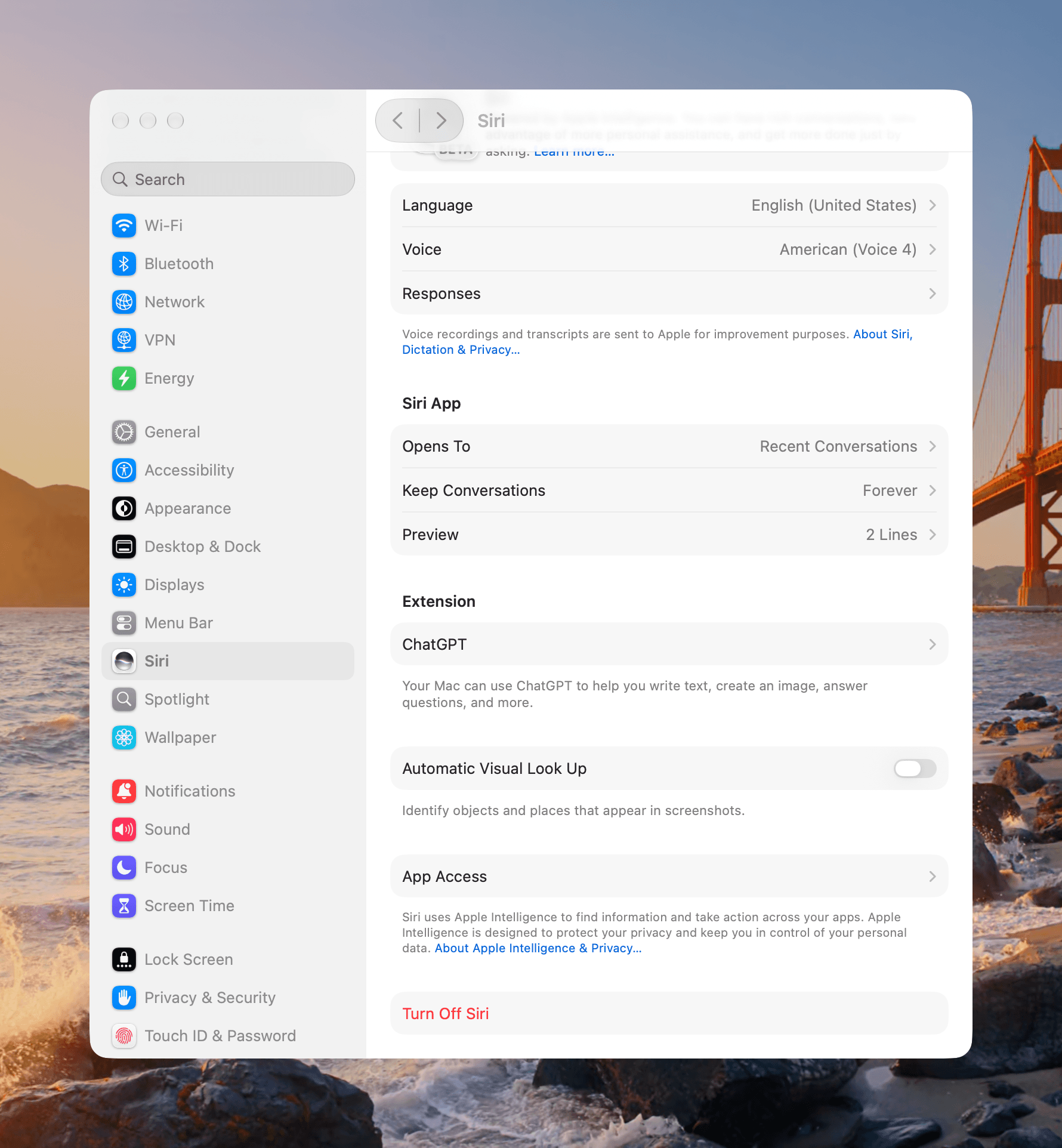
System Settings brings together settings for Siri the voice assistant and app. For the app, you’ll find options to:
- open the app to a recent or new conversation,
- keep conversations for 30 days, a year, or forever, and
- show in-app conversation previews of 1–5 lines.
As for Siri’s answers, they’re generated by a combination of on-device and Private Cloud Compute models. The on-device model runs locally on your Mac and Private Cloud Compute (PCC) runs in the cloud. As Apple has explained, only the data necessary to satisfy a request is sent to Private Cloud Compute, where it is inaccessible to Apple:
PCC deletes the user’s data after fulfilling the request, and no user data is retained in any form after the response is returned.
Whether any particular answer is generated by an on-device model or PCC is not highlighted by Apple. That said, I’ve been happy with the speed of the Siri app’s responses. I’ve also tested PCC and tried the Foundation Models framework in a couple of apps I worked on over the summer and have been impressed with PCC’s speed in that context, too.