

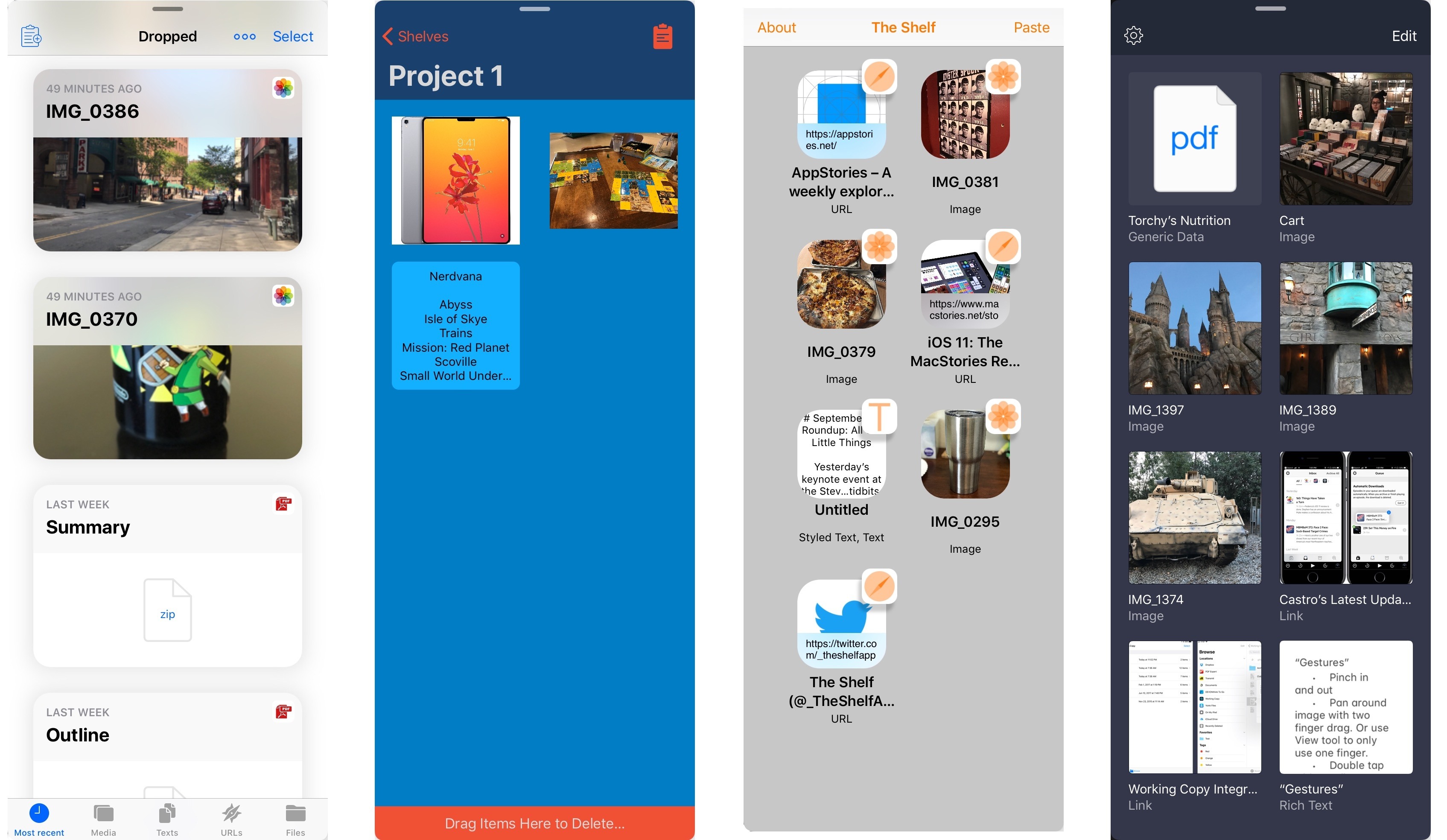
The iPad platform has come a long way in a mere matter of months, thanks to new iPad Pro models and, of course, iOS 11. Earlier this year Federico laid out his wishes for iOS 11 in a concept video and accompanying article, and many of his hopes came true: we now have drag and drop, the Files app, and a variety of other improvements in iOS 11. But one major idea from the concept is missing from iOS 11: a shelf where content can be dropped and stored temporarily. Fortunately though, the App Store has a robust developer base, and several third-party apps are launching alongside iOS 11 to remedy this omission.
iPad Shelf Apps: A Roundup of the Best
Connected, Episode 160: Things Have Taken a Turn→
Federico’s iOS 11 review is done. Stephen has an announcement. Myke makes a confession about his Apple TV remote.
On this week’s special episode of Connected, we discuss the making of my iOS 11 review with a focus on Myke’s process for the audiobook. You can listen here.
Sponsored by:
- Squarespace: Make your next move. Enter offer code WORLD at checkout to get 10% off your first purchase.
- Freshbooks: Online invoicing made easy.
- Bombfell: Find the right clothes for you. Get $25 off your first purchase.
Castro’s Latest Update Transforms Podcast Organization
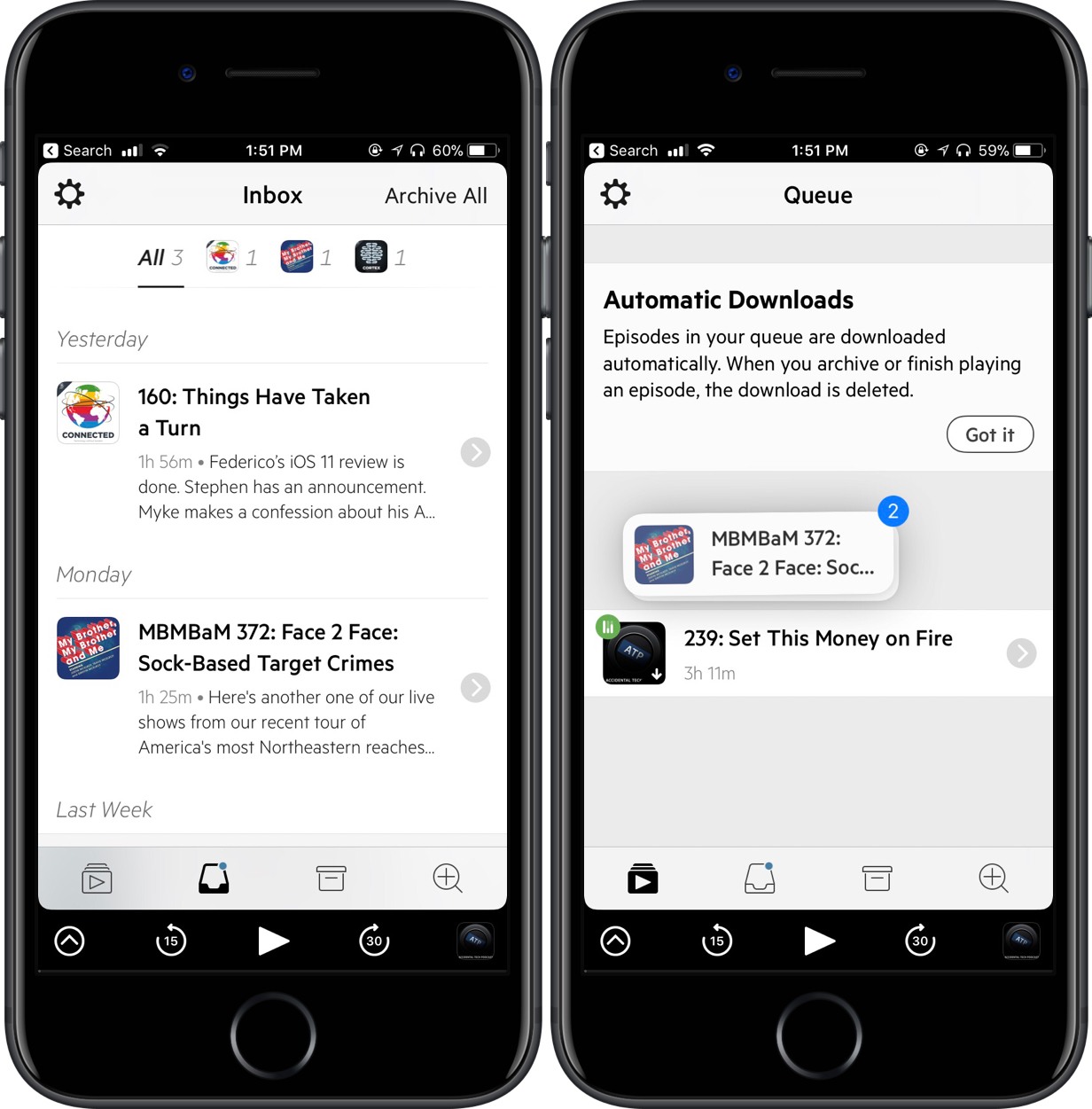
As my list of podcasts grows and my preferences change, I’m finding it tougher to organize my shows in an effective and intentional way. With Castro 2.5, though, something clicked. Through a combination of the inbox-queue methodology and drag and drop for my podcasts, I’ve been able to rethink how I listen to my feed.
For those unfamiliar with Castro, it features two locations for your podcasts to live: inbox and queue. When the latest episode of your show comes out, it’ll automatically drop into the inbox, either to be left for later or moved to queue to be played. As you might expect, moving multiple episodes over to the queue could be tedious, requiring you to transfer them one at a time; however, Castro now supports in-app drag and drop on iOS 11, making it easier to swap them back and forth.
The feature works like this: tap and hold a show so that it follows around your finger. Then, select any other podcast you’d like to move over to queue, tap on the queue icon at the bottom of the screen, and drop them onto that screen. You also can drag the episode on top of the icon, wait for it to open, and then drop it in the destination. All of this means you can grab as few or as many podcasts as you want, refining your queue to exactly what you’re looking to listen to.
Admittedly, I’ve been a devoted Overcast user for years, but this organization method in Castro has me thinking twice. Being able to move shows with drag and drop helps me filter what I’m immediately trying to listen to, an effect that can save me a lot of time. This works both ways, too, so I can save into the inbox episodes I’m not in the mood to listen to right at that moment.
If you’re a serial podcast listener like me, I’d recommend giving Castro’s 2.5 update a try. To do so, you can purchase it in the App Store for $3.99 (iPhone only) or update the app for free.
Home 3.0 Offers Powerful HomeKit Automation in an iOS 11-Optimized Package
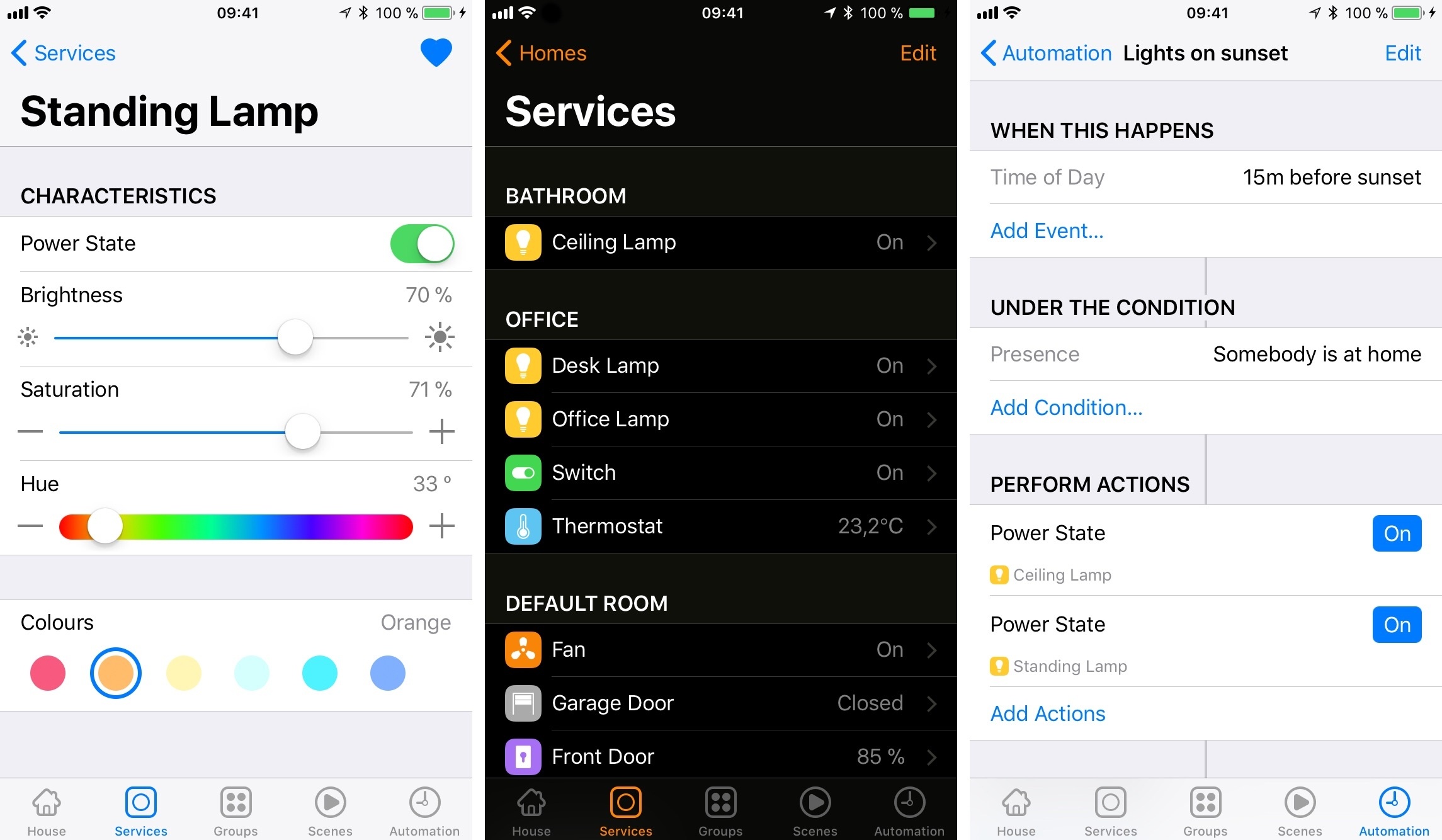
Matthias Hochgatterer’s Home app has received a major update to version 3.0 alongside the release of iOS 11. It includes an updated UI and drag and drop support, but the biggest news with Home’s update is the way it unlocks a world of new automation possibilities thanks to iOS 11’s HomeKit updates.
Working Copy Integrates with the Files App and Drag and Drop
We use Working Copy every day to collaborate on articles for MacStories and Club MacStories. It’s an excellent tool for working as a group because it lets us easily track edits to documents and stay in sync with the latest version of an article. Ours isn’t the most common use for an iOS Git client – it’s usually used by developers – but it serves to illustrate the flexibility of Working Copy, which has only grown more useful with an update that incorporates new iOS 11 functionality.
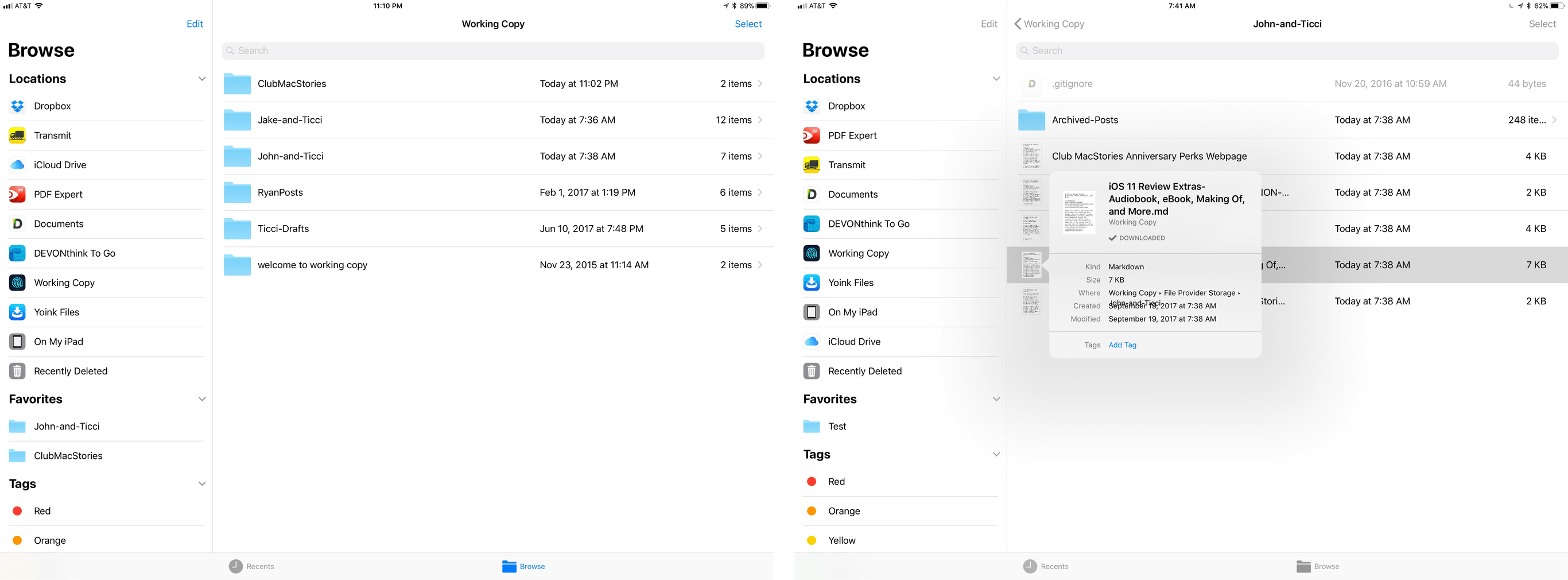
Working Copy is a file provider in the Files app. This is a very big deal. Ulysses has had external file support for a while, but iOS 11 streamlines the process of accessing articles in our shared repos greatly. With a couple of taps in Ulysses, the document browser opens up with the familiar Files interface. There’s a folder for each of the repos I share with MacStories team members. All I need to do is select the document I want to edit, and any changes I make are saved to Working Copy. When I’m finished, I open Working Copy and commit my changes – that’s it. You can do the same with any app that supports document providers like Textastic, iA Writer, and 1Writer.
Because Working Copy is a document provider, you can also access your repos from the Files app. There, you can move files into folders, drag new files in, and delete files. When you’re finished, just sync everything up in Working Copy. You can even add tags and assign favorite folders.
With drag and drop support, it’s easy to get files in and out of your repos. When we do Home screen features in Club MacStories, I typically get drafts and screenshots sent to me by email. Now, all I have to do is drag attachments from Airmail straight into the Club MacStories repo in the Files app then commit the changes in Working Copy. This is the sort of thing I used to prefer to do on my Mac or would do by pasting text into Ulysses and then adding the document to Working Copy with its share extension, which was cumbersome and fiddly.
You can also drag files out of Working Copy to send them by email or drop them into another app for editing in place. Though I haven’t needed to do this yet, ZIP archives can be dragged into Working Copy where you are given the option to extract them into your repo.
Working Copy continues to grow in its versatility. With each passing revision, there are fewer and fewer reasons for me to use the GitHub Desktop app on my Mac. My needs are relatively simple. I work with a relatively small set of Markdown files shared with one or two people at once, but even if you have more robust requirements from a Git client, take a look at Working Copy, you may be surprised at just how much you can accomplish on your iPad these days.
Working Copy is available on the App Store.
Drag and Drop, Smart Invert Colors Come to Twitter for iOS
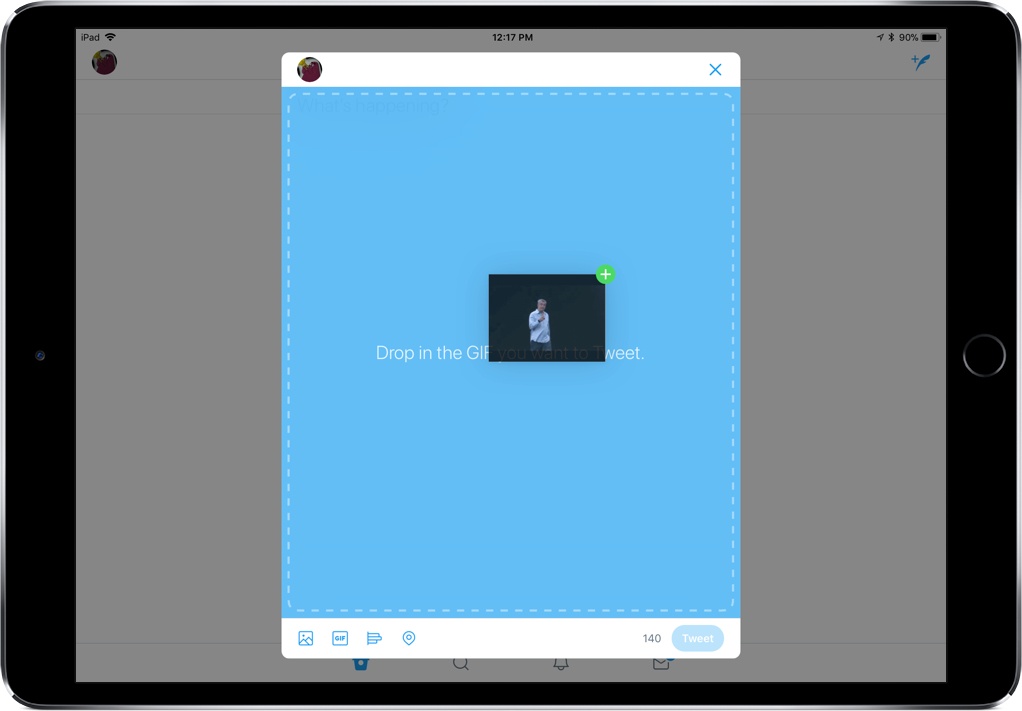
If you need another reason to believe drag and drop in iOS 11 is a big deal, here’s one: Twitter, long known for its “a few minor updates” releases, brought a day one release supporting drag and drop in the composition area. For iPad users, this means that you can drag photos, GIFs, text, and more right into Twitter when you’re composing a tweet – so instead of searching endlessly for the perfect photo in the app, you can bring it over from another source.
Additionally, Twitter’s update brought support for iOS 11’s Smart Invert Colors accessibility setting, which means you can now invert the screen’s colors while still seeing media in the intended colors. This is a pretty specific new feature to support, but it shows that Twitter cares how people view the app and is willing to make display changes to accommodate that.
When tweeting images, Twitter will also display larger preview images to help you guarantee that you’re showing exactly the right picture. And with an expandable compose area, you’ll be able to see all the content you’re planning to put into a particular tweet.
While pretty minor, the latest update to Twitter shows promise for further updates, including more support for drag and drop. In the future, I’d love to see support for dragging images to direct messages and for them to expand how I can take content out of the app.
MeasureKit Brings AR Measuring Tools to the iPhone
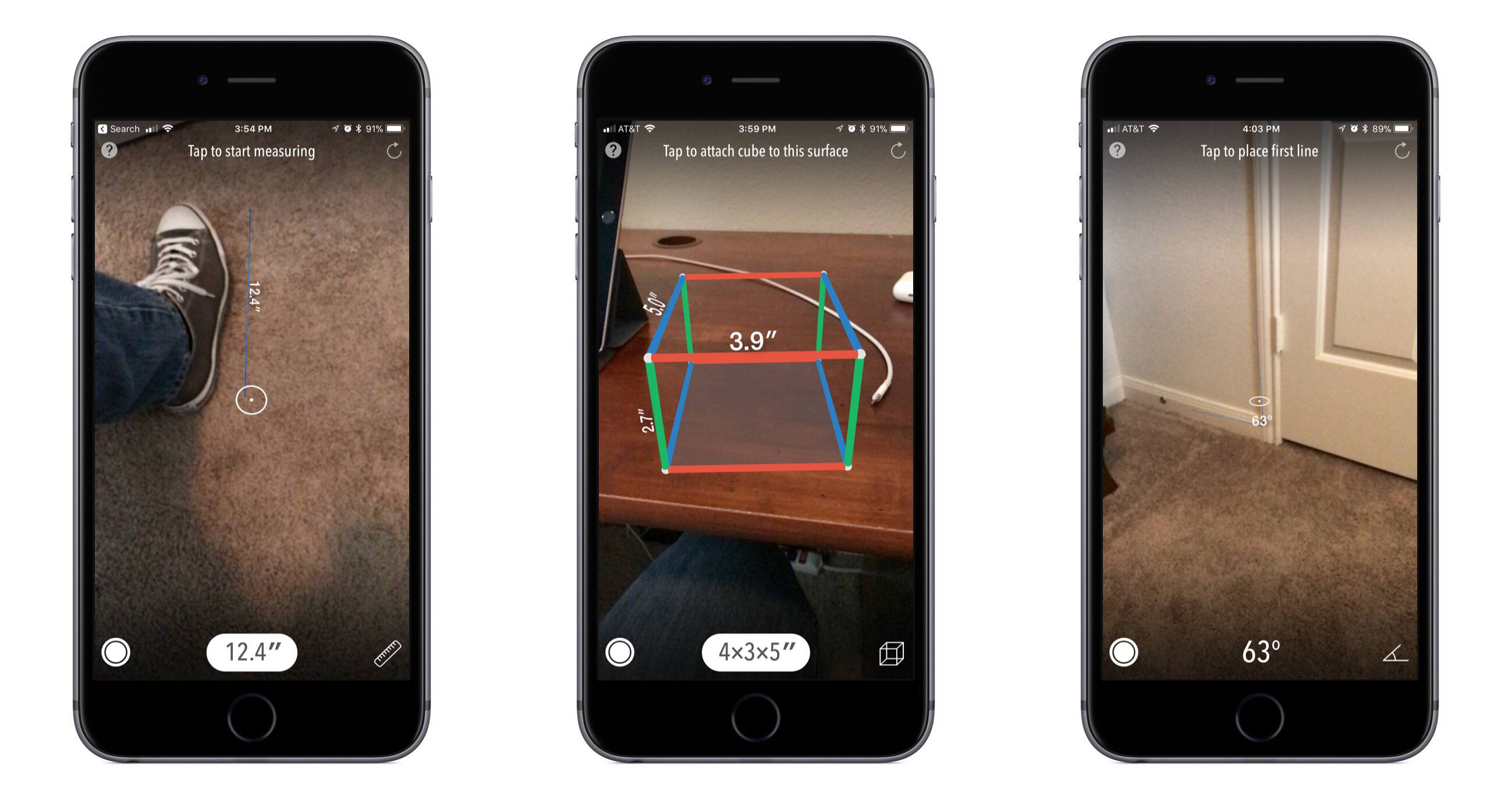
When was the last time you wanted to measure something, and the tool you needed was already within arm’s reach? I can’t think of a single time that’s happened to me. I don’t work in construction, so I don’t carry measuring tape or any similar tools around with me. But you know what I do always have with me? My iPhone. With AR MeasureKit, developer Rinat Khanov has created a toolkit that can be carried around with no extra baggage – all you need is your phone.
In late June when developer ARKit demos began showing up online, one of the first prominent videos featured digital measuring tape. Many people were amazed at ARKit’s ability to measure distance with such accuracy, while others simply wrote the idea off as a silly use of AR. While I think a simple AR ruler as seen in that first demo would have still been useful, MeasureKit offers much more than that. The app contains a comprehensive set of tools that makes your iPhone or iPad into a sort of Swiss Army Knife of measuring.
Getting Tasks out of Your Head and into Todoist Has Never Been Simpler

Todoist, one of our favorite task managers, has added deep integration with iOS 11 as well as adding a handful of other handy features in its latest update. At its core, Todoist is a web service, but you wouldn’t know it most of the time. Unlike many web service-based apps, Todoist continually adopts iOS-only features that help it compete in a category that is packed with strong rivals.
Apple didn’t add many new SiriKit intents with iOS 11, but it did add one for tasks. It took a while to get in the habit of using Siri to add tasks to Todoist, but I’ve been delighted with how well it works. It’s been both quick and reliable. Not only can you ask Siri to add tasks to Todoist, but you can also assign a due date and ask Siri to show you tasks in a specific date range or from a particular list.
iPad users can take advantage of drag and drop to add content to Todoist. For example, drag in a Mail message and the subject becomes the task name, and the body becomes an attached comment. You can also drag in images, text snippets, URLs, and other content. However, Todoist does not support dragging tasks into other apps.
Todoist is one of the few apps I’ve found so far that implements iOS 11’s new Password AutoFill. You may be familiar with a similar feature that’s been part of Safari for a while. The concept is similar. If it’s stored in your iCloud Keychain, Password AutoFill will suggest that it fill in your password for you, which makes for a much smoother login process.
Todoist has a few other nice features in store for users. The app could already attach photos to comments, but now you can attach nearly any file-type. This is especially handy when assigning a task to which you want to attach reference materials. Todoist has also added haptic feedback to supported iPhones when completing or rescheduling a task. Finally, Todoist has a custom Quick Add keyboard that includes ‘@‘ and ‘#’ for faster labeling and task assignment.
Todoist continues to evolve with iOS. The new iOS 11 features added to the app make it easier than ever to get information into Todoist quickly and efficiently so you can get on with your work. As Todoist adds features that bring it closer in line with the macOS version, I find myself switching to my iPad Pro for work more and more often.
Todoist is available on the App Store.
Kpressor Fills the ZIP Archive Gap in iOS 11
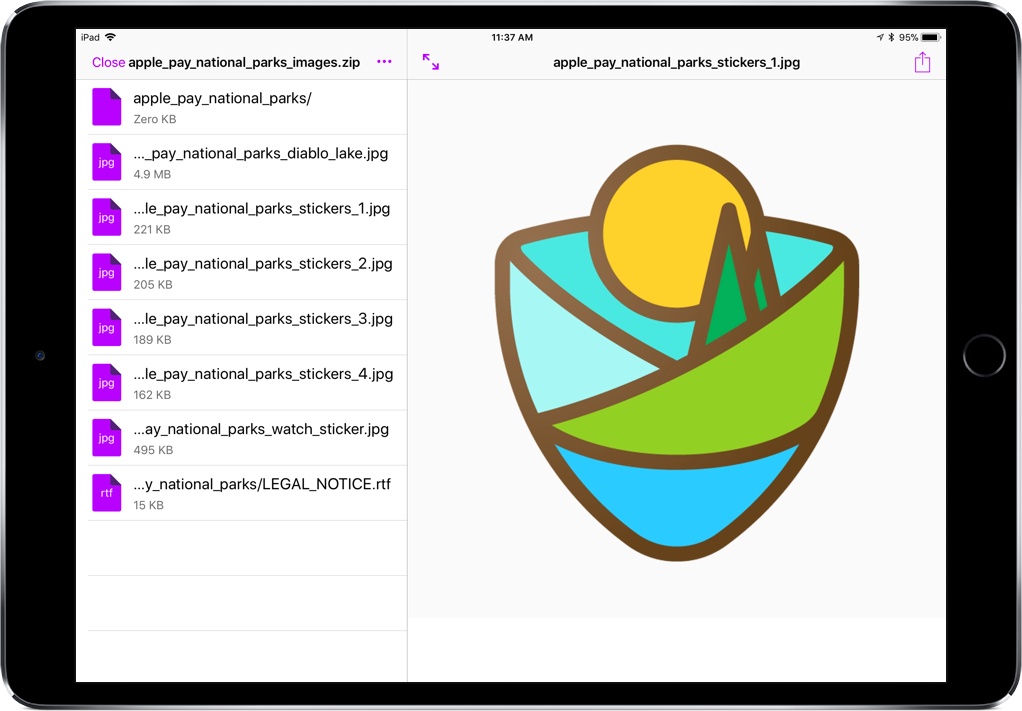
Since moving to the iPad full-time, I’ve had a couple ZIP-related moments of frustration. Whether I’ve been trying to create a ZIP archive or unzip a file, I’ve had to resort to apps with less-than-ideal support.
Kpressor is a new app that specializes in ZIP compression and decompression built for iOS 11. Through the Files app, you can work with ZIP files in the easiest way I’ve seen yet, an integration that will speed up my workflow and keep me from pulling out my hair.