CARROT Weather Adds Augmented Reality Mode

CARROT Weather transcends iOS apps in its category by infusing a full-featured weather app with a personality that makes it a delight to use. Earlier this summer, CARROT Weather received a major redesign that managed to incorporate all its weather data into a single screen interface without feeling cramped. That’s not an easy task for a highly customizable app. CARROT Weather also has one of the most performant and useful Apple Watch complications available. It’s a combination that’s made the app a MacStories favorite.

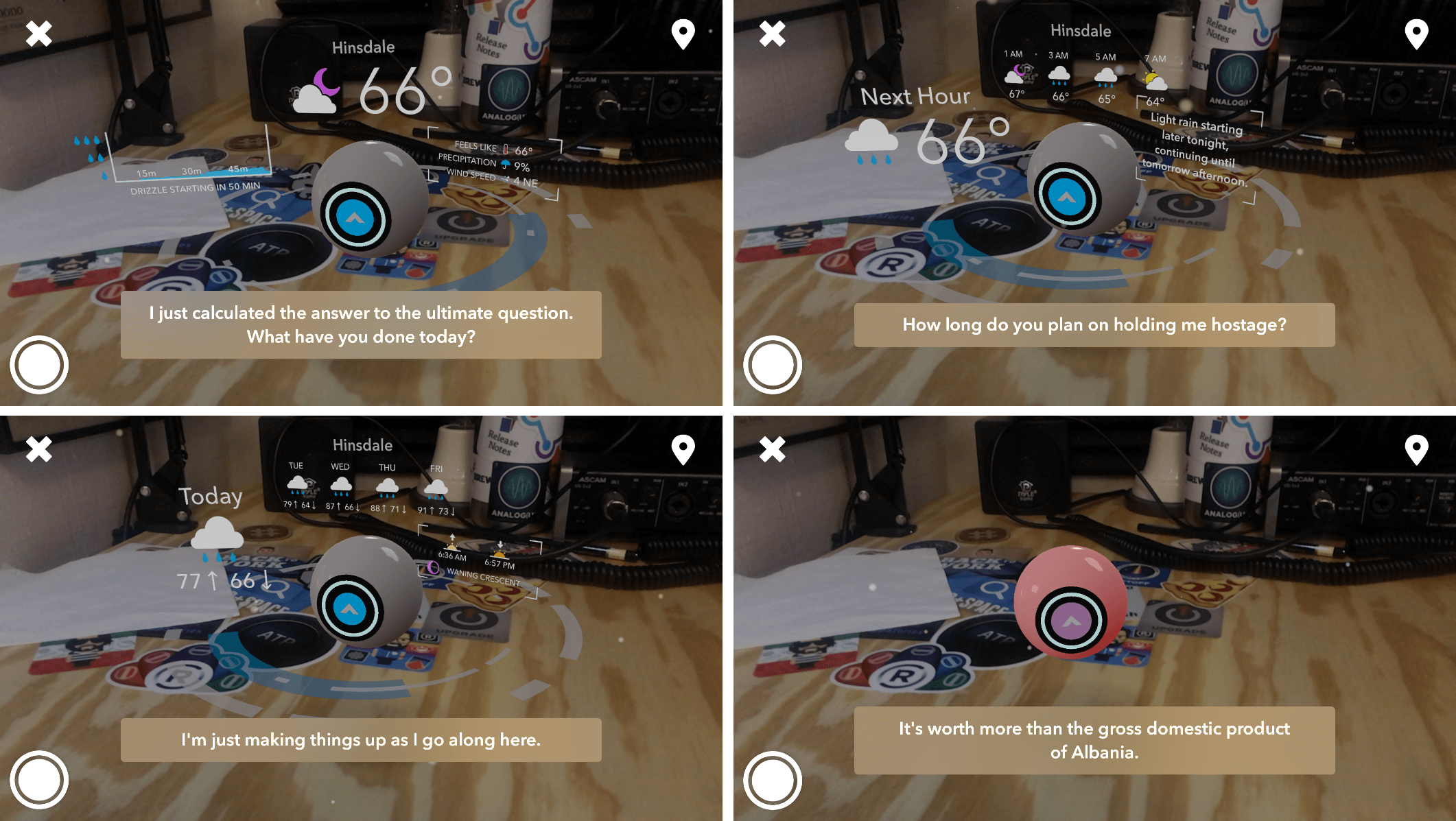
The app’s latest update takes advantage of ARKit to bring CARROT, the app’s snarky robotic protagonist to life as never before. Tapping the button in the top right-hand corner of the screen opens a drop-down menu for accessing AR Mode, Time Travel, and Settings. As with other ARKit apps, tapping AR Mode requires a few moments of calibration. When it’s ready to go, the icon projected into your environment turns green. Tap it, and CARROT drops into the scene surrounded by the current weather conditions and other data. Swiping on the ring below CARROT changes the weather data floating around CARROT to the next hour’s forecast and then the long-range forecast.

You can pinch and zoom in AR mode to adjust the frame of the scene and move your iOS device around to admire CARROT from different angles, all the while being taunted by its snarky comments. If there’s precipitation, that animates in the scene too. I don’t want to spoil the surprise, but try poking CARROT’s ocular sensor. It’s a bit of game-like interaction that makes me smile every time.

In addition to AR Mode, CARROT Weather has added Time Travel so you can check the weather up to 20 years ago and the forecast 10 years into the future. There’s also a new dark mode, three new secret locations, and hundreds of new lines of CARROT snark.

AR Mode fits perfectly with CARROT Weather’s style. It’s not a way I’ll check the weather most days, but dropping into AR Mode is a fun diversion when you’re not trying to check the weather quickly before running out the door. It’s entertaining and complements CARROT’s personality perfectly, making the app a pleasure to use.

CARROT Weather is available on the App Store.


Slør Enhances the iPhone’s Portrait Mode with Depth Adjustment Tools

Apple introduced depth photography to iOS last year with the iPhone 7 Plus’s Portrait Mode. This new camera feature brought professional-like photography to the masses, and spawned several memorable ads that demonstrated just how far smartphone cameras have come.

In iOS 11, Apple upgraded Portrait Mode with several enhancements, such as much-improved low light performance and optical image stabilization. But one of the more exciting updates is that developers can now tinker with Portrait Mode photos via the new Depth API. Thanks to that new API, Slør was born.

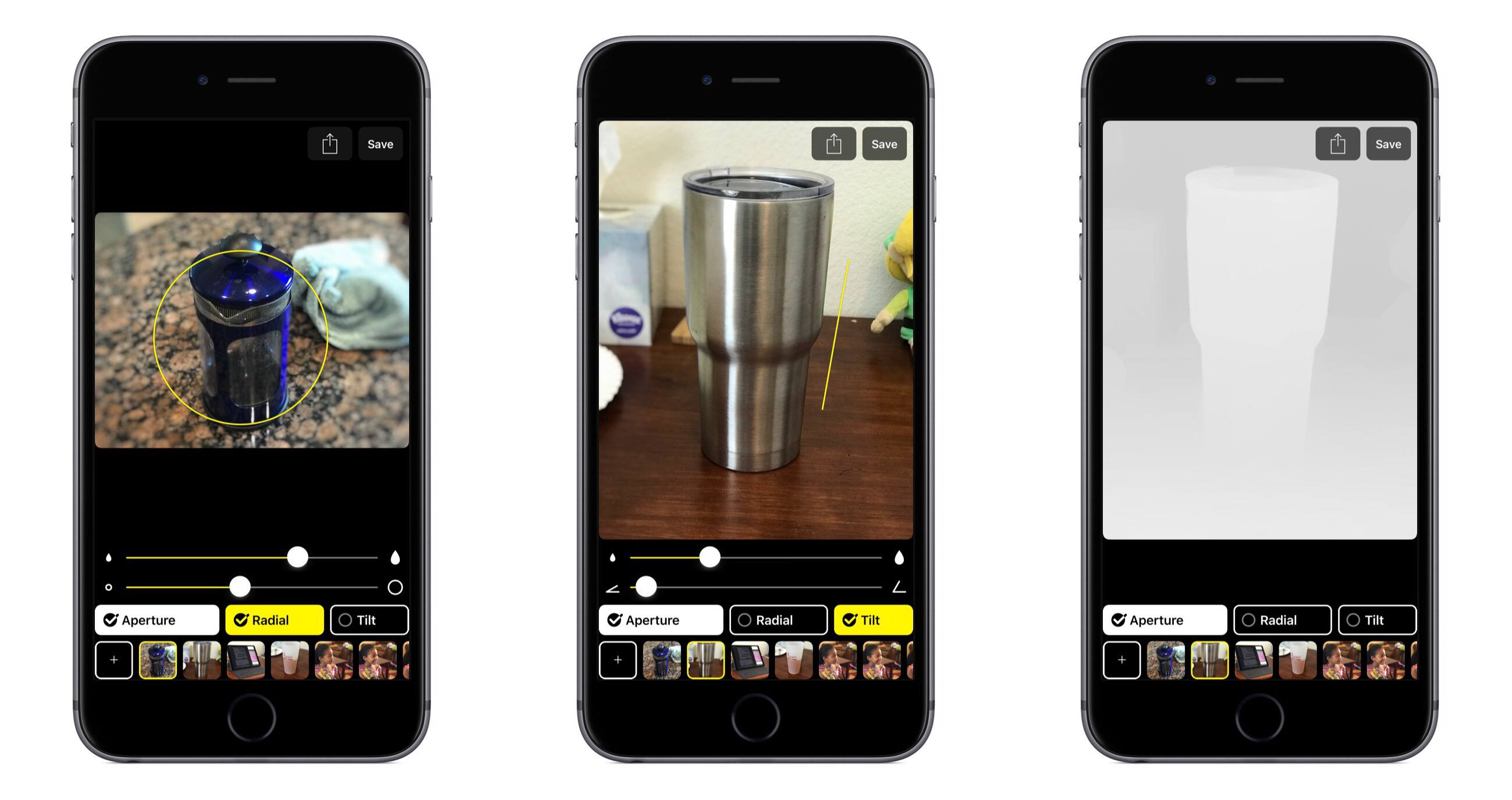
Slør contains a very simple, one-screen interface that lets you get straight to work editing your Portrait Mode photos. There are three adjustment tools at your disposal for modifying an existing depth effect: Aperture, Radial, and Tilt. These allow you to adjust how much out-of-focus blur is present, select the image’s focus point, adjust the focal plane, and more. You can also preview depth information by using 3D Touch on an image at any time. All of these tools can even be used from Photos without opening the full app, thanks to Slør’s photo editing extension.

When you’re done editing, you can hit the Save button to save changes to the original image in your library, or hit the share icon to save a copy or select from any other share option.

Slør’s simplicity makes it an intuitive, accessible way for casual photographers to play around and tweak Portrait photos to make them look best. I must warn you though: if you have an iPhone 7 or newer, then like me you may get distracted by the pleasant haptic feedback Slør invokes when adjusting sliders. It’s a delightful touch that I’ve spent way too much time testing.

Slør is available for iPhone on the App Store.


Opener Adopts Drag and Drop on the iPad

I’m particular about where links open. I want to open Instagram links in its app. I’d rather watch YouTube videos in ProTube, while it still works (RIP). I never want links to tweets to open in the official Twitter app. The point is, I want to follow links the way I prefer, not according to someone else’s defaults.

Fortunately, if you’re picky about this sort of thing too, there’s an app made just for you: Opener by Tim Johnsen. The strength of Opener is its action extension, which I keep in easy reach near the front of the system share sheet on my iOS devices. With the extension, you can send a link to any compatible app you have installed. With support for over 200 apps, it’s a rare occasion that I run into a URL that Opener can’t send to where I want it to open.

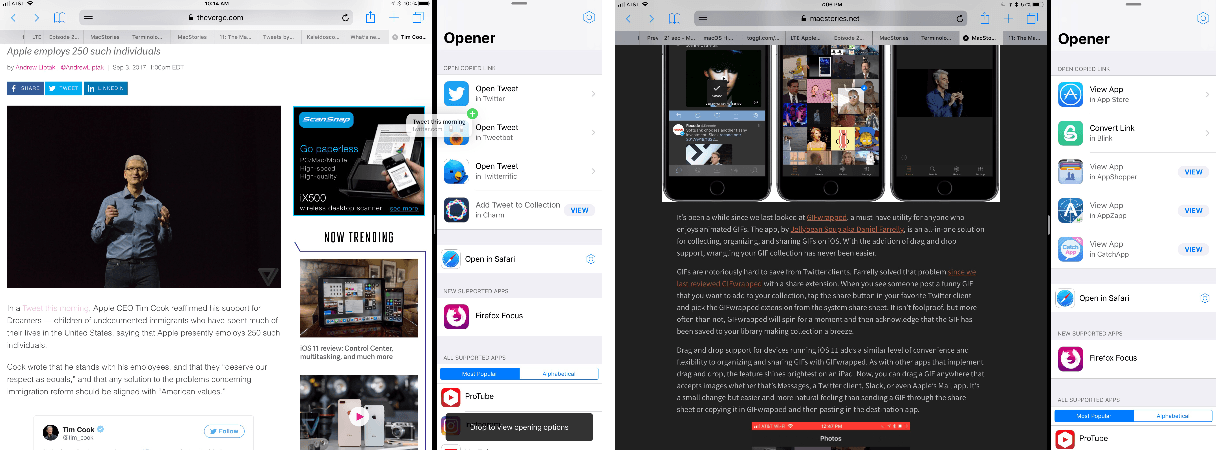
Opener has introduced new drag and drop functionality along with an iOS 11-style redesign. The new functionality makes Opener’s main app as easy to use as its extension and is particularly handy when researching. With Opener in Split View with Safari, I can manage where links open on the fly as I find materials I want to dig into in a certain app. Dragging in a link displays all the available apps on your iOS device in which you can open the link along with other supported apps with a link to them in the App Store. You can also drag links out of Opener into any compatible app.

Opener has adopted the design cues of system apps like Music, Apple News, and Messages with a big bold title and buttons that link to apps on the App Store that mirror the style used in that app. One additional new feature that I appreciate is keyboard shortcuts for external keyboards. There are shortcuts for Settings, Browser Settings, and numbered shortcuts for each app that can open the URL you feed to Opener.

Drag and drop is about reducing friction. Opener stands in between links and their final destination directing traffic by giving you options that the system won’t. That’s valuable if you care about where links open, but it’s also a step that needs to be as low friction as possible to make it worth the effort to use, which is why I’m glad to see that drag and drop has been adopted by Opener.

Opener is available in the App Store.


tvOS 11: The MacStories Review


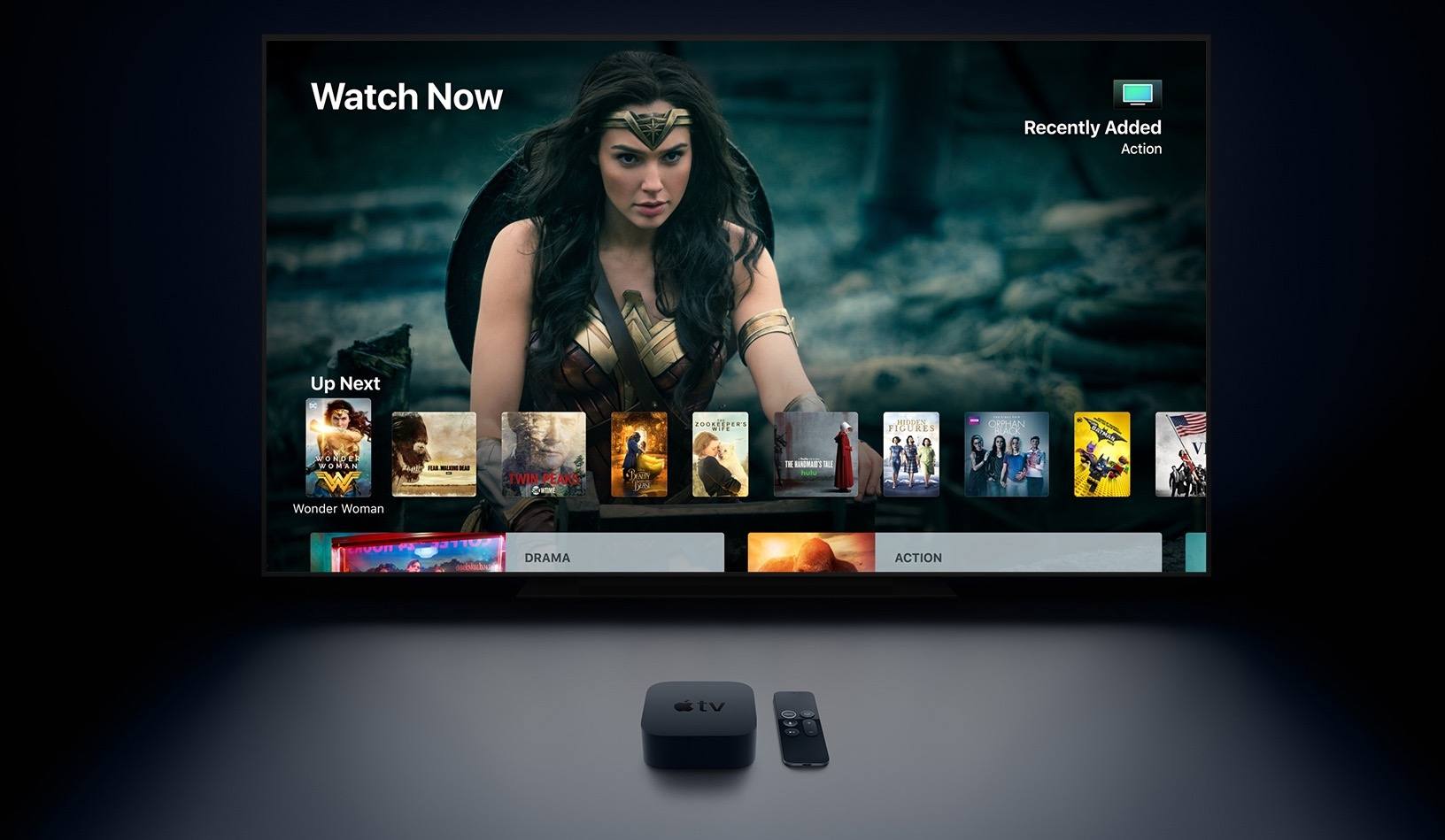
WWDC was big this year, introducing new iPad and Mac hardware, Apple’s arrival into the smart speaker market with HomePod, and a variety of exciting software releases across iOS, macOS, and watchOS. But one of Apple’s main platforms was almost entirely overlooked: tvOS. During the WWDC keynote we received word that Amazon Prime Video would be coming to the Apple TV, but nothing else. Sessions held later in the conference revealed that a new version of tvOS did exist, and that it would be coming this year, but the details prove that it’s the smallest release in the OS’s young life. You could say that the focus of tvOS 11 is incremental improvements; the updates here are nice, but they hardly merit a major numbered release.

Read more


iWork Apps Updated with iOS 11 Features

Apple has released updates to its iWork suite of apps, Pages, Numbers, and Keynote, with support for iOS 11’s headlining features. There’s a commonality among the features added to each app that serves to tie them together more tightly than ever before while simultaneously making them easier to use with third-party apps. Numbers and Pages also feature a few additional revisions tailored to their specific functionality.

All three iWork apps support the new document browser, a file picker view that looks and feels just like the new Files app. Instead of being constrained to iCloud Drive or pushed into an app-specific folder, you can open Pages, Numbers, and Keynote files from any cloud service that is a file provider. All three apps were also updated to support drag and drop of text, tables, links, images, and other content between the iWork apps and to and from other apps on the iPad.

Apple also added more powerful shape manipulation features to the iWork apps. New Unite, Intersect, Subtract, and Exclude commands were added to make it easier to create custom shapes. Shapes can be broken apart into component pieces now. Apple’s support documents use the example of breaking the state of California apart from a map of the United States to use it by itself in an app. Shapes and other objects can also be arranged using new Align, Distribute, Flip Vertical, and Flip Horizontal commands.

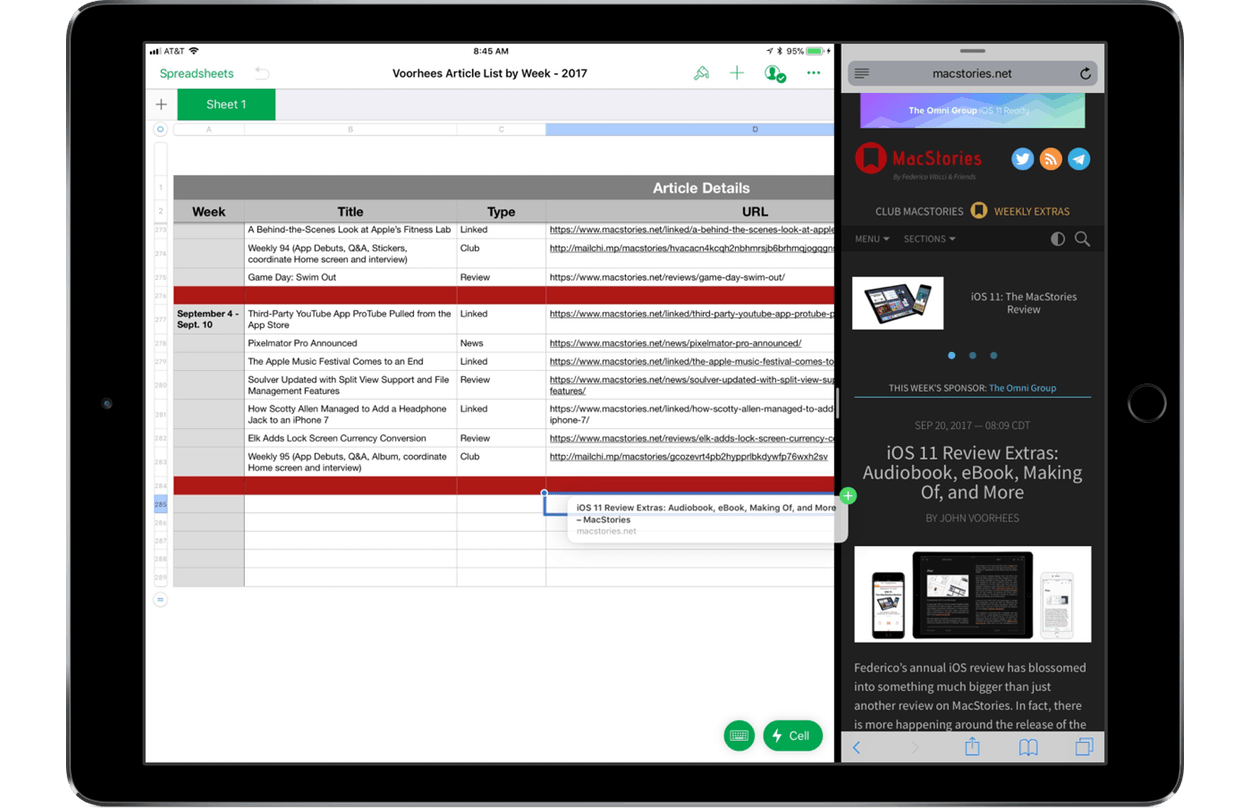
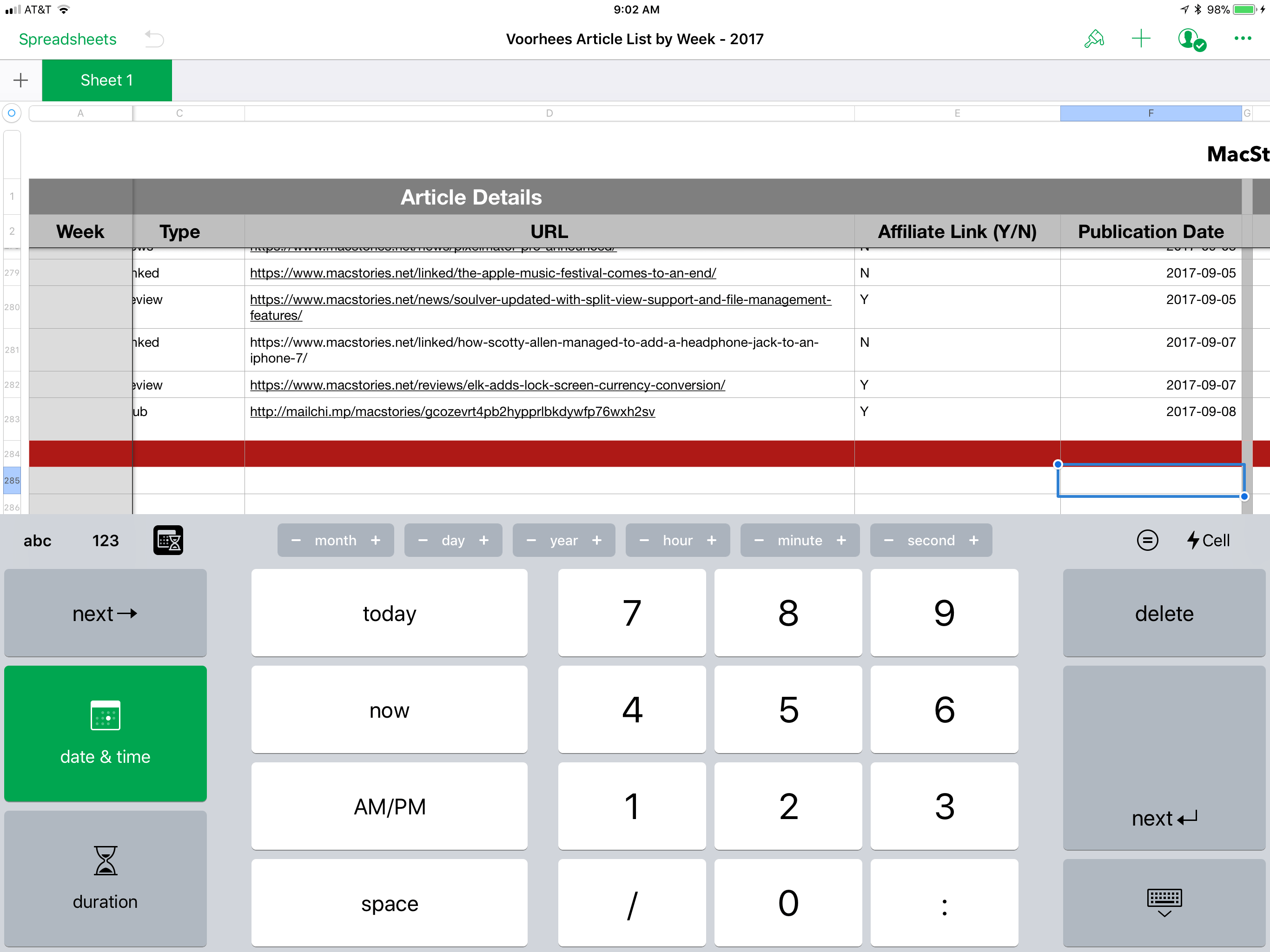
Numbers's new date, time, and duration keyboards.

Numbers’s new date, time, and duration keyboards.


Among the unique additions to the iWork apps, Numbers gained new keyboards for more efficient input including date, time, and duration keyboards and ‘smart steppers’ for making minor adjustments to those types of values. Pages also added a modest but handy gesture. Triple tapping a paragraph now selects an entire paragraph, something I wish more third-party apps supported.

I’m glad to see Apple adding iOS 11 features to the iWork suite on launch day. Adopting the latest technologies of its operating system encourages third-party adoption and serves as an example of how Apple expects those features to be implemented by third parties. It also brings new power and flexibility to each app for users, making them useful alternatives to apps like Microsoft’s Office suite.

The Pages, Numbers, and Keynote updates are available on the App Store.


watchOS 4: The MacStories Review

It is difficult to reconcile a critical appraisal of the Apple Watch with the product’s commercial success. To examine the most popular watch in the world1 and find it wanting seems dubious; yet as Apple’s smartwatch kicks off its third year, its history implores ignominy.

The integration of hardware and software is a keystone in Apple’s foundation. Every game-changing product they’ve released over the years has used this as a core advantage over the competition. Yet despite the Cupertino company’s proven track record, the last three years of Apple Watch have demonstrated a consistent struggle to get this right.

Apple has certainly iterated on unsuccessful hardware and software ideas in the past, but never quite so publicly. The Apple Watch feels like a device that was rushed a little too early to market. Apple knew that it had something good, but it didn’t yet know which areas the device would really excel in.

One of the most interesting pieces of this product’s story is that all signs point to Apple having gotten the hardware of the Apple Watch exactly right, at least in terms of its direction. The original Apple Watch was underpowered and lacking some technology that Apple simply couldn’t fit into it at the time, but the idea was there. In subsequent hardware iterations Apple has significantly increased the processing power, added vital new sensors, improved battery life, and shipped LTE. In this time the case design has remained unchanged (other than growing slightly thicker), and the input methods have persisted exactly. It may have taken until the latest Series 3 release for Apple to fulfill its initial vision for the Apple Watch hardware, but that vision has remained unshaken since the beginning.

The same cannot be said for the Apple Watch software.

Apple’s smartwatch operating system has had a rocky first few years. watchOS 1 was fundamentally broken in several ways, and probably should never have shipped. watchOS 2 was an attempt to shore up and replace the poor foundations under the hood, but it left the substandard user interface to fester in production for over a year. With last year’s release of watchOS 3, Apple took its best shot at rethinking cardinal pieces of that interface.

watchOS 3 was a huge improvement over the blunders that came before it. As I wrote in my watchOS 3 review last year, Apple did great work with the update to cut away the excess and hone the OS to something simpler and more straightforward. It was a significant course correction which set a far better trajectory, but it didn’t get us all the way there.

In a lot of ways it feels like watchOS 3 was the true watchOS 1. Where Apple left off with the smartwatch operating system last year was really the point where it should have started. Nothing was complete, but almost every piece felt primed for improvement rather than necessitating reinvention. In the wake of that update, Apple has been at a crossroads. With the foundations of watchOS finally feeling solid, Apple could either continue to drive the platform forward, or leave it on a slow-moving autopilot.

Yesterday marked the release of watchOS 4 — our first opportunity to see the hope kindled by watchOS 3 borne out — and I’m pleased to report that Apple has succeeded in maintaining the platform’s momentum. Every area that this year’s update focuses on has seen fantastic improvements, and I’ve found myself interacting with my Apple Watch more than ever before. My only disappointment is that the scope of watchOS 4 isn’t quite as far-reaching as last year’s update.

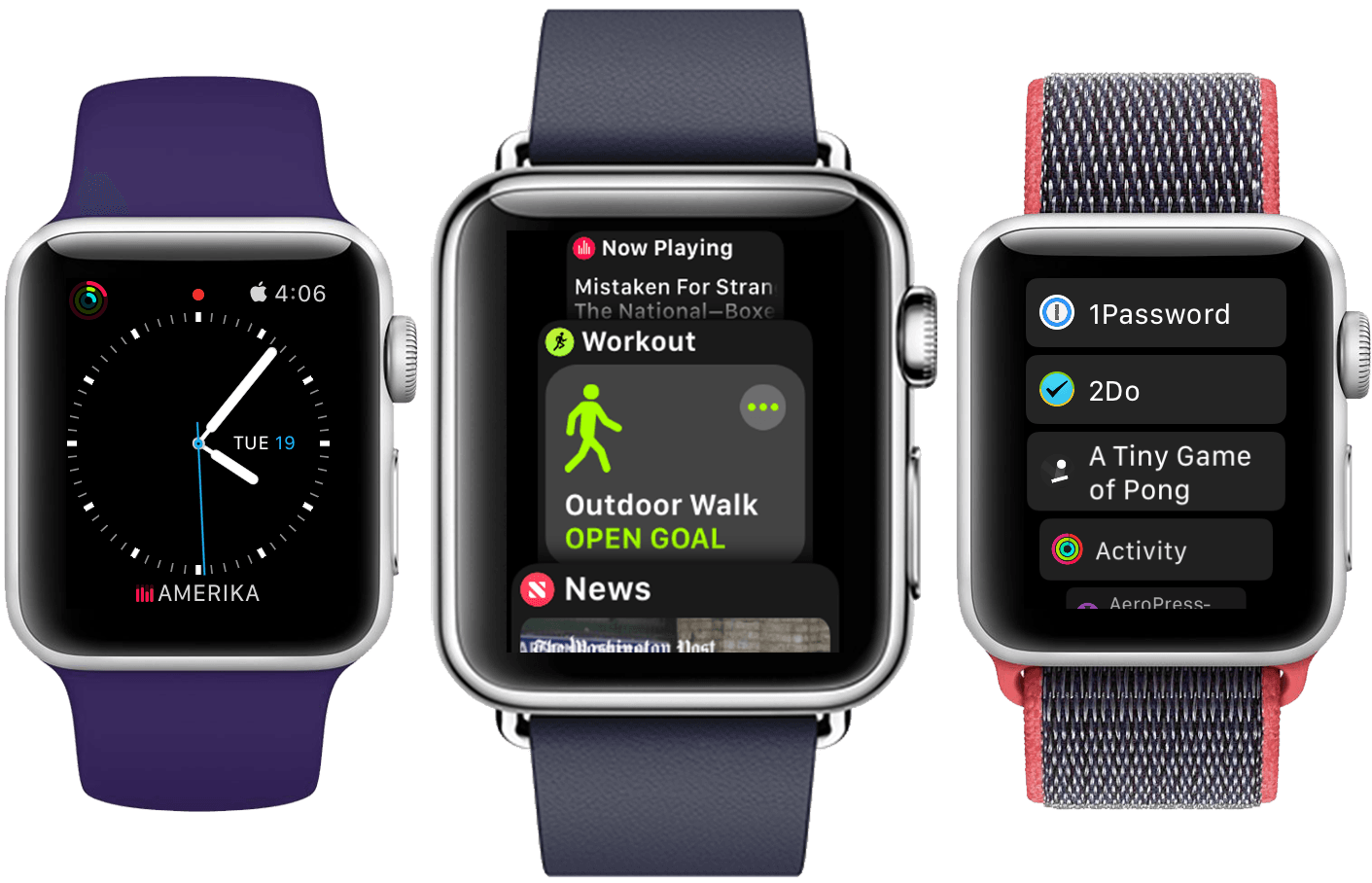
The big themes of watchOS 4 are fitness and music, and Apple has done some excellent work in these departments. New activity goals, completely overhauled Workout and Music apps, auto-launch of audio apps, a Now Playing Complication, and more are all excellent upgrades. As always there is still room for improvement, but many of these features are making the leap for the first time from options on my Apple Watch which I mostly ignore to real features which I find consistently useful in my daily life.

There’s a lot to dig into here with the choices made and the new features added. Let’s dive in and find out what Apple has in store for the next year of Apple Watch.

Read more


  1. That’s watch, not smartwatch. 

iOS 11 Review Extras: Audiobook, eBook, Making Of, and More

Federico’s annual iOS review has blossomed into something much bigger than just another review on MacStories. In fact, there is more happening around the release of the iOS 11 review this year than ever before. In addition to the review itself, we have lots of fantastic extras that extend beyond MacStories to Club MacStories, AppStories, and Relay FM’s Connected, only some of which were announced yesterday.

The Audiobook

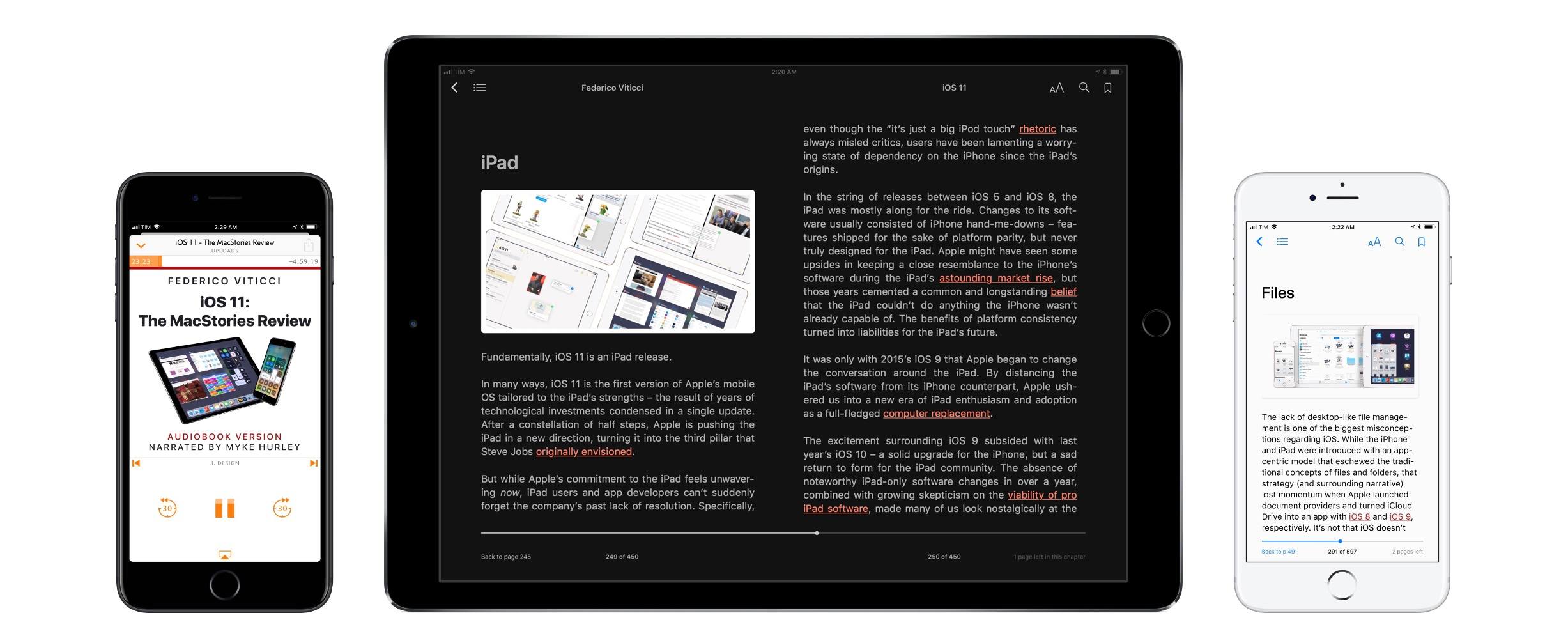
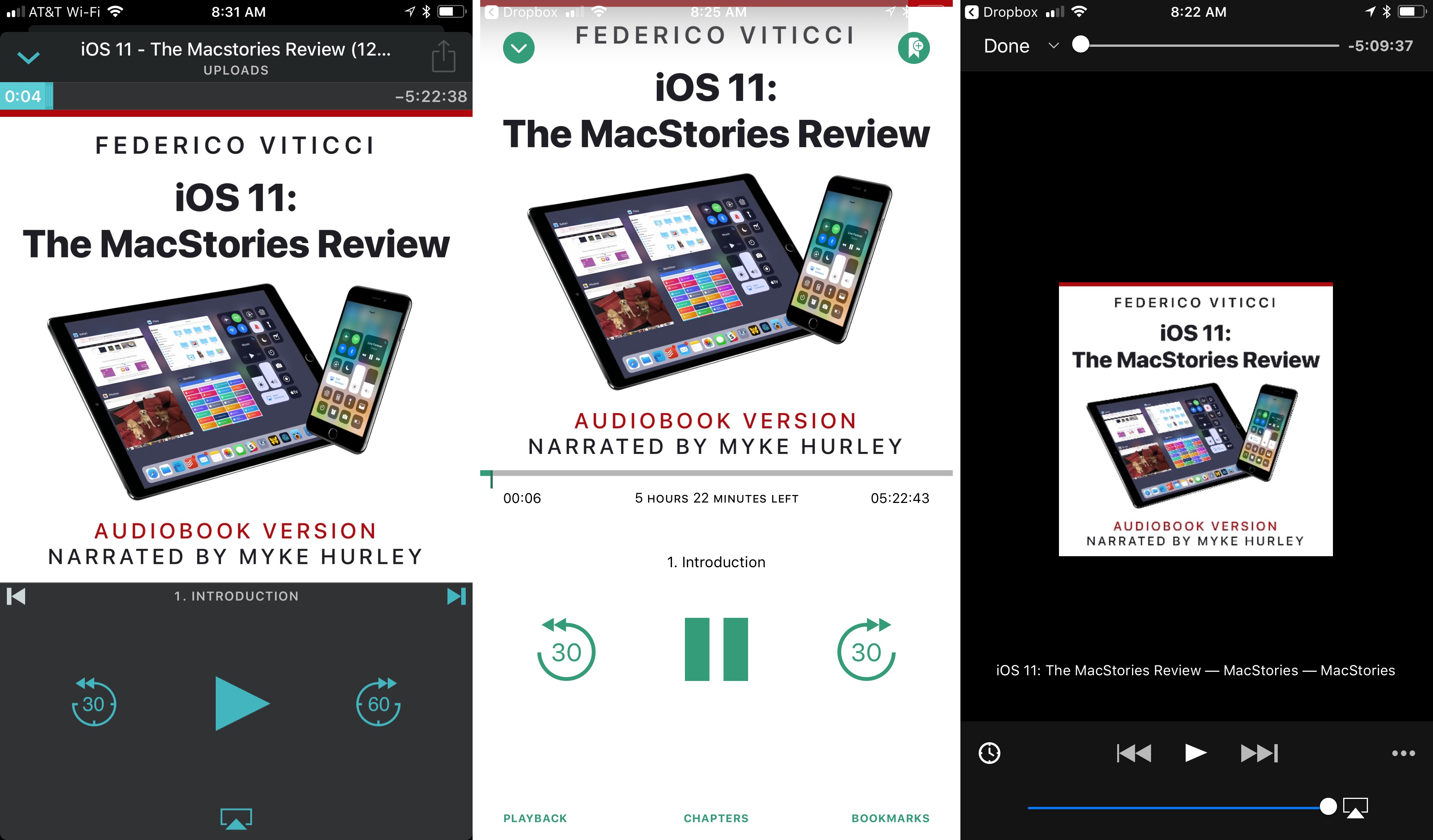
For the first time this year, Federico’s iOS review is available as an audiobook narrated by Relay FM co-founder Myke Hurley. Myke’s narration brings Federico’s review to life in a way that you’ve never experienced a MacStories review before. It’s perfect for commuters or to take with you to the gym or on a long flight. The audiobook, which is over 5 hours long, features a single MP3 file with chapter markers for easy navigation.

Overcast, Bound, and VLC are all good choices for enjoying the iOS 11 review audiobook.

Overcast, Bound, and VLC are all good choices for enjoying the iOS 11 review audiobook.

Overcast Premium subscribers can upload the audiobook, which I’ve found is an excellent way to listen. Another great option on iOS is Bound, an audiobook player that supports Dropbox, Google Drive, and OneDrive. You can also use a more general-purpose media player like VLC.

The audiobook version of the iOS 11 review is available for $9.99 (plus VAT for EU customers), but Club MacStories members can get it for 60% off the regular price – just $3.99. Instructions on how to use the exclusive Club promo code are available in the member Downloads area.

Now is a great time to join Club MacStories, especially if you are interested in the audiobook. By joining and taking advantage of the audiobook discount, you can enjoy your first month of Club MacStories, which costs $5/month or $50/year, and the audiobook for less than the price of the audiobook to non-members. That’s a bargain by itself, but by joining, you also have access to the free review eBook, past eBooks, the full archive of back issues and new issues of our weekly and monthly newsletters, plus hundreds of dollars of discounts on apps and services being announced through the end of the month, and other perks. We’d love you to be part of our growing community, so please consider joining the Club.

The eBook

This is a special time of year for all of us at MacStories because Club MacStories just passed its second anniversary, which we are celebrating through the end of the month with discounts on apps, services, and other surprises. One of the perks members of the Club enjoy is complementary eBooks of Federico’s iOS reviews and other longform articles. The eBook looks great in iBooks and features all the media and layout options you’ll find on the MacStories version, including interactive footnotes and video players.

The eBook version is available for free exclusively to our Club MacStories members, and can be downloaded in the members-only Downloads area.

The Making Of

More than ever before, Federico’s iOS 11 review is a collaboration with a team of talented people who helped bring it and the extras to life. In this week’s edition of the Club MacStories Weekly newsletter, the people who contributed to the review will tell the story behind their roles. Among the stories Club members can look forward to is Myke Hurley’s tale of transatlantic narration as he recorded sections of the audiobook in New York and London throughout August and into September.

The Podcasts

In keeping with tradition, this week Federico, Stephen Hackett and Myke Hurley have released a special episode of Relay FM’s Connected dedicated to the review. Among other things, expect to hear Federico’s thoughts on iOS 11 now that it has launched and an inside look at the process of creating the audiobook from Myke.

This is the first iOS review released since Federico and I launched AppStories, and we’ve got two episodes for listeners this week. The first is Episode 23, the regular weekly episode of AppStories, that we released alongside Federico’s review. This week, we focus on the apps Federico used to create the review from the day he landed in San Jose for WWDC to today when he hit the publish button. We also discuss some of the third-party apps featured in the review that highlight iOS 11’s marquee features.

AppStories+ Deeper into the world of apps

AppStories Episode 23 - The Apps Behind Federico’s iOS 11 Review

0:00
44:39

AppStories+ Deeper into the world of apps

The second episode is something entirely new for AppStories that we’re calling AppStories Unplugged. It’s a casual, more free-form, and longer version of AppStories that we plan to release periodically as an exclusive perk to Club MacStories members. In the inaugural episode, Federico and I discuss some of our favorite iOS 11 apps and what writing at MacStories during the summertime review season is like.

Club members can download AppStories Unplugged from the members-only Download area now.


This is the most exciting time of the year for all of us at MacStories. We’re a small team that grows a little each summer to accomplish all that the iOS review adds to the day-to-day of running MacStories, Club MacStories, and AppStories. We make it through propelled by Federico’s enthusiasm and inspired by his dedication to creating the very best for our readers and listeners.

Now, after many long months, it’s nice to take a moment to catch our breath and share it all with you. I hope you enjoy it as much as Federico and we did making it.


Apple Posts How-To Videos Featuring Third-Party Apps

Last month, Apple posted a series of short how-to videos to prepare customers for iOS 11. The videos each featured one new aspect of iOS 11 delivered in a light-hearted humorous style. Apple has added three new videos in the same style that feature third-party apps.

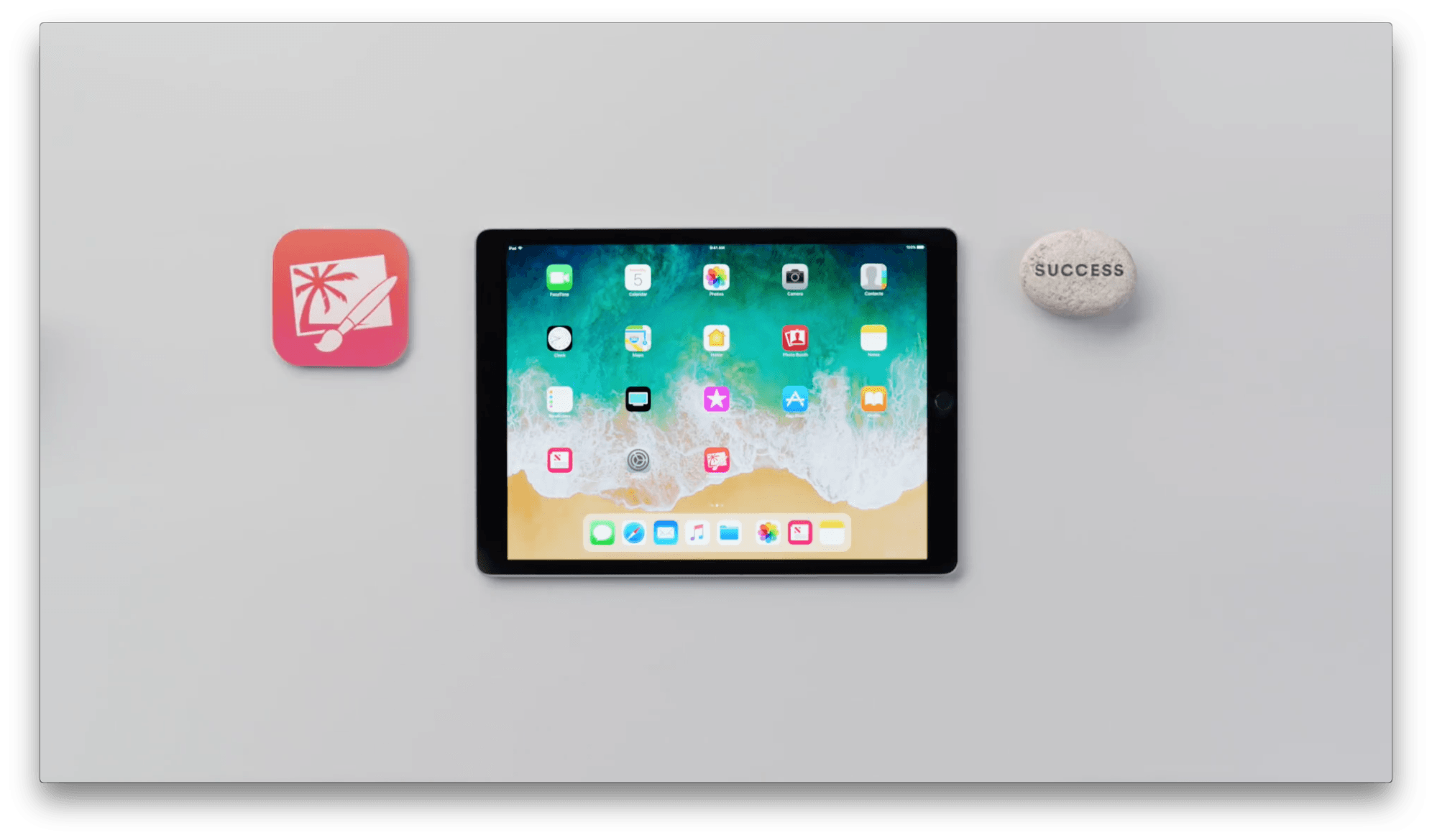
The first spot, ‘How to retouch a photo,’ features Pixelmator and demonstrates how to erase a stranger from a photo. The video concludes on a light note with ’You did great! The guy never knew what hit him.’

The second video, ‘How to copy and paste across devices with iOS 11’ features Curator, but highlights the Universal Clipboard, an iOS system feature. Curator is a mood-board and presentation app for creating collections of photos. The spot shows how to copy an image on an iPhone and paste into the Curator app on an iPad, explaining ‘the ice cream cone is now going to fly through the air’ and showing a time-lapse video of copying and pasting images over and over commenting ‘Really nice time-lapse everybody.’

The final video features GoodNotes and is called ‘How to magically convert notes to text and share them with iOS.’ The video shows how to use the lasso tool in GoodNotes to select handwritten notes and convert them into text that you can share via the system share sheet.

Like the videos posted by Apple in August, these spots strike a good balance between being informative and humorous. I’m glad to see Apple calling out third-party apps too because the ‘Pro’ in iPad Pro is as much about the third-party tools that are available as it is about the device’s hardware features.

You can watch each of the videos after the break.

Read more