Ryan collects his favorite and most surprising announcements of WWDC
John evaluates which of his workflows worked best during WWDC
Plus apps, Q&A, links and more
MacStories Unplugged
John explains the Illinois cicada invasion, Federico gets ready to write his iOS and iPadOS 14 review, we preview some of our summer plans for MacStories and the Club over the summer, and we explain why we hope that WWDC will return to being an in-person event next year.
When I reviewed GoodLinks, I knew its unique combination of Shortcuts integration and custom in-app actions that rely on URL schemes had the potential to sit at the center of powerful, automated workflows. My hunch was correct.
When I tried GoodLinks for the first time, I began thinking of ways to integrate it into the research I do for MacStories and Club MacStories. Michael LaPorta’s thoughts, however, immediately turned to music.
LaPorta has built a ton of music-related shortcuts that you can find on his website. After reading my review of GoodLinks, he set out to create a shortcut to allow him to save music reviews and related reviews to read and listen to later. Here’s how LaPorta explains it:
So here’s the concept: GoodLinks can grab music reviews and store them to read or access later. When grabbing the music reviews you can customize the information associated with the review. You can use this customized info to also grab the album and add it to your Music library. Once you have the review (along with its customized info) saved in GoodLinks and the album saved in Music, you can use GoodLinks as a read-and-listen-to-it-later app that can be accessed via Shortcuts in a variety of contexts.
LaPorta didn’t stop there, though. He also added a way to handle upcoming releases and begin listening to an album from inside its review in GoodLinks using the app’s custom action builder.
I highly recommend giving LaPorta’s shortcut and GoodLinks action a try. These are precisely the sort of automations that the new breed of read-it-later apps like GoodLinks make possible.
I’ve watched a lot of sessions this week. I’ve been impressed with the production quality of them all and the shorter, more condensed format of many of them. I’m still working my way through everything that has been released, but my favorite sessions by far have been the ones presented by Apple’s design team. Through a combination of under-the-hood peeks at how various design elements work and practical tips for implementing new UI controls, the sessions are terrific resources and provide fascinating insight into where design is heading across all of Apple’s products.
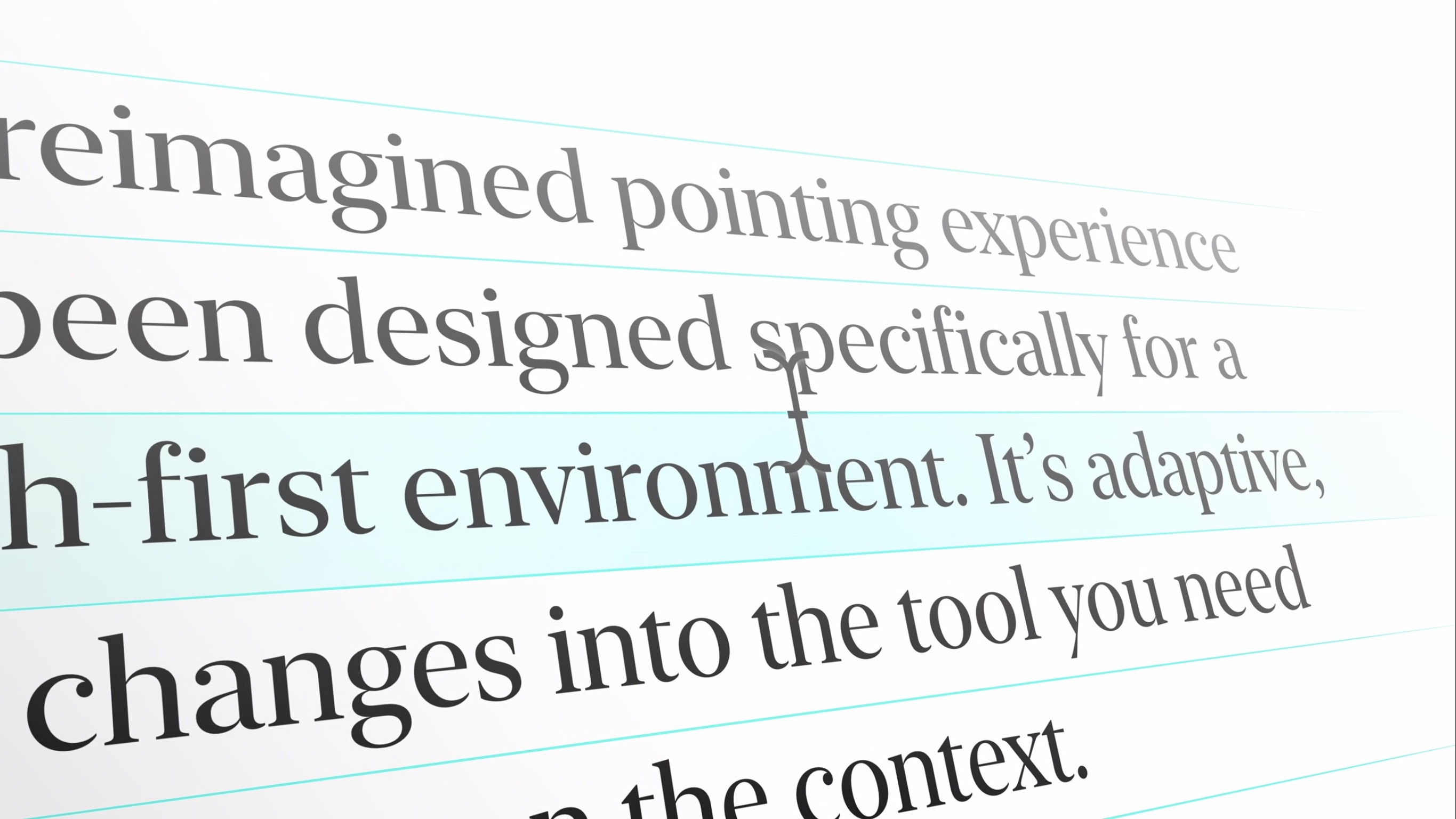
Probably my favorite session of the bunch has been Design for the iPadOS pointer. The session explains not only how the pointer works on iPadOS, but why it works that way through a technique called adaptive precision that accounts for the context in which the pointer is being used to define its level of precision. The talk also covers pointer inertia, magnetism, and interaction with controls and other screen elements. It’s an excellent place to start for anyone adapting an iPad for pointer support.
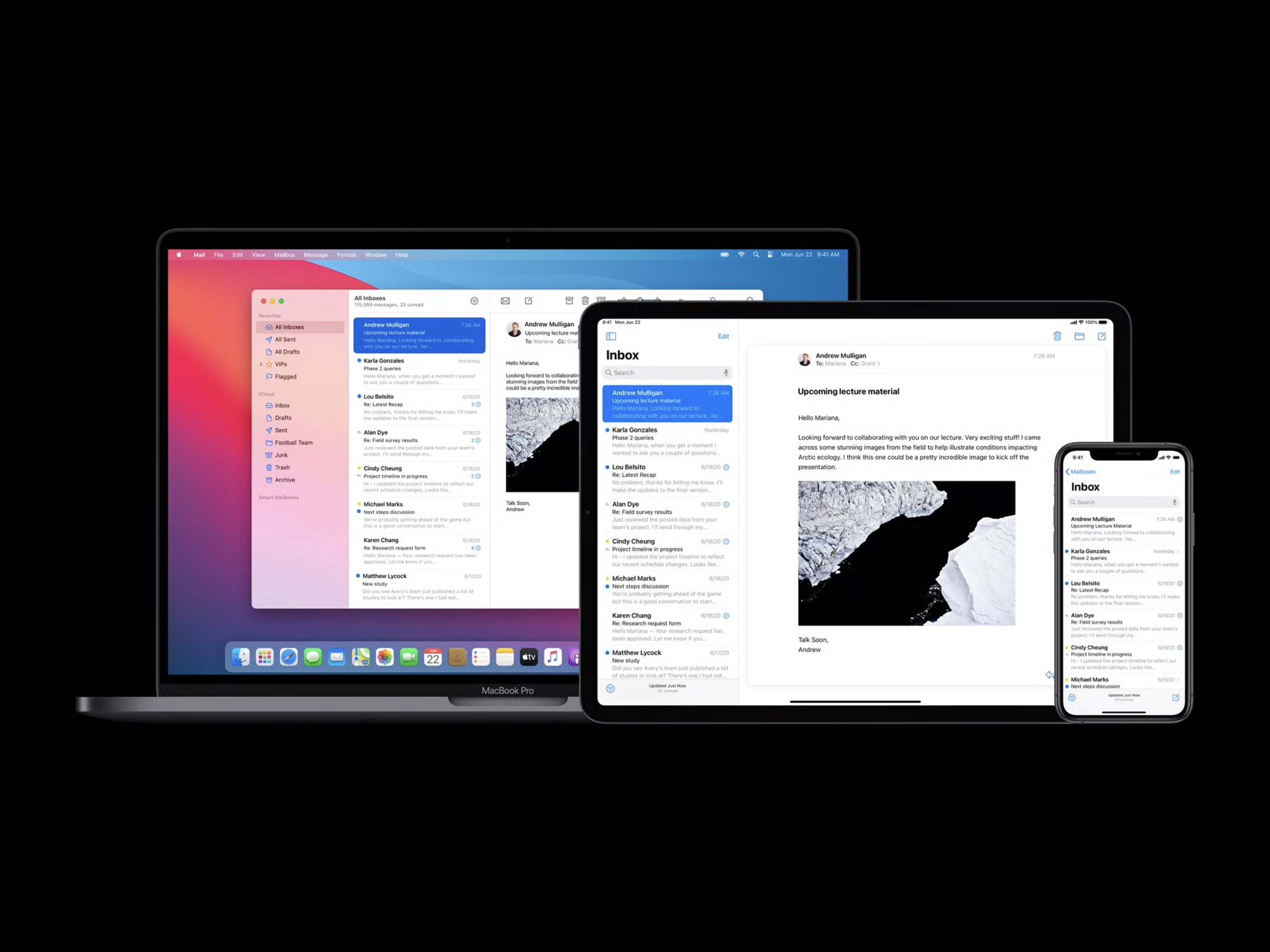
Designing for the unique characteristics of each platform.
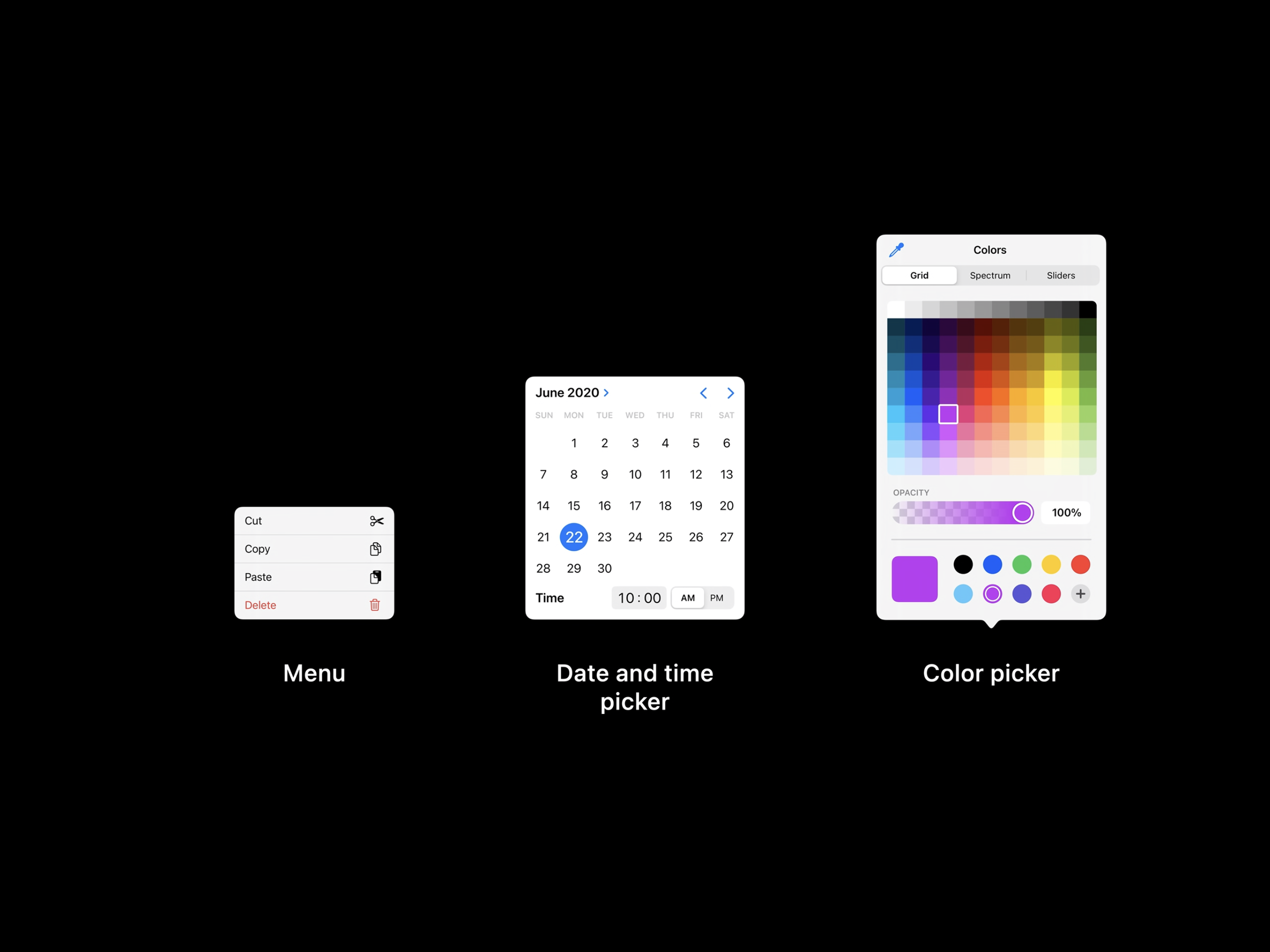
One of the big picture themes that I came away with from the design sessions I’ve watched so far is the emphasis on designing for the unique qualities of each platform’s hardware. As Design for iPad explains, this doesn’t just mean designing something in between a Mac and an iPhone for the iPad, it also requires developers to consider what makes using an iPad different from either of those platforms. Having used far too many iPad apps that feel like blown up iPhone apps in the past, I hope this session is watched by a lot of developers and designers. I also enjoyed the Design with iOS pickers, menus and actions session, which explains the migration away from (but not complete elimination of) action sheets and popovers in favor of pickers and menus.
Menus and Pickers.
Finally, I want to mention the SF Symbols 2 and the details of UI typography sessions. I’m a big fan of SF Symbols. I love the consistent look and feel they provide across UIs. This year there are over 750 new glyphs including Apple device, transportation, game controller, and human-related images, plus multicolored symbols for the first time.
As someone who looks at text all day, I also enjoyed nerding out on typography with the details of UI typography session. It’s a fun deep-dive into a subject that I don’t know well, but appreciate for what it adds to an app’s experience.
Even if you’re not a developer or designer, the design sessions at WWDC are some of the most accessible talks released this week. I highly recommend them to anyone who has any interest in how the apps they use are made and the care that goes into the process.
Today on AppStories, we report on our first two days using the iOS and iPadOS 14 betas, obsess about some of our favorite small details, and examine App Clips.
Sponsored By:
PDF Expert – The best way to read, edit, sign and annotate your PDFs.
AppStories Episode 171 - WWDC 2020: iOS and iPadOS 14 First Impressions, Favorite Small Details, and App Clips
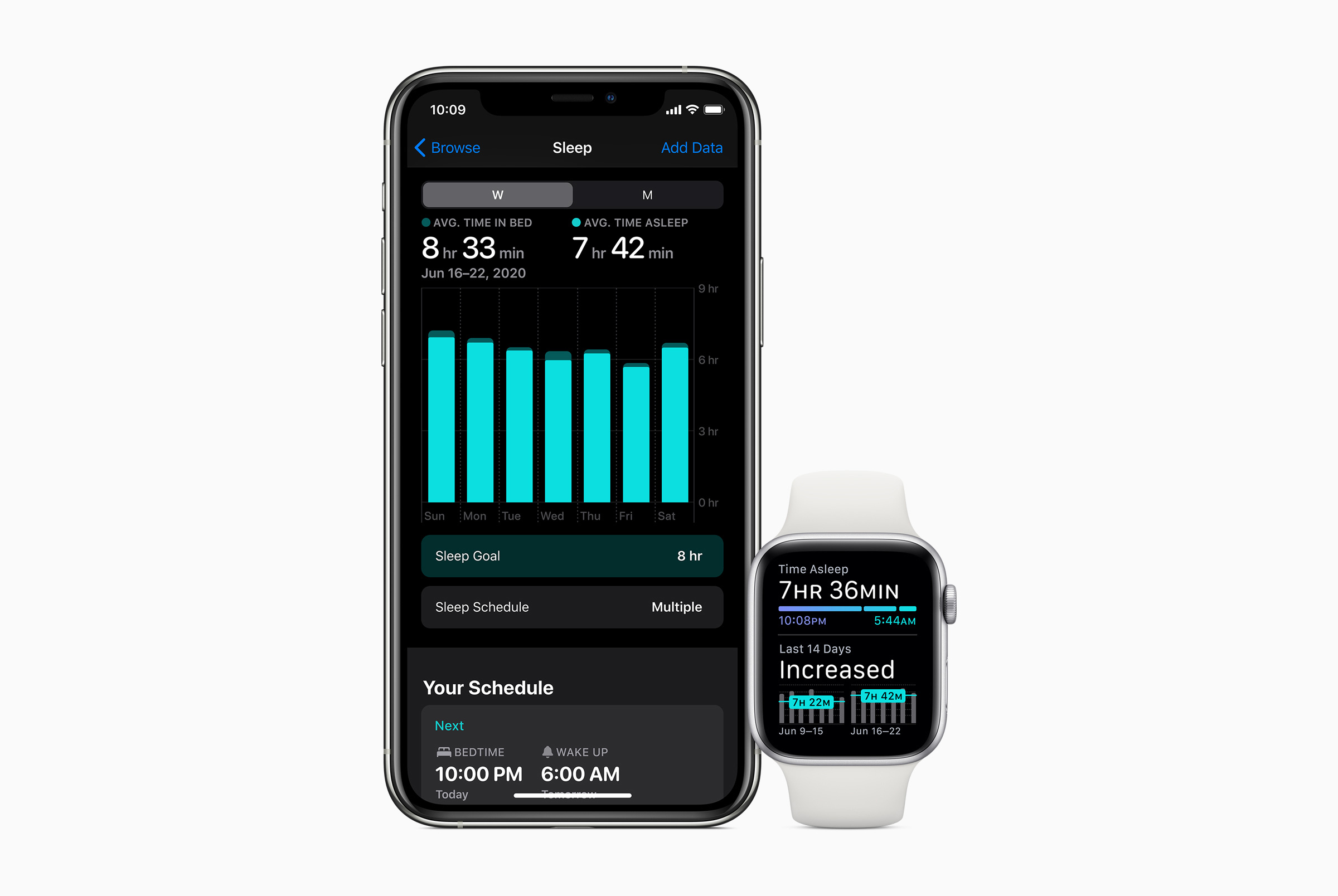
Few developers have as many years of experience building Apple Watch apps or as many Apple Watch apps on the App Store as David Smith. One of Smith’s apps, Sleep++, has been available to users who want to track their sleep since watchOS 2.
During Monday’s keynote, Apple announced that it was adding sleep tracking to watchOS 7, placing the viability of Smith’s app in jeopardy. But ‘sherlocking’ as it’s called when Apple builds a system feature already provided by third parties, doesn’t necessarily mean a third-party developer’s app is doomed. As Smith explains, his step tracking app Pedometer++ saw increased sales after Apple began tracking users’ step count in the Health app because it raised awareness of the feature. In turn, that led some users to seek out third-party apps that could do more than Apple’s basic feature could.
After trying watchOS 7’s sleep tracking for a couple of days, Smith is optimistic that something similar will happen with Sleep++:
I suppose a good summary of my expectation is that right now (say) 1% of Apple Watch wearers think to try sleep tracking. After this fall, most Apple Watch wearers will be aware of it and (say) 50% will try it out. Apple’s approach will be sufficient for 90% of them, but 10% will want more. Leading to now 5% of Apple Watch wearers looking for a 3rd-party app to augment their experience…so I end up way ahead overall.
This is entirely speculative and it is possible that the market for Sleep++ will completely evaporate, but I’ve been doing this for long enough and have seen this pattern repeat itself often enough that I really don’t think so.
I’m eager to try Apple’s sleep tracking feature and see how apps like Smith’s Sleep++ improve with the availability of new data. There are a lot of third-party sleep tracking apps available, and they all use slightly different tracking methodologies. Hopefully, the addition of sleep tracking to watchOS 7 will raise the quality of them all, allowing developers to focus more on differentiating based on the features that extend the category beyond what Apple offers.
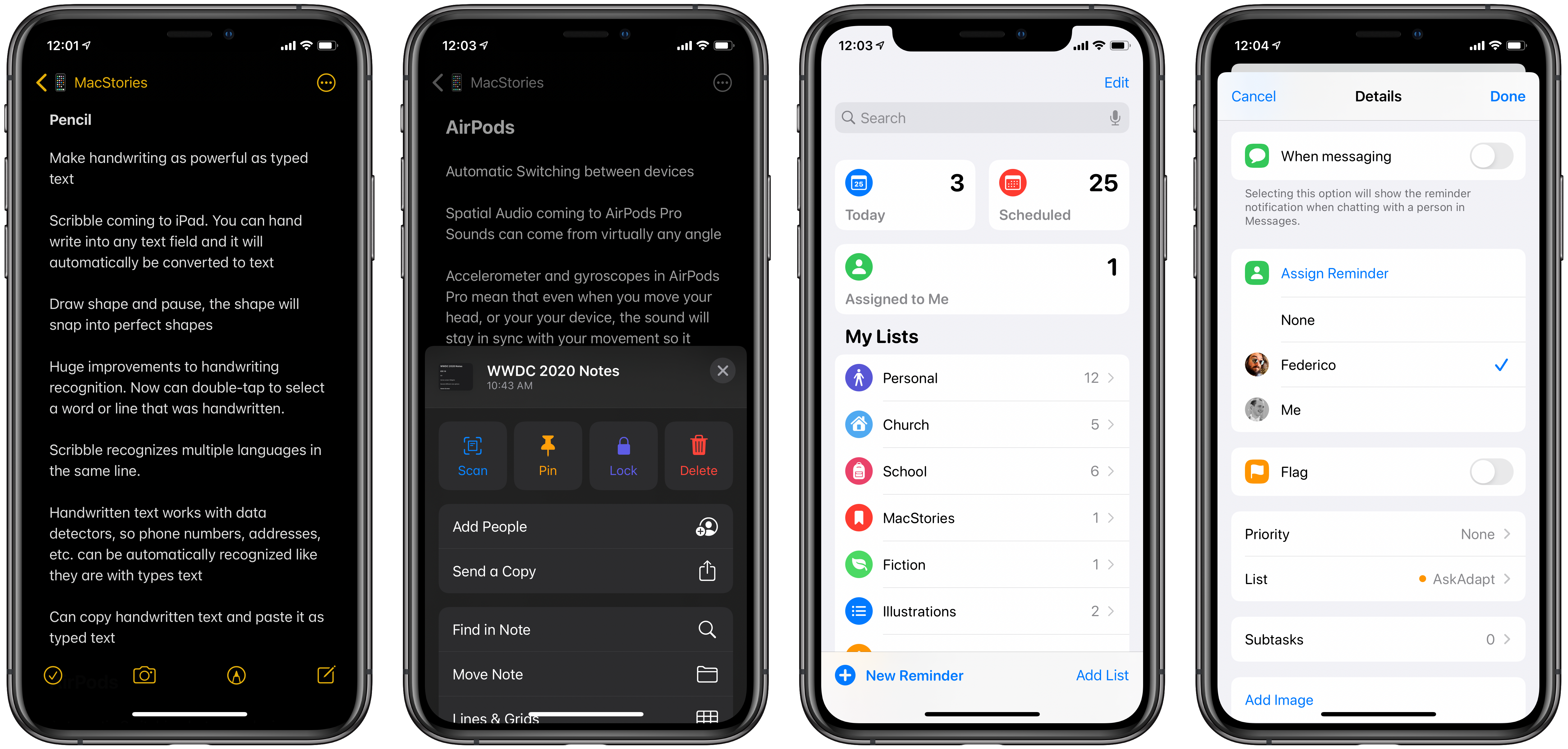
Apple Notes and Reminders are two of my most-used apps, and each has received significant updates in iOS and iPadOS 14. Though neither app’s improvements have been held up as tentpole features of this fall’s releases, Apple has nonetheless given noteworthy attention to making the user experience for each app better in a variety of key ways. You won’t find fundamental evolutions in how either app works, but these updates prove the power of iteration. From visual tweaks that make everything look and feel more modern, to quality of life enhancements, and more substantive new features, the list of total changes is surprisingly rich.
After a few days of use, here’s everything new I’ve discovered in Notes and Reminders.